Two different things share one word here, and choosing between them is most of the answer to how to screen mirror iphone to tv. Apple documents them as separate procedures with separate buttons, and the difference is what happens to the phone while the television is busy.
Streaming a videoThe phone stays yours
Find the video, tap the AirPlay button inside the app — “in some apps, you might need
to tap a different button first”, and Apple’s example is the Share button in Photos — then
choose the TV.
The video plays on the television. The phone is free: you can lock it, answer a
message, walk out of the room.
Mirroring the screenThe phone is the picture
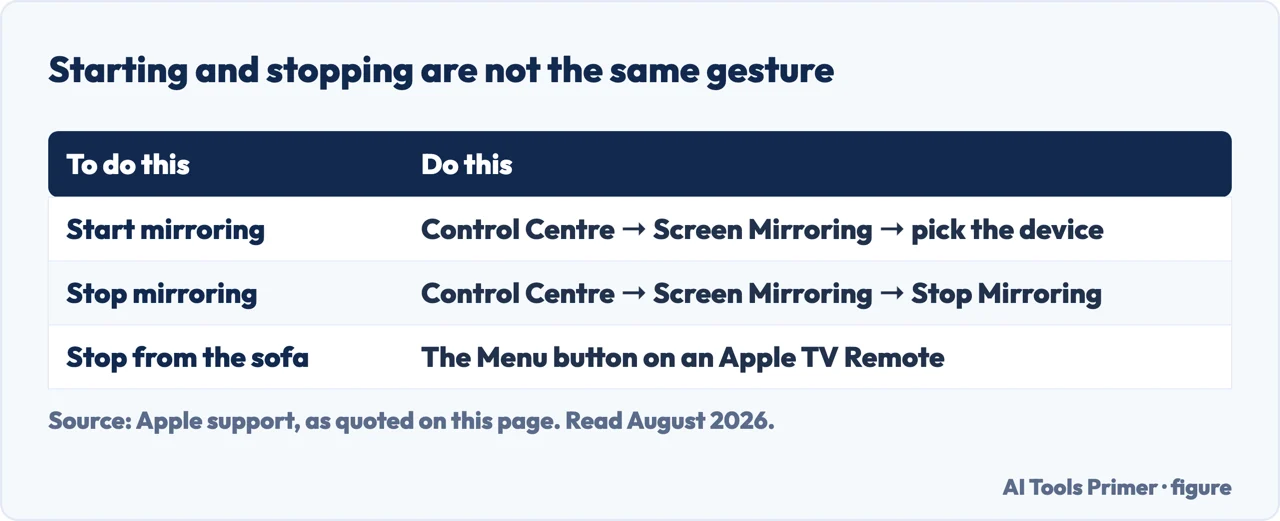
Control Centre → Screen Mirroring → choose the TV. Everything on the phone appears on
the television, including the notification that arrives while you are showing holiday photos
to your relatives.
The right tool for an app with no AirPlay button, a slideshow, or anything you are
demonstrating rather than watching.
For watching something, the first card is the better instrument. The television does the playing, so the phone can be locked and put down — and if a call arrives, it arrives on the phone rather than on the wall. Mirroring is for the cases where there is no AirPlay button to tap: an app that does not offer one, a document, a photo library you are walking somebody through.
If mirroring is what you want, the steps are short — and the first of them is the one Apple repeats in its troubleshooting as well.
Mirroring, in Apple’s steps
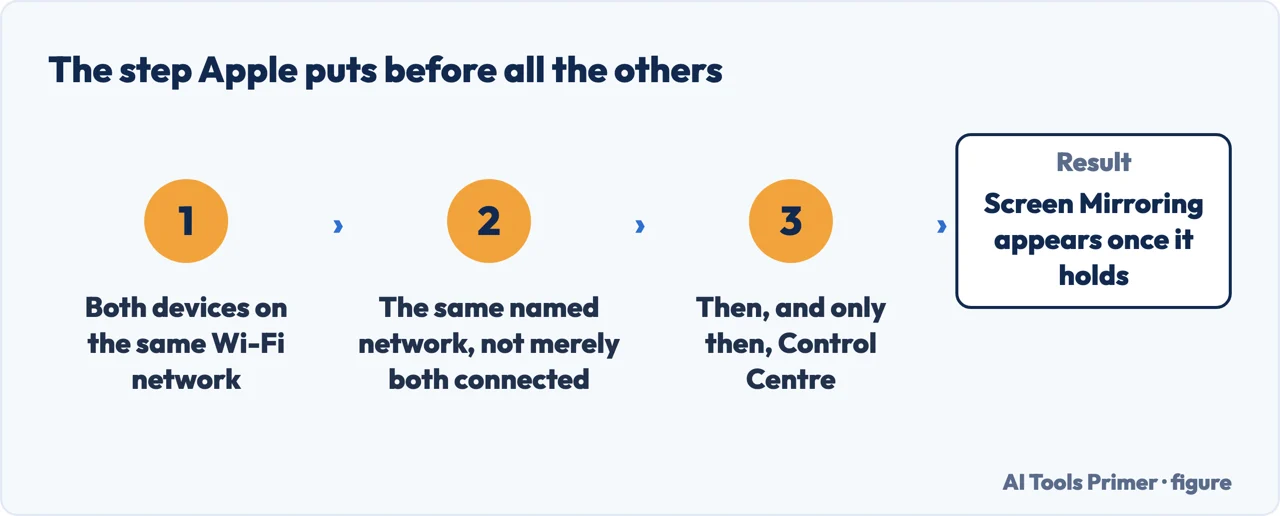
Same Wi-Fi network. Apple puts this first for both procedures, and it means the same
named network rather than the same house — a router can broadcast more than one, which
is worth checking on both devices before anything else.
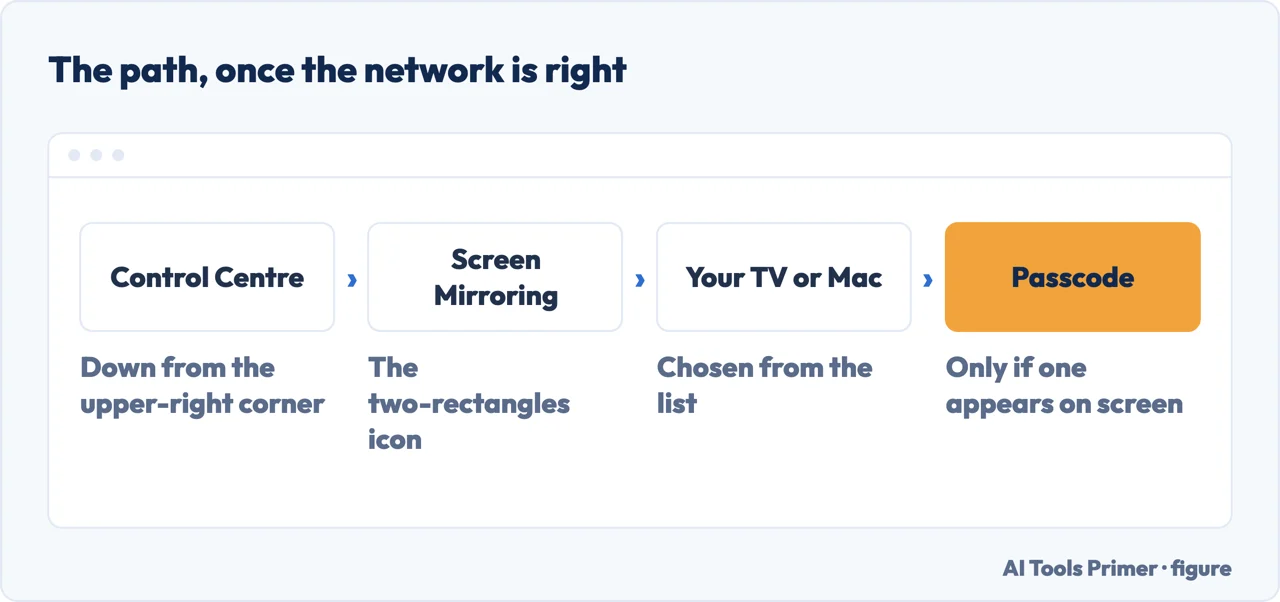
Open Control Centre. Swipe down from the upper-right corner on an iPhone X or later;
up from the bottom edge on an iPhone 8 or earlier.
Tap Screen Mirroring, then select your TV or Mac from the list.
Enter the passcode if one appears. “If an AirPlay passcode appears on your TV screen or
Mac, enter the passcode on your iPhone or iPad.” Shown on one screen, typed on the other.
To stop: Control Centre → Screen Mirroring → Stop Mirroring. Or the Menu button
on an Apple TV Remote.
Same named network, not merely both online. Figure drawn by AI Tools Primer.Control Centre, then the two-rectangles icon. Figure drawn by AI Tools Primer.Stopping is its own step. Figure drawn by AI Tools Primer.
“Connect your iPhone or iPad to the same Wi-Fi network as your Apple TV, AirPlay-compatible
smart TV, or Mac.”
That middle phrase decides whether any of this is available to you. The phone can only offer
what the television can receive — AirPlay has to be built into the set, and it is a
manufacturer’s decision rather than a setting you can add. If your television is not on the list
when you tap Screen Mirroring, the thing to check is the television’s own specifications and its
own AirPlay setting, not the iPhone.
That distinction between the phone and the television is worth holding on to when something does not work, because it changes what to fix. Apple’s own troubleshooting begins with the pair rather than with either one: check that both are on, near each other, updated, and on the same Wi-Fi network. Then, on the phone, “allow AirPlay receiving under Settings › General › AirPlay & Continuity”. Then restart both. Only after that does anything more specific come into it.
Two of the more specific causes are worth knowing because nobody would guess them. If the television or speaker was set up in the Home app, Apple says to check that “Home Settings are not restricting AirPlay” — a restriction set there overrides what the phone is trying to do. And if you are unexpectedly asked for a password on an Apple TV, that points at its content restrictions or its AirPlay password setting rather than at anything you typed.
And the setting that explains a phone connecting to a television nobody asked it to.
Settings › General › AirPlay & Continuity › Automatically AirPlay, with three
values: Never (“manually choose a device”), Ask (suggested connection
notifications), and Automatic (suggested and automatic ones).
Apple’s condition for either of the last two: the devices “must be on the same Wi-Fi network”, and
for an Apple TV or HomePod you must be logged in to the same iCloud account. If a phone keeps
finding the living-room television on its own, this is the setting that is doing it, and
Never is the answer.
One last thing that saves a wasted evening with a streaming app. Apple: “Some video apps might not support AirPlay. If you can’t use AirPlay with a video app, check the App Store on your Apple TV to see if that app is available.” The advice is to stop trying to push the video from the phone and instead run the app on the television — which is both the fix and an explanation of why the AirPlay button was missing in the first place.
The guides below take it four ways: the two things called mirroring, the steps themselves, the television’s side of the arrangement, and what to check when nothing appears in the list.
Not covered here. It will not treat mirroring as the default. Apple documents streaming as a separate procedure, and for watching something it leaves the phone usable.
It will not blame the iPhone when a television is missing from the list. AirPlay is built into the set or it is not, and the checking happens there.
And it will not suggest a third-party app before the built-in route. Everything here is in Control Centre or in Settings, and Apple publishes the troubleshooting order. What holds instead is simple: the five mirroring steps and the Automatically AirPlay settings are quoted from Apple’s own documentation.
Showing somebody what is on your screen
Onto a television, into a file, or up to somebody else. The screen is the easy part; getting it out of the room is the hard part.
Apple Support — Use AirPlay to stream video or mirror the screen of your iPhone or iPad (the separate procedures for streaming and mirroring, the same-Wi-Fi requirement, the Control Centre gestures for both generations of iPhone, the Screen Mirroring button, the AirPlay passcode shown on the TV and entered on the phone, Stop Mirroring, the Automatically AirPlay settings Never, Ask and Automatic with their conditions, and the note that some video apps might not support AirPlay). Published date given on the page: 15 May 2026 — support.apple.com, read 22 August 2026.
Apple Support — If screen mirroring or streaming isn’t working on your AirPlay-compatible device (the ordered first steps including proximity, software updates and the same Wi-Fi network, allowing AirPlay receiving under Settings › General › AirPlay & Continuity, restarting both devices, the Home app restriction check, and the note about Apple TV content restrictions and AirPlay password settings) — support.apple.com, read 22 August 2026.
Samsung Support — How to Use AirPlay to Screen Mirror on a Samsung TV (the TV side of the same procedure: that the TV must be on the same Wi-Fi network as the iPhone or iPad, that AirPlay has to be enabled on the television under Settings › General › AirPlay, and that the passcode shown on the TV is entered on the phone; and the four reasons it does not work — the two devices not on the same network, AirPlay switched off on the TV, a television model that does not support it, which Samsung limits to select models released after 2018, and an outdated iOS version) — www.samsung.com, read 6 September 2026.
AG
Written by Alberto Gulotta
Founder and editor of AI Tools Primer, writing from Palermo, Italy. Thirty-five years of
taking computers apart, starting with a Commodore 64 — the long version is on the
about page.
Written on 22 August 2026 · last checked 23 September 2026.
§
Independence and limits
No affiliate links and no paid placements anywhere on this site. Nobody pays to appear here,
and no company has seen this page before you did.
This is general information, not professional advice. Where a page touches money, health,
safety or the law, it names its source and the date it was read — and your situation may
still differ. See the privacy page and the
cookie policy.