
Software · guide
How to run sfc /scannow, and how to read the result
By Alberto Gulotta · Updated · 14 min read
sfc /scannow is the Windows command that checks protected system files against a cached copy and puts back the ones that do not match. It needs a prompt opened as an administrator, it ends with one of four documented lines, and its switches can narrow it to one file or point it at a Windows that is not running.
One spelling note before anything else, because the command is written both ways and only one of them is the syntax. Microsoft’s reference gives the parameter with a slash in front of it, so the system file checker scan is started by typing sfc /scannow and not sfc scannow. Everything below uses the reference’s form.
| Source | What it says it applies to | What this guide takes from it |
|---|---|---|
| Microsoft, System File Checker (support) | Windows 11, Windows 10, Windows 8.1, Windows 8, Windows 7 and Windows Vista | The four result lines and the action beside each; where the log lives |
Microsoft, sfc command reference (Learn) |
Windows Server 2025, 2022, 2019 and 2016; Windows 11; Windows 10; Azure Local 2311.2 and later | The syntax, all eight parameters, and both worked examples |
| Dell, article 000137221 | Microsoft Windows Server 2016, Windows Server 2019 and Windows Server 2022 — not the home editions | The two switches a scan needs inside the recovery environment, and the warning about drive letters |
What the command actually checks
Microsoft’s command reference gives the job in one sentence: the command “Scans and verifies the integrity of all protected system files and replaces incorrect versions with correct versions.” The word doing the work there is protected. This is not a disk check and not a virus scan: it is a comparison against copies Windows keeps of its own files, and everything outside that set is invisible to it.
The support article is written for the other end of the problem — the symptoms that send people looking for the command in the first place. It names them as Windows features that stop working properly, system errors, and a machine that becomes unresponsive or freezes. If your complaint is none of those, the scan is not aimed at it; a slow computer and a machine that freezes at random have pages of their own.
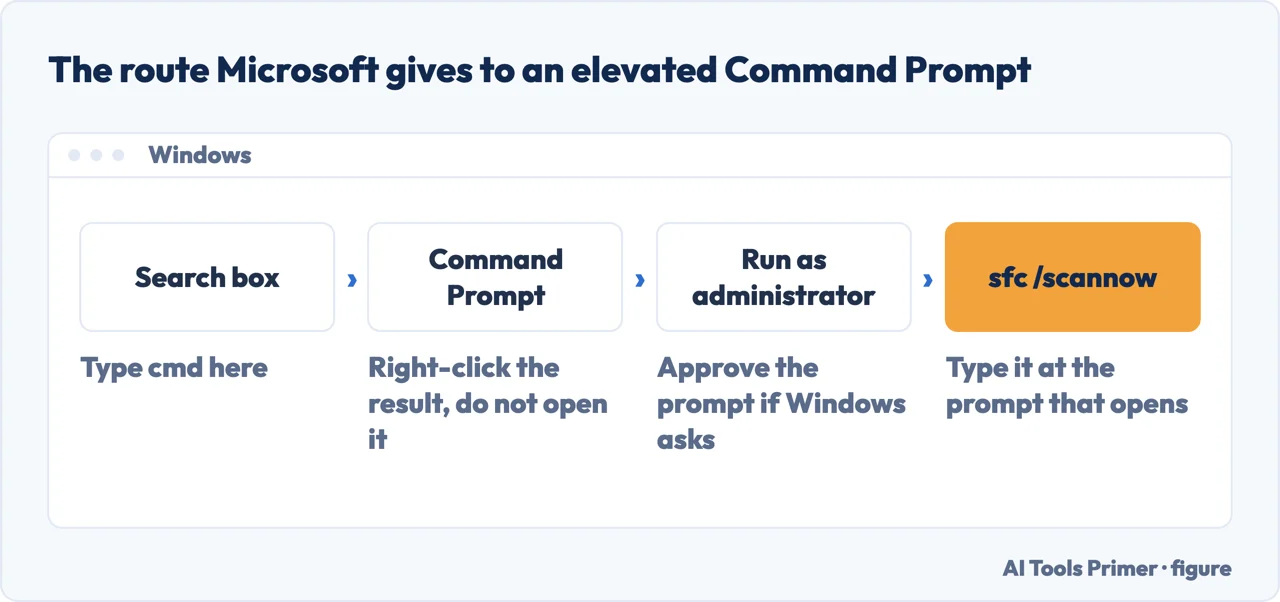
Running the scan, step by step
- Open Command Prompt as an administrator. Type
cmdin the Search box, right-click Command Prompt in the results, and choose Run as administrator; supply the password or approval if Windows asks for one. The command reference is blunter about why: “You must be logged on as a member of the Administrators group to run this command.” - Repair the component store first, if you are following Microsoft’s order. Microsoft puts a DISM command ahead of this one and gives a sentence for why; both are set out on our page about the repair-service message, and there is no point in printing them twice.
- Type the command and leave the window alone.
sfc /scannow— then let the percentage climb. Microsoft prints a warning of its own telling you not to close that window before verification reaches 100 per cent, and the only timing figure on the page is for the DISM step: “It may take several minutes for the command operation to be completed.” - Read the last line, not the percentage. The scan ends by printing one of four sentences, and each one means something different. They are in the next section.
The four lines a scan can end with
The scan prints one sentence when it finishes, and Microsoft publishes a table of four, each with its own next step. The messages below are Windows’ own wording; the column beside them is ours, shortened to the decision you have to make.
| Every line begins “Windows Resource Protection”… | What to do next |
|---|---|
| … did not find any integrity violations. | Nothing. Whatever is wrong with the machine, it is not a protected file. |
| … could not perform the requested operation. | Run the scan again in safe mode, and check that two named temporary folders exist under the Windows side-by-side store first. |
| … found corrupt files and successfully repaired them. | Done. The names of what it replaced are in the log, not on screen. |
| … found corrupt files but was unable to fix some of them. | Open the log, find the file it gave up on, and put a known good copy in its place by hand. |
There is a fifth line that people see and that is not in that table — the one about a repair service that could not start. It has a page of its own, because the honest answer to it is longer than a table cell and starts with what the documentation does not say. The detail behind the two rows above that send you to a log is there as well: the log itself is %windir%\Logs\CBS\CBS.log, and Microsoft warns that what you pull out of it covers every run of the tool on that computer, not only the last one.
The switches, and when you need one
The reference lists eight parameters. Three of them are worth knowing on their own, because they change what the scan is for rather than how it runs.
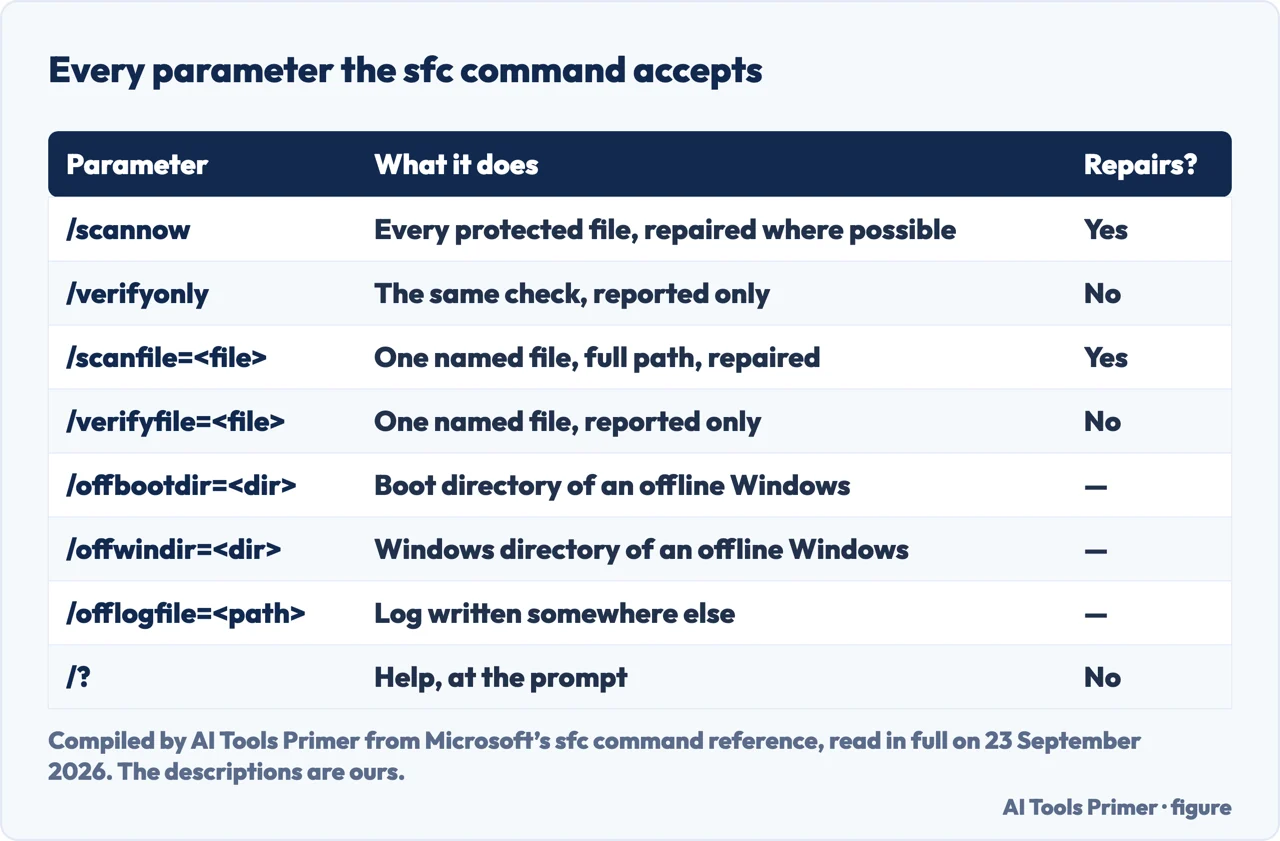
sfc accepts. Compiled from Microsoft’s command reference. Figure drawn by AI Tools Primer./verifyonly runs the same comparison and repairs nothing, which is the switch to use when you want to know whether something is wrong before you let anything change. /scanfile and /verifyfile do the same pair of jobs on a single file, given its full path and filename — useful when a log has already named the file and you do not want to wait for a whole-system pass. Microsoft’s own example verifies one library:
sfc /verifyfile=c:\windows\system32\kernel32.dllStraight from the command reference. Swap the path for the file your log named. Nothing is changed by this form — it reports and stops.
Scanning a Windows that is not running
Two of the switches are for a Windows that is not running, such as one that will not start, so the scan has to be run from somewhere else and told where the broken installation lives. In Microsoft’s reference, /offbootdir and /offwindir point at the boot directory and the Windows directory of that installation, both “for offline repair”; /offlogfile only sends the log somewhere other than the default. Microsoft’s second example combines them with a single-file scan.
sfc /scannow /offbootdir=D:\ /offwindir=D:\Windows
Dell’s example of the same scan run from the recovery environment. Its affected products are Windows Server 2016, 2019 and 2022; the two switches themselves are in Microsoft’s command reference, which lists Windows 11 and Windows 10 as well. Dell explains the two additions plainly: “/offbootdir= <disk> indicates the boot drive letter.” and “/offwindir= <folder> indicates the folder where Windows is installed.”
The warning that comes with this is Dell’s, and it decides whether the command does anything at all: inside the recovery environment the drive letters are not the ones Windows uses when it is running. “This is typically a different letter from the one assigned to the same partition when Windows is running, because WinRE enumerates partitions differently.” Check what the drive is called there before typing the command, or the scan will be pointed at the wrong drive.
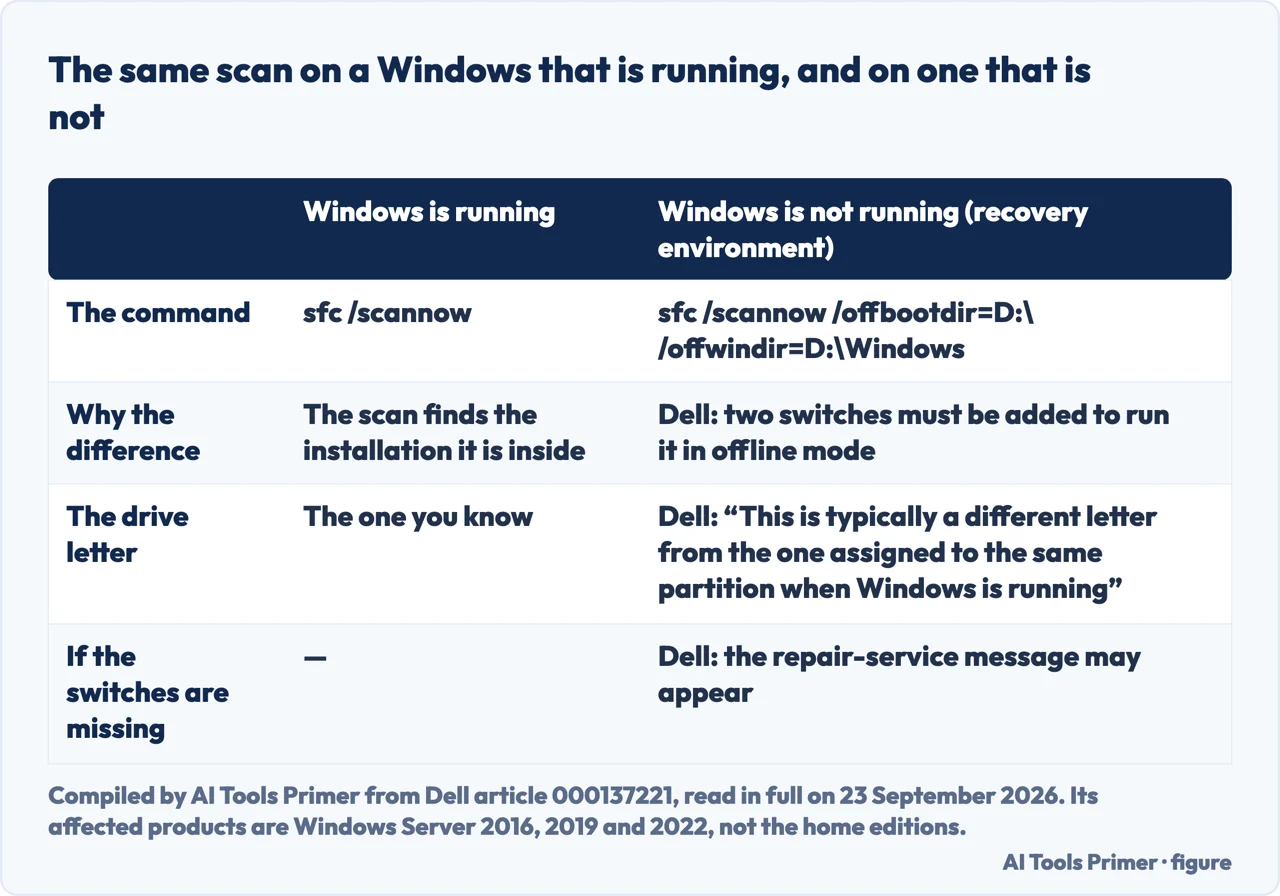
Dell also publishes something the other two pages do not: run inside the recovery environment without those two switches, sfc /scannow can end with the repair-service message. That is a documented cause, and it is documented for Windows Server 2016, 2019 and 2022 — the only products that Dell article lists. If you are not on one of those, the Dell article does not cover you, and the page on that message is where the rest is set out.
Getting as far as the recovery environment is its own job. The routes to it are on the pages about starting in safe mode and the automatic repair loop, and if the machine stops before any of that, a desktop that will not boot and the inaccessible boot device stop code come first.
Where to start
Three ways in, depending on what you already have on screen.
- “I just want to run it.”
- Four steps, in Microsoft’s order. Start at running the scan step by step
- “It has finished and printed something.”
- The four endings are in the four lines a scan can end with
- “Windows will not start at all.”
- Then the scan needs two extra switches. See scanning a windows that is not running
The messages a scan can leave you with
Each of these is a line people read on screen and then search for word for word.
When you cannot reach a command prompt
Every step on this page starts at an elevated prompt. These are the ways to get one when Windows will not cooperate.
If the files turn out not to be the problem
A clean scan rules out one cause and leaves the others standing. These are the ones worth checking next.
Questions people also ask
What is the sfc /scannow command for?
Checking that Windows’ own protected system files still match the copies Windows keeps of them, and replacing the ones that do not. Microsoft’s command reference puts it as scanning and verifying “the integrity of all protected system files”. It looks at nothing else on the machine.
Should I run SFC or DISM first?
DISM first. Microsoft puts the two in that order and gives a reason for it; the sentence and both commands are set out on our page about the repair-service message, which is where they were already written down.
Should I run CHKDSK or SFC first?
Neither command reference answers that. Both were read in full for this guide on 23 September 2026, with two tools each: outside the index of Windows commands that every page in that reference carries, neither one names the other. What Microsoft does give is what each is for — chkdsk “Checks the file system and file system metadata of a volume for logical and physical errors”, which is the disk itself and not the files kept on it.
Does sfc /scannow actually fix anything?
One of the four results Microsoft publishes says it found corrupt files and repaired them. Another says it found corrupt files but could not fix some of them, and Microsoft’s action for that one is to replace the file by hand. The other two are a clean result and a scan that could not run.
Can I run it if Windows will not start?
Yes, with two more switches. /offbootdir and /offwindir tell the scan where the offline installation is. Dell publishes a worked example for the Windows Recovery Environment, and warns that the drive letters there are usually not the ones Windows uses when it is running.
Where does the scan write down what it found?
In %windir%\Logs\CBS\CBS.log. Microsoft’s support article gives a command that pulls the relevant lines out of it into a text file on the desktop, and warns that what it pulls out covers every run of the tool, not only the last one.
Not covered here. It does not cover DISM’s own switches or error codes, which are a separate command with separate documentation.
It does not tell you what any individual line in CBS.log means.
It recommends no third-party program that offers to repair system files, and it does not cover reinstalling Windows.
Sources
- Microsoft, sfc (Windows commands reference) — the syntax line and all eight parameters, the requirement to be logged on as a member of the Administrators group, the description of what the command scans and replaces, and both worked examples, including the offline one with /offbootdir and /offwindir. Its Applies to list is Windows Server 2025, 2022, 2019 and 2016, Windows 11, Windows 10 and Azure Local 2311.2 and later. Read in full on 23 September 2026 — learn.microsoft.com, read 23 September 2026.
- Microsoft, Use the System File Checker tool to repair missing or corrupted system files — the four scan result messages with the action beside each, the symptoms that the article says send people to the tool, the route to an elevated command prompt, the timing note on the DISM step, the warning about not closing the window, and the path to CBS.log. Its Applies To list is Windows 11, Windows 10, Windows 8.1, Windows 8, Windows 7 and Windows Vista. Read in full on 23 September 2026 — support.microsoft.com, read 23 September 2026.
- Dell, How to run sfc /scannow from the Windows Recovery Environment (WinRE), article 000137221 — that two switches must be added to run the scan in offline mode, what /offbootdir and /offwindir each indicate, the worked example with drive D, the warning that WinRE enumerates partitions differently so the drive letter is usually not the same one, and that the repair-service message is what you may receive when the switches are missing. Its affected products are Microsoft Windows Server 2016, 2019 and 2022. Last modified 30 January 2026; read in full on 23 September 2026 — www.dell.com, read 23 September 2026.
- Microsoft, chkdsk (Windows commands reference) — read in full on 23 September 2026 for one question only: what chkdsk checks, and whether either reference orders the two commands. It checks a volume for logical and physical errors, and without parameters it reports and repairs nothing — learn.microsoft.com, read 23 September 2026.
Written by Alberto Gulotta
Founder and editor of AI Tools Primer, writing from Palermo, Italy. Thirty-five years of taking computers apart, starting with a Commodore 64 — the long version is on the about page.
Something wrong on this page? Write to aitoolsprimer@gmail.com and it gets fixed.
Written on 24 September 2026.
Independence and limits
No affiliate links and no paid placements anywhere on this site. Nobody pays to appear here, and no company has seen this page before you did.
This is general information, not professional advice. Where a page touches money, health, safety or the law, it names its source and the date it was read — and your situation may still differ. See the privacy page and the cookie policy.