
Docs · guide
How to compare two Excel files, with or without the tool
By Alberto Gulotta · Updated · 9 min read
The usual answer to how to compare two excel files is a Microsoft tool called Spreadsheet Compare. It is a good tool. It is also unavailable to most of the people who go looking for it, and Microsoft says so in a box marked Important that the articles recommending it leave out.
Microsoft marks this Important
“Spreadsheet Compare is available only in Excel for Windows in Microsoft 365 Apps for enterprise plans and equivalent editions.”
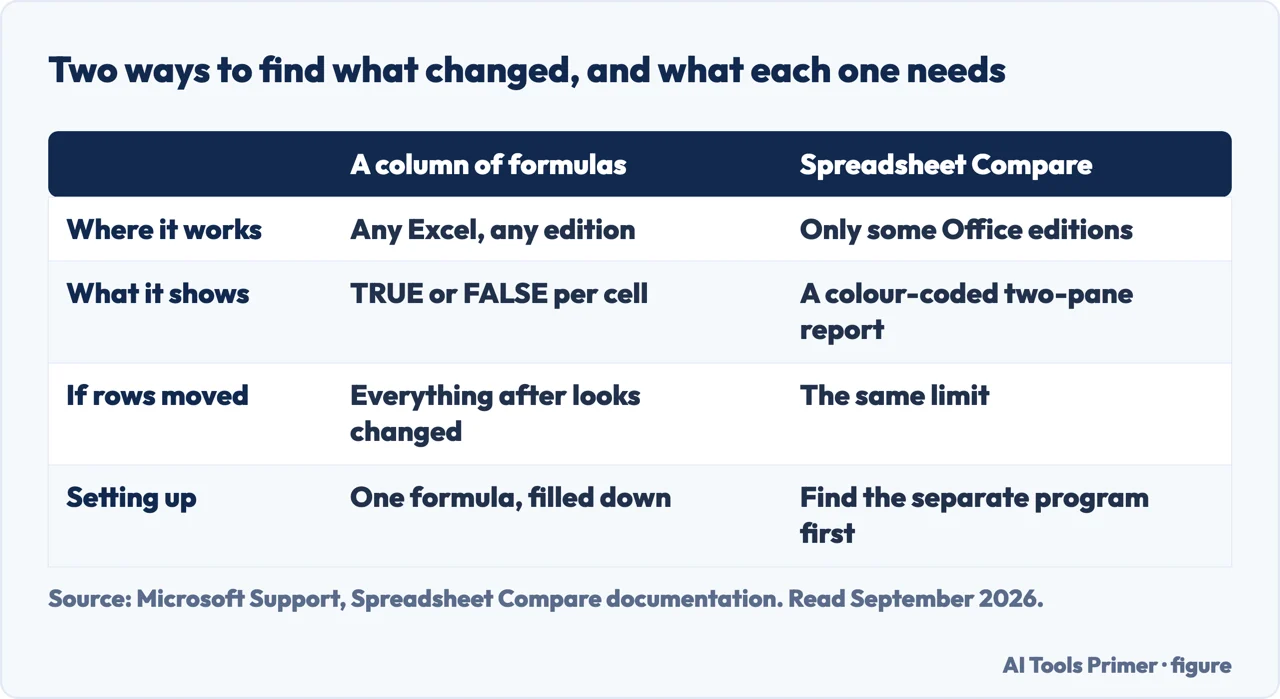
Read 22 August 2026. Every article that answers this question by naming Spreadsheet Compare is right about the tool and wrong about most of its readers. A personal subscription does not have it. A business subscription below the enterprise plans does not have it. A Mac does not have it. That is a large majority of the people asking, and it is why so many comparison tools are sold for it.
If you do have it
It is genuinely good, and worth using properly rather than glancing at.
- On the Ribbon, select Inquire › Compare Files. No Inquire tab? It is an add-in that has to be turned on first.
- Choose the two files. Microsoft’s note: “You can compare two files with the same name if they’re saved in different folders” — which is exactly the situation people are usually in.
- Results come as a two-pane grid: the left pane is the Compare file, the right the To file, with the detail underneath.
- Differences are coloured by type. “The lower-left pane is a legend that shows what the colors mean” — read it before drawing conclusions, because green means an entered value rather than a formula.
- Home › Export Results saves the comparison as an Excel file, and Copy Results to Clipboard puts it into anything else.
One behaviour worth knowing before you rely on the result: “If a worksheet is hidden in a workbook, it’s still shown and compared in Spreadsheet Compare.” Hidden sheets are included — which is usually what you wanted, and occasionally a surprise.
If your edition does not include it
You do not need a tool to find differences between two sheets. If what you want is not which cells moved but by how much a number went up, that is a formula rather than a comparison. You need one column. Put the two files’ sheets into one workbook, or open both, and in an empty column beside the first one write:
Fill it down and across the width of your data. Every cell that differs says so, everything else stays blank, and you can filter the column to see only the changes. It is a list rather than a picture, which for a long sheet is the more useful form — you can sort it, count it, and send it to somebody.
Two cautions, and they are the same two that catch the paid tools. The rows must line up. If one file has an extra row near the top, every comparison below it is offset and everything reads as changed — sort both by the same key first. And this compares values, not formulas: a cell that now gets its number a different way looks identical while being a genuinely important change.
The question underneath all of this is what “different” means to you, and it is worth deciding before you start. Two files can differ in their values, in their formulas, in their formatting, in which rows exist at all, or simply in the order things are listed. A tool that highlights every one of those will bury the change you cared about among four hundred you did not. The one-column method above is narrow on purpose: it answers one question, and you can widen it deliberately.
If what changed is rows rather than cells, comparison is the wrong shape of question. What you want is a lookup — for each reference in the new file, is it present in the old one? — and the answer comes back as a list of arrivals and departures rather than a grid of colours. It is a different job from cell-by-cell comparison and much easier to explain to somebody else afterwards.
And before any of it, the boring step that saves the afternoon: make a copy of both files. Comparison work involves sorting, inserting helper columns and deleting them again, and the file you are investigating is often the one that matters. Nothing on this page needs to be done to the originals.
The other spreadsheet answers the same question from inside the file. Google Sheets keeps a version history and, when you open it, “by default, Google Sheets hides unmodified rows to make it easier to find changes within a sheet” — with a Show unmodified rows control to put them back. That is the comparison this page builds by hand, done by the program. Two things follow: on a file that lives in Sheets you do not need any of this, and on an Excel file uploaded to Drive the history only begins at the upload.
The availability limit, the Inquire route, the two-pane results, the legend, the note about hidden worksheets and the export options are quoted from Microsoft’s own documentation, read on 22 August 2026 and listed below. The one-column method and the two cautions attached to it are ours.
Where to start
Four ways in.
- “Somebody changed something.”
- One column tells you what — the method that always works
- “I have the enterprise version.”
- Use the tool properly — if you have the tool
- “Rows were added or removed.”
- That is a lookup, not a comparison — when rows changed
- “Which cells are formulas?”
- A separate question — what different means
The method that always works
One helper column, any version of Excel, and a result you can filter, count and send on.
If you have the tool
Spreadsheet Compare is good, and its results reward reading the legend before drawing conclusions.
When rows changed
Arrivals and departures are a lookup rather than a comparison, and the answer is easier to explain.
What different means
Values, formulas, formatting, order, existence. Deciding which you care about is most of the work.
Not covered here. It will not recommend Spreadsheet Compare without saying who can use it. Microsoft restricts it to Windows and enterprise plans, and marks that Important.
It will not send you to a comparison website first. One helper column does the job in any version of Excel, without the file leaving your machine.
And it will not pretend a comparison answers a question you have not decided on. Different in what way is the first thing to settle. What holds instead is simple: the availability limit and the Inquire route are quoted from Microsoft’s own documentation, read on the date this page names.
Step 8 of 21 in half an hour in a spreadsheet
The order the work actually happens in: the data arrives, it gets cleaned, it gets counted, it gets a chart, and then somebody else opens it.
- Before this
- How to create a pivot table in excel, starting with the data
- After this
- How to make a graph in Excel, and which one to pick
Getting an answer out of a spreadsheet
Four jobs that all end with a number somebody asked you for.
- The same job, in the other places it comes up
- How to use vlookup in excel, and the argument to always type
- How to remove duplicates in Excel, and what counts as one
Sources
- Microsoft Support — Compare two versions of a workbook by using Spreadsheet Compare, including the note that it is available only in Excel for Windows on Microsoft 365 Apps for enterprise plans, the Inquire route, the two-pane results and legend, the treatment of hidden worksheets and the export options — support.microsoft.com, read 22 August 2026.
- Google Docs Editors Help — Find what’s changed in a file: version history in Google Sheets, and the default that hides unmodified rows so the changes stand out — support.google.com, read 4 September 2026.
Written by Alberto Gulotta
Founder and editor of AI Tools Primer, writing from Palermo, Italy. Thirty-five years of taking computers apart, starting with a Commodore 64 — the long version is on the about page.
Something wrong on this page? Write to aitoolsprimer@gmail.com and it gets fixed.
Written on 22 August 2026 · last checked 23 September 2026.
Independence and limits
No affiliate links and no paid placements anywhere on this site. Nobody pays to appear here, and no company has seen this page before you did.
This is general information, not professional advice. Where a page touches money, health, safety or the law, it names its source and the date it was read — and your situation may still differ. See the privacy page and the cookie policy.