Track changes in Excel is not missing from your copy: Microsoft took the Shared Workbook buttons off the Review tab for Microsoft 365 subscribers, and that group included Track Changes. It comes back as Track Changes (Legacy) through File, Options, Quick Access Toolbar. For a workbook that lives in OneDrive, the replacement is Review and Show Changes.
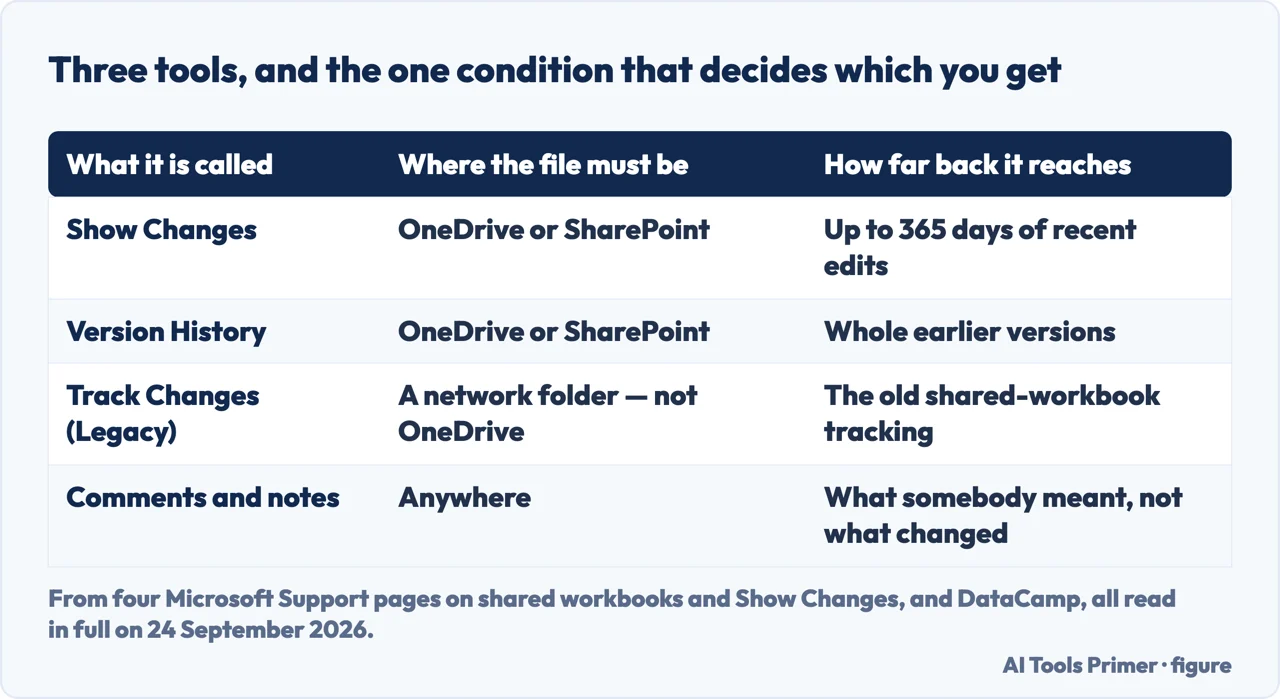
Three different tools, three different requirements, and only one of them is still on the Review tab
What it is called
Where you find it
What it needs
What it gives you
Show Changes
Review › Show Changes
Excel for Microsoft 365, 2024 or 2021, and the file in OneDrive or SharePoint
Who changed what, where and when, and the previous value — up to 365 days
Version History
File › Info › Version History
The file in OneDrive or SharePoint
Whole earlier versions to preview, further back than the pane goes
Track Changes (Legacy)
Nowhere — you add it to the Quick Access Toolbar
A network folder. Microsoft says not OneDrive
The old shared-workbook change tracking, with its limits
Comments and notes
Review › Comments
Nothing in particular
What somebody meant, which is the part no log records
Where the file lives decides which of the three you get. Figure drawn by AI Tools Primer from four Microsoft Support pages and DataCamp, read on 24 September 2026.
The button was not moved. It was withdrawn
“If you’re using the latest version of Excel and you’re a Microsoft
365 subscriber, you may find that buttons related to the ‘Shared Workbook’ feature
are no longer on the Review tab. We’ve removed them because there’s a much easier
and better way to share workbooks, and that’s with co-authoring.”
That is Microsoft, on a page titled “What happened to shared workbooks in Excel?”. Track
Changes in Excel was never a feature of its own: it was part of Shared Workbooks, and
when Shared Workbooks was superseded the whole group of four buttons went with it.
It still works. Nothing was deleted, and the commands are still in the program, three of them with Legacy in the name. What changed is that you have to ask for them, and Microsoft adds a line for anyone following an older guide: “You may encounter other articles that refer to these buttons being on the Review tab. But after doing the steps above, the buttons are available on the Quick Access Toolbar instead.”
This is also why the comparison with Word misleads. Track
changes in Word is alive, on the ribbon, and unrelated to sharing a file; in Excel the same
words named a feature attached to a way of collaborating that Microsoft replaced.
Decide first whether you want the old tool at all. Microsoft’s own note on the
page that explains the disappearance is blunt: “Be certain that you want to use these
buttons before continuing. This feature has many limitations, and therefore we highly recommend
co-authoring, which is the replacement for Shared Workbooks.”
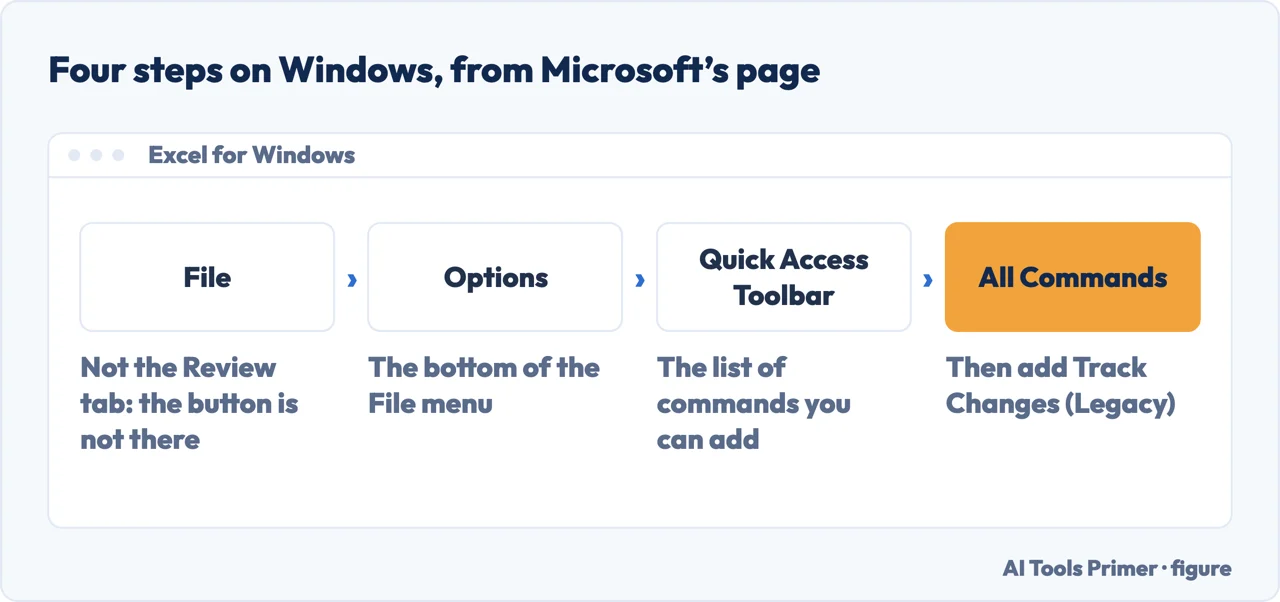
On Windows, open File, then Options, then Quick Access Toolbar. That is Microsoft’s route to the hidden commands.
Open the list under Choose commands from and select All Commands. The short lists do
not contain them.
Scroll to Share Workbook (Legacy) and select Add. Then do the same for
Track Changes (Legacy), Protect Sharing (Legacy) and
Compare and Merge Workbooks — four commands, added one at a time. Select OK.
On a Mac the route is different. Excel, then Preferences, then Ribbon & Toolbar
under Authoring, then Quick Access Toolbar; under Choose commands from pick Review Tab,
select Share Workbook (Legacy), move it across and Save.
Expect them at the top of the window, not on the ribbon. Microsoft says so in as many
words: “You may encounter other articles that refer to these buttons being on the Review
tab. But after doing the steps above, the buttons are available on the Quick Access Toolbar
instead.”
Four steps to get a withdrawn button back. Figure drawn by AI Tools Primer.
The old way: a network folder
Microsoft’s instruction for enabling a Shared Workbook is explicit about where the
file goes: “put it on a location like \\server_name\folder_name.
Don’t put the file on OneDrive or SharePoint. If you prefer those locations for
the file, co-author the workbook instead.”
And one limitation it names first: the inability to edit using Excel for the web.
The new way: OneDrive or SharePoint
Show Changes and Version History want exactly the opposite. DataCamp puts the consequence
plainly: “These methods only work if your workbook is saved in OneDrive or SharePoint.
If you’re emailing the file or saving it to your computer’s local drive, they
won’t work.”
So the storage decides the tool, not the other way round.
The four Microsoft pages behind this do not apply to the same editions, and that is not a detail. “What happened to shared workbooks in Excel?” lists Microsoft 365, 2024, 2021, 2019 and 2016 with the Mac editions of the first three. “About the shared workbook feature” lists the same eight. But “Show changes that were made in a workbook” lists two: Excel for Microsoft 365 and Excel for Microsoft 365 for Mac, and “Get help with Show Changes in Excel” adds Excel 2024 and Excel 2021. So on Excel 2019 or 2016 the old tool can be brought back and the new one is not there to bring.
DataCamp’s tutorial, dated 23 July 2026, describes the legacy command the same way Microsoft does: “Track Changes (Legacy) is different from the other three. Microsoft doesn’t really promote it anymore, and it comes with some real limitations we’ll cover later. It’s here mainly for people who still work with older workbooks built around it.” That last clause is the honest use for it: a file somebody else set up years ago.
And one condition that is not about your copy of Excel but about everybody else’s. DataCamp puts it as a tip: “Everyone working on the file needs to use a version of Excel that supports co-authoring, meaning Microsoft 365, Excel for the web, Excel 2024, or Excel 2021. If someone edits the file using an older, one-time-purchase version of Excel, it can clear the change history for everyone, not just for them.” Microsoft says the same thing in its own caution about the Changes pane. The word doing the work is everyone: one person on an older copy is enough to empty the record for the whole group.
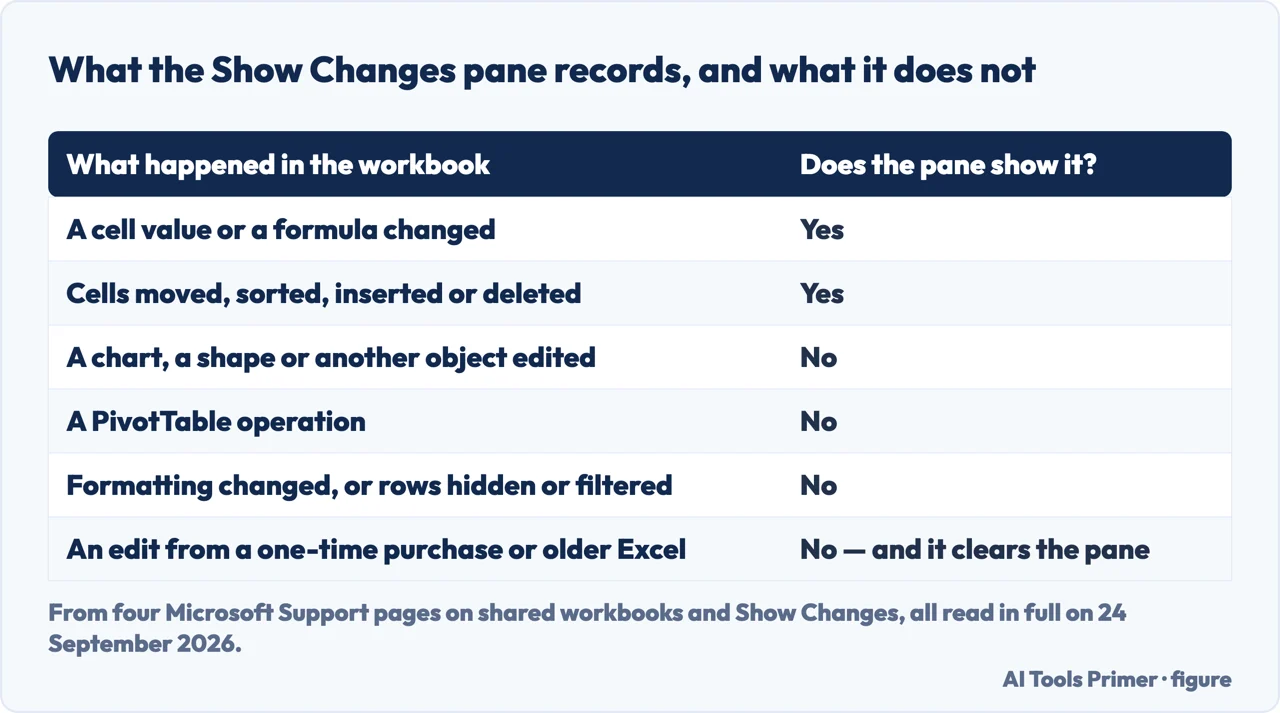
Values and formulas, and a long list of things that are neither. Figure drawn by AI Tools Primer.
What Show Changes does not record
From Microsoft’s own help page for the feature, read on 24 September 2026.
Worth knowing before you rely on the pane to prove what happened to a workbook.
Charts and shapes
“Chart, shape, and other object edits” are among the changes Microsoft lists as
not shown.
PivotTables
“PivotTable operations” do not appear either.
Formatting
Neither do “formatting changes”, nor “hiding cells or ranges, or
filtering”. The pane is about values and formulas.
Anything from an older Excel
The sharpest one: “Edits made using a one-time purchase or older version of Excel
can’t be tracked and will also clear the Changes pane.” One colleague on a
perpetual licence can empty the history for everybody.
Older changes
The pane holds the most recent changes only. For anything further back Microsoft sends you
to File › Info › Version History.
If what you want is to compare two files rather than watch one, none of these three is the tool. Comparing two workbooks is a separate job with a separate answer: Microsoft’s own comparison tool is restricted to enterprise Windows, and a helper column does the same job anywhere. And if the question is really “who is allowed to change this” rather than “who did”, the page for that is locking cells: every cell is already locked, and only protecting the sheet makes it bite.
One thing no change log will give you back. A history of edits is not a copy of the file as it was before somebody saved over it. If the workbook has already been lost or overwritten, recovering a workbook is the page for that, and the two routes there depend on whether the file was ever saved at all. The change pane tells you what happened; it does not undo it.
The removal, the four legacy commands, the storage rule and the list of what the pane does not record are quoted from four Microsoft Excel support pages, read in full on 24 September 2026 and listed below; the sentence about co-authoring versions is DataCamp’s. The reading of why the storage decides the tool is ours.
Because Microsoft removed the Shared Workbook buttons from the Review tab, and Track Changes was one of them. Its words: “We’ve removed them because there’s a much easier and better way to share workbooks, and that’s with co-authoring.”
How do I enable track changes in Excel?
File › Options › Quick Access Toolbar, set Choose commands from to All Commands, then add Track Changes (Legacy). It appears at the top of the window rather than on the Review tab. On a Mac the route runs through Preferences › Ribbon & Toolbar.
Can I track changes in Excel like Word?
Not in the same way. In Word it is a live feature on the ribbon. In Excel the equivalent for a modern file is Review › Show Changes, which needs a recent Excel and a workbook saved in OneDrive or SharePoint.
Does Excel keep a history of changes?
For a workbook in OneDrive or SharePoint, yes: Show Changes holds the recent edits for up to 365 days, and File › Info › Version History keeps whole earlier versions. For a file on your own drive, neither works.
Where does the workbook have to be saved?
It depends which tool. The legacy feature wants a network folder — Microsoft says “don’t put the file on OneDrive or SharePoint”. Show Changes and Version History want exactly those two places. The storage decides the tool.
Not covered here. It does not cover Google Sheets, where version history works differently and is not optional.
It does not cover co-authoring itself: that is how people work on a file together, not how you read back what they did.
And it does not recommend anything to install. Every route here is a menu in the program the workbook is already open in. What holds instead is simple: the removal and the four legacy commands are quoted from Microsoft’s own Excel pages, with the date each was read.
Sources
Microsoft Support — What happened to shared workbooks in Excel: the sentence that says the buttons were removed, and the six steps that add the four legacy commands back on Windows and on a Mac — support.microsoft.com, read September 2026.
Microsoft Support — About the shared workbook feature: the instruction not to store a shared workbook on OneDrive or SharePoint, and the list of what the old method does not support — support.microsoft.com, read September 2026.
Microsoft Support — Show changes that were made in a workbook: the Review tab route and the 365-day window. Applies to Excel for Microsoft 365 and its Mac edition only — support.microsoft.com, read September 2026.
Microsoft Support — Get help with Show Changes in Excel: what the pane does not record, the edit from an older Excel that clears it, and an Applies To list that includes Excel 2024 and 2021 — support.microsoft.com, read September 2026.
DataCamp — How to Track Changes in Excel: View & Restore Edits, by Laiba Siddiqui, 23 July 2026: the storage condition, and the plain description of what the legacy command is still there for — www.datacamp.com, read September 2026.
AG
Written by Alberto Gulotta
Founder and editor of AI Tools Primer, writing from Palermo, Italy. Thirty-five years of
taking computers apart, starting with a Commodore 64 — the long version is on the
about page.
No affiliate links and no paid placements anywhere on this site. Nobody pays to appear here,
and no company has seen this page before you did.
This is general information, not professional advice. Where a page touches money, health,
safety or the law, it names its source and the date it was read — and your situation may
still differ. See the privacy page and the
cookie policy.