
Docs · guide
How to unhide columns in Google Sheets, including the first one
By Alberto Gulotta · Updated · 8 min read
A hidden column in Google Sheets is not really hidden: it leaves a mark, and the mark is the way back. That single design choice is the whole difference between this job here and the same job in Excel, where a hidden column leaves a hint and the way back is a procedure.
An indicator, or a control
Both companies document what a hidden column looks like. They are not the same kind of thing.
“The double line between two columns is an indicator that you’ve hidden a column.”Microsoft Support, read 22 August 2026
“An arrow will appear over the hidden row or column.” To bring it back, “click the arrow where the row number or column letter used to be.”Google Docs Editors Help, read 28 August 2026
One is a sign you have to notice; the other is a button you press. In Excel the double line tells you something is missing and the fix is a separate procedure — select the columns on either side, right-click the lettered strip, Unhide. In Sheets the mark and the fix are the same object.
Three operations, and the third is the one worth remembering because it removes a whole class of problem. There is no selecting the columns either side, no hunting for the right strip to right-click, and no separate command that might not be in the menu. The arrow is where the column was, and it is a control.
And the case that has its own search demand. Column A in Excel is the one people get stuck on: Microsoft gives it separate instructions and calls it “a little tricky to unhide”, because there is no column to its left to select — the geometry of the ordinary method does not work there. The Excel guide is largely about that one column.
Google’s instructions do not have a first-column case. The arrow appears where the letter used to be, and column A has a place where its letter used to be like every other column. This guide says what Google publishes and no more: there is no special procedure in the documentation, which is not the same as a promise that nothing else can go wrong.
It is worth being precise about what that comparison does and does not say. It is not that Sheets is better at spreadsheets: it is that on this one job the two programs made different design decisions, and Excel’s produces a documented special case while Google’s does not appear to. If you spend your week in Excel, the thing to carry across is not a method — it is that the mark on the screen is clickable here, so the first move is to click it rather than to go looking for a menu.
The neighbours on the same menu are worth knowing about. Google documents freezing, grouping, hiding and merging on one page, and grouping is the one people reach for when they meant hiding.
Hidden rows are gone from view and give no summary. Grouped rows collapse behind a plus or minus — Google: “to expand or collapse grouped rows or columns, next to the rows or columns, click Plus (+) or Minus (−)” — so the sheet stays navigable and anybody can open the detail without knowing the trick. On a spreadsheet somebody else will read, grouping is almost always the better choice.
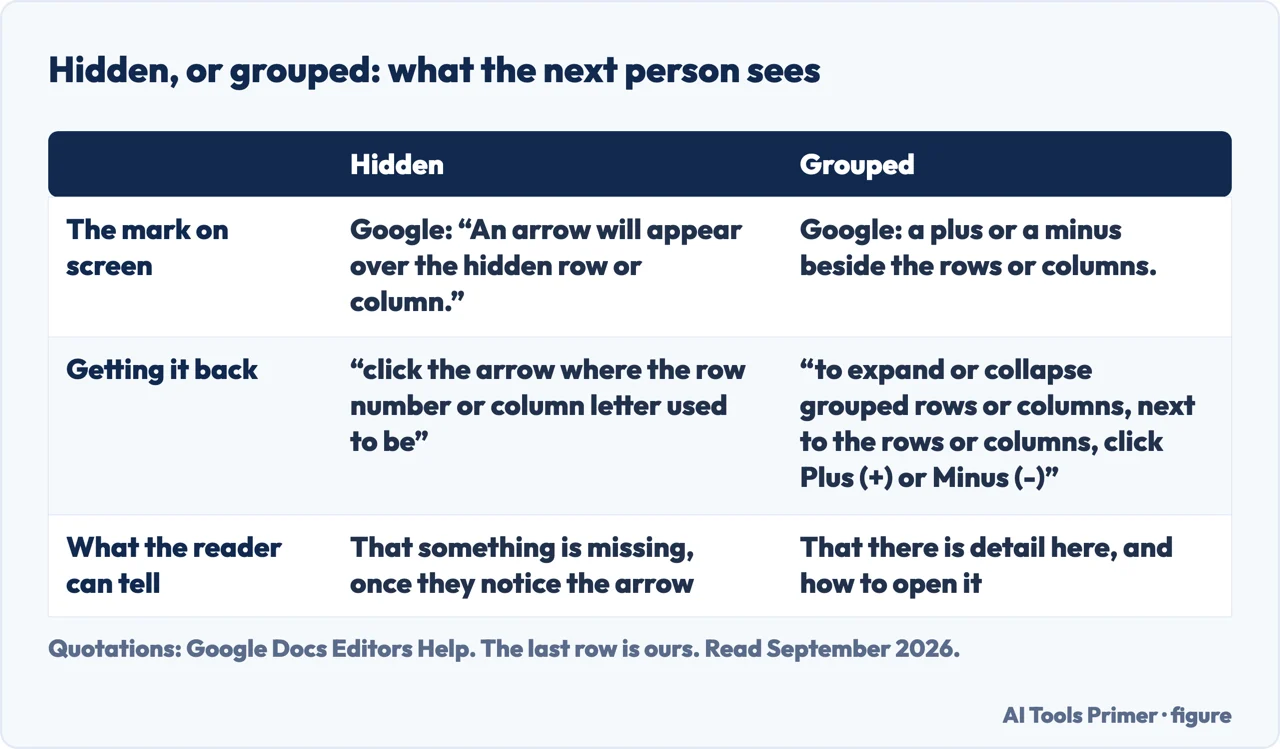
One last difference, for anybody arriving from Excel. In Excel, unhiding everything at once is a real command — select the whole sheet, Home › Cells › Format › Hide & Unhide › Unhide Columns — with Microsoft’s own caveat that it “displays all hidden rows and columns in your worksheet, which you may not want to do”. Google publishes no equivalent single command: the documented route is the arrow, one place at a time. On a sheet with three hidden ranges that is three clicks, and each one is a decision rather than a sweep.
Where to start
Four ways in. The first one is usually the whole answer.
- “A column is missing.”
- Click the arrow — the three operations
- “I came here from Excel.”
- Start at an indicator or a control
- “It is the first column.”
- That is the first column
- “I want it collapsible, not gone.”
- Read hiding or grouping
An indicator or a control
What each program leaves behind when a column goes, and why that decides the procedure.
The three operations
Hide one, hide several, bring them back. The third has no procedure.
The first column
Excel’s special case, and what Google’s documentation says about it — which is nothing.
Hiding or grouping
Two ways to get a column out of the way, and only one of them tells the next reader it exists.
Not covered here. It will not tell you Sheets is better. On this one job the two design decisions differ, and one of them produces a documented special case.
It will not promise there is no first-column problem in Sheets. Google does not document one, and this guide says that rather than turning an absence into a guarantee.
And it will not recommend hiding on a shared sheet. Grouping leaves a control the next reader can find; hiding leaves an arrow they have to notice. What holds instead is simple: the arrow that marks a hidden column is Google’s own tell, and the double-line indicator is Microsoft’s.
The same spreadsheet job, in the other program
Eight guides: sorting, removing duplicates, drop-down lists, locking cells, pivot tables and unhiding columns in Google Sheets, and drop-down lists and alphabetising in Excel.
- The same job, in the other places it comes up
- How to sort in Google Sheets, and who else sees your filter
- How to remove duplicates in Google Sheets, and what counts as one
- How to make a drop down list in Google Sheets, and where Excel stops
- How to lock cells in Google Sheets, and what it will not do
- How to create a pivot table in Google Sheets, and what it does alone
- How to make a drop down list in Excel, and make it hold
- How to alphabetize in Excel, without scrambling your rows
Sources
- Google Docs Editors Help — Freeze, group, hide, or merge rows & columns (the right-click route to Hide row and Hide column; that multiple rows or columns are selected by holding the command key; that an arrow appears over the hidden row or column and that clicking the arrow where the number or letter used to be restores it; and the plus and minus controls that expand or collapse grouped rows and columns) — support.google.com, read 28 August 2026.
- Microsoft Support — Hide or show columns and rows (that the double line between two columns indicates a hidden column, that column A is a little tricky to unhide, and the caveat that unhiding everything displays all hidden rows and columns which you may not want) — quoted here for the comparison and in full on the Excel guide — support.microsoft.com, read 22 August 2026.
- Microsoft Support — Unhide the first column or row in a worksheet (that the first column or row is a little tricky to unhide, and that unhiding everything displays all hidden rows and columns in your worksheet, which you may not want to do) — quoted here for the comparison and in full on the Excel guide — support.microsoft.com, read 22 August 2026.
Written by Alberto Gulotta
Founder and editor of AI Tools Primer, writing from Palermo, Italy. Thirty-five years of taking computers apart, starting with a Commodore 64 — the long version is on the about page.
Something wrong on this page? Write to aitoolsprimer@gmail.com and it gets fixed.
Written on 28 August 2026 · last checked 23 September 2026.
Independence and limits
No affiliate links and no paid placements anywhere on this site. Nobody pays to appear here, and no company has seen this page before you did.
This is general information, not professional advice. Where a page touches money, health, safety or the law, it names its source and the date it was read — and your situation may still differ. See the privacy page and the cookie policy.