
Docs · guide
How to make a drop down list in Google Sheets, and where Excel stops
By Alberto Gulotta · Updated · 10 min read
The instructions for how to make a drop down list in google sheets are four clicks long. The part worth reading is what happens next, because Sheets and Excel diverge exactly where the work is: how the list is built, whether a cell can hold two answers, and what a coloured list does when you try to edit it.
If you have already made one in Excel, do not carry the method across. In Excel the order is list first, rule second: you type the options somewhere, then point a validation rule at them. Sheets lets you go the other way round, and for a column you have already been filling in by hand that is the difference between ten minutes and one.
Four ways in, and they all end at the same panel. Which one you use depends on whether the options already exist somewhere — in your head, in the cells, or in another range.
The three things Sheets does that Excel does not
| What you want | In Google Sheets |
|---|---|
| A list built from what is already typed in the column | Select the cells, right-click, Dropdown. Google: “Dropdown options are created in the order of ranges that are selected.” No source list to prepare first. |
| More than one answer in the same cell | Allow multiple selections, a checkbox in the validation panel. Google notes it “can only be enabled for chip format dropdowns”. |
| A ready-made list for a status column | Type @ in the cell: Google offers “preset dropdowns for use cases such as ‘Project status’ or ‘Priority.’” |
The middle row is the one people come looking for. A cell in Excel holds one value from the list; a Sheets dropdown can hold several, and the setting that allows it sits in plain sight in the validation panel. Google attaches two conditions to it, and both are the kind that wastes an afternoon if you meet them by surprise: it works only on the chip format, and “on mobile, you currently can’t select multiple dropdown options even when multiple selection is enabled”.
Two details about building a list from cells you have already filled in, both of them documented and both capable of producing a list you did not expect. The first is the order: Google states that “dropdown options are created in the order of ranges that are selected”, and that “the order of options goes down columns first, then across rows”. So the sequence in the menu is the sequence in the sheet, not alphabetical — if you want it alphabetical, sort the column before you make the list rather than afterwards.
The second is what happens when one of the cells you selected already has a dropdown on it. It does not start again: “if a selected cell includes an existing dropdown, other cell values are appended to the selected dropdown list rule”. Appended, not replaced. Run that twice over an overlapping range and the list grows each time, quietly, and the duplicates are in the rule rather than in the cells — which is why they survive a tidy-up of the column.
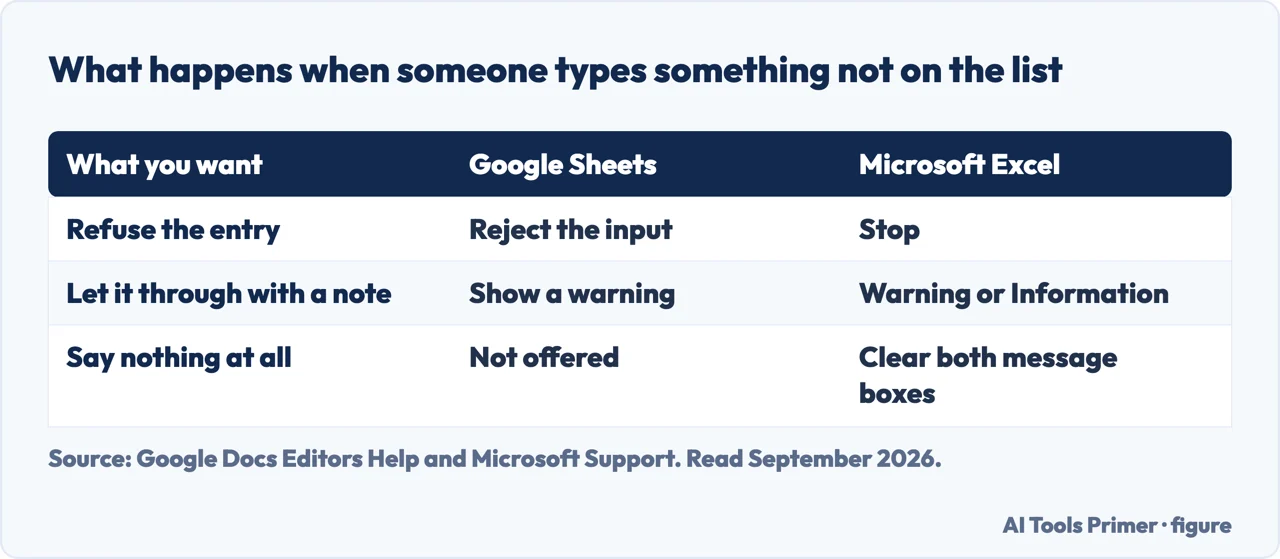
Excel gives the same choice three names, and the middle one is the useful one. Its data validation offers Stop, Warning and Information: “to stop people from entering data that isn’t in the drop-down list, select Stop”, while Information or Warning “show a message that doesn’t stop people from entering data that isn’t in the drop-down list”. And if you leave the message boxes empty, Excel supplies its own — “the value you entered is not valid. A user has restricted values that can be entered into this cell” — which tells the reader nothing about what you wanted. Writing one sentence there is the cheapest improvement on the whole feature.
One last switch, for a sheet other people are typing into. The chip suggestions that Sheets offers as you type can be turned off entirely, under Tools › Suggestion controls › Enable dropdown chip suggestions. On a shared sheet that is the difference between a column of four agreed values and a column of four agreed values plus whatever the software proposed to somebody in a hurry.
What happens when somebody types something else. Sheets rejects it by default: “If you enter data in a cell that doesn’t match an item on the list, it is rejected.”
If you would rather let it through with a note, the switch is in Advanced options → under If the data is invalid: choose Show a warning. That is the whole of the decision, and it is the same decision the Excel version asks you to make in a different place — which is why a column of free text is a choice somebody made, not an accident.
One trap, and Google documents it in a warning box. When the list comes from a range and the options have colours, deleting a value from that range does not remove it from the rule: “the value and color will still appear under criteria, but as uneditable.”
The wording matters. Not hard to change — uneditable. The only routes Google gives out of it are to “change the source range or any other item’s color”. So a dropdown that has been recoloured is no longer something you can tidy by deleting a row: the rule keeps a copy of what you deleted, and the panel will not let you touch it.
This is the one place where the Sheets version is worse than the Excel one, and it is worth knowing before you assign colours to a list you expect to edit later.
Where to start
Four ways in. The second one is the reason this page is not the Excel page.
- “I just need the menu, quickly.”
- Start at making the list
- “The options are already typed in the column.”
- That is making the list
- “I need two answers in one cell.”
- Go to what excel cannot do
- “Somebody typed something that is not on the list.”
- That is when it is not followed
- “I coloured the options and now I cannot edit them.”
- Read the colour trap
Making the list
The four routes into the same validation panel, and which one fits what you already have.
What Excel cannot do
Two settings with no Excel equivalent, and the conditions Google attaches to them.
When it is not followed
Rejection is the default. Letting people through is a decision, and it has a switch.
The colour trap
The one place the Sheets version is worse, in Google’s own words.
Not covered here. It will not tell you the two programs are the same feature with different menus. They are not: one builds the list from the cells and allows several answers, the other does neither.
It will not promise the colours are safe. Google publishes the warning, and this guide quotes it rather than working around it.
And it will not cover the mobile apps beyond what Google states, which is that multiple selection does not work there yet. What holds instead is simple: the rejection default and the warning about coloured values are Google’s own, quoted from its Docs Editors help with the date it was read.
The same spreadsheet job, in the other program
Eight guides: sorting, removing duplicates, drop-down lists, locking cells, pivot tables and unhiding columns in Google Sheets, and drop-down lists and alphabetising in Excel.
- The same job, in the other places it comes up
- How to sort in Google Sheets, and who else sees your filter
- How to remove duplicates in Google Sheets, and what counts as one
- How to lock cells in Google Sheets, and what it will not do
- How to create a pivot table in Google Sheets, and what it does alone
- How to unhide columns in Google Sheets, including the first one
- How to make a drop down list in Excel, and make it hold
- How to alphabetize in Excel, without scrambling your rows
Sources
- Google Docs Editors Help — Create an in-cell dropdown list (the four routes to the validation panel; the preset dropdowns offered by typing @, including Project status and Priority; Dropdown from a range and Dropdown as the two criteria; Allow multiple selections and its restriction to chip format; the note that multiple selection does not work on mobile; that a dropdown can be created on cells with existing data and that options are created in the order of the ranges selected, down columns first then across rows; that data not matching the list is rejected unless Advanced options is set to Show a warning; and the warning that a coloured value deleted from a source range remains under criteria as uneditable) — support.google.com, read 28 August 2026.
- Microsoft Support — Create a drop-down list: the Stop, Warning and Information styles for invalid entries, and the default message Excel writes when you leave the box empty — support.microsoft.com, read 4 September 2026.
Written by Alberto Gulotta
Founder and editor of AI Tools Primer, writing from Palermo, Italy. Thirty-five years of taking computers apart, starting with a Commodore 64 — the long version is on the about page.
Something wrong on this page? Write to aitoolsprimer@gmail.com and it gets fixed.
Written on 28 August 2026 · last checked 23 September 2026.
Independence and limits
No affiliate links and no paid placements anywhere on this site. Nobody pays to appear here, and no company has seen this page before you did.
This is general information, not professional advice. Where a page touches money, health, safety or the law, it names its source and the date it was read — and your situation may still differ. See the privacy page and the cookie policy.