
Docs · guide
Formula parse error Google Sheets: one message, many codes
By Alberto Gulotta · Updated · 16 min read
If you searched formula parse error Google Sheets, you are looking at one of two things. Either a cell shows #ERROR! and, when you hover over it, says only “Formula parse error”, or it shows one of the other codes, #NAME?, #N/A, #REF!, #VALUE!, that the guides in the results, from Zapier to Ben Collins, file under the same name.
The first means Sheets cannot read the formula at all, and the cause is in its shape: a bracket, an operator, a missing symbol, punctuation from another locale, or a plus sign at the start of a phone number. The others mean the formula was read and something in it, or in the data, is wrong, and Sheets says what. Here is each case, with who says so.
| Code | What it points to | Who says so |
|---|---|---|
| #ERROR! | Sheets cannot read the formula; the cell says only “Formula parse error” | Zapier, Coursera, Sheetgo, Ben Collins |
| #NAME? | A function or named range Sheets does not know | Zapier, Ben Collins, Sheetgo |
| #N/A | A value that is not available, often a lookup that found nothing | Google (NA), Zapier, Ben Collins |
| #REF! | A reference that no longer exists or cannot exist | Zapier, Ben Collins, Sheetgo |
| #VALUE! | The wrong type of value, such as text in a sum | Zapier, Ben Collins, Sheetgo |
| #DIV/0!, #NUM!, #NULL! | Division by zero; a number that is not valid; a code Ben Collins never reproduced | Ben Collins, Sheetgo |
The message itself: #ERROR! and the pop-up
Strictly, “Formula parse error” is a message, and the guides in the results agree on where it appears. When a cell shows #ERROR! and you hover over it, Zapier writes that the description simply tells you “Formula parse error”; Coursera describes the same text behind the red arrow in the problem cell, and Sheetgo says that with #ERROR! you only get that message. Ben Collins, a Google Developer Expert, adds a second form: a pop-up that appears as you press Enter and stops the formula from going in at all, which he calls rare. His example is a stray backslash typed at the end of a formula by hitting the key above Enter.
What it means is the one point everyone shares. The recommended answer to a 2023 question in the Google Docs Editors
Community, written by a user and recommended by a Product Expert Alumni, puts it as an error given when your formula cannot
be interpreted by Google Sheets, and names three ways in: an array literal left unclosed, misplaced parentheses, or an
operation that cannot be done. The person who asked found the answer the next morning: they had typed =>
where Sheets expects >=. They had also noted, in the question, that the help pages did not explain it.
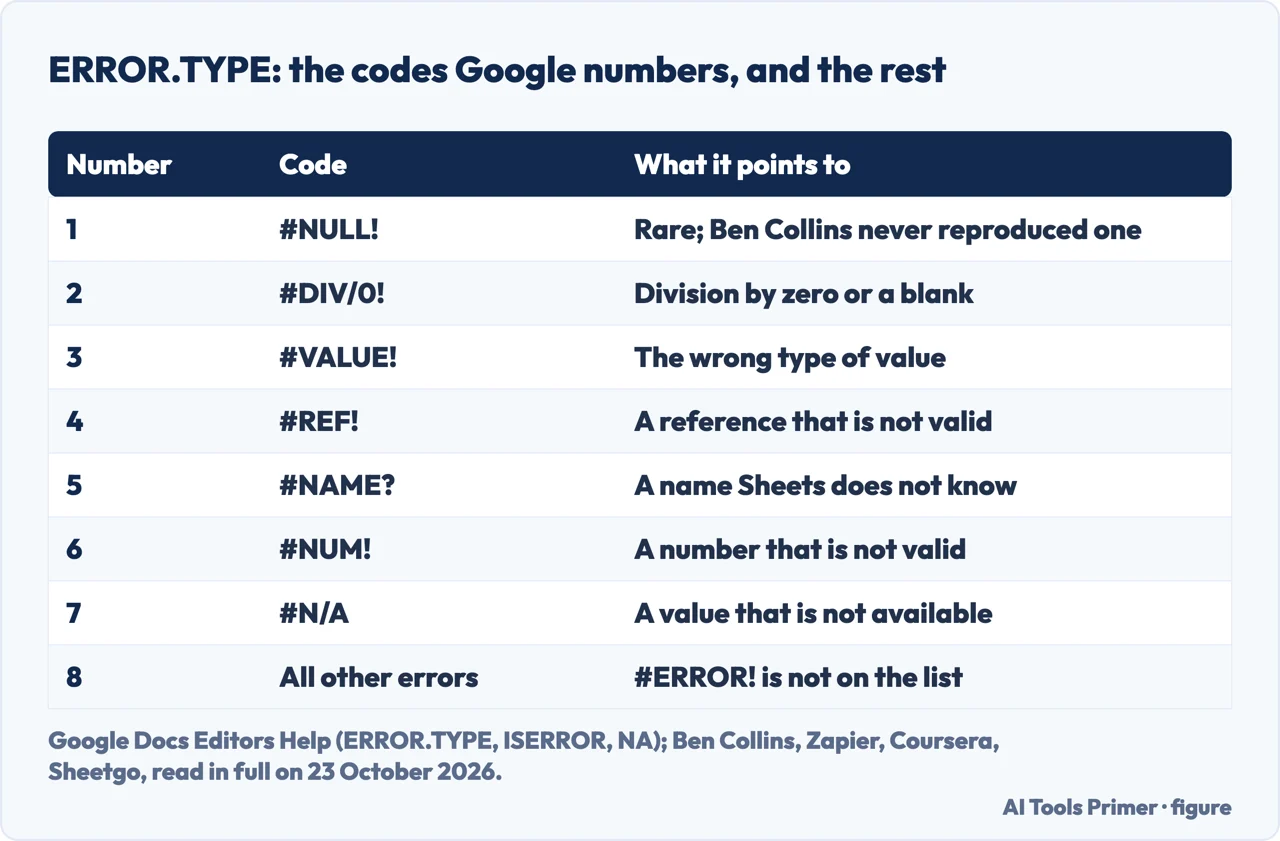
They still do not, by that name. Google’s ERROR.TYPE page, which turns an error into a number, lists seven codes, from 1 for #NULL! to 7 for #N/A, and then “8 for all other errors”. #ERROR! is not one of the seven. Ben Collins calls it unique to Google Sheets, with no direct equivalent in Excel.
The other codes, which the guides also call parse errors
Zapier calls “formula parse error” a blanket term and Coursera an umbrella term, and both, like Ben Collins and Google’s own AI answer at the top of the results, use it for every code a formula can return. The codes are not the same problem, and each one points somewhere different:
- #NAME? — a name Sheets does not recognise. The examples in Zapier and Ben Collins are the same misspelling,
=SUMM(A1:A3), a named range that does not exist, and, in Ben Collins, a range with its colon missing. - #N/A — a value that is not available. Google’s NA page says #N/A marks missing information and makes any
formula that uses the cell return #N/A in turn; typing
=NA()enters it on purpose. In the guides it is usually a lookup, such as VLOOKUP, that did not find its search key. - #REF! — a reference that is not valid: a cell that was deleted, a relative range copied so close to the edge of the sheet that it would fall off it, or a VLOOKUP asking for a column its range does not have. Ben Collins adds a formula that refers to its own cell.
- #VALUE! — the wrong kind of value, such as text where a number belongs. Ben Collins lists a cell that holds only a space, and dates typed in the order of one country in a sheet set for another, which then stay text.
- #DIV/0! and #NUM! — division by zero or by an empty cell, and a number that is not valid, such as the square root of a negative number, or SMALL or LARGE asked for more items than the data has.
- #NULL! — Google lists it, and Ben Collins writes that he has never managed to produce one.
The practical difference is that these codes come with an explanation when you hover, which Zapier and Sheetgo both point to; #ERROR! is the one that does not.
What breaks a formula, and the one cause the guides disagree on
For formulas Sheets cannot read, the causes the sources give are all about the formula’s shape:
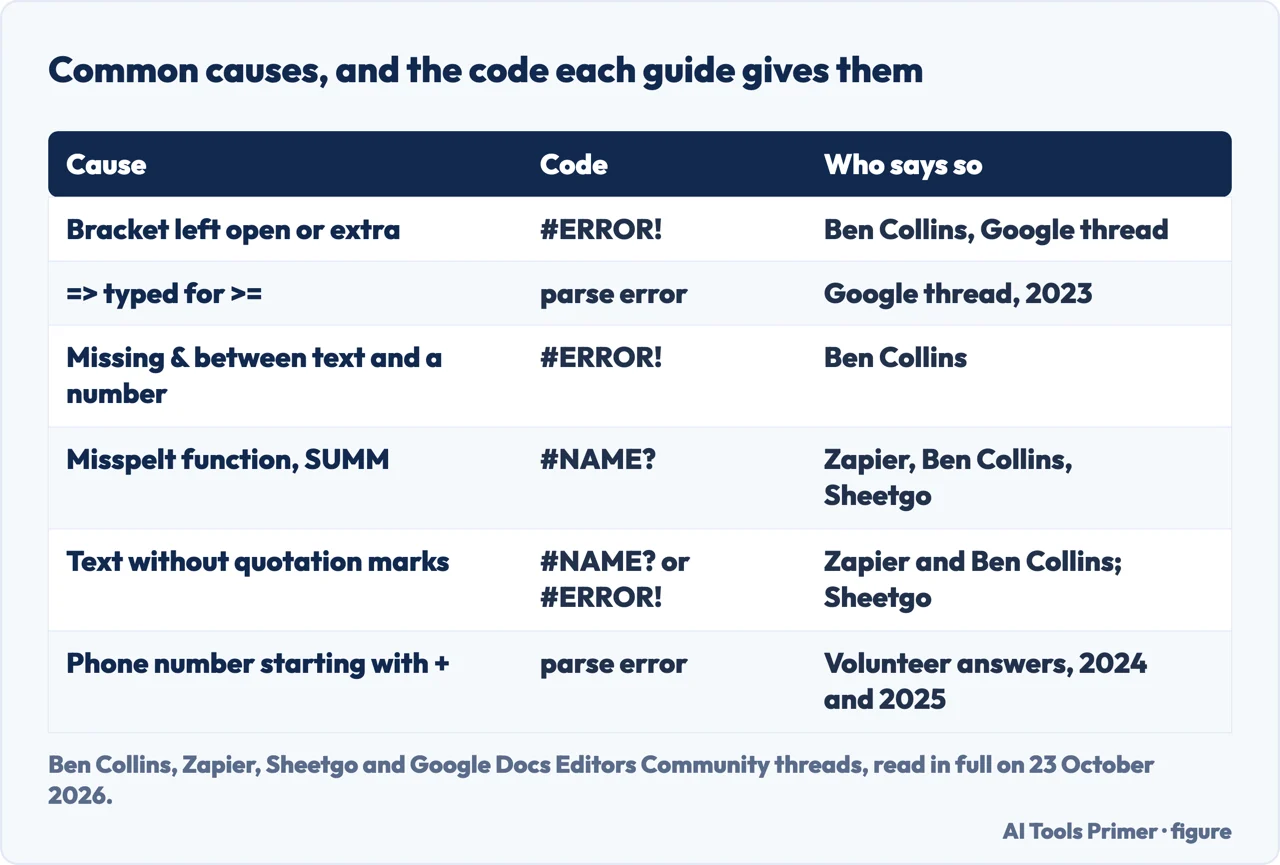
- Brackets. A parenthesis left open or one too many, in the Google thread and in Ben Collins; the thread adds an array literal, a list in curly braces, that is never closed.
- Operators.
=>for>=, as in the 2023 question, or, in Coursera’s checklist, two operators side by side with nothing between them. - Joining text and numbers. Ben Collins shows a missing
&between a piece of text and a number, and a dollar sign typed into a formula to mean money, which Sheets takes for the dollar sign of an absolute reference. - A sheet name. Zapier’s example of a broken reference is
=SampleA3written for=Sample!A3, cell A3 on the tab called Sample: without the exclamation mark, Sheets returns an error.
Quotation marks are where the guides part. Zapier and Ben Collins both say text left without quotation marks gives
#NAME?, and Zapier’s example is =CONCATENATE("Bur",rito). Sheetgo files missing or extra quotation
marks under #ERROR!, and its example is a name with a space in it, John Doe. One reading of the difference, which we
did not test, is that a single word without quotes looks to Sheets like a name it does not know, while two words in a row do
not look like anything. Either way the fix is the same, and Zapier puts it plainly: wrap text in a formula in quotation marks.
Comma or semicolon: the setting that changes the punctuation
A formula copied from a guide can be perfectly written and still fail, because of where the spreadsheet thinks it is.
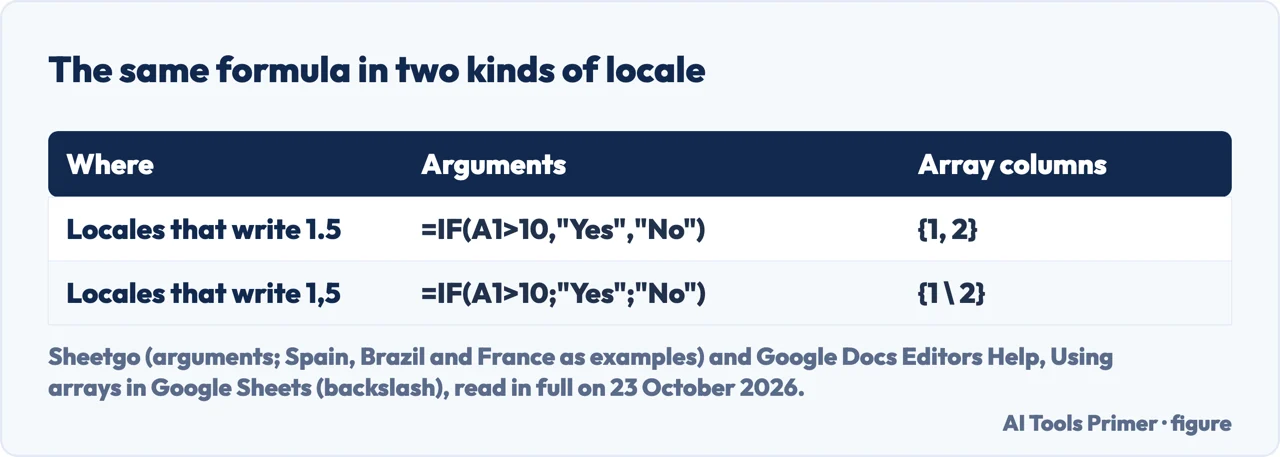
Sheetgo writes that Google Sheets separates the arguments of a function with commas or semicolons depending on the
spreadsheet’s locale, and that in locales that write decimals with a comma, giving Spain, Brazil and France as examples,
=IF(A1>10,"Yes","No") has to be written =IF(A1>10;"Yes";"No"). Ben Collins makes the same
point for some European countries, with a VLOOKUP written both ways.
Google’s own pages confirm the arrays half of this. Its page on arrays says commas separate columns and semicolons
separate rows inside curly braces, and that in countries that use commas as decimal separators the commas are replaced by
backslashes when creating arrays. So ={1, 2} in one sheet is ={1 \ 2} in another.
The setting lives under File, then Settings, then Locale. Google’s page on it says the locale changes the spreadsheet’s default currency, date and number formatting, for the whole file and for everyone who works on it; it does not mention separators, so the rule for arguments above rests on Sheetgo and Ben Collins. The same screen has one more option worth knowing about: with a non-English display language you can untick Always use English function names and see functions in your own language, of which Google lists 21 besides English.
A phone number that Sheets reads as a formula
One of the searches Google suggests next is formula parse error with a phone number, and the reason is a rule a volunteer Diamond Product Expert gave twice in the Google Docs Editors Community, in July 2024 and May 2025: “Google Sheets formulas start with = or +”. Type an international number such as +1 555-123 4567 and, in the same answer, Sheets will attempt to interpret it as a formula, which throws a parse error. In the 2025 thread, the person asking had typed +1 and watched it turn into =1.
The answers give three ways round it:
- An apostrophe first: type
'+1 555-123 4567. Per the 2025 answer, the apostrophe does not show in the cell and does not change what other formulas see. - A formula that returns text:
="+1", from another volunteer, a Product Expert Alumni, in the same thread. - A different character: the small plus sign ﹢, which is not the ordinary plus sign. For a column already typed in, the Diamond Product Expert describes Edit, then Find and replace, with “Also search within formulas” ticked, to swap the sign Sheets put in for the small one; the answer warns that this turns every formula in the sheet into its text, and points to the Specific range option to limit where it applies.
Finding the part that is broken
Start with the cell. Zapier’s advice is to hover over it for details, with #ERROR! as the exception that says almost nothing, and Sheetgo writes that for #VALUE! the message usually names the parameter at fault and the type it should be. Then use what Google builds into the formula bar, which its page on formulas and functions describes:
- While you type, a function help box shows the function’s definition, its syntax and an example, with a link to the full article.
- If there are errors after you apply a formula to a range, a Formula correction box may offer a suggested fix that you accept or dismiss. Google’s page gives the switch for it under Tools, then Suggestion controls, in one place and under Tools, then Autocomplete, in another.
- Cells a formula refers to are highlighted in contrasting colours, so you can see which cells it is using.
For long formulas, the guides add two habits. Ben Collins notes that Sheets highlights superfluous brackets in red, and suggests what he calls the onion: take the outermost function off, get the inside working, then wrap the layers back one at a time until the error returns. That order matches Google’s own note that Sheets calculates the innermost of nested functions first.
Hiding an error is not the same as fixing it
Google has two functions for errors a formula is expected to produce. IFERROR returns its first argument if it is
not an error and otherwise the second, or a blank if there is no second; Google writes that it is logically equivalent to
IF(NOT(ISERROR(exp1)),exp1,exp2), and ISERROR is true for any error, #DIV/0!, #N/A, #NAME?, #NULL!, #NUM!,
#VALUE! and #REF! included. IFNA only replaces #N/A.
That breadth is the risk. Ben Collins uses IFERROR for a lookup that may not find its key and for a division that may meet a zero, cases where the formula is right and the data is the problem. Wrapped round a formula with a misspelt name, the same function shows your fallback instead of #NAME?, and the mistake stays in the sheet. Sheetgo’s advice is the narrower tool: if you only want to replace #N/A and still see every other error, use IFNA.
Formulas brought over from Excel
Most formulas move between the two programs unchanged, but Google’s page on formulas lists functions from other spreadsheet programs that do not work in Sheets: CALL, the CUBE functions, INFO, REGISTER.ID, RTD and WEBSERVICE, each with the reason, such as Sheets not being tied to one operating system. The page does not say which code they return, and we did not try them.
The error you see is the other difference. #ERROR!, per Ben Collins, has no direct equivalent in Excel, so an Excel guide to the same mistake will describe a message Sheets does not show. If the formula is right but Excel shows the formula itself instead of its result, that is a different problem, covered in our page on Excel showing the formula.
Where to start
Five ways in.
- “The cell says #ERROR!.”
- The message — message
- “It shows #NAME? or #N/A.”
- The other codes — codes
- “The formula came from a guide.”
- Comma or semicolon — locale
- “It is a phone number.”
- The plus sign — plus
- “It is a long formula.”
- Finding it — find
Other jobs in Google Sheets
The same spreadsheet, the tasks next to this one.
Formulas in Excel
When the formula lives in Excel instead, and goes wrong in Excel’s own ways.
Questions people also ask
What does a formula parse error mean in Google Sheets?
That Sheets cannot interpret the formula, in the words of a recommended answer in the Google Docs Editors Community. The message itself appears on #ERROR! when you hover over the cell; Zapier, Coursera and Ben Collins use the name for the other codes too.
How do I fix a formula parse error?
Check the formula’s shape: brackets that close, operators such as >= written the right way round, text in quotation marks, the comma or semicolon your locale expects, and no plus sign at the start of a number you meant as text.
How do I stop a phone number becoming a formula?
Type an apostrophe before it, as in '+1 555-123 4567. A volunteer Diamond Product Expert writes that Sheets formulas start with = or +, and that the apostrophe does not show in the cell.
Can IFERROR remove a parse error?
IFERROR replaces any error with a value you choose, per Google, which hides the error rather than fixing it. Use it for lookups or divisions that are expected to fail sometimes, not to cover a formula that is written wrong.
Not covered here. We did not open Google Sheets for this page, and none of the example formulas was tested. The rules credited to Google come from eight Google Docs Editors Help pages read on 23 October 2026; the answers credited to a Diamond Product Expert and to Product Expert Alumni are community answers in the Google Docs Editors Community, written by volunteers, not Google documentation.
Ben Collins is a Google Developer Expert who teaches Google Sheets; Zapier and Coursera publish guides; Sheetgo sells spreadsheet automation. The videos and the Reddit thread in the results were not watched or read.
The search volume and difficulty behind this page were read in Semrush on 29 August 2026.
Sources
- Google Docs Editors Help — ERROR.TYPE — support.google.com, read 23 October 2026.
- Google Docs Editors Help — ISERROR — support.google.com, read 23 October 2026.
- Google Docs Editors Help — NA — support.google.com, read 23 October 2026.
- Google Docs Editors Help — IFERROR — support.google.com, read 23 October 2026.
- Google Docs Editors Help — IFNA function — support.google.com, read 23 October 2026.
- Google Docs Editors Help — Using arrays in Google Sheets — support.google.com, read 23 October 2026.
- Google Docs Editors Help — Add formulas & functions — support.google.com, read 23 October 2026.
- Google Docs Editors Help — Set a spreadsheet’s location & calculation settings — support.google.com, read 23 October 2026.
- Google Docs Editors Community — What is “Formula Parse Error”? (recommended answer, February 2023) — support.google.com, read 23 October 2026.
- Google Docs Editors Community — How to insert + sign as text in the cell (Diamond Product Expert answer, July 2024) — support.google.com, read 23 October 2026.
- Google Docs Editors Community — it wont let me type +1 without turning it into a formula (May 2025) — support.google.com, read 23 October 2026.
- Ben Collins — Formula Parse Errors In Google Sheets And How To Fix Them (January 2024) — www.benlcollins.com, read 23 October 2026.
- Zapier — What is a formula parse error in Google Sheets? (March 2024) — zapier.com, read 23 October 2026.
- Coursera — How to Fix Formula Parse Error: Google Sheets (updated March 2026) — www.coursera.org, read 23 October 2026.
- Sheetgo — Formula parse error in Google Sheets: causes and fixes — www.sheetgo.com, read 23 October 2026.
Written by Alberto Gulotta
Founder and editor of AI Tools Primer, writing from Palermo, Italy. Thirty-five years of taking computers apart, starting with a Commodore 64 — the long version is on the about page.
Something wrong on this page? Write to aitoolsprimer@gmail.com and it gets fixed.
Written on 23 October 2026.
Independence and limits
No affiliate links and no paid placements anywhere on this site. Nobody pays to appear here, and no company has seen this page before you did.
This is general information, not professional advice. Where a page touches money, health, safety or the law, it names its source and the date it was read — and your situation may still differ. See the privacy page and the cookie policy.