
Docs · guide
How to add page numbers in Word, in three different cases
By Alberto Gulotta · Updated · 8 min read
Working out how to add page numbers in word is two clicks. Working out why they start on the title page, or why changing one section changed all of them, is what brings people back — and those are three different problems with three different answers.
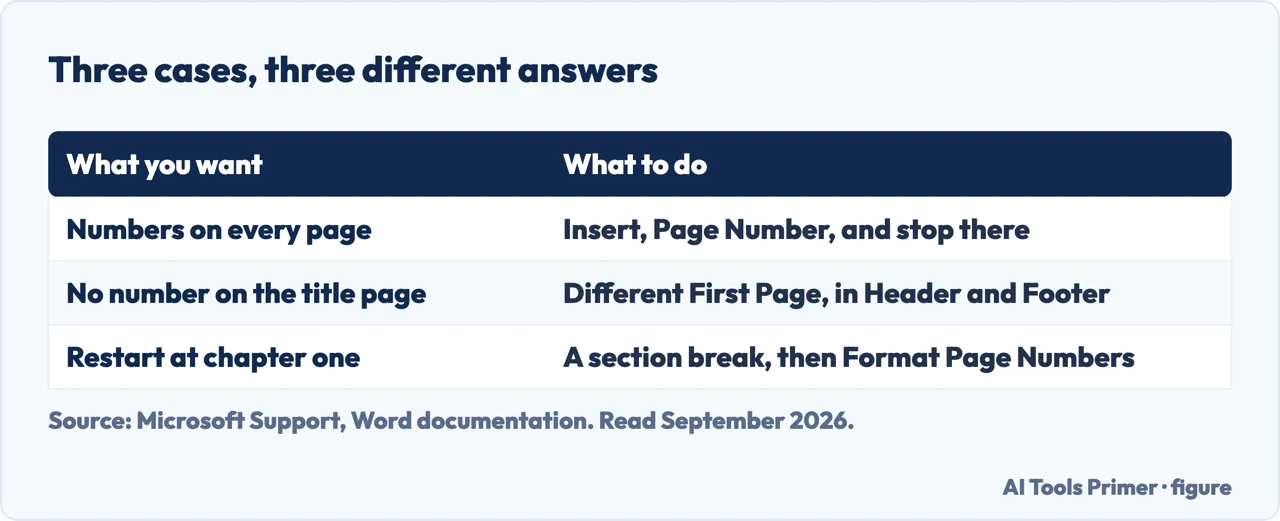
Case one · the ordinary document
Numbers on every page
- “On the Insert tab, select Page Number, and then choose the location and style you want.”
- “When you’re done, select Close Header and Footer or press Esc.”
Two steps, from Microsoft. If that is all you needed, you are finished — and the two cases below are the ones that send people back to Google.
Case two · the one almost everybody actually wants
No number on the title page, and “1” on the second
- Insert the page number as above.
- “If you don’t want a page number to appear on the first page, select Different First Page on the Header & Footer tab.”
- “If you want numbering to start with 1 on the second page, go to Page Number → Format Page Numbers, and set Start at to 0.”
Start at zero. That is the whole trick, it is Microsoft’s own instruction, and it means the hidden first page is page zero so the visible second page is page one. No section breaks are needed — which is what most advice on this subject reaches for far too early.
Case three · the hard one
Different numbering in different parts — roman numerals then arabic
- “Select between the intro and the body of the document and go to Layout → Breaks → Next Page.”
- “In the header for the body section, deselect Link to Previous.”
- In each section, set the page number, then “Page Number → Format Page Numbers”.
- “Select Number format” for that section, and “under Page numbering, choose Start at”.
Link to Previous is the whole game. Until it is switched off, changing one section changes them all, which is exactly the behaviour that makes people conclude Word is broken.
Microsoft’s own diagnostic, which is the most useful sentence on the subject
“If Link to Previous is dimmed, check to make sure a section break was created.”
A greyed-out button is not a bug — it is Word telling you there is nothing to unlink from, because the section break you thought you made is not there. And there is a companion tip on the same page for seeing what you actually have: “To see section breaks and other formatting marks, go to Home and select Show/Hide (¶)”.
Turning on formatting marks for two minutes answers most page-numbering questions on its own, because it shows you the difference between the page break you inserted and the section break you needed.
Which case you are in, decided in one question. Does any part of your document need a different number format from another part — roman numerals for a preface, arabic for the body? If no, you are in case one or two and you do not need section breaks at all. If yes, you are in case three and section breaks are unavoidable. The way to get stuck here is to be in case two while following case three’s instructions.
Where the number goes. Word offers top, bottom, margins and current position. For anything academic the brief usually decides, and the common convention is top right — but this is one to read from your own requirements rather than from a default. A page number in the wrong corner is a presentation choice; a page number in a header that also carries the wrong running text is a formatting error, and the two travel together because both live in the header.
The related question people ask next. Numbering that restarts unexpectedly, or a document where page 7 is followed by page 1, is nearly always a section break with its own Start at value. The fix is the same tool: click into that section’s header, open Format Page Numbers, and set it to continue from the previous section rather than to start at a number.
If you are not using Word. The concepts transfer with different names — Google Docs has Insert → Page numbers with a similar first-page option, and the same underlying distinction between a page break and a section break. What does not transfer is the exact menu path, so the guides below cover the other editors rather than assuming.
The failure has a name, and a university writes it down. The University of Pittsburgh’s thesis guide describes the exact accident this page is built around: “if you accidentally delete the Section Break before chapter one, the numbering won’t start over there, like it’s supposed to.” Its remedy is the one to copy — turn paragraph marks on first, so the break is visible while you work near it. A section break is the only thing holding two numbering schemes apart, and it is invisible by default.
Every quoted instruction on this page is from Microsoft’s own support documentation, read on 21 August 2026, across its pages on inserting page numbers and on customising them in different sections. The three-case structure is ours — Microsoft documents the cases separately, which is part of why people end up applying the wrong one.
Where to start
Four ways in.
- “I just want numbers on the pages.”
- Case one — then the rest of the formatting
- “Not on the title page.”
- Case two, and it is simpler than you think the rest of the formatting
- “Changing one section changed them all.”
- Link to Previous — see sections and breaks
- “I am in Google Docs.”
- Go to other editors
The rest of the formatting
Page numbers are one of a handful of requirements marked together, and they break in the same way — by being done by hand instead of by setting.
Sections and breaks
Section breaks are the single most misunderstood thing in a word processor, and half the formatting questions people ask are really about them.
Other editors
The same concepts under different menus, and what survives when a file moves between them.
What it is for
Page numbers exist so somebody can refer to a page. What they refer to is governed by whatever style your work is marked against.
Not covered here. It will not send you to section breaks for a title page. Microsoft’s own answer is Different First Page and Start at zero, and it is quoted above.
It will not treat the three cases as one. Applying case three’s instructions to case two’s problem is why this question gets asked twice.
And it will not guess a menu path for software it has not checked. Where the instruction is Microsoft’s, it is quoted; where it is not, the page says so. What holds instead is simple: every instruction quoted here is from Microsoft’s own support documentation, with the date it was read.
Sources
- Microsoft Support — Insert page numbers, including Different First Page and setting Start at to zero so numbering begins on the second page — support.microsoft.com, read 21 August 2026.
- Microsoft Support — Customize page numbers and their formats in different Word document sections, including section breaks, Link to Previous and the dimmed-button diagnostic — support.microsoft.com, read 21 August 2026.
- University of Pittsburgh Library — Editing page numbers in a thesis: the deleted section break that stops numbering restarting, and the advice to work with paragraph marks showing — pitt.libguides.com, read 4 September 2026.
Written by Alberto Gulotta
Founder and editor of AI Tools Primer, writing from Palermo, Italy. Thirty-five years of taking computers apart, starting with a Commodore 64 — the long version is on the about page.
Something wrong on this page? Write to aitoolsprimer@gmail.com and it gets fixed.
Written on 21 August 2026 · last checked 7 September 2026.
Independence and limits
No affiliate links and no paid placements anywhere on this site. Nobody pays to appear here, and no company has seen this page before you did.
This is general information, not professional advice. Where a page touches money, health, safety or the law, it names its source and the date it was read — and your situation may still differ. See the privacy page and the cookie policy.