
Docs · guide
How to sum a column in Excel, and what the total leaves out
By Alberto Gulotta · Updated · 24 min read
The short answer to how to sum a column in Excel: select the cell immediately below the last number, select AutoSum on the Home tab and press Enter. Excel writes a SUM formula over the numbers above. Microsoft’s shortcuts page lists Alt+= for it on Windows and the web and Shift+Cmd+T on a Mac, and SUM leaves text out.
| Way in | What that page says | Products listed on that page | Page read |
|---|---|---|---|
| AutoSum, the button | The cell immediately below the last number, AutoSum, Enter; the button is on the Home tab and the Formulas tab | Twelve products; tabs for Windows, macOS, Office for Android and Web, none for iPad or iPhone | Use AutoSum to sum numbers in Excel |
| AutoSum, the key | Alt+Equal sign on the Windows and Web tabs; Shift+Cmd+T on the macOS tab | Thirteen products, five tabs | Keyboard shortcuts in Excel |
=SUM(A2:A10), typed |
“Adds the values in cells A2:10.” The 10 without its A is the page’s; up to 255 numbers | Eight products, and no web version | SUM function |
| The Total Row of a table | Sum in its drop-down writes =SUBTOTAL(109,[Midwest]) in the page’s example, on its Windows and Mac tabs |
Six products; tabs for Windows, Mac and Web | Total the data in an Excel table |
| The status bar | Select the cells and read Sum; nothing is typed | Three products, and no Mac; the browser page has no Applies To line | Excel status bar options; View summary data on the status bar |
| Google Sheets | SUM(A2:A100) in its sample usage; or highlight the cells and read Sum in the bottom right |
No product line | SUM; See the sum & average, Google Docs Editors Help |
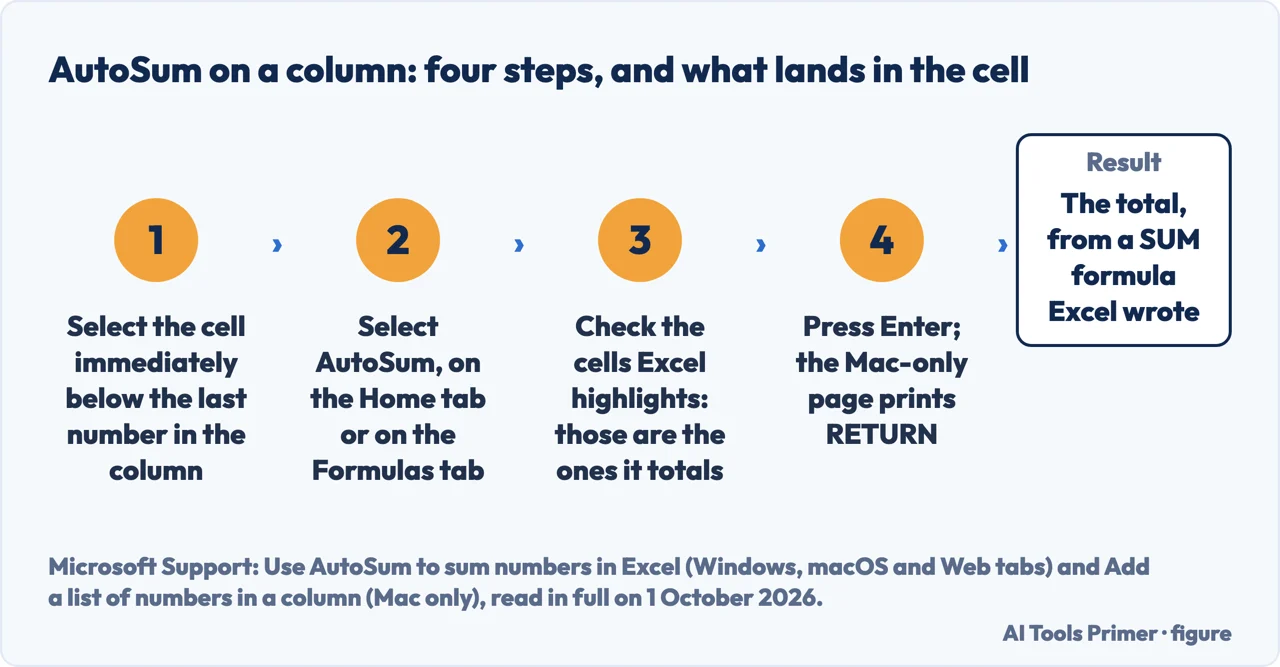
- Select the cell immediately below the last number in the column. Microsoft’s AutoSum page: “To sum a column of numbers, select the cell immediately below the last number in the column.” Its example is cell B7, under the January numbers of a budget.
- Select AutoSum. The same page places the button on the Home tab and on the Formulas tab. The Mac-only page says Formulas toolbar and a page for three products and no Mac says Formula tab; all three call the button AutoSum.
- Check the cells Excel highlights before you confirm. “A formula appears in cell B7, and Excel highlights the cells you’re totaling.” If numbers are missing, the Mac-only page says to drag the sizing handles of the blue border, and the page for six products to hold Shift and an arrow key until the selection matches.
- Press Enter; the Mac-only page prints RETURN. The AutoSum page prints Enter on its Windows, macOS and Web tabs alike. In its example the result, 95.94, appears in B7.
- Copy the total across, or total several columns in one go. The AutoSum page copies the formula from B7 to C7, where it adjusts to C3:C6, and says you can highlight B7 and C7 together and select AutoSum once. What copying does to references is on the page on copying a formula in Excel.
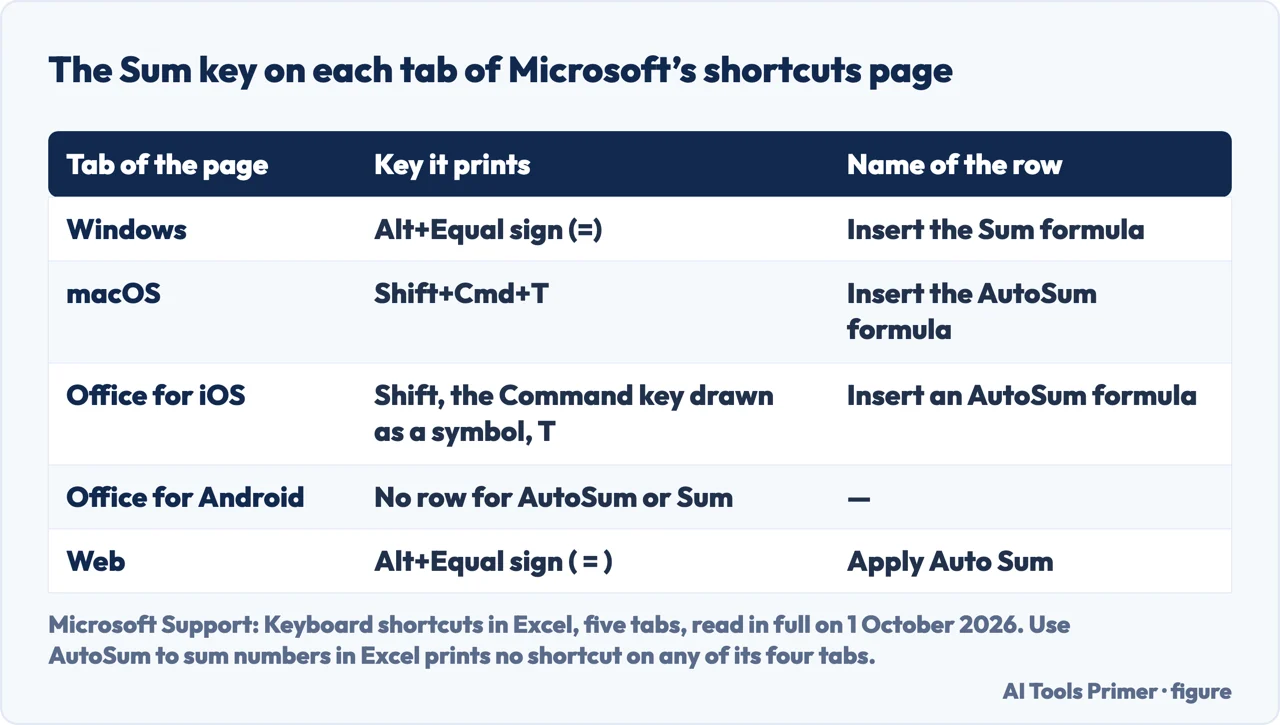
One key on Windows and the web, another on a Mac, no shortcut on the page that teaches AutoSum
“You can use ALT+ = to quickly add the SUM function to a cell.”
That sentence is on Microsoft’s page Learn more about SUM, whose Applies To lists six products, three of them for Mac; it names no platform. The page Keyboard shortcuts in Excel does, tab by tab: the Windows tab prints Alt+Equal sign (=) beside “Insert the Sum formula”, the Web tab the same key beside “Apply Auto Sum”, the macOS tab Shift+Cmd+T beside “Insert the AutoSum formula.” The Office for iOS tab, which speaks of an external keyboard, has the Mac combination with the Command key drawn as a symbol; the Office for Android tab has no row for it.
The page that teaches AutoSum prints no keyboard shortcut for it. Use AutoSum to sum numbers in Excel has four tabs; the Windows, macOS and Web tabs are the same text, word for word, and none of the four prints a shortcut. The Mac-only page does, in a tip: the Command key, drawn as a symbol, then SHIFT and T.
On a phone or tablet. The Office for Android tab of the AutoSum page gives four taps: “tap the first empty cell after a range of cells that has numbers”, then AutoSum, then Sum, then the check mark. The page lists Excel for iPad and Excel for iPhone in its Applies To and has no tab for them; no page read for this guide prints touch steps for AutoSum on either.
Where the range AutoSum proposes stops
“If there’s a blank row or column within your sum range, Excel selection stops at the first gap.”
That is Learn more about SUM, the page for six products, which also says AutoSum does not work
on noncontiguous ranges. Its remedy: type =SUM(, select each range, and Excel puts
the comma between them. For picking several ranges it prints Ctrl+Left Click and no Mac
key.
Below, or above. The AutoSum page says immediately below the last number; Learn more about SUM allows either end: “Select an empty cell directly above or below the range you want to sum.” No page read for this guide says what happens when the heading of the column is itself a number, such as a year; the highlight in step 3 is the check, and that advice is ours.
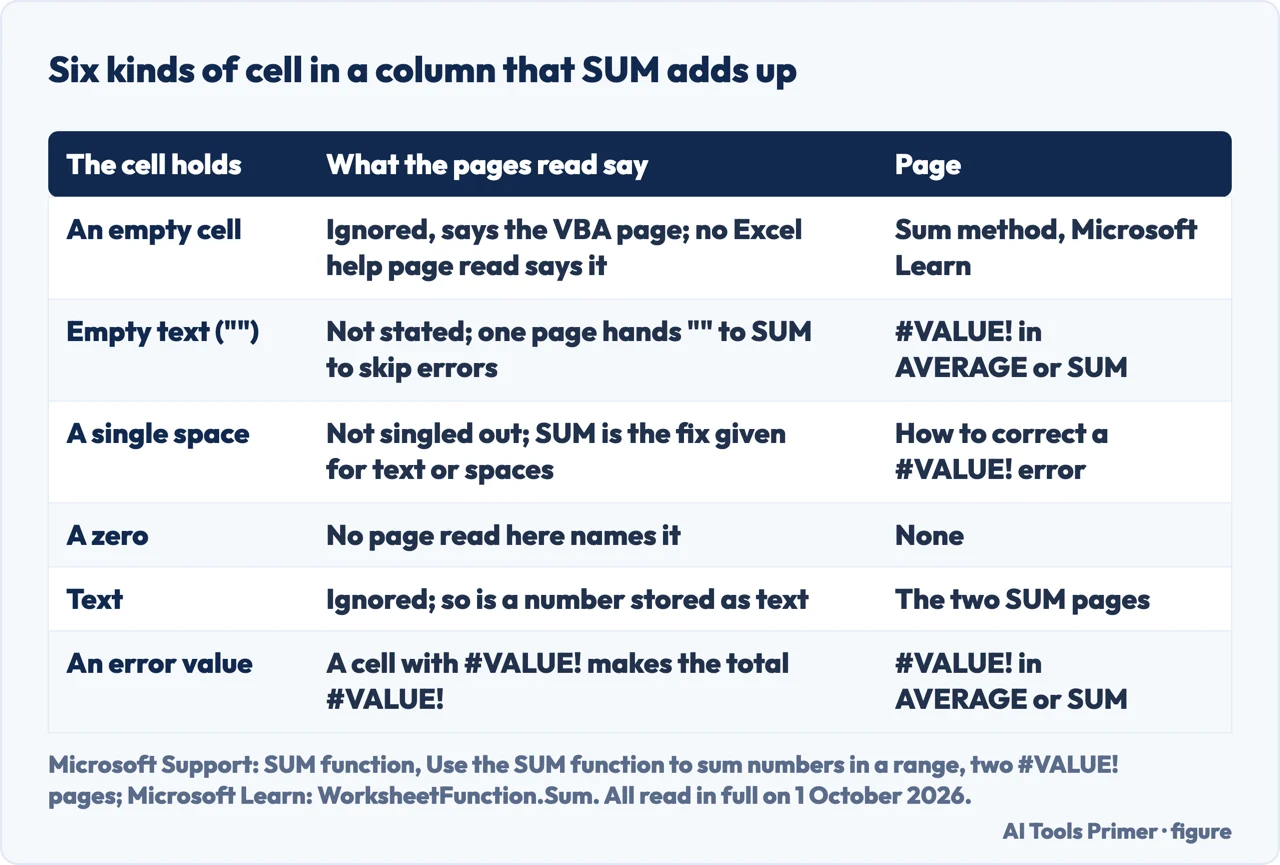
An empty cell, empty text, a space, a zero, text, an error
What =SUM(A2:A10) does when a cell in the range holds each, from the
pages read for this guide on 1 October 2026; where none names a case, the line says so.
- An empty cell
- No Excel help page read for this guide says in words what SUM does with an empty cell.
Microsoft Learn’s reference for the VBA method WorksheetFunction.Sum, last updated on
13 September 2021, does: “Empty cells, logical values, or text in the array or reference
are ignored.” It documents the method a macro calls, not the function typed in a cell;
carrying it over to
=SUMis this guide’s reading. Learn more about SUM is consistent with it: it divides=SUM(A2:L2)by a count of the nonblank cells of a row where, it says, May to December are blank. - Empty text
- No page read for this guide says in words what SUM does with empty text, the
""a formula can return. Microsoft’s page on #VALUE! in AVERAGE or SUM uses it without comment:=SUM(IF(ISERROR(B2:D2),"",B2:D2))swaps each error for""before SUM adds the rest. That SUM passes over the""is an inference from that formula, and it is ours. The page on counting cells that are not blank shows two functions counting such a cell in opposite ways. - A single space
- Microsoft’s page on correcting #VALUE! names it for the plus sign, not for SUM:
“Formulas with math operations like + and * might not be able to calculate cells that
contain text or spaces.” Its remedy is
=SUM(A2:C2)in place of=A2+B2+C2, because functions, it says, often ignore text values; it does not say separately that SUM passes over a space. Taking spaces out is on the page on removing spaces in Excel. - A zero
- No page read for this guide names a zero inside a SUM. That adding nothing leaves a total where it was is arithmetic, and the remark is ours.
- Text
- “SUM will ignore text values and give you the sum of just the numeric values.”
That is the SUM function page. The page Use the SUM function to sum numbers in a range, for
five products and no Mac, shows the case that goes unnoticed: a number typed as text,
'5, and a TRUE in cells “are both treated as text”, and=SUM(A5,A6, 2)returns 2, while=SUM("5", 15, TRUE), with the text"5"and TRUE typed inside the formula, returns 21. So, by this guide’s reading, a column with numbers stored as text gives a total without them and no #VALUE!. Microsoft’s page on converting them says, on its Windows tab, that an alert usually appears next to such a cell; it has that Windows tab, with Convert to Number and the VALUE function, a Web tab, with VALUE alone, and no Mac tab. - An error value
- “If AVERAGE or SUM refer to cells that contain #VALUE! errors, the formulas will
result in a #VALUE! error.” The same page gives the array formula quoted under empty
text, entered with ENTER in Microsoft 365 and CTRL+SHIFT+ENTER otherwise, and says it also
works for #N/A, #NULL and #DIV/0!; it prints no Mac key. The AGGREGATE function page lists
SUM as function 9 and “Ignore error values” as option 6, with no example that
joins them:
=AGGREGATE(9,6,A2:A10)is this guide’s reading of its two tables, not a formula Microsoft prints.
The total with nothing typed. Select the cells and read Sum on the status bar. Microsoft’s page Excel status bar options, for three products and no Mac, lists Sum as “Selected by default, this option displays the sum of numerical values in selected cells.” The Mac-only page gives the same route as a tip. For the browser, the page View summary data on the status bar, which has no Applies To line and speaks of Excel for the web, says selecting two or more cells with numeric data shows the average, the count and the sum, and that selecting one of them copies it. The same bar is the short route on the page on calculating the mean in Excel.
Rows added later, and the whole-column reference. The SUM function page says a SUM over a range updates when a row is inserted, “as long as you’re not outside of the range referenced in the formula”. It does not spell out a row added at the very end, just above the total, so check the range after adding one; that advice is ours, and the gesture is on the page on adding rows in Excel. One of the search results read for this guide on 1 October 2026, by Ajelix, a company that sells AI tools for spreadsheets, offers =SUM(A:A): “This formula will sum every cell in column A.” No Microsoft page read for this guide prints a whole-column reference. One describes a formula that sits inside the range it adds: on the page on circular references, =SUM(A3:F3) typed in F3, where “F3 is included in the range being calculated.” So =SUM(A:A) typed in column A would be that case; the conclusion is this guide’s, not Microsoft’s. The Ajelix page also says SUM “can be used to sum up numbers, text, or logical values”, against the SUM function page quoted above.
In Google Sheets. Google’s page for the function, “Returns the sum of a series of numbers and/or cells.”, gives SUM(A2:A100) as sample usage. For the total with no formula, its page See the sum & average says to highlight the cells and read the sum in the bottom right, and notes that the feature does not work for some number or currency formats. Neither Google page read prints a key.
Where to start
Five ways in.
- “Just show me the button.”
- Five steps with AutoSum — the steps that write the total
- “Which key is it on my computer?”
- Windows, Mac, the web, a tablet — the key on each platform
- “My total is too small.”
- Text and numbers stored as text in the column — what a total leaves out
- “My filtered total is wrong.”
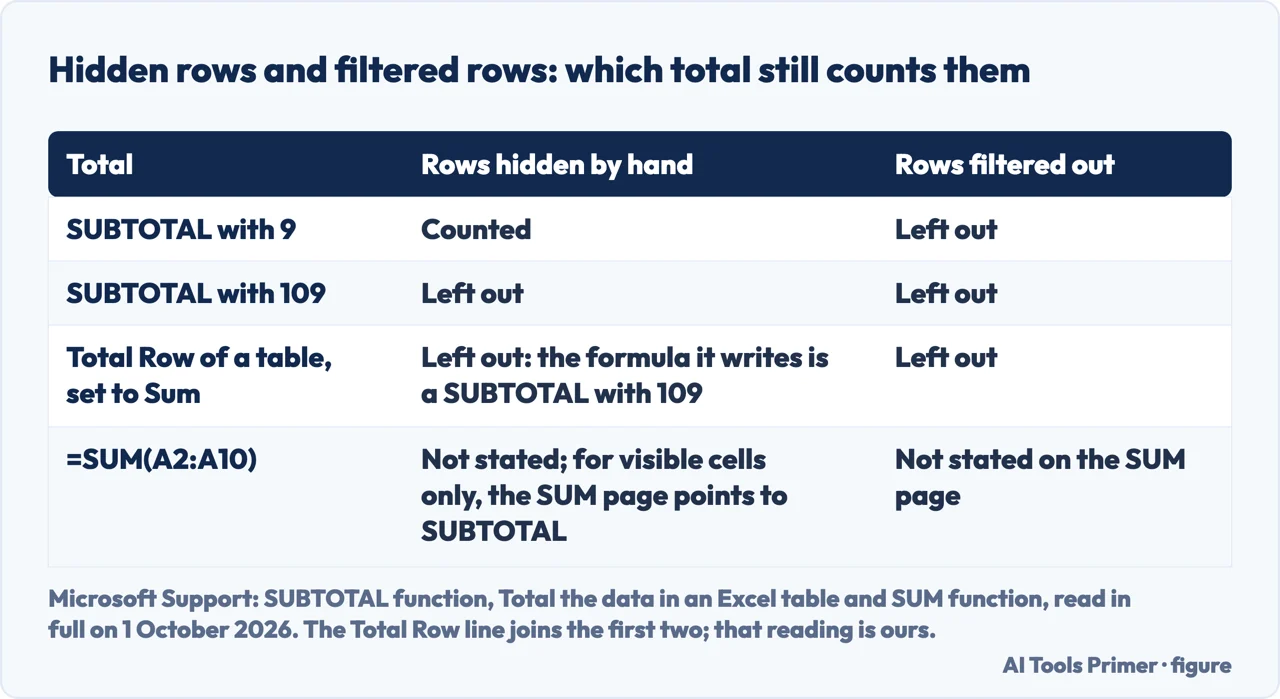
- SUBTOTAL and the Total Row — totals that skip hidden rows
- “I only want to see the number.”
- The status bar — the total with no formula
Subtracting, averaging and percentages
Taking one cell from another, averaging the same column, and turning a part of a total into a percentage each have a guide of their own.
What a cell holds, and what a formula makes of it
Removing spaces, counting cells that are not blank, and a sheet that shows a formula instead of its result each have a guide of their own.
Rows that are hidden, added or grouped
Unhiding rows, inserting several at once, and grouping them under an outline each have a guide of their own.
Questions people also ask
What is the Excel formula for a SUM?
=SUM(A2:A10), which Microsoft’s SUM function page describes as adding the values in those cells. The syntax it prints is SUM(number1,[number2],...): each argument can be a number, a cell reference or a range, up to 255 of them. AutoSum writes a SUM formula for you.
How to quick SUM in Excel?
With no formula, select the cells and read Sum on the status bar: Microsoft documents it for three products with no Mac, and in a tip on its Mac-only page. With a formula, select the cell under the column, as for the button, and, by this guide’s reading, press Alt+= on Windows or the web, Shift+Cmd+T on a Mac.
How do I SUM columns in Excel?
One at a time, select the cell immediately below each column and choose AutoSum. Several at once: Microsoft’s AutoSum page says to highlight the cells under both columns, B7 and C7 in its example, and select AutoSum. Or type one formula over two ranges, as the SUM function page does with =SUM(A2:A10, C2:C10).
How to automatically SUM columns in Excel?
AutoSum writes the SUM formula for a column from one button or one key. After that, Microsoft’s SUM function page says a SUM over a range updates by itself when a row is inserted inside the range. In a table, the Total Row sits at the bottom, and choosing Sum in its drop-down writes a SUBTOTAL formula.
Not covered here. It does not cover SUMIF and SUMIFS, which add only the cells that meet a condition; Microsoft’s page Ways to add values in an Excel spreadsheet names both and sends each to a page of its own.
It does not cover adding one cell across several sheets, which Learn more about SUM writes as =SUM(Sheet1:Sheet3!A1), nor adding times, which the SUM function page treats in an answer of its own.
And it does not cover PivotTable totals, nor Excel on iPad and iPhone beyond what is said above: the AutoSum page lists both in its Applies To and has no tab for them. Each key and route on this page carries, here or in the Sources, the tab or the Applies To line of the page it comes from.
Sources
- Microsoft Support — Use AutoSum to sum numbers in Excel: the cell immediately below the last number, the two places of the button, the example with cell B7 and the result 95.94, the highlighted cells, Enter on its Windows, macOS and Web tabs, copying the formula to C7 and totalling two columns at once, and the four taps of its Office for Android tab; no keyboard shortcut on any tab, and no tab for iPad or iPhone. Applies to Excel for Microsoft 365, Excel 2024 and Excel 2021, each with its Mac version, Excel 2019, Excel 2016, and Excel for iPad, iPhone, Android tablets and Android phones — twelve products — support.microsoft.com, read 1 October 2026.
- Microsoft Support — Keyboard shortcuts in Excel: the row for the Sum formula on its Windows tab, Alt+Equal sign; the row for Auto Sum on its Web tab, the same key; the row for the AutoSum formula on its macOS tab, Shift+Cmd+T; the same combination on its Office for iOS tab, which speaks of an external keyboard, with the Command key as a symbol; and no such row on its Office for Android tab. Applies to the twelve products of the AutoSum page and Excel Mobile — thirteen products — support.microsoft.com, read 1 October 2026.
- Microsoft Support — Add a list of numbers in a column: the Formulas toolbar, the blue border and its sizing handles, RETURN, the status bar tip, and the AutoSum shortcut printed as the Command symbol, SHIFT and T. Applies to Excel for Microsoft 365 for Mac, Excel 2024 for Mac and Excel 2021 for Mac — Mac only — support.microsoft.com, read 1 October 2026.
- Microsoft Support — Learn more about SUM: ALT+ = printed with no platform, the cell directly above or below the range, Shift and an arrow key to adjust the selection, the selection that stops at the first gap, the ranges added one by one with Ctrl+Left Click, the formula =SUM(A2:L2)/COUNTA(A2:L2) over a row with blank months, and the sum across sheets. Applies to Excel for Microsoft 365, Excel 2024 and Excel 2021, each with its Mac version — six products — support.microsoft.com, read 1 October 2026.
- Microsoft Support — SUM function: the example =SUM(A2:A10) and its description, the syntax with up to 255 numbers, the sentence that SUM ignores text values, the update when a row is inserted inside the range, the example over two ranges, the answer on adding times, and the answer that sends summing just visible cells to SUBTOTAL. Applies to Excel for Microsoft 365, Excel 2024 and Excel 2021, each with its Mac version, Excel 2019 and Excel 2016 — eight products, and no web version — support.microsoft.com, read 1 October 2026.
- Microsoft Support — Use the SUM function to sum numbers in a range: the worked table in which a number typed as text and a TRUE in cells are treated as text and ignored, =SUM(A5,A6, 2) returning 2, and =SUM("5", 15, TRUE) returning 21. Applies to Excel for Microsoft 365, Excel 2024, Excel 2021, Excel 2019 and Excel 2016 — five products, and no Mac — support.microsoft.com, read 1 October 2026.
- Microsoft Support — Ways to add values in an Excel spreadsheet: the Formula tab as the place of AutoSum, and SUMIF and SUMIFS named for sums with conditions. Applies to Excel for Microsoft 365, Excel 2024 and Excel 2021 — three products, and no Mac — support.microsoft.com, read 1 October 2026.
- Microsoft Support — How to correct a #VALUE! error in AVERAGE or SUM functions: the sentence that a SUM over cells with #VALUE! returns #VALUE!, the array formula with ISERROR and empty text, ENTER in Microsoft 365 or CTRL+SHIFT+ENTER, and the note that it also works for #N/A, #NULL and #DIV/0!. Applies to Excel for Microsoft 365, Excel 2024 and Excel 2021, each with its Mac version, Excel 2019 and Excel 2016 — eight products, and no web version — support.microsoft.com, read 1 October 2026.
- Microsoft Support — How to correct a #VALUE! error: the sentence on arithmetic operations and cells that contain text or spaces, and the advice to use =SUM(A2:C2) instead of =A2+B2+C2. Applies to eleven products: Excel for Microsoft 365 and its Mac version, Excel 2024 and its Mac version, Excel 2021 and its Mac version, Excel 2019 and its Mac version, Excel 2016 and its Mac version, and Excel Web App — support.microsoft.com, read 1 October 2026.
- Microsoft Support — Convert numbers stored as text to numbers in Excel: on its Windows tab, the error indicator, Convert to Number and the VALUE function; on its Web tab, the VALUE function; no Mac tab. Applies to the eight products of the SUM function page and Excel Web App — nine products — support.microsoft.com, read 1 October 2026.
- Microsoft Support — SUBTOTAL function: the function numbers 1-11 and 101-111, 9 and 109 for SUM, manually hidden rows and filtered-out cells, and the example =SUBTOTAL(9,A2:A5). Applies to Excel for Microsoft 365, Excel 2024 and Excel 2021, each with its Mac version, Excel 2019 and Excel 2016 — eight products, and no web version — support.microsoft.com, read 1 October 2026.
- Microsoft Support — Total the data in an Excel table: the Total Row at the bottom of the table, its route on the Windows, Mac and Web tabs, the empty cells of a first total row, and the formula =SUBTOTAL(109,[Midwest]) on its Windows and Mac tabs. Applies to Excel for Microsoft 365, Excel 2024 and Excel 2021, each with its Mac version — six products — support.microsoft.com, read 1 October 2026.
- Microsoft Support — AGGREGATE function: SUM as function 9 and the option that ignores error values, 6; no example that joins the two. Applies to the eight products of the SUM function page and Excel Web App — nine products — support.microsoft.com, read 1 October 2026.
- Microsoft Support — Excel status bar options: Sum, selected by default, as the sum of numerical values in selected cells. Applies to Excel for Microsoft 365, Excel 2024 and Excel 2021 — three products, and no Mac — support.microsoft.com, read 1 October 2026.
- Microsoft Support — View summary data on the status bar: the average, count and sum shown for two or more selected cells with numeric data in Excel for the web, and the click that copies a summary value. The page carries no Applies To line — support.microsoft.com, read 1 October 2026.
- Microsoft Support — Remove or allow a circular reference: the pattern of a formula that includes its own cell in a range, =SUM(A3:F3) in cell F3. Applies to Excel for Microsoft 365, Excel 2024 and Excel 2021, each with its Mac version, Excel 2019 and Excel 2016 — eight products, and no web version — support.microsoft.com, read 1 October 2026.
- Microsoft Learn — WorksheetFunction.Sum method (Excel): the remark that empty cells, logical values or text in an array or reference are ignored. A reference page for the VBA method, last updated on 13 September 2021, with no Applies To line — learn.microsoft.com, read 1 October 2026.
- Google Docs Editors Help — SUM: the one-line description and the sample usage SUM(A2:A100). A Google Sheets page; it carries no product line — support.google.com, read 1 October 2026.
- Google Docs Editors Help — See the sum & average, the Computer tab: highlight the cells and read the sum in the bottom right, and the note on number and currency formats. A Google Sheets page; it carries no product line — support.google.com, read 1 October 2026.
- Ajelix — How To Sum A Column In Excel: Summation Formula, the fifth organic search result on 1 October 2026, read for this guide: the whole-column formula =SUM(A:A) and the sentence that SUM can be used on text. An independent site that sells AI tools for spreadsheets, with no Applies To line of its own — ajelix.com, read 1 October 2026.
Written by Alberto Gulotta
Founder and editor of AI Tools Primer, writing from Palermo, Italy. Thirty-five years of taking computers apart, starting with a Commodore 64 — the long version is on the about page.
Something wrong on this page? Write to aitoolsprimer@gmail.com and it gets fixed.
Written on 2 October 2026.
Independence and limits
No affiliate links and no paid placements anywhere on this site. Nobody pays to appear here, and no company has seen this page before you did.
This is general information, not professional advice. Where a page touches money, health, safety or the law, it names its source and the date it was read — and your situation may still differ. See the privacy page and the cookie policy.