How to group rows in Excel: select the detail rows, leave the grand total out of the selection, and go to Data, Outline, Group, Group, then Rows. Excel calls the result an outline and it goes eight levels deep. The rest of this page is the part the menus do not tell you.
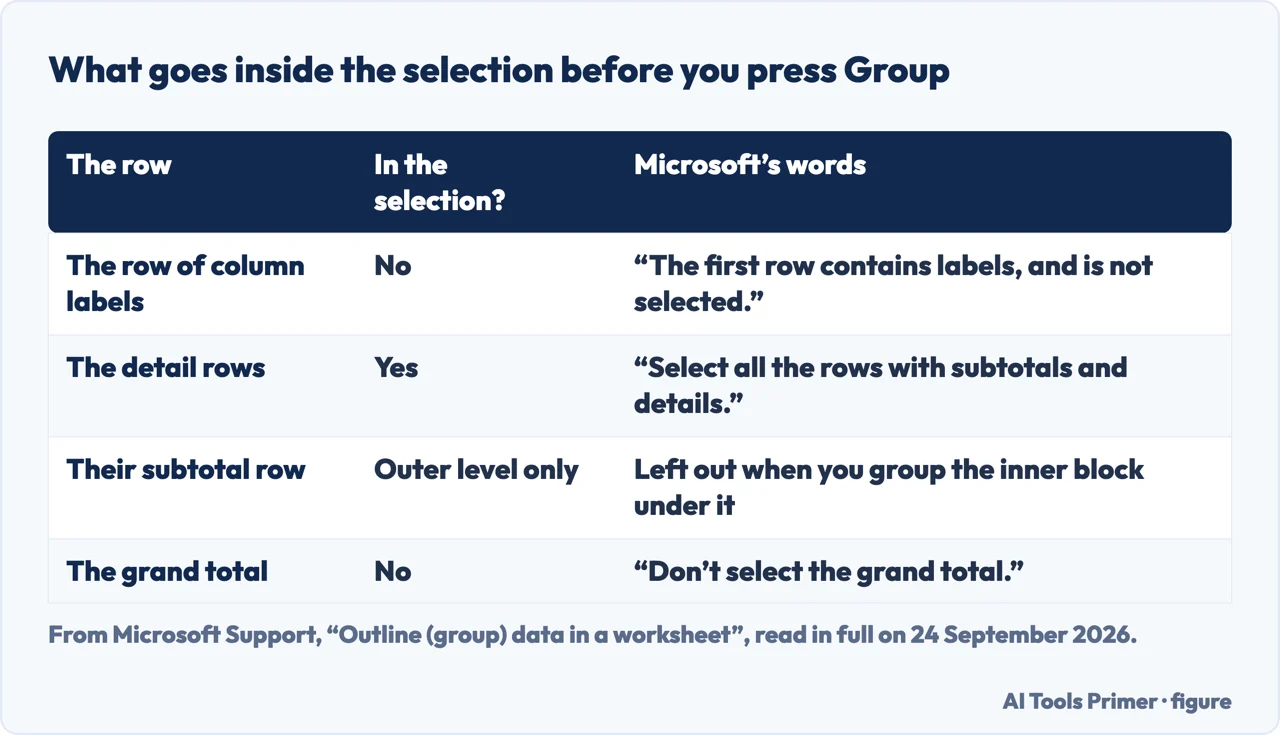
What goes inside the bracket, and what has to stay outside it
The row
Select it?
What Microsoft says
The row of column labels
No
“The first row contains labels, and is not selected.”
The detail rows
Yes
“Since this is the outer group, select all the rows with subtotals and details.”
The subtotal for those rows
Yes, at the outer level
Included with the details it summarises — but not when you group the inner rows underneath it
The grand total
No
“Don’t select the grand total.”
The selection is the whole trick: labels out, details in, grand total out. Figure drawn by AI Tools Primer from Microsoft Support, “Outline (group) data in a worksheet”, read on 24 September 2026.
The first thing worth knowing is that Excel does not really have a “group rows” feature. It has an outline, and grouping rows is one thing an outline can be built from. That matters because it explains the menu path, which reads Data › Outline › Group rather than anything with the word rows in it, and because it explains the ceiling: Microsoft writes that “you can create an outline of up to eight levels”, where each inner level shows the detail behind the level above. You can outline rows, columns, or both at once.
Check the shape of the data first. Microsoft asks for three things before you
start: a label in the first row of each column, similar facts down each column, and
no blank rows or columns inside the range. A stray empty row is enough to put the brackets in the wrong places.
Decide where your subtotals sit. “By default, Excel looks for summary rows
below the details they summarize.” If yours are above, go to
Data › Outline, open the dialog box launcher, and clear
Summary rows below detail before grouping anything. Microsoft puts this setting before any grouping.
Select the detail rows, and leave the grand total out. The table above is
Microsoft’s own list of what goes in the selection and what does not.
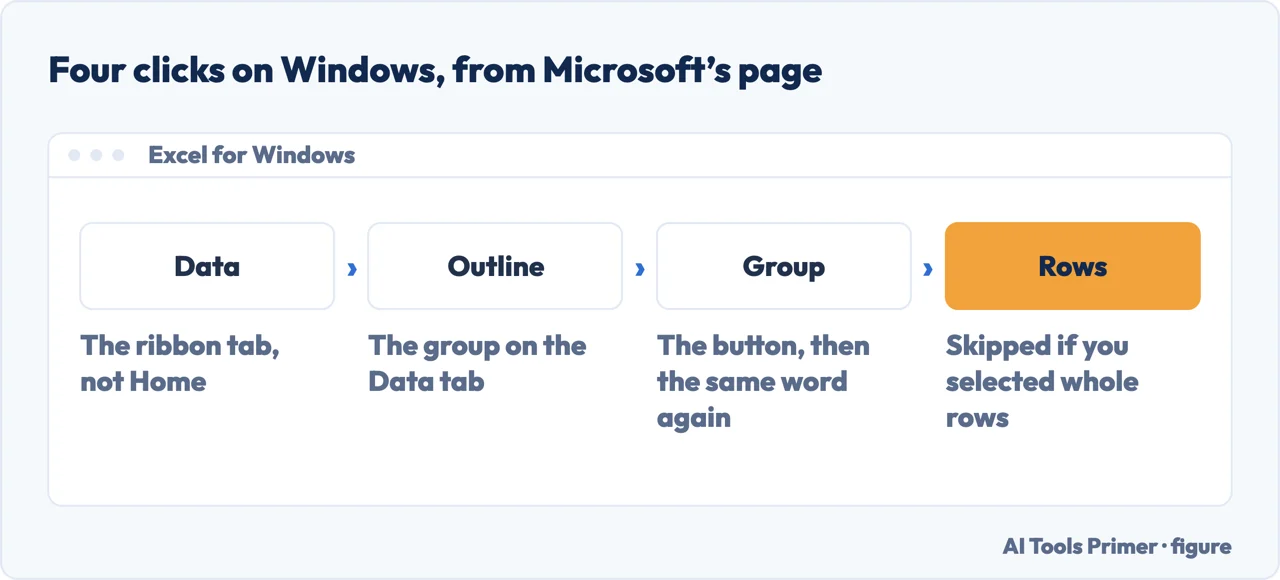
Go to Data › Outline › Group › Group, choose Rows, and select OK.
There is a shortcut hiding in this step: “If you select entire rows instead of just
the cells, Excel automatically groups by row — the Group dialog box doesn’t
even open.”
For a nested level, repeat inside the group. Select the detail rows next to a
summary row, and this time do not select that summary row. An outline goes up to
eight levels.
If the numbers and the +/− marks do not appear, turn them on.
File › Options › Advanced, then under the display options for the worksheet
tick Show outline symbols if an outline is applied. Nothing is wrong with the
outline; it is being drawn invisibly.
Four clicks on the ribbon, and one of them can be skipped. Figure drawn by AI Tools Primer.
There is a faster route, and Microsoft gives it on the same page. If your data already has subtotal formulas under each block, you do not have to select anything: Data › Outline › Group › Group, then Auto Outline, and Excel reads the formulas and builds the brackets itself. The Subtotal command does both jobs in one move — it “inserts the SUBTOTAL function immediately below or above each group of detail rows and automatically creates the outline for you”. Hand-grouping is for data that has no subtotals to read.
The shortcut question, answered with what Microsoft actually publishes
The shortcut Accelerate Excel gives for grouping is Alt+Shift+Right Arrow, and it is
worth knowing that Microsoft’s two relevant pages do not print it.
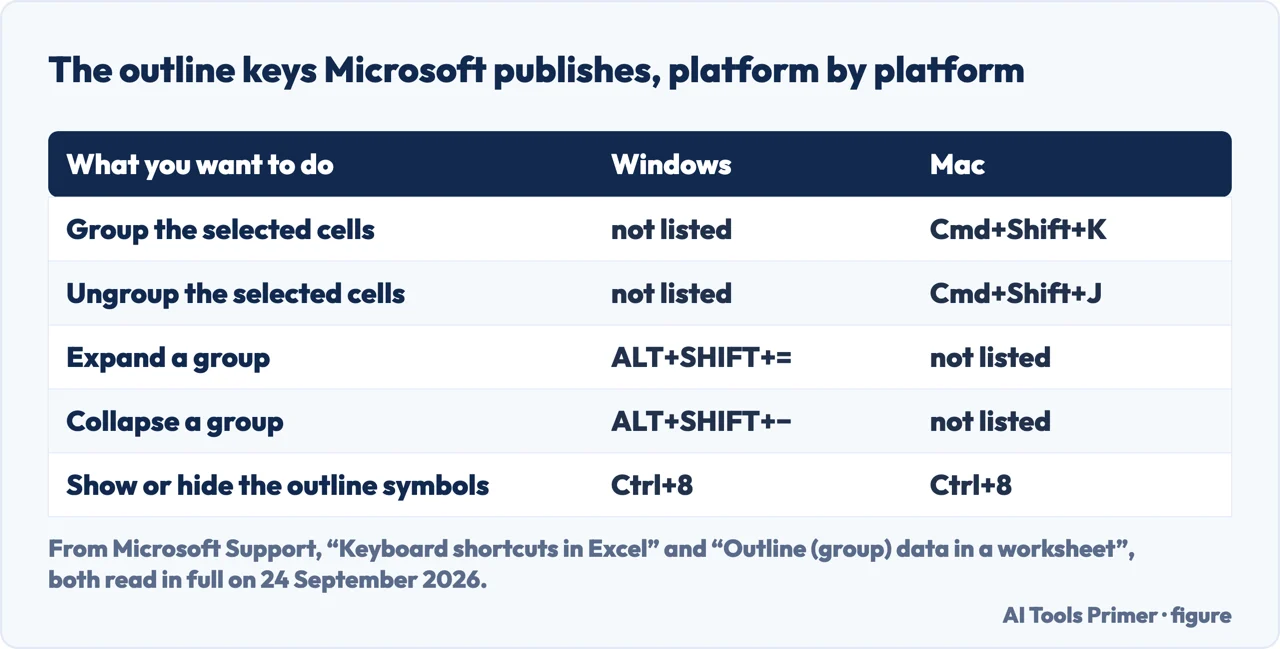
On “Outline (group) data in a worksheet”, the shortcuts Microsoft prints are
ALT+SHIFT+= to expand a group and ALT+SHIFT+- to collapse one — which is
a different job from creating the group in the first place. On “Keyboard shortcuts in
Excel”, the Windows section headed Outline data lists
Ctrl+8 for “Display or hide the outline symbols”, Ctrl+9 to hide rows and
Ctrl+Shift+( to unhide them — and no shortcut for grouping at all.
That is a fact about the documentation, not about Excel. A key that Microsoft does not
print is not a key that does nothing, and this page will not tell you it has been removed. What
it will tell you is that if Alt+Shift+Right Arrow does nothing on your machine, you have not
misremembered it: neither Microsoft page lists it, and the two keys Microsoft does print do something else.
What Microsoft prints, platform by platform. Figure drawn by AI Tools Primer.
On Windows: the procedure, without the shortcut
“Outline (group) data in a worksheet” has a Windows tab and a
Web tab, and its Applies To line reads: Excel for Microsoft 365, Excel 2024,
Excel 2021, Excel 2019, Excel 2016.
Every step on this page comes from there. What is missing is a keyboard route to the
Group command.
On a Mac: the shortcut, without the procedure
The keyboard shortcuts page has a section for Excel for Mac, and in it:
“Group selected cells. Cmd+Shift+K” and “Ungroup selected cells.
Cmd+Shift+J”. Ctrl+8 shows and hides the outline symbols there too.
The procedure page, meanwhile, does not contain the word Mac once. The menus are
the same; the page that confirms them for your machine is not there.
In the browser: grouping yes, tidying no
Excel for the web has its own tab on the same Microsoft page, and it works:
Data › Outline › Group › Group, then Rows or Columns.
One published limit: “Although you can add summary rows or columns to your data
(by using functions such as SUM or SUBTOTAL), you cannot apply styles or set a position
for summary rows and columns in Excel for the web.” So the
Summary rows below detail setting is a desktop setting.
Now the question people arrive with once the brackets exist. The next thing anybody wants to do with grouped data is sort it — rank the departments by spend, put the busiest month at the top — and the immediate worry is whether the detail rows will be torn away from the subtotal they belong to. It is a fair worry, and Microsoft’s outline page does not settle it: the word sort does not appear on it once. The same question was asked in Microsoft’s own Excel forum in June 2023: “How do I group multiple lines such that on Sort of the worksheet, the multiple lines stay together?”
The answer is on a Microsoft page, just not the one about outlines. Accelerate Excel, a blog run by the makers of an Excel add-in, puts it in one line: “Excel automatically keeps each detail block with its subtotal while it sorts.” Microsoft says the same thing on “Sort data in a range or table in Excel”: “When you sort rows that are part of a worksheet outline, Excel sorts the highest-level groups (level 1) so that the detail rows or columns stay together, even if the detail rows or columns are hidden.” The last clause is the one that decides the collapsed case, because a collapsed group is a group of hidden rows. The warning further down the same page — “hidden rows are not moved when you sort rows” — sits under a heading about unexpected results; the outline note is the more specific of the two.
Four ways an outline goes wrong, and the published fix for each
All four come from Microsoft’s page except the last, which comes from
Accelerate Excel. Read in full on 24 September 2026.
The rows vanish when you ungroup
Microsoft flags this as the one to watch: “If you ungroup an outline while the
detail data is hidden, the detail rows could remain hidden.” The fix is to drag
across the visible row numbers on either side, then
Home › Cells › Format › Hide & Unhide › Unhide Rows. The
safer habit is to expand everything before you ungroup anything.
The brackets land in the wrong places
Usually the shape of the range: Microsoft asks for a label row and
no blank rows or columns. It also warns that manual grouping should be done with
all the data showing, “to avoid grouping the rows incorrectly”.
Copying a collapsed outline brings the hidden rows with it
It does, by default. Microsoft’s route is
Home › Editing › Find & Select › Go To Special ›
Visible cells only, and then copy. Accelerate Excel gives the same thing on the
keyboard: Ctrl+G, Special, Visible cells only — or Alt+; to select them outright.
Nested groups produce errors or odd results
Accelerate Excel names overlapping ranges as the cause, and its advice is unsentimental:
Clear Outline and start again, building from the innermost level outwards. Microsoft
confirms the harmless half — “No data is deleted when you hide or remove an
outline.”
One last distinction, because it decides which tool you want. Hiding rows and grouping rows look the same once the rows are off the screen, and they are not the same at all. A hidden row leaves a thin line between two row numbers and nothing else; a grouped one leaves a numbered level bar and a + button that says, plainly, that there is more here. Accelerate Excel calls hiding “a bad practice” for shared files for exactly that reason. If what you actually wanted was for the rows to be gone from view and stay gone, that is hiding rows, and it has its own failure modes.
Grouping is one use of a feature Excel calls an outline, and the outline has conditions of its own about labels, blank rows and where the subtotals sit.
How do you group rows in Excel to collapse and expand them?
Select the detail rows without the grand total, then Data › Outline › Group › Group, and choose Rows. A numbered level bar and a minus button appear in the margin: the minus collapses the block and the plus brings it back.
What is the Excel shortcut for grouping rows?
Microsoft documents Cmd+Shift+K to group and Cmd+Shift+J to ungroup in the Excel for Mac section of its keyboard shortcuts page. In the Windows section there is no grouping shortcut listed at all — only Ctrl+8 for the outline symbols, and ALT+SHIFT+= and ALT+SHIFT+- to expand and collapse.
How to do automatic grouping in Excel?
If the range already has subtotal formulas, select a cell in it and choose Data › Outline › Group › Group › Auto Outline. If it has no subtotals yet, the Subtotal command inserts them and builds the outline in the same step.
How to manually create groups of rows in Excel?
Group the outer level first: all the detail rows and their subtotals, without the label row and without the grand total. Then group each inner block, this time leaving its own summary row out. Repeat for as many as eight levels.
Why did my rows disappear after ungrouping?
Because they were collapsed when you ungrouped. Microsoft’s warning is explicit: the detail rows “could remain hidden”. Drag across the visible row numbers either side of the gap, then Home › Cells › Format › Hide & Unhide › Unhide Rows.
How do I remove grouping without losing the data?
Data › Outline › Ungroup › Clear Outline removes every bracket on the sheet. Microsoft states the reassuring part directly: “No data is deleted when you hide or remove an outline.”
Not covered here. It does not cover grouping inside a PivotTable, which is a different command on a different object: that is pivot tables.
It does not cover Google Sheets, where the equivalent is built on a different menu and has no Auto Outline.
And it does not recommend an add-in. Everything here is a menu in Excel, and where a source that sells one has been quoted, the page says so in the same sentence. What holds instead is simple: every step and every shortcut here is quoted from the Microsoft page that publishes it, with the date it was read.
Sources
Microsoft Support — Outline (group) data in a worksheet: the steps, the eight levels, the Summary rows below detail setting, Auto Outline, Clear Outline and the warning about ungrouping while collapsed. Applies to Excel for Microsoft 365, 2024, 2021, 2019 and 2016, with a Windows tab and a Web tab and no Mac tab — support.microsoft.com, read September 2026.
Microsoft Support — Keyboard shortcuts in Excel: Ctrl+8 for the outline symbols, and the Excel for Mac section that is the only place Cmd+Shift+K and Cmd+Shift+J appear — support.microsoft.com, read September 2026.
Microsoft Support — Sort data in a range or table in Excel: the note that sorting a worksheet outline keeps the detail rows with their level-1 group even when those rows are hidden, and, in the section on unexpected results, the general warning that hidden rows are not moved when you sort rows — support.microsoft.com, read September 2026.
Accelerate Excel — Group Rows in Excel: Collapse and Expand Data Easily, by David Szmidla: the Windows and Mac shortcut table, the line about sorting keeping each detail block with its subtotal, and the note on overlapping nested ranges. The site sells an Excel add-in, and the page says so where it is quoted — www.accelerate-excel.com, read September 2026.
Microsoft Tech Community — the question in the Excel forum about keeping grouped lines together when a sheet is sorted, cited here for the question, asked in June 2023, on the point Microsoft’s outline page does not cover — techcommunity.microsoft.com, read September 2026.
AG
Written by Alberto Gulotta
Founder and editor of AI Tools Primer, writing from Palermo, Italy. Thirty-five years of
taking computers apart, starting with a Commodore 64 — the long version is on the
about page.
No affiliate links and no paid placements anywhere on this site. Nobody pays to appear here,
and no company has seen this page before you did.
This is general information, not professional advice. Where a page touches money, health,
safety or the law, it names its source and the date it was read — and your situation may
still differ. See the privacy page and the
cookie policy.