
Docs · guide
How to make a QR code for a Google Form, and why it breaks
By Alberto Gulotta · Updated · 11 min read
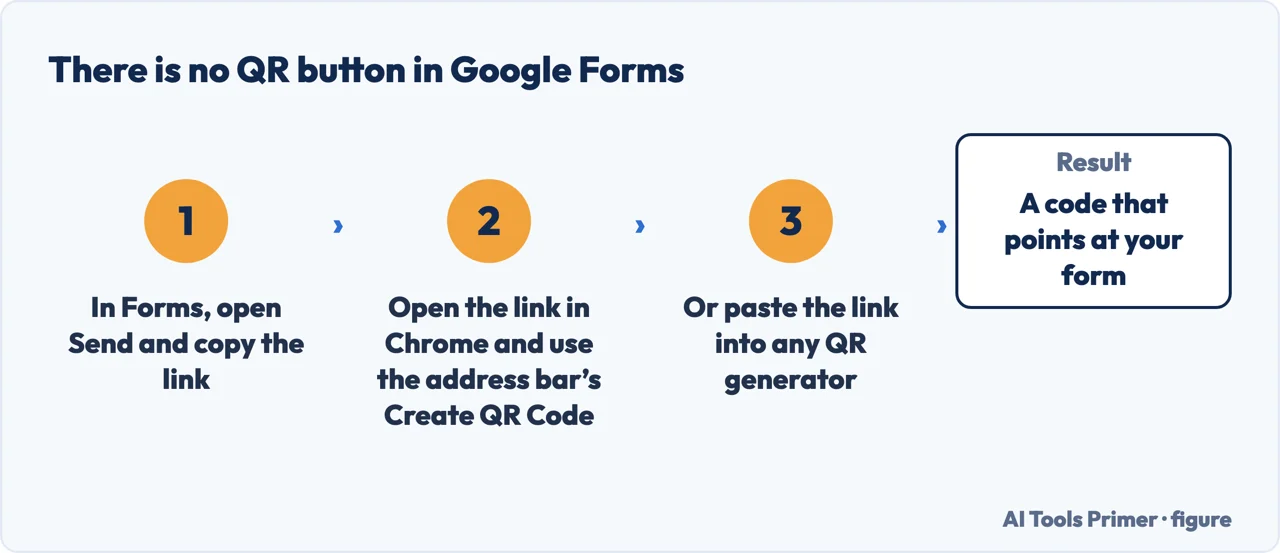
A QR code for a Google Form is easy, and Forms has no button for it: a QR code is an encoding of a web address, the form has one under Send, and Chrome or any generator turns one into the other. What fails, in front of a room full of people, is never the code.
- Publish the form first. Google’s own requirement: until a form is published it answers nobody, and a QR code pointing at it is a code pointing at a closed door.
- Open Send and copy the link. There is no QR button in Google Forms — not hidden, not in a menu. The form gives you an address, and that is all a QR code ever encodes.
- Check the general access setting before you print anything. Restricted access asks a stranger to sign in, which in a room full of people is the same as no.
- Turn the link into a code. Open it in Chrome and use the Create QR Code command in the address bar, or paste the link into any generator. Both produce the same thing: a picture of your URL.
- Test it from outside. Open the link in a private window, where you are not signed in as yourself. That is what the person with the phone will see.
“Before responders can access your form, you need to publish it.” And, further down the same page: “If the form is unpublished, responders with the link can’t access it.”
Google’s own Forms documentation, read 21 August 2026. This is the first thing to check and the single most common reason a QR code for a form does not work. The code is fine; the form is not published. Once it is, Google shows “Published” at the top right — which is the state to confirm before you print anything.
Three settings that break a printed code, all inside Google Forms
None of them is a QR problem, and all of them look like one. From Google’s documentation.
- The form is not published The default state of a new form. The link exists and does nothing until you click Publish.
- General access is not set to anyone with a link Under “General access” you can “give access to anyone with a link or to target audiences”. If it is restricted to named people or a domain, a stranger scanning your poster gets a request-access screen.
- An expiry date was set Google offers “Add expiration” when sharing. A code on a printed sheet outlives the sheet; an expiry means it stops working on a date you have probably forgotten.
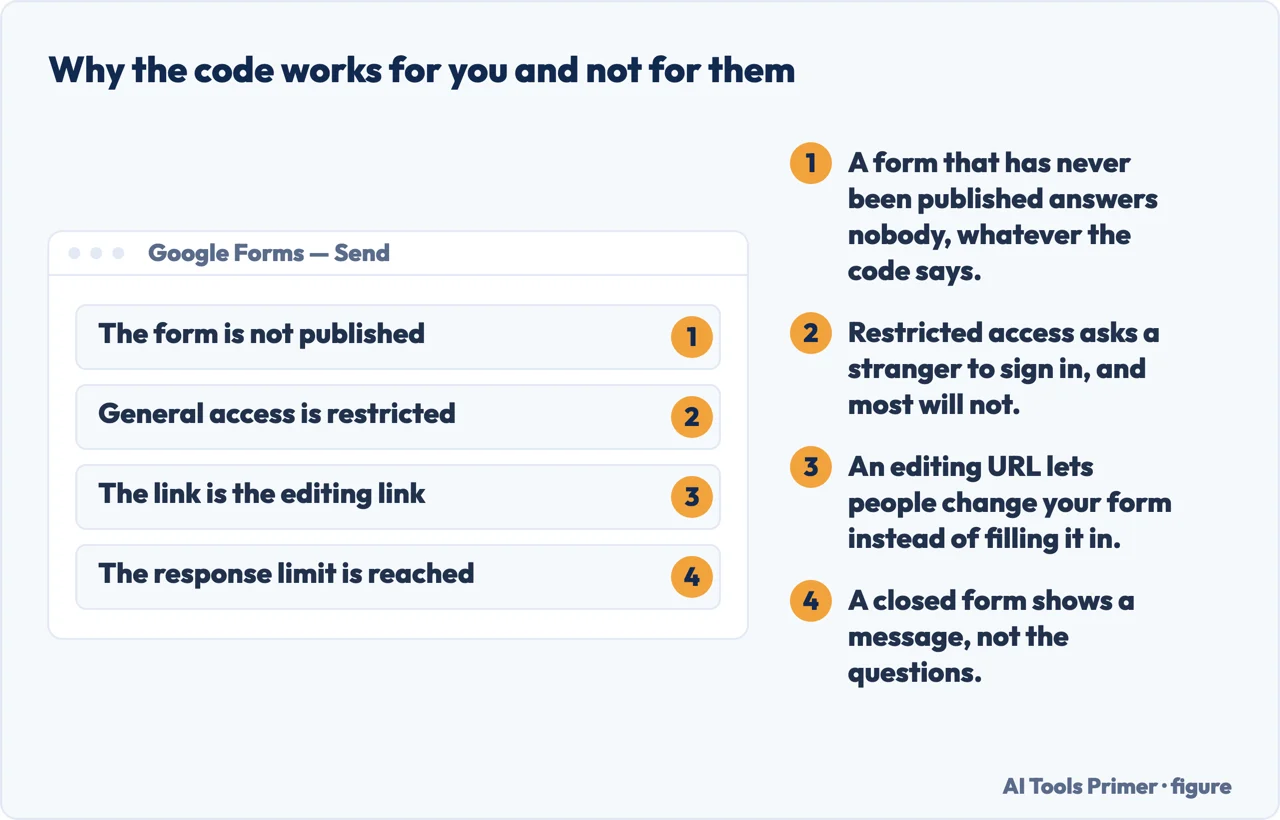
All three are inside Google Forms rather than inside the code, which is why testing the QR image tells you nothing. The test that works is opening the form link in a private browsing window, where you are not signed in as yourself. That is what a stranger sees, and it takes ten seconds.
Now the part about the generator, which matters more than it looks. Two very different things are both called a QR code.
| Level | What it can restore | Where its inventor suggests it | Source |
|---|---|---|---|
| L | About 7% of the code | A “clean environment with the large amount of data” | DENSO WAVE |
| M | About 15% | “Typically, Level M (15%) is most frequently selected” | DENSO WAVE |
| Q | About 25% | A factory environment, “where QR Code get dirty” | DENSO WAVE |
| H | About 30% | The same, where damage is more likely still | DENSO WAVE |
A static code — the one you want
The image encodes your form’s address directly. Nobody sits in the middle.
Scan it and the link reads docs.google.com/forms/…. It works for as long as the form
does, and it keeps working if the site you made it on disappears.
A dynamic code — the one you are usually given
The image encodes an address on the generator’s own domain, which redirects to your form.
Scan it and you see a short domain you do not recognise. It depends on that company continuing to exist, to run the redirect, and not to start charging — and they can see every scan, and change where it points.
The distinction decides whether the code you print is yours. A poster, a table card, a sticker on a door — these outlive the free tier of whatever site made them, and a dynamic code turns your printed material into a dependency on a company you have never spoken to.
How to tell which one you were given, in five seconds. Scan your own code before printing it and read the address that appears. If it starts with docs.google.com, it is static and it is yours. If it is a short domain you do not recognise, it is dynamic and it is theirs. This is the same check you would apply to a stranger’s code, and it is worth applying to your own.
What we are not going to do is name a generator. Of the first eight results for this question, seven are companies selling or installing something — an add-on, a design tool, three QR services, a form platform. We have not tested them against each other and will not recommend one on impression. What the check above gives you is better than a recommendation: a way to verify any of them yourself, including ones that did not exist when this was written.
The version with no third party at all. If your organisation already uses something that generates codes — many document and design tools do — that is one fewer company in the chain. And if you only need the code once, on a screen rather than on paper, sending the link is simply better than encoding it.
Before you print anything, in order. Publish the form and confirm it says Published. Set general access to anyone with a link if strangers need to respond. Check that no expiry is set. Scan your own code and read the address. Then open the link in a private window as a final check. Five steps, none of which involve the code, and together they are the difference between a poster that works and a poster that generates a queue of people telling you it does not.
The publishing and access behaviour on this page is quoted from Google’s own Forms documentation on the date it was read. Google changes Forms regularly — the Publish step is itself a relatively recent requirement — so the setting names are worth checking against the interface in front of you. The static and dynamic distinction is ours, and the test for it is one you can run rather than one you have to believe.
Where to start
Four ways in.
- “The code does not work for other people.”
- Three causes above — then sharing the form
- “Which generator should I use?”
- Read the test above, then the code itself
- “I am printing it on something.”
- Go to before you print
- “Somebody sent me a code.”
- Different question — see the code itself
Sharing the form
Nearly every QR failure is a sharing setting, and sharing settings are documented rather than mysterious.
The code itself
A QR code is a link in a picture. Reading it before you trust it is the whole skill, whether you made it or received it.
Before you print
Printed material outlives the free tier of whatever made it. What to check while changing it is still cheap.
Collecting the answers
The code is the first ten seconds. What happens to the responses afterwards is the longer question.
Questions people also ask
Is there a way to generate a QR code for a Google Form?
Not inside Forms. Google Forms has no QR command: it gives you a link under Send, and the code is made from that link — by Chrome’s Create QR Code in the address bar, or by any generator. Anything that claims otherwise is describing a button that does not exist.
How do I share the QR code of my Google Form?
Print or display the picture the generator gives you. The code is only an encoding of the URL, so it works anywhere the link works — and stops working exactly when the link does.
Why does my QR code work for me and not for other people?
Because the failure is in the form, not in the code. The form may not be published, its general access may be restricted, the link may be the editing URL, or the form may have stopped accepting responses. Open the link in a private window and you will see what they see.
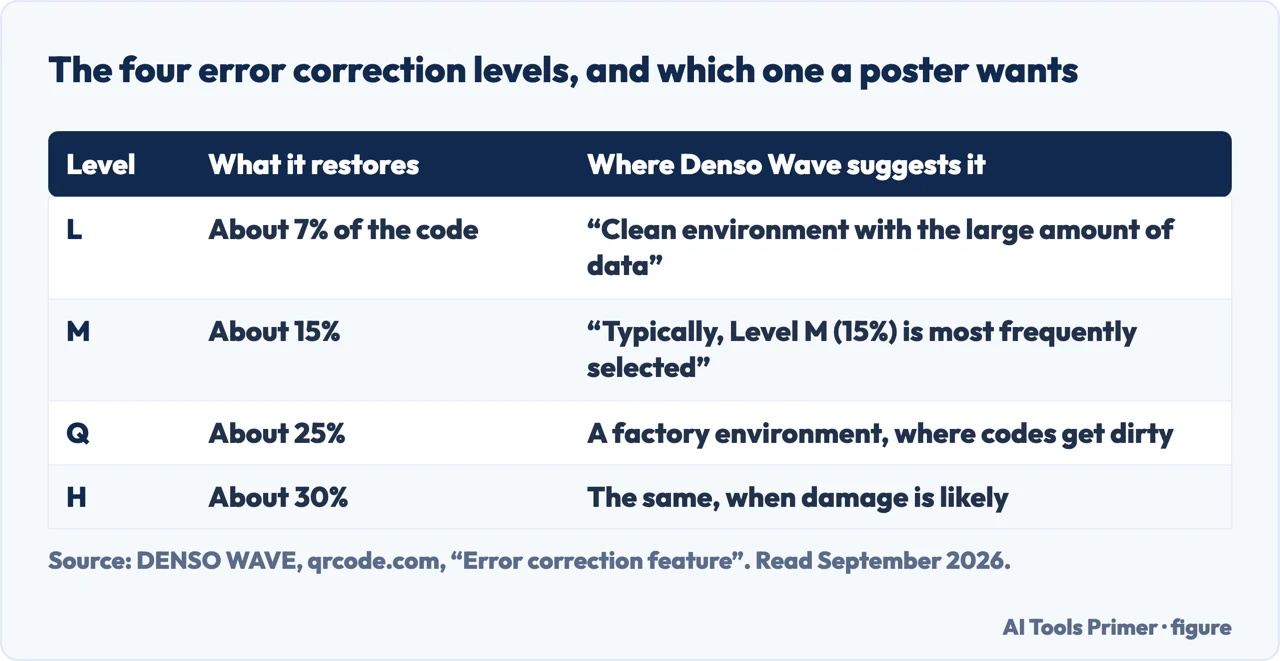
Does the error correction level matter for a printed code?
Yes, if the print will be handled. QR codes have four levels, restoring roughly 7%, 15%, 25% and 30% of a damaged code. DENSO WAVE, which invented the format, notes that “typically, Level M (15%) is most frequently selected”, and suggests Q or H where codes get dirty.
Not covered here. It will not recommend a QR generator. Seven of the first eight results are selling one, we have not tested them, and the check above lets you judge any of them yourself.
It will not tell you the code is the problem. In every common failure it is a Google Forms setting, and those are documented.
And it will not gloss over dynamic codes. A printed code that routes through somebody else’s domain is a dependency, and you should know you have taken one on. What holds instead is simple: the publishing and access behaviour is quoted from Google’s own Forms documentation, with the date it was read.
Collecting answers from people
Four ways to put a form in front of somebody and get it back filled in.
- The same job, in the other places it comes up
- How to make a Google Form, and what it records about people
- How to fill out a PDF form, and what to do when it will not let you
- How to make a fillable form in Word, and lock it
Sources
- Google Docs Editors Help — Publish & share your form with responders, on the publish requirement, general access options and setting an expiry — support.google.com, read 3 September 2026.
- DENSO WAVE — Error correction feature, from the company that invented the QR code: the four levels, what each restores and where each is meant to be used — www.qrcode.com, read 3 September 2026.
- DENSO WAVE — Information capacity and versions of QR Code, for how much a code can hold before it needs more modules — www.qrcode.com, read 3 September 2026.
Written by Alberto Gulotta
Founder and editor of AI Tools Primer, writing from Palermo, Italy. Thirty-five years of taking computers apart, starting with a Commodore 64 — the long version is on the about page.
Something wrong on this page? Write to aitoolsprimer@gmail.com and it gets fixed.
Written on 21 August 2026 · last checked 3 September 2026.
Independence and limits
No affiliate links and no paid placements anywhere on this site. Nobody pays to appear here, and no company has seen this page before you did.
This is general information, not professional advice. Where a page touches money, health, safety or the law, it names its source and the date it was read — and your situation may still differ. See the privacy page and the cookie policy.