
Docs · guide
How to make labels in Word, without wasting a sheet
By Alberto Gulotta · Updated · 8 min read
How to make labels in word looks like a layout problem and is not. Word already knows the exact dimensions of several hundred label sheets, so the task is not measuring anything — it is telling Word which sheet you bought, which is a code printed on the box.
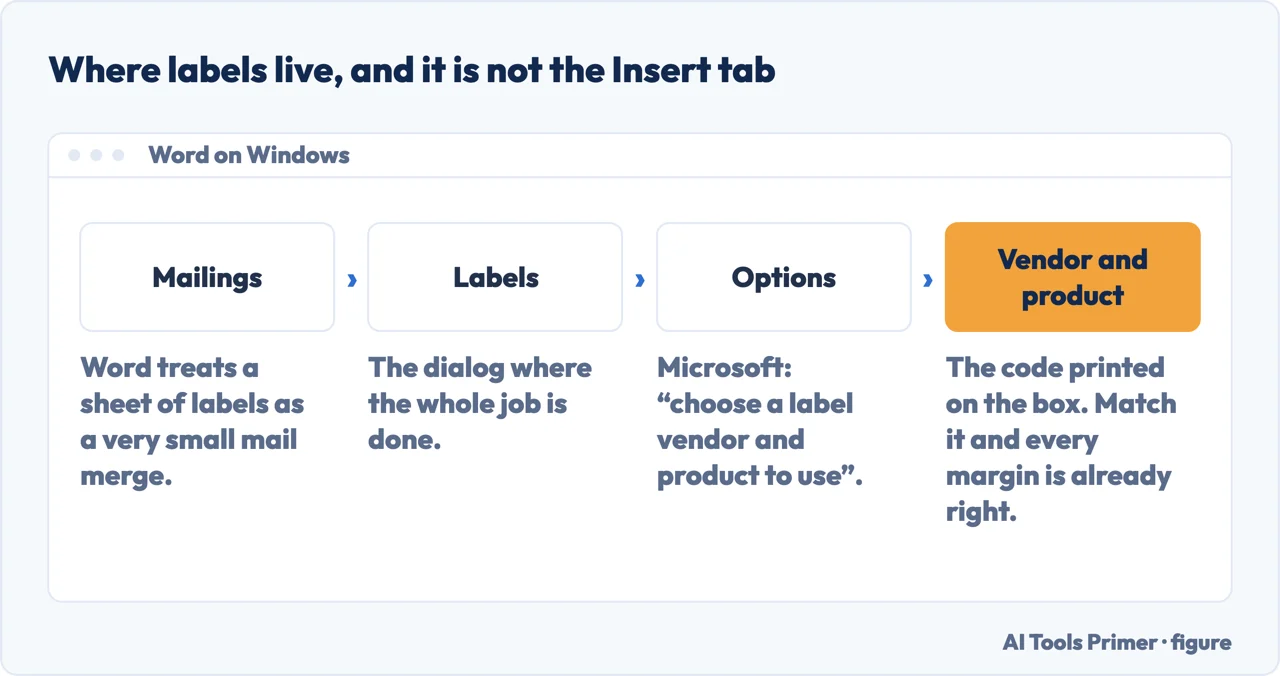
The steps, and the one that matters
Microsoft’s own route on Windows. On a Mac the boxes are named slightly differently, and it asks for a printer type as well.
- Go to Mailings › Labels.
- Select Options and “choose a label vendor and product to use”. This is the whole job. The code printed on the box of labels — the vendor and the product number — is the setting. Match it and every margin is already correct.
- “If you don’t see your product number, select New Label and configure a custom label.” Which is where you end up with supermarket labels that carry no recognised code.
- Type the address “or other information in the Address box (text only)”. To pull one from your contacts, Insert Address.
- Choose Full page of the same label, then Print — or New Document “to edit, save and print later”.
Take the New Document option. It gives you a normal Word file laid out as a grid of labels, which you can check, correct and keep. Printing straight from the dialog gives you no record and no second chance.
“Print your labels to a sheet of paper before loading labels into the printer to make sure the text aligns with the labels.”
Microsoft, read 22 August 2026 — and it is the last line of the page, where nobody gets to. Hold the printed paper against a real label sheet and look through them at a window. Thirty seconds, one sheet of ordinary paper, and it is the difference between a job done and a wasted sheet of labels, which cost rather more than paper does.
Three situations the guides skip
- Half a sheet already used
- Do not waste the rest. Microsoft: “If you need just one label, select Single label from the Mailings › Labels menu and the position on the label sheet where you want it to appear.” You tell Word which sticker is still there, and it prints only that one.
- A different name on every label
- That is not this feature — it is a mail merge, with the names coming from a spreadsheet. The guide below covers what Microsoft asks of that spreadsheet first, which is where the job actually fails.
- You are in Word for the web
- Then you cannot, and it is worth knowing before you go hunting through menus. Microsoft states it plainly: “Word for the web doesn’t support directly creating labels. However, you can create labels from a template” — pick a label template when you make a new document, fill one in, and copy it across.
Create or make, and the tab nobody guesses. However you phrased the search, labels are not on the Insert tab and not under Page Layout. They live on Mailings, which makes sense once you know that Word treats a sheet of labels as a very small mail merge — and makes no sense at all until somebody tells you.
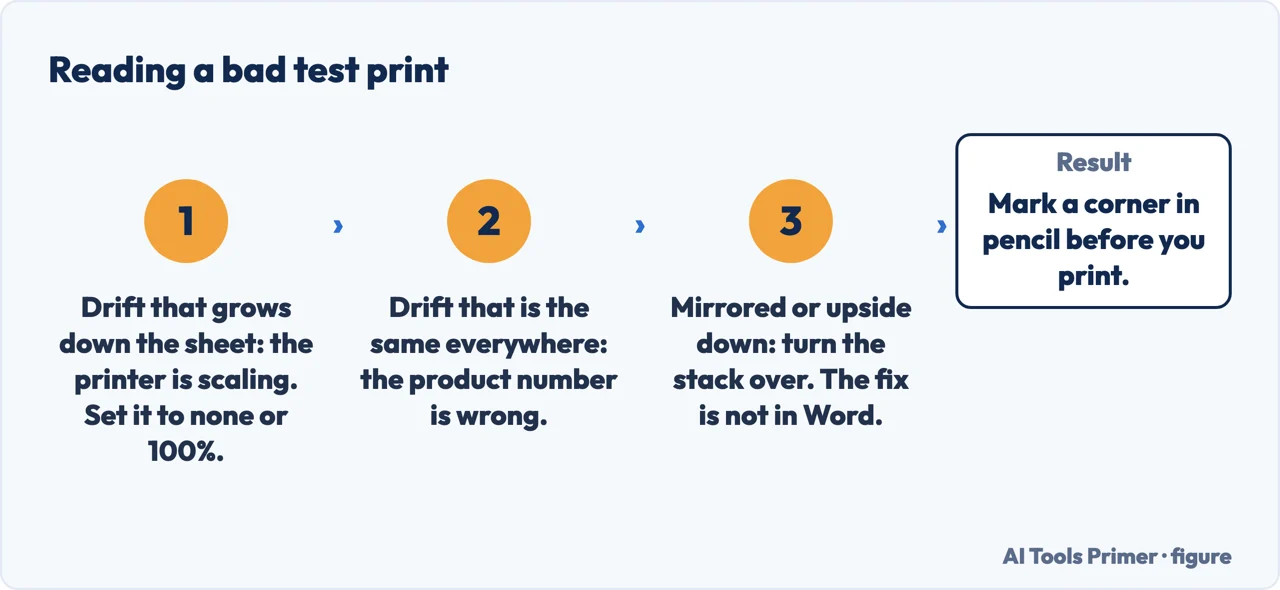
If the alignment is out even after choosing the right product number, the cause is almost always the printer rather than Word. Printers scale pages by default in some drivers, and a page reduced to 96% puts every label three millimetres too far in — consistently, and more so towards the bottom of the sheet. In the print dialog, look for a scaling or “fit to page” setting and set it to none or 100%. A drift that grows down the page is scaling; a drift that is the same everywhere is the wrong product number.
Feed direction is the other one. Label sheets have a top, and some printers pull from the tray face-down while others take it face-up. If the test print lands upside down or mirrored, the fix is to turn the stack rather than to change anything in Word — and marking a corner of the test sheet with a pencil before you print tells you which way round it came out.
One habit worth keeping. Save the New Document version with the product number in the file name. Next year, when the same sheets are on the shelf and you cannot remember what you set, the answer is in the filename rather than in a dialog you have to reconstruct from memory.
The steps, the label vendor and product options, the single-label position, the note about Word for the web and the advice to test on paper are quoted from Microsoft’s own Word documentation, read on 22 August 2026 and listed below. The diagnosis of printer scaling and the filename habit are ours.
Where to start
Four ways in.
- “A page of the same label.”
- That is the whole route above — the steps
- “A different name on each one.”
- That is a mail merge — a list of names
- “Half the sheet is already used.”
- Single label, and pick the position — the awkward cases
- “It prints slightly off.”
- Scaling or product number — when it comes out crooked
The steps
Word knows the dimensions of hundreds of label sheets. Telling it which one you bought is nearly the whole job.
A list of names
Labels for a mailing list are a mail merge, and the failures live in the spreadsheet rather than in Word.
The awkward cases
Part-used sheets, unbranded labels and Word for the web — three situations where the ordinary route stops working.
When it comes out crooked
Two different faults with two different signatures, and only one of them is anything to do with Word.
Not covered here. It will not have you measuring label dimensions. Word already holds them, and the product number on the box is the setting.
It will not skip the test print. Microsoft puts that line last, and it is the one that saves the expensive sheet.
And it will not send you to a label-making website for something Word does on the Mailings tab. What holds instead is simple: the label product options and the advice to test on plain paper first are Microsoft’s own, read on the date this page names.
Sources
- Microsoft Support — Create and print labels, including the Mailings › Labels route, choosing a label vendor and product, New Label for unlisted products, the Single label position option, the note that Word for the web cannot create labels directly, and the advice to test-print on paper first — support.microsoft.com, read 22 August 2026.
- Microsoft Support — Print labels for your mailing list, for the route when each label carries a different name from a spreadsheet — support.microsoft.com, read 22 August 2026.
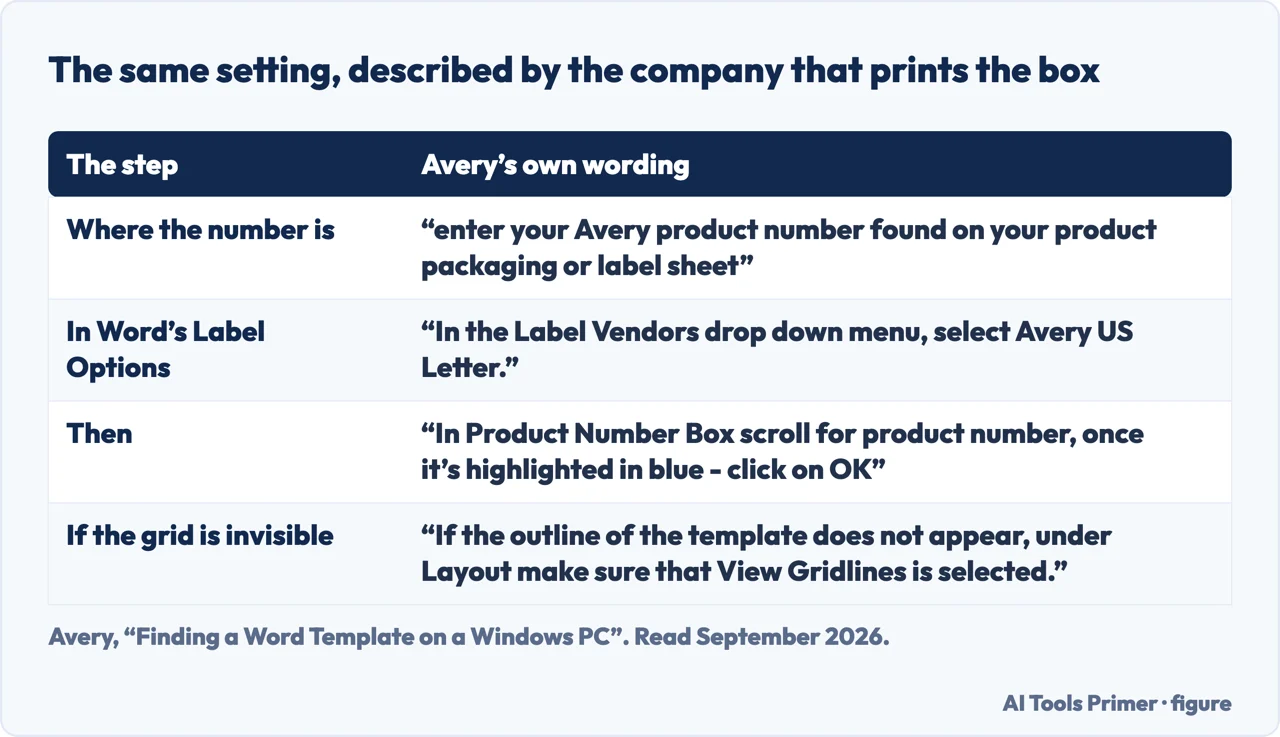
- Avery — Finding a Word Template on a Windows PC, for the label maker’s own route through Word’s Label Options, where the product number is printed, and the note about switching on View Gridlines when the template outline does not appear — www.avery.com, read 5 September 2026.
Written by Alberto Gulotta
Founder and editor of AI Tools Primer, writing from Palermo, Italy. Thirty-five years of taking computers apart, starting with a Commodore 64 — the long version is on the about page.
Something wrong on this page? Write to aitoolsprimer@gmail.com and it gets fixed.
Written on 22 August 2026 · last checked 23 September 2026.
Independence and limits
No affiliate links and no paid placements anywhere on this site. Nobody pays to appear here, and no company has seen this page before you did.
This is general information, not professional advice. Where a page touches money, health, safety or the law, it names its source and the date it was read — and your situation may still differ. See the privacy page and the cookie policy.