Search how to make columns in word and the first result is a forum question, the Microsoft page Google shows you is about columns in a table, and there is a post on the first page from somebody who cannot make columns apply to one section. Which is a fair picture of the problem: the feature is two clicks, and almost every difficulty with it comes from one behaviour that is not obvious on the way in.
“If you format a document with columns (as in some newsletter layouts), the text will
automatically flow from one column to the other.”
Microsoft, read 22 August 2026, and it decides whether you want this feature at all. Columns
pour. Add a sentence at the top of the left column and the bottom of it pushes into the right
one. That is exactly right for prose set like a newsletter, and exactly wrong for the other thing
people reach for columns to do — two lists side by side that should stay level with each other.
For that, what you want is a table with the borders switched off, because a table’s cells hold
their position and columns do not.
the whole document
Layout › Columns
Microsoft: “To lay out the whole document in columns, select Layout › Columns. Choose the
option you want, or choose More Columns to set your own column format.”
More Columns is where the widths, the spacing and the dividing line live.
just part of it
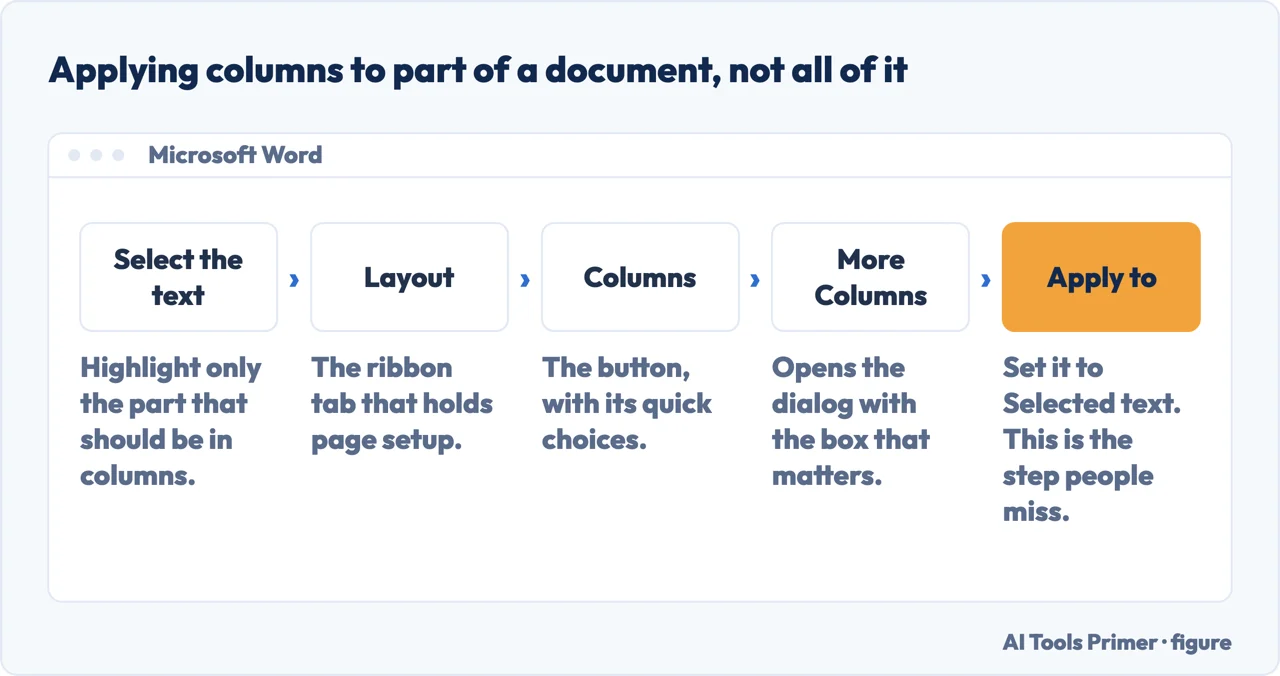
Select the text first
This is the question that fills forums, and the answer is one word long. Microsoft:
“Select the paragraphs you want to lay out in columns. Select Layout › Columns, and then
choose the options you want.”
Select first and Word confines the columns to what you selected. Do not, and it reformats the
entire document.
Making the text break where you want it to
Because the text flows, the split between the columns lands wherever it lands — usually mid
sentence, and usually in the wrong place. Microsoft’s fix: “You can insert your own column
breaks for more control over the document format.”
Place the cursor where the column should end, then Layout › Breaks › Column. The keyboard
shortcut is Ctrl+Shift+Enter.
And the step that saves the confusion afterwards: Home › Show/Hide makes the break visible.
Without it, a column break is invisible, and a document that behaves oddly six months later is
behaving that way because of a mark nobody can see.
Columns for one part of a document are a different command
The commonest disappointment with this feature is not the columns but their reach: you wanted
two columns for the middle of the page and Word gave them to the whole document. Layout >
Columns applies to what the document is divided into, and by default a document is one thing.
The tool that divides it is not on the Columns menu at all.
Microsoft documents it under breaks, and one of the four is named for this exact job:
“Continuous Section break starts the new section on the same page. This type of
section break is often used to change the number of columns without starting a new page.”
The other three move the text: “Next Page Section break starts the new section on the
following page”, and the Even Page and Odd Page variants start it on the next even- or
odd-numbered page.
So the sequence for a two-column block inside a one-column document is: put the cursor where
the block begins, Layout > Breaks > Continuous; do the same where it ends; then
click inside that middle stretch and set the columns there. Without the two breaks the setting
has nothing smaller than the document to attach itself to — which is why it keeps escaping to
the whole thing.
The Apply to box is the whole difference. Figure drawn by AI Tools Primer.
The two-columns question is the same question. Whether people search for two columns, three columns or just columns, the route is identical — Layout, Columns, pick a number, or More Columns to set the widths yourself. There is nothing special about two; it is simply the number the question names.
What not to do, and it is common. Do not build columns with the Tab key or with spaces. It looks correct on the screen it was made on, and then the first edit pushes everything out of line, a different font shifts every row, and anybody reading the file with assistive technology gets one jumbled paragraph rather than two tidy columns. Real columns survive editing because Word is managing the flow; tabbed ones survive nothing.
If the columns are for a form or a comparison, the answer is a table with no borders, not this feature. The test is simple: does the material in the left half correspond, line by line, to the material in the right half? If yes, you want cells that stay put. If the reader is meant to get to the bottom of the left column and continue at the top of the right one, you want columns.
Columns belong to a region, not to a document — and another program says so out loud. LibreOffice puts the same setting in several places at once and names what each one governs: columns can be set “for a page style, frame, or section”, and “when you apply a layout to a page style, all pages that use the style are updated”. That is the whole reason Word’s Apply to box exists. If columns keep spreading further than you meant, you have set them on the region above the one you were looking at.
The routes, the note about text flowing between columns and the column break instructions are quoted from Microsoft’s own Word documentation, read on 22 August 2026 and listed below. The test for columns against a table, and the warning about tabbed columns, are ours.
Not covered here. It will not give you the two clicks and stop. The behaviour that causes every difficulty is that text flows between columns, and Microsoft says so.
It will not let you build columns with the Tab key. They look right once and then never again.
And it will not recommend a template or an add-in for something that is one button on the Layout tab. What holds instead is simple: the routes and the note that text flows between columns are Microsoft’s own wording, read on the date this page names.
Sources
Microsoft on inserting a section break in Word — the four types, and that a Continuous section break starts the new section on the same page and is often used to change the number of columns without starting a new page — support.microsoft.com, read 24 August 2026.
Microsoft Support — Create multiple columns in Word, including the route for the whole document, the More Columns option and the instruction to select the paragraphs first when you want columns in only part of it — support.microsoft.com, read 22 August 2026.
Microsoft Support — Insert a column break, including the note that text flows automatically from one column to the other, the Layout › Breaks route, the Ctrl+Shift+Enter shortcut and using Show/Hide to see the break — support.microsoft.com, read 22 August 2026.
LibreOffice Help — Columns: the same setting attached to a page style, a frame or a section, and what changes when it is applied to each — help.libreoffice.org, read 4 September 2026.
AG
Written by Alberto Gulotta
Founder and editor of AI Tools Primer, writing from Palermo, Italy. Thirty-five years of
taking computers apart, starting with a Commodore 64 — the long version is on the
about page.
Written on 22 August 2026 · last checked 23 September 2026.
§
Independence and limits
No affiliate links and no paid placements anywhere on this site. Nobody pays to appear here,
and no company has seen this page before you did.
This is general information, not professional advice. Where a page touches money, health,
safety or the law, it names its source and the date it was read — and your situation may
still differ. See the privacy page and the
cookie policy.