
Docs · guide
How to search in Excel, and which of the two routes you want
By Alberto Gulotta · Updated · 22 min read
How to search in Excel depends on which of two jobs you mean. To look through a sheet, press Ctrl+F on Windows or in the browser, Control+F on a Mac, type the text and select Find All for a list of every cell. To get a position inside a piece of text, use SEARCH, which returns a number.
| What you are asking | The Find and Replace window | SEARCH, typed into a cell | Stated on |
|---|---|---|---|
| Where the answer appears | In the sheet: the cell is selected, or every match is listed by Find All | In the cell you typed the formula into, as a number | Find or replace text and numbers on a worksheet; SEARCH function |
| How you start it | Ctrl+F on Windows and in Excel for the web, Control+F on a Mac; or Home > Find & Select > Find, with an Editing step on two tabs out of three | =SEARCH(find_text,within_text,[start_num]) |
the same how-to, Windows, macOS and Web tabs; SEARCH function |
| Upper and lower case | Match case — a tick box, and nothing happens unless you tick it | Never case sensitive. FIND is the case-sensitive twin | the how-to; SEARCH function; the #VALUE! page |
| Wildcards | ? one character, * any number, ~ before one of them to find it literally |
? and * inside find_text, ~ to escape |
Using wildcard characters in searches; the how-to; SEARCH function |
| How far it looks | A sheet or the whole workbook, or the range you selected before opening it; Excel for the web adds Selection | One piece of text — within_text, a cell or a typed string | the how-to, Windows and Web tabs; the case-insensitive contains-text page and the screen-reader web steps for the selection; SEARCH function |
| If nothing matches | No Microsoft how-to read here states it | #VALUE! |
SEARCH function |
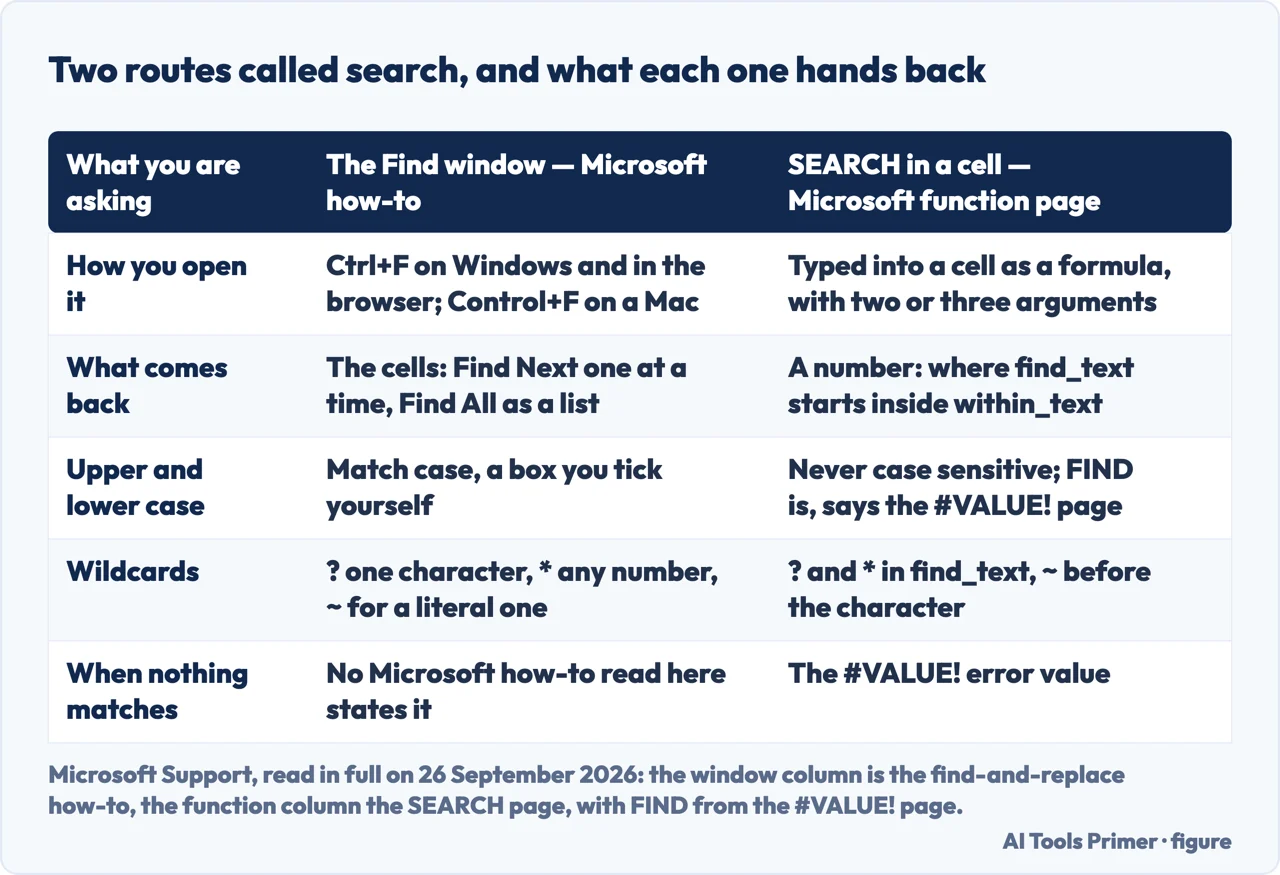
One of the pages this query leads to is a formula, and it may not be the one you meant. Among the results read on 26 September 2026 is Microsoft’s reference for the SEARCH function — typed into a cell, it answers one narrow question, where inside a piece of text does that string start, and returns a number such as 4. The other route is the Find and Replace window, which walks the cells of a sheet or a workbook. Neither substitutes for the other: to go to the data, open the window; for a number another formula can use, write the function.
- Decide how far the search should reach, before you press anything. Select one cell and the search covers the sheet; select a range first and it covers that range. Microsoft writes that rule for the Find dialog on the case-insensitive contains-text page and in the web steps of the screen-reader how-to — both open by telling you to select the range you want to search, or any cell for the whole sheet — and again for the Mac Search bar. A community answer on Microsoft Q&A is blunter: “If you have multiple cells selected, Excel will only search within those cells.”
- Open the window with the key your platform actually has. Ctrl+F on Windows and in Excel for the web; Control+F on a Mac, where the keyboard-shortcuts page also lists Shift+F5. For the Replace tab of the same window the how-to prints Ctrl+H on its Windows and Web tabs and Control+H on its macOS tab. The menu route also differs: the Windows and Web tabs print Home > Editing > Find & Select > Find, the macOS tab Home > Find & Select > Find, with no Editing step in between.
- Type what you want, and add a wildcard only if you mean one.
s?tfinds sat and set,s*dfinds sad and started, andfy91~?finds the literalfy91?. A question mark or an asterisk typed plainly is a wildcard, not a character, which is one way an ordinary search returns too much. - Open the options before you decide the data is not there. The Windows tab calls the button Options >> and says the box opens with those options hidden; the Web tab calls it Search Options and says the same. The macOS tab names no button and says nothing about hiding.
- Check Look in and Match case. Look in chooses between Formulas, Values, Notes and Comments, and Microsoft is explicit about where those four live, in a note on its Windows tab: they “are available only on the Find tab; only Formulas are available on the Replace tab”. The Web tab lists no Look in: the options it names are Within, Direction, Match case and Match entire cell contents.
- Choose Find All for a list, Find Next for one cell at a time. Find All lists every occurrence, and selecting an item selects its cell; on the Windows and Web tabs you can also sort the results by selecting a column heading. On a Mac the dialog expands to show the list and the total number of cells the term appears in.
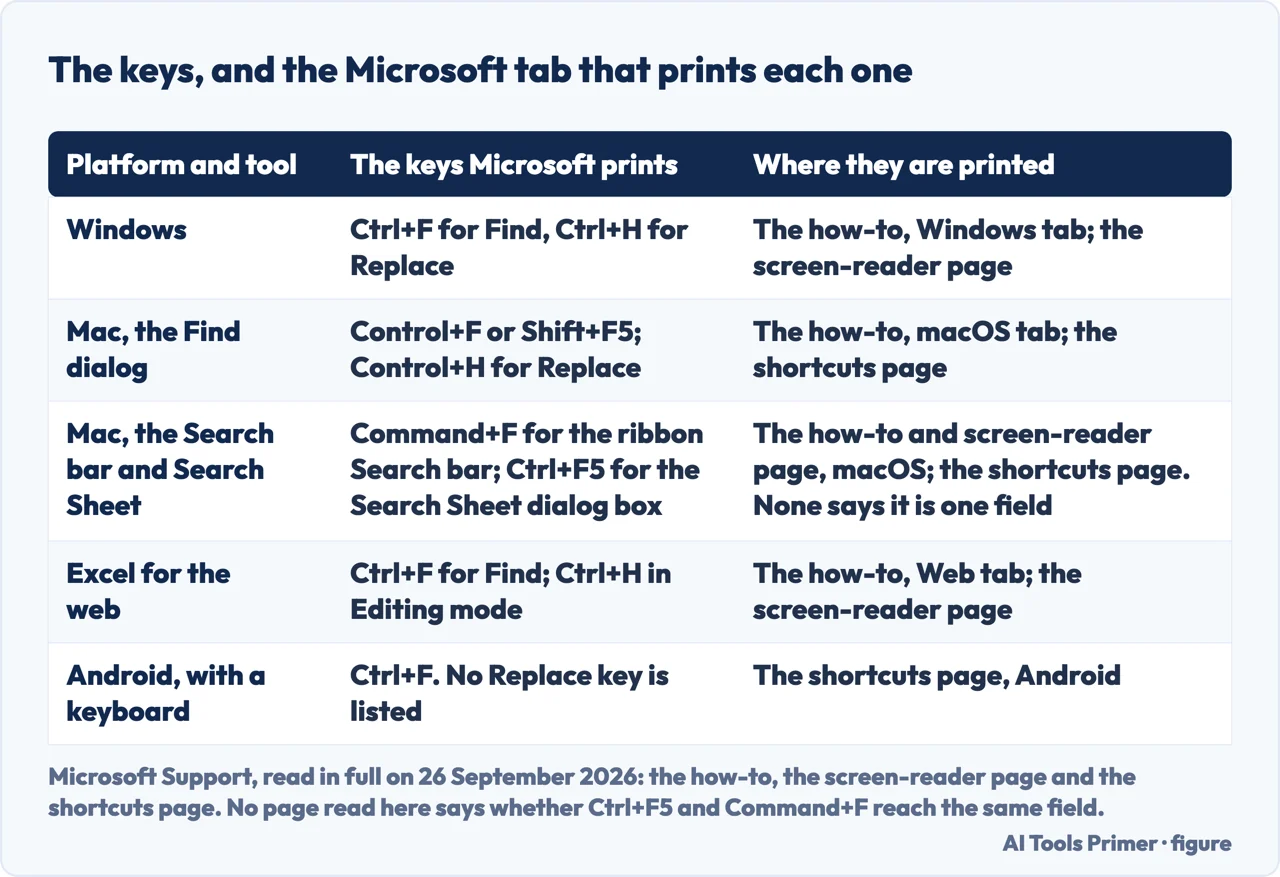
On a Mac, Ctrl+F and Command+F open two different things
“There are two distinct methods for finding or replacing text or numbers on the Mac. The first is to use the Find & Replace dialog box. The second is to use the Search bar in the ribbon.”
That sentence opens the macOS tab of Microsoft’s find-and-replace page, and the rest of the tab keeps the two apart. Control+F opens the dialog box, with Within, Search, Look in, Match case and Match entire cell contents. Command+F, or the magnifying glass, expands the Search bar in the ribbon: you press return to move to the next match, and the options there are Search in Sheet, Search in Workbook and Advanced, which hands you back to the dialog.
The answer Google generated for this query on 26 September 2026 offered Ctrl + F (or Command + F on Mac) as one gesture with two spellings. On the pages read here they are two tools. The keyboard-shortcuts page lists the Mac keys in separate rows: Ctrl+F or Shift+F5 for the Find dialog, Cmd+F for access search, Ctrl+F5 to move to the Search Sheet dialog box, and Ctrl+H or Cmd+Shift+H for Replace.
The same shortcuts page is stranger about Windows: its Windows section lists no Find and no Replace key at all. The only Find row there is Alt+H, which in Microsoft’s wording opens the Home tab and lets you use the Find tool. Ctrl+F and Ctrl+H for Windows are on the how-to and the screen-reader page instead.
Two more keys are listed for one platform only: Shift+F4 repeats a find downward and Ctrl+Shift+F4 upward, both in the Excel for the web section and in none of the others; whether they work elsewhere, the page does not say. That section also gives Shift+F3 for Find and, further down, Shift+F3 for Insert a function, which is what it does on Windows. The page contradicts itself, so this guide does not hand you Shift+F3 as a web key.
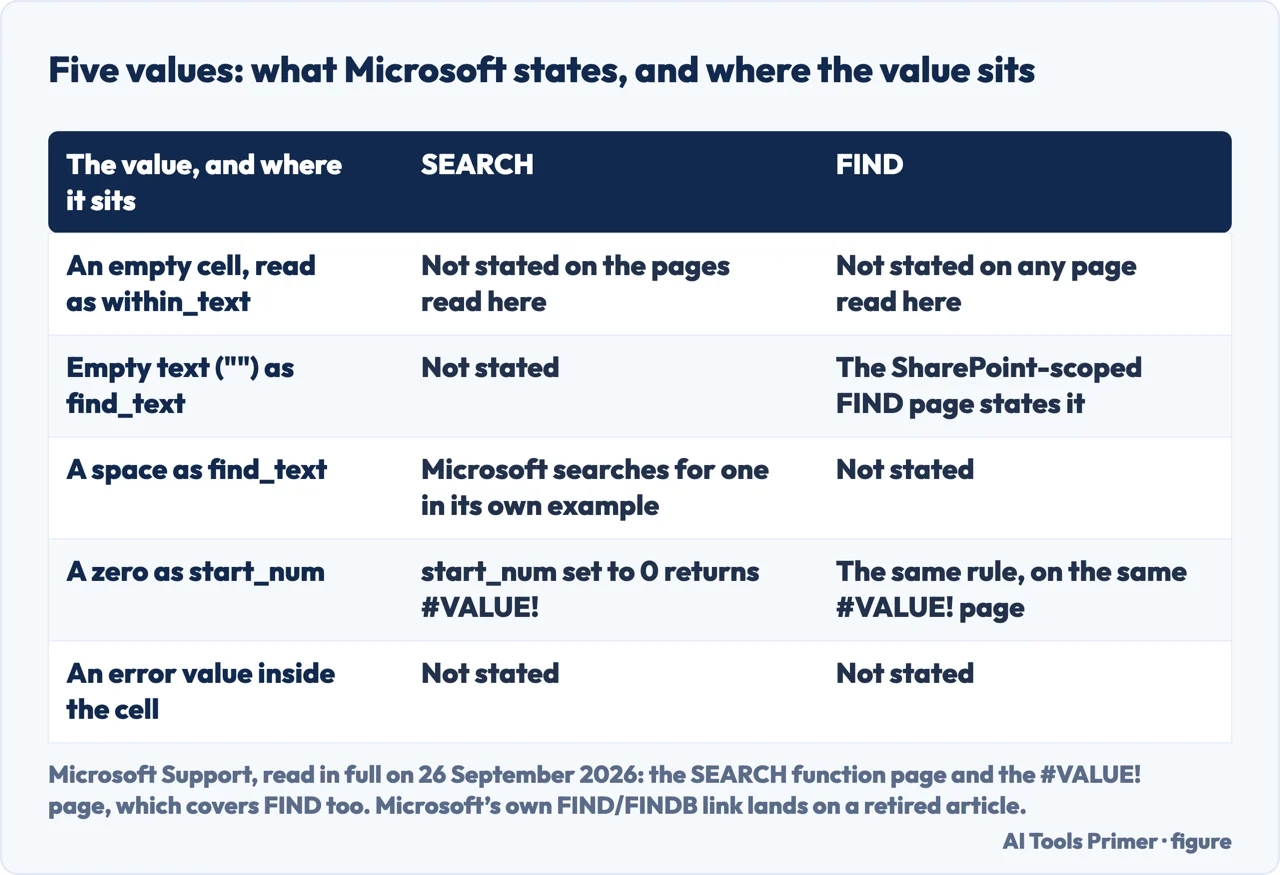
Five values, and where Microsoft’s documentation stops
Five awkward values turn up around a formula like this: an empty cell, empty
text (""), a single space, a zero, and an error value. Each can sit
inside the cell the formula reads or be handed to the function
as an argument; of the five, the cases the Microsoft pages here state are all arguments, and none is a value inside the cell. What the
Microsoft pages read here state for SEARCH, and what they leave
unsaid:
Stated. When find_text is not found, “If the value of find_text
is not found, the #VALUE! error value is returned.” The SEARCH page
also gives both ends of the start_num rule: a start_num that is not greater
than 0, or greater than the length of within_text, returns #VALUE!
too. The worked example for the far end is a FIND one, on the page that
covers both:
=FIND("s","Functions and formulas",25) fails
because that string has 22 characters. A space works as find_text:
Microsoft’s own worked example on the SEARCH page is
=MID(A3,SEARCH(" ",A3)+1,4), which returns the four
characters after the first space.
Not stated, as arguments. For SEARCH, no page read here treats an empty or zero find_text, or a within_text that is empty text or a lone space, as a case of its own, and this guide infers no result for them. Not stated, as cell contents. Neither is what happens when the cell named in within_text is empty, holds a zero of its own, or holds an error value: a zero sitting in the within_text cell is not the start_num rule above. This guide does not guess either half.
For FIND, one case is stated on an Excel page, and it is the zero. The #VALUE! page covers FIND/FINDB as well as SEARCH/SEARCHB, so its start_num rule — the argument present and set to 0 returns the error — is stated for FIND too. Empty text as find_text is covered only by a SharePoint-scoped page, which says FIND then matches the first character, or the one at start_num; no Excel-scoped page read here repeats that. The empty cell, the lone space and the error value are stated for FIND on no page read here; no live Excel reference page for FIND was reached here either. Microsoft’s own FIND/FINDB link, and the old support.office.com address, both land on an article headed This article has been retired. The page a search for FIND function lands on is real, but its Applies To line is SharePoint, not Excel. That page is also the only one read here that says “unlike SEARCH, FIND is case sensitive and doesn’t allow wildcard characters”, so the wildcard half of that sentence is not confirmed for Excel by any Excel-scoped page.
What Excel-scoped Microsoft pages do confirm about FIND is the case rule, in four places: the #VALUE! page — “The difference between these two functions is that FIND is case-sensitive, and SEARCH is not case-sensitive” — the alphabetical function list, which tags FIND, FINDB as case-sensitive and SEARCH, SEARCHB as not, the case-sensitive contains-text page, which builds its check from IF, FIND and ISNUMBER, and the SEARCH page itself: “If you want to do a case sensitive search, you can use FIND.”
The window and the function take the same two wildcards, they do not describe the escape the same way, and the dedicated wildcard page lists no Mac version. In the window, ~ before a question mark, an asterisk or a tilde finds that character literally. In the function, only ? and * are named, inside find_text, and the tilde is described only as the way to find an actual question mark or asterisk: a literal tilde is not covered on the SEARCH page. Microsoft’s dedicated wildcard page repeats the three with its own examples — sm?th, *east, fy06~? — and adds that they work in text filters and in conditional formatting rules using the contains-specific-text criteria. That page’s Applies To line names Excel for Microsoft 365, Excel 2024, 2021, 2019 and 2016 and no Mac version at all, while the how-to prints the same three rules inside its macOS tab. The rules are identical; the declared scope is not.
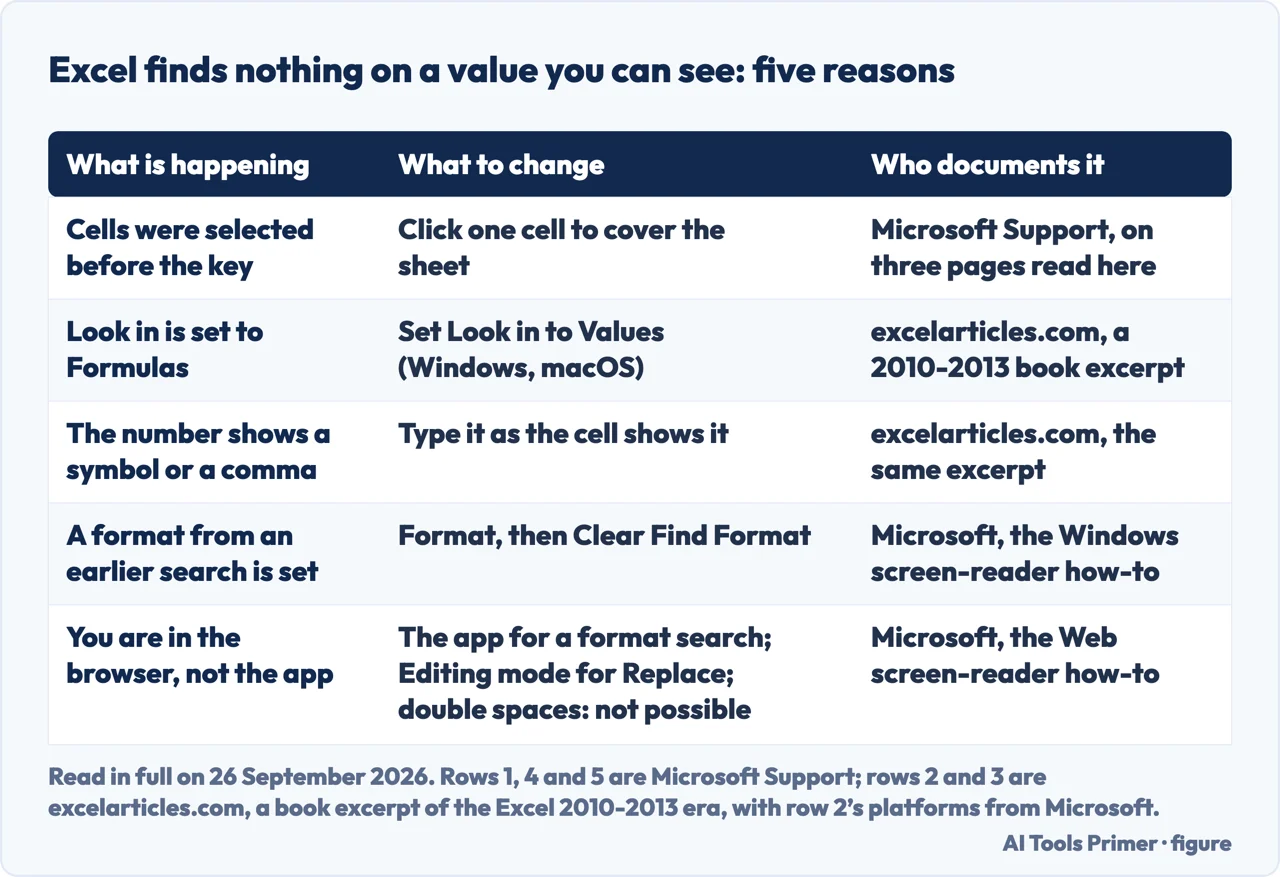
Excel finds nothing on a value you can see: five reasons, and who states each
Two of the five are not documented by Microsoft on any page read here, and are marked.
- A selection was open
- Select a range and the search stays inside it; click a single cell and it covers the sheet — stated on the case-insensitive contains-text page, in the web steps of the screen-reader how-to, and for the Mac Search bar; a Microsoft Q&A answer repeats the first half.
- Look in is on the wrong thing
- On the Windows and macOS tabs of the how-to, Look in offers Formulas, Values, Notes and Comments, and no Microsoft page read here says which is the default. Secondary source: a book excerpt of the Excel 2010–2013 era says “By default, Excel is searching the formulas instead of the values”, which would explain why a number produced by a formula is not found.
- It is displayed that way
- Secondary source: the same excerpt says a cell shown with a currency symbol and a comma has to be searched for as it is displayed. No Microsoft page read here states it.
- A format is left over
- Microsoft states this one plainly: “If you search the worksheet for data again and cannot find characters that you know to be there, you might need to clear the formatting criteria from the previous search.” The route out it gives, in its Windows section, is by keyboard: tab to Format, then arrow down to Clear Find Format.
- You are in the browser
- The screen-reader page names three limits of Excel for the web: searching by format needs the desktop app, “Searching for double spaces is not possible in Excel for the web”, and Replace needs the file to be in Editing mode.
Where this answer stops. Two of the five reasons in the box above are third-party and marked as such. Nothing here is tested on a running copy of Excel: it is read from the pages named below on 26 September 2026, and the joins between them are ours.
Where to start
Five ways in.
- “Which one do I even want?”
- The window or the function — which route you want
- “Just show me the steps.”
- Six steps in the Find window — the steps in the find window
- “What is the key on a Mac?”
- Two keys, two tools — the mac keys and the search bar
- “What does SEARCH do with an empty cell?”
- Five values, and the gaps — five values and where microsoft stops
- “It says nothing is found.”
- Five reasons, and who states them — when excel finds nothing
Six steps in the Find window, and step one is the scope
Step 1 is the scope, step 2 the key your platform has, step 4 the options: the Windows and Web tabs say those open hidden and name the button, the macOS tab names none.
On a Mac, Ctrl+F and Command+F open two different things
Control+F opens the Find & Replace dialog, Command+F expands the ribbon Search bar, and the shortcuts page adds Shift+F5 for the dialog.
Five values, and where the documentation stops
An empty cell, empty text, a space, a zero and an error value: for SEARCH, two of the five are stated; for FIND on an Excel page, only the zero.
When Excel finds nothing on a value you can see
A live selection, the Look in setting, the way the number is displayed, a format left over from an earlier search, and the browser.
Questions people also ask
How do I search for specific text in Excel?
Press Ctrl+F on Windows or in Excel for the web, Control+F on a Mac, type the text in Find what, then select Find All for a list of every cell or Find Next to step through them. To test one cell instead, =SEARCH("text",A2) returns the position, or #VALUE! if find_text is not found.
How do I search keywords in Excel?
The same window takes wildcards, so one pass can cover several spellings: s?t matches one unknown character and s*d any number. To test cells with a formula instead of stepping through them, Microsoft pairs SEARCH with ISNUMBER and IF on its case-insensitive contains-text page; it names the three functions and shows the formula itself only in a screenshot.
What is the shortcut key to search in Excel?
Microsoft prints the keys platform by platform. Ctrl+F on Windows and in Excel for the web; on a Mac the how-to prints Control+F, the shortcuts page Ctrl+F or Shift+F5, for the same dialog. Command+F on a Mac opens the ribbon Search bar instead. For Replace the how-to prints Ctrl+H on Windows and the web and Control+H on a Mac.
How do I use the FIND function in Excel to search for text?
=FIND("text",A2) returns the starting position and is case sensitive: Microsoft’s #VALUE! page works the example =FIND("gloves","Gloves (Youth)",1), which errors, while SEARCH returns 1. No live Excel reference page for FIND was reached here: Microsoft’s own FIND/FINDB link lands on a retired article.
Not covered here. It does not cover the Search field on the ribbon that Alt+Q reaches on Windows, which the shortcuts page describes as a search “for assistance or Help content”. The same access-keys table holds Alt+H, the row that opens the Home tab, where you use the Find tool.
It does not cover Range.Find in VBA, which Microsoft Learn says shares its saved LookIn, LookAt and SearchOrder settings with the Find dialog box, each changing the other; that is a Microsoft Learn reference rather than a how-to.
It does not teach the lookup functions, VLOOKUP and XLOOKUP.
And it does not cover Google Sheets. What holds instead is simple: every key, label and option on this page is printed beside the Microsoft tab that gives it, and where Microsoft gives none, the line says so.
Sources
- Microsoft Support — Find or replace text and numbers on a worksheet: the Windows, macOS and Web tabs read separately, the Options >> and Search Options buttons, the Within, Search, Look in, Match case and Match entire cell contents settings, the three wildcards with their examples, Find All, and the two distinct Mac methods with Control+F and Command+F. Applies To Excel for Microsoft 365 and its Mac version, Excel 2024 and its Mac version, Excel 2021 and its Mac version, Excel 2019 and Excel 2016 — eight products, and no version for the web, although the page has a Web tab — support.microsoft.com, read September 2026.
- Microsoft Support — SEARCH function: the syntax, the printer example that returns 4, the sentence that the function is not case sensitive, the wildcards allowed in find_text, the #VALUE! returned when find_text is not found and when start_num is outside the string, and the worked example that searches for a space. Applies To Excel for Microsoft 365 and its Mac version, Excel 2024 and its Mac version, Excel 2021 and its Mac version, Excel 2019 and Excel 2016 — support.microsoft.com, read September 2026.
- Microsoft Support — How to correct a #VALUE! error in FIND/FINDB and SEARCH/SEARCHB functions: the case difference between the two, the gloves example that errors under FIND and returns 1 under SEARCH, start_num set to 0, and start_num larger than the string. Applies To the same eight Excel products — support.microsoft.com, read September 2026.
- Microsoft Support — Using wildcard characters in searches: the three wildcards with the sm?th, *east and fy06~? examples, and the note that they also work in text filters and in conditional formatting rules. Applies To Excel for Microsoft 365, Excel 2024, Excel 2021, Excel 2019 and Excel 2016 — five products and not one Mac version — support.microsoft.com, read September 2026.
- Microsoft Support — Keyboard shortcuts in Excel: the Mac rows for the Find dialog (Ctrl+F or Shift+F5), for access search (Cmd+F), for Search Sheet (Ctrl+F5) and for Replace (Ctrl+H or Cmd+Shift+H); the web rows for Find and for repeating a find (Shift+F4, Ctrl+Shift+F4); the Android row (Ctrl+F); and the Windows section, which lists no Find or Replace key at all. Applies To thirteen products including Excel for iPad, iPhone, Android tablets and phones, and Excel Mobile — support.microsoft.com, read September 2026.
- Microsoft Support — Use a screen reader to find and replace data in Excel: Ctrl+F and Ctrl+H on Windows, Alt+T for more options, the formatting criteria that stay saved and make a later search miss, Clear Find Format, and the three limits of Excel for the web — no format search, no double spaces, Editing mode needed for Replace. Applies To ten products including Excel for iPhone and Excel for Android phones — support.microsoft.com, read September 2026.
- Microsoft Support — Check if a cell contains text (case-insensitive) in Excel: the IF, SEARCH and ISNUMBER pairing, named but shown only in a screenshot, the instruction to select a range to search it or any cell for the whole worksheet, and ESC to cancel a search in progress. Applies To Excel for Microsoft 365, Excel 2024, Excel 2021, Excel 2019 and Excel 2016 — no Mac version — support.microsoft.com, read September 2026.
- Microsoft Support — Check if a cell contains text (case-sensitive): the instruction to build the check from IF, FIND and ISNUMBER, and the note that the FIND function is case-sensitive. Applies To Excel for Microsoft 365 and its Mac version, Excel 2024 and its Mac version, Excel 2021 and its Mac version, Excel 2019 and Excel 2016 — eight products, three of them Mac — support.microsoft.com, read September 2026.
- Microsoft Support — Excel functions (alphabetical): the two rows that tag FIND, FINDB as case-sensitive and SEARCH, SEARCHB as not case-sensitive. Applies To nine products including Excel Web App — support.microsoft.com, read September 2026.
- Microsoft Support — This article has been retired: evidence, not a source of facts. It is where Microsoft’s own FIND/FINDB link lands, from the alphabetical function list and from the See Also of the #VALUE! page. No Applies To line — support.microsoft.com, read September 2026.
- Microsoft Support — FIND function: the page a search for the Excel FIND function lands on, and the only page read here that says FIND does not allow wildcard characters. Applies To SharePoint Server 2019, 2016, 2013 and 2013 Enterprise, SharePoint Foundation 2010, SharePoint Server 2010 and Windows SharePoint Services 3.0 — SharePoint only, no Excel — support.microsoft.com, read September 2026.
- Microsoft Learn — Range.Find method (Excel): the VBA method that shares its LookIn, LookAt and SearchOrder settings with the Find dialog box, each changing the other, and saves them between runs. The visible page says Last updated on 2022-03-30; no Applies To line — learn.microsoft.com, read September 2026.
- excelarticles.com — Excel: Why Can’t Excel Find a Number?, a book excerpt from Power Excel (2010–2013 era), read in full on 26 September 2026: the source read here that says Excel searches formulas rather than values by default and that a formatted number must be typed as it is displayed, and that Match Case and Match Entire Cell settings persist for the session — the Range.Find reference lists LookIn, LookAt, SearchOrder and MatchByte as saved, and not MatchCase. Third party, and marked as such wherever this guide uses it — www.excelarticles.com, read September 2026.
- Microsoft Q&A — Why doesn’t Find function find text/numbers that are in the sheet?, a community answer rather than a Microsoft page, read in full on 26 September 2026: the statement that a multi-cell selection confines the search to those cells — learn.microsoft.com, read September 2026.
Written by Alberto Gulotta
Founder and editor of AI Tools Primer, writing from Palermo, Italy. Thirty-five years of taking computers apart, starting with a Commodore 64 — the long version is on the about page.
Something wrong on this page? Write to aitoolsprimer@gmail.com and it gets fixed.
Written on 29 September 2026.
Independence and limits
No affiliate links and no paid placements anywhere on this site. Nobody pays to appear here, and no company has seen this page before you did.
This is general information, not professional advice. Where a page touches money, health, safety or the law, it names its source and the date it was read — and your situation may still differ. See the privacy page and the cookie policy.