
Docs · guide
How to edit a PDF on Mac: the honest answer first
By Alberto Gulotta · Updated · 8 min read
Almost every page about how to edit a pdf on mac spends four hundred words before telling you the one thing that would have saved you the search. Here it is first.
“Although you can’t edit the text of a PDF in Preview, you can use the markup tools to provide feedback or write down something you want to remember.”
Apple, in the Preview user guide, read 21 August 2026. That single sentence answers the question almost everybody is really asking, and it is the reason this question is full of forum threads: the application every Mac already has does not edit PDF text, and Apple says so.
It is not a limitation you can work around by finding the right menu. It is what Preview is. What Preview does instead turns out to cover most of what people actually needed.
Once that is out of the way, the question splits cleanly in two, and the first half covers far more ground than the second.
What Preview does
- Fill in a form. Apple: “Click a field in the form, then type your text.”
- Sign it. A signature drawn once on the trackpad, reusable forever.
- Add text on top. A text box you place yourself, anywhere on the page.
- Highlight, underline, strike through. On the text that is already there.
- Redact. There is a Redaction Selection tool in the toolbar.
- Reorder, delete and extract pages. By dragging thumbnails.
What it does not
- Change a word already in the document. Apple states this outright.
- Correct a typo in a paragraph. Same thing, and the commonest disappointment.
- Reflow text after something is added or removed.
- Change the font of existing content.
- Fill a form that has no fields — though there is a documented way round that.
The left-hand column is free, installed, and offline. If your job is on that list — and filling in a form, signing something, or marking up a document to send back is the overwhelming majority of what people mean by “editing a PDF” — then you are finished, and you did not need a subscription.
Two details from Apple’s own instructions are worth carrying with you. If a form refuses to accept typing, the documented answer is not to give up: “Click the Show Form Filling Toolbar button, then click the Text Box Tool button.” And a signature is made once, not every time — you “Click Trackpad, click the text as prompted, sign your name on the trackpad using your finger, press any key, then click Done”, after which, “If you use iCloud Drive, your signatures are available on your other Mac computers that have iCloud Drive turned on.” On macOS 14.2 or later there is also enhanced AutoFill for names and addresses, with Apple’s own caveat attached: “Not all PDFs support this feature.”
The step that decides whether your work stays put
Two ways to save the same annotated PDF, with two different outcomes. Apple documents both.
File › Save, Export, or Export to PDF
Annotations remain objects. You can move or delete them later — and so can whoever
receives the file.File › Print, then Save as PDF
Apple’s route “to save a PDF and flatten annotations (so that they can’t be edited)”. The
signature becomes part of the page.Almost nobody is told this, and it matters most for the document people most often sign: a contract. Saved the ordinary way, your signature is a movable object sitting on top of the page. If it should be fixed, print it to PDF instead. It takes the same four seconds and produces a different file.
And if you genuinely are in the right-hand column — the word in paragraph three is wrong and it has to change — then Preview is the wrong tool and no amount of searching will make it the right one. There are two honest routes, and both have guides below: convert the document into something that is meant to be edited, or use software built for the job. The first is free and imperfect. The second costs money and is worth it for a few people and nobody else.
The related searches show how many people are stuck at exactly this point. How to edit text in a pdf on mac for free, how to edit a pdf on mac without adobe, does apple have a free pdf editor, why can’t I edit a pdf on my mac. They are all the same discovery, arrived at from different directions, and every one of them is answered by the sentence at the top of this page.
Where to start
Four ways in.
- “I need to fill in a form.”
- Start at forms and signing
- “I need to change the actual text.”
- That is changing the text
- “I need to hide something in it.”
- Read removing and hiding
Forms and signing
The commonest reason anyone opens a PDF with the intention of changing it. All of it is free, and all of it is already installed.
Changing the text
The half Preview cannot do. Two honest routes, one free and imperfect, one paid and occasionally justified.
Removing and hiding
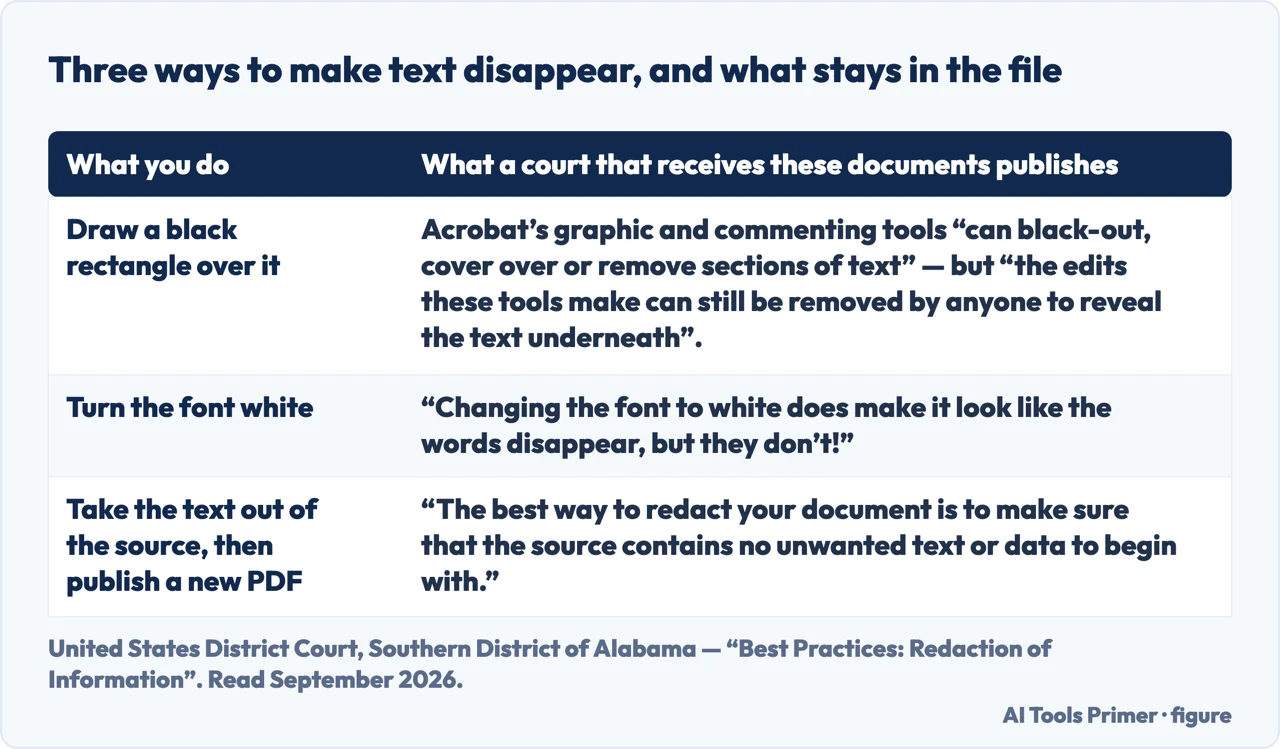
Taking something out of a document, which is not the same as covering it up. The distinction that occasionally matters enormously.
Not covered here. It will not bury the answer. Apple publishes the limitation in one sentence and this guide leads with it, because a page that makes you read to the end for that is wasting your afternoon.
It will not recommend buying an editor for a job Preview already does. Signing, filling in and marking up are free on every Mac.
And it will not rank the paid editors yet. That needs the same set of documents — a scanned contract, a form with no fields, a report needing a genuine text change — through each of them, with what each one costs and what it produces set side by side. What holds instead is simple: every instruction and limitation on this page is quoted from Apple’s own Preview user guide.
Sources
- Apple Support — Annotate a PDF in Preview on Mac, including the statement that PDF text cannot be edited and the two ways to save — support.apple.com, read 21 August 2026.
- Apple Support — Fill out and sign PDF forms in Preview on Mac, including the form-filling toolbar, signatures and AutoFill — support.apple.com, read 21 August 2026.
- Apple Support — Add, delete, or move PDF pages in Preview on Mac — support.apple.com, read 21 August 2026.
- United States District Court for the Southern District of Alabama — Best Practices: Redaction of Information, for what a black box, a highlight and white text actually leave in the file, and the method the court recommends instead — www.alsd.uscourts.gov, read 5 September 2026.
Written by Alberto Gulotta
Founder and editor of AI Tools Primer, writing from Palermo, Italy. Thirty-five years of taking computers apart, starting with a Commodore 64 — the long version is on the about page.
Something wrong on this page? Write to aitoolsprimer@gmail.com and it gets fixed.
Written on 21 August 2026 · last checked 5 September 2026.
Independence and limits
No affiliate links and no paid placements anywhere on this site. Nobody pays to appear here, and no company has seen this page before you did.
This is general information, not professional advice. Where a page touches money, health, safety or the law, it names its source and the date it was read — and your situation may still differ. See the privacy page and the cookie policy.