
iPhone · guide
How to enable iMessage, and the three things it needs
By Alberto Gulotta · Updated · 13 min read
The switch is in Settings → Apps → Messages, and turning it on takes a second. Everything interesting about this question is what has to be true before that second works — and one of the conditions costs money.
“iMessages are texts, photos, or videos that you send to another iPhone, iPad, iPod touch, or Mac over Wi-Fi or cellular-data networks. These appear in blue bubbles. All other text messages use RCS, SMS, or MMS and require a text-messaging plan. Those appear as green bubbles.”
Apple’s own definition, and it settles the question underneath most of this. Blue is iMessage; green is everything else. Green is not a fault and not an insult — it is a message travelling by a different route, one that goes through your carrier and uses your text-messaging plan rather than your data. Enabling iMessage changes which route is used when the other end can take it, and not otherwise.
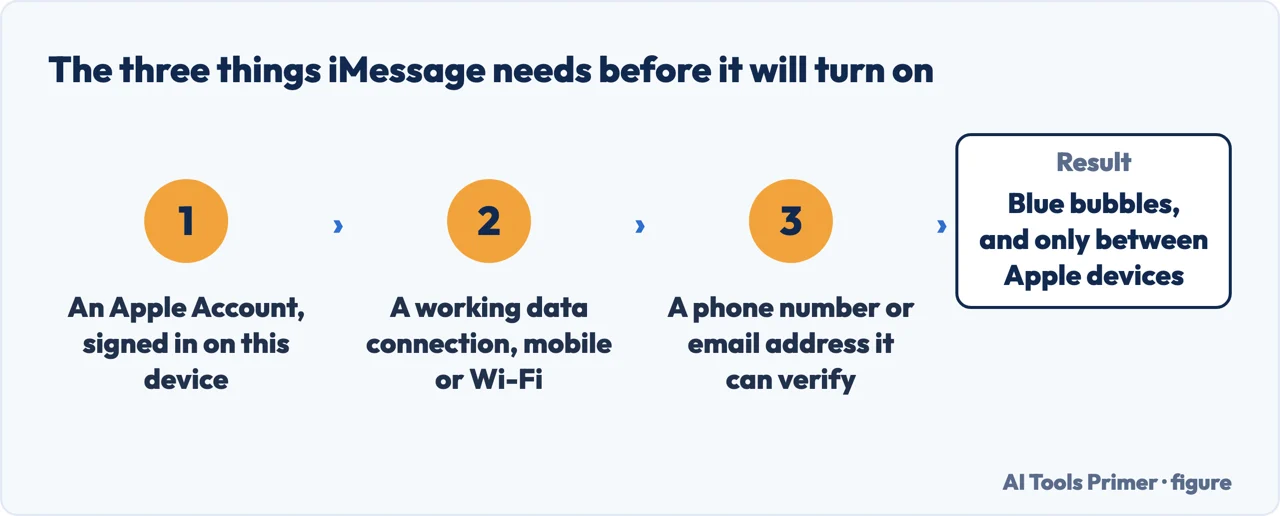
With that established, the switch itself. Apple puts iMessage under Settings → Apps → Messages, which is worth saying because the Apps section is newer than the habit of looking for Messages directly in the settings list.
If the switch goes on and stays on, there is nothing more to do. If it does not, Apple names three conditions and an error message for each failure — “An error occurred during activation”, “Could not sign in, please check your network connection”, and “Unable to contact the iMessage server. Try again.”
Three things Apple says to check before the switch
None of them look like they have anything to do with messaging, and the third one surprises people least once it is named.
- A network
- “Make sure that you’re connected to a cellular data or Wi-Fi network.” Activation is an exchange with Apple, not a local setting.
- Current software
- “Make sure that your device has the latest version of iOS.”
- The right time zone
- “Make sure that your time zone is set correctly. In the Settings app, tap General. Then tap Date & Time.” Apple lists it alongside the network and the software, which puts it in the same class of prerequisite rather than as an afterthought.
The time zone is the one worth dwelling on, because nothing about the symptom points at it. A phone with the wrong time zone is a phone whose idea of “now” disagrees with Apple’s, and Apple lists that among the three things to check before anything else. It costs ten seconds to verify and is the kind of setting that goes wrong quietly — after travel, after a restore, after a change that had nothing to do with messages.
“You need SMS messaging to activate your phone number with iMessage and FaceTime. Depending on your carrier, you might be charged for this SMS.”
This is the part that is almost never mentioned, and it explains the prompt people meet and hesitate over. Apple quotes it exactly: “Your network provider may charge for SMS messages used to activate iMessage and FaceTime” — and the instruction is to tap Turn On “to allow possible SMS charges”. Turning on the free-messaging feature begins by sending a paid message. Once, and to Apple rather than to a person — but it is a real charge on some tariffs, and declining the prompt is declining the activation.
That charge, where it applies, is worth understanding rather than resenting. Your phone number has to be proved to be yours, and the way a phone proves it is by sending a message from it. There is no cheaper mechanism available to a phone that has not yet activated the free one.
The reset Apple publishes when activation will not take
Note that it covers FaceTime as well — the two activate together, and Apple treats them as one job.
- Settings → Apps → Messages, and turn iMessage off.
- Back to Settings → Apps → FaceTime, and turn FaceTime off.
- Turn both back on.
One detail in that sequence is easy to skip and is the reason it sometimes seems not to work: it covers FaceTime too. Apple has you turn off Messages, then go back out to Settings, then turn off FaceTime, and only then turn both on again. The two share an activation, so resetting one without the other is resetting half of it.
Apple also gives two routes that do not involve the phone at all. The first is activating online through your Apple Account — under Enable Apple Account, tap Get Started, sign in and follow the instructions, entering the phone number if you use one with Messages and FaceTime. Apple adds what to expect: “You will receive an email if your account is ready.”
The second is to sidestep the phone number entirely and use an email address with iMessage and FaceTime instead. Apple’s instruction is to review the addresses on the Apple Account, correct any that are wrong, and click Resend beside the one to verify. For anybody whose activation is stuck on the number — a new SIM, a changed carrier, a number that moved — that is the documented way round it.
The red exclamation mark. A separate Apple page covers the message that will not go: “If you try to send a message and you see a red exclamation point with an alert that says Not Delivered” — check the network, tap the exclamation point, then tap Try Again. And if it still will not go: tap it again and choose Send as Text Message, with Apple’s note attached — “Messaging rates may apply.” That is the same trade as the green bubble, taken deliberately: the message leaves by the carrier’s route instead of Apple’s, and the carrier’s route is the one you pay for.
There is one more situation Apple documents separately, and it explains a specific disappointment: messages that turn green after setting up a new device, or conversations that split into separate threads. Apple’s remedy is a checklist rather than a fix: update iOS, then Settings → Cellular and make sure the phone line is turned on — “If you use multiple SIMs, make sure that the phone number you want to use is selected and turned on” — then turn iMessage off and on, then tap the phone number you want to use with Messages.
That last step is the one that is easy to walk past. Having iMessage on is not the same as having chosen which number it uses, and on a phone with two lines the difference decides which of your numbers your messages appear to come from.
What this page will not tell you is how long activation should take, or what to do if it never completes. Apple maintains separate articles for a stuck activation and for a number that will not verify, and those are the places to go — a page that improvised a waiting time would be inventing the one number readers most want.
And the other standard has its own switch, with its own conditions. Google describes RCS as “a modern industry standard for messaging” that gives “a more dynamic and secure conversation with someone than SMS or MMS”, and notes that it now works “for texting between Android and iPhones”. The condition is the same shape as iMessage’s: Google’s “Connected” status means “you can use RCS chats with other people who have them turned on”. Two systems, two switches, and a conversation gets the better of the two only when both ends qualify.
The guides below take it three ways: the switch and its conditions, the bubbles and what they mean, and the neighbouring settings in Messages.
Where to start
Three ways in. If the switch simply will not stay on, take the first.
- “It turns itself back off.”
- Three conditions, in before the switch
- “My messages went green.”
- That is a route, not a fault — blue and green
- “It will not verify my number.”
- Apple documents a way round it — around the number
Before the switch
A network, current software and a correct time zone. Apple lists all three as prerequisites, and the third looks unrelated until you know it is on the list.
Blue and green
Apple defines both. Blue is iMessage over Wi-Fi or data; green is RCS, SMS or MMS on your carrier’s plan. The colour reports the route, not the recipient.
Around the number
Activation binds to a phone number, and Apple publishes two ways that do not depend on one: an online route through the Apple Account, and using an email address instead.
Not covered here. It will not tell you a green bubble means something is broken. Apple defines it as a message sent by RCS, SMS or MMS rather than by iMessage, which is a route and not a fault.
It will not skip the charge. Apple says activation needs an SMS and that a carrier might bill for it, and a page that left that out would be hiding the one cost involved.
And it will not guess how long activation takes. Apple keeps separate articles for a stuck activation, and inventing a waiting time would be inventing the number readers most want. What holds instead is simple: every prerequisite and every error message here is Apple’s own text, and where Apple gives no reason this page does not invent one.
How the message actually gets sent
Which system carried it decides what it costs, who can read it and what you can undo.
- The same job, in the other places it comes up
- What is SMS, RCS and iMessage, and which one is private
- How to turn off read receipts, and the setting that overrides it
- How to unsend a message on iPhone, and what they see
- How to stop spam texts: three filters and three reports
Sources
- Apple, If you can’t turn on or sign in to iMessage or FaceTime on your iPhone (that iMessage and FaceTime must be activated and that the activation errors seen may be “An error occurred during activation”, “Could not sign in, please check your network connection” or “Unable to contact the iMessage server. Try again.”; the prerequisites of being connected to a cellular data or Wi-Fi network, having the latest version of iOS, and having the time zone set correctly via Settings → General → Date & Time; that on an iPhone SMS messaging is needed to activate the phone number with iMessage and FaceTime and that depending on the carrier there might be a charge for this SMS, with the prompt “Your network provider may charge for SMS messages used to activate iMessage and FaceTime” and the instruction to tap Turn On to allow possible SMS charges; the sequence of turning off iMessage in Settings → Apps → Messages, turning off FaceTime in Settings → Apps → FaceTime, and turning both back on; the online activation route under Enable Apple Account by tapping Get Started, signing in, entering the phone number used with FaceTime and iMessage, and receiving an email when the account is ready; and the alternative of using an email address, reviewing the addresses on the Apple Account, updating an incorrect one and clicking Resend beside the address to verify) — support.apple.com, read 22 August 2026.
- Apple, If you can’t send or receive messages on your iPhone or iPad (that iMessages are texts, photos or videos sent to another iPhone, iPad, iPod touch or Mac over Wi-Fi or cellular data and appear in blue bubbles, while all other text messages use RCS, SMS or MMS, require a text-messaging plan and appear as green bubbles; the steps for issues after setting up a new device, including conversations showing as separate threads or messages appearing green — updating to the latest iOS or iPadOS, checking in Settings → Cellular that the phone line is turned on and that with multiple SIMs the wanted number is selected and turned on, turning iMessage off and back on in Settings → Apps → Messages, and tapping the phone number to use with Messages; and the steps for a red exclamation point with a Not Delivered alert — checking the network connection, tapping the red exclamation point and tapping Try Again, and if the message still will not send, tapping it and choosing Send as Text Message, with the note that messaging rates may apply) — support.apple.com, read 22 August 2026.
- Google Messages Help — Turn on RCS chats in Google Messages: the other messaging standard, its switch, and the condition that both ends must meet — support.google.com, read 16 September 2026.
Written by Alberto Gulotta
Founder and editor of AI Tools Primer, writing from Palermo, Italy. Thirty-five years of taking computers apart, starting with a Commodore 64 — the long version is on the about page.
Something wrong on this page? Write to aitoolsprimer@gmail.com and it gets fixed.
Written on 22 August 2026 · last checked 23 September 2026.
Independence and limits
No affiliate links and no paid placements anywhere on this site. Nobody pays to appear here, and no company has seen this page before you did.
This is general information, not professional advice. Where a page touches money, health, safety or the law, it names its source and the date it was read — and your situation may still differ. See the privacy page and the cookie policy.