
Docs · guide
How to move columns in Excel: Shift on Windows, Mac and the web
By Alberto Gulotta · Updated · 21 min read
How to move columns in Excel depends on where Excel runs. Microsoft’s Windows tab says to select the column, hold SHIFT and drag its border: cut and insert. Its Web tab reverses the key: the plain drag inserts, and SHIFT replaces. Cut, then Insert Cut Cells, is printed on both tabs; the macOS tab prints the drag alone.
| Route | What that page says | Products listed on that page | Page read |
|---|---|---|---|
| Drag the border of the selected column | Windows tab: the plain drag is cut and replace, SHIFT is cut and insert. Web tab: the plain drag is cut and insert, SHIFT is cut and replace. macOS tab: the plain drag moves, SHIFT makes space, OPTION copies | Excel for Microsoft 365, Excel 2024 and Excel 2021, each with its Mac version, Excel 2019 and Excel 2016 — eight products, no web version, and a Web tab | Move or copy cells, rows, and columns |
| Cut, then Insert Cut Cells | Windows and Web tabs, in the same words: Cut on the Home tab or CTRL+X, right-click the column to the right of the destination, Insert Cut Cells. Not printed on the macOS tab | The same eight | Move or copy cells, rows, and columns |
| Sort left to right | Reorders the columns of a range by the values in a row you choose. “Tables don’t support left to right sorting.” | Excel for Microsoft 365, Excel 2024, Excel 2021, Excel 2019 and Excel 2016 — five products and no Mac, on Windows and Web tabs | Sort data in a range or table in Excel |
| Move, in the Power Query editor | Before, After, To beginning and To end, in the Any column group under the Transform tab or on the right-click menu; or drag and drop the column | No product line; last updated on 30 January 2024 | Move columns, Microsoft Learn |
| Tap, hold and drag | Tap and hold a selected column, then drag it; the iPad and iPhone guides add “Dotted lines animate when the item is ready to move.” | Excel for iPad; Excel for iPhone; Excel for Android tablets and Excel for Android phones — three guides | The three Excel touch guides |
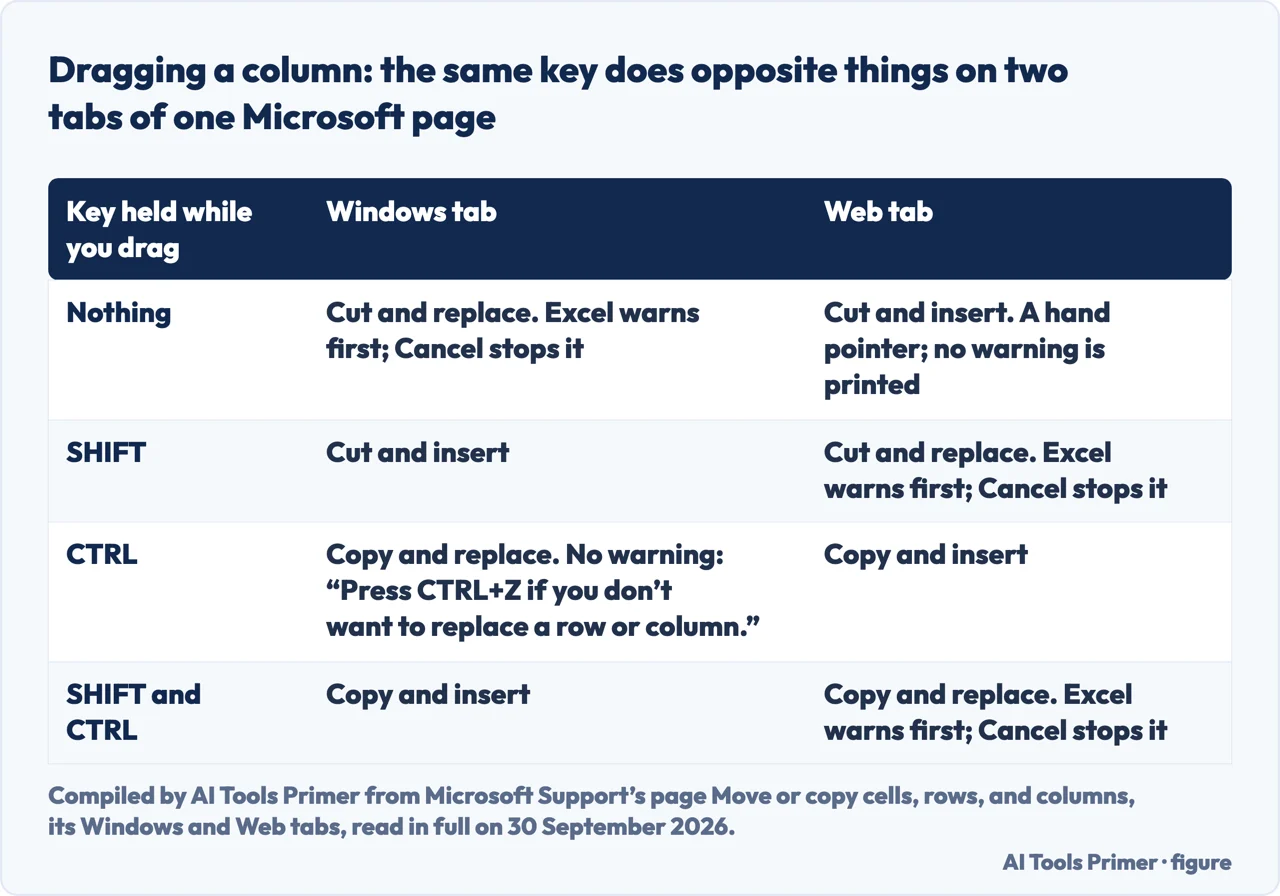
Dragging a column: one sentence, two opposite labels on the same Microsoft page
“Hold down SHIFT while you point to the border of the selection.”
Microsoft’s page on moving cells, rows and columns prints that sentence twice. On its Windows tab it sits under the label Cut and insert. On its Web tab it sits under Cut and replace, with a warning before a row or column is replaced. The gesture that slides a column between two others on the Windows tab is the gesture that overwrites one on the Web tab.
The four gestures on the Windows tab. Select the column, point to its border until the pointer becomes a move pointer, a copy pointer when CTRL alone is held, and drag. No key: cut and replace, with a warning. SHIFT: cut and insert. CTRL: copy and replace, and here the tab says: “Excel doesn’t warn you if you are going to replace a column. Press CTRL+Z if you don’t want to replace a row or column.” SHIFT and CTRL: copy and insert.
The four on the Web tab. No key: cut and insert, with a hand pointer. SHIFT: cut and replace, with the warning. CTRL: copy and insert. SHIFT and CTRL: copy and replace, with the warning.
Two notes on both tabs. Release CTRL or SHIFT before the mouse button and the columns are moved instead of copied; and nonadjacent rows and columns cannot be moved or copied with the mouse. The word warn appears four times on the page, twice on each of these tabs; in the Super User thread and the XelPlus article cited below it does not appear.
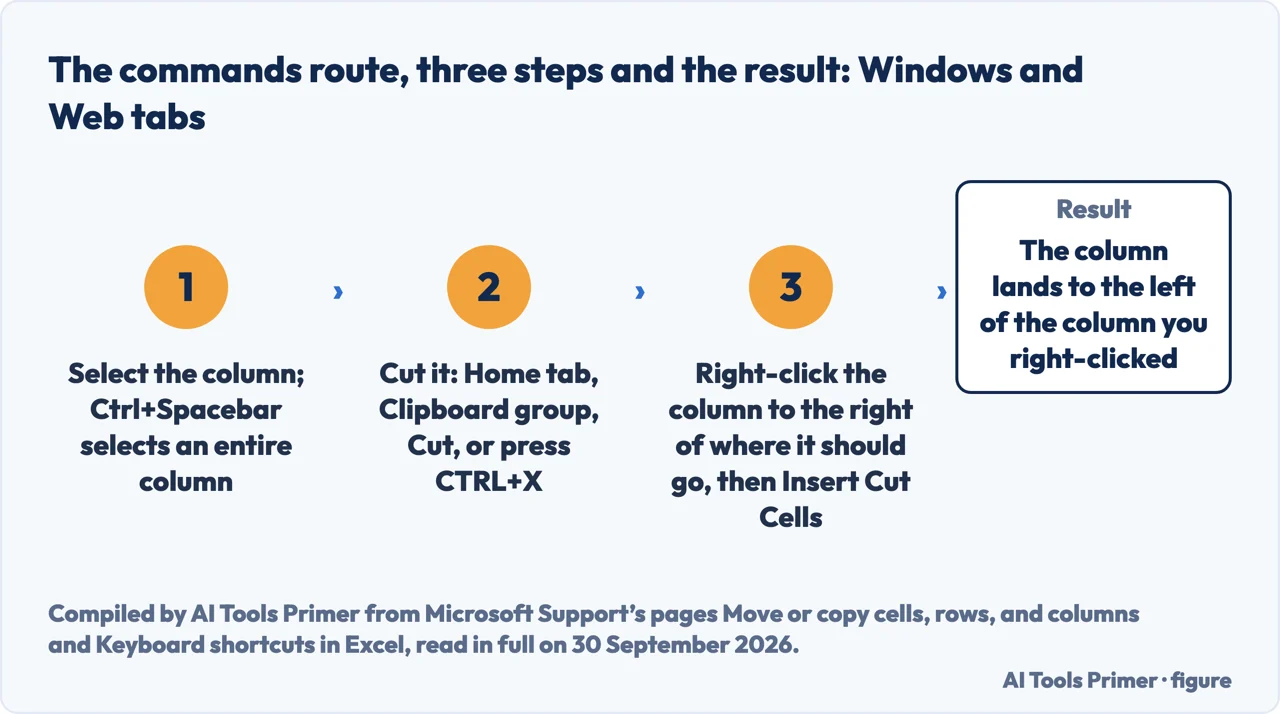
- Select the column you want to move. From the keyboard, Microsoft’s shortcuts page prints Ctrl+Spacebar on its Windows and Web tabs as the key that selects an entire column; the other ways are on the page on selecting cells in Excel.
- Cut it: Home tab, Clipboard group, Cut, or CTRL+X. Both tabs print the button and the key, and both say Esc cancels the moving border Excel draws around what was cut.
- Right-click the column to the right of where it should go, and choose Insert Cut Cells. Microsoft’s wording is to right-click a row or column below or to the right of where you want the selection to go. To put column D between A and B, in this guide’s example, right-click B.
- Check where it landed. By that rule the column arrives immediately to the left of the one you right-clicked. Microsoft prints the rule; where it lands is this guide’s reading of it.
Is there a key for Insert Cut Cells? Not on Microsoft’s shortcuts page: the words appear on none of its five tabs. The Windows tab prints Ctrl+Shift+Plus sign (+), “Open the Insert dialog box to insert blank cells.” The Web tab prints Ctrl+Plus sign (+), “Insert cells, rows, or columns.”, and the macOS tab Ctrl+Shift+Equal sign (=) for inserting cells; none of the three descriptions mentions cells that were cut. The page on inserting multiple rows in Excel sets those keys side by side. A Super User thread of 20 August 2010, asked about Excel 2007, has an answer its author says works in Excel 2003: Ctrl+Space, Ctrl+X, an arrow key to the target column, Ctrl+Space again, then Ctrl with the plus key “to insert the cut cells”. That is a forum answer, reported as one: no Microsoft page read for this guide says that the plus key inserts a cut column.
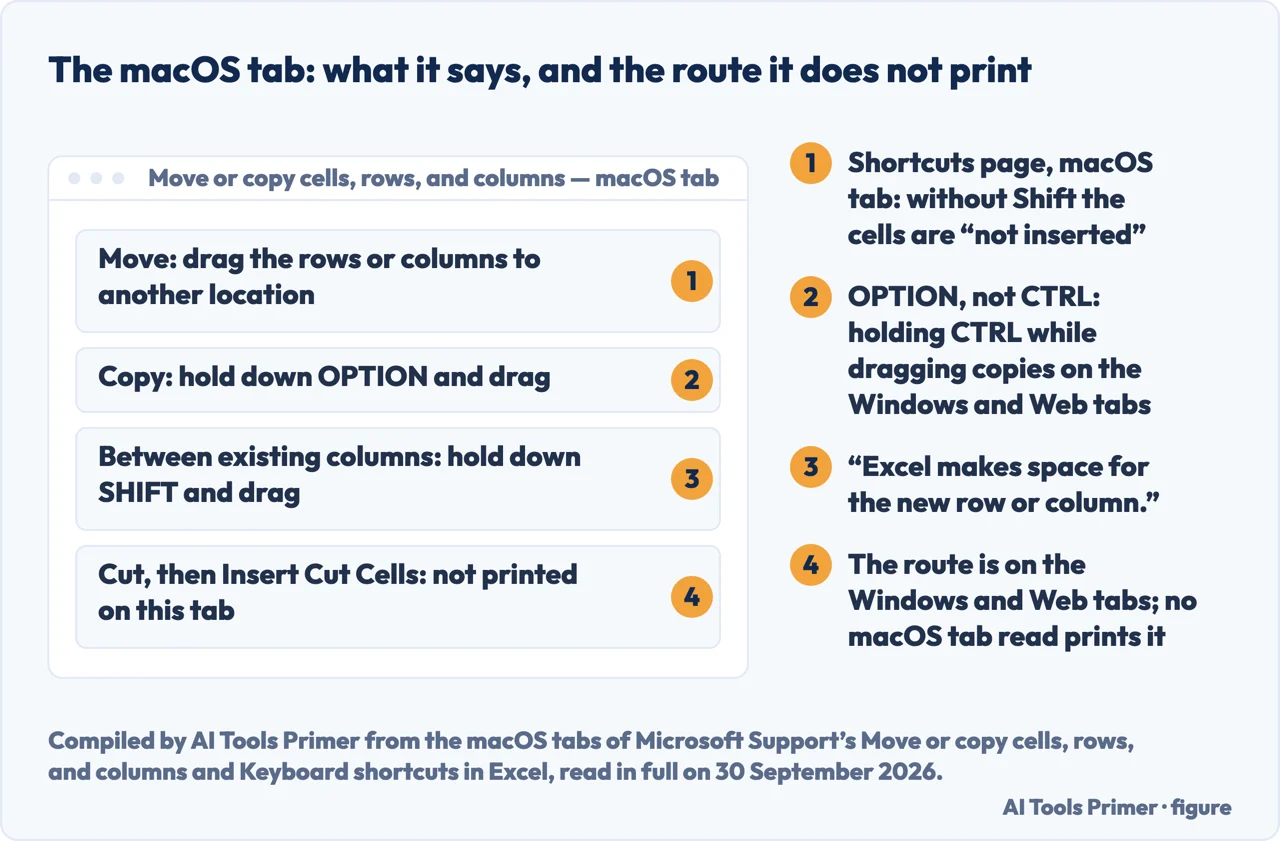
The macOS tab: OPTION copies, SHIFT makes space, and Insert Cut Cells is not printed
“Hold down SHIFT and drag your row or column between existing rows or columns. Excel makes space for the new row or column.”
That is the macOS tab of the same page, the shortest of the three. To move rows or columns it says to drag them to another location; to copy them, to hold down OPTION and drag. OPTION is printed twice on the macOS tab and CTRL not once. Its note on overwriting sits in the section on cells: if there is already data where you drag or paste, Excel overwrites it. The tab mentions no warning.
What the plain drag does. The macOS tab of Microsoft’s shortcuts page gives the same SHIFT gesture and then the other half: without the Shift key, “the selected cells will be cut from the original location and pasted to the new location (not inserted).” On that tab Ctrl+Spacebar, for selecting the entire column, carries the asterisk the page uses for a conflict with a default macOS shortcut.
The route the macOS tab does not print. Insert Cut Cells appears twice on the page on moving columns, once on the Windows tab and once on the Web tab, and on none of the five tabs of the shortcuts page. That is a silence counted on two pages, not a statement that Excel for Mac lacks the command.
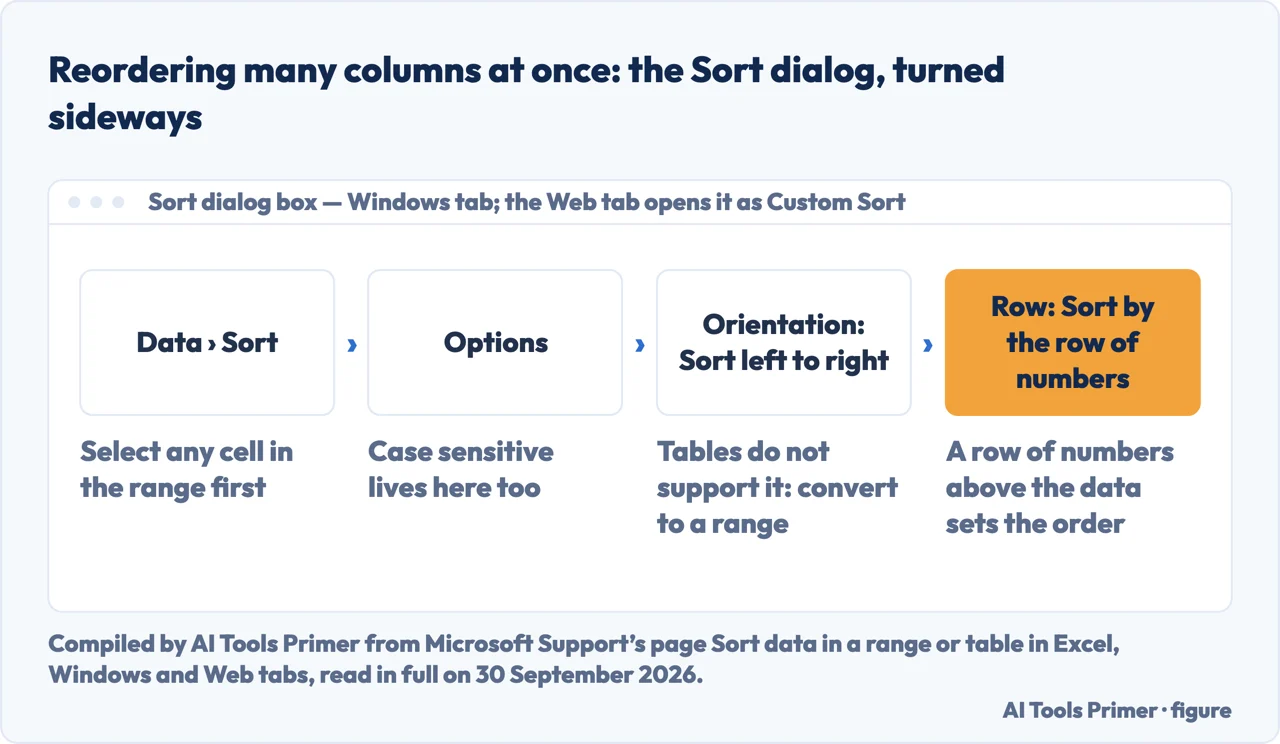
Many columns at once: the Sort dialog, turned sideways
“you can add a new row above your data range and add numbers according to the order you want them.”
That tip is on the Windows tab of Microsoft’s page on sorting, in its section on sorting from left to right: number the columns in the order you want, then sort by that row. The Windows tab’s steps: select any cell in the range; on the Data tab, in the Sort & Filter group, Sort; in the Sort dialog box, Options; under Orientation, Sort left to right, then OK; under Row, in the Sort by box, the row to sort by. The Web tab reaches the same Orientation setting through Custom Sort on the Data tab, then Options, and its version of the section does not carry the tip. The dialog is the one used for sorting alphabetically in Excel.
Two limits the page prints, and one in its product list. Tables do not support this sort, on both tabs; the remedy printed is to convert the table to a range first. On the Windows tab: “Hidden columns are not moved when you sort columns”, so it advises unhiding them first, the subject of the page on unhiding columns in Excel. And the page lists five products with no Mac among them, so no page read for this guide documents this sort on a Mac.
What travels with a moved column, and what the pages leave unsaid
From the Microsoft pages read for this guide on 30 September 2026.
- The contents
- Above its three tabs, so for all of them, the page on moving columns says that by default Excel moves or copies all the data rows and columns contain, and it names formulas and their resulting values, comments, cell formats and hidden cells.
- Formulas in the column
- Microsoft’s page on moving or copying a formula, which lists Excel for Microsoft 365, Excel 2024 and Excel 2021, says on its Windows tab: “When you move a formula, the cell references within the formula stay the same, no matter what type of cell reference you use.” The page on copying a formula in Excel sets that sentence beside its twin about copying.
- Formulas that point at it
- No page read for this guide says what happens to a formula elsewhere on the sheet that refers to the moved column. The Web tab of the formula page says only to verify, after a move, that the cell references are still what you want.
- A copy instead of a move
- Two Microsoft pages disagree. The page on moving columns says, above its tabs, that when you copy cells that contain a formula the relative cell references are not adjusted, and that those cells and any that point to them might display the #REF! error value. The formula page says: “When you copy a formula, relative cell references change.” Both are reported as printed; this guide does not settle which holds for a copied column.
When the column will not move
One cause is Microsoft’s; the others come from XelPlus, an independent training site, and from a forum comment.
- Columns that do not touch
- Microsoft, in a note on the Windows and Web tabs: nonadjacent rows and columns cannot be moved or copied by using the mouse. The macOS tab does not carry the note. XelPlus gives the remedy: move them one at a time.
- The drag does nothing
- Microsoft’s Windows tab says drag-and-drop editing is on by default and stops there. XelPlus prints the path: File, Options, Advanced, Editing options, and the box Enable fill handle and cell drag-and-drop. It does not say which Excel that path belongs to. Microsoft’s own routes to that box, on Windows and on a Mac, are on the page on the fill handle setting.
- A protected sheet
- XelPlus alone among the pages read: “Protected sheets block column moves even with Shift held.” What protection covers is on the page on locking cells in Excel.
- A column inside a table
- No Microsoft page read for this guide describes moving a column inside an Excel table. XelPlus advises Convert to Range. A comment of 6 December 2011 on a Super User thread, about Excel 2007 and 2010, reports the message “This operation is not allowed. The operation is attempting to shift cells in a table on your worksheet.” when the column was not selected from its header cell.
A new order by formula: CHOOSECOLS. Microsoft’s one-line description is “Returns the specified columns from an array.” Its first example, =CHOOSECOLS(A2:E7,1,3,5,1), returns columns 1, 3, 5 and 1 again: the result follows the order of the numbers. The page does not say what happens to the original columns. It lists four products, Excel for Microsoft 365 and Excel 2024, each with its Mac version; Excel 2021, 2019 and 2016 are not on its Applies To line.
On a phone or a tablet. Microsoft’s three touch guides, for Excel for iPad, Excel for iPhone and Excel for Android tablets and phones, print one gesture: tap the column heading to select it, tap and hold the selected column, and drag it. None of the three says whether the drop inserts the column or overwrites what is there.
Where to start
Six ways in.
- “I dragged it and it replaced a column.”
- One sentence, two opposite labels — what shift does on each tab
- “Just give me the steps.”
- Cut, right-click, Insert Cut Cells — the steps with cut and insert cut cells
- “I am on a Mac.”
- What the macOS tab prints, and what it leaves out — the macos tab and the option key
- “I have many columns to put in order.”
- One sort, sideways — many columns at once with sort left to right
- “Will my formulas follow?”
- What Microsoft states, and where it stops — what travels with a moved column
- “It will not move.”
- Four causes, each with its source — when the column will not move
Before the move: selecting, hidden columns and protection
A column is selected before it is cut, hidden cells travel with it, and a protected sheet is one of the causes XelPlus gives for a column that stays put.
Rows, sorting and merged cells
The Sort dialog that reorders columns left to right is the one that sorts a list alphabetically, and the keys Microsoft prints for inserting blank cells are set out on the page about adding rows.
Formulas and their references
Microsoft’s page on moving or copying a formula says a moved formula keeps its cell references and a copied one changes the relative ones; the three pages below are about formulas that refer to other cells.
Questions people also ask
How do I rearrange columns in Excel?
One at a time: cut the column, right-click the column to the right of its new place and choose Insert Cut Cells, as Microsoft’s Windows and Web tabs print it. Many at once: number the columns in a row above the data and sort left to right. Tables do not support that sort.
Why can't I move columns in Excel?
Microsoft gives one cause on its Windows and Web tabs: nonadjacent columns cannot be moved or copied with the mouse. XelPlus, an independent site, lists three more in its questions section: drag and drop disabled in the Advanced options, a protected worksheet, and a column inside a table.
What is the shortcut to move columns in Excel?
Microsoft’s shortcuts page prints Ctrl+Spacebar to select a column and Ctrl+X to cut it, on its Windows and Web tabs, and no key described as inserting cut cells. Its Windows tab also prints the mouse gesture: hold Shift while dragging the selected column, and it is inserted at the new location.
How do I change the position of two columns in Excel?
No Microsoft page read for this guide prints a swap command for a worksheet. For two columns side by side, move one past the other with Cut and Insert Cut Cells; columns further apart take two moves, by this guide’s count. In Power Query, Microsoft’s first Table.ReorderColumns example switches two columns.
Not covered here. It does not cover moving a column inside a formatted table: the XelPlus advice and the forum comment above are all this page has.
It does not cover what a move does to charts, defined names, conditional formatting or data validation that refer to the column: the pages read say nothing about them.
And it does not cover Google Sheets, Copilot or macros. What holds instead is simple: each key and gesture on this page is printed with the tab or the page it comes from, and where no page read for this guide says what happens, the line says so instead of guessing.
Sources
- Microsoft Support — Move or copy cells, rows, and columns: above its tabs, the sentence on what moves with rows and columns and the sentence on relative references when cells with a formula are copied; on its Windows tab, the Cut and Insert Cut Cells route with CTRL+X and the rule on which column to right-click, Esc for the moving border, the four mouse gestures with their labels and warnings, the line that drag-and-drop editing is on by default, and the two notes on releasing the key and on nonadjacent columns; on its Web tab, the same commands route and the four gestures with the labels reversed; on its macOS tab, the drag, OPTION to copy, SHIFT to make space, and the note on overwriting. Applies to Excel for Microsoft 365 and its Mac version, Excel 2024 and its Mac version, Excel 2021 and its Mac version, Excel 2019 and Excel 2016 — eight products, and no web version — support.microsoft.com, read 30 September 2026.
- Microsoft Support — Keyboard shortcuts in Excel: on its Windows tab, Ctrl+Spacebar, Ctrl+X, Ctrl+Shift+Plus sign (+) with its description, and the Shift gesture for dragging; on its macOS tab, Ctrl+Spacebar with the asterisk for a conflicting shortcut, Ctrl+Shift+Equal sign (=), and the sentence on dragging without the Shift key; on its Web tab, Ctrl+Spacebar, Ctrl+X and Ctrl+Plus sign (+); and the absence of the words Insert Cut Cells on all five tabs. Applies to thirteen products: Excel for Microsoft 365 and its Mac version, Excel 2024 and its Mac version, Excel 2021 and its Mac version, Excel 2019, Excel 2016, Excel for iPad, Excel for iPhone, Excel for Android tablets, Excel for Android phones and Excel Mobile — support.microsoft.com, read 30 September 2026.
- Microsoft Support — Sort data in a range or table in Excel: the steps for sorting from left to right on its Windows and Web tabs, the note that tables do not support it, the tip about a row of numbers, on the Windows tab only, and the Windows tab’s line on hidden columns. Applies to Excel for Microsoft 365, Excel 2024, Excel 2021, Excel 2019 and Excel 2016 — five products, and no Mac — support.microsoft.com, read 30 September 2026.
- Microsoft Support — Move or copy a formula in Excel: on its Windows tab, the two sentences on what moving and copying do to cell references; on its Web tab, the instruction to verify the references after a move. Applies to Excel for Microsoft 365, Excel 2024 and Excel 2021 — three products, and no Mac — support.microsoft.com, read 30 September 2026.
- Microsoft Support — CHOOSECOLS function: the one-line description and the first example. Applies to Excel for Microsoft 365 and its Mac version, Excel 2024 and its Mac version — four products — support.microsoft.com, read 30 September 2026.
- Microsoft Support — Excel for iPad touch guide: tap the column heading to select, then tap and hold and drag, with the sentence on the dotted lines. Applies to Excel for iPad — support.microsoft.com, read 30 September 2026.
- Microsoft Support — Excel for iPhone touch guide: the same gesture in the same words. Applies to Excel for iPhone — support.microsoft.com, read 30 September 2026.
- Microsoft Support — Excel for Android touch guide: tap and hold a selected column and drag it. Applies to Excel for Android tablets and Excel for Android phones — support.microsoft.com, read 30 September 2026.
- Microsoft Learn — Move columns, in the Power Query documentation: the Move option in the Any column group under the Transform tab, its four choices, the right-click menu and drag and drop. It carries no product line; last updated on 30 January 2024 — learn.microsoft.com, read 30 September 2026.
- Microsoft Learn — Table.ReorderColumns, in the Power Query M reference: the first example, which switches two columns. It carries no product line; last updated on 22 January 2026 — learn.microsoft.com, read 30 September 2026.
- Super User — Excel: keyboard shortcut to move (swap) column left or right?, a forum thread asked on 20 August 2010 about Excel 2007: the answer that gives Ctrl+Space, Ctrl+X and Ctrl with the plus key and says it works in Excel 2003, and the comment of 6 December 2011 on the message shown inside a table in Excel 2007 and 2010. An independent forum, reported as users’ answers — superuser.com, read 30 September 2026.
- XelPlus — How to Move Columns in Excel (5 Methods That Won’t Break Your Data), by Leila Gharani, published on 12 March 2025 and last modified on 24 April 2026: the path to the drag-and-drop setting, the sentence on protected sheets, the advice on tables and on nonadjacent columns, and the three causes in its own questions section. An independent training site, with no Applies To line of its own — www.xelplus.com, read 30 September 2026.
Written by Alberto Gulotta
Founder and editor of AI Tools Primer, writing from Palermo, Italy. Thirty-five years of taking computers apart, starting with a Commodore 64 — the long version is on the about page.
Something wrong on this page? Write to aitoolsprimer@gmail.com and it gets fixed.
Written on 1 October 2026.
Independence and limits
No affiliate links and no paid placements anywhere on this site. Nobody pays to appear here, and no company has seen this page before you did.
This is general information, not professional advice. Where a page touches money, health, safety or the law, it names its source and the date it was read — and your situation may still differ. See the privacy page and the cookie policy.