
Malware · guide
How to remove malware from Mac: what is automatic and what is manual
By Alberto Gulotta · Updated · 13 min read
How to remove malware from Mac starts with what macOS already does: Apple says XProtect blocks known malware, moves it to the Trash and alerts the user in the Finder. This page sets out what the Mac removes by itself, the manual steps Lifehacker and vendors list, and the fake warnings the FTC and AVG describe.
| Question | Answer | Where it comes from |
|---|---|---|
| What removes known malware by itself? | XProtect blocks it, moves it to the Trash and alerts the user in the Finder | Apple |
| Can I start an XProtect scan? | Lifehacker and Setapp say it cannot run on-demand checks; the Apple pages we read do not say whether it can be started by hand | Lifehacker, Setapp, Apple |
| Does XProtect restart the Mac? | Apple says it does not restart the Mac automatically | Apple |
| What comes first by hand? | Disconnect from the internet and do not sign in to accounts | Lifehacker, Kaspersky |
| Is a warning with a phone number real? | The FTC says real security pop-up warnings never ask you to call a number | FTC |
| Where are leftover files? | The pages point to different folders: ~/Library/Caches for Kaspersky and Lifehacker, and /Library (Caches, Logs, Preferences) for AVG, which names it only for apps already deleted | Kaspersky, Lifehacker, AVG |
Where to start
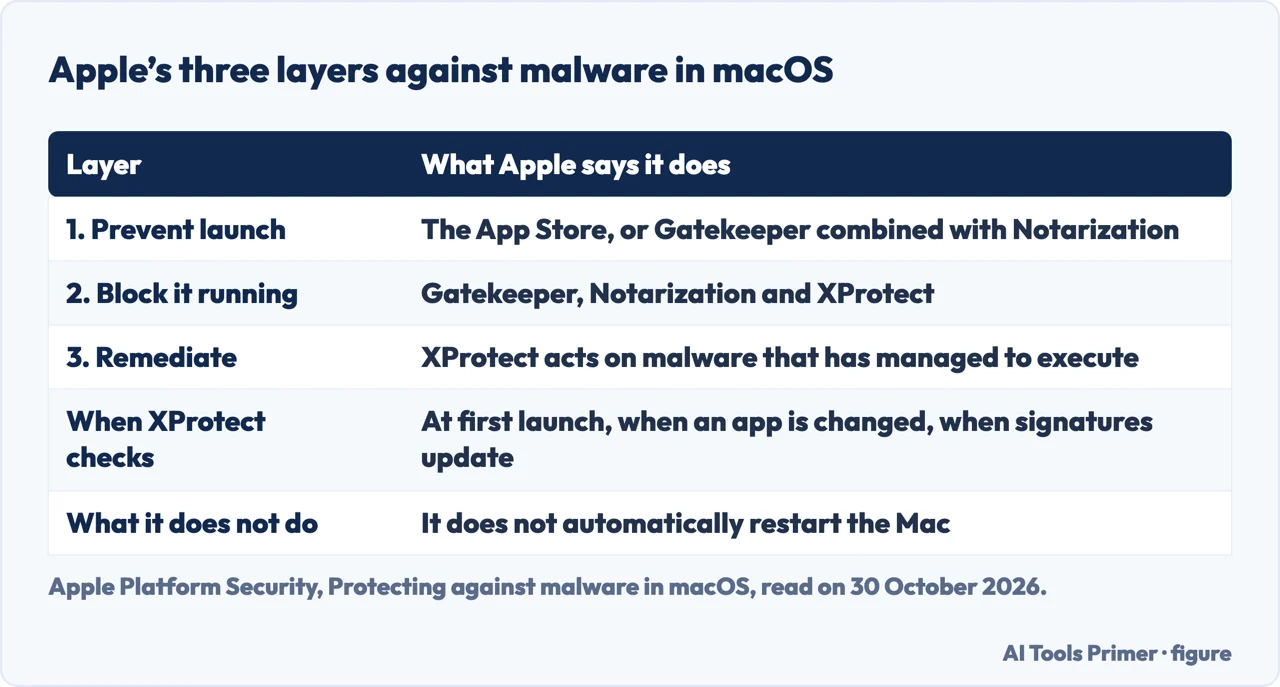
Apple’s security documentation says macOS defends against malware in three layers, and that the third, XProtect, acts on malware that has already run. When XProtect detects known malware, Apple says, it blocks it, moves it to the Trash and alerts the user in the Finder.
The Apple page gives no manual steps. Those come from Lifehacker, Kaspersky, AVG and Setapp, and three of the four sell security software: Kaspersky and AVG sell antivirus programs, and Setapp sells CleanMyMac and Moonlock. A warning on a web page is a different matter. The FTC says legitimate tech companies will not contact you by phone, email or text message to say there is a problem with your computer, and that real security pop-up warnings will never ask you to call a phone number. We did not test any of this on a Mac.
What macOS removes by itself
Apple lists the three layers as preventing launch (the App Store, or Gatekeeper with Notarization), blocking malware from running (Gatekeeper, Notarization and XProtect) and remediating malware that has executed (XProtect). It describes Notarization as a scanning service: developers outside the App Store submit apps to Apple, and Apple can later issue a revocation ticket for an app known to be malicious, even one it notarized before. macOS checks for those tickets in the background.
XProtect is, in Apple’s words, “built-in antivirus technology” for signature-based detection and removal. In macOS 10.15 or later it checks when an app is first launched, when an app has been changed in the file system and when its signatures are updated. Apple adds that its rules are more generic than a file hash, so they can find variants Apple has not seen, and that it scans only apps that have been changed or are at first launch. By default macOS checks for XProtect updates daily; Notarization updates, Apple says, are much more frequent.
For infections already on the Mac, Apple says XProtect includes an engine that remediates them from updates delivered by Apple, that it removes malware on receiving updated information and keeps checking periodically, and that it does not automatically restart the Mac. It also names an engine that looks for unknown malware by behavior. When new malware is found, Apple lists revoked Developer ID certificates, revocation tickets and new signatures, applied retroactively, over “seconds, hours, and days”. The pages we read do not say how long one Mac waits between a new signature and the removal.
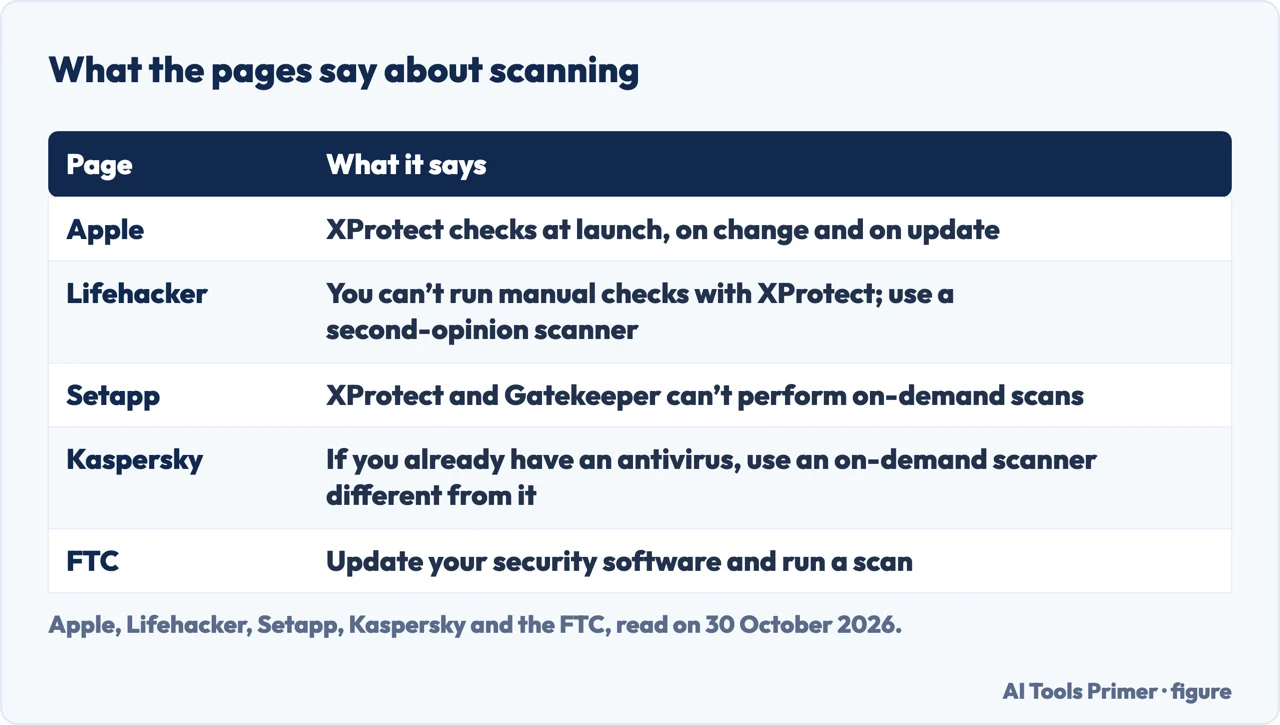
Apple Support’s page on opening apps adds that if macOS detects known malware it tells you the app cannot be opened and moves it to the Trash. Lifehacker and Setapp describe the other side: XProtect cannot be run on demand, and Setapp says it and Gatekeeper only catch threats Apple already knows about. Setapp also names XProtect Remediator, which it says removes certain infections on system restarts; the Apple page we read does not use that name. These accounts do not contradict each other. One describes what happens automatically, the other what a person cannot start, though none of the pages puts it that way.
The warning that is an advert
AVG describes a kind of scareware that redirects you from legitimate websites to fake ones, which then warn that your device is infected and offer to sell fake removal tools. It names MacDefender, MacProtector and MacSecurity as common examples and says their aim is to get your credit card details. AVG adds that Apple released a free software update that detects and removes MacDefender and its variants, and that the scareware can also be removed manually: find the process in Activity Monitor, click Stop, drag the app from Applications to the Trash and empty it.
The FTC describes the same pattern for tech support scams in general. They often begin with a fake pop-up that looks like it is from a well-known company and urges a call, and the scammers may also place display ads or try to appear in search results. Once on the phone, the FTC says, they ask for remote access and pretend to scan the computer, then offer to remove a program for a fee, often asked in gift cards, wire transfers, cryptocurrency or a payment app. If a username and password was given, the FTC says to change the password right away, and to report scams at ReportFraud.ftc.gov.
Apple describes the alerts macOS itself shows when you try to open software. One says an app will damage your computer, shown when macOS detects malicious content or the authorization has been revoked; another says an app cannot be opened because it was modified or damaged. The pages we read do not say how to tell, on a Mac, a system alert from an advert dressed as one, so the clearest test in them is the FTC’s: a real warning never asks for a phone call.
The manual steps, in order
Lifehacker and Kaspersky begin the same way. Disconnect the Mac from the internet so malware cannot spread across the network or send data out, and do not sign in to accounts, because some malware logs keystrokes. Lifehacker allows a quick download of a scanner first; Kaspersky suggests printing the instructions before disconnecting.
Safe mode comes next. Lifehacker says it stops some software from loading and runs a check on the startup disk, which lets you isolate and address problems; Kaspersky describes it as a way to isolate issues. For an Apple silicon Mac, Lifehacker says to choose Shut Down, wait, hold the power button until Loading startup options appears, select the volume, hold Shift and click Continue in Safe Mode. For an Intel Mac it says to restart and hold Shift until the login window appears, then log in. Kaspersky’s version is shorter: hold Shift at startup and release it when the login window appears. Lifehacker checks the result by holding Option, opening the Apple menu, choosing System Information and Software, and reading Boot Mode: Safe.
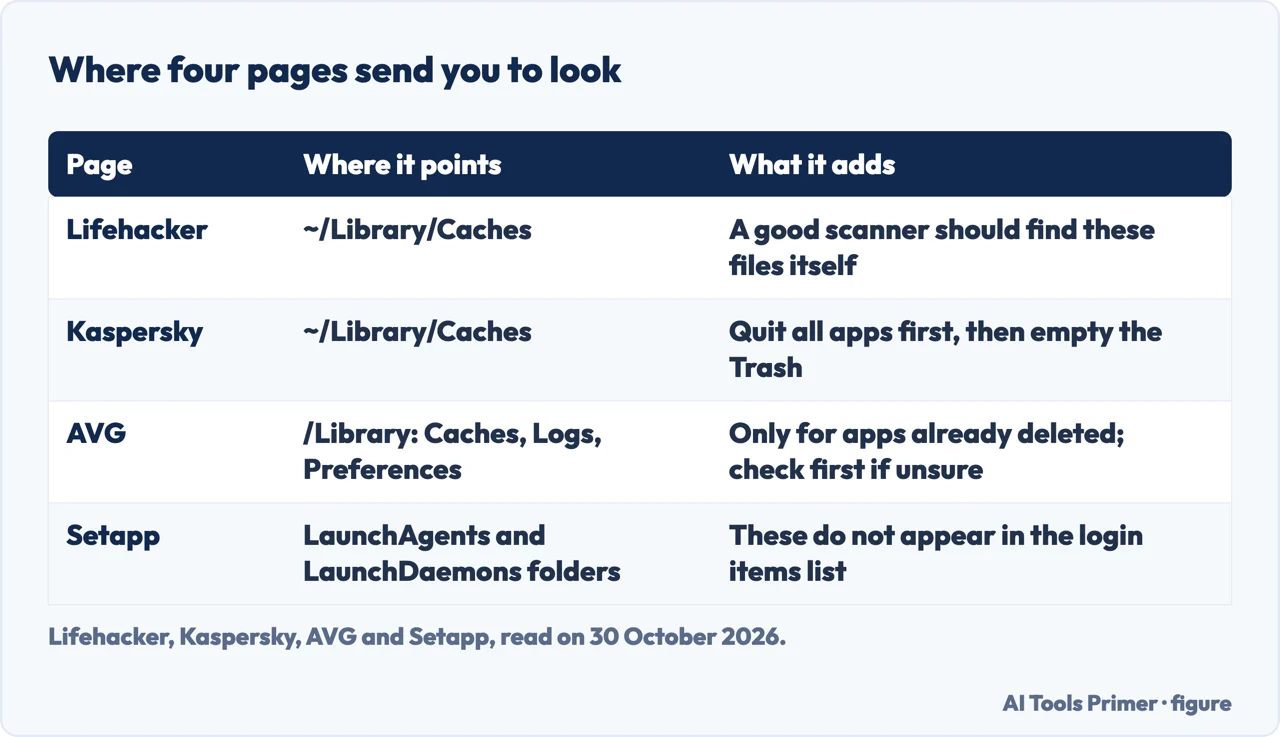
Then Activity Monitor. Lifehacker says to look for unusual names or processes using a lot of CPU or memory and quit them; Kaspersky says to close suspicious ones in the monitor and delete them from the Finder. For login items, Kaspersky sends you to System Preferences, then Users & Groups, then the lock, and says to disable the ones you do not need. Setapp, whose steps use System Settings, points to General and Login Items & Extensions, and says LaunchAgents and LaunchDaemons do not appear on that list; it gives the folders /Library/LaunchAgents and ~/Library/LaunchAgents among others to open and inspect.
For apps, AVG says to look in Applications for apps with strange names or ones you do not remember downloading, move them to the Trash, then check the folders Caches, Logs and Preferences inside /Library for files tied to the deleted app, and to search the web first if unsure whether a file can go. Setapp says dragging an app to the Trash does not remove its hidden files. Kaspersky says to research each installed app you never use, because an app on the official App Store should be reliable while one that is hard to find and has bad reviews may contain malware (a vendor’s judgement, not Apple’s). Kaspersky and Lifehacker instead point to ~/Library/Caches, and Lifehacker warns that a good scanner should find those files itself and that someone who does not know what to look for may delete files that help the Mac run.
Last, the browser. Lifehacker says malware can modify browser settings: Chrome and Firefox have a reset, Safari has no single reset button and is reset by clearing browsing data, and unrecognized extensions should be disabled or removed. Kaspersky says that in most cases deleting the extension is enough. AVG gives Safari and Chrome steps and says changed homepages, new toolbars and many ads may mean a browser hijacker or adware.
Scanners, reinstalling and what comes after
Lifehacker suggests a second-opinion scanner to find what XProtect may have missed, and says its sister site PCMag recommends BitDefender, with Avast and Malwarebytes as free choices. Kaspersky says that if an antivirus program is already installed, the on-demand scanner should be a different one. AVG and Setapp each recommend their own products. Kaspersky says a malware scanner should be enough to get rid of most standard infections.
If traces remain, Lifehacker says a fresh start by reinstalling macOS from Recovery may be needed. It says to restore a backup only if you are sure it was made before the infection. AVG gives a factory reset as the last resort and warns that files restored to a cleanly reset Mac might re-infect it. The pages we read do not say whether malware can survive a reinstall, so we do not say it either.
AVG says that once the malware is removed you should change your passwords and turn on two-factor authentication, and Setapp also recommends two-factor authentication. Setapp mentions Lockdown Mode on Mac, which it calls an extreme protection setting for situations where a more serious or targeted attack is suspected. For how to tell whether a Mac has malware in the first place, see how to check for malware on a Mac.
What the pages we read do not say
The pages we read do not say how many real infections happen on Macs. The only figure is AVG’s: citing Objective-See, it says new Mac malware threats increased around 100% between 2022 and 2023, and we did not check that against Objective-See. The Apple security page gives no manual steps and does not say whether XProtect can be started by hand; the claim that it cannot comes from Lifehacker and Setapp. Kaspersky, AVG and Setapp sell security products, so their advice to scan is the advice of a seller.
Where to start
Four ways in.
- “What does the Mac do itself?”
- What macOS removes by itself — itself
- “A pop-up says I have a virus.”
- The warning that is an advert — advert
- “What do I do by hand?”
- The manual steps, in order — manual
- “Do I need a scanner?”
- Scanners, reinstalling and what comes after — scanners
Removing it
The same emergency order on each device.
On a Mac
Checking, and the messages macOS shows.
Questions people also ask
How do I find out if my Mac has malware?
Lifehacker lists a Mac running slower or working harder than usual, or overheating, apps crashing unexpectedly and unfamiliar software or processes. Activity Monitor shows running processes. For checks in more detail see our page on checking a Mac for malware.
How do you run a malware scan on a Mac?
Lifehacker and Setapp say XProtect cannot run on-demand checks, so an on-demand scan needs a separate scanner. Kaspersky says that scanner should be different from any antivirus already installed. Lifehacker names BitDefender, Avast and Malwarebytes through PCMag.
Can a Mac be infected with malware?
Lifehacker says Macs get viruses too, and Apple describes XProtect remediating malware that has executed. AVG, citing Objective-See, says new Mac malware threats rose around 100% between 2022 and 2023; we did not check that figure at its source.
How do I delete malware on my Mac?
Apple says XProtect moves known malware to the Trash itself. By hand, the pages list disconnecting, safe mode, Activity Monitor, login items, suspicious apps and browser extensions, then a scanner, and reinstalling macOS from Recovery if traces remain.
Not covered here. We tested nothing on a Mac. The statements come from Apple Platform Security, Apple Support, Lifehacker, Kaspersky, AVG, Setapp and the FTC, all read on 30 October 2026. Kaspersky, AVG and Setapp sell security products.
The search volume and difficulty behind this page come from a Semrush reading of 29 August 2026, older than the 60 days the site normally allows.
Sources
- Apple Platform Security — Protecting against malware in macOS — support.apple.com, read 30 October 2026.
- Apple Support — Safely open apps on your Mac — support.apple.com, read 30 October 2026.
- Lifehacker — How to Remove Malware From Your Mac — lifehacker.com, read 30 October 2026.
- Kaspersky — Removing Malware on PC & Mac — www.kaspersky.com, read 30 October 2026.
- AVG — How to Scan and Remove Malware on Mac — www.avg.com, read 30 October 2026.
- Setapp — Remove malware from your Mac: Complete security guide — setapp.com, read 30 October 2026.
- FTC Consumer Advice — How To Spot, Avoid, and Report Tech Support Scams — consumer.ftc.gov, read 30 October 2026.
Written by Alberto Gulotta
Founder and editor of AI Tools Primer, writing from Palermo, Italy. Thirty-five years of taking computers apart, starting with a Commodore 64 — the long version is on the about page.
Something wrong on this page? Write to aitoolsprimer@gmail.com and it gets fixed.
Written on 3 November 2026.
Independence and limits
No affiliate links and no paid placements anywhere on this site. Nobody pays to appear here, and no company has seen this page before you did.
This is general information, not professional advice. Where a page touches money, health, safety or the law, it names its source and the date it was read — and your situation may still differ. See the privacy page and the cookie policy.