
Malware · guide
How to check for malware on Mac: what Apple does and what to look for
By Alberto Gulotta · Updated · 10 min read
How to check for malware on Mac starts with what macOS already does: Apple says XProtect checks apps when they are first launched, changed, and when its signatures are updated, and moves known malware to the Trash. This page sets out Apple’s defenses, the signs and manual checks vendors list, scanners, and where they differ from Apple.
| Question | Answer | Where it comes from |
|---|---|---|
| What does macOS check by itself? | Gatekeeper and Notarization before launch, XProtect for known malware | Apple Platform Security |
| When does XProtect check? | When an app is first launched, when it has been changed, and when the signatures are updated | Apple Platform Security |
| What happens when it finds known malware? | It blocks it, moves it to the Trash and alerts you in the Finder | Apple Platform Security |
| Is there a scan button? | Intego says Apple’s defenses give no way to run a manual check; the Apple pages we read describe none | Intego, Apple |
| What do the vendors tell you to look at? | Applications, browser extensions and login items | Intego, Kaspersky, Penligent |
| How do you open an app macOS blocks? | Privacy & Security, then Open Anyway, only if you are certain of the source | Apple Support |
What macOS does without being asked
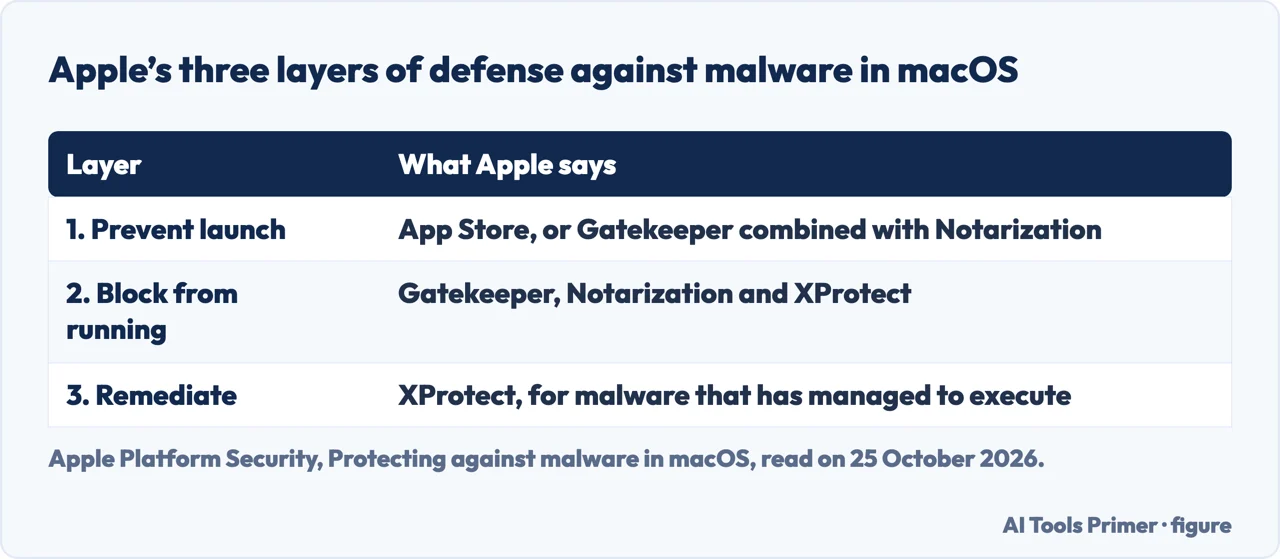
Apple’s Platform Security guide describes three layers. The first is to prevent launch or execution of malware, through the App Store or through Gatekeeper combined with Notarization. The second is to block malware from running, with Gatekeeper, Notarization and XProtect. The third is to remediate malware that has already executed, which is XProtect’s job. Notarization is a malware scanning service: developers who distribute apps outside the App Store submit them, Apple scans for known malware and, if none is found, issues a ticket; Apple can also issue a revocation ticket for an app known to be malicious even if it was notarized earlier, and macOS regularly checks for new ones so that Gatekeeper can block them.
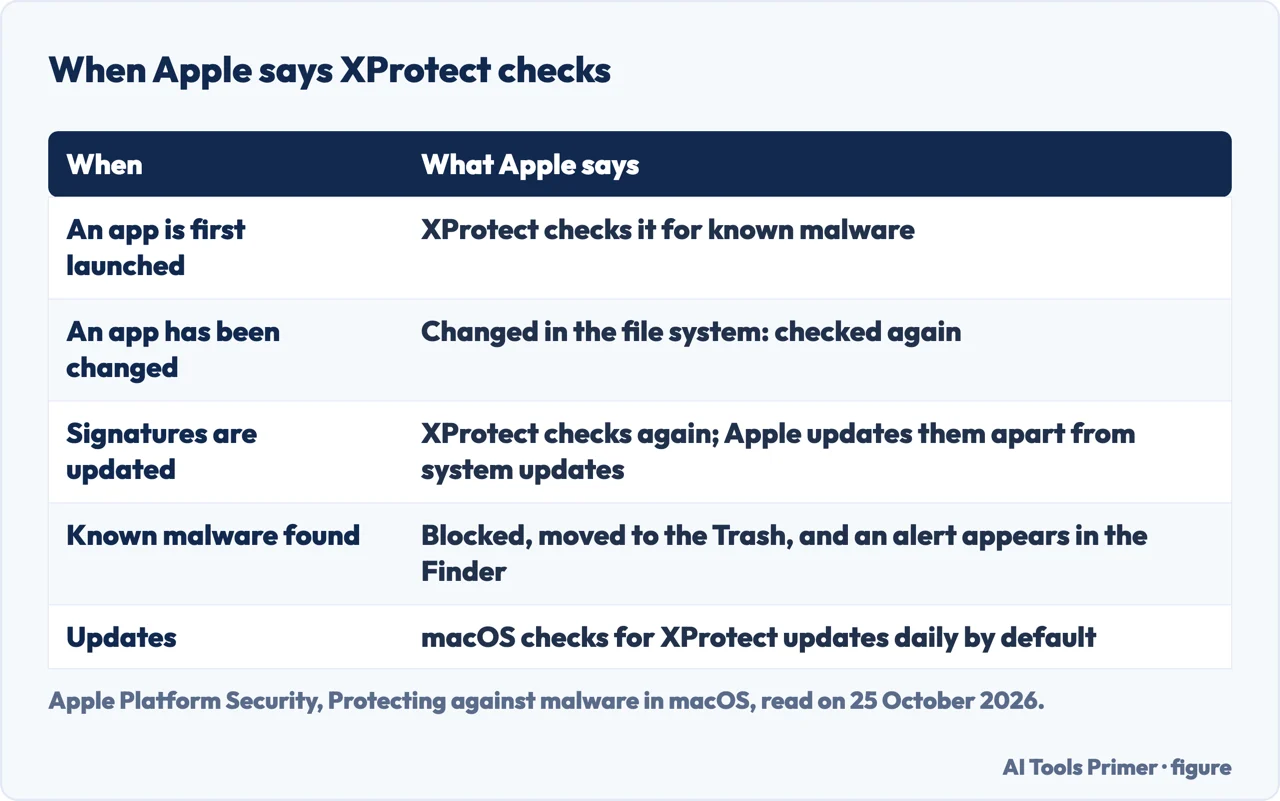
XProtect is what the guide calls the built-in antivirus technology for signature-based detection and removal of malware, using YARA signatures that Apple updates regularly and independently of system updates. It checks for known malicious content when an app is first launched, when an app has been changed in the file system, and when the signatures are updated. When it detects known malware, it blocks it, moves it to the Trash and alerts you in the Finder; you might be asked to share a copy of the malware with Apple, and only the malware itself is uploaded. The guide says XProtect removes malware upon receiving updated information and continues to periodically check for infections, and that by default macOS checks for XProtect updates daily.
The alerts, and the one override
Apple’s page on safely opening apps, published on 27 May 2026, says the safest place to get apps is the App Store, and that for software from elsewhere macOS checks the developer’s signature and, by default in macOS Catalina and later, requires notarization. It lists the alerts you might see. If macOS detects that software has malicious content or that its authorization has been revoked, your Mac says the app will damage your computer. If it detects modified or damaged software, it says the app can’t be opened. If it detects known malware, it says the app can’t be opened and moves it to the Trash.
For an app that hasn’t been notarized or is from an unidentified developer, Apple says that running it might expose your computer and personal information to malware, and that if you are certain the app comes from a trustworthy source and hasn’t been tampered with, you can open System Settings, click Privacy & Security, scroll down and click the Open Anyway button, then confirm in the prompt that reappears. For the message that Apple could not verify an app is free of malware, see what that message means.
The signs vendors list, and the manual checks
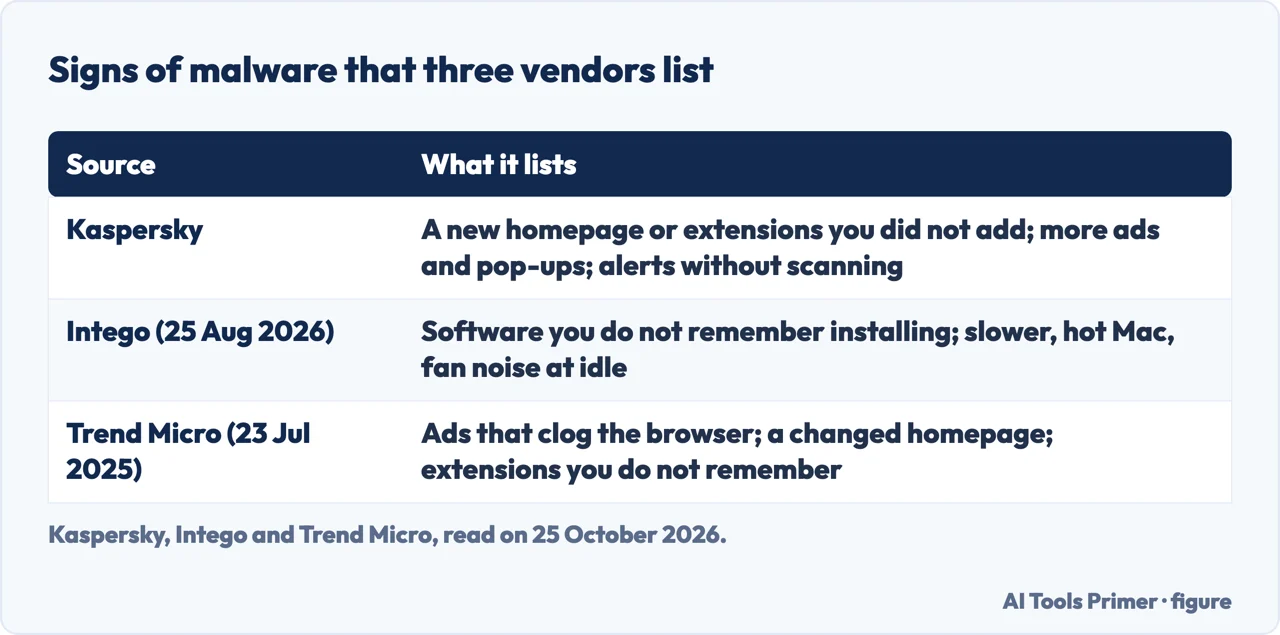
Kaspersky lists a browser with a new homepage or extensions you haven’t added, which could mean it has been hijacked; many more ads or pop-ups than usual, which could be adware; and security alerts without scanning your Mac, which could be scareware. Intego, in an article dated 25 August 2026, lists software you don’t remember installing, such as browser add-ons or unfamiliar icons in Applications, and changes in performance or background activity, such as a slower or hot Mac or fan noise during light tasks. Trend Micro, in a page updated on 23 July 2025, describes ads clogging the browser, a changed homepage and extensions you don’t remember.
The manual checks are simple. Intego says to make sure the Mac is up to date, look through the Applications folder and the browser’s extension list for anything you don’t recognise, and check login items: on macOS Ventura and later in System Settings, then General, then Login Items; on Monterey and earlier in System Preferences, then Users & Groups, then Login Items. Kaspersky adds using Activity Monitor to identify potential malware, removing unknown browser extensions, and unticking Open “safe” files after downloading in Safari’s General settings, since some drive-by downloads may launch if it stays on. Penligent, a blog dated 27 January 2026 that promotes an AI penetration-testing tool, goes further: it suggests disconnecting from the network if you suspect active compromise, reviewing login items, sorting running processes by CPU and memory, checking whether a suspicious program is signed and notarized, and looking at the LaunchAgents and LaunchDaemons folders. We have not tried its Terminal commands.
Scanners, and what to do if one finds something
Intego says Apple’s Gatekeeper and XProtect work behind the scenes but don’t give you a way to run a manual check or see a status report, so a dedicated antivirus program is how you get a scan on demand; Intego sells such a program. Malwarebytes, whose page is a product page, says to download its free scanner, open the installer and click Scan, and that scanning finds threats already on the device while real-time protection is part of Premium. Kaspersky says that if you already have an antivirus program active, you should use a different scanner for the check, because your current software may not detect the malware, and it sells its own program too.
Intego’s advice if a scan finds something is to quarantine or remove the threat, restart and run a second scan if prompted, update the Mac and apps, check your key accounts for unfamiliar sign-ins and change passwords if needed, and restore from a clean backup made before the malware appeared if the infection caused deeper issues. For the steps to remove malware from a computer see removing malware from a computer, and for the signs on any computer how to tell if your computer has a virus.
Where the vendors and Apple differ
Trend Micro calls XProtect a “Mac Firewall” that makes it hard for malware to penetrate; Apple describes it as built-in antivirus technology for signature-based detection and removal. Intego says the built-in defenses give no manual check or status report, while Apple says XProtect continues to periodically check for infections and checks for updates daily by default; both can be true, since Apple describes no scan button. Penligent says the built-in layers are not designed to answer whether your Mac is already compromised; Apple’s description is of checks at launch, at change and at update. None of the vendor pages we read mentions the daily update check. Kaspersky, Intego and Malwarebytes sell security products, which is a reason to compare their claims with Apple’s.
Where to start
Five ways in.
- “What does the Mac do itself?”
- Built-in defenses — builtin
- “It blocked an app.”
- The alerts — alerts
- “What should I look for?”
- Signs and manual checks — signs
- “Run a scan.”
- Scanners — scan
- “Who is right?”
- Apple and the vendors — differ
Malware and your computer
Signs, removal and the messages you may see.
Questions people also ask
How do I scan my Mac for malware?
Apple describes no scan button: XProtect checks automatically. Intego says that for a scan on demand you need a dedicated antivirus program; Malwarebytes says to download its scanner and click Scan.
How do I clean my Mac from malware?
Apple says XProtect moves known malware to the Trash. Intego advises quarantining or removing a flagged threat, restarting and scanning again, updating, checking accounts and restoring a clean backup if needed.
How do I run a virus check on my MacBook?
The same options apply: macOS checks known malware itself, and a third-party scanner gives an on-demand scan. Kaspersky says to use a different scanner from your current antivirus.
How do I run a security check on my Mac?
Intego says to update the Mac, review Applications, browser extensions and login items, and remove what you do not recognise. Apple’s Privacy & Security settings control which apps can open.
Not covered here. We did not scan a Mac or test a scanner. The statements come from Apple Platform Security (Protecting against malware in macOS), Apple Support (safely open apps on your Mac, published 27 May 2026) and vendor pages by Intego (25 August 2026), Trend Micro (updated 23 July 2025), Penligent (27 January 2026), Kaspersky and Malwarebytes (no dates that we could read), used for what they claim. Kaspersky, Intego and Malwarebytes sell security products.
The Reddit thread, the Apple community thread and the forum in the results were not used. Terminal commands from a third party are described, not reproduced. Mac malware removal in detail is outside this page.
The search volume and difficulty behind this page were read in Semrush on 29 August 2026.
Sources
- Apple Platform Security — Protecting against malware in macOS — support.apple.com, read 25 October 2026.
- Apple Support — Safely open apps on your Mac (published 27 May 2026) — support.apple.com, read 25 October 2026.
- Intego — How to check your Mac for malware (25 August 2026) — www.intego.com, read 25 October 2026.
- Trend Micro — How to check if your Mac has a virus (updated 23 July 2025) — helpcenter.trendlife.com, read 25 October 2026.
- Kaspersky — How to Remove Malware on your Mac — www.kaspersky.com, read 25 October 2026.
- Malwarebytes — Free Virus Scanner — www.malwarebytes.com, read 25 October 2026.
- Penligent — How to Check for Malware on Mac (27 January 2026) — www.penligent.ai, read 25 October 2026.
Written by Alberto Gulotta
Founder and editor of AI Tools Primer, writing from Palermo, Italy. Thirty-five years of taking computers apart, starting with a Commodore 64 — the long version is on the about page.
Something wrong on this page? Write to aitoolsprimer@gmail.com and it gets fixed.
Written on 25 October 2026.
Independence and limits
No affiliate links and no paid placements anywhere on this site. Nobody pays to appear here, and no company has seen this page before you did.
This is general information, not professional advice. Where a page touches money, health, safety or the law, it names its source and the date it was read — and your situation may still differ. See the privacy page and the cookie policy.