
Software · guide
How do I get split screen on iPad?
By Alberto Gulotta · Updated · 12 min read
How do I get split screen on iPad: open Settings, tap Multitasking & Gestures and select Windowed Apps. Then, with one app full screen, drag a second app from the Dock to the left or right edge. The two tile side by side, and the divider between them sets the split.
Apple’s pages for iPadOS 26 and later no longer mention the three-dot button that older tutorials use, which is why those tutorials no longer match the screen.
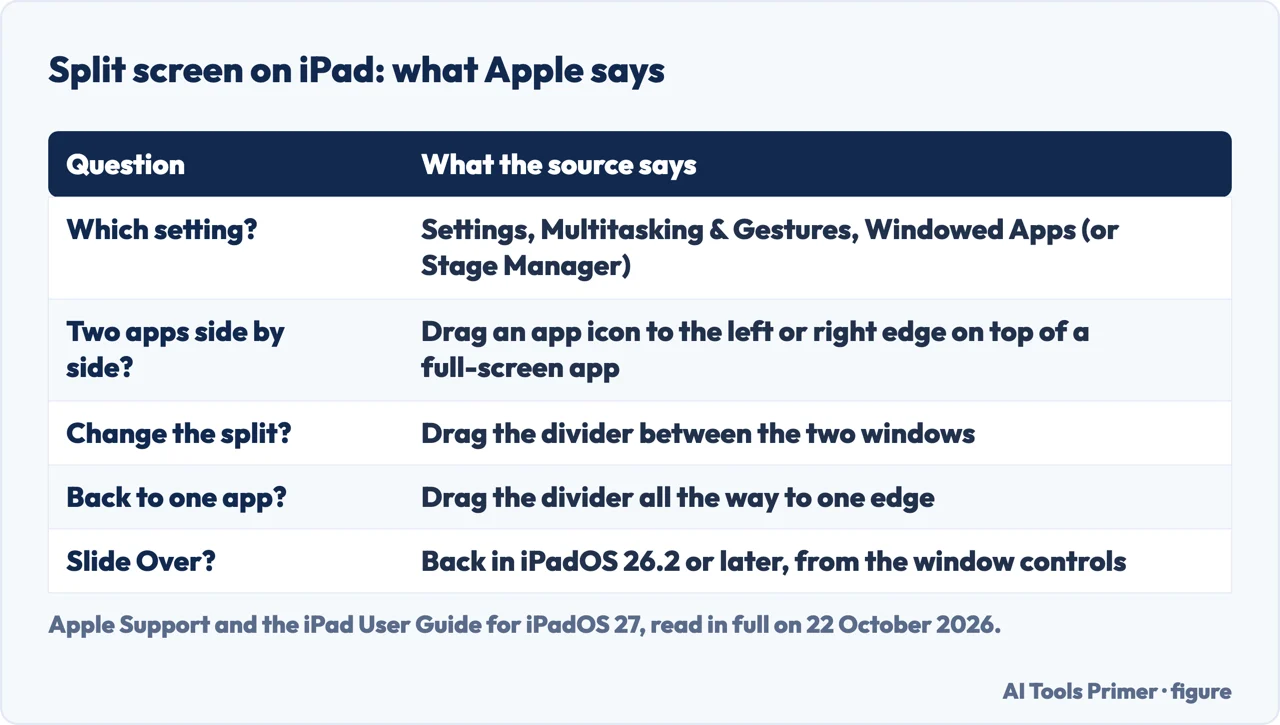
| Question | What the source says |
|---|---|
| Which setting? | Settings, Multitasking & Gestures, then Windowed Apps (or Stage Manager) |
| Two apps side by side? | Drag an app icon to the right or left on top of a full-screen app |
| Change the split? | Drag the divider between the two windows |
| Back to one app? | Drag the divider all the way to one edge |
| Slide Over? | iPadOS 26.2 or later: touch and hold the window controls, then Enter Slide Over |
The setting comes first
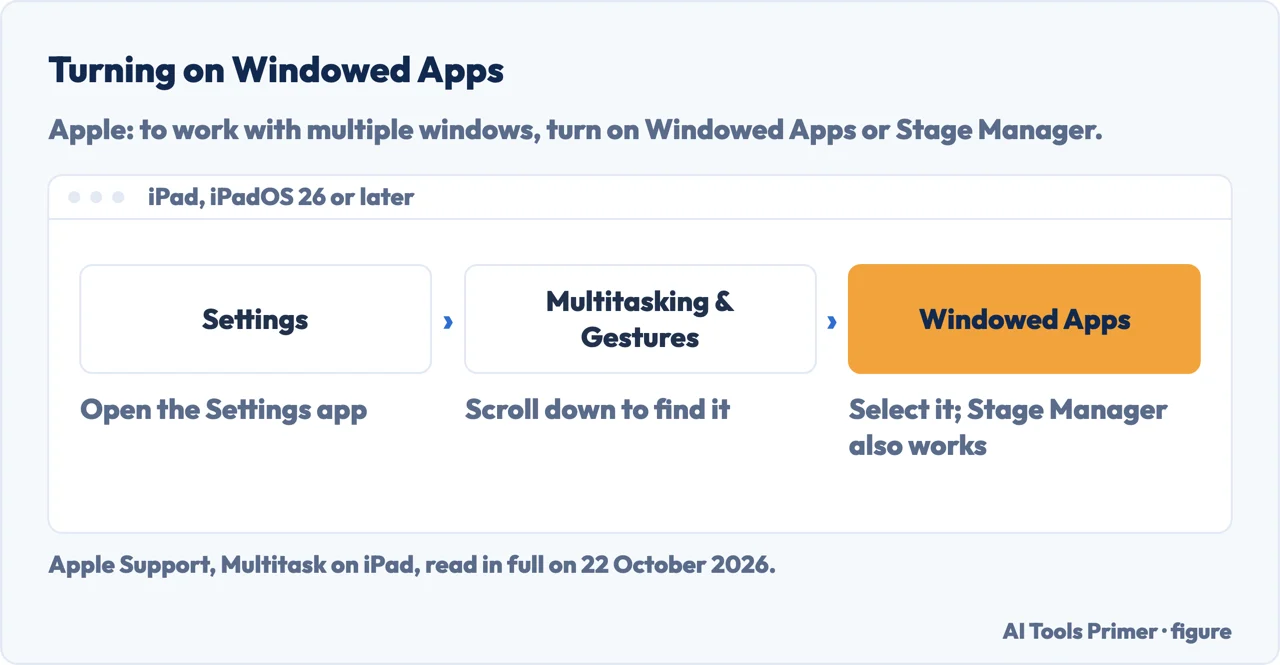
Apple’s iPad User Guide for iPadOS 27 says that to work with multiple windows you turn on either Windowed Apps or Stage Manager in the Settings app. The steps:
- Open the Settings app.
- Scroll down and tap Multitasking & Gestures.
- Select Windowed Apps. You can select Stage Manager instead.
Apple’s support article on multitasking, published on 14 September 2026, covers iPadOS 26 or later and adds one condition: make sure your iPad is running the latest version of iPadOS. To see which version you have, Apple points to Settings, General, About. Its guide lists the iPads that run iPadOS 27, from the iPad (9th generation) and iPad mini (6th generation) up to the iPad Pro 13-inch (M5).
The third choice. The same screen has a Full Screen Apps option. The Apple pages we read do not describe it. A volunteer answer on Apple’s community forum says it turns off Split View and the other multitasking features, and that choosing Windowed Apps brings them back. If two apps used to fit on your screen and no longer do, this setting is the first thing to look at.
Two apps side by side: three ways
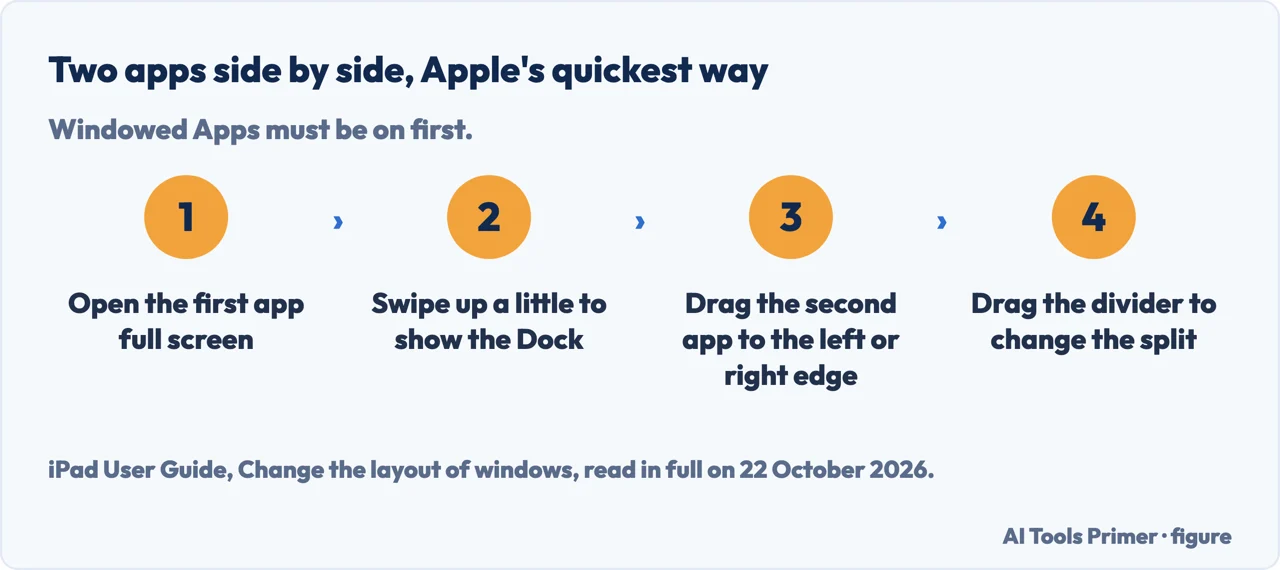
With Windowed Apps on, Apple describes three ways to tile two apps across the screen.
- Drag onto a full-screen app. Open the first app so it fills the screen. Swipe up from the bottom edge just far enough to show the Dock, then drag the second app’s icon to the right or left on top of the first app. Apple says the two tile side by side. The icon can also come from the Home Screen, App Library or Spotlight.
- Swipe two windows to the sides. If both apps are already open in windows, drag one from the top, hold it briefly, then swipe it quickly to one side of the screen. Do the same with the other window, toward the other side.
- Use the layout menu. Tap one of the windows to bring it to the front, then touch and hold the window controls in its top-left corner. A menu of preset layouts appears; choose one and the windows arrange themselves. Apple adds that tapping Window in the menu bar, then Move & Resize, shows more layouts for the active app.
Once the two apps are tiled, drag the divider between them to change how much of the screen each gets. Drag it all the way to one edge and one app goes full screen; drag it to the other edge and the other app does. To swap one side for a different app, drag that app’s icon on top of the window touching the edge, and it opens in that window instead.
Why the old way stopped working
Many of the answers that come up for this question describe the iPad as it worked before iPadOS 26: tap the three dots at the top of an app, then tap Split View, or turn on a switch under Home Screen & Multitasking. Two forum answers in the first page of results still give those steps, one of them dated January 2026. The Apple pages we read for iPadOS 26 and 27 mention neither.
Apple’s multitasking article is written for iPadOS 26 or later and starts from the Windowed Apps setting. Cult of Mac, in a how-to first published in October 2025 and updated in August 2026, says Split View “is a feature of the whole Windowed Apps system” and that to use it you must have Windowed Apps enabled. A volunteer on Apple’s forum says the button moved from the top center of the window to the top left, and that for a full-screen app you swipe down from the top edge to show the menu bar, where the button sits at the left. Apple’s own article says the same thing about full-screen apps: if you do not see the window controls, swipe down from the top of the screen.
On a Mac the same job has its own menus and keys; our page on splitting the screen on a Mac covers them by macOS version.
Slide Over: one window on top
Slide Over keeps one window on the left or right side of the screen, on top of your other windows or full-screen apps. Apple’s article says it is available in iPadOS 26.2 or later. Cult of Mac’s how-to says it came back with iPadOS 26.1. We follow Apple’s number; the iPadOS 27 guide describes it too.
- Put a window in Slide Over: touch and hold the window controls, then tap Enter Slide Over. If the app is full screen, Apple says to tap the app name in the menu bar first to show the controls. Or drag an app icon to the left or right edge, on top of the arrow there.
- Hide it and bring it back: drag the top of the window past the edge of the screen; an arrow marks where it went. Tap or swipe from that edge to bring it back.
- Move or resize it: drag its top to move it to the other side, or drag a bottom corner to resize it.
- Leave Slide Over: touch and hold the window controls and tap Exit Slide Over, or drag the window to the middle of the screen and let go.
Two windows of the same app
Apple says some apps, Mail, Notes, Safari and Files among them, can open more than one window. Touch and hold the app icon until a menu appears, then choose New Window. You can also drag the app icon from the Dock on top of a window of the same app, or drag a note or a message out of the window to open it on its own. The new window can then be tiled next to the first one in any of the three ways above.
To see all the windows an app has open, touch and hold its icon in the Dock or on the Home Screen and tap Show All Windows. In Mail, Messages and Notes, touching and holding a message, conversation or note and tapping Open in New Window opens it in the center of the screen, on top of what you are viewing.
Not every app opens a second window. Apple’s list ends with “and others” and names no app that cannot.
Back to one app
Apple gives three ways to send a window back to full screen: tap the window controls at the top of the window and then the full-screen button; double-tap the top of the window; or drag the window down from the top, hold it, then swipe it up quickly toward the top of the screen. From the same controls you can minimize or close a window. Swiping up from the bottom of the screen and then up again minimizes all your windows at once.
To switch apps without changing the layout, swipe up from the bottom, pause in the center of the screen and lift your finger: Apple calls this Exposé, and the windows you have on the same screen appear on the right. We tried none of these steps on an iPad; they are Apple’s, read on 22 October 2026, and the menus can differ by model and iPadOS version.
Where to start
Six ways in.
- “Nothing happens when I drag an app.”
- The setting — setting
- “How do I put two apps side by side?”
- Three ways — side by side
- “Where did the three dots go?”
- What changed — what changed
- “I want a small window on top.”
- Slide Over — slide over
- “Two documents from the same app.”
- Same app — same app
- “How do I go back to one app?”
- Full screen — full screen
More on iPad and the screen
The same job on a Mac, and the iPad pages next to it.
Questions people also ask
How do I activate my split screen?
Open Settings, tap Multitasking & Gestures and select Windowed Apps. Then, with one app full screen, drag another app from the Dock to the left or right edge. Apple says the two apps tile side by side.
Why can't I do a split screen on my iPad anymore?
Since iPadOS 26 it depends on the Windowed Apps or Stage Manager setting, and Apple’s pages no longer mention the three-dot button older guides use. A volunteer answer on Apple’s forum says the Full Screen Apps option turns split screen off.
How to have two of the same apps open on iPad?
In apps that support it, such as Mail, Notes, Safari and Files, touch and hold the app icon and choose New Window. Then tile the two windows side by side.
How to view 2 pages side by side on iPad?
Open the second page in a new window of the same app, or in a second app, and tile the two windows: swipe each one quickly to opposite sides of the screen, or pick a layout from the window controls menu.
Not covered here. It was not tested on an iPad: the steps are Apple’s own, read on 22 October 2026, and the menus can differ by iPad model and iPadOS version.
It does not cover Stage Manager in depth, external displays, or Picture in Picture. What the Full Screen Apps option does comes from a volunteer answer on Apple’s forum, not from Apple.
The search volume and difficulty behind this page were read in Semrush on 29 August 2026; the Reddit thread in the results was not readable.
Sources
- Apple Support — Multitask on iPad: Windowed Apps, two windows side by side and Slide Over in iPadOS 26 or later, published 14 September 2026 — support.apple.com, read 22 October 2026.
- iPad User Guide (iPadOS 27) — Work with multiple windows at the same time on iPad — support.apple.com, read 22 October 2026.
- iPad User Guide (iPadOS 27) — Change the layout of windows on iPad: tiling, the divider and Slide Over — support.apple.com, read 22 October 2026.
- iPad User Guide (iPadOS 27) — Open multiple windows of an app on iPad — support.apple.com, read 22 October 2026.
- iPad User Guide (iPadOS 27) — Organize windows with Stage Manager on iPad — support.apple.com, read 22 October 2026.
- iPad User Guide (iPadOS 27) — Switch between apps on iPad (Exposé) — support.apple.com, read 22 October 2026.
- iPad User Guide — iPad models compatible with iPadOS 27 — support.apple.com, read 22 October 2026.
- Cult of Mac (Ed Hardy) — iPad Split View is still in iPadOS 26. Here’s how to use it, first published 20 October 2025, updated 4 August 2026 — www.cultofmac.com, read 22 October 2026.
- Apple Community — How to re-enable Split Screen on iPad Air after iOS 26 update? (question posted 25 October 2025, volunteer answer of the same day, not Apple) — discussions.apple.com, read 22 October 2026.
- Apple Community — How can I allow Split View on my iPad running iPadOS 26? (question posted 22 September 2025, volunteer answer of 17 October 2025, not Apple) — discussions.apple.com, read 22 October 2026.
Written by Alberto Gulotta
Founder and editor of AI Tools Primer, writing from Palermo, Italy. Thirty-five years of taking computers apart, starting with a Commodore 64 — the long version is on the about page.
Something wrong on this page? Write to aitoolsprimer@gmail.com and it gets fixed.
Written on 22 October 2026.
Independence and limits
No affiliate links and no paid placements anywhere on this site. Nobody pays to appear here, and no company has seen this page before you did.
This is general information, not professional advice. Where a page touches money, health, safety or the law, it names its source and the date it was read — and your situation may still differ. See the privacy page and the cookie policy.