
Breach · guide
What the Google Password Checkup compares, and what it flags
By Alberto Gulotta · Updated · 15 min read
The Google Password Checkup compares the passwords saved in Chrome with known breaches, and Chrome can also warn you as you sign in. Google's pages describe an encrypted comparison, three kinds of result and a warning switch that sits in different places. The billion-scale figures date from 2019.
| Question | Answer | Where it comes from |
|---|---|---|
| Where do I open it? | In Chrome: More, Passwords and autofill, Google Password Manager, then Checkup on the left; or passwords.google.com | Chrome Help, Google Account Help |
| What does it report? | Three results: exposed, weak and used in multiple accounts | Google Account Help |
| What does Google see? | Chrome encrypts the username and password first, and the page says Google does not learn them | Chrome Help |
| Is there a warning while I sign in? | Yes: a Chrome setting that is on by default, with a switch under Security | Chrome Help |
| What do I do with a flagged password? | Change it on the site where it is used, then check the sites that have the same one saved | Chrome Help |
What the check is, and where it is
Chrome Help describes two things under one name. The first is a warning: Chrome can alert you when the sign-in details you type on a site turn up in a known data breach, and the page says this setting is turned on by default. The second is a checkup of everything at once: Chrome can check all of your saved credentials at the same time and tell you whether any of them were exposed in a data breach.
On a computer, Chrome Help gives the route to the checkup in three steps: open Chrome, select More and then Passwords and autofill and then Google Password Manager, and on the left select Checkup. Google Account Help adds a route without Chrome: open another browser, go to passwords.google.com and select the button that takes you to Password Checkup, which the page also words as Check passwords. It says you may need to sign in. The same page lists Android, Chrome and other browsers as ways in. On Android, Chrome’s Safety Check page says Chrome runs Safety Check automatically and that the check searches for compromised, reused or weak passwords, and can warn you if a username or password stored in Google Password Manager was involved in a data breach. If the manager itself will not open, our page on when Google Password Manager will not answer covers the causes Google documents.
What the check looks at is narrower than the word “password” suggests. Clark.com says the tool only shows credentials you have stored in Google Chrome or on your Android device, and that someone who mainly uses another browser, or an Apple device without Chrome on it, may not have many logins stored there. SDM Foundation, writing in 2022, says the checkup applies to your Google account and the passwords saved under it. The Google pages we read do not say whether passwords kept in other browsers or other managers are included.
What it compares against, and what Google sees
Chrome Help explains the method in four sentences. To check your credentials, Chrome first encrypts your username and password. It then sends the encrypted version to Google, which compares it with an encrypted list of known breached data. When the two encrypted sets match, Chrome shows a warning asking you to change the password. The page says Google never learns your usernames or passwords during this process. A second section of the same page says Chrome encrypts the data with a secret key known only to your device and sends an obscured copy, and that because the encryption happens before Google’s servers get the information, Google does not learn the username or password.
The detailed protocol is on an older page. On 5 February 2019 the Google Security Blog, in a post by Jennifer Pullman, Kurt Thomas and Elie Bursztein, announced a Password Checkup Chrome extension. It says the extension triggers a warning whenever you sign in to a site with a username and password that is one of over 4 billion credentials Google knows to be unsafe, and that it was designed jointly with cryptography experts at Stanford University. The post names its approach as multiple rounds of hashing, k-anonymity and private set intersection with blinding, and calls the extension an early experiment. Security Affairs repeated the announcement on 11 February 2019, describing a red alert box when the extension finds a match. The Chrome Help page we read today does not repeat those terms, so the protocol on the 2019 post is the one described for the extension.
The same 2019 post adds that Google regularly resets the passwords of Google accounts affected by third-party data breaches when the password was reused, and says this had protected over 110 million users in the last two years. The launch in the password manager came later. On 2 October 2019 Andreas Tuerk, Product Manager for the password manager, wrote on Google’s blog that the Password Checkup was a new feature built into the password manager. He said it checks the strength and security of all saved passwords, that Google had found more than 4 billion usernames and passwords exposed in third-party breaches, and that the extension had passed 1 million downloads, with close to half of those users shown a compromised-password warning. He added that Google would build the technology directly into Chrome later that year.
The figure of 4 billion is from 2019. The pages we read in October 2026 do not give a current count, and they do not say how often the list is updated.
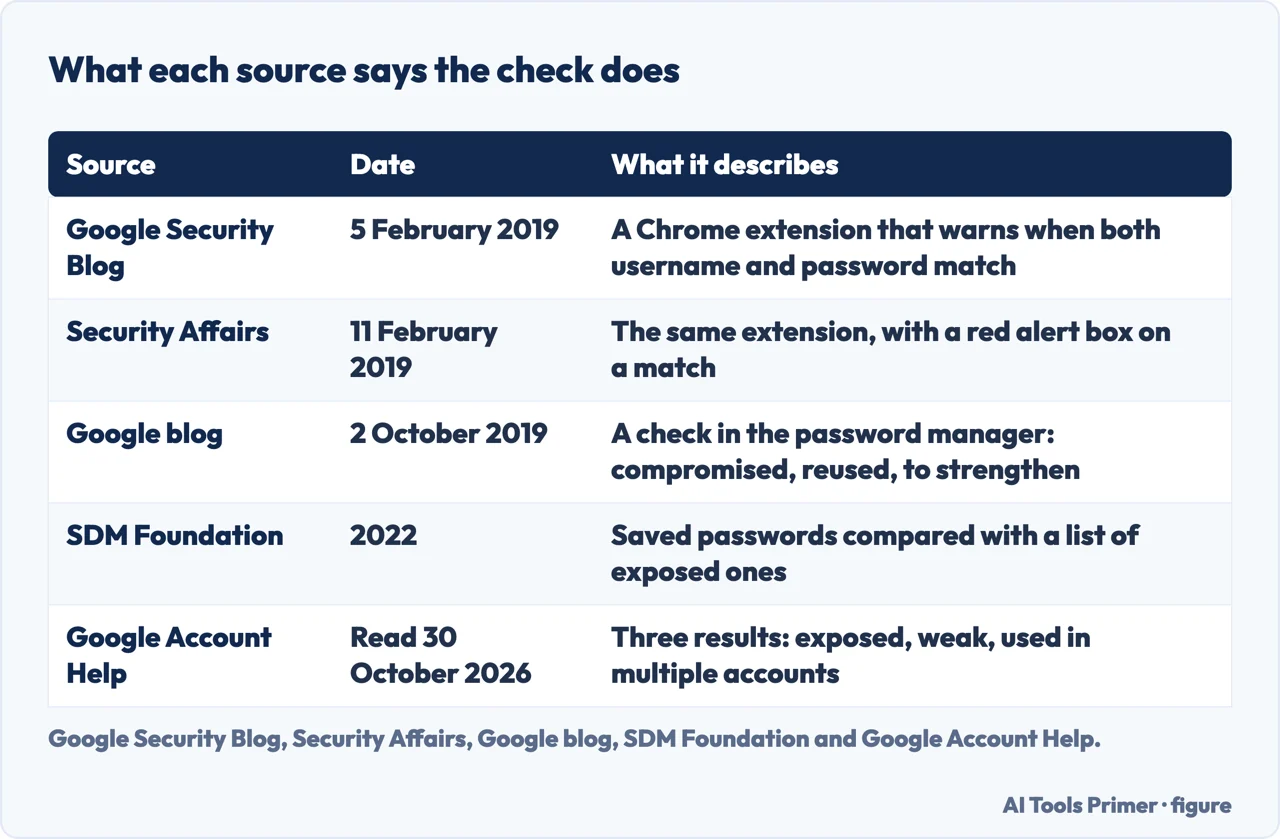
The three results are not three kinds of breach
Google Account Help says that after your passwords have been checked you will see three types of result: exposed, weak and used in multiple accounts. The 2019 launch post groups them the same way, as passwords compromised in a third-party breach, passwords reused across sites and passwords that should be strengthened. Clark.com reports the three categories with a prompt for each: “Change these passwords now”, “Create unique passwords” and “Create strong passwords”.
Only the first of the three is about a leak. Google Account Help says compromised passwords and username combinations are unsafe because they have been published online, and recommends changing them as soon as you can. For the other two it describes a risk, not an event: if you use the same password for multiple accounts you are at greater risk of being hacked, and Google strongly recommends a unique password for every account; passwords with obvious phrases, simple keyboard patterns and single words can be easily guessed. SDM Foundation puts weak differently, as a password without a mixture of upper and lower case letters, numbers and special characters, or one built from common words. It also says reuse is not always a problem: “Sometimes we choose to reuse a password at low risk websites”, and the danger comes at higher risk sites, the ones with personal, financial or payment information.
A match also needs reading with care. SDM Foundation says Google compares saved passwords to a list of passwords exposed in data breaches, and that these compromised passwords may not be your particular use of the password. Chrome Help words the warning around a combination: a password and username combination compromised in a data leak on a third-party website or app. The two descriptions are not identical. In 2019 Google wrote that the extension only alerts when both your current username and password appear in a breach, and that it would not bother you about outdated passwords already reset or merely weak ones. That sentence is about the extension; the Checkup page of today lists weak and reused passwords as results of their own. Why a leaked password matters elsewhere is the subject of our page on credential stuffing, and what makes a new one hold up is on how to create a strong password.
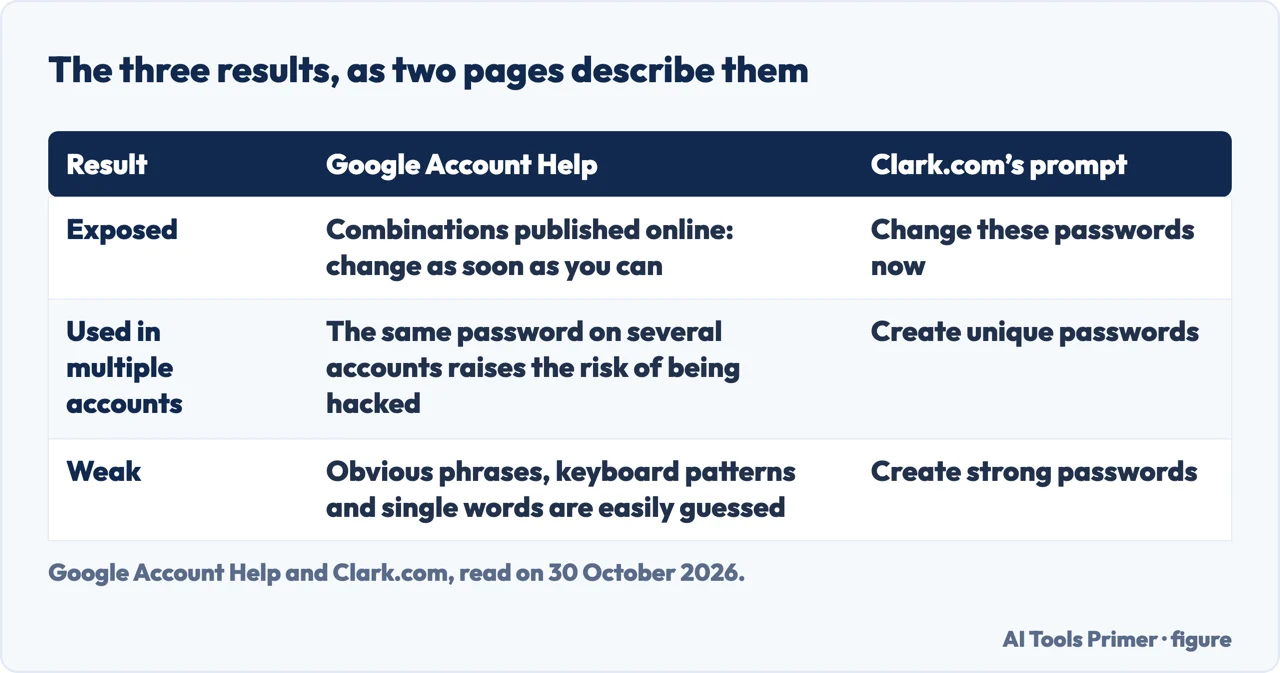
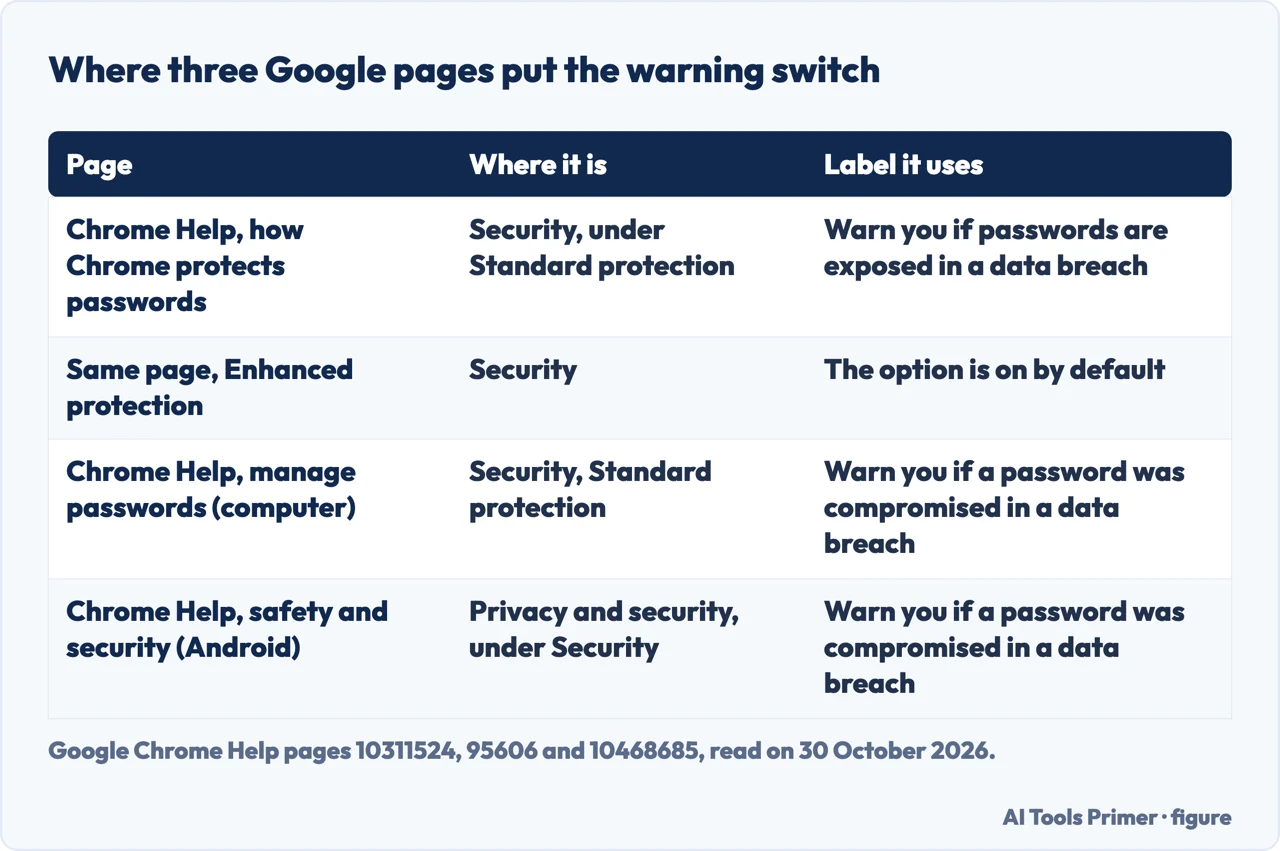
The warning while you sign in
Three Chrome Help pages place the switch for the sign-in warning, and they do not word it the same way. The page on how Chrome protects your passwords says to open More, Settings, Privacy and security, then Security, and turn on “Warn you if passwords are exposed in a data breach”. It says you can find the option under Standard protection and that if you opt in to Enhanced protection the option is on by default. The page on managing passwords in Chrome uses another label, “Warn you if a password was compromised in a data breach”, puts it under Security and Standard protection, and adds a tip: the feature is only available if the Safe Browsing option is turned on. The Android page uses the second label and says to find it under Security in Privacy and security, without naming Standard protection.
You can silence one warning without turning off the feature. Google Account Help says to click More next to the compromised password and choose Dismiss warning, and that under Dismissed warnings you can find it again and choose Restore warning. Chrome Help gives the same dismissal from the Checkup, through the arrow next to Compromised passwords.
Separate from that, Google Account Help describes alerts about unsafe passwords. Google can notify you when it finds any of your saved passwords online, and you can turn those alerts on or off in the Google Password Manager settings, under Password alerts. The page says Google continues to check your passwords even if alerts are turned off, and that after you turn them off you might still receive alerts for up to 48 hours.
What to do when it flags one
Chrome Help recommends changing any compromised password as soon as you can. It says to follow the instructions in Chrome to change the password on the site where you used it, and to check your saved passwords for any other site the same password may be saved on. If you receive a notification about an unsafe password, Google Account Help says to go directly to Password Checkup to make sure the notification is authentic, change any unsafe passwords there and then take a Security Checkup. What a new password needs is covered on our page on changing passwords.
Chrome also has an automatic route. Chrome Help lists three conditions: you are signed in to your Google Account in Chrome, Google Password Manager holds a saved password, and password saving is on. On a compatible website you then get the alert “Your password was found in a public data breach” with a button, Change it for me. If the change worked the dialog shows “Password changed” and Show password gives the details of the new one; if it did not, Change it on the site lets you do it by hand. The page warns that closing the tab or window while the change is in progress might stop the password from being updated, and says the feature temporarily saves a recovery password in case of login problems. security.org adds that the automatic update works on supported sites and is not available everywhere. The pages we read do not say which sites the automatic update covers.
If your passwords live in a different browser, the check described here may not see them, so our pages on the Edge password manager, the Firefox password manager and the Apple password manager are the next stop. A password is only one of the ways in; passkeys are the sign-in that does not use one.
What the pages we read leave open
security.org, in its review of the Chrome password manager, calls the check handy but says it will not catch everything and is not a substitute for a full breach monitoring service. That is a reviewer’s statement, and Google’s own pages do not make it. The Google pages we read also do not say how many records the list holds today, when a password drops off the list after you change it, or whether the warning comes from a breach that involved your own account at a site or from the password alone. Clark.com describes the interface of passwords.google.com with a blue Check passwords button; Google’s current Chrome page names Checkup in the left-hand menu, so the steps above follow Google.
We did not run the Checkup on an account, so what is here is what these pages say, not what we saw on a screen. Everything above comes from the ten pages listed under Sources.
Where to start
Five ways in.
- “Where do I open it?”
- What the check is, and where it is — what
- “What does Google see?”
- What it compares against, and what Google sees — compares
- “What do the results mean?”
- The three results are not three kinds of breach — results
- “How do I turn the warning on?”
- The warning while you sign in — warning
- “It flagged a password.”
- What to do when it flags one — flagged
After a password leaks
Getting back into the account and changing the password.
Other places passwords live
The managers built into other browsers and devices.
Questions people also ask
Can I check my Google password?
Google Account Help says you can check whether passwords in your Google Account are exposed, weak or used in multiple accounts. You open Password Checkup from Chrome or from passwords.google.com, and you may need to sign in.
How to run a password checkup?
Chrome Help says to open Chrome, select More, then Passwords and autofill, then Google Password Manager, and on the left select Checkup. Without Chrome, Google Account Help says to go to passwords.google.com and select Go to Password Checkup.
Can I see my password?
Yes, for a password saved in Chrome. Chrome Help says to select More, Passwords and autofill, then Google Password Manager; under Passwords select the password and, on its right, select Show password. With biometric authentication on, you can use your device to reveal, copy or edit passwords. The Checkup itself only reports exposed, weak or reused passwords.
How can I check if my Google password is correct?
The pages we read do not describe checking whether a password is correct. The Checkup reports whether saved passwords are exposed, weak or used in multiple accounts, and Google Account Help says Google will ask you to change your Google Account password if it might be unsafe.
Not covered here. We tested nothing on an account. The statements come from three Google Chrome Help pages, a Google Account Help page, two Google blog posts (5 February and 2 October 2019), Security Affairs, security.org, SDM Foundation and Clark.com, all read on 30 October 2026.
The search volume and difficulty behind this page come from a Semrush reading of 29 August 2026, older than the 60 days the site normally allows.
Sources
- Google Chrome Help — How Chrome protects your passwords — support.google.com, read 30 October 2026.
- Google Chrome Help — Manage passwords in Chrome — support.google.com, read 30 October 2026.
- Google Chrome Help — Manage Chrome safety and security (Android) — support.google.com, read 30 October 2026.
- Google Account Help — Change compromised passwords in your Google Account — support.google.com, read 30 October 2026.
- Google blog — To stay secure online, Password Checkup has your back (2 October 2019) — blog.google, read 30 October 2026.
- Google Security Blog — Protect your accounts from data breaches with Password Checkup (5 February 2019) — security.googleblog.com, read 30 October 2026.
- Security Affairs — Password Checkup Chrome extension warns users about compromised logins (11 February 2019) — securityaffairs.com, read 30 October 2026.
- security.org — Chrome password manager — www.security.org, read 30 October 2026.
- SDM Foundation — How to Use Google’s Password Checkup — www.sdmfoundation.org, read 30 October 2026.
- Clark.com — Google Password Checkup: 4 Steps to Secure Your Passwords Now — clark.com, read 30 October 2026.
Written by Alberto Gulotta
Founder and editor of AI Tools Primer, writing from Palermo, Italy. Thirty-five years of taking computers apart, starting with a Commodore 64 — the long version is on the about page.
Something wrong on this page? Write to aitoolsprimer@gmail.com and it gets fixed.
Written on 30 October 2026.
Independence and limits
No affiliate links and no paid placements anywhere on this site. Nobody pays to appear here, and no company has seen this page before you did.
This is general information, not professional advice. Where a page touches money, health, safety or the law, it names its source and the date it was read — and your situation may still differ. See the privacy page and the cookie policy.