
Docs · guide
How to insert text box in Google Docs
By Alberto Gulotta · Updated · 10 min read
How to insert text box in Google Docs: open Insert › Drawing › New, then in the drawing editor click Insert › Text Box and click where you want it. That is the route Google’s own page prints for a computer; Docs has no Text box line of its own. Two more routes, a single-cell table and a bordered paragraph, are below.
| Source | What it prints | Who wrote it |
|---|---|---|
| Google, drawings & markups, Computer tab | Insert › Drawing › New; in the drawing, Insert, then Text Box, which Google describes with “To place text inside a box or confined area, click Text Box” | |
| Google, drawings & markups, Android and iPhone & iPad tabs | Markups only: Pen, Highlighter, hide, show and delete; no text box | |
| Google, paragraphs & fonts | Format › Paragraph styles › Borders and shading, for a border or a background on a paragraph | |
| Community thread, February 2026 | Drawing, a single-cell table, or a paragraph border | A Product Expert volunteer |
| GeeksforGeeks, Kanbanchi | Drawing then Save and Close; GeeksforGeeks adds shapes and a 1 × 1 table | Third-party guides |
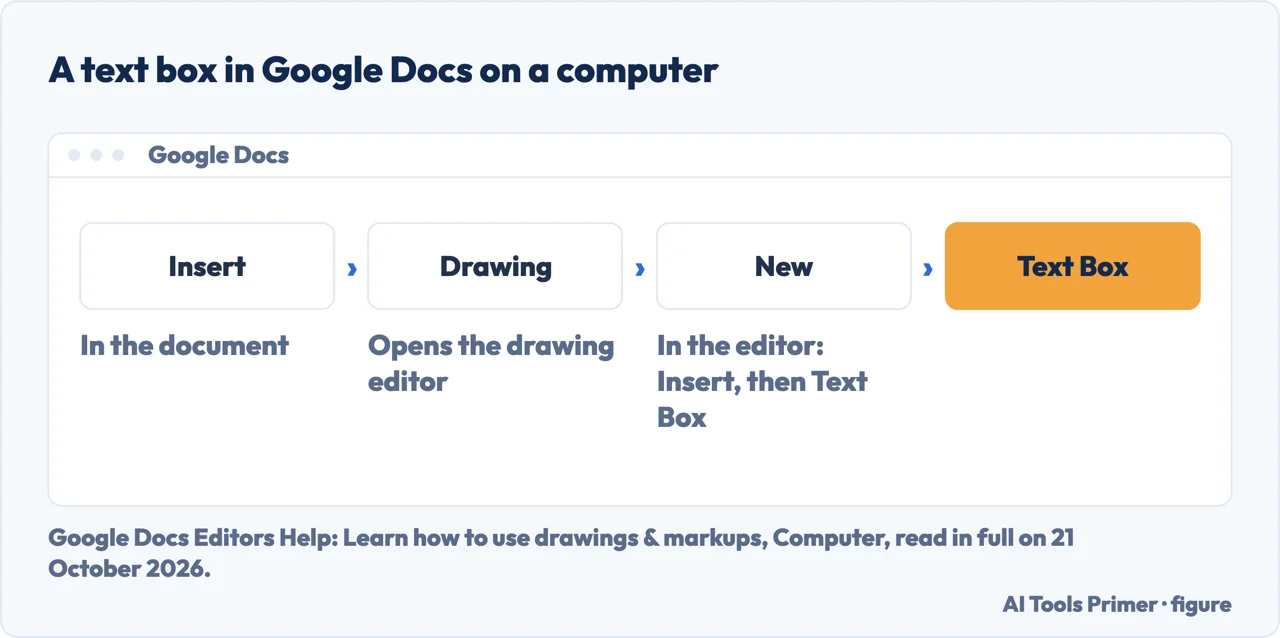
- Open the document and click Insert. Google’s page on drawings starts the same way: “On your computer, open a document”, then Insert, Drawing, New.
- Choose Drawing, then New. A drawing editor opens over the document. Google says the drawing is made with Google Drawings.
- In the drawing editor, click Insert. Google’s section on inserting text lists two choices there: Word Art, which places the text on the canvas as a shape, and Text Box, which Google words as “To place text inside a box or confined area, click Text Box”.
- Choose Text Box and click where you want it. Type the text and press Enter. Google adds that you can select, resize and format the box, and apply bold or italics to its text.
- Close the editor to put the box in the document. Google’s drawings page, as read for this guide, does not name the button. A volunteer in the Docs Editors Community and GeeksforGeeks both name it: Save and Close (GeeksforGeeks writes Save & Close).
Three ways to a boxed block of text
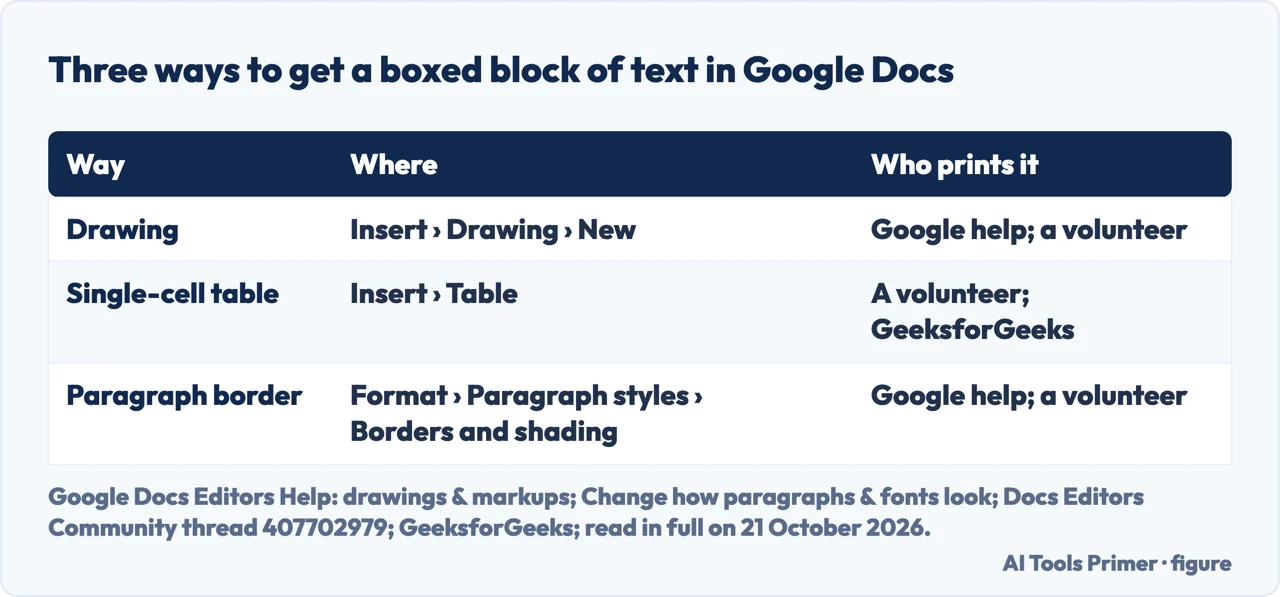
In a community thread opened on 5 February 2026, titled How to add text boxes in Google docs?????, a Diamond Product Expert, a volunteer who writes that the forum helpers are not Google employees, gives three ways. They are that volunteer’s answer, not Google’s help, and this guide has not tested them.
1. A drawing. Insert › Drawing › New, then the box icon with a T in it. The volunteer says to choose a weight for the border, “as otherwise you won’t be able to see the box”, and to double-click inside the box to type. Google’s own page agrees on the route and the Text Box, and lists buttons above the canvas for border colour, line thickness and border style.
2. A single-cell table. The volunteer: use a single-cell table and change the table borders as you like. GeeksforGeeks describes the same idea as adding a 1 × 1 table, with the text typed into the cell, and calls it “the indirect way”.
3. A paragraph with a border. Type the text, select it, then Format › Paragraph styles › Borders and shading. This route is in Google’s own page on paragraphs and fonts: the dialog has Position, Border width, Border dash, Border color, Background color and Paragraph padding, and Reset removes them. The volunteer names the same menu.
What differs, by this guide’s reading. The first is the only one of the three that Google’s drawings page describes as a text box. A table cell and a bordered paragraph stay part of the text of the document, which is our reading of how they are built.
On a phone or a tablet
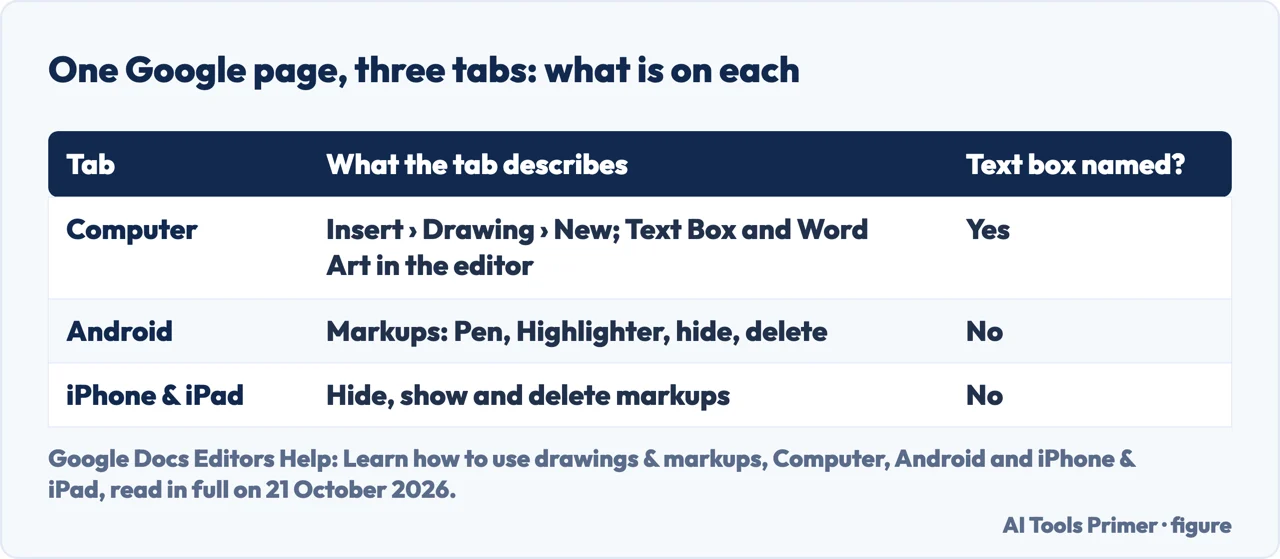
The same Google page, Learn how to use drawings & markups, has an Android tab and an iPhone & iPad tab. The Android tab opens with “This feature is currently available for Android devices” and describes markups: Insert › Add markups, a Pen and a Highlighter, hiding, showing and deleting. The iPhone & iPad tab has two sections, hide and show, and delete.
Neither tab names a text box. The words text box appear only on the Computer tab. So Google’s steps for the apps describe markups, not a box of text; that is what the tabs print, not a statement that the apps cannot do it. This guide has not tried the apps.
Closing the drawing editor from the keyboard
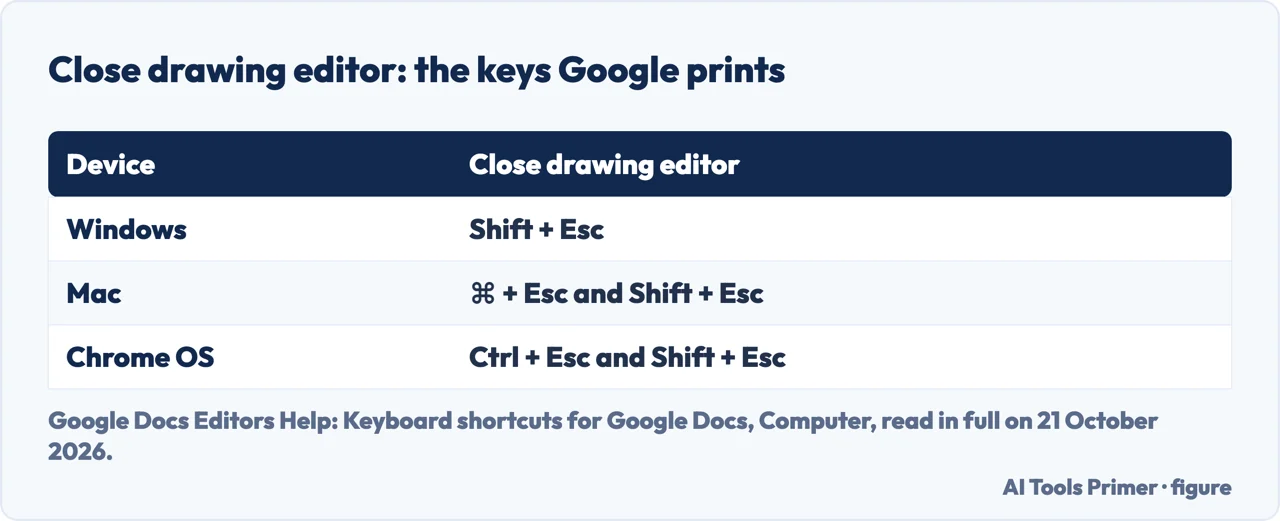
Google’s list of keyboard shortcuts for Docs has a line headed Close drawing editor in its group for images and drawings. On the Computer tab it is Shift+Esc on a Windows PC; ⌘+Esc and Shift+Esc on a Mac; Ctrl+Esc and Shift+Esc on Chrome OS.
The list does not say whether closing saves the drawing into the document, or discards it. That is the button’s job in the guides above, which is why the Save and Close step is in the steps, not this shortcut.
Google Slides is different
The same word, a simpler route. What Google prints for Slides.
- Slides
- On Google’s page Insert and arrange text, shapes, diagrams, and lines: open a presentation, go to the slide, click Insert, then Text box. Google adds that on a touchscreen device you double-tap the text box to start typing.
- Docs
- No Insert › Text box line on the pages read for this guide. The box lives in the drawing editor.
Where to start
Five ways in.
- “Just give me the steps.”
- Five steps on a computer — the steps on a computer
- “Is there another way?”
- Drawing, table, border — three ways
- “I am on my phone.”
- What the app tabs print — on a phone or a tablet
- “Can I close it from the keyboard?”
- The keys Google prints — closing the editor
- “I am in Slides.”
- A simpler route — google slides has it built in
More formatting in Google Docs
Strikethrough, indents, margins and spacing in Google Docs each have a guide of their own.
Questions people also ask
How do you insert a text box?
In Google Docs on a computer: Insert › Drawing › New, then Insert › Text Box in the drawing editor, as Google’s drawings page prints it. In Google Slides it is Insert › Text box.
How do I insert a fillable box in Google Docs?
The pages read for this guide do not describe a fillable box. They describe a text box in a drawing, a single-cell table and a bordered paragraph, none of them as fillable.
How do I insert text into a shape in Google Docs?
Google’s drawings page, Computer tab: in the drawing editor, double-click an enclosed shape and start typing.
How do I add a floating text box to a Google Doc?
Not described in Google’s pages read for this guide. The drawing route puts the box in the document; Kanbanchi writes that you can then drag it and it will work like an image. That is a third-party claim this guide has not tested.
Not covered here. It does not test any of the routes: every step is what a named page prints.
It does not cover Google Sheets; Slides appears only for the one route Google prints.
Where a community volunteer or a third-party guide is the source, the page says so; the Sources give the date of every reading.
Sources
- Google Docs Editors Help — Learn how to use drawings & markups, Computer tab: Insert, Drawing, New; Insert text with Word Art and Text Box; putting text inside a shape — support.google.com, read 21 October 2026.
- Google Docs Editors Help — Learn how to use drawings & markups, Android tab: markups, Pen and Highlighter — support.google.com, read 21 October 2026.
- Google Docs Editors Help — Learn how to use drawings & markups, iPhone & iPad tab: hide, show and delete markups — support.google.com, read 21 October 2026.
- Google Docs Editors Help — Change how paragraphs & fonts look: Paragraph styles, Borders and shading — support.google.com, read 21 October 2026.
- Google Docs Editors Help — Keyboard shortcuts for Google Docs, Computer tab: Close drawing editor — support.google.com, read 21 October 2026.
- Google Docs Editors Help — Insert and arrange text, shapes, diagrams, and lines, for Google Slides: Insert, Text box — support.google.com, read 21 October 2026.
- Google Docs Editors Community — How to add text boxes in Google docs?????, a thread from February 2026: a Product Expert volunteer’s answer with three ways — support.google.com, read 21 October 2026.
- Google Docs Editors Community — How do I insert a text box into my document, a thread from June 2023: a Product Expert volunteer’s answer that Docs uses the Drawing option — support.google.com, read 21 October 2026.
- Kanbanchi — How to add text box in Google Docs: Insert, Drawing, New, the text box symbol, Save and Close — www.kanbanchi.com, read 21 October 2026.
- GeeksforGeeks — How to Insert a Text Box in Google Docs, last updated 7 May 2026: the drawing, shapes and 1 × 1 table routes — www.geeksforgeeks.org, read 21 October 2026.
Written by Alberto Gulotta
Founder and editor of AI Tools Primer, writing from Palermo, Italy. Thirty-five years of taking computers apart, starting with a Commodore 64 — the long version is on the about page.
Something wrong on this page? Write to aitoolsprimer@gmail.com and it gets fixed.
Written on 21 October 2026.
Independence and limits
No affiliate links and no paid placements anywhere on this site. Nobody pays to appear here, and no company has seen this page before you did.
This is general information, not professional advice. Where a page touches money, health, safety or the law, it names its source and the date it was read — and your situation may still differ. See the privacy page and the cookie policy.