
Password · guide
Google Authenticator new phone: sync, QR or re-pair
By Alberto Gulotta · Updated · 17 min read
Google Authenticator on a new phone moves by one of three roads. Google Account Help describes signing in inside the app to sync, or exporting by QR code; AVG describes pairing the app again from the account’s security page. Which one applies depends on whether the old phone still works and whether the codes were synced.
| Question | Answer | Where it comes from |
|---|---|---|
| What moves the codes with the least work? | Signing in to the same Google Account inside the app on the new phone, if the codes were saved to the account | Google Account Help, Lifewire |
| What if the codes were not synced and the old phone works? | Export codes on the old phone, Import codes on the new one, and scan the QR code | Google Account Help |
| What if the old phone is gone? | Sign in another way, such as a backup code, then pair the app again for each service | Google Account Help, AVG Signal |
| What does the QR code hold? | The secret keys the codes are made from, according to a third-party tool’s README | GitHub README, Stack Exchange |
| Is the sync end-to-end encrypted? | Reports from April and May 2023 said it was not; the pages we read do not say whether that has changed | BleepingComputer, Malwarebytes, The Hacker News |
Three roads, and what decides between them
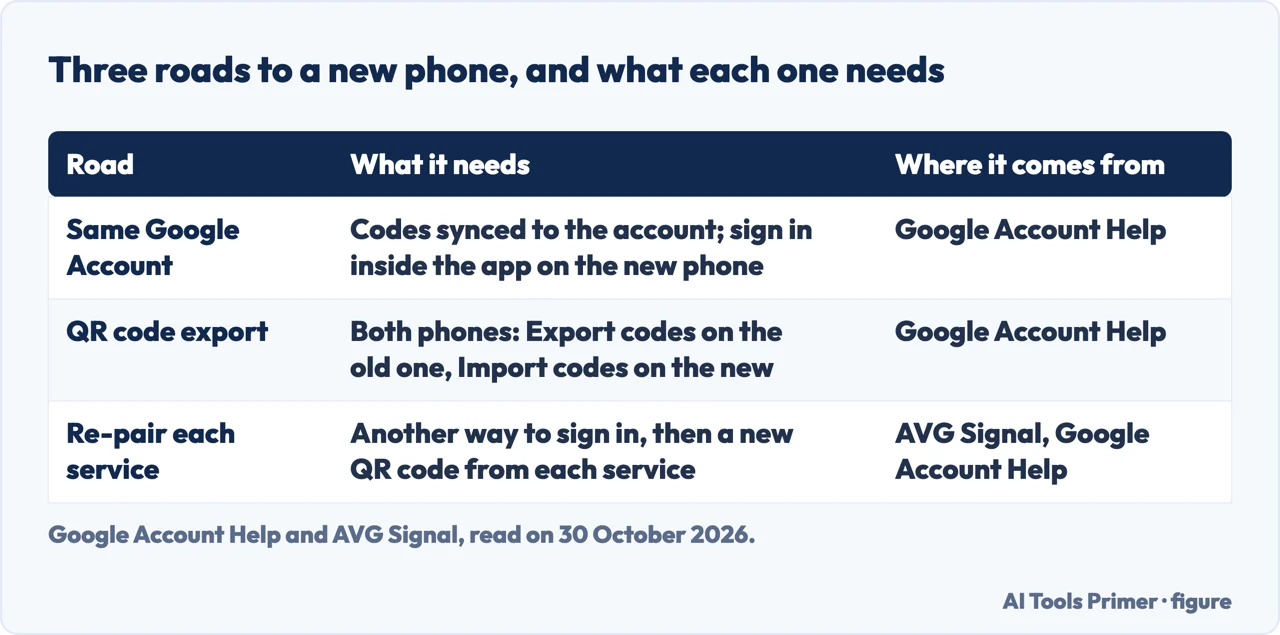
Google Account Help starts from the codes. When you sign in to your Google Account within Google Authenticator on a new device, it says, your codes are synced to that device automatically. That is road one, and it works only if the codes were saved to the account in the first place. If you use the app without an account, Google says you can still transfer the codes by hand with three things: the old device, the latest version of the app on it, and the new device. That is road two, a QR code made on one phone and scanned by the other. AVG’s 2023 article adds a road for a phone you no longer have: sign in another way, then pair the app again from your Google Account’s security page.
Two questions choose among them. Does the old phone still work, and were the codes synced to the account? Lifewire’s article, updated on 18 December 2025, gives the first two roads and calls them logging in to the same Google Account and exporting the codes. Google lists the requirement for the sync as version 6.0 or above of the app on Android and version 4.0 or above on iOS, and adds that the app needs Android version 6.0 or above. We read the Android edition of Google’s page, so the iPhone steps may be worded differently there.
Road one: the same Google Account
Lifewire gives the steps in two halves. On the old phone, open the app and tap the profile icon. If the small cloud icon at the top has a checkmark in it, the codes are already being backed up. If it does not, tap your email address and choose Continue or Allow on the prompt about saving the codes to your Google Account. On the new phone, open the app, sign in to the same Google Account and tap the profile icon to switch accounts if needed. The codes should appear straight away, and Lifewire says to close and reopen the app if they do not. Google describes a second case for several accounts: tap the profile picture, choose Add another account and, when asked to start saving codes to that account, tap Continue.
Two things in Google’s page change the picture. First, it says that saving codes in the account helps protect you from being locked out when you change devices, and that choosing Use without an account removes the codes from your Google Accounts and keeps them on that device only, so they are not available on your other devices. Second, it says that deleting a synced code deletes it from every device where the codes are synced. If the codes do not show up, Google gives two reasons to check: you may have been signed out of the account, which the profile icon at the top right shows, or you may have saved the codes with another Google Account.
The sync is recent. AVG says the feature has been available since the end of April 2023. The Hacker News dated its report 25 April 2023, and Malwarebytes gives 24 April 2023 as the day Google announced the update for iOS and Android. The Hacker News describes the older arrangement as the codes being tied to the device on which the app is installed.
Road two: the QR export
Google’s steps start on the new device: install Google Authenticator, tap Get Started and sign in to your Google Account. Then, on the old device, open the menu, choose Transfer codes and Export codes, unlock the device, select the accounts to move and tap Next. If you move more than one account, Google says the old device may create more than one QR code. On the new device, open the menu, choose Transfer codes and Import codes, and scan the code made on the old one. After the scan you get a confirmation that the codes have been transferred.
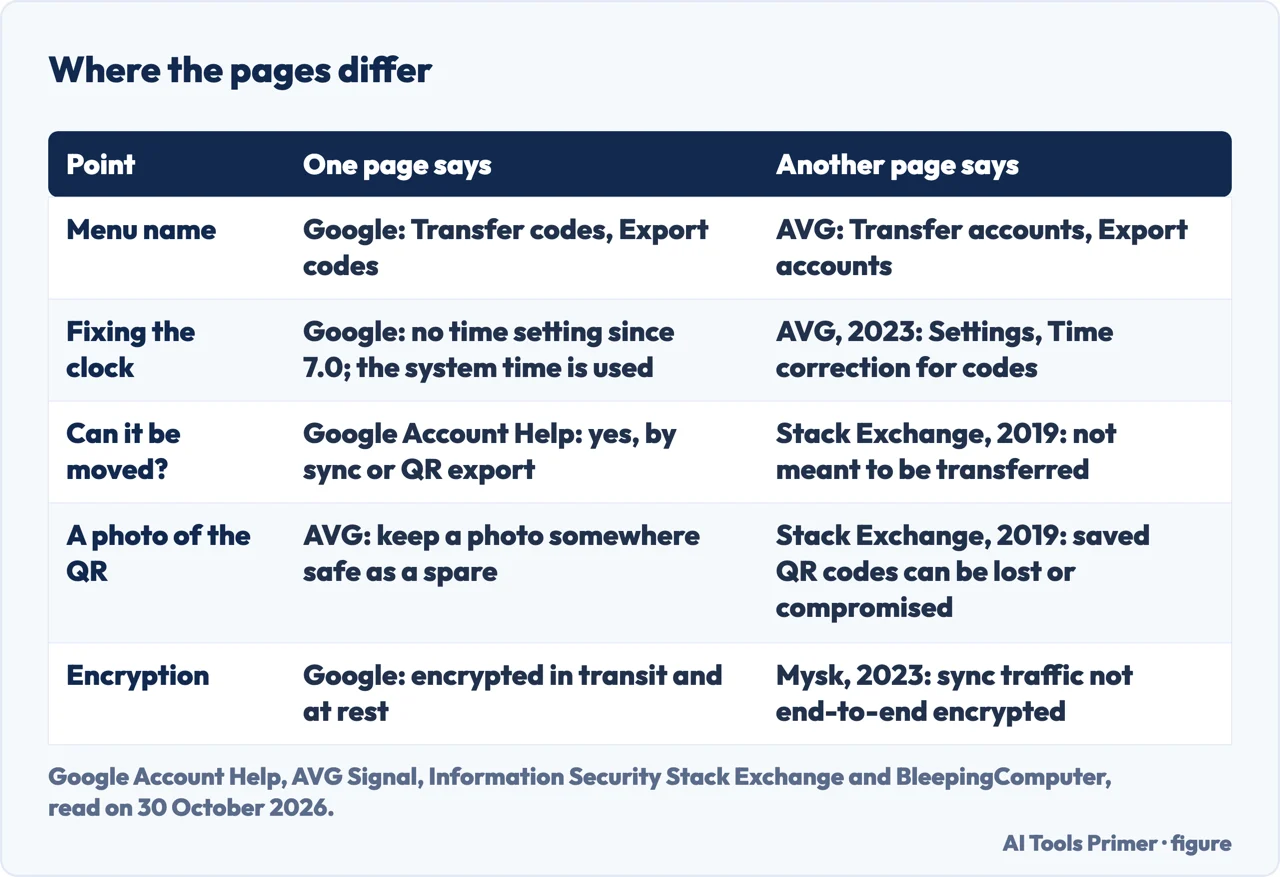
The pages do not agree on the menu names. AVG, in 2023, writes Transfer accounts and Export accounts on the old phone, and on the new one Get started, Add a code, Import existing accounts and Scan QR code. Lifewire gives Google’s wording and adds that on some phones the menu reads Transfer accounts, Export accounts and Import accounts. We do not decide between them; if one name is missing on your phone, look for the other. Lifewire also says that on an iPhone you need to tap OK on a prompt after the scan, and that this route suits a new phone using a different Google Account, or an app used without an account.
The old phone is not finished yet. Lifewire says that if you tap Next on it, the app offers to remove the exported accounts. Its advice is to erase the codes unless you are keeping both devices, but only after checking that they work correctly on the new phone. AVG, writing about the same export, says you do not need to reset the app and that both phones can stay synced. Google describes a different case, the synced one, in which deleting a code removes it everywhere, so the two pages are not describing the same setup.
What travels in that code
A 2019 answer on Information Security Stack Exchange explains why the QR code matters. It says Google Authenticator uses a time-based one-time password with a secret key and the current time, rounded to the nearest 30 seconds, to make a six-digit code, and that no network request is needed. The secret reached your phone from the QR code the service showed when you turned on two-factor, and the service works out the same code from the same secret. Google’s own page agrees that codes can be generated without an internet connection or mobile service. The Stack Exchange answer adds that the backup codes a service gives are good only for that service.
That makes the export code a copy of the secrets. The README of extract_otp_secret_keys, a tool written by a third party, describes export codes of the form otpauth-migration://offline?data=, and shows how the secret keys can be read out of them. The README proves nothing about whether the app itself is safe; it shows what the code carries. It is also the reason for a disagreement. AVG advises photographing the export QR code with another device and keeping it somewhere safe as an emergency copy. The Stack Exchange answer says a saved QR code or secret key lets you make your own backup, and warns that it exposes you to the risk of the saved copy being lost or compromised.
The account copy is a second place the secrets live. In April 2023 the security researchers at Mysk said the sync traffic was not end-to-end encrypted, adding that Google can see the secrets. BleepingComputer quotes Mysk saying a breach, or access to your Google Account, would compromise all of your secrets. Google’s Christiaan Brand told BleepingComputer that data is encrypted in transit and at rest and that end-to-end encryption carries the cost of users getting locked out of their own data without recovery; Malwarebytes reports a post of his saying end-to-end encryption will be made available down the line. The Hacker News adds that the sync is optional, and that someone with access to your Google account could use it to reach other services. Google’s current help page says the codes are encrypted in transit and at rest. The pages we read do not say whether end-to-end encryption has been added since 2023.
The old phone is gone
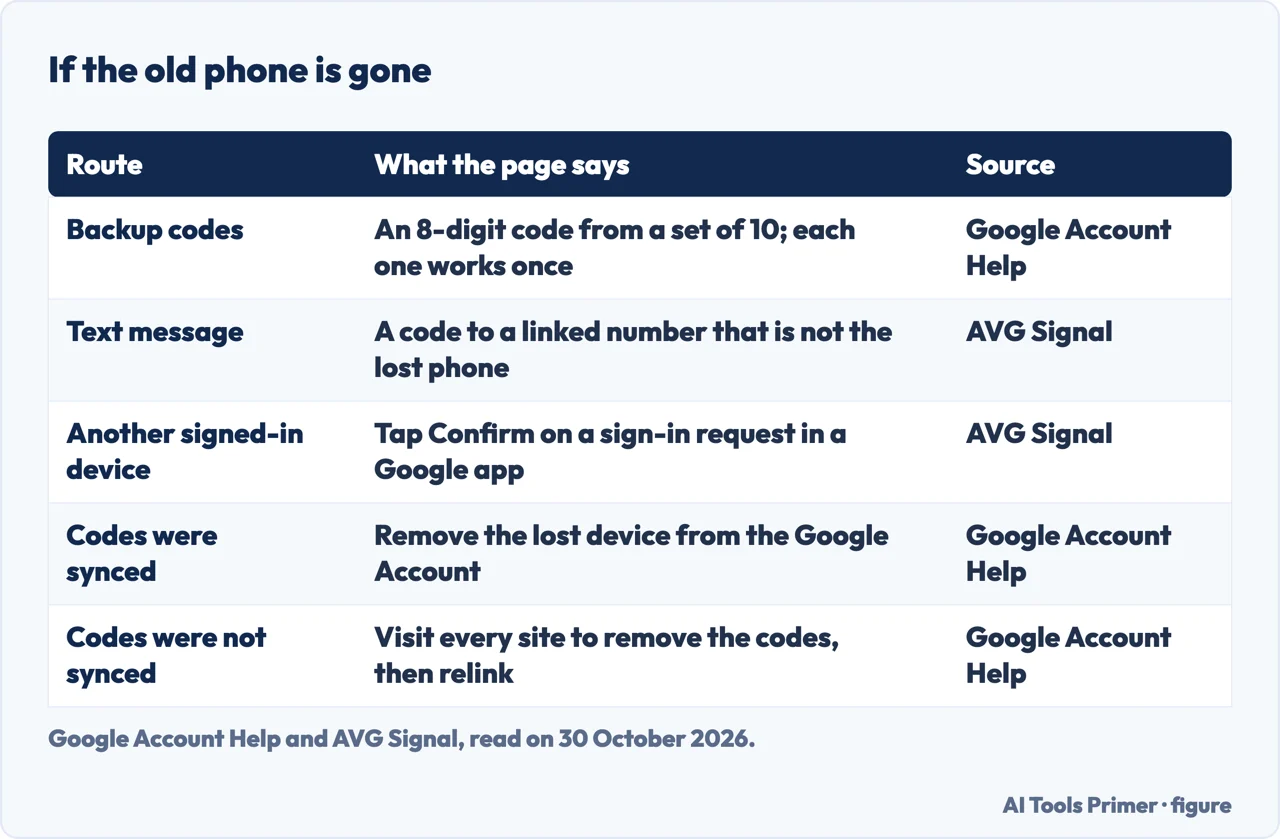
For a lost or stolen phone, Google says to make sure the codes on it cannot be reached, using the remote erase option for iOS or Android. AVG gives the routes: android.com/find and Erase device for Android, and iCloud Find Devices and Erase iPhone for Apple. If erasing is not possible, Google splits by whether the codes were synced. If they were, remove the device from your Google Account. If they were not, Google says you need to visit every site that has the app set up, remove the codes and then relink your new device.
If you cannot open the app, AVG lists three alternative ways to sign in to accounts that use it: a text code to a linked number that is not the lost phone, backup codes, and a confirmation from another device signed in to a Google app, where you tap Confirm on the sign-in request. Google’s backup code page says to click Try another way and then Enter one of your 8-digit backup codes. A set holds 10 codes, each works once, and creating a new set makes the old one inactive. It also says backup codes cannot be downloaded in the Advanced Protection Program, and that Google asks for a backup code only at sign in. Our page on backup codes covers how many codes five services give and where to keep them.
Then the app is paired again. AVG’s 2023 steps are to install the app, sign in to your Google Account in a browser, open Security and 2-Step Verification, choose Get started, enter your password, and select Authenticator app. Click Change authenticator app, tap the colorful + button in the app, choose Scan a QR code, scan the screen, type the code the app shows and click Verify. The labels are those of a 2023 article. The pages we read do not say how long the old phone’s codes stay valid after the change, and do not list which services outside Google let you pair again without a recovery code.
Two older pages say otherwise. A Google community thread, now locked, answers that the app does not have a way to recover secret keys, and the Stack Exchange answer of 2019 says the app is not meant to be transferred. Both come from before the sync of April 2023, and Google’s page today describes the sync and the export.
Before you hand the old phone in, and when a code fails
Google’s best practices are four. Sync the codes to your Google Account. Turn on Privacy Screen, found under Menu, Settings, Privacy Screen, which asks for a PIN, pattern or biometric check before the app can be used. If you use the app with your Google Account, enrol in other forms of 2-Step Verification so that you do not lock yourself out. And consider passkeys, which our page on passkeys covers. Lifewire adds the point about order: check that the codes work on the new phone before erasing them from the old one.
If a code is refused on the new phone, Google lists four checks: the code was entered before it expired, it is for the right app or service, it is for the right Google Account, and the time on the device is synced and correct for the local time zone. Here AVG and Google differ. AVG’s 2023 article sends you to Settings, Time correction for codes, Sync now, while Google says that setting is gone from version 7.0 and the app uses the time setting of the operating system. We follow Google, because the AVG article may describe an earlier version; the pages we read do not say which. Our page on an authenticator that stops working looks at the clock in more detail, and the one on authenticator apps at where the codes are kept.
How we read this, and what we left out
We moved no codes on a phone. The steps and requirements come from Google Account Help, in the Android edition of the Authenticator page and the pages on backup codes and 2-Step Verification. AVG sells security software, including its BreachGuard product, and we used its article for the steps only. Lifewire is an editorial site. The encryption points come from three articles of April and May 2023 that quote Mysk and Google’s Christiaan Brand, so they are reports of what was said then. The Stack Exchange question and the locked Google thread are community answers, and the extract_otp_secret_keys README comes from a third party.
We did not read community threads on Reddit or Quora, and we give no waiting time for the cloud icon to appear, because the pages we read state none. We did not read Google’s iPhone edition, and other authenticator apps are not covered here.
Where to start
Four ways in.
- “The old phone still works.”
- Road one: the same Google Account — account
- “It has to be a QR code.”
- Road two: the QR export — qr
- “What is in that code?”
- What travels in that code — inside
- “The old phone is gone.”
- The old phone is gone — gone
Codes you carry
How six digits are made, what to do when they stop, and the spare set.
Beyond the app
Switching the second factor off, the key that replaces it, and the two names for it.
Questions people also ask
How to switch Google Authenticator to a new phone without an old phone?
Google says that if the codes were synced, signing in to your Google Account within the app on the new device brings them over. If they were not, Google says to visit every site that has the app set up and relink the new device. AVG’s 2023 steps do this from the account’s 2-Step Verification page with Change authenticator app.
How do I recover my Google Authenticator app on a new phone?
Google says to sign in to your Google Account within the app on the new device, and the codes sync automatically. That needs version 6.0 or above on Android or 4.0 or above on iOS. If the codes are missing, Google says to check that you are signed in and that you saved them with the right account.
What happens to my Authenticator if I get a new phone?
Synced codes appear when you sign in on the new phone. Codes used without an account stay on the device that holds them, Google says, and the manual transfer with the QR export is the route Google describes for moving them. A locked Google community thread from before the sync says the app cannot recover secret keys.
How do I restore my Authenticator without my old phone?
Sign in to the account another way: Google lists backup codes, which are 8 digits and work once, and AVG adds a text code and a confirmation on another signed-in device. Then pair the app again with a new QR code. The pages we read do not list which services outside Google allow that without a recovery code.
Not covered here. We moved no codes on a phone. The statements come from three Google Account Help pages, AVG Signal, Lifewire, BleepingComputer, Malwarebytes, The Hacker News, Information Security Stack Exchange, a Google community thread and a GitHub README, all read on 30 October 2026.
The search volume and difficulty behind this page come from a Semrush reading of 29 August 2026, older than the 60 days the site normally allows.
Sources
- Google Account Help — Get verification codes with Google Authenticator — support.google.com, read 30 October 2026.
- Google Account Help — Sign in with backup codes — support.google.com, read 30 October 2026.
- Google Account Help — Signing in with 2-Step Verification — support.google.com, read 30 October 2026.
- AVG Signal — What to Do If You Lose Your Phone With Google Authenticator on It (30 November 2023) — www.avg.com, read 30 October 2026.
- Lifewire — How to Move Google Authenticator to a New Phone (updated 18 December 2025) — www.lifewire.com, read 30 October 2026.
- BleepingComputer — Google will add End-to-End encryption to Google Authenticator (26 April 2023) — www.bleepingcomputer.com, read 30 October 2026.
- Malwarebytes — Google Authenticator WILL get end-to-end encryption. Eventually. (3 May 2023) — www.malwarebytes.com, read 30 October 2026.
- The Hacker News — Google Authenticator App Gets Cloud Backup Feature for TOTP Codes (25 April 2023) — thehackernews.com, read 30 October 2026.
- Information Security Stack Exchange — How to login to websites with Google Authenticator using new phone? (21 December 2019) — security.stackexchange.com, read 30 October 2026.
- Google Account Community — Transfering Google Authenticator codes to a new phone (locked thread) — support.google.com, read 30 October 2026.
- GitHub — extract_otp_secret_keys (README) — github.com, read 30 October 2026.
Written by Alberto Gulotta
Founder and editor of AI Tools Primer, writing from Palermo, Italy. Thirty-five years of taking computers apart, starting with a Commodore 64 — the long version is on the about page.
Something wrong on this page? Write to aitoolsprimer@gmail.com and it gets fixed.
Written on 3 November 2026.
Independence and limits
No affiliate links and no paid placements anywhere on this site. Nobody pays to appear here, and no company has seen this page before you did.
This is general information, not professional advice. Where a page touches money, health, safety or the law, it names its source and the date it was read — and your situation may still differ. See the privacy page and the cookie policy.