
Tor · guide
What is Exif data? What a photo carries and how to take it out
By Alberto Gulotta · Updated · 17 min read
What is Exif data? A block of information a camera or phone writes into a photo: the device, the settings, the date and, on many phones, the place. Wikipedia and the Library of Congress describe it; Apple, Microsoft and Tails give steps to take it out. The pages we read do not say whether Tor Browser removes it.
| Question | Answer | Where it comes from |
|---|---|---|
| What is it? | Exchangeable image file format: a standard for the metadata a camera or smartphone records with a photo | Wikipedia, Nikon Magazine |
| What does it hold? | Camera and lens, date, time and place, focal length, shutter speed, aperture and ISO | Nikon Magazine |
| Where is it? | In the file, not in the picture you see, so a web browser does not show it | Photography Life |
| How do I see it? | Preview’s Inspector on a Mac, Properties then Details on a PC, a swipe up on a phone | Nikon Magazine, Apple |
| Can it be taken out? | Yes, with the steps Apple, Microsoft, Photography Life and Tails give; Tails warns that complex formats can keep some | Apple, Microsoft, Photography Life, Tails |
| Does Tor Browser take it out? | The pages we read do not say | Not covered |
What Exif is, and where it came from
Exif is short for Exchangeable image file format. Wikipedia describes it as a standard that specifies formats for images, sound and ancillary tags used by digital cameras, smartphones included, by scanners and by other systems that handle the files those cameras record. The Library of Congress, which keeps a description of the format family, says the specification combines established file encoding standards, JPEG, TIFF and WAV, with structured, embedded metadata that it calls Exif data. Nikon Magazine gives the everyday version: a camera does not only record an image, it also records a lot of data about the image, and Exif is a standardised way of recording that metadata on nearly all digital cameras, smartphones included.
Nikon Magazine names some uses. For a beginner the data shows how a photograph was made, and metadata such as time and place can be used to show that a photograph was taken when and where it is claimed. Adobe’s page on the format adds the filing use: the data makes it easier to filter photos on a storage device by particular image characteristics. The same page mentions removing the data before personal images go onto a website, to protect personal information such as a GPS location.
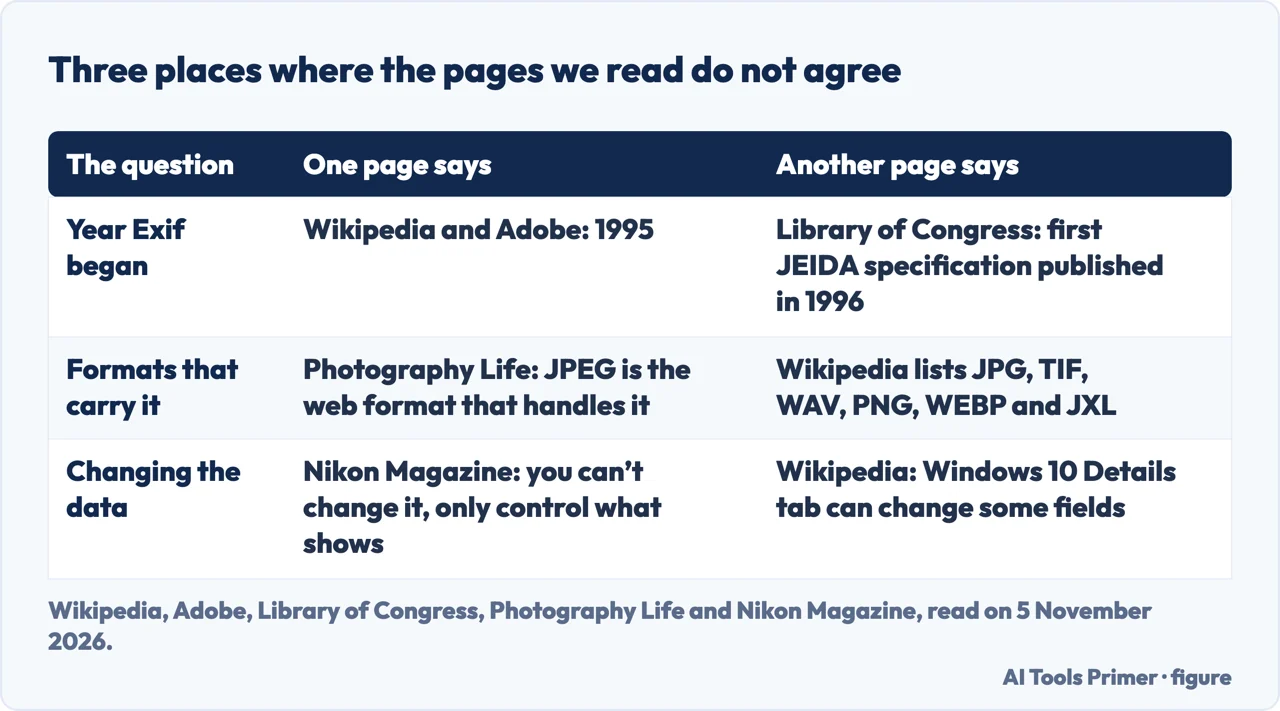
The pages differ on the start. Wikipedia and Adobe give 1995 and name JEIDA, the Japan Electronic Industries Development Association, as the creator; Wikipedia adds that it is now JEITA. The Library of Congress writes that the first version of the JEIDA specification was published in 1996. We cannot tell from these pages which year is the better one, so we give both.
The format has kept changing since. The Library of Congress says GPS support was introduced in version 2.0 and improved in version 2.2, that version 2.32 was published in May 2019, and that version 3.0, published in May 2023, added support for UTF-8. CIPA, the Camera & Imaging Products Association, lists a translation of the standard as Exif Version 3.1 with a publication date of 30 January 2026, and notes that it worked on the standard jointly with JEITA.
What a photo carries
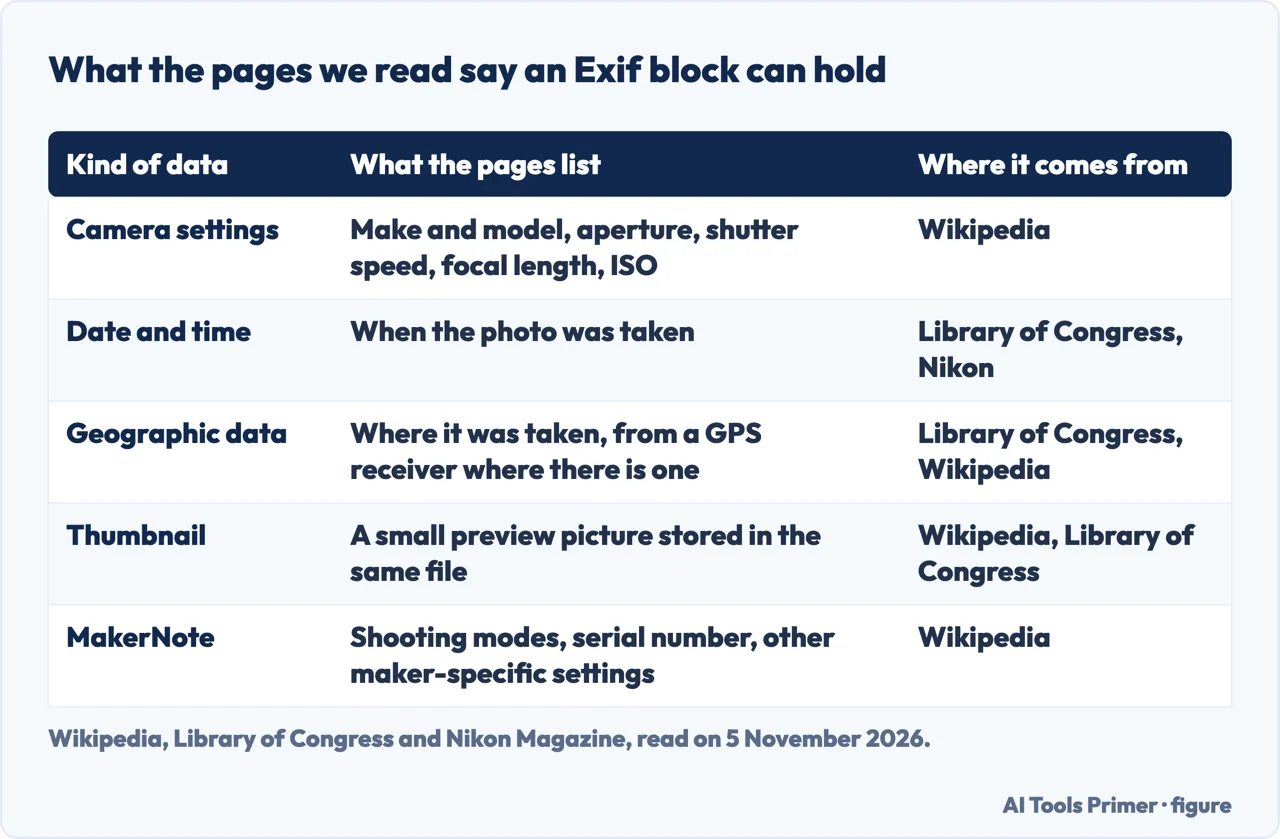
Nikon Magazine lists what the data holds: the camera and the lens that were used, the date, time and place, and settings such as focal length, shutter speed, aperture and ISO. The Library of Congress sorts the tags into groups: descriptive metadata, copyright details, camera settings, technical image data, date and time information, geographic data and thumbnail storage. Wikipedia adds the camera make and model, the orientation, the metering mode, and a thumbnail for previewing the picture on the camera’s screen, in file managers or in photo software.
The place comes from the device. Wikipedia says the format has standard tags for location information, and that, as of 2014, many cameras and mobile phones have a built-in GPS receiver that stores the location in the Exif header when a picture is taken. Apple’s Personal Safety guide describes the phone side: when Location Services is on for the Camera app, the coordinates are embedded into each photo and video so that they can be searched by place in the Photos app.
How it is stored explains some of the trouble later. In a JPEG, Wikipedia and the Library of Congress say, the Exif data goes into a segment called APP1, which holds an entire TIFF file inside, and the GPS data has a sub-directory of its own. Wikipedia adds that Exif metadata is restricted to 64 kB in JPEG images, and that because of how the data is laid out, most image editors damage or remove it to some extent when saving.
Wikipedia also describes a MakerNote tag, which lets camera makers place their own metadata in the file. It is used to store settings that the standard does not list, such as shooting modes, post-processing settings and the serial number. The contents are proprietary, the page says, and a maker can encrypt parts of them: some Nikon cameras encrypt the detailed lens data. Tails, in its page on removing metadata, gives the model and serial number of the camera among its examples of what images can reveal.
Two further leftovers appear in the sources. Wikipedia says photo software sometimes fails to update the embedded thumbnail after an edit, so that someone who blanks out a car’s licence plate may find the plate still visible in the thumbnail. Photography Life says that a file exported from Adobe software can carry three parts: the Exif data, XMP data with the post-processing steps, and a thumbnail. The author of that page opened a sample file in a text editor and found the image history in it, including what was done in Photoshop and how many times the file was saved.
How to see it
Photography Life explains why a photo on a web page seems to carry nothing: the data does not show up when you look at photos through a web browser, because it is not part of the actual image. It is embedded in the physical file, so something that can read the file is needed, such as an image viewer, a post-processing tool like Lightroom or the operating system itself.
Nikon Magazine gives three routes. On a Mac, open the image in Preview, click Tools and choose Show Inspector. On a PC, right-click the image, select Properties and click Details. On a smartphone, open the picture in the library and swipe upwards. Apple’s guide agrees for iPhone and iPad: tap a photo and swipe up, or tap Collections and then the Map collection, which holds only the pictures and videos that have embedded location information. For a Mac, Apple points to the Places album in Photos.
Photography Life says that the Details tab in Windows and Get Info on a Mac reveal some information, but that it is limited compared with all the Exif data in the file, and that the lens, for one, may not be found there. To see more, it says, a photo viewer is needed, and it names digiKam as an open-source one that can both view and edit the data.
Photography Life adds two cautions. A clickable thumbnail image typically lacks Exif data, it says, so the picture should be opened in full before a tool is used on it. And an error saying that some or all of the Exif data could not be extracted means, it says, that the JPEG contains no Exif information.
Which files can carry the data is another point where the pages differ. Photography Life says the only web-friendly file format that can handle Exif is JPEG, so you often cannot read the data from formats such as GIF and PNG. Wikipedia lists the filename extensions .JPG, .TIF, .WAV, .PNG, .WEBP and .JXL, and says the specification itself does not support JPEG 2000 or GIF images.
Taking it out, in short
The longer walk-through is on our page about metadata in photos, and the question of what a messaging service still sees is on the page on metadata. Our page on metadata in photos already walks through the Apple and Microsoft steps in full; here is a short side-by-side of what each source gives, and the Photography Life and Tails routes that page does not cover.
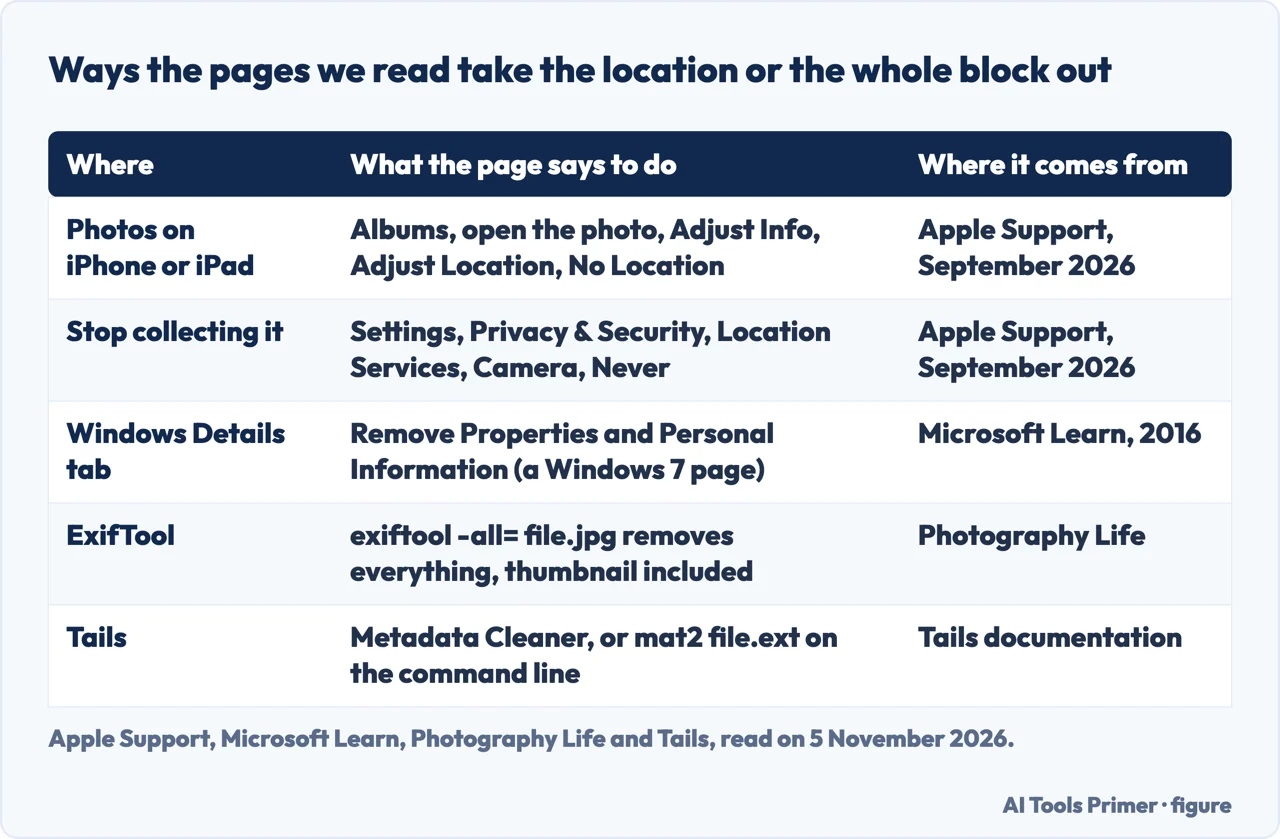
Apple. The Personal Safety guide, dated September 2026, covers the Photos app. On an iPhone or iPad: open Photos, tap Albums, open the photo, tap the icon the page shows, then Adjust Info, Adjust Location and No Location. On a Mac: select the photos, choose Image, then Location, then Hide Location or Revert to Original Location. To stop the collection, go to Settings, Privacy & Security, Location Services, Camera, and tap Never. To share a photo without its location, tap Share, then Options, and turn Location off; Location Not Included appears above the Options button. The page does not say what stays in the file after Hide Location.
Microsoft. Microsoft Learn carries a tip from the book Windows 7 Inside Out, last updated on 1 August 2016, so it describes Windows 7. Select the files, right-click, choose Properties, open the Details tab and click Remove Properties and Personal Information. The default makes a copy with the word Copy added to the file name and removes every property it can change; the other choice removes only the properties you tick, and a property with no check box cannot be edited. The page adds that this zeroes out metadata but does nothing with the contents of the file itself. Windows Central, a separate publication, gives the same steps for Windows 11.
Photography Life. In Photoshop, File, Export, Save for Web with Metadata set to None removes the Exif and XMP data. In Lightroom, the Copyright Only setting removes the Exif data except the copyright information, and the embedded thumbnail stays. The ExifTool command exiftool -all= followed by the file name removes all metadata, thumbnail included. The Lightroom export window also has two boxes, Remove Person Info and Remove Location Info, which the author recommends keeping checked.
Tails. Tails includes Metadata Cleaner, which its page says works on many formats: images such as .jpg, .gif, .svg, .tiff and .png, Office documents, audio, video, archives and PDFs. On the command line, mat2 followed by the file name leaves a copy named with .cleaned before the extension. The page warns that it is impossible to reliably find and remove all metadata in complex file formats, and advises saving files in simpler formats where possible.
Changing the data is a different matter, and the pages differ. Nikon Magazine says you can’t change the data but can control what is seen: show the data on a Mac or PC and switch sections off, or remove it on export in Nikon’s NX Studio, with no harm to the integrity of the image. Wikipedia says that in Windows 10 the Details tab holds some Exif fields, such as title, subject and comments, and that they can be changed and stored.
Where Tor comes into it
The pages we read do not say whether Tor Browser removes Exif data from a photo that is uploaded or sent, and we do not guess. The Tor Project pages we read do not mention Exif. What the sources do establish is about the file: the data is stored in it, and whether it survives an upload depends on the service, as the examples below show.
Wikipedia says a photo taken with a GPS-enabled camera can reveal the exact location and time it was taken and the unique ID number of the device, that this is done by default, and often without the user’s knowledge. It says some services sanitise the data while others do not, and gives GitHub as an example that preserves all tags, location included. Tails lists the location, the date and time, and the camera’s model and serial number as examples of image metadata, and says metadata can also be used to deanonymize users and expose private information. Adobe’s page mentions removing the data before uploading photos, to protect a GPS location.
Wikipedia gives one case. In December 2012 a magazine published an interview that included a photo taken with a phone that had geotagged the image. The page says the metadata held GPS coordinates that located the person pictured, who was captured two days later. It adds that he later claimed to have edited the Exif data from his phone to give a false location.
The Tor Project’s own guidance we read is about another leak. Its Tor Browser best-practices page warns that documents downloaded through Tor, DOC and PDF files in particular (unless the PDF viewer built into Tor Browser is used), can contain Internet resources that the application opening them downloads outside Tor, which would reveal the non-Tor IP address. It advises a disconnected computer, or Dangerzone for PDFs. That is about files you receive; the pages we read do not tie it to Exif.
The EFF’s Surveillance Self-Defense guide on communication metadata separates two kinds. File metadata, it says, includes when a file was created and by whom; on a phone it appears as information about a photo, such as the aperture and shutter speed, or the location. The guide itself is about communication metadata, which is everything except the content, and it says some software, Tor and Signal among it, tries to minimise the metadata it collects. For the habits around Tor, see opsec in plain words.
What we did not use
We tested nothing on a photo or a device. Google’s own support pages sat behind an anti-robot check that we did not get around, so this page describes Apple, Windows and Tails, and does not describe Android. For Microsoft we found a 2016 tip about Windows 7, and Windows Central for Windows 11. The four answers below are written from the pages above. The pages we read give no count of how many social services remove the data, apart from Wikipedia’s sentence about GitHub.
Where to start
Four ways in.
- “What does a photo carry?”
- What a photo carries — carries
- “How do I see it?”
- How to see it — see
- “How do I take it out?”
- Taking it out, in short — remove
- “What has this to do with Tor?”
- Where Tor comes into it — tor
Photos, messages and habits
What a file gives away, and what to do about it.
Around Tor
Where Tor meets the rest of the setup.
Questions people also ask
Do all photos have EXIF data?
Not necessarily: the pages we read give a mixed picture. Nikon Magazine says nearly all digital cameras, smartphones included, record it. Photography Life says a clickable thumbnail typically lacks it, and that an extraction error means the JPEG contains none. It names JPEG as the only web-friendly format that handles it; Wikipedia lists more.
Can EXIF data be removed?
Yes, the pages we read give several ways. Apple has Adjust Location in Photos, Microsoft a Details tab command, Photography Life ExifTool, and Tails Metadata Cleaner and mat2. Tails warns that complex formats can keep metadata it cannot find, and Wikipedia says most image editors damage or remove it on saving.
How do I find the EXIF data of a photo?
Nikon Magazine gives three routes: on a Mac, Preview then Tools then Show Inspector; on a PC, Properties then Details; on a smartphone, open the picture and swipe upwards. Photography Life says the Windows tab and Get Info on a Mac are limited and a photo viewer shows more.
Is EXIF metadata safe?
The pages we read treat it as a privacy question. Wikipedia says a GPS photo can reveal exact location and time by default, and Apple says people you share photos with may learn where they were taken. Microsoft’s tip says removing the metadata leaves the contents of the file as they are.
Not covered here. We tested nothing on a photo or a device. The statements come from Wikipedia, the Library of Congress, CIPA, Nikon Magazine, Photography Life, Adobe, Apple Support, Microsoft Learn, Windows Central, Tails, the Tor Project and the EFF, all read on 5 November 2026. The Microsoft page is a 2016 tip about Windows 7, and the Apple page carries a September 2026 date.
The search volume and difficulty behind this page come from an Ubersuggest reading of 5 November 2026 on its free plan; the difficulty is Ubersuggest’s own score, not a Semrush figure, and it has not yet been confirmed with Semrush.
Sources
- Wikipedia — Exif — en.wikipedia.org, read 5 November 2026.
- Library of Congress — Exchangeable Image File Format (Exif) Family — www.loc.gov, read 5 November 2026.
- CIPA — Standards list (Exif Version 3.1) — www.cipa.jp, read 5 November 2026.
- Nikon Magazine — What is EXIF data? — www.nikon.is, read 5 November 2026.
- Photography Life — What is EXIF Data and How You Can Remove it From Your Photos — photographylife.com, read 5 November 2026.
- Adobe — What are EXIF files and how to open them? — www.adobe.com, read 5 November 2026.
- Apple Support — Manage location metadata in Photos (Personal Safety User Guide) — support.apple.com, read 5 November 2026.
- Microsoft Learn — Remove Personal metadata from Files to Protect Your Privacy (2016) — technet.microsoft.com, read 5 November 2026.
- Windows Central — How to remove personal information from files on Windows 11 — www.windowscentral.com, read 5 November 2026.
- Tails — Removing metadata from files — tails.net, read 5 November 2026.
- Tor Project Support — Tor Browser best practices — support.torproject.org, read 5 November 2026.
- EFF Surveillance Self-Defense — Why Communication Metadata Matters — ssd.eff.org, read 5 November 2026.
Written by Alberto Gulotta
Founder and editor of AI Tools Primer, writing from Palermo, Italy. Thirty-five years of taking computers apart, starting with a Commodore 64 — the long version is on the about page.
Something wrong on this page? Write to aitoolsprimer@gmail.com and it gets fixed.
Written on 6 November 2026.
Independence and limits
No affiliate links and no paid placements anywhere on this site. Nobody pays to appear here, and no company has seen this page before you did.
This is general information, not professional advice. Where a page touches money, health, safety or the law, it names its source and the date it was read — and your situation may still differ. See the privacy page and the cookie policy.