
Docs · guide
How to curve text in Google Slides, which cannot bend it
By Alberto Gulotta · Updated · 14 min read
How to curve text in Google Slides starts with a no: Slides has no option that bends a line of text, and, per a Google Product Expert, neither does the word art in Google Drawings. Every route works around that, and they differ in one thing that matters later: whether what lands on the slide is still text.
Rotating one letter per text box keeps it editable and takes patience. An image made in another tool is quick and frozen. A paste from PowerPoint lands somewhere between, depending on which guide you believe. And the Marketplace has add-ons that do it inside Slides, asking for very different access to your account.
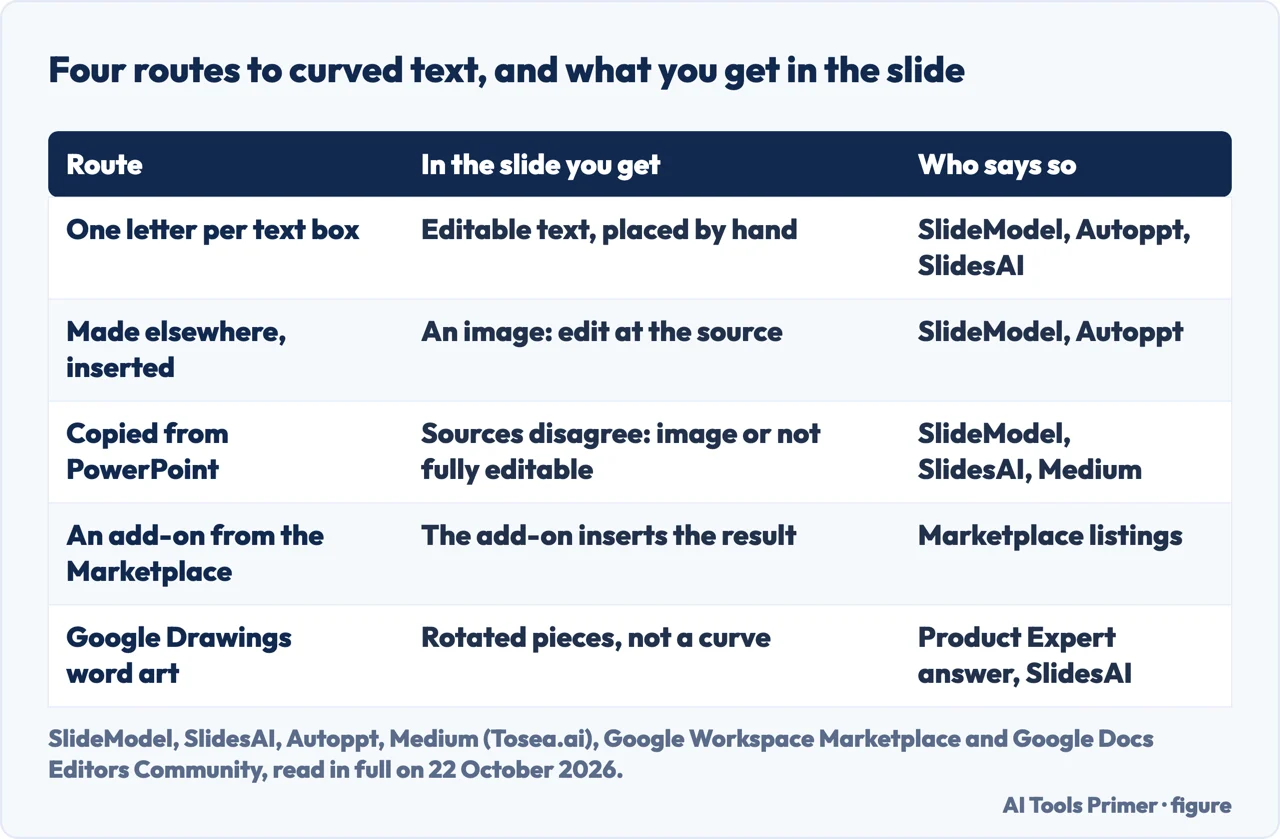
| Route | What ends up on the slide | Who says so |
|---|---|---|
| A curve option in Slides | There is none | SlideModel, SlidesAI, Autoppt; the Structured Works listing |
| One letter per text box | Editable text, placed and rotated by hand | SlideModel, Autoppt, SlidesAI |
| Curved text made elsewhere | An image; changes go back to the source | SlideModel, Autoppt |
| Copied from PowerPoint | The guides disagree: an image, or text not fully editable | SlideModel, SlidesAI |
| A Marketplace add-on | What the add-on inserts, after the access it asks for | Google Workspace Marketplace |
What Slides itself gives you
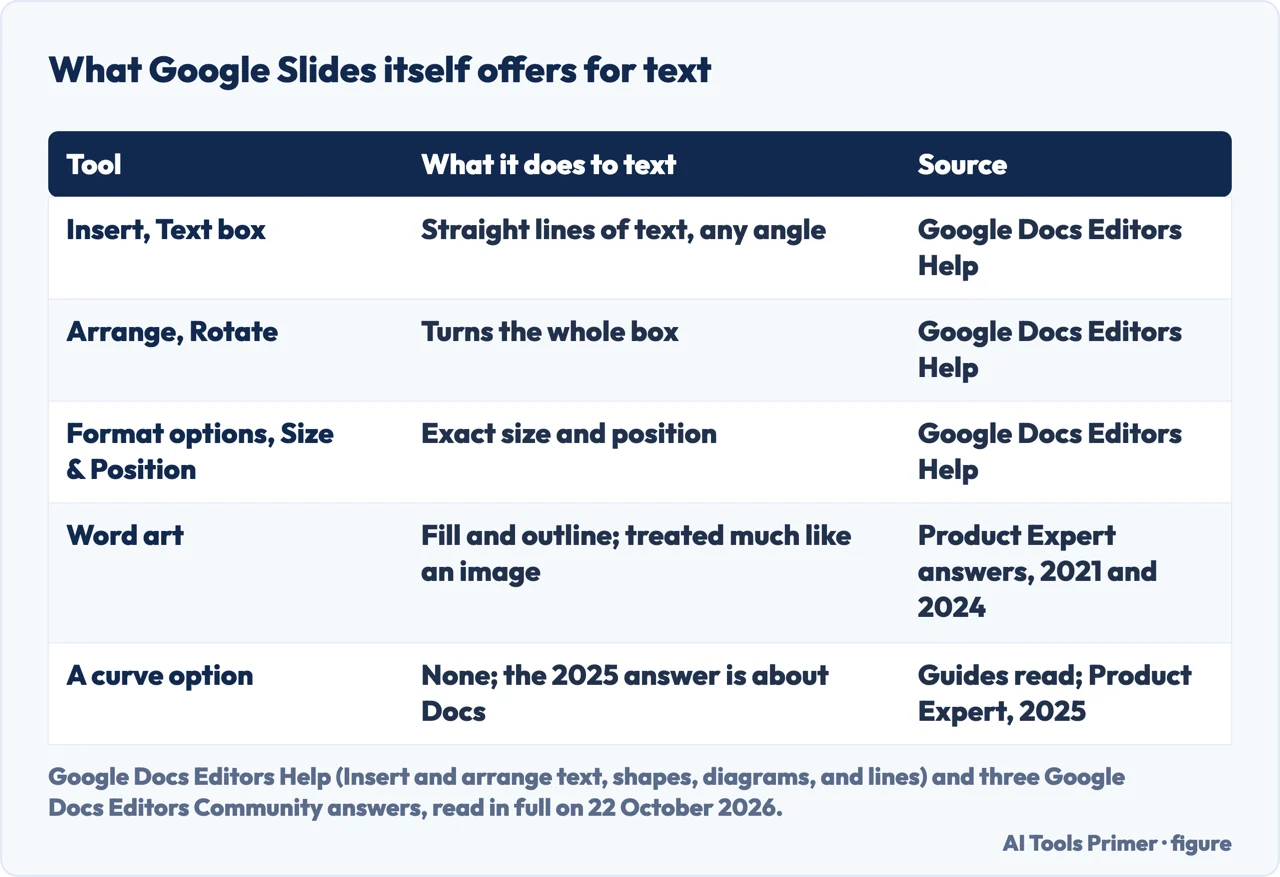
Google’s help page on adding text and objects to a slide lists four things under Insert: Text box, Image, Shape and Line. Under Arrange it lists Order, Align, Distribute, Center on page, Rotate and Group, and for exact numbers it sends you to Format, then Format options, then Size & Position. Snap to Guides, which draws coloured lines when an object lines up with another, is on by default. Nothing on that page bends a line of text.
Word art is the other text tool people reach for. Answering in the Google Docs Editors Community in December 2024, a Diamond Product Expert gave the route in Slides as Insert, then Word art: type the words, press Enter, and set fill, line colour or font. Another Diamond Product Expert, who signs as a volunteer and not a Google employee, answered a question in 2021 from someone who had found that line spacing and alignment stopped working on word art, and explained why: “Word art is treated essentially like an image”, so those options are not there.
Nor is there a curve setting anywhere else. Asked in April 2025 how to bend a title in Google Docs, the Diamond Product Expert who answered wrote that Google Docs does not allow curved text, and that neither does WordArt inserted from Drawings. For Slides, the four guides we read from the search results say the same, and so does the listing of the add-on further down that exists to fill the gap. What follows are the workarounds, in the order of what you keep.
One letter per text box: the route that stays editable
This is the only route that leaves real text on the slide, and the guides that describe it, SlideModel, Autoppt and SlidesAI, describe it in nearly the same steps:
- Insert a text box and type one letter, or a short piece of a word. Repeat for each piece.
- Turn each box with the rotation handle above it, a little more than the one before.
- Move the pieces until they sit on the curve you want.
For exact angles, SlideModel points to Format options from the right-click menu, where you can type an angle, turn by 90 degrees or flip. Tosea.ai, writing on Medium, suggests tilting each piece by 5 to 10 degrees from the previous one and using the snapping guides to keep the bottoms of the letters on one imaginary circle. Autoppt’s variant is to draw a circle or arc from Insert, Shape, place the text over it, and adjust the spacing until the letters follow it; Google’s own Arrange menu then has Group, to lock the finished letters together so they move as one.
The cost is time and evenness. Each letter is a separate object, so a typo means editing one box and nudging its neighbours, and Tosea.ai warns that the spacing is the part to watch: on a curve, gaps open at the top of the letters and close at the bottom. Autoppt advises short phrases and bold fonts, and Tosea.ai calls the method best suited to short phrases.
Made somewhere else, inserted as a picture
Most of the results do the curving outside Slides and bring back an image. The tools they name most are Canva, MockoFun and the InkPx curved text generator; the 2025 Product Expert answer also points to InkPx. If you use Canva, its own Curve effect is covered on our page on curving text in Canva, including the catch that a transparent PNG is for paid plans. SlideModel lists the formats MockoFun downloads in as JPG, PNG, SVG, GIF, WEBP and PPTX, after you create a free account.
Getting the file onto the slide is Google’s standard route: Insert, then Image, then one of Upload from computer, Stock & web, Drive & Photos, Camera or By URL. Copying and pasting an image works too. Tosea.ai adds that a PNG with a transparent background avoids a white box around the words, and that exporting at twice the size keeps the text sharp; it also says Slides compresses images on upload, which we did not check.
What you give up is the text. SlideModel and Autoppt both say the same: an image is not editable in Slides, so a change means editing the original and uploading it again. SlideModel adds that JPG, PNG and BMP are common choices, and that SVG support in Slides is not very robust.
Borrowing the curve from PowerPoint
PowerPoint does have a curve: Text Effects, then Transform, set out on our page on curving text in PowerPoint. Google’s AI answer at the top of the results, and SlidesAI, Tosea.ai and SlideModel, all describe making the text there and copying it across with Ctrl+C and Ctrl+V. They do not agree on what arrives:
- SlideModel copies the whole slide and says the pasted slide brings the text in as an image.
- SlidesAI says the pasted text might not be fully editable, and that some formatting or effects might not transfer perfectly.
- Tosea.ai says it typically comes in as a vector-like object or metafile, and that the text becomes a static image once it is in Slides.
We did not test it, so the safe reading is the one they share: expect to fix typos in PowerPoint, not in Slides. One more disagreement sits underneath. SlideModel says any version of PowerPoint will do, including the web version; Microsoft’s own WordArt page, read for our PowerPoint guide, says Microsoft 365 for the web shows existing WordArt but adding it needs the desktop app.
Add-ons that curve text inside Slides, and what they ask for
None of the results mention it, but the Google Workspace Marketplace has add-ons for exactly this. A search there for curved text on 22 October 2026 returned two that work with Slides:
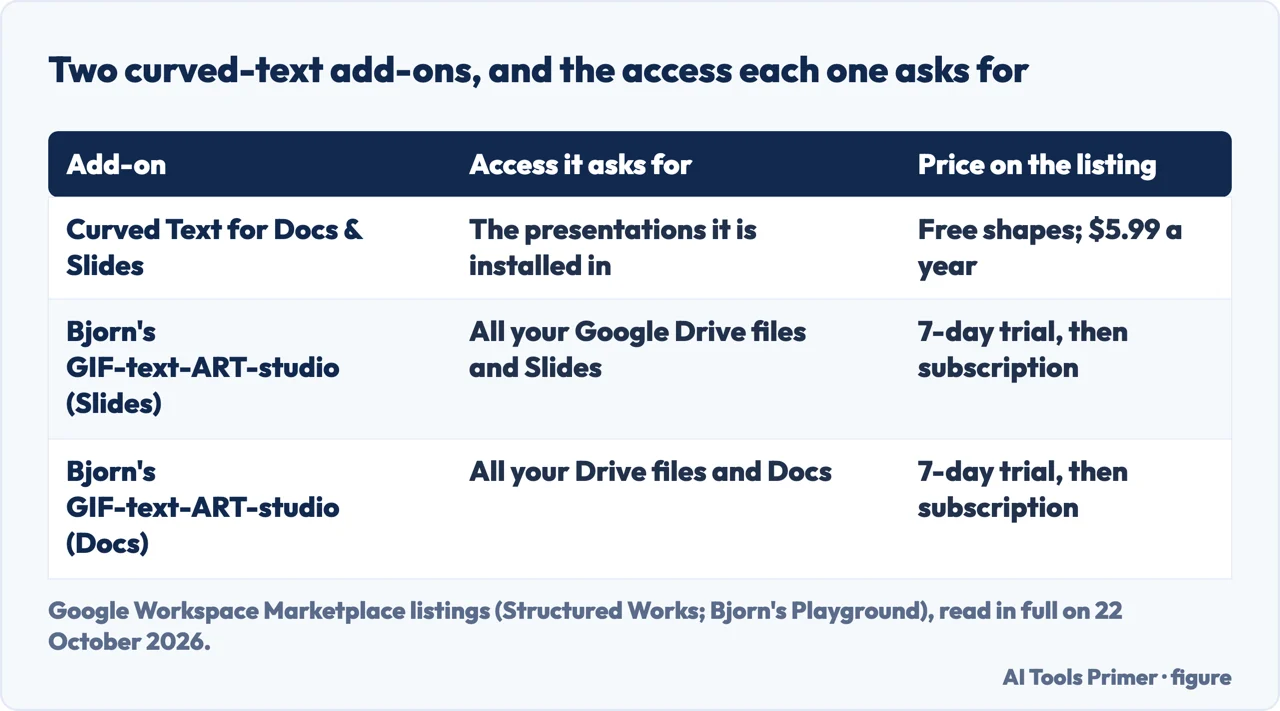
- Curved Text for Docs & Slides, by Structured Works, listing updated 19 August 2026. Per the listing you open it from Extensions, then Curved Text, then Open, type the text, pick one of 11 shapes and click Insert, or download a PNG. Circle, Square, Rectangle, Triangle and both arcs are free with three colours and Arial; Premium, at $5.99 a year through Gumroad, unlocks the other shapes, fonts and colours. It had two reviews and an average of 3 stars.
- Bjorn’s GIF-text-ART-studio, by Bjorn’s Playground, lists curved text (circular, arcs, sinus) among its effects; a free 7-day trial, then a subscription, with the price shown as not available. The Slides listing had an average of 2.1 stars from nine reviews; a separate listing of the same name works with Google Docs.
The difference that matters is on the Permissions tab, which the Marketplace shows before you install. Structured Works asks to view and manage the documents and Slides presentations the add-on is installed in, plus data associated with the add-on, third-party content in sidebars, a connection to an external service, your email address and your personal info; its listing says only a licence key leaves your account, when you activate Premium. The Slides version of Bjorn’s add-on asks to see, edit, create and delete all of your Google Drive files and all your Slides presentations, and to run when you are not present. Both claims about what is sent where are the developers’ own; we installed neither.
Google Drawings, and why it is not a curve
Google Drawings is the other Google tool in the results. Google’s help page creates one from Drive with New, More, Google Drawings, and documents Insert, then Word Art, to place text on the canvas as a shape. Shapes and images turn with the blue dot outside them, and holding Shift turns them 15 degrees at a time.
That gives you rotation, not bending. The 2025 Product Expert answer is explicit that WordArt from Drawings does not curve, and suggests the same letter-by-letter rotation as in Slides. SlidesAI’s version does exactly that in Drawings, then downloads the result with File, Download, PNG image and inserts it into the slide, which makes it an image like any other. The route Google Docs uses to put a drawing into a document, Insert then Drawing, is written for Docs on Google’s page; our guide to text boxes in Google Docs covers that side.
When the words change later
Which route to pick depends on how often the text will change, because each one handles a change differently:
- Separate letters: edit the letter that is wrong and move its neighbours. Nothing leaves Slides.
- An image: remake it in the tool you used, then right-click the old one in Slides and choose Replace image, which Google documents for Docs and Slides; in Slides you can also drag a new image onto the old one to replace it.
- From PowerPoint: go back to the PowerPoint file, per SlideModel and Tosea.ai.
- An add-on: the listings describe inserting the result; how each one edits it afterwards is not on the listing.
Tosea.ai mentions one more route for people who write code: an Apps Script, from Extensions, that generates a series of text boxes arranged in a semicircle. It notes the same drawback as doing it by hand, a slide full of separate letters.
Where to start
Five ways in.
- “I want to keep editing the words.”
- Letter by letter — letters
- “I just need it to look right.”
- An image — image
- “I have PowerPoint.”
- PowerPoint — powerpoint
- “Is there an add-on?”
- Add-ons — addons
- “What about Google Drawings?”
- Drawings — drawings
Text in other programs
Text that has to sit somewhere other than a straight line, in the editors people already have open.
Questions people also ask
Can you curve text in Google Slides?
Not with a built-in option. A Google Product Expert answered in 2025 that Docs does not allow curved text and neither does WordArt from Drawings; the workarounds are separate rotated letters, an image made elsewhere, a paste from PowerPoint, or a Marketplace add-on.
How do I curve text in Google Slides without an image?
Put each letter, or short piece of a word, in its own text box, rotate each a little more than the last, and arrange them along the curve. It stays editable, letter by letter.
How do I curve text in Google Docs?
The same answer applies: the 2025 Product Expert reply says Docs has no curved text either. The listed add-on from Structured Works says it works with Docs and Slides.
Does copying curved text from PowerPoint into Google Slides work?
The guides disagree on what arrives: SlideModel says an image, SlidesAI says text that might not be fully editable. Either way, plan to make changes in PowerPoint.
Not covered here. We did not open Google Slides for this page and installed no add-on. The steps credited to Google are from three Google Docs Editors Help pages read on 22 October 2026; the answers credited to Product Experts are community answers in the Google Docs Editors Community, not Google documentation, and one of the experts signs as a volunteer, not a Google employee.
SlideModel, SlidesAI, Autoppt and Tosea.ai each sell presentation products. The add-on details, prices and permissions are as listed in the Google Workspace Marketplace on 22 October 2026. The videos and the Reddit threads in the results were not watched or read.
The search volume and difficulty behind this page were read in Semrush on 29 August 2026.
Sources
- Google Docs Editors Help — Insert and arrange text, shapes, diagrams, and lines — support.google.com, read 22 October 2026.
- Google Docs Editors Help — Learn how to use drawings & markups — support.google.com, read 22 October 2026.
- Google Docs Editors Help — Insert or delete images & videos — support.google.com, read 22 October 2026.
- Google Docs Editors Community — Text Bending in Google Docs (Diamond Product Expert answer, April 2025) — support.google.com, read 22 October 2026.
- Google Docs Editors Community — How doe i use word art (Diamond Product Expert answer, December 2024) — support.google.com, read 22 October 2026.
- Google Docs Editors Community — How to adjust word art formatting? (Diamond Product Expert answer, October 2021) — support.google.com, read 22 October 2026.
- Google Workspace Marketplace — Curved Text for Docs & Slides (Structured Works) — workspace.google.com, read 22 October 2026.
- Google Workspace Marketplace — Bjorn’s GIF-text-ART-studio, for Google Slides — workspace.google.com, read 22 October 2026.
- Google Workspace Marketplace — Bjorn’s GIF-text-ART-studio, for Google Docs — workspace.google.com, read 22 October 2026.
- SlideModel — How to Curve Text in Google Slides (August 2024) — slidemodel.com, read 22 October 2026.
- SlidesAI — How to Curve Text in Google Slides (September 2026) — www.slidesai.io, read 22 October 2026.
- Autoppt — Can You Bend Text in Google Slides? (April 2025, updated June 2025) — autoppt.com, read 22 October 2026.
- Sylvia Chen for Tosea.ai, on Medium — 4 Professional Methods to Curve Text in Google Slides — medium.com, read 22 October 2026.
Written by Alberto Gulotta
Founder and editor of AI Tools Primer, writing from Palermo, Italy. Thirty-five years of taking computers apart, starting with a Commodore 64 — the long version is on the about page.
Something wrong on this page? Write to aitoolsprimer@gmail.com and it gets fixed.
Written on 22 October 2026.
Independence and limits
No affiliate links and no paid placements anywhere on this site. Nobody pays to appear here, and no company has seen this page before you did.
This is general information, not professional advice. Where a page touches money, health, safety or the law, it names its source and the date it was read — and your situation may still differ. See the privacy page and the cookie policy.