
Images · guide
How to curve text in Canva, one arc at a time
By Alberto Gulotta · Updated · 13 min read
How to curve text in Canva takes four clicks, on the free plan as on the paid ones: select the text box, click Effects, choose Curve, drag the slider. Canva’s help article files Curve under Shape, the one text effect that bends the words instead of styling them.
What the guides do not agree on is which way the slider goes, and Canva does not say. The rest of this page is what decides how the result looks: short text, two boxes for a circle, and the apps for anything that is not an arc.
| Question | Answer | Who says so |
|---|---|---|
| Where is it? | Effects on the toolbar, then Curve, which Canva files under Shape | Canva Help Center |
| Is it free? | Yes, on Canva Free as well as the paid plans | Appcyclopedia, Fallon Travels |
| How far does the slider go? | From -100 to 100, or type a value | Appcyclopedia; Canva says you can drag or input a value |
| Which way do positive values bend? | The sources disagree | See the section below |
| A full circle? | Two text boxes, one positive, one negative | Appcyclopedia, Fallon Travels |
| Transparent PNG of the result? | Paid plans only | Canva Help Center |
The steps, on a computer and on the phone
Canva’s own article on text effects lists Curve as the one effect in its Shape category, next to the Style effects (Drop, Glow, Echo, Outline, Background, Splice) and the Color effects (Hollow, Glitch, Neon). Its instructions are the same for all of them:
- Select the text box and click Effects on the toolbar.
- From the side panel, choose the effect: here, Curve.
- Drag the slider, or type a value, to set how much the text bends.
- To undo it, select Remove effect at the bottom of the panel while the effect is active.
Two details matter before that first click, and both come from the guides rather than Canva. Instructables says the effects will not apply if you are still typing inside the box: click once so the frame appears, without the blinking cursor. Appcyclopedia adds that if the words are part of an uploaded picture or a logo, Effects shows image effects instead of Curve, because Canva cannot curve text inside an image; you type the words again in a new text box.
On the phone app, Appcyclopedia, which says its team performed the steps on an iPhone 15 and a Pixel 9 Pro on 4 October 2026, gives the same path from the bottom toolbar: tap the text, swipe along the toolbar to Effects, and tap Curve under Shape. Canva’s article has a separate mobile tab that we could not read in full.
Which way the slider bends: the sources disagree
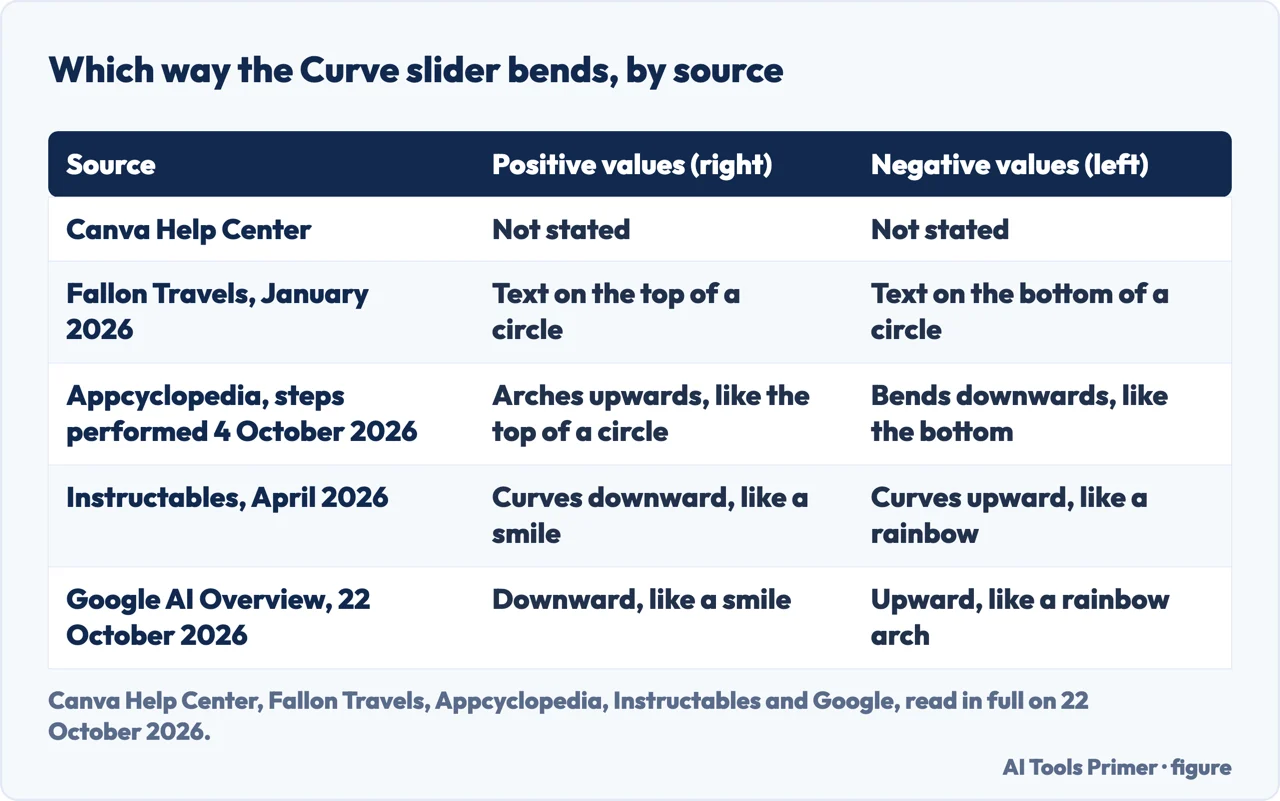
Canva’s help article says what the slider does, not which way it goes. The guides that do say it do not agree with each other, and Google’s AI Overview repeats one side.
- Positive arches the text up. Fallon Travels: drag right for text facing the outside of the circle, on its top; drag left for text on its bottom. Appcyclopedia: positive values arch the text upwards, like the top of a circle, and negative values bend it downwards, like the bottom of one.
- Positive curves it down. Instructables: slide right, to positive values, and the text curves downward like a smile; slide left, to negative values, and it curves upward like a rainbow. The AI Overview Google showed on 22 October 2026 gives the same direction and cites Instructables.
We did not open Canva for this page, so we cannot settle it. What settles it costs nothing: apply Curve, drag the slider a little each way, and watch. The one direction that matters is the second line of a badge, and every guide agrees on what to do there: give it the same number with the opposite sign, so it bends the other way and still reads left to right.
Making the words sit on the arc
The Curve effect bends the whole text box around the edge of an invisible circle. Appcyclopedia describes the slider as setting how small that circle is: near 0 the text barely bends; at 100 or -100 the circle is small enough for a sentence to wrap almost all the way round. Three adjustments follow from that.
- Keep it short. Instructables suggests one to five words, and Appcyclopedia says long sentences wrap into a spiral-like arc that is hard to read. Curved text is for titles, badges and short labels.
- Resize from a corner. A curved text box has no side handles, Appcyclopedia notes, so you drag a corner. Skillshare describes the same move as changing the radius, with a circle drawn through the text to show it.
- Use size and spacing to cover more of the circle. At the same curve value, longer text closes more of the circle. If a short word at the maximum still covers only part of it, Appcyclopedia’s advice is a larger font or wider letter spacing, from the Spacing button on the toolbar; the same button fixes letters that bunch together on a tight curve.
Instructables adds two habits worth keeping: bold fonts survive the bend better than thin ones, and if the curve looks too wide, a narrower box tightens it.
A full circle of text, from two boxes
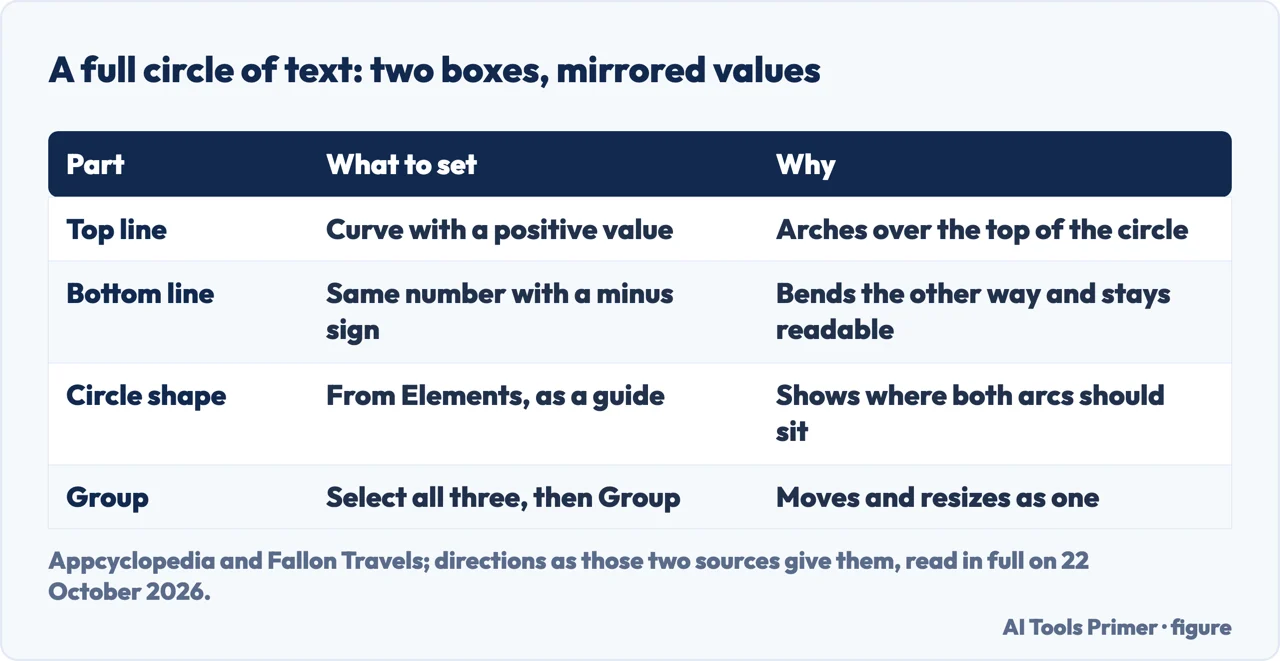
One text box makes one arc. That is the limit behind most of the questions about circles, and it is why badges and round logos in Canva are built from two lines. Fallon Travels and Appcyclopedia describe the same construction:
- Add a plain circle from Elements as a guide, at the size you want the text to follow.
- Write the top line, apply Curve, and set a value that arches it over the circle.
- Duplicate the box (Ctrl+D, or Cmd+D on a Mac), change the words, and give it the same value with a minus sign. Move it under the circle.
- Adjust the font size and spacing, not the value, until both arcs meet the edge evenly.
- Hold Shift, click the circle and both text boxes, and click Group, so the badge moves and resizes as one.
Using the same number on both lines is what keeps them on the same circle. If the bottom line comes out upside down, it has the same sign as the top one. Skillshare mentions that more than one curved line, combined, also makes a wave.
When one arc is not enough: TypeCraft and the apps
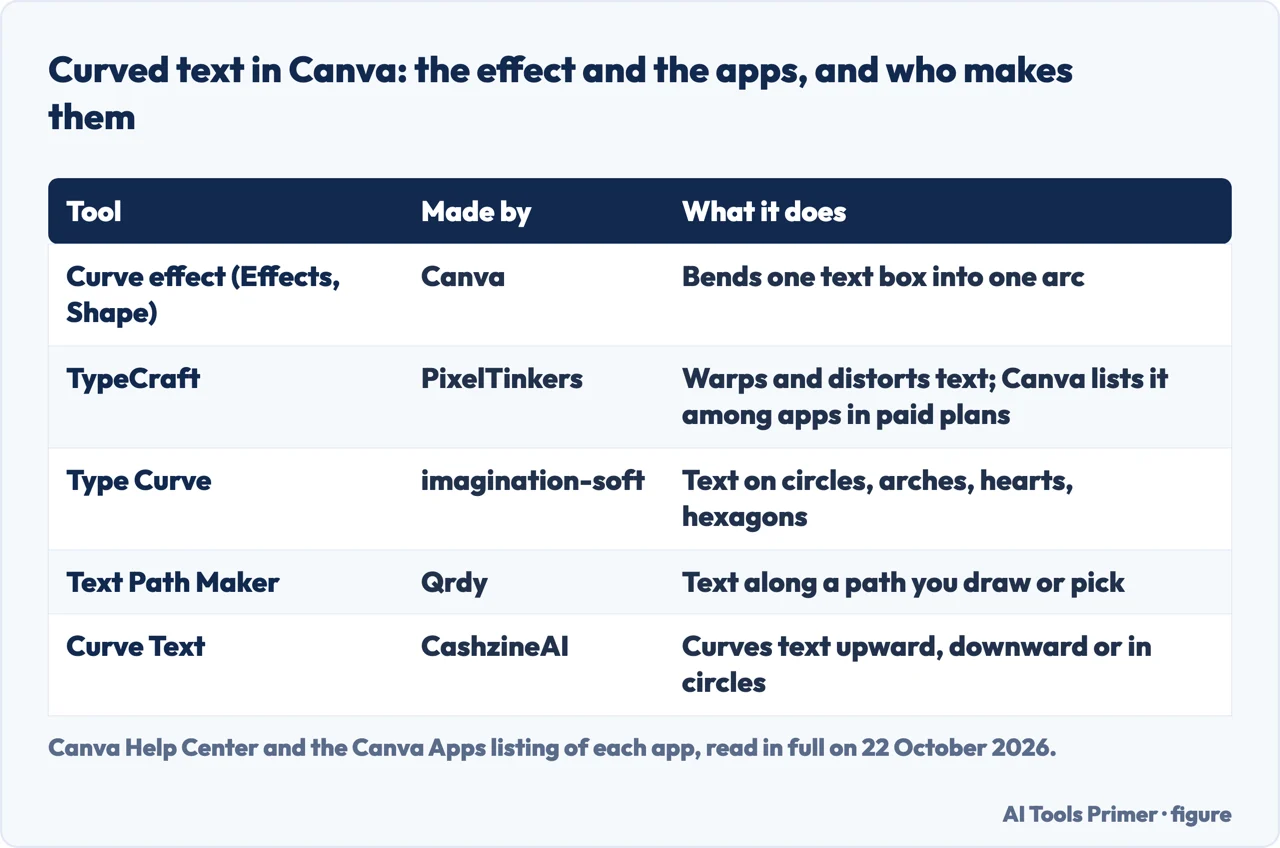
The Curve effect does arcs. For text along a wave, a heart or a path you draw, the results point to apps, and the listings say who makes them. In Canva’s Apps listings on 22 October 2026:
- TypeCraft, listed as an app by PixelTinkers, warps and distorts text. Canva’s help article on it says you connect the app to your account, open it from Apps in the side panel, type the text, choose font, style and color, then drag the dot points to shape it and add it to the design. Canva’s text-effects article lists TypeCraft among apps it says are included in paid plans.
- Type Curve, by imagination-soft, puts text on circles, arches, hearts and hexagons.
- Text Path Maker, by Qrdy, sets text along a path you draw or choose from presets.
- Curve Text, by CashzineAI, curves text upward, downward or into a circle, and says the text stays editable.
Each listing names the permissions the app asks for: all four can read and change the contents of the design while open, and two of them can also reach your uploaded media. That is worth a look before opening one in a design you share with a team. Outside Canva, Google’s snippet of the Reddit thread in the results shows a top answer pointing to another site, curvedtext.io; we could not read the thread itself. The Instructables guide ends by promoting MockoFun, an online editor, as an alternative.
Gradients and other effects on top
Curve is a Shape effect, so it can sit with the others. Canva’s article names Curve among the effects that are fully compatible with gradients and show the whole gradient, together with Shadow, Glow and Echo; Neon, Hollow, Glitch and Splice may show only the first color. Canva’s tip is to apply the effect first and the gradient after, and to export text that carries both as PNG or JPG, since PDF and SVG may not show the gradient correctly.
Downloading the curved text on its own
Curved text is often made for a logo, a sticker or a label, which means using it outside the design. For that you need a transparent background, and Canva’s help is clear about who gets it: downloading with a transparent background is available on Canva Pro, Teams, Business, Education and Nonprofits plans. On Canva Free, Instructables reports that the PNG comes with a white background.
On a paid plan, Canva’s steps are: set the background to white or delete it, go to Share, then Download, choose PNG, and turn on Transparent background. If the download still shows a background, Canva says the background was not deleted or set to white; the option does not exist in Canva Docs.
Where to start
Five ways in.
- “Where is Curve?”
- The steps — steps
- “It curved the wrong way.”
- The slider — direction
- “My text will not fit the arc.”
- Fitting it — fit
- “I need it all the way round.”
- A circle — circle
- “I want a wave, not an arc.”
- The apps — apps
More on editing a picture
The pages next to this one: other edits that start in the same toolbar, and the files you take away afterwards.
Text in other programs
Text that has to sit somewhere other than a straight line, in the editors people already have open.
Questions people also ask
How do I make my text curve in Canva?
Select the text box, click Effects on the toolbar, and choose Curve, which Canva lists under Shape. Drag the slider or type a value; Remove effect at the bottom of the panel undoes it.
How do I make text go round in a circle in Canva?
Use two text boxes: curve the top line, then duplicate it and give the copy the same value with a minus sign, so it bends the other way. Place both around a circle shape and group them.
How do I warp text in Canva?
The Curve effect only makes arcs. For waves and free shapes, the results point to apps such as TypeCraft, which Canva’s help documents and lists among apps in paid plans, or Type Curve and Text Path Maker from other developers.
Is curved text free in Canva?
The Curve effect is, according to Appcyclopedia and Fallon Travels. Downloading the result with a transparent background is not: Canva limits that to its paid plans.
Not covered here. We did not open Canva for this page. The steps credited to Canva are from the Canva Help Center and the Canva Apps listings, read on 22 October 2026; the slider direction, the circle construction and the fitting advice are from the guides named in each section.
Canva’s feature page on curved text and the Reddit thread in the results could not be read, and the videos in the results were not watched.
The search volume and difficulty behind this page were read in Semrush on 29 August 2026.
Sources
- Canva Help Center — Enhance text with effects — www.canva.com, read 22 October 2026.
- Canva Help Center — Customize text with TypeCraft — www.canva.com, read 22 October 2026.
- Canva Help Center — Resize text boxes and wrap text — www.canva.com, read 22 October 2026.
- Canva Help Center — Download design with transparent background — www.canva.com, read 22 October 2026.
- Canva Apps — TypeCraft (app by PixelTinkers) — www.canva.com, read 22 October 2026.
- Canva Apps — Type Curve (app by imagination-soft) — www.canva.com, read 22 October 2026.
- Canva Apps — Text Path Maker (app by Qrdy) — www.canva.com, read 22 October 2026.
- Canva Apps — Curve Text (app by CashzineAI) — www.canva.com, read 22 October 2026.
- Appcyclopedia — How to curve text in Canva and wrap it around a circle (steps performed 4 October 2026) — appcyclopedia.com, read 22 October 2026.
- Fallon Travels — How to Curve Text in Canva (January 2026, contains Canva affiliate links) — fallontravels.com, read 22 October 2026.
- Instructables — How to Curve Text in Canva (April 2026, ends by promoting MockoFun) — www.instructables.com, read 22 October 2026.
- Skillshare — How to Curve Text in Canva: A Step-by-Step Tutorial (December 2024) — www.skillshare.com, read 22 October 2026.
Written by Alberto Gulotta
Founder and editor of AI Tools Primer, writing from Palermo, Italy. Thirty-five years of taking computers apart, starting with a Commodore 64 — the long version is on the about page.
Something wrong on this page? Write to aitoolsprimer@gmail.com and it gets fixed.
Written on 22 October 2026.
Independence and limits
No affiliate links and no paid placements anywhere on this site. Nobody pays to appear here, and no company has seen this page before you did.
This is general information, not professional advice. Where a page touches money, health, safety or the law, it names its source and the date it was read — and your situation may still differ. See the privacy page and the cookie policy.