
Images · guide
How to curve text in Photoshop, and which route keeps the letters
By Alberto Gulotta · Updated · 15 min read
How to curve text in Photoshop has three answers in Adobe’s help, and each treats the letters differently. Warp Text bends them into an arc. Text on a path keeps each letter whole along a circle or a line you draw. Dynamic Text, the newest, fits the words to a circle, an arch or a path and resizes them.
Pick by the result you want, not by the tutorial you found first: most of the guides in the results predate Dynamic Text, and they disagree on how to draw the circle. The steps below are Adobe’s; where a step comes from someone else, it says so.
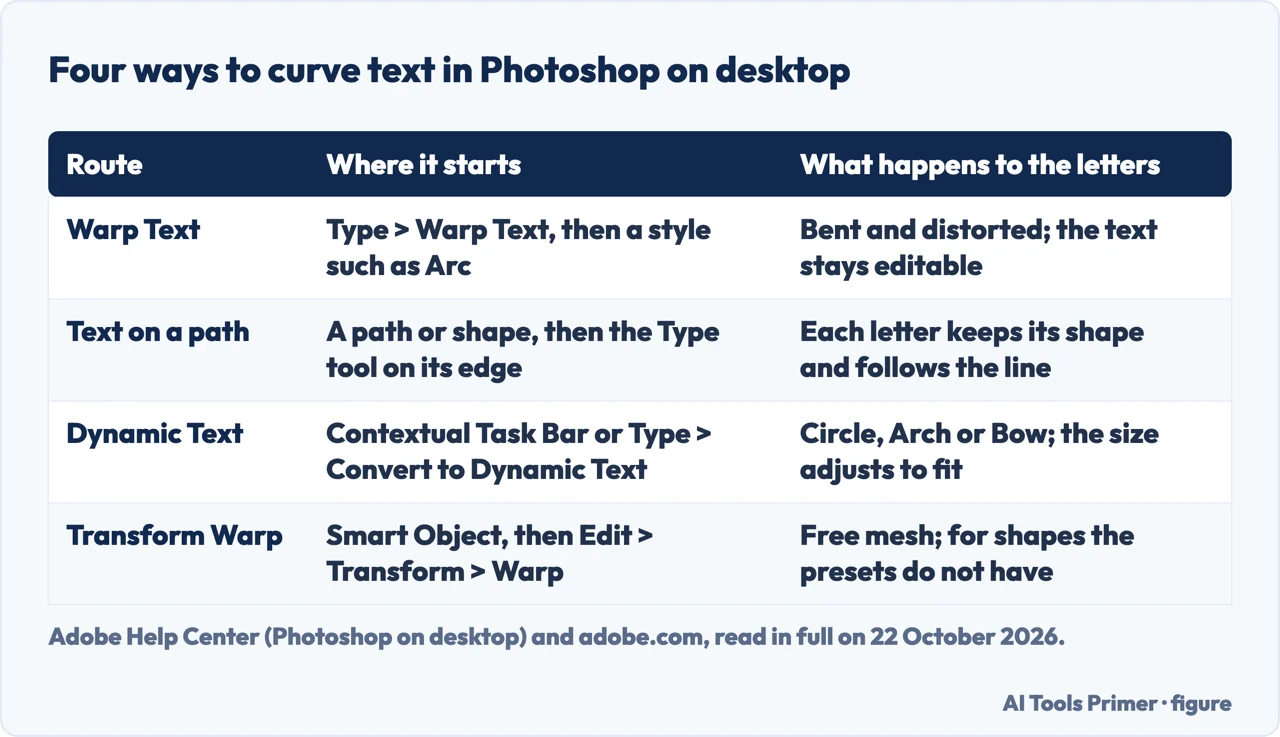
| Route | Menu or tool | Best for |
|---|---|---|
| Warp Text | Type > Warp Text, style Arc, Arch, Bulge and others | A quick arc or wave on one line |
| Text on a path | A path or shape, then the Type tool on its edge | Circles, badges, any curve you draw |
| Dynamic Text | Contextual Task Bar, presets Circle, Arch and Bow | Text that resizes to fill the curve |
| Transform Warp | Smart Object, then Edit > Transform > Warp | Free shapes the presets do not have |
Warp Text: the fastest arc
Adobe’s help page on warping text gives the steps for Photoshop on desktop:
- Select the Horizontal Type tool or the Vertical Type tool, and select the text.
- Choose Type > Warp Text.
- In the Warp Text dialog, pick a style from the Style menu: Arc, Arc Lower, Arc Upper, Arch, Bulge and more.
- Choose Horizontal or Vertical, then move the Bend slider; higher values make a stronger curve. The Horizontal and Vertical Distortion sliders add perspective.
- Select OK.
Adobe stresses one thing that sets this route apart from the other distortion tools: warped text stays fully editable, so you can change the words, the font or the color and keep the warp. To remove it, open the same dialog and set Style to None. Medialoot’s 2017 tutorial sets Arc, Horizontal and a Bend of +20%.
The cost is the letters themselves. Adobe describes warping as bending and distorting the text into arcs, waves or flags, and TourBox, which sells an editing controller, warns that strong bends stretch the letter shapes and that the presets cannot follow a curve of your own. If Type > Warp Text is greyed out, TourBox says to check the Character panel for Faux Bold or Faux Italic and switch them off.
Drawing the curve the text will follow
Text on a path, Dynamic fit and the Circle preset all need a line to sit on, and the sources give three ways to draw it.
- The Ellipse tool, for a circle or an oval. Adobe’s page on curved text names it first among the tools that snap text to an oval, and TourBox and Medialoot both start their circle with it.
- The Curvature Pen or Pen tool, for any other curve. Adobe’s steps: select the Curvature Pen in the toolbar, make sure Path is selected in the options bar, click to place points along the curve you want, then drag an anchor point to perfect the bend. TourBox adds that with the Pen tool you press Esc when the path is finished.
- A selection turned into a path, when the curve has to hug something already in the picture. In a tip posted in the Adobe Community in April 2021, the author drew a round selection around a volleyball with the Elliptical Marquee tool and turned it into a path with the Make Work Path icon in the Paths panel, then clicked on it with the Horizontal Type tool. Adobe’s curved-text page also lists the Elliptical Marquee among its tools.
Text on a path: letters that follow a line
For a curve the letters follow without being stretched, Adobe’s page on curved text points to a path. Its help page on text along paths gives the steps:
- Draw a path or a shape: the Ellipse tool for a circle, the Pen or Curvature Pen tool for any other curve.
- Select the Horizontal Type tool or the Vertical Type tool.
- Hover over the path until the cursor shows a wavy line, then click and type.
- Select the Commit icon in the Options bar.
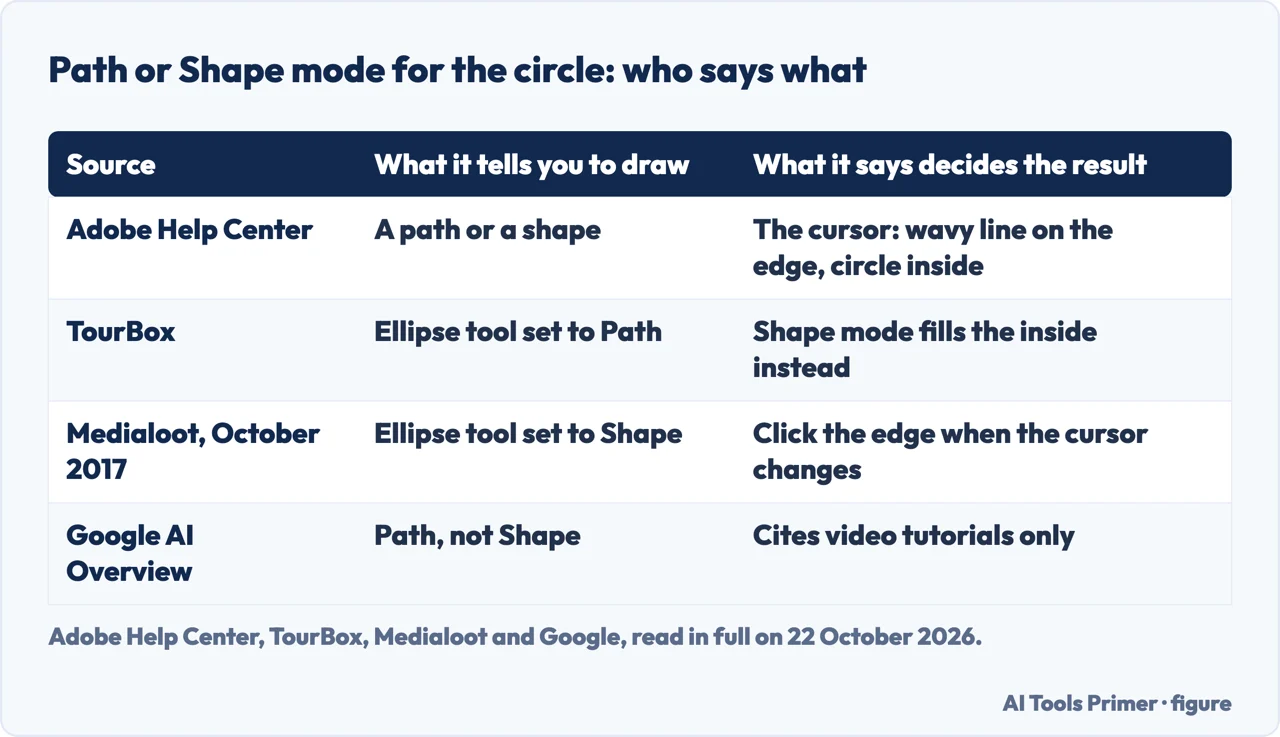
The text follows the direction in which the path’s anchor points were added. Where you click decides the rest: on the edge, with the wavy-line cursor, the text runs along it; inside a closed shape, with the cursor in a circle, the text fills the shape instead.
That is where the guides part ways. Adobe’s steps say a path or a shape. TourBox and Google’s AI Overview tell you to set the Ellipse tool to Path mode, because in Shape mode the text fills the inside. Medialoot draws its ellipse in Shape mode and clicks on the edge. Adobe’s own steps make the cursor the test: watch it before you click.
Once the text is on, the Path Selection or Direct Selection tool moves it. Drag along the path to change where it starts; drag across the path to flip it to the other side. To change the curve itself, Adobe says to select the text layer with the Direct Selection tool and drag an anchor point, and the text flows along the new shape. If the last words disappear, TourBox’s explanation is that the text is longer than the path: drag the end of the path further out. And if nothing shows at all after typing, TourBox’s answer is that the text was never committed: select the Commit button or press Enter.
All the way round, and the upside-down bottom half
One circle path gives one direction of reading. Text that runs along the top reads normally; carried on round the bottom, it is upside down. The fix is in an answer on Graphic Design Stack Exchange from June 2017:
- Type the top text on the circle and position it.
- Duplicate the shape layer and type the bottom text on the copy.
- With the Direct Selection tool, drag the bottom text to the inside of the circle, so it reads left to right.
- Select that text and change its baseline in the Character panel so it sits on the outside of the circle.
Dynamic Text, the newer route below, has a Circle preset with a text direction setting, and Adobe documents start and end points you can drag; its help pages do not say whether one circle can carry two lines that both read upright, so the two-path method is still the one written down.
Dynamic Text: the route the older tutorials miss
None of the readable results on Google’s first page mention it, but Adobe’s help now has a section on Dynamic Text in Photoshop on desktop, with pages updated on 18 and 28 August and 1 September 2026. It fits text to a shape or a path and resizes the letters as the words change. There are four presets:
- Block: text scales and reflows inside a rectangle.
- Circle: text follows a circular path between a start point and an end point.
- Arch: text follows an upward curve.
- Bow: text follows a downward curve.
To apply it, select the Type tool, select existing text or add new text, then select Dynamic Text in the Contextual Task Bar; Adobe adds that Type > Convert to Dynamic Text and the Options bar do the same. Pick the shape, then use the Dynamic Text section of the Properties panel: for Circle, Arch and Bow, it sets where the text sits on the path (above, centre or below) and which way it reads.
For a curve of your own there is Dynamic fit: draw a path with the Pen, Curvature Pen or a shape tool, put text on it, and select Dynamic fit. Adobe’s advice is to type or paste the final text first, so you see the real words before Photoshop resizes them. To change the stretch of path the text covers, hold Control and drag the start, middle or end markers, or drag the start and end with the Path Selection tool; the text resizes to the new span.
When no preset fits: Transform Warp and Convert to Shape
Adobe’s page on curved text gives a third way for free-form bends: convert the text layer with Layer > Smart Objects > Convert to Smart Object, then choose Edit > Transform > Warp and drag the grid. Adobe’s help for Transform Warp lists what the grid offers: preset styles in the Warp menu of the Options bar, grid sizes from 3x3 to 5x5 or custom, split lines, and numeric Bend values; Enter or Return applies it. Medialoot uses the same route as its third method, and TourBox adds that the warp then keeps the text editable.
The last resort is Type > Convert to Shape, which the top answer in the Reddit result also suggests before the warp, according to Google’s preview of a thread we could not open. Adobe is explicit that it permanently changes the text layer into a vector shape layer: you can then drag the anchor points of each letter, but you can no longer retype the words. Type > Create Work Path is the gentler version: it adds a path to the Paths panel and leaves the text layer as it was.
Photoshop on the web and on the iPad
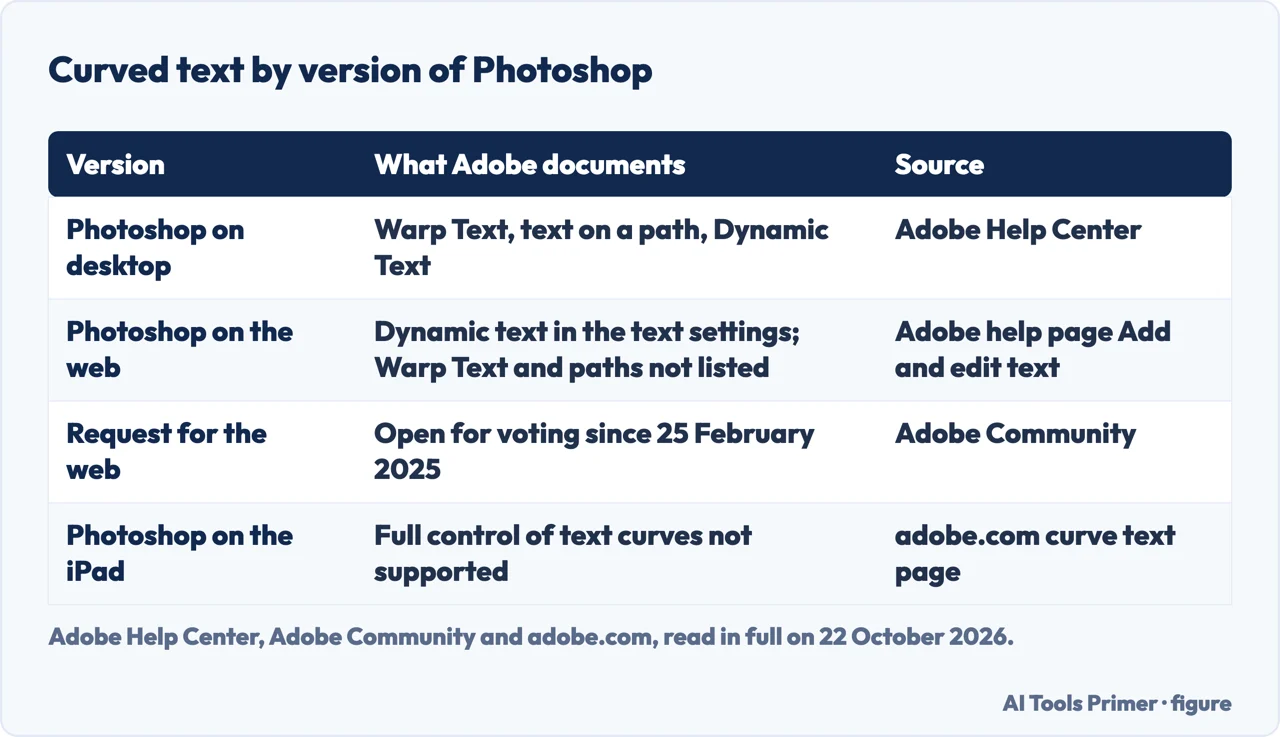
Everything above is documented for Photoshop on desktop. Adobe’s help page on adding and editing text in Photoshop on the web, updated on 24 June 2026, lists font, size, color and Dynamic text in the Contextual task bar, with leading, tracking and alignment under More options; it does not list Warp Text or text on a path. In the Adobe Community, a request to bring curved text to the web version, posted on 25 February 2025 by a Chromebook user, was still open for voting when we read it.
For the iPad, the answer on Adobe’s own curved-text page is that full control over editing Smart Objects and text curves is not supported on the iPad for now; Adobe adds that cloud documents with Smart Objects created on the iPad can be opened and edited.
Where to start
Six ways in.
- “I just want an arc.”
- Warp Text — warp
- “It has to follow my circle.”
- A path — path
- “The bottom half is upside down.”
- The circle — circle
- “The text should fill the curve.”
- Dynamic Text — dynamic
- “None of the presets fit.”
- Free shapes — free
- “I am in the browser or on an iPad.”
- Web and iPad — web ipad
Text in other programs
The same job in the other editors people already have open, each with its own menu and its own limits.
More on editing a picture
Other edits that start in the same program, and what happens to the file afterwards.
Questions people also ask
How do I create curved text in Photoshop?
For an arc, select the text and choose Type, then Warp Text, and pick Arc. For text that follows a circle or a curve you draw, make a path or shape, choose the Type tool, and click on its edge when the cursor shows a wavy line.
How do I freely warp text in Photoshop?
Convert the text layer to a Smart Object, then choose Edit, Transform, Warp, and drag the grid. The text stays editable inside the Smart Object. Type, then Convert to Shape also allows free editing, but it turns the words into shapes for good.
How do I put text in a round shape in Photoshop?
Draw a circle with the Ellipse tool, choose the Type tool and click on the edge to run text around it, or click inside the circle to fill it with text. Dynamic Text also has a Circle preset that resizes the words to fit.
How do I curve text in Photoshop without distortion?
Use a path instead of Warp Text. Adobe’s own page on curved text says the path method curves text without distorting it, because each letter keeps its shape and only follows the line.
Why is Warp Text greyed out in Photoshop?
TourBox’s answer is Faux Bold or Faux Italic: turn both off in the Character panel and try again. For a warp the presets cannot make, convert the text layer to a Smart Object and use Edit, Transform, Warp.
Can you curve text in Photoshop on the web or on an iPad?
Adobe’s help for Photoshop on the web lists Dynamic text among the text settings, but not Warp Text or text on a path. For the iPad, Adobe’s own page says full control over text curves is not supported for now.
Not covered here. We did not open Photoshop for this page. The steps credited to Adobe are from the Adobe Help Center and adobe.com, read on 22 October 2026; Faux Bold, the short path and the two-path circle come from TourBox, Medialoot and Graphic Design Stack Exchange, named in each section.
The Reddit threads in the results could not be read, and the videos, short videos and the Instagram reel were not watched.
The search volume and difficulty behind this page were read in Semrush on 29 August 2026.
Sources
- Adobe Help Center — Warp and unwarp text (Photoshop on desktop, updated 23 February 2026) — helpx.adobe.com, read 22 October 2026.
- Adobe Help Center — Add text along paths or inside shapes (updated 23 February 2026) — helpx.adobe.com, read 22 October 2026.
- Adobe Help Center — Flip or move text along a path — helpx.adobe.com, read 22 October 2026.
- Adobe Help Center — Modify text paths — helpx.adobe.com, read 22 October 2026.
- Adobe Help Center — Convert text to shapes or work paths — helpx.adobe.com, read 22 October 2026.
- Adobe Help Center — Dynamic Text in Photoshop on desktop (updated 28 August 2026) — helpx.adobe.com, read 22 October 2026.
- Adobe Help Center — Adjust formatting and resize text with Dynamic Text (updated 1 September 2026) — helpx.adobe.com, read 22 October 2026.
- Adobe Help Center — Reposition start and end points (updated 18 August 2026) — helpx.adobe.com, read 22 October 2026.
- Adobe Help Center — Reshape and distort images with Transform Warp — helpx.adobe.com, read 22 October 2026.
- Adobe Help Center — Add and edit text in Photoshop on the web (updated 24 June 2026) — helpx.adobe.com, read 22 October 2026.
- Adobe — How to curve text in Photoshop — www.adobe.com, read 22 October 2026.
- Adobe Community — P: Curved text in Photoshop web (posted 25 February 2025, open for voting) — community.adobe.com, read 22 October 2026.
- TourBox — How to Curve Text in Photoshop? (seller of a Photoshop controller) — www.tourboxtech.com, read 22 October 2026.
- Medialoot — Three Ways to Curve Text in Photoshop (19 October 2017) — medialoot.com, read 22 October 2026.
- Graphic Design Stack Exchange — How to write text on a path in photoshop? (answer of 25 June 2017) — graphicdesign.stackexchange.com, read 22 October 2026.
Written by Alberto Gulotta
Founder and editor of AI Tools Primer, writing from Palermo, Italy. Thirty-five years of taking computers apart, starting with a Commodore 64 — the long version is on the about page.
Something wrong on this page? Write to aitoolsprimer@gmail.com and it gets fixed.
Written on 22 October 2026.
Independence and limits
No affiliate links and no paid placements anywhere on this site. Nobody pays to appear here, and no company has seen this page before you did.
This is general information, not professional advice. Where a page touches money, health, safety or the law, it names its source and the date it was read — and your situation may still differ. See the privacy page and the cookie policy.