How to extract the text from an image: Windows, iPhone and Google Drive all do it already, and two of the three never send the picture anywhere. The web converters that fill this subject work too — but they need a copy of your document, which for a photographed letter or payslip is the one thing worth avoiding.
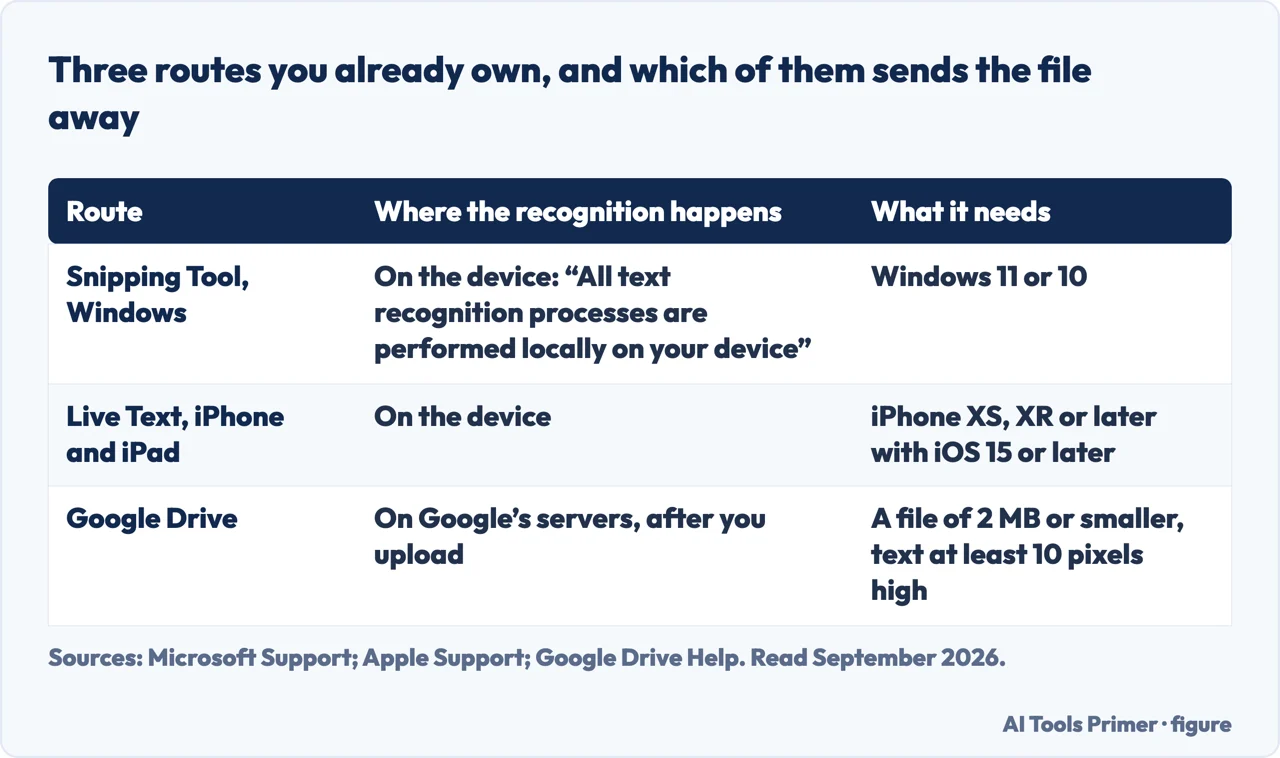
What each of the three built-in routes needs, and where the reading happens
Route
Where the text is read
What it needs
Source
Snipping Tool, Windows
On the device — “all text recognition processes are performed locally on your device”
Windows 11 or Windows 10
Microsoft
Live Text, iPhone and iPad
On the device
iPhone XS, iPhone XR or later with iOS 15 or later
Apple
Google Drive
On Google’s servers, after the file is uploaded
A file of 2 MB or smaller, with text “at least 10 pixels high”
Google
Any web converter
On somebody else’s server
A copy of your document, kept for as long as they say
—
Two of the three never send the picture anywhere. Figure drawn by AI Tools Primer.
“All text recognition processes are performed locally on your device.”
Microsoft, on the Snipping Tool’s text feature, read 22 August 2026. That single sentence is the
reason to start with the tools you already have. Every converter website works the other way
round: you hand it the document first and read the small print afterwards — and the images people need text out of are usually invoices — which have required fields worth checking — letters, contracts and forms, which is to say exactly the
documents you would not post to a stranger.
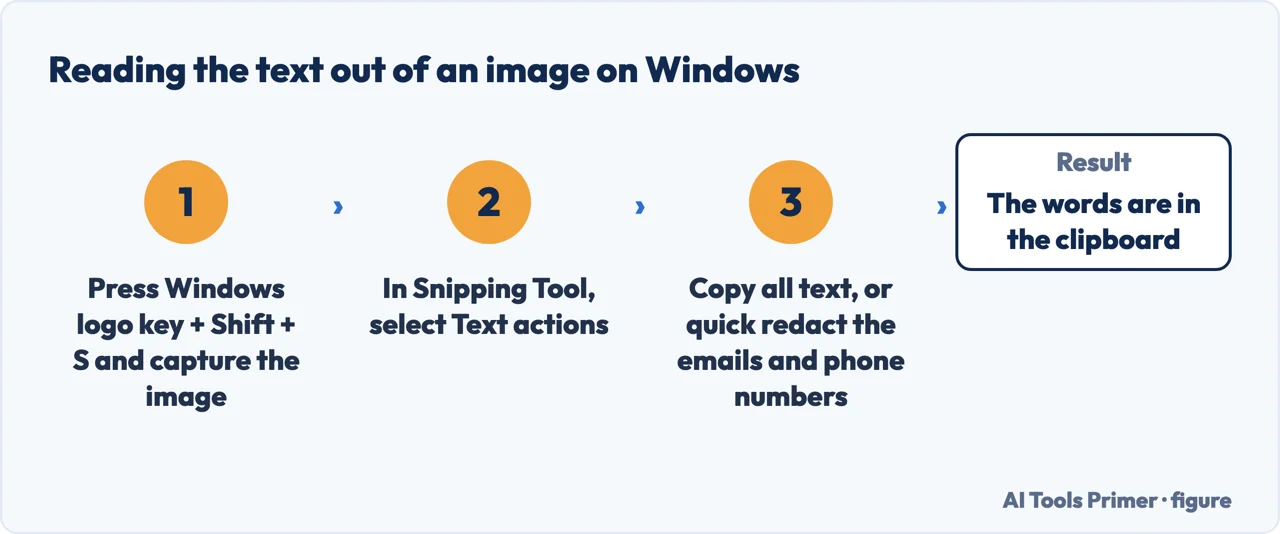
On Windows, capture the image first. Press ⊞ Win + Shift +
S and draw around the part you want. The capture opens in Snipping Tool.
Select Text actions. Microsoft: this activates “the Optical Character Recognition (OCR)
feature”, and from there you can “select and copy specific text or use the tools to Copy all
text”.
Redact before you copy, if the image holds anything personal. The same menu can
“Quick redact any email addresses or phone numbers in the snip”.
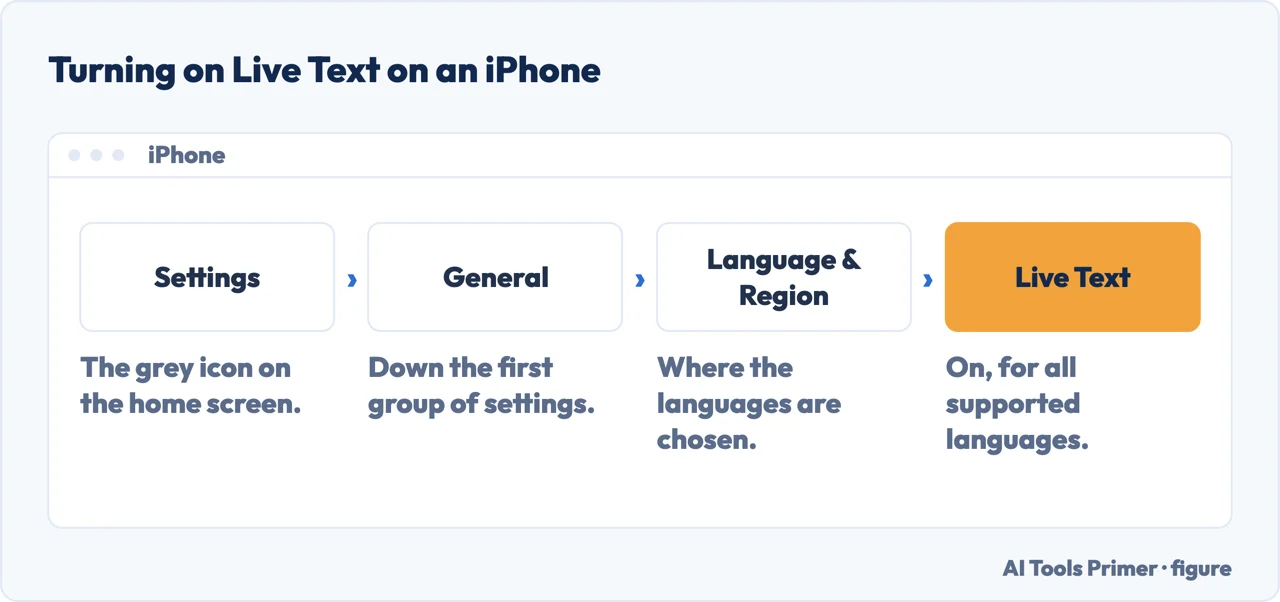
On an iPhone, turn on Live Text once. Settings › General › Language & Region ›
Live Text. Then open the photo, touch and hold a word, adjust the grab points, and tap Copy —
or Select All for the lot.
Use Google Drive only when the file is not private. Right-click the file in Drive and
choose Open with Google Docs. It works on PDFs as well as pictures, and the recognition happens
after the upload, on Google’s side.
The same tool that takes the screenshot also reads it. Figure drawn by AI Tools Primer.
The technology has a name — optical character recognition, OCR — and it stopped being specialist software some years ago. Windows ships it in the screenshot tool. Apple ships it in Photos and in the camera itself. Google runs it on anything you drop into Drive. None of these is a download, a trial, or a signup.
Windows — Snipping Tool
already installed · runs on the device
Capture the image, then select the Text actions button. Microsoft’s description: it
“to activate the Optical Character Recognition (OCR) feature… From here, you have the option to either select
and copy specific text or use the tools to Copy all text or to Quick redact any email
addresses or phone numbers in the snip”.
Quick redact is the part worth remembering. It blanks addresses and phone numbers before
you send the screenshot on — the opposite job, and one otherwise done by hand and badly.
iPhone and iPad — Live Text
built in · iOS 15 or later
Open the photo, touch and hold a word, drag the grab points, then tap Copy — or tap Select
All for the lot. It works in the Camera app too, so you can lift text off a page without taking a
photo at all.
If nothing happens, the switch is at Settings › General › Language & Region › Live
Text. Apple’s requirement is an iPhone XS or XR or later; text in video needs iOS 16
or later.
Anything else — Google Drive
free · the file is uploaded
Put the file in Drive, right-click it, then Open with › Google Docs. It handles multi-page
PDFs, which the other two do not, and Google says Drive detects the document’s language itself.
The trade is plain: this one does send your document to a server. For a scanned book
chapter that is nothing; for a payslip it is a decision.
One switch, and it only has to be found once. Figure drawn by AI Tools Primer.
Which one to reach for is decided by two questions, and neither of them is about accuracy — all three are good now. The first is whether the thing is on your screen or in your hand: if you can see it, the screenshot route is fastest. The second is whether the document is yours to share. That is what separates the local tools from the Drive route, and it is the question the converter sites never put to you.
What Google says will and will not survive
Quoted from Drive’s own documentation, because it is more honest than anything a
converter site will tell you.
Kept
“Bold, italics, font size, font type, and line breaks are likely to be retained.”
Lost
“Lists, tables, columns, footnotes, and endnotes are not likely to be detected.” If your image is a table, expect to rebuild it.
File size
“The file should be 2 MB or smaller.”
Text height
“Text should be at least 10 pixels high.” Small print in a wide photo often is not.
Orientation
“Documents must be right-side up.” Rotate before uploading, not after.
Typeface
“Use common fonts, such as Arial or Times New Roman.” Handwriting and display faces are where these tools fail.
The limits above are not Google being modest. They describe how OCR works everywhere, including in the paid tools. Recognition reads shapes in a line; it does not understand that four columns are four columns. So a page of running prose comes back almost perfect, and a table comes back as a stream of numbers in the wrong order. If your image is a table, the extraction is the easy half and the rebuilding is the work.
Always read the result against the original. OCR does not fail loudly. It substitutes: a 1 for an l, a 0 for an O, rn for m. The output looks clean and reads clean, and the error sits inside an account number where nothing about it looks wrong. Anywhere the text is a figure rather than a sentence — an amount, a reference, a date — check it by eye before you rely on it.
Every quoted line on this page comes from Microsoft’s, Apple’s and Google’s own documentation, read on 22 August 2026 and listed below. The argument for starting with what you already own, and the warning about silent substitutions, are ours.
How can I extract text from an image without uploading it?
On Windows, capture it with ⊞ Win + Shift + S and use Text actions in Snipping Tool — Microsoft states that “all text recognition processes are performed locally on your device”. On an iPhone, Live Text does the same from the Photos app.
Can a snipping tool do OCR?
Yes. The Snipping Tool in Windows 11 and Windows 10 has a Text actions button that Microsoft describes as activating “the Optical Character Recognition (OCR) feature”, with options to copy all the text or redact email addresses and phone numbers found in the capture.
Can I extract text from an image on my iPhone?
Yes, with Live Text: turn it on under Settings › General › Language & Region, then open the photo, touch and hold a word, move the grab points and tap Copy. Apple lists the requirement as “an iPhone XS, iPhone XR, or later with iOS 15 or later”.
Why does Google Drive lose my table when it converts a scan?
Because Google says up front what survives and what does not: “Bold, italics, font size, font type, and line breaks are likely to be retained”, while “lists, tables, columns, footnotes, and endnotes are not likely to be detected”. A table comes back as loose lines of text.
Not covered here. It will not send you to a converter site first. Three tools you already own do this, and one of them does it without the document going anywhere.
It will not claim OCR is solved. Tables, columns and handwriting still break it, and the documentation of the biggest provider says so in its own words.
And it will not skip the checking step. These tools substitute characters silently, which is fine in a paragraph and serious in an account number. What holds instead is simple: the settings and the limits above are Microsoft’s, Apple’s and Google’s own wording, read on the dates this page names.
Getting the material down
Four ways of getting the material down so you can work from it later.
Microsoft Support — Use Snipping Tool to capture screenshots, including Text actions, Copy all text, Quick redact and the note that recognition runs locally on the device — support.microsoft.com, read 22 August 2026.
Apple Support — Copy and translate text from photos on your iPhone or iPad, including the Live Text setting and the device and iOS requirements — support.apple.com, read 22 August 2026.
Google Drive Help — Convert PDF and photo files to text, including the file size, resolution, orientation and font requirements and what formatting survives — support.google.com, read 22 August 2026.
AG
Written by Alberto Gulotta
Founder and editor of AI Tools Primer, writing from Palermo, Italy. Thirty-five years of
taking computers apart, starting with a Commodore 64 — the long version is on the
about page.
Written on 22 August 2026 · last checked 23 September 2026.
§
Independence and limits
No affiliate links and no paid placements anywhere on this site. Nobody pays to appear here,
and no company has seen this page before you did.
This is general information, not professional advice. Where a page touches money, health,
safety or the law, it names its source and the date it was read — and your situation may
still differ. See the privacy page and the
cookie policy.