
Images · guide
Retouching a photo: removing an object or a blemish
By Alberto Gulotta · Updated · 19 min read
Retouching, in practice, means taking one distracting object or blemish out of a photo, and the shortest route starts with a tool already in hand: Clean Up on an iPhone or Mac, Magic Eraser in Google Photos or Canva, Generative erase on Windows, or Heal and Clone in GIMP, each free, each with its own device requirement, and one of them with a daily limit.
| Fact | Source |
|---|---|
| Clean Up requires iOS 18.1, iPadOS 18.1, or macOS Sequoia 15.1 or later | Apple |
| Apple says expanded access to its server-side photo-editing tools will be available for a fee in the future | Apple |
| On a Chromebook, Magic Eraser needs a Chromebook Plus running ChromeOS 118+ | |
| On-device processing for the Remove tool needs an RTX 30-series GPU with 14 GB of VRAM | Adobe |
| A Creative Cloud Single App plan now includes 25 generative credits a month, down from 500 | Adobe |
| Generative erase in Microsoft Photos runs locally, so your data never leaves your device | Microsoft |
What already removes an object or a blemish for free
In Photos on a Mac, two separate tools sit under Tools > Clean Up, and Apple documents them as two different jobs; on an iPhone or iPad, Apple’s guide describes Clean Up alone. Clean Up is, in Apple’s own words, “a feature powered by Apple Intelligence in the Photos app that can help remove distracting objects in a photo”, while the separate Retouch tool is for smaller repairs: Apple describes it as a way to “clean up blemishes, dust specks, and other small imperfections”. Clean Up needs iOS 18.1, iPadOS 18.1, or macOS Sequoia 15.1 or later (the EU minimum is 18.4/15.1), an Apple Intelligence-enabled device, and does not work on devices bought in mainland China; Retouch, Apple notes, cannot be used on a video, only a photo.
On Android, Google Photos’ Magic Eraser ships inside the Google Photos app, and Google’s page on Pixel features says Pixel users “can always use the full range of editing tools” — though the similarly named Audio Magic Eraser is a separate, video-only tool for muting background sound, not for removing objects from a photo. On the web, Google’s own help page for editing on a computer never mentions Magic Eraser at all, and instead tells people who cannot find an editing feature to switch to the Android or iOS app; several of the tools it does list there need at least 4 GB of device RAM.
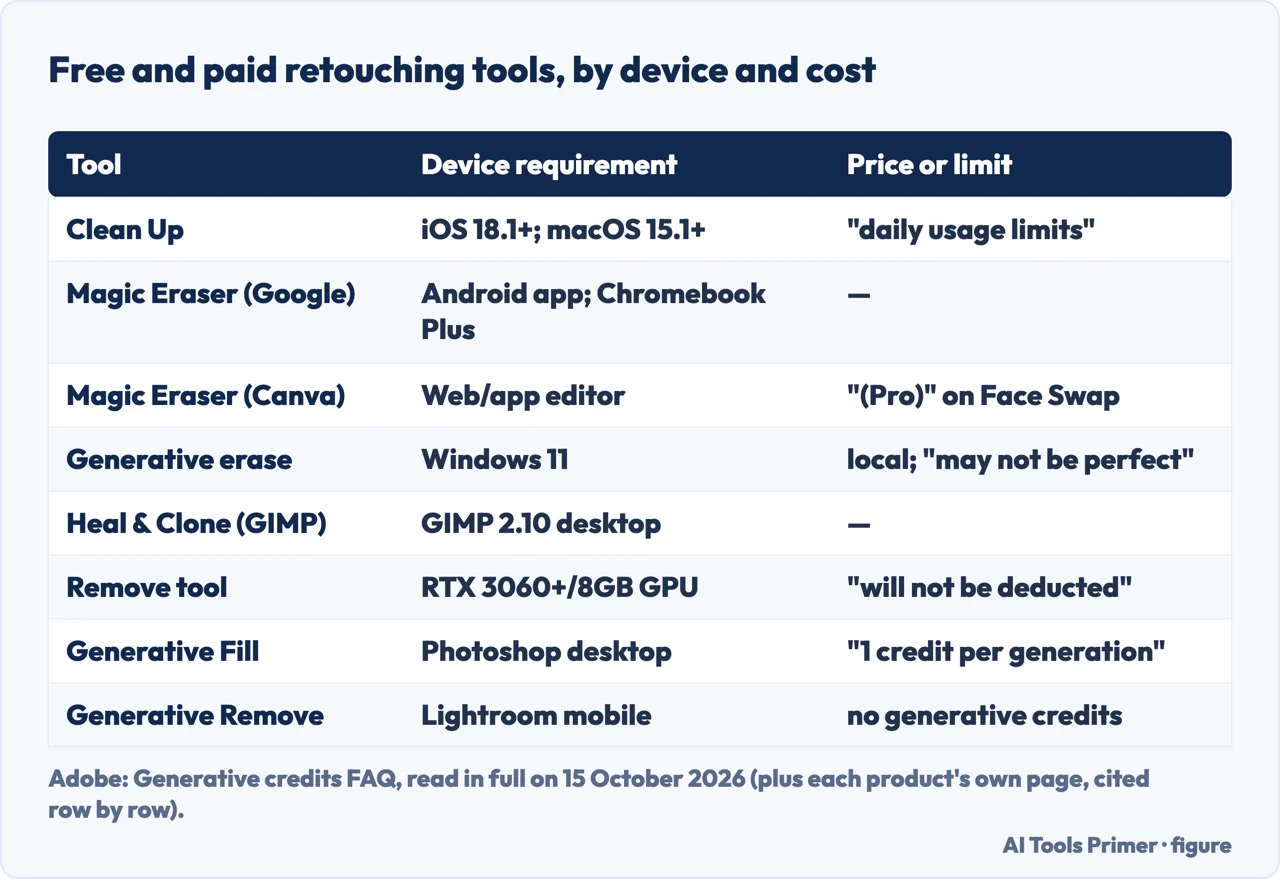
Canva puts the same idea behind one click: its own feature page describes the routine as “select the Magic Eraser tool from the photo editor, brush over the distraction, and watch it be auto-magically removed”, for “distractions or blemishes” that pull focus from the subject. On Windows 11, Microsoft’s Generative erase in the Photos app does the equivalent job on the desktop: Microsoft describes it as a way to “retouch photos to remove blemishes or unwanted parts”, processed locally so that, as the same page puts it, “your data never leaves your device”. The same page carries Microsoft’s own caveat: the feature “may not be perfect or what you expect”.
On any desktop running GIMP, two tools from the official manual cover the same ground without a device requirement beyond the program itself. The Heal tool is “a close relative to the Clone tool”, GIMP’s manual says, but better suited to “the removal of wrinkles in photographs” and similar small failures; the Clone tool copies from an existing image or a repeating pattern with the current brush, and — unlike cloning from a pattern — stops producing any change once the brush goes past the edge of the sampled image.
Clean Up in Photos, step by step
Apple’s own guide for iPhone, which applies to iOS 27 or later on an Apple Intelligence-enabled iPhone 15 Pro, 15 Pro Max or 16 or newer, lays out Clean Up as a short, repeatable sequence rather than a single button.
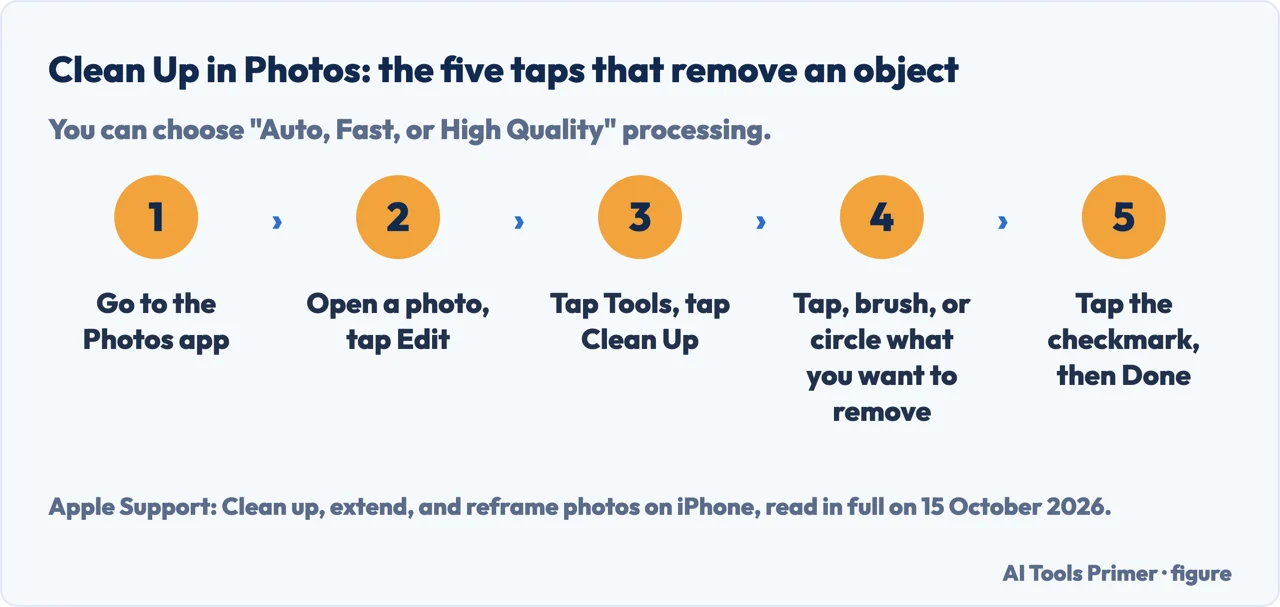
- Open a photo and tap Edit. Apple’s guide gives this as two separate steps: “Go to the Photos app on your iPhone.”, then “Open a photo, then tap Edit.”
- Tap Tools, then tap Clean Up. That opens the dedicated removal view described in the same guide.
- Tap, brush, or circle what to remove. Some distracting items, Apple says, “may be highlighted automatically” so they can be removed with a single tap rather than a careful brush stroke.
- Pick a processing mode. Apple lets a person choose “Auto, Fast, or High Quality” processing for the same edit, trading speed against result.
- Tap the checkmark, then Done. The edit can later be undone from the same menu by tapping Reset.
Clean Up is not unlimited. Apple’s own page on the next generation of Apple Intelligence, covering iOS/iPadOS/macOS 27, states that “certain Apple Intelligence features that rely on server-side models are subject to daily usage limits, including but not limited to… Intelligent Photo Editing Tools”, and adds that “expanded access to such features will be available for a fee in the future”. On a Mac, Clean Up and Retouch sit side by side under the same Tools > Clean Up menu, but Apple’s daily-limit language is written for the newer, Apple Intelligence-powered tools, not for the older, manual Retouch tool.
Magic Eraser: the brush behind the suggestion
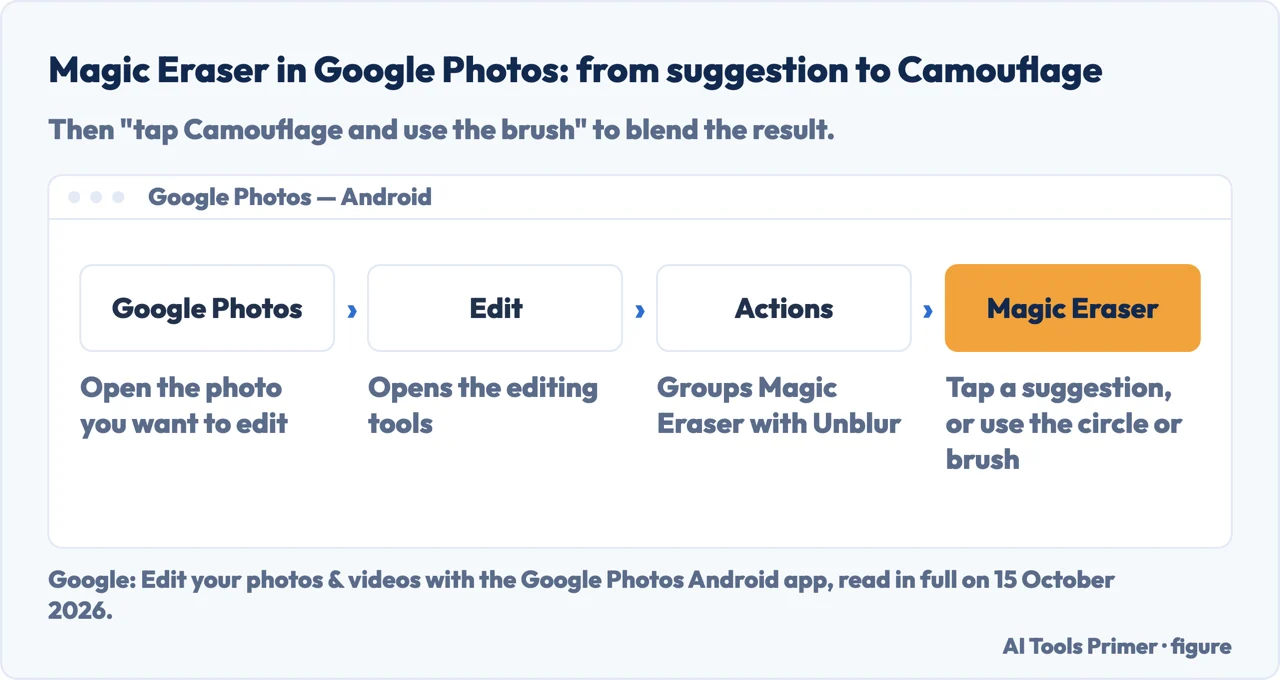
In the Google Photos Android app, Magic Eraser leads with a suggestion rather than a blank canvas: Google’s own guide says a person can “tap a suggestion” the app has already spotted, or “use the circle or brush to erase more distractions from the photo” themselves. A separate Camouflage option, applied with its own brush, is there, per the same guide, “to make objects blend in with the photo” once they are gone, and Google lets a person check the AI info recorded for any photo edited this way. The Chromebook route is narrower: Magic Eraser and the related Unblur tool are, in Google’s words, “only available for Chromebook Plus users”, and need ChromeOS 118 or later.
Canva’s own pages do not agree with each other on how to label the same tool. The feature page dedicated to Magic Eraser never calls it a Pro feature. The separate Face Swap feature page, listing a different tool it also offers, refers to it as “Magic Eraser (Pro)” in passing. Both pages are read in full for this page, and neither resolves the other: one names a tier the other does not mention. Canva’s help page for the tool, shown translated into Italian when opened from a non-English browser, adds one practical note worth keeping regardless of language: if an object does not come out cleanly the first time, the fix it suggests is erasing a slightly wider area around it, not switching tools.
Where the free tools now match the paid ones
Adobe’s own generative-credits FAQ lists, by name, which features in its paid apps do not draw on the generative-credit balance at all: the entry for Photoshop reads “Photoshop: Remove Tool”, and the entry for Lightroom reads “Lightroom: Generative Remove”. Adobe’s page for Photoshop on the web repeats the same point for that version specifically: “Generative credits will not be deducted for using the Remove tool.” Put together with the free tools above, that means the single most common retouching job — taking one object or blemish out of a photo — now has a free route on four platforms — Photos, Google Photos, Microsoft Photos and GIMP — a fifth in Canva if its own feature page rather than its Pro label is the one to believe, and a paid route in Photoshop and Lightroom that does not cost a credit either.
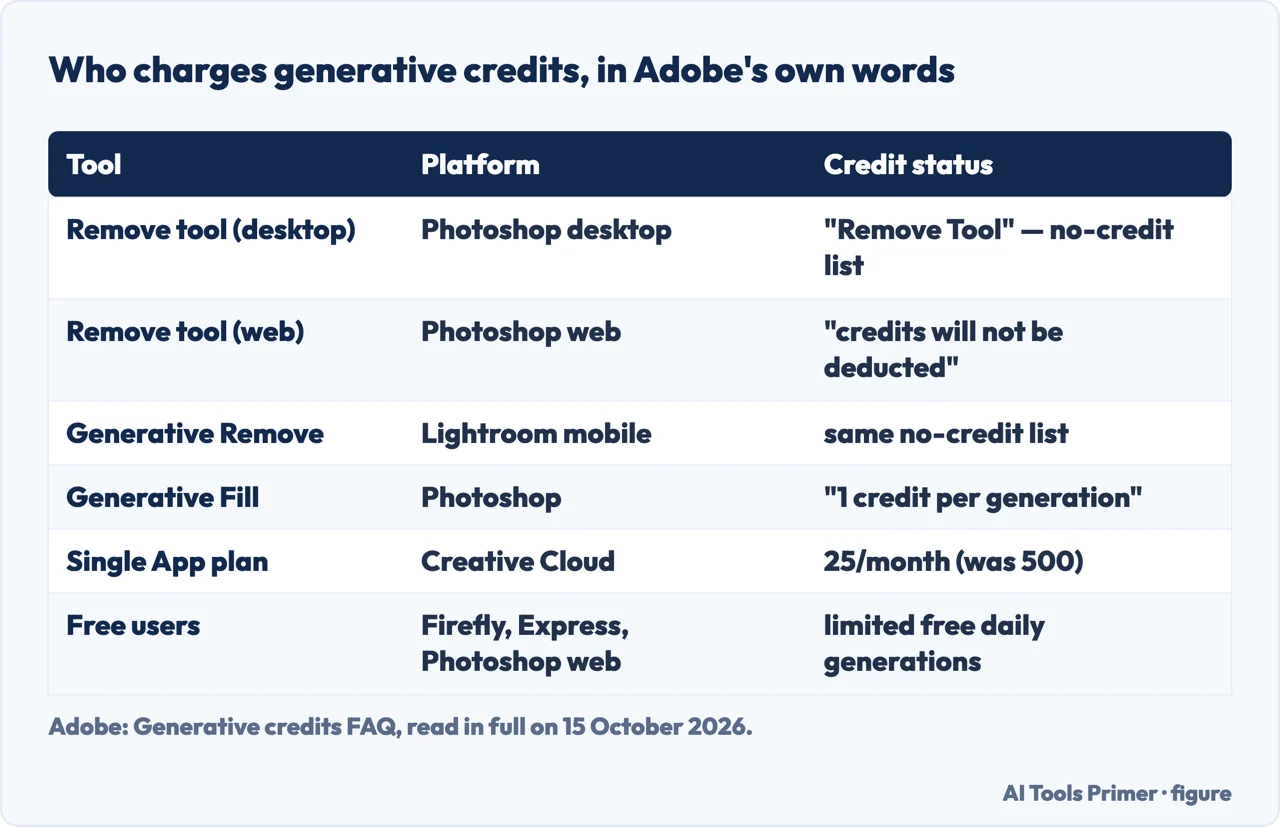
Generative Fill is where Adobe’s credits actually apply: its own FAQ says “most standard generative AI features, like Generative Fill using Adobe Firefly models in Photoshop, use 1 credit per generation”. A Creative Cloud Single App plan, which includes Photoshop, currently comes with 25 generative credits a month — Adobe’s own FAQ notes that figure was 500 before 17 June 2025. People without a paid plan are not shut out entirely: “free users… get a limited number of free daily generations” across Adobe’s apps, and running past the monthly allowance just means waiting for the reset or buying more through Firefly or a credit add-on, per Adobe’s own page for Photoshop.
Fstoppers, reviewing the older Clone Stamp tool rather than a credit-exempt one, makes a related point from the other direction: the Clone Stamp “does not spend any generative credits, so you can use it freely on client jobs or large batches where AI would rack up usage”, and using it “avoids any chance of your image being tagged as AI-assisted when all you did was clean up a few cracks or distractions”.
The paid tools: Photoshop and Lightroom
Photoshop’s Remove tool is not one fixed behaviour but a choice of three. Adobe’s own desktop guide describes Auto as the setting where “Photoshop automatically chooses the best processing method” and may use generative AI; a second setting switches generative AI on and lets a person “choose cloud or on-device processing”; a third turns generative AI off entirely, so the edit “does not use generative AI” at all. The on-device model, once downloaded, runs locally on the machine rather than in the cloud. A related “Find distractions” option can “detect and remove common distractions such as… people, and wires and cables” on its own.
That on-device option has its own hardware minimum. Adobe’s hardware-requirements page puts the general minimum GPU for the Remove tool at a discrete card such as an “NVidia RTX 3060 or higher, with at least 8 GB” of VRAM, and raises that specifically for on-device processing to “GeForce RTX 30-series or later with a minimum of 14 GB VRAM” — a noticeably higher bar than running the Remove tool against Adobe’s own servers.
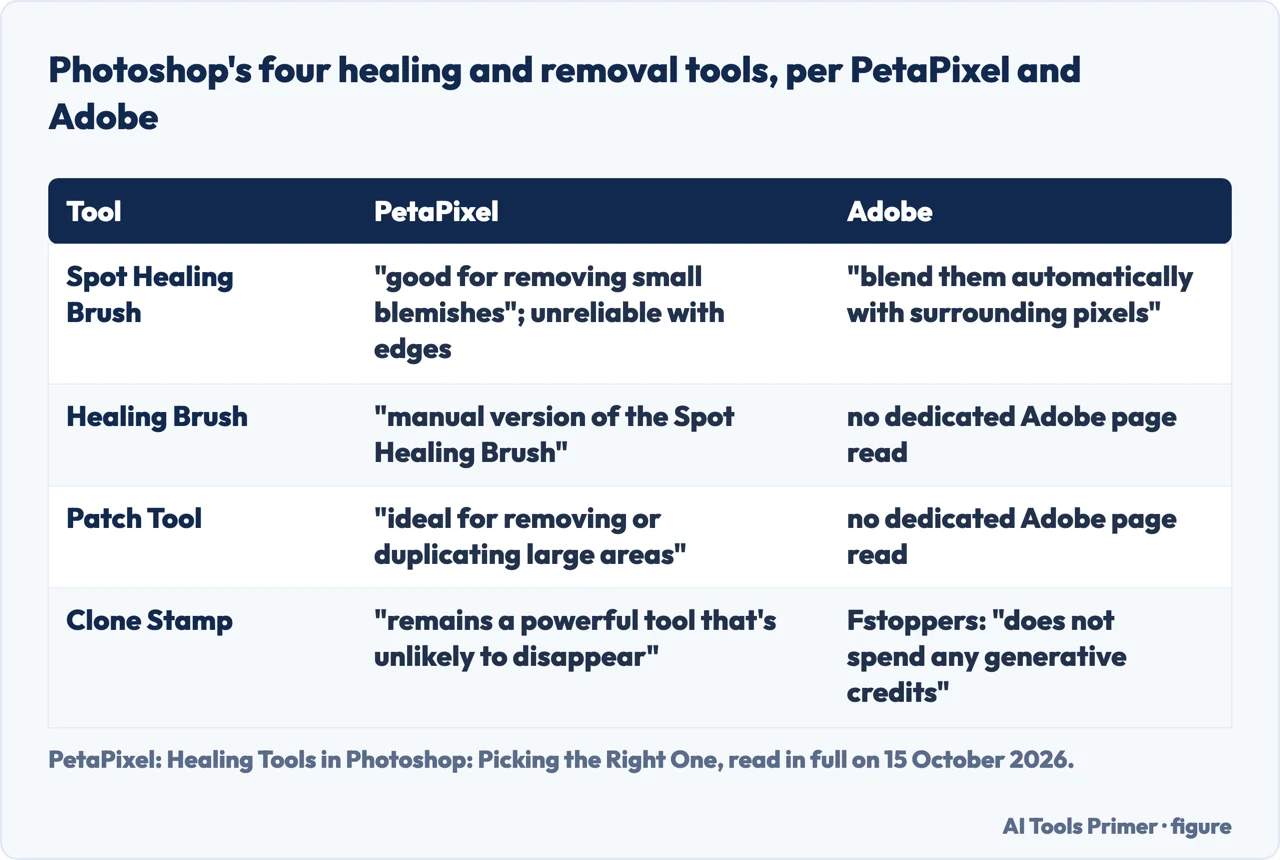
The Spot Healing Brush, Adobe’s older desktop tool, works differently again: it is built to “paint over blemishes and imperfections to blend them automatically with surrounding pixels”, and Adobe lists its common jobs as dust spots on scanned photos, skin blemishes in portraits, sensor dust marks, and small unwanted objects in product photography. For anything bigger or more complex, Adobe’s own page steers people elsewhere: “for larger areas or complex backgrounds, explore the Patch tool… or Generative Fill” instead.
On a phone, Lightroom mobile’s Remove tool asks for one decision up front: whether to “ensure the Generative AI toggle is enabled”. Switched on, the tool “fills removed areas with AI-generated content”; switched off, it falls back to a “Refresh” option that, Adobe says, “fills the area with a different source of content if the initial result doesn’t match well”.
PetaPixel’s own comparison of Photoshop’s healing and removal tools, read in full for this page, lines four of them up directly. It describes the Spot Healing Brush as “good for removing small blemishes in plain areas”, though unreliable with edges, and finds the Remove tool “better than the Spot Healing Brush at maintaining the integrity of edges, even in its non-AI form”, with a “Find Distractions” AI addition new to Photoshop 2025. It calls the Healing Brush “the manual version of the Spot Healing Brush”, better suited to larger areas, and the Patch tool “ideal for removing or duplicating large areas or objects” with its Source or Destination settings. Of the oldest tool on the list, PetaPixel’s own conclusion is that the newer Remove tool “steals part of the Clone Stamp’s usefulness, but it remains a powerful tool that’s unlikely to disappear”.
What changes when what you remove is a person
Every tool above is built to take out a dust speck, a cable, or a stranger at the edge of a frame, and none of the producer pages above treat that as a question with an answer attached. The University of Chicago’s Visual Resources Center, writing for academic use of images, puts the sharper version of the same question directly: “Could you edit or crop a photo to remove people from view?” is listed as one privacy consideration among several, alongside a non-editing alternative — “techniques like long-exposure, where the object remains still but the moving people appear blurry, can also help preserve privacy” by simply never recording a recognisable person in the first place.
The same guide does not hand over a rule, only a question to ask before publishing: it says a person has to “decide for yourself… if edits like removing people, cleaning up ‘imperfections’ on an object… changes the perception of the image or misleads the viewer”. A dust speck on a sweater and a person standing in the background are both, mechanically, something Clean Up or Magic Eraser can erase in one brush stroke; only one of them changes what a photograph is evidence of.
Where to start
Six ways in.
- “What already removes an object for free?”
- Start with what already removes an object for free
- “How do I actually use Clean Up?”
- The five taps are in clean up in photos step by step
- “What does Magic Eraser’s brush do?”
- Read magic eraser the brush behind the suggestion
- “Which paid tools skip the credits?”
- That is answered in where free tools now match the paid ones
- “What does Photoshop add that’s worth paying for?”
- Compare them in the paid tools photoshop and lightroom
- “Is removing a person different?”
- See the ethics of what you remove
Other things people do to a photo
Retouching takes one object out. These guides cover the jobs around it — the whole background, the whole frame, the whole picture.
What happens to the file afterwards
A retouched photo still has to be saved, and that raises two separate questions this page does not answer.
Questions people also ask
What is the meaning of retouching?
Retouching means making small changes to a picture or photograph, especially to improve it — the Cambridge Dictionary’s own definition. In photo editing today, it most often means removing one distracting object or blemish, not altering the whole scene.
Is it retouch or re touch?
One word: retouch. The Cambridge Dictionary’s headword is the single word retouch, and Wikipedia’s Photograph manipulation entry writes retouching as one word throughout; re touch written as two words is not the dictionary spelling.
What is retouching in editing?
In editing software, retouching usually targets one object or blemish rather than a full edit: Apple’s Clean Up, Google’s and Canva’s Magic Eraser, Microsoft’s Generative erase and GIMP’s Heal and Clone tools are all built for exactly that single job, each on its own device.
How do you retouch photos?
Start with a tool already in hand: in Photos, tap Edit, Tools, Clean Up, then brush over the object; in Google Photos or Canva, tap Magic Eraser. For more control, Photoshop’s Remove tool and Spot Healing Brush, or GIMP’s Heal and Clone tools, work area by area.
Not covered here. It does not cover removing a whole background rather than one object, which belongs to removing a background, or a photo that looks wrong for every object in it at once, which is fixing pixelated photos. Cropping and resizing are different jobs again, covered in cropping on a Mac and resizing on an iPhone; what a saved file still carries, and what it weighs, are answered in metadata in photos and reducing file size. Paid retouching services, which fill most of the search results for the word, are not covered here either: this page is about doing the job yourself. What holds instead is simple: every tool above is quoted from its own maker’s page, read in full, never from a guess at what it probably does.
Sources
- Apple Support — Requirements to use Clean Up in Photos: the device, OS and regional limits on Clean Up — support.apple.com, read 15 October 2026.
- Apple Support — Clean up, extend, and reframe photos on iPhone: the exact five-tap sequence and the three processing modes — support.apple.com, read 15 October 2026.
- Apple Support — Remove distractions and imperfections from your photos on Mac: the separate Clean Up and Retouch tools on Mac — support.apple.com, read 15 October 2026.
- Apple Support — How to get the next generation of Apple Intelligence: the daily usage limits on server-side photo-editing tools and the future paid tier — support.apple.com, read 15 October 2026.
- Google — Edit your photos, Computer, Google Photos Help: what the web editor leaves out and the 4 GB RAM note — support.google.com, read 15 October 2026.
- Google — Edit your photos & videos with the Google Photos Android app: Magic Eraser’s suggestion, circle/brush and Camouflage steps, and the Chromebook Plus requirement — support.google.com, read 15 October 2026.
- Google — About Google Photos features for Pixel devices: the Pixel-exclusive feature set and Audio Magic Eraser’s video-only scope — support.google.com, read 15 October 2026.
- Adobe — Remove objects from images in Photoshop: the Remove tool’s three modes and Find Distractions — helpx.adobe.com, read 15 October 2026.
- Adobe — Remove objects from photos, Photoshop on the web: the Remove tool not deducting generative credits on the web — helpx.adobe.com, read 15 October 2026.
- Adobe — Remove tool hardware requirements: the general and on-device GPU and VRAM minimums — helpx.adobe.com, read 15 October 2026.
- Adobe — Remove spots with Spot Healing Brush in Photoshop on desktop: what the tool is for and when Adobe recommends something else — helpx.adobe.com, read 15 October 2026.
- Adobe — Generative credits FAQ: which features are exempt from credits, Generative Fill’s cost, and the Single App plan’s credit allowance — helpx.adobe.com, read 15 October 2026.
- Adobe — Generative credits access and use, Photoshop: what happens after the monthly allowance runs out — helpx.adobe.com, read 15 October 2026.
- Adobe — Remove objects with Generative AI in Lightroom: the Generative AI toggle and the Refresh fallback in Lightroom mobile — helpx.adobe.com, read 15 October 2026.
- GIMP documentation — 3.13. Heal: what the Heal tool is for and how it differs from Clone — docs.gimp.org, read 15 October 2026.
- GIMP documentation — 3.12. Clone: how the Clone tool samples from an image or a pattern — docs.gimp.org, read 15 October 2026.
- Canva — Magic Eraser: Erase clutter on photos with one click: the tool’s own feature page, without a Pro label — www.canva.com, read 15 October 2026.
- Canva — Face swap: Transform faces in a few clicks: the same tool labelled “Magic Eraser (Pro)” on a different feature page — www.canva.com, read 15 October 2026.
- Canva — Erase or retouch photos (help page, shown machine-translated into Italian when opened from a non-English browser): the operating steps and its own troubleshooting note — www.canva.com, read 15 October 2026.
- Microsoft Support — Edit photos and videos in Windows: Generative erase, its local processing and its own accuracy warning — support.microsoft.com, read 15 October 2026.
- Visual Resources Center, University of Chicago — Ethical Considerations for Images: the privacy question on removing people and the long-exposure alternative — vrc.uchicago.edu, read 15 October 2026.
- PetaPixel — Healing Tools in Photoshop: Picking the Right One: the independent comparison of four Photoshop healing and removal tools — petapixel.com, read 15 October 2026.
- Fstoppers — Clone Stamp in Photoshop: Remove Distractions: the Clone Stamp’s credit-free status, as an independent publication, declared where it is used — fstoppers.com, read 15 October 2026.
- Cambridge Dictionary — RETOUCHING | definition in the Cambridge English Dictionary: the lexical definition and spelling of “retouch” — dictionary.cambridge.org, read 15 October 2026.
- Wikipedia — Photograph manipulation: the same word’s spelling and the history of retouching before digital tools existed — en.wikipedia.org, read 15 October 2026.
Written by Alberto Gulotta
Founder and editor of AI Tools Primer, writing from Palermo, Italy. Thirty-five years of taking computers apart, starting with a Commodore 64 — the long version is on the about page.
Something wrong on this page? Write to aitoolsprimer@gmail.com and it gets fixed.
Written on 15 October 2026.
Independence and limits
No affiliate links and no paid placements anywhere on this site. Nobody pays to appear here, and no company has seen this page before you did.
This is general information, not professional advice. Where a page touches money, health, safety or the law, it names its source and the date it was read — and your situation may still differ. See the privacy page and the cookie policy.