
Docs · guide
How to curve text in PowerPoint with Transform
By Alberto Gulotta · Updated · 11 min read
How to curve text in PowerPoint is one menu deep: select the text, open Shape Format, then Text Effects, then Transform, and pick a curve under Follow Path. Microsoft documents it for WordArt and for an ordinary text box alike, on Windows and on a Mac.
What the menu does not say is where it stops: in a browser you cannot add it, a circle needs room to close, straight sides take one object each, and waves are not there at all. The rest of this page is those edges, each with the source that draws it.
| Question | Answer | Who says so |
|---|---|---|
| Where is it? | Shape Format, Text Effects, Transform | Microsoft Support |
| WordArt only? | No: Text Effects also works on a regular text box | Microsoft Support |
| Windows and Mac? | The same path on both | Microsoft Support |
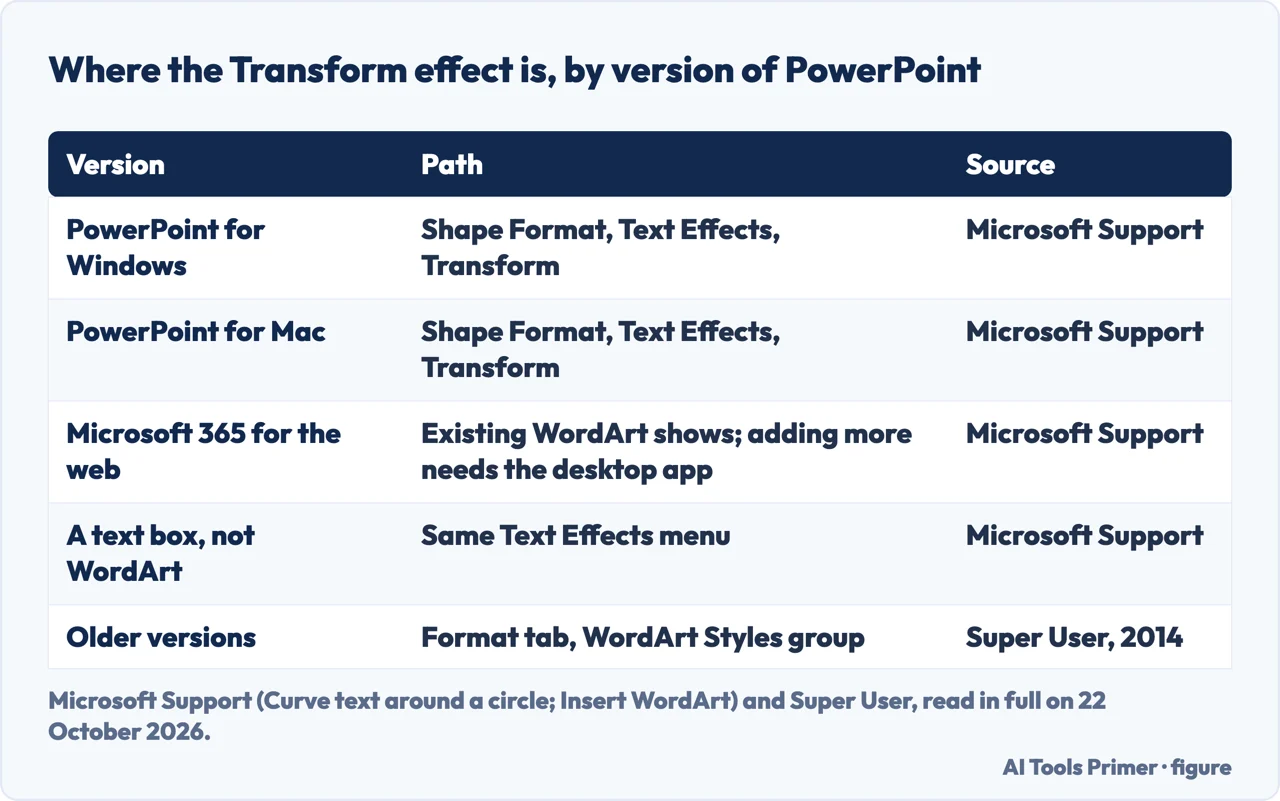
| In a browser? | Existing WordArt shows; adding more needs the desktop app | Microsoft Support |
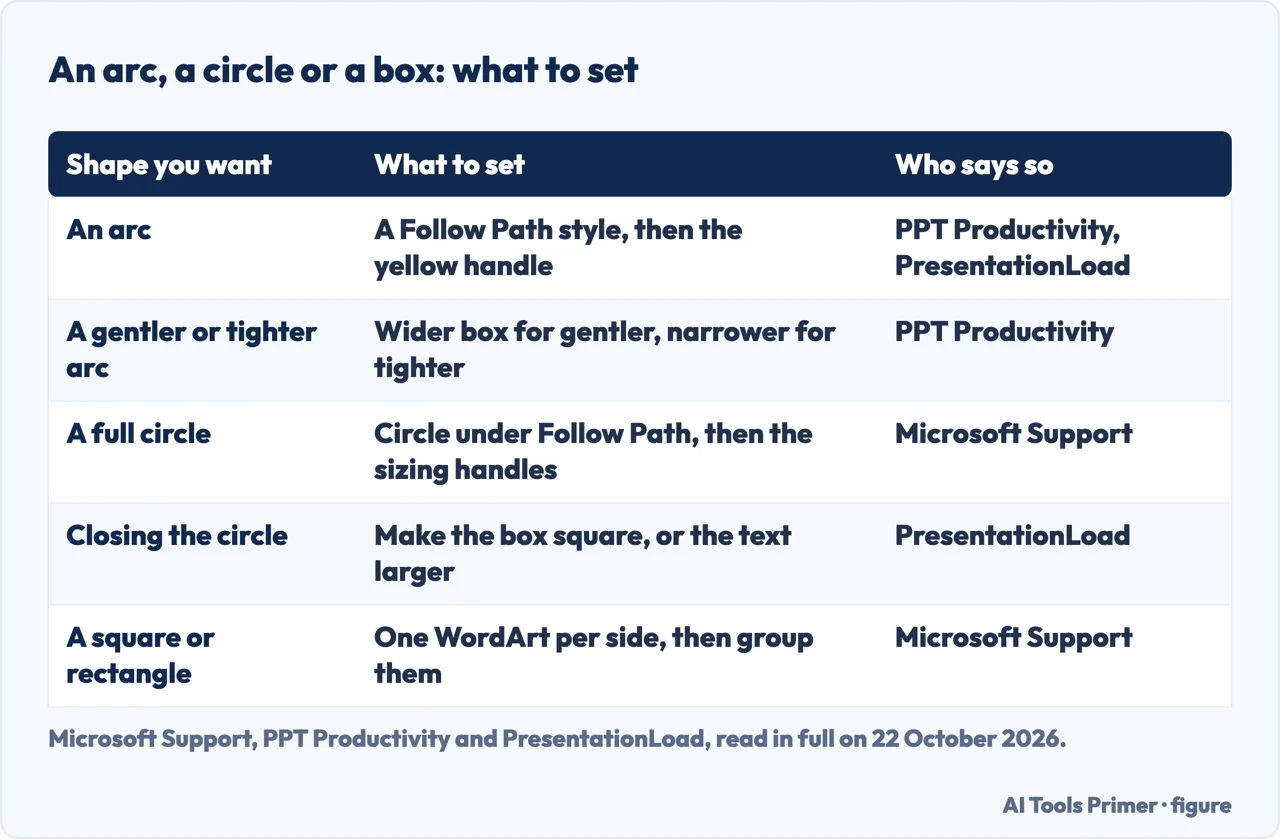
| A full circle? | Circle under Follow Path, then the sizing handles | Microsoft Support |
| Waves or a funnel outline? | No built-in way | Microsoft Q&A answer, 2024 |
The steps, on Windows and on a Mac
Microsoft’s article on curving text gives the same route for PowerPoint, Word and Excel, starting from WordArt:
- On the Insert tab, select WordArt and pick a style. Microsoft notes that the icon sits in the Text group and may look different depending on the version and the size of your screen.
- Replace the placeholder text with your own.
- Select the WordArt.
- On the Shape Format tab, select Text Effects, choose Transform, and pick the look you want.
The macOS tab of the same article prints the same four steps. Two details sit around them. First, WordArt is not required: Microsoft’s note at the end of the article says Text Effects works with WordArt or a regular text box, so text already on a slide can be curved where it is. PPT Productivity, a maker of PowerPoint add-ins, adds that for a plain text box on Windows the tab may be called Format rather than Shape Format.
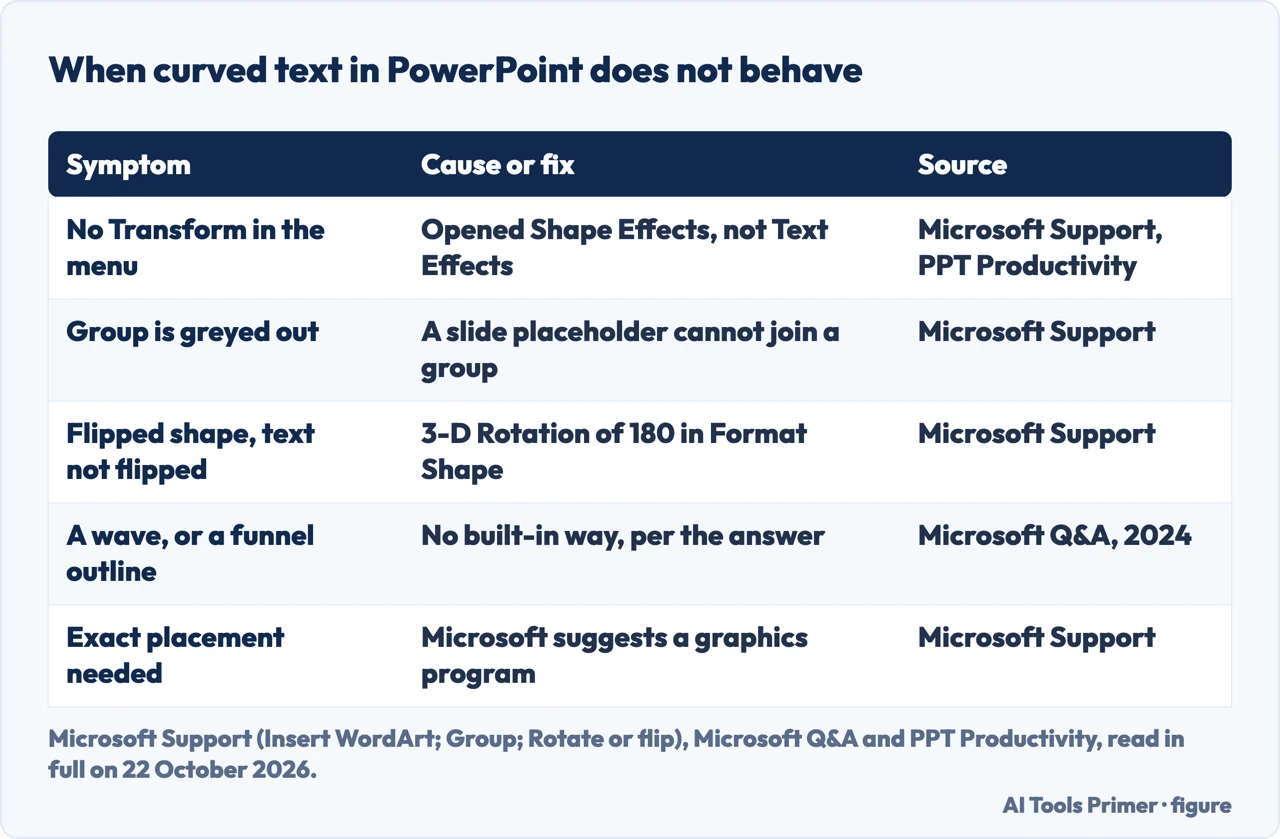
Second, Text Effects is in the WordArt Styles group, not with the shape options next to it. Microsoft’s page on WordArt warns that shape styles and effects change the box around the text, not the text, and that if Transform is not at the bottom of the menu, you probably opened something other than Text Effects. That is the question asked on Super User in 2014, from someone who could not find Transform at all; the reply in the comments points to the WordArt Styles group.
PowerPoint in a browser, and on the phone
Microsoft’s Insert WordArt page has a Web tab, and it is short: in Microsoft 365 for the web you can see WordArt that is already in a document, presentation or worksheet, but to add more you need the desktop version of Word, PowerPoint or Excel. What the browser offers instead is the Font group on the Home tab: color, size, bold, italics and underline.
So WordArt curved on a desktop still shows when a colleague opens the deck in a browser, and, per Microsoft, adding WordArt needs the desktop version. The page does not say whether a plain text box in the browser offers Transform, and we did not check. The searches people run next, for the mobile app and for PowerPoint online, are the same question; none of the pages read for this page documents a Transform option on the phone.
Getting the arc you meant
The Transform menu groups its curves under Follow Path. Microsoft names Circle; PPT Productivity lists the row as Arch Up, Arch Down, Circle and Button, and that is also the row to use for the people who search for how to arch text in PowerPoint. Once a style is on, three controls decide how it looks:
- The yellow handle. A small yellow dot appears on the edge of the box. PPT Productivity says dragging it tightens or flattens the curve; PresentationLoad says it sets how far along the curve the text stretches.
- The width of the box. PPT Productivity: a wider text box makes a gentler curve, a narrower one a tighter arc.
- Size and spacing. Microsoft’s WordArt page sends you to the Font group on the Home tab for size and style; PPT Productivity adds character spacing from the same place, for letters that overlap on a tight curve.
PresentationLoad also suggests centering the text before you bend it, with Ctrl+E or the center button in the Paragraph group.
All the way round a circle
Microsoft calls this a little bit more work, and its instructions are two lines: on the Shape Format tab select Text Effects, choose Transform, select Circle under Follow Path, and drag any of the sizing handles until the WordArt is the size and shape you want.
The text does not close the circle by itself. PresentationLoad’s advice is to make the box as tall as it is wide first, so the text has room for a complete ring, and if it is still not long enough, to increase the font size until the circle closes.
PPT Productivity describes a second route for badges and seals: draw an oval from Insert, Shapes (hold Shift for a true circle), right-click it, choose Add Text, and apply the same Follow Path style to the shape. The text then curves with the shape that holds it.
Straight sides, groups and angles
Transform bends text along curves. For a shape with straight edges, such as a rectangle, Microsoft’s method is one WordArt object per edge: its example inserts WordArt four times, one for each side. PresentationLoad notes the same gap: no option wraps text round corners, so you make a separate text field for each side.
Several pieces then need to move as one. Microsoft’s steps: press and hold Ctrl (Command on a Mac) while you select the objects, then on the Shape Format tab select Group and choose Group again. If the Group button is grey, Microsoft lists the usual reasons, and one is specific to PowerPoint: the selection includes a slide placeholder, the “Click to add title” or “Click to add text” box, which cannot be grouped with shapes.
For the angle, Microsoft points to the rotation handle at the top of the object. Holding Shift while dragging it limits the rotation to 15-degree steps; for an exact figure, Rotate in the Arrange group, then More Rotation Options, takes a number of degrees.
When the shape flips and the text does not
Flipping is the other half of the Rotate menu, and Microsoft documents a catch: when you rotate an object the text rotates with it, but the text in a flipped object is not flipped. Its fix for PowerPoint, Excel and Outlook:
- Right-click the object and choose Format Shape.
- Under Shape Options, select Effects.
- Under 3-D Rotation, type 180 in one of the X, Y or Z boxes, depending on the direction you want.
Microsoft adds two side effects: the fill color may change, and the text shows its original orientation while you edit it, returning to the reversed look when you click outside.
What PowerPoint does not do
Beyond the Transform presets, the sources point elsewhere. Asked in 2024 whether PowerPoint could set text along a wave or fit it into a funnel or a box, the answer on Microsoft Q&A, a thread migrated from the community, was that PowerPoint does not have native capabilities for that, and that feature requests go through the program’s feedback button.
Microsoft’s own article reaches the same limit from the other side: for very precise control, or a complex combination of shapes and text, it suggests making the text in a third-party drawing or graphics program and pasting it into the Office document.
If the curve is going to move, PresentationLoad, which sells PowerPoint templates, names the animations it says suit the round shape, Shape, Zoom and Wheel among them, and advises against Object Color.
Where to start
Five ways in.
- “I cannot find Transform.”
- The steps — steps
- “I am using PowerPoint online.”
- The browser — web
- “It will not close into a circle.”
- A circle — circle
- “Group is greyed out.”
- Groups — group
- “My text came out mirrored.”
- Flipping — flip
More on PowerPoint
The same program, the decisions that come after the slide looks right.
Text in other programs
Text that has to sit somewhere other than a straight line, in the editors people already have open.
Questions people also ask
How do I make text curved in PowerPoint?
Select the text box or WordArt, go to Shape Format, then Text Effects, then Transform, and choose a style under Follow Path. Microsoft documents the same path on Windows and on a Mac.
How do I arch text in PowerPoint?
Use the same Transform menu and pick an arch from the Follow Path row; PPT Productivity names Arch Up and Arch Down. Drag the yellow handle, or change the width of the box, to make the arch tighter or gentler.
Can I curve text in PowerPoint online?
Not a new one. Microsoft says Microsoft 365 for the web shows WordArt already in a presentation, but adding more needs the desktop app.
How do I put text around a circle in PowerPoint?
Choose Circle under Follow Path and drag the sizing handles. PresentationLoad advises making the box as tall as it is wide, or the font larger, until the ring closes.
Not covered here. We did not open PowerPoint for this page. The steps credited to Microsoft are from four Microsoft Support articles read on 22 October 2026; the yellow handle, the box width and the advice for a closed circle are from PPT Productivity and PresentationLoad, both of which sell PowerPoint products.
The Reddit thread and the videos in the results were not read or watched, and no source we read covers the phone app.
The search volume and difficulty behind this page were read in Semrush on 29 August 2026.
Sources
- Microsoft Support — Curve text around a circle or other shape — support.microsoft.com, read 22 October 2026.
- Microsoft Support — Insert WordArt — support.microsoft.com, read 22 October 2026.
- Microsoft Support — Group or ungroup shapes, pictures, or other objects — support.microsoft.com, read 22 October 2026.
- Microsoft Support — Rotate or flip a text box, shape, WordArt, or picture — support.microsoft.com, read 22 October 2026.
- Microsoft Q&A — Curve Text in Power Point (March 2024, migrated from the Microsoft Support Community) — learn.microsoft.com, read 22 October 2026.
- Super User — Using PowerPoint, how do I curve text to bend with the circumference of a sphere? (March 2014) — superuser.com, read 22 October 2026.
- PPT Productivity — How to Curve Text in PowerPoint (WordArt & Transform), updated 15 September 2026 — pptproductivity.com, read 22 October 2026.
- PresentationLoad — How to bend PowerPoint text — presentationload.com, read 22 October 2026.
Written by Alberto Gulotta
Founder and editor of AI Tools Primer, writing from Palermo, Italy. Thirty-five years of taking computers apart, starting with a Commodore 64 — the long version is on the about page.
Something wrong on this page? Write to aitoolsprimer@gmail.com and it gets fixed.
Written on 22 October 2026.
Independence and limits
No affiliate links and no paid placements anywhere on this site. Nobody pays to appear here, and no company has seen this page before you did.
This is general information, not professional advice. Where a page touches money, health, safety or the law, it names its source and the date it was read — and your situation may still differ. See the privacy page and the cookie policy.