
Docs · guide
How to double space in Google Docs, on a computer or a phone
By Alberto Gulotta · Updated · 16 min read
How to double space in Google Docs: select the text, open Format › Line & paragraph spacing and click Double, or use the toolbar button of the same name. That is Google’s route on a computer. In the app, Google puts Line spacing under Format on Android and under Format › Paragraph on an iPhone or iPad.
| Where | What Google prints | Page read |
|---|---|---|
| On a computer | Format › Line & paragraph spacing, or the toolbar button of the same name; then Single, 1.15, 1.5 or Double | Change how paragraphs & fonts look, Computer tab |
| On Android | Format, then - or + next to Line spacing | The same page, Android tab |
| On iPhone and iPad | Format › Paragraph, then the arrows next to Line spacing | The same page, iPhone & iPad tab |
| Space between paragraphs | Remove space before paragraph, Add space after paragraph, Custom spacing: in the same menu, on the Computer tab only | Change how paragraphs & fonts look, Computer tab |
| Keyboard | No line-spacing shortcut on any of the three tabs | Keyboard shortcuts for Google Docs, all three tabs |
| New documents | Format › Paragraph styles › Options › Save as my default styles; the page names fonts, not spacing | Add a title, heading, or table of contents, Computer tab |
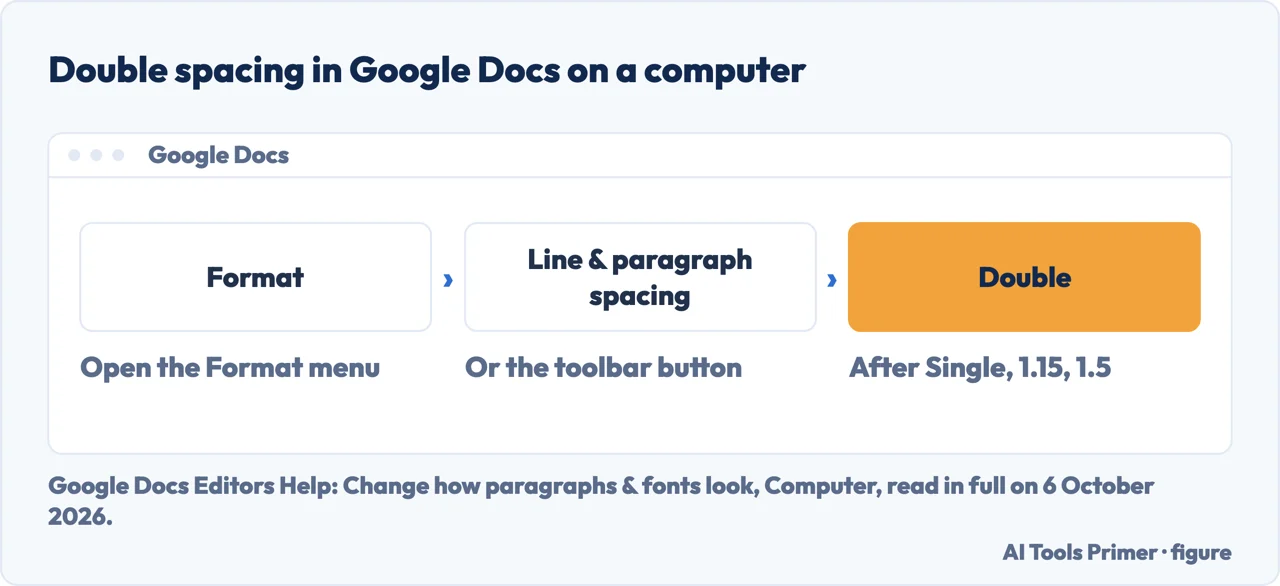
- Select what you want double spaced. Google’s first step on the Computer tab of its page Change how paragraphs & fonts look is to go to the paragraph you want to change, or to select several. For the whole document, Select all is Ctrl+A on Windows and Chrome OS and ⌘+A on a Mac, in Google’s list of keyboard shortcuts.
- Open Format › Line & paragraph spacing. The same page gives a second way in: the Line & paragraph spacing button in the toolbar, which it places at the upper right. Google’s Learning Center, in its tour of the toolbar, lists a control to change the line spacing or add a checklist, bullets or numbers.
- Click Double. Google lists four choices in this order: Single, 1.15, 1.5 and Double. Its sentence reads “To change your paragraph spacing, click Single, 1.15, 1.5, or Double.”, while the steps on its two app tabs call the same setting the space between the lines in the paragraph.
- Then look at the gaps between paragraphs. They are a separate setting in the same menu, covered in the next section. Double spacing does not remove a gap someone added there, and it does not remove empty paragraphs typed with Enter: that reading is ours, from the menu keeping the two apart.
Lines and paragraphs are two settings
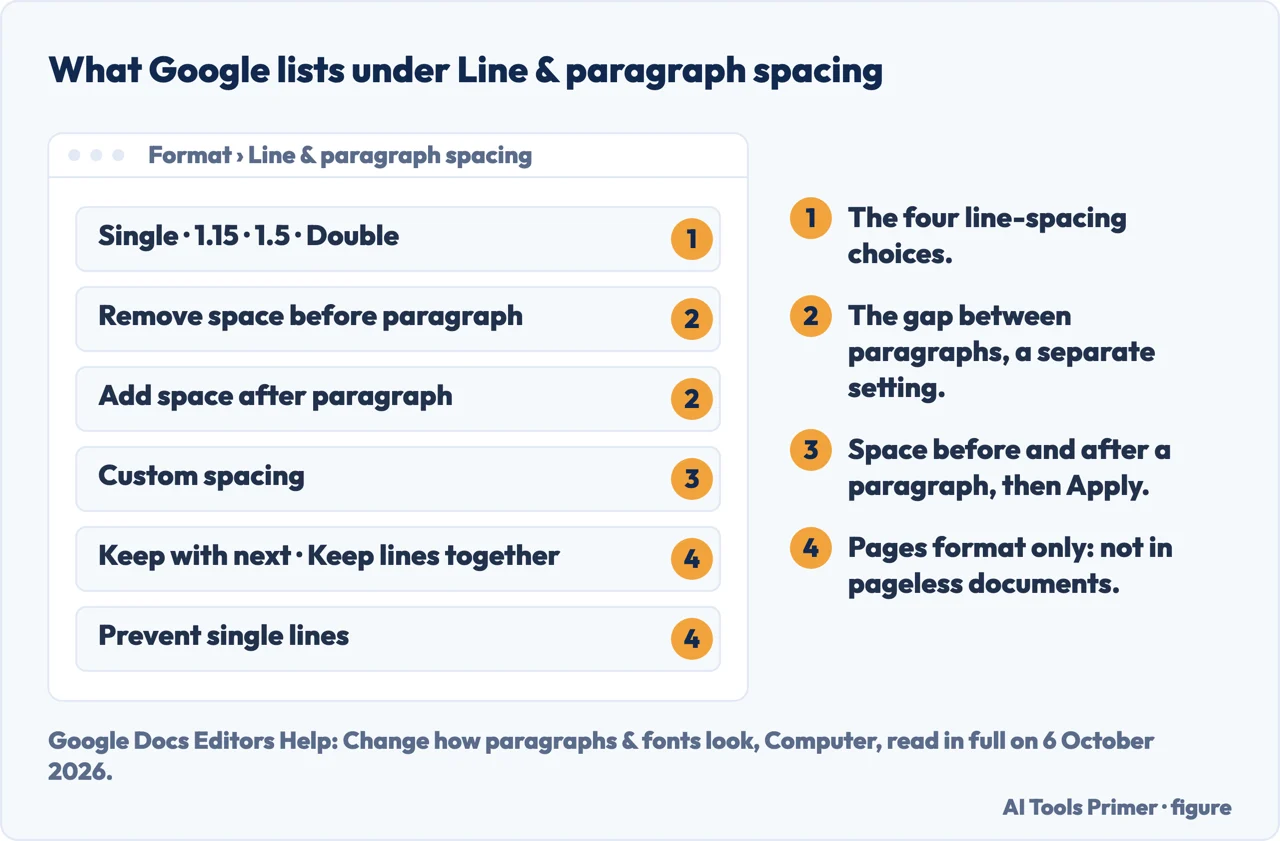
Under Line & paragraph spacing, Google’s Computer tab lists more than the four choices. To change the spacing between paragraphs, it says to click Remove space before paragraph or Add space after paragraph. Below that comes Custom spacing: “enter the size of the spacing you want before and after a paragraph and click Apply.”
Google’s description of Custom spacing names only the space before and after a paragraph. It does not mention a custom value for the lines themselves, such as 2.5. Two of the search results read for this guide describe more: CustomGuide says Custom spacing opens a Spacing dialog box, and USA Today mentions an option for customised line and paragraph spacing. Neither is Google, and this guide has not opened the dialog.
Three more choices sit in the same menu: Keep with next, Keep lines together and Prevent single lines. Google’s page says they are not available in documents in pageless format; its page on page setup describes pageless as one continuous scroll without page breaks, and switching back is File › Page setup, then Pages. Neither page names line spacing among what pageless takes away.
None of this is on the app tabs. The words custom, before and after do not appear on Google’s Android or iPhone & iPad tab of the page: on a phone, Google’s steps for spacing change the line spacing and nothing else. USA Today writes that customised spacing is not available on those devices; it is the only page read here that says so outright.
In the Google Docs app
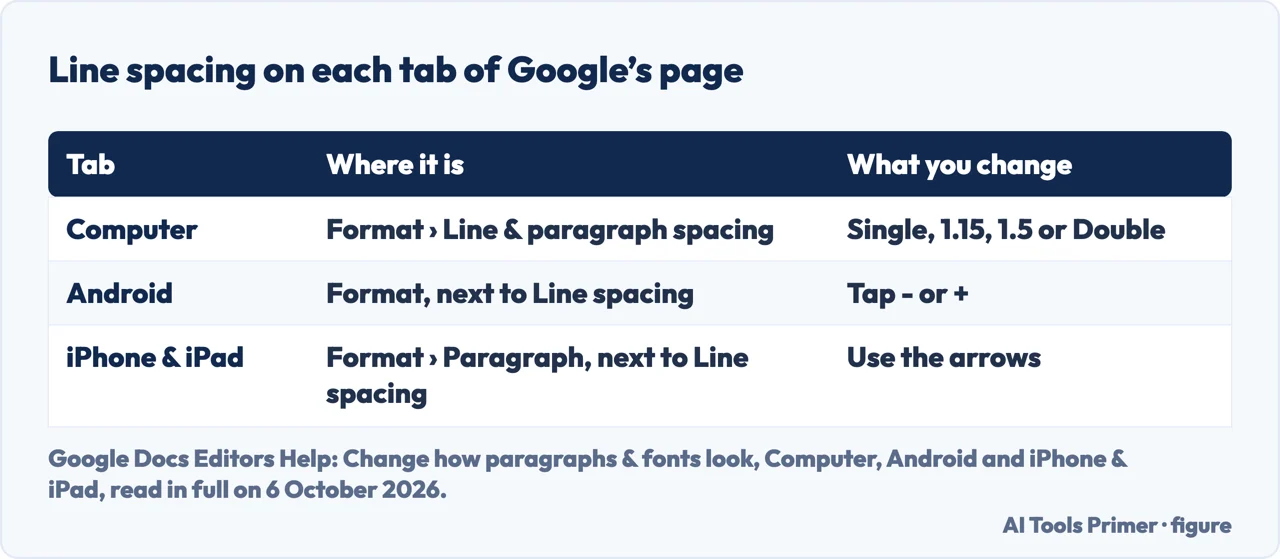
Android. Google’s Android tab: open the document in the Google Docs app, tap Edit, double-tap the place you want to edit, tap Format, then next to Line spacing “tap - or + to choose the amount of space you want between the lines in the paragraph.”
iPhone and iPad. The iPhone & iPad tab adds one tap and changes the control: after Edit and the double-tap, which here also says to move the blue markers to select more text, tap Format and then Paragraph, and next to Line spacing use the arrows to set the space between the lines.
Neither tab names a value. The four choices, Single to Double, are named on the Computer tab only; on the app tabs the setting is a control you step up or down. Pages outside Google give the number: USA Today says to click the up arrow to change the spacing to “double, or 2.00”, and Kanbanchi says to adjust it to 2.0. This guide has not tested the apps.
An older answer gives other Android steps. In a Docs Editors Community thread from August 2019, How do you double space?, someone asked how to double space an essay, on Android by the thread’s details, and 439 people clicked that they had the same question. The recommended answer, from a volunteer Diamond Product Expert who signs another reply in the thread as not a Google employee, quotes Android steps under the heading Google still uses, Change paragraph spacing: Format, then Paragraph, then the arrows. Google’s Android tab read on 6 October 2026 says Format and - or +; Paragraph and the arrows are what the iPhone & iPad tab says now.
Is there a shortcut?
Not in Google’s list. Keyboard shortcuts for Google Docs has three tabs, and the Computer tab has sections for a PC, a Mac and Chrome OS. The word spacing appears on none of the three tabs. Its paragraph shortcuts cover indents, alignment, lists and styles.
Ctrl+2 is Word’s. Microsoft’s list of keyboard shortcuts in Word gives Ctrl+1 for single spacing, Ctrl+2 for double and Ctrl+5 for 1.5 lines, on its Windows tab. Ctrl+2 is not in Google’s list. In Google’s list, Ctrl+Alt+2 applies the Heading 2 style on a PC, by its row Apply heading style [1-6]; on a Mac that is ⌘+Option+2. By Google’s list, adding Alt to Word’s key applies a heading style, not a spacing.
Another way in from the keyboard is the tool finder. Google’s page on it says the tool finder at the top of the screen finds menu items and tools and suggests related actions as you type, with Alt and / on a PC and Chrome OS and Option and / on a Mac. This guide has not tested what it returns for the word double.
Double spacing for new documents
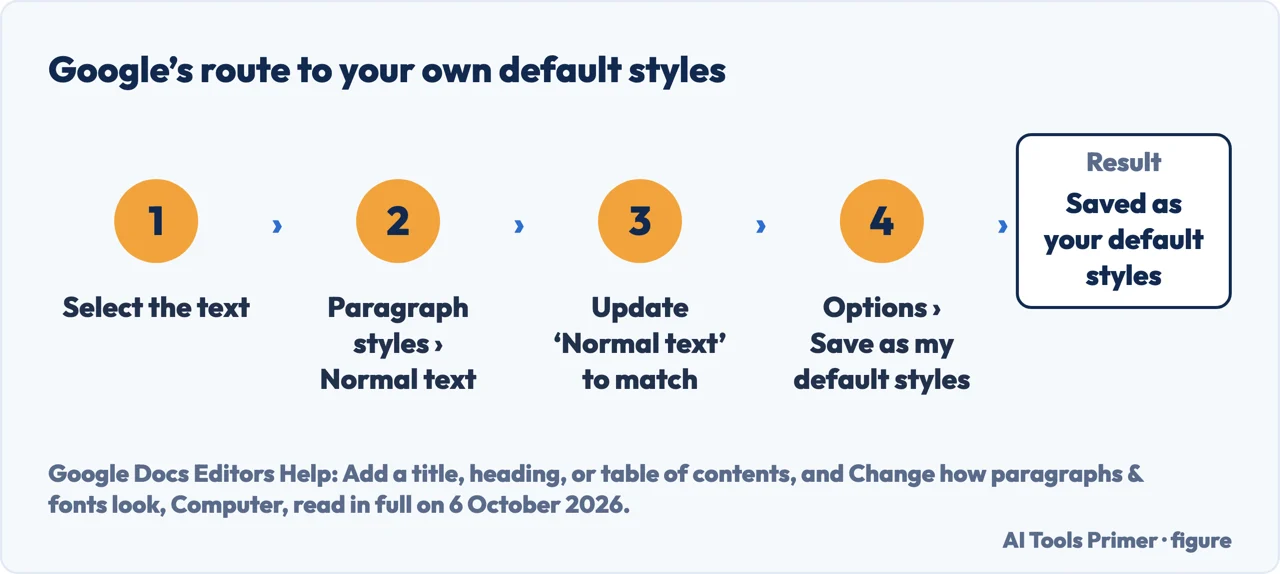
Google’s route to a default goes through the paragraph styles; the spacing section of its page names no default. On the page on paragraphs and fonts: select text that looks the way you want, then Format › Paragraph styles › Normal text › Update ‘Normal text’ to match. Its Tip then says that, to have new documents use this font, you open Paragraph styles › Options › Save as my default styles.
Google talks about fonts, not spacing. The page on titles and headings says “You can customize the font and size of the text styles and set your styles as defaults.”, then gives three choices under Options: Save as my default styles, Use my default styles, and Reset styles, which restores Google’s. Neither page says whether a line spacing set on Normal text is saved with the style. This guide has not tested it, so check the first page of a new document before relying on it.
Page setup has a default of its own. Google’s page on pages and pageless says Set as default applies its settings to any new documents you create. Those settings are pages or pageless and, in pages, things like orientation and margin size; the page does not mention spacing.
What the style guides ask
MLA. The MLA Style Center’s guide to formatting a research paper says: “Double-space the entire research paper, including quotations, notes, and the list of works cited.” The same guide double-spaces the heading lines on the first page and the list of works cited.
Double spacing is not two spaces after a full stop. The same MLA guide says to leave one space after a period or other concluding punctuation mark, “unless your instructor prefers two spaces.” A brief that says double-spaced is asking for Double in the spacing menu, by our reading; a brief that asks for two spaces after a sentence is asking for something else.
APA is not read for this page; the guide to double spacing in Word quotes APA’s own page on line spacing.
In Microsoft Word. The same job has a keyboard shortcut there, Ctrl+2 in Microsoft’s list, and its own guide: how to double space in Word.
Margins, indents and the rest of the page. The formatting checklist is on the page about formatting in Google Docs, and the reference list has its own guide to the hanging indent in Google Docs.
Where to start
Six ways in.
- “Just give me the steps.”
- Four steps on a computer — the steps on a computer
- “There is still a gap between paragraphs.”
- A separate setting — lines and paragraphs are two settings
- “I am on my phone.”
- What each app tab prints — in the google docs app
- “Is there a key for it?”
- Not in Google’s list — is there a shortcut
- “I want every new document double spaced.”
- The styles route — double spacing for new documents
- “My essay has to be double spaced.”
- What MLA asks — what the style guides ask
More formatting in Google Docs
Indents, strikethrough and the page itself each have a guide of their own.
The same job in Word
Word has a key for double spacing, and a guide of its own.
Questions people also ask
Is double spaced 1.5 or 2.0 on Google Docs?
Google’s menu lists Single, 1.15, 1.5 and Double as four separate choices, so by that list 1.5 is not double. The 2 comes from pages outside Google: USA Today writes double, or 2.00, for the app, and Kanbanchi 2.0. The Google pages read here print no number for Double.
Is 2.0 double spacing?
USA Today and Kanbanchi both put double spacing at 2 in the app. Google’s pages read for this guide do not print 2.0 anywhere: on a computer you click Double, and in the app you set Line spacing with - and + on Android or the arrows on an iPhone or iPad.
What does Ctrl+K do in docs?
Insert or edit link. Google’s shortcut list gives Ctrl+K on a PC, on Chrome OS and on Android, and ⌘+K on a Mac. It has nothing to do with spacing: that list has no line-spacing shortcut on any tab, and the double-spacing key Ctrl+2 is Microsoft Word’s.
Is double line spacing 1.5 or 2?
In Google Docs, Double and 1.5 are separate choices under Format › Line & paragraph spacing, so, by that menu, double is not 1.5. Google prints no number for it; USA Today and Kanbanchi say 2. If a brief says double-spaced, MLA’s guide asks for the entire paper to be double-spaced.
Not covered here. It does not cover Google Sheets or Slides: every Google route above is from Google’s help for Docs.
Nor does it test the apps, the Custom spacing dialog or the default styles; where a page outside Google describes them, the page is named.
Where a Google page has tabs, the route names the tab it comes from; the Sources give the date of every reading.
Sources
- Google Docs Editors Help — Change how paragraphs & fonts look, Computer tab: Format, Line & paragraph spacing and the toolbar button, Single, 1.15, 1.5 or Double, space before and after, Custom spacing, the three options unavailable in pageless, the Format menu keys, and the default font Tip — support.google.com, read 6 October 2026.
- Google Docs Editors Help — Change how paragraphs & fonts look, Android tab: Format, then - or + next to Line spacing — support.google.com, read 6 October 2026.
- Google Docs Editors Help — Change how paragraphs & fonts look, iPhone & iPad tab: Format, Paragraph, then the arrows next to Line spacing — support.google.com, read 6 October 2026.
- Google Docs Editors Help — Keyboard shortcuts for Google Docs, Computer tab: Select all, the Format menu keys for a PC, a Mac and Chrome OS, menu access keys, the paragraph shortcuts, Apply heading style, Insert or edit link, and no line-spacing shortcut — support.google.com, read 6 October 2026.
- Google Docs Editors Help — Keyboard shortcuts for Google Docs, Android tab: Insert or edit link Ctrl+K, and no line-spacing shortcut — support.google.com, read 6 October 2026.
- Google Docs Editors Help — Keyboard shortcuts for Google Docs, iPhone & iPad tab: no line-spacing shortcut — support.google.com, read 6 October 2026.
- Google Docs Editors Help — Add a title, heading, or table of contents in a document, Computer tab: Update to match, and Save as my default styles, Use my default styles and Reset styles — support.google.com, read 6 October 2026.
- Google Docs Editors Help — Change a document’s page setup: pages or pageless, Computer tab: what pageless is, File, Page setup, and Set as default — support.google.com, read 6 October 2026.
- Google Docs Editors Help — Tool finder for Docs, Sheets, Slides & Vids: finding menu items as you type, Alt and / or Option and / — support.google.com, read 6 October 2026.
- Google Workspace Learning Center — Create your first document in Google Docs: the toolbar control that changes the line spacing — support.google.com, read 6 October 2026.
- Microsoft Support — Keyboard shortcuts in Word, Windows tab: Ctrl+1, Ctrl+2 and Ctrl+5 for single, double and 1.5-line spacing — support.microsoft.com, read 6 October 2026.
- MLA Style Center — Formatting a Research Paper (PDF): double-spacing the entire paper, and one space after a period — style.mla.org, read 6 October 2026.
- Google Docs Editors Community — How do you double space?, a thread from August 2019, the third search result on 6 October 2026, read in full (10 replies): the recommended answer’s Android steps — support.google.com, read 6 October 2026.
- USA Today — How to double space on Google Docs, the fifth search result on 6 October 2026: 2.00 in the app, customised spacing on a computer and not on the apps — www.usatoday.com, read 6 October 2026.
- Kanbanchi — How to double space in Google Docs, the second search result on 6 October 2026: 2.0 in the mobile app — www.kanbanchi.com, read 6 October 2026.
- CustomGuide — How to Double Space on Google Docs, the fourth search result on 6 October 2026: Custom spacing and the Spacing dialog box — www.customguide.com, read 6 October 2026.
Written by Alberto Gulotta
Founder and editor of AI Tools Primer, writing from Palermo, Italy. Thirty-five years of taking computers apart, starting with a Commodore 64 — the long version is on the about page.
Something wrong on this page? Write to aitoolsprimer@gmail.com and it gets fixed.
Written on 6 October 2026.
Independence and limits
No affiliate links and no paid placements anywhere on this site. Nobody pays to appear here, and no company has seen this page before you did.
This is general information, not professional advice. Where a page touches money, health, safety or the law, it names its source and the date it was read — and your situation may still differ. See the privacy page and the cookie policy.