
Docs · guide
How to recall an email in Outlook, and when recall cannot work
By Alberto Gulotta · Updated · 11 min read
How to recall an email in Outlook: open Sent Items, double-click the message, then choose Recall Message in new Outlook or Recall This Message in classic Outlook. Microsoft says it works only when you and the recipient have Microsoft 365 work or school accounts in the same organisation. Outlook.com has Undo send instead.
| Outlook | What to select | Condition |
|---|---|---|
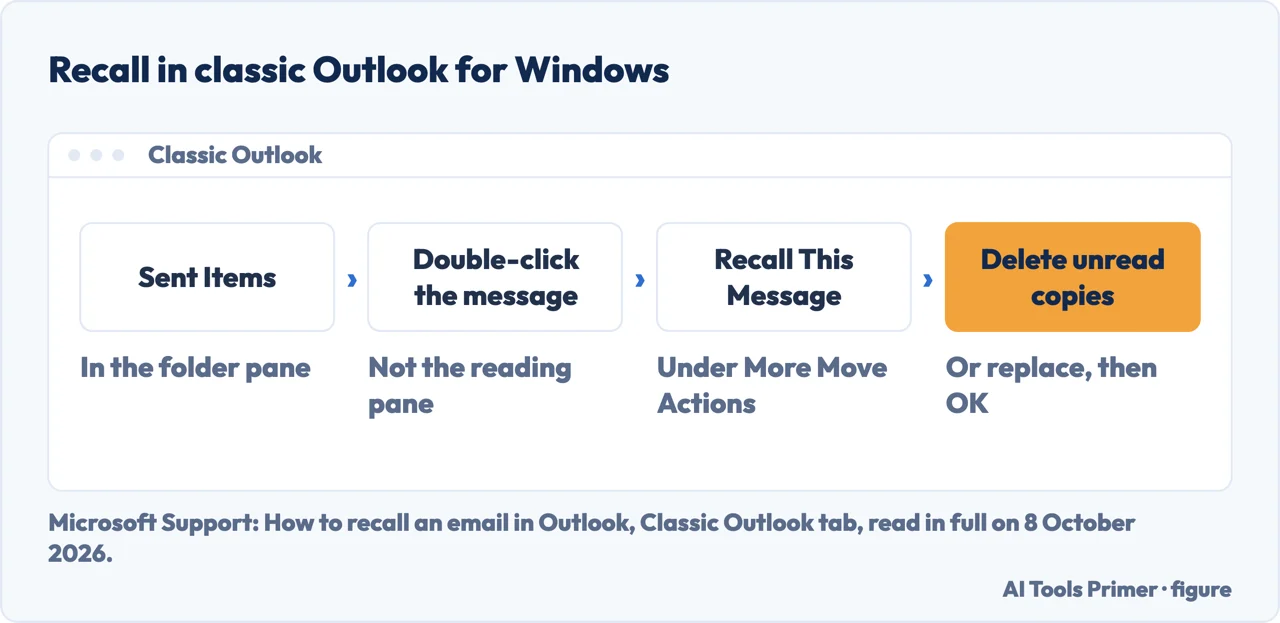
| New Outlook for Windows | Sent Items, open the message, Recall Message, OK | Microsoft 365 work or school account, same organisation as the recipient |
| Classic Outlook for Windows | Sent Items, double-click, Recall This Message | The same, and an Exchange account |
| Outlook on the web | Sent Items, open the message, Recall Message, OK | A work or school account |
| Outlook for Mac | Sent, open the message, Recall, OK | Version 16.94 or later; not legacy Outlook for Mac |
| Outlook.com, Hotmail, Live, MSN | No recall: Settings, Undo send | A delay of up to 30 seconds before sending |
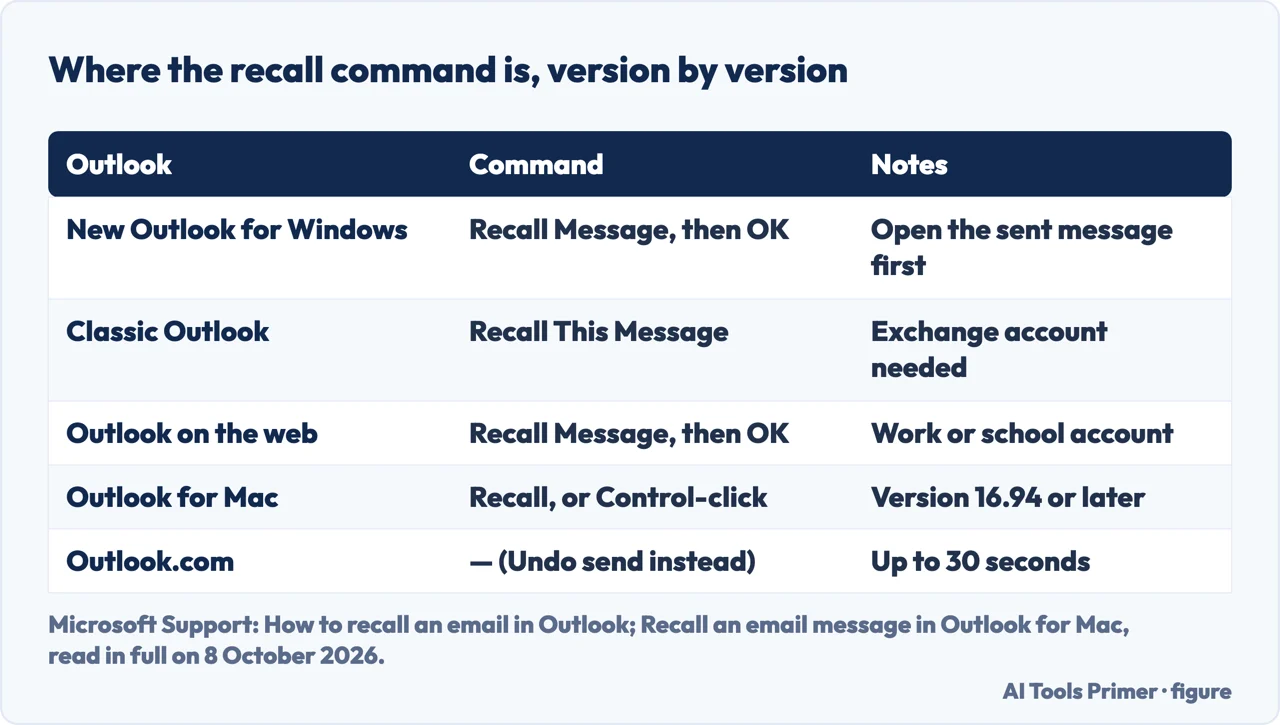
- Open Sent Items. It is in the folder pane on the left of the Outlook window.
- Double-click the message. Microsoft is explicit: selecting it so that it appears in the reading pane will not let you recall it; it has to open in its own window.
- Choose Recall This Message. With the Classic Ribbon: Message tab, Move group, More Move Actions, Recall This Message. With the Simplified Ribbon: Message tab, More commands (...), Actions, Recall This Message.
- Pick delete or replace, then OK. Delete unread copies of this message, or Delete unread copies and replace with a new message; for a replacement, write it and select Send.
- Read the Message Recall Report. Microsoft says it usually arrives in less than 30 seconds, with the subject Message Recall Report for message [original subject]; View Message Recall Report opens the status in the browser.
New Outlook, Outlook on the web and Outlook for Mac
New Outlook for Windows and Outlook on the web share the same three steps on Microsoft’s page: select Sent Items, double-click the sent message to open it in a separate window, then select Recall Message on the ribbon and OK. A Message Recall Report follows in the inbox, with a link that says whether the recall succeeded, is pending or failed. If the New Outlook steps do not work, Microsoft suggests you may still be on classic Outlook. The same page is not consistent about the web: a note on its classic tab says you cannot recall a message in Outlook on the web, while its web tab and its opening rule say you can; this page follows the web tab and the opening rule.
Outlook for Mac has its own page. Select Sent, open the message, select Recall on the ribbon and OK, or Control-click the message and choose Recall. The feature needs Outlook for Mac 16.94 or later and is not in legacy Outlook for Mac; if the Recall button is missing, Microsoft says to add it by customising the toolbar.
Which Outlook is this? Microsoft’s recall page sends readers to its page What version of Outlook do I have, and its classic tab names the Exchange account as the thing to check: File › Account Settings › Account Settings, then the Email tab, where an Exchange account is listed as Microsoft Exchange.
When recall works, and when it cannot
The rule on Microsoft’s support page: recall from new or classic Outlook for Windows or Outlook on the web works only if both you and the recipient have a Microsoft 365 work or school email account in the same organisation, and the recipient has not opened the message yet.
Personal accounts are out. The same page says message recall is not available for addresses ending in @outlook.com, @hotmail.com, @live.com or @msn.com, and the Mac page adds that messages sent to or from a Hotmail, Gmail or live.com account cannot be recalled.
Limits on the classic tab: a message protected by Azure Information Protection cannot be recalled; without an Exchange account, or if the feature is not available in your organisation, the Recall This Message command may not appear at all. The Exchange Team Blog adds two conditions for Outlook for Windows: recall does not work when Outlook is in Online mode, or when several Exchange accounts are in the same Outlook profile.
Across organisations. The blog says recall works inside one organisation, or between two Exchange Online tenants that an administrator has put on an allow list, and not over the internet or to organisations outside Exchange Online.
What two Microsoft pages say about read messages and time
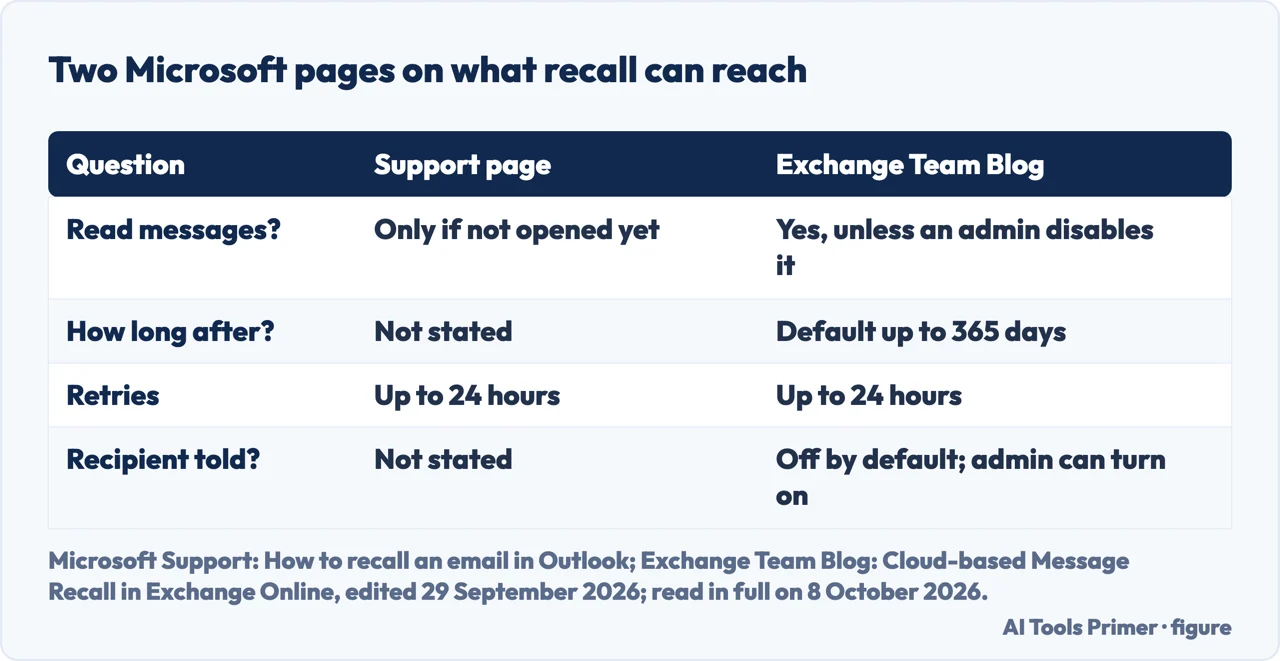
Read messages. The support page conditions recall on the recipient not having opened the message. The Exchange Team Blog post Cloud-based Message Recall in Exchange Online, edited on 29 September 2026, says the cloud-based recall can now recall ‘read’ messages, and that tenant administrators can disable that ability. Both are Microsoft’s; by our reading, which of the two applies depends on how the organisation has set recall up, and the support page describes the stricter case.
How long after. The support page says Microsoft keeps retrying a recall that cannot run at once for up to 24 hours before marking it failed. The blog adds a Maximum Recallable Message Age: 365 days by default, which administrators can set anywhere from 5 minutes to 10 years; a sender who tries to recall an older message is told it is too old.
How often it works. The blog gives the average success rate of the older, client-based recall in classic Outlook as only about 50%, and describes the cloud-based recall as working from any folder of the recipient’s mailbox, not just the inbox.
Does the recipient know?
The Exchange Team Blog describes Optional Recall Notifications for Recipients: when they are on, recipients of a recalled message get an email saying so. The feature is disabled by default, and an administrator can turn it on for all recalled messages or only for read ones. The support page does not mention it.
By our reading of the blog: in an organisation where an administrator has not turned notifications on, a recall that succeeds sends the recipient nothing. A sender cannot see that setting from Outlook; the blog names the administrator commands, not a sender option.
Undo send and delayed delivery: catching it before it leaves
Outlook.com. Settings, then Undo send, and choose how long to wait: up to 30 seconds. Once set, an Undo prompt appears at the bottom of the message list after you send. Microsoft’s recall page also points personal accounts to Undo Send in new Outlook for Windows.
Classic Outlook for Windows. A rule can defer every message: File, then a blank rule with Apply rule on messages I send, then defer delivery by a number of minutes. Microsoft says delivery can be delayed up to 120 minutes, and the messages wait in the Outbox. For one message, Do not deliver before under Delivery options holds it until a time you pick.
New Outlook, the web and Outlook.com have Schedule send on the dropdown next to Send; the message waits in Drafts. Microsoft notes it is not available for IMAP or POP accounts in new Outlook.
In Gmail, and before sending. Gmail’s Undo Send and Outlook’s recall are compared in how to unsend an email in Outlook and Gmail; protecting a message before it goes is covered in encrypting email in Outlook.
Where to start
Six ways in.
- “Just give me the steps.”
- Classic Outlook, five steps — the steps in classic outlook
- “I use new Outlook or a Mac.”
- The other versions — new outlook the web and mac
- “There is no recall button.”
- The conditions — when recall works
- “They may have read it.”
- Two Microsoft pages — two microsoft pages
- “Will they know?”
- Recipient notices — does the recipient know
- “Next time, before it leaves.”
- Undo send and delay — undo send and delay
More on Outlook
Unsending, encrypting and signing mail each have a guide of their own.
Questions people also ask
Can I recall an email after sending it?
In Outlook, only with a Microsoft 365 work or school account, and only to a recipient in the same organisation, by Microsoft’s support page, which adds that the message must still be unopened. Outlook.com, Hotmail, Live and MSN addresses cannot recall; Undo send there holds a message for up to 30 seconds.
How long after can I recall an email in Outlook?
Microsoft’s Exchange Team Blog gives a Maximum Recallable Message Age of 365 days by default, which administrators can set from 5 minutes to 10 years. The support page adds that a recall which cannot run at once is retried for up to 24 hours, and its rule still requires the message to be unopened.
Why is there no recall button in my new Outlook?
Microsoft gives these reasons: a personal account such as Outlook.com, which has no recall; no Exchange account, or recall not available in your organisation; or classic Outlook rather than new, so the New Outlook steps do not match. On a Mac, version 16.94 or later is needed, and a missing button can be added to the toolbar.
How do I recall an email in Outlook without recipients knowing?
There is no sender option for it. By the Exchange Team Blog, recipient notifications of a recall are off by default and only an administrator can turn them on, for all recalled messages or read ones only. Where they are off, by our reading, a successful recall sends the recipient nothing.
Not covered here. It does not cover the Outlook apps for Android and iOS, which the Exchange Team Blog lists among the places a recall can start, or the administrator settings it describes.
Nor does it test a recall: every step above is Microsoft’s, with the version of Outlook named next to it.
Sources
- Microsoft Support — How to recall an email in Outlook: Requirements, Limitations & Steps, tabs for new Outlook, classic Outlook, Outlook on the web and Outlook.com: the conditions, the steps, the Message Recall Report, 24 hours, and Undo send — support.microsoft.com, read 8 October 2026.
- Microsoft Support — Recall an email message in Outlook for Mac: version 16.94 or later, Recall and Control-click, and the toolbar — support.microsoft.com, read 8 October 2026.
- Microsoft Support — How do I tell if I have an Exchange account in Outlook: File, Account Settings, and Microsoft Exchange — support.microsoft.com, read 8 October 2026.
- Microsoft Support — Delay or schedule sending email messages in Outlook: Schedule send, Do not deliver before, and the 120-minute rule — support.microsoft.com, read 8 October 2026.
- Exchange Team Blog, Microsoft Tech Community — Cloud-based Message Recall in Exchange Online, edited 29 September 2026: read messages, 50%, 365 days, recipient notifications, and the limits — techcommunity.microsoft.com, read 8 October 2026.
- Otis College of Art and Design Help Desk — How to Recall an Email in Outlook (Windows, Mac), the fifth search result on 7 October 2026: the same conditions and steps for Windows and Mac — helpdesk.otis.edu, read 8 October 2026.
Written by Alberto Gulotta
Founder and editor of AI Tools Primer, writing from Palermo, Italy. Thirty-five years of taking computers apart, starting with a Commodore 64 — the long version is on the about page.
Something wrong on this page? Write to aitoolsprimer@gmail.com and it gets fixed.
Written on 21 October 2026.
Independence and limits
No affiliate links and no paid placements anywhere on this site. Nobody pays to appear here, and no company has seen this page before you did.
This is general information, not professional advice. Where a page touches money, health, safety or the law, it names its source and the date it was read — and your situation may still differ. See the privacy page and the cookie policy.