
Docs · guide
How to encrypt email in Outlook, and what each version asks for
By Alberto Gulotta · Updated · 24 min read
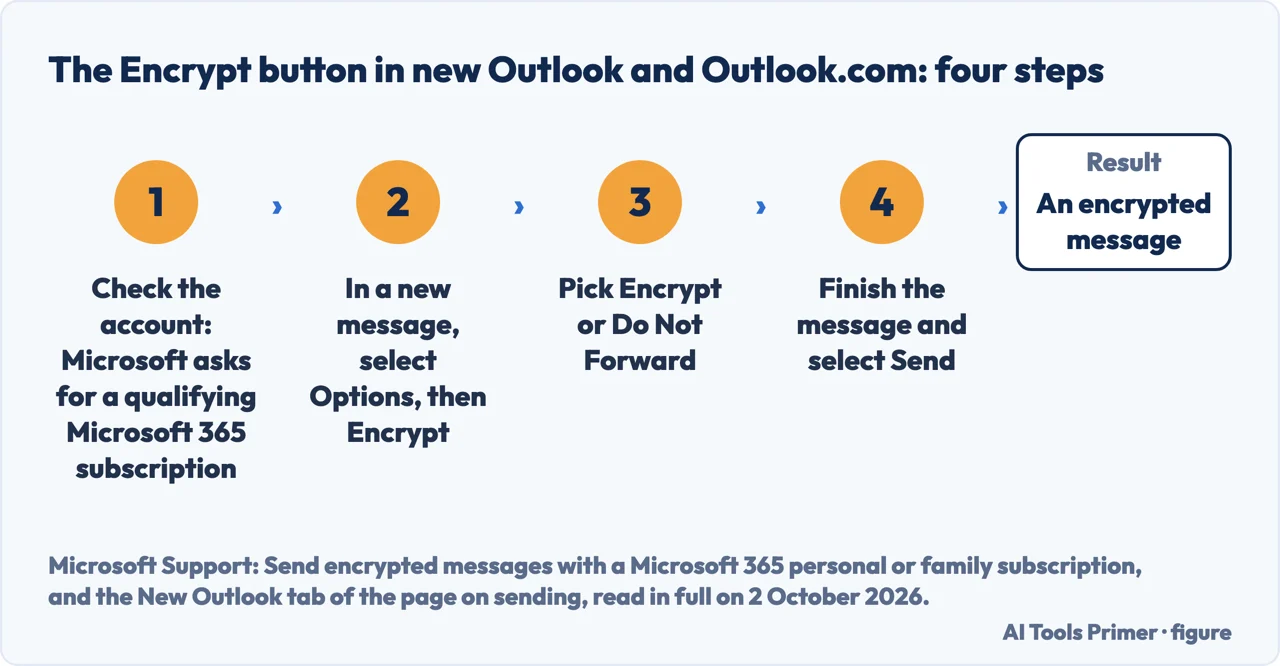
The short answer to how to encrypt email in Outlook: in a new message select Options, then Encrypt, and pick Encrypt or Do Not Forward. Microsoft prints that route for new Outlook and Outlook.com, and says the account needs a qualifying Microsoft 365 subscription. S/MIME, the second system, needs a certificate, and its switch sits elsewhere in each version.
| Version | Route the page prints | What the page asks for | Page read |
|---|---|---|---|
| New Outlook | Microsoft Purview: Options, then Encrypt. S/MIME: Options › More Options, then Encrypt this message (S/MIME) | For Purview, an Office 365 Enterprise E3 licence on the mail server; for S/MIME, a certificate | Send S/MIME or Microsoft Purview encrypted emails in Outlook, New Outlook tab |
| Classic Outlook | Options › Encrypt, then an option such as Do Not Forward, under a heading that says S/MIME | S/MIME set up first, in the note that opens the tab | The same page, Classic Outlook tab |
| Outlook on the web | More options › Message options, then Encrypt this message (S/MIME); no Purview route on the tab | The S/MIME control installed in the browser | The same page, Outlook on the web tab |
| Outlook.com | Options, then Encrypt; then Encrypt or Do Not Forward | A Microsoft 365 Family or Microsoft 365 Personal subscription | Send encrypted messages with a Microsoft 365 personal or family subscription |
| Outlook for Mac | See more items, then S/MIME › Encrypt with S/MIME; a Purview route on the Legacy tab only | A certificate in the keychain, and a copy of each recipient’s certificate | Send a digitally signed or encrypted message for Mac |
| Outlook for iOS and Android | The S/MIME switch under the account’s Security setting; then Sign and Encrypt behind the ellipsis | A Microsoft 365 account, and the recipient’s certificate in the address list or on the device | How do I turn on S/MIME in Outlook Mobile; S/MIME for Outlook for iOS and Android, Microsoft Learn |
Two kinds of encryption behind one word
“There are two types of encryption options: S/MIME and Microsoft Purview Message Encryption using Information Rights Management (IRM).”
That is Microsoft’s page Set up Outlook to use S/MIME encryption. The page on sending says how the two differ for the person receiving: an S/MIME message is unlocked with a certificate on the recipient’s computer; a Purview message can be read directly in new Outlook, Outlook on the web, Outlook for iOS and Android, Outlook for Windows 2019 and newer and Microsoft 365, and a recipient on another mail service sees a message with instructions for opening it.
Not both on one message. The same page says Purview protection “should not be applied to a message that is already signed or encrypted using S/MIME”. Microsoft Learn’s page Email encryption in Microsoft 365 puts it as a rule, “Don’t apply multiple email encryption technologies to the same email message.”, and names Outlook for Mac, iOS and Android as clients that cannot open such a message.
The name has changed, and so has what it covers. Microsoft Learn’s Message Encryption FAQ: “Office 365 Message Encryption (OME) was deprecated on July 1, 2023.” Its replacement is Microsoft Purview Message Encryption; several pages read for this guide, the Mac page among them, still print older names. The Email encryption page says “OME doesn’t let you apply usage restrictions to messages.” The FAQ’s comparison table gives previous versions of OME no rights management, and Purview Message Encryption the Do Not Forward and encrypt-only options.
- Check what the account is. Microsoft’s page for Outlook.com opens with a note that five other Support pages read for this guide repeat: “To use encryption, your account must have a qualifying Microsoft 365 subscription.” For Outlook.com it names Microsoft 365 Family and Microsoft 365 Personal.
- In a new message, select Options, then Encrypt. The New Outlook tab prints this under its heading for Microsoft Purview Message Encryption.
- Pick Encrypt or Do Not Forward. On the Outlook.com page both keep the message encrypted within Microsoft 365, and Do Not Forward adds that it cannot be copied or forwarded. A third entry, No permission set, is the default, and selecting it removes the encryption.
- Finish the message and select Send. That is the last step on the New Outlook tab. What the recipient then sees is under limits and what the recipient sees.
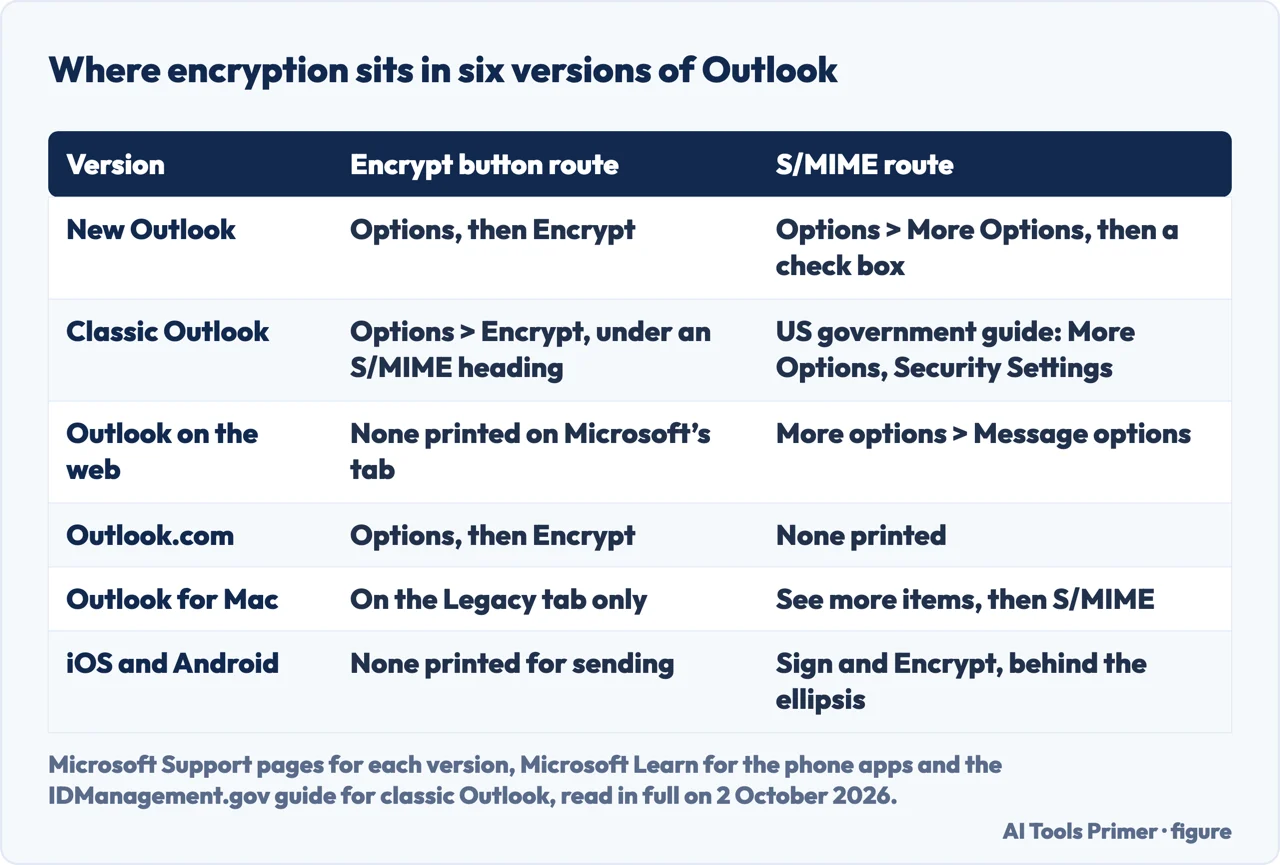
The same job in six versions of Outlook
What each page read on 2 October 2026 prints for encrypting one message; where a page is silent, the line says so. Microsoft’s test for new against classic Outlook is on the page on spell check in Outlook.
- New Outlook
- Two routes on the New Outlook tab. For S/MIME: Options › More Options, tick Encrypt this message (S/MIME), then OK; for an external recipient, the tab says, the recipient’s certificate must be installed on the local machine. For Purview: Options, then Encrypt, with this note: “New Outlook supports Microsoft 365 Message Encryption as long as your email server has an Office 365 Enterprise E3 license.” To encrypt every message with S/MIME the tab gives Settings › Mail › S/MIME, and says that covers new messages, replies and forwards.
- Classic Outlook
- The Classic Outlook tab lists four things you can do, each named S/MIME. Under its heading for a single S/MIME message it prints Options › Encrypt and then: “Choose the encryption option that has the restrictions you’d like to enforce”, such as Do Not Forward — the option the New Outlook tab lists under Purview. The tab has no heading for Purview. A guide on IDManagement.gov, a site of the US General Services Administration, written for classic Outlook for Windows, prints another S/MIME route: Options, More Options, Security Settings, then the check box “Encrypt message contents and attachments”. No Microsoft page read for this guide prints that check box.
- Outlook on the web
- The Outlook on the web tab prints S/MIME only: More options › Message options, then Encrypt this message (S/MIME). The setup page asks for the S/MIME control to be installed first, and says S/MIME on Chrome needs a computer joined to a Microsoft Active Directory domain, with a policy for the extension. The tab prints no Purview route. Two universities print an Encrypt route for their own mail: UW-Eau Claire gives Options, the Encrypt menu, then Encrypt; the University of Illinois Chicago gives Options, Encrypt, then Encrypt under “Set permissions on this item”. Each describes its own organisation’s set-up.
- Outlook.com
- The first three steps above are from the page for Family and Personal subscriptions. No page read for this guide prints an S/MIME route for an Outlook.com account, and Microsoft’s overview table gives a Microsoft account with Microsoft 365 a No for sending with a digital signature.
- Outlook for Mac
- Microsoft’s Mac page has two tabs. The Outlook for Mac tab prints S/MIME only: choose the certificate under Outlook › Accounts › Security, then in a message choose See more items and S/MIME › Encrypt with S/MIME. The Purview route — Options, Encrypt, then Do Not Forward or Encrypt-Only — is on the Legacy Outlook for Mac tab only, and the page opens with: “Support for legacy Outlook for Mac will end in October 2026”. For its own Mac users UW-Eau Claire prints Customize Toolbar, the Encryption icon dragged to the toolbar, then “On the Encryption menu, click Encrypt-Only”. The Illinois page adds a case where the button is absent, Office for Mac under a volume licence: “Microsoft separates some product features away from the volume license, among which is e-mail encryption.”
- iOS and Android
- For S/MIME, Microsoft’s page gives the Account control at the top left, Settings, the account, Security, and the S/MIME toggle, with this note: “If you don’t see the Security option for your account it’s possible that account type, or email provider, doesn’t support S/MIME.” A second page: “S/MIME in Outlook for iOS and Android is supported with Microsoft 365 accounts using the native Microsoft sync technology.” Microsoft Learn’s page for administrators says the control is off by default and that, in a new message, the options sit behind the ellipsis, under Sign and Encrypt. No page read for this guide prints a route for sending a Purview-encrypted message from the phone apps.
What the account has to have, and where the pages differ
“To use encryption, your account must have a qualifying Microsoft 365 business subscription.”
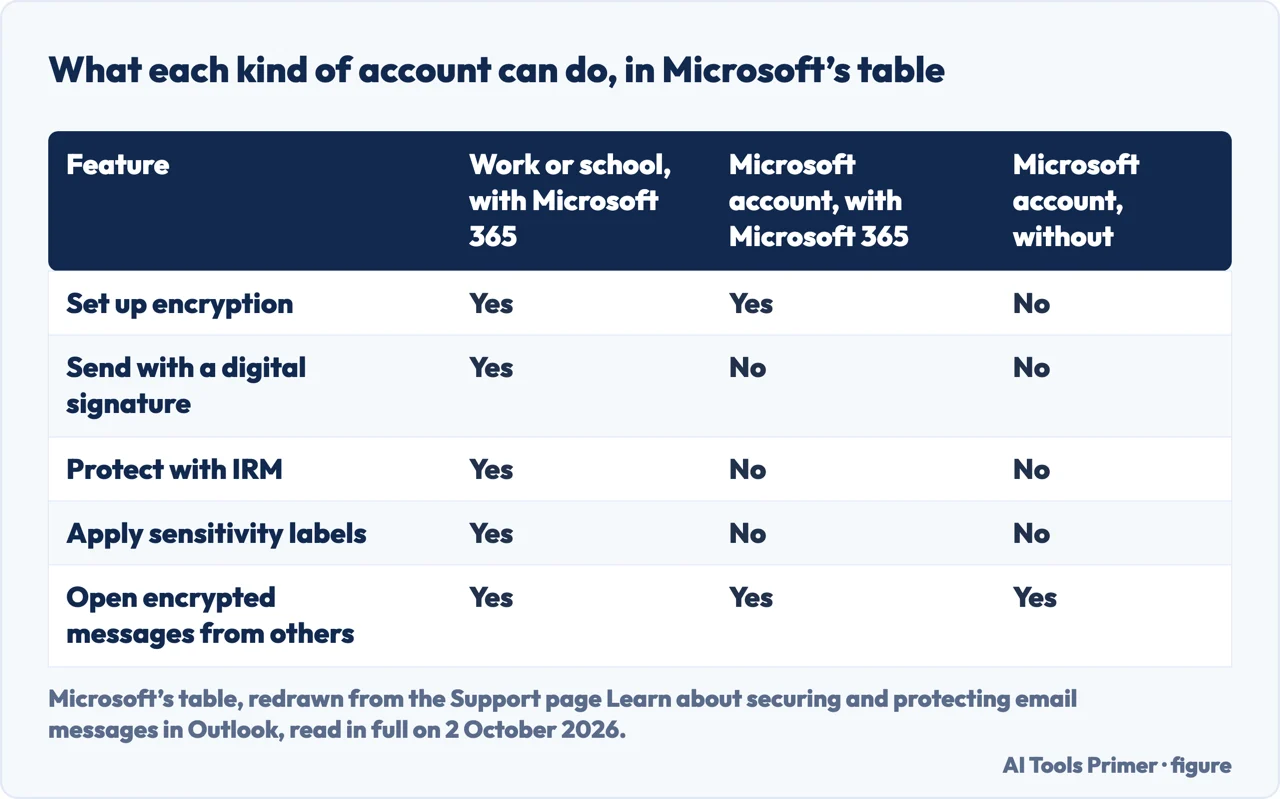
That is the page Secure messages with a digital ID in Outlook. Six other Support pages read for this guide print the sentence without the word business. Microsoft’s overview page has a table of five features for three kinds of account, redrawn below. Setting up encryption is Yes for a work or school account with Microsoft 365 and for a Microsoft account with Microsoft 365, and No for a Microsoft account without it; opening encrypted messages from others is Yes for all three. The same table gives a Microsoft account with Microsoft 365 a No for IRM, which it exemplifies with Do not forward; the Outlook.com page offers Do Not Forward.
Which licence. For Purview the Support pages name one, Office 365 Enterprise E3: the New Outlook tab, the setup page and the Mac page. Microsoft Learn’s FAQ lists ten plans that include Purview Message Encryption — Office 365 Enterprise E3 and E5, Microsoft 365 Enterprise E3 and E5, Microsoft 365 Business Premium, Office 365 A1, A3 and A5, Office 365 Government G3 and G5 — and six more that get it with Azure Information Protection Plan 1 added. The two lists are not the same; both are Microsoft’s.
The certificate for S/MIME. The digital ID page sends you to an independent certification authority, or to your organisation. Microsoft’s page Find digital ID or digital signature services names three — GlobalSign, IdenTrust and DigiCert — and says others are available. No page read for this guide gives a price. The setup page adds: “New Outlook doesn’t automatically import digital certificates.”
Where the pages are silent. No page read for this guide prints a route for an account from another provider, such as Gmail, added to Outlook; where Microsoft’s pages name Gmail or Yahoo, it is as the recipient’s service.
A signature, encryption and Confidential, page by page
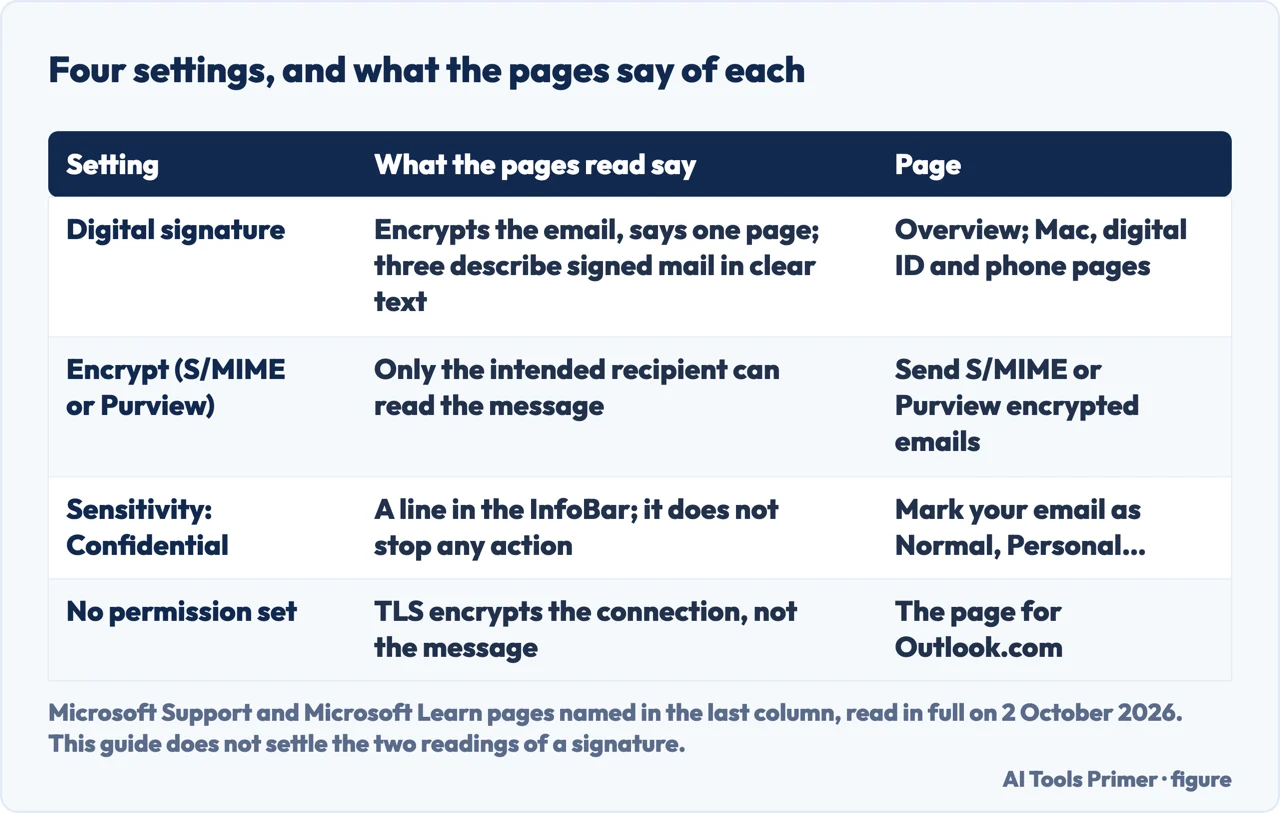
“Inserting a digital signature automatically encrypts the email before you send it.”
That is Microsoft’s overview, Learn about securing and protecting email messages in Outlook. Three more of the pages read describe a signed message that stays readable. The Mac page has a setting, “Send digitally signed messages as clear text”, for messages that recipients without an S/MIME application can open. The digital ID page has a check box for clear-text signed messages on its Classic Outlook tab: “By default, this check box is selected.” Microsoft Learn, for the phone apps: “Outlook for iOS and Android only supports sending clear-signed messages.” This guide does not settle the two readings. Where the text has to be unreadable to others, choosing the encryption option and not the signature alone is this guide’s advice, not Microsoft’s. A digital signature is also not the block of text under a message, which is on the page on an email signature in Outlook.
The Sensitivity level Confidential shows the reader a line. Microsoft’s page Mark your email as Normal, Personal, Private, or Confidential in Outlook gives File › Properties and the Sensitivity list; the recipient sees “Please treat this as Confidential” in the InfoBar. The same page: “the Sensitivity level doesn’t stop recipients from taking any actions on a message”. It also says a Sensitivity level is different from a sensitivity label; labels, on Microsoft’s page about them, are configured by an administrator. The Illinois page lists Confidential among its own encryption types.
The default is not message encryption. Of No permission set, the Outlook.com page says it uses opportunistic Transport Layer Security to encrypt the connection with the recipient’s provider: “In other words, TLS encrypts the connection, not the message.”
Limits, and what the person at the other end sees
“Removing the restricted permissions from a message you’ve sent will not update the messages in recipients’ mailboxes.”
That is Microsoft’s page Introduction to IRM for email messages, on File › Encrypt › Unrestricted Access applied to the copy in Sent Items. No page read for this guide prints a way to add encryption to a message already sent. Recalling one is a different feature, on the page on unsending an email.
Size, Bcc and attachments. Microsoft Learn’s FAQ puts the largest message Purview will encrypt, attachments included, at 25 MB; larger files are on the page on sending large files. In set-ups with connectors, such as an Exchange hybrid deployment, the FAQ says, “the BCC recipients are removed before mail gets encrypted”; what the field does otherwise is on the page on Bcc in email. With Do Not Forward, the Outlook.com page says, Word, Excel and PowerPoint attachments stay encrypted after download, while PDF and image files can be downloaded without encryption. On the oldest Office formats two pages differ: the IRM page lists .doc, .xls and .ppt among the attachments that become rights-managed; the FAQ says Purview Message Encryption does not support those 97-2003 formats.
The other end. On another mail service, Microsoft’s page Open encrypted and protected messages says, the recipient gets a link, then signs in or asks for a one-time passcode: “Each passcode expires after 15 minutes.” The IRM page states what a restriction cannot do: it cannot stop someone retyping the content or taking a photograph or screen capture of it.
Taking one back. The FAQ: “Outlook on the web supports revocation of protected mail.” Learn’s page on Purview Message Encryption, in its section on Advanced Message Encryption: “Message revocation and expiration only work for emails that your users send to recipients outside your organization.” The recipients, it adds, must read the message through the web portal.
Where to start
Five ways in.
- “Just show me the button.”
- Four steps with Encrypt — the steps with the encrypt button
- “My Outlook does not look like that.”
- New, classic, web, Outlook.com, Mac, phone — the route in each version
- “I have no Encrypt button.”
- Subscriptions, licences and certificates — what the account has to have
- “Is Confidential enough?”
- A signature, encryption and the Sensitivity level — signing encrypting and confidential
- “Can I take it back?”
- Sent messages, limits and the recipient — limits and what the recipient sees
Bcc, unsending and scheduling a message
Each of these has a guide of its own.
Signatures, spell check and an Outlook that will not open
Three more guides about Outlook itself.
Phishing mail and files too big to attach
Mail you did not ask for, and a file the mailbox refuses.
Questions people also ask
Can I encrypt a sent email in Outlook?
No page read for this guide prints a way to add encryption to a message that has already gone. Microsoft’s page on IRM covers the reverse: removing restricted permissions from a message you have sent changes only the copy in your Sent Items folder, not the copies in recipients’ mailboxes.
Why can’t I encrypt a message in Outlook?
Microsoft Learn’s troubleshooting page names three possible causes when the Encrypt button is missing or encrypted mail will not send: the organisation’s subscription does not support Purview Message Encryption, the tenant is misconfigured, or the account has no valid licence for it. A Support page says a missing Encrypt button probably means IRM is not set up.
How do I send an email as confidential in Outlook?
Microsoft’s page, which lists Outlook for Microsoft 365 and Outlook 2016 to 2024 and not new Outlook, gives File, Properties, then Confidential in the Sensitivity list. The same page says this level does not stop recipients from taking any action on the message. Calling it a notice and not encryption is this guide’s wording.
Can I encrypt an email already sent in Outlook?
Not by any route on the pages read for this guide. What the pages read document for mail already out is taking access back: the Learn FAQ says Outlook on the web supports revocation of protected mail, and another Learn page, on Advanced Message Encryption, limits it to recipients outside the organisation who read it through the web portal.
Not covered here. It does not cover the administrator’s side: mail flow rules that encrypt automatically and the sensitivity labels an organisation publishes.
And it does not cover PGP, which Microsoft Learn’s Email encryption page mentions as a third-party tool, nor encrypting the device the mail is stored on; for a phone, that is on the page on an encrypted phone.
Sources
- Microsoft Support — Send S/MIME or Microsoft Purview encrypted emails in Outlook: on its New Outlook tab, the S/MIME route through More Options, the note on external recipients, the Purview route through Options and Encrypt, the note on the Office 365 Enterprise E3 licence and the S/MIME setting for all messages; on its Classic Outlook tab, four sections each named S/MIME, Options and Encrypt with Do Not Forward, and the Trust Center check box; on its Outlook on the web tab, Message options and no Purview route; and how each kind of message reaches the recipient. Applies to Outlook for Microsoft 365, Outlook 2024, Outlook 2021, Outlook 2019, Outlook 2016, New Outlook for Windows and Outlook Web App — seven entries — support.microsoft.com, read 2 October 2026.
- Microsoft Support — Set up Outlook to use S/MIME encryption: the sentence on the two types of encryption, the Office 365 Enterprise E3 licence, the note that new Outlook does not import certificates automatically, the S/MIME control for Outlook on the web and the note on Chrome. Applies to Outlook for Microsoft 365, Outlook 2024, Outlook 2021, New Outlook for Windows, Outlook on the web for Exchange Server 2016 and for Exchange Server 2019, and Outlook Web App — seven entries — support.microsoft.com, read 2 October 2026.
- Microsoft Support — Send encrypted messages with a Microsoft 365 personal or family subscription, the first organic search result on 2 October 2026: the note on a qualifying subscription, Options and Encrypt, the three entries Do Not Forward, Encrypt and No permission set, what happens to attachments, and the sentence on TLS. Applies to Outlook.com and New Outlook for Windows — two entries — support.microsoft.com, read 2 October 2026.
- Microsoft Support — Learn about securing and protecting email messages in Outlook: the table of five features for three kinds of account, and the sentence that inserting a digital signature encrypts the email. Applies to the sixteen entries of the page on opening encrypted messages and Outlook Web App for Office 365 Small Business — seventeen entries — support.microsoft.com, read 2 October 2026.
- Microsoft Support — Send a digitally signed or encrypted message for Mac: on its Outlook for Mac tab, the certificate under Accounts and Security, See more items and Encrypt with S/MIME, and the setting for signed messages as clear text; on its Legacy Outlook for Mac tab, Options and Encrypt with Do Not Forward or Encrypt-Only; the notice that support for legacy Outlook for Mac ends in October 2026; and the Office 365 Enterprise E3 licence. Applies to Outlook for Microsoft 365 for Mac, Outlook 2024 for Mac and Outlook 2021 for Mac — three entries, Mac only — support.microsoft.com, read 2 October 2026.
- Microsoft Support — How do I turn on S/MIME in Outlook Mobile: the Account control, Settings, the account, Security and the S/MIME toggle, and the note on accounts with no Security option. Applies to Outlook for Android and Outlook for iOS — two entries — support.microsoft.com, read 2 October 2026.
- Microsoft Support — What is S/MIME in Outlook for iOS and Android?: the sentence on Microsoft 365 accounts using the native Microsoft sync technology. Applies to Outlook for Android and Outlook for iOS — two entries — support.microsoft.com, read 2 October 2026.
- Microsoft Learn — S/MIME for Outlook for iOS and Android in Exchange Online: the S/MIME control that is off by default, Sign and Encrypt behind the ellipsis, the recipient’s certificate in the Global Address List or on the device, and the sentence on clear-signed messages. A page for administrators, with no Applies To line — learn.microsoft.com, read 2 October 2026.
- Microsoft Support — Secure messages with a digital ID in Outlook: the note with the words business subscription, the independent certification authority, and, on its Classic Outlook tab, the check box for clear-text signed messages that is selected by default. Applies to Outlook for Microsoft 365, Outlook 2024, Outlook 2021, Outlook 2019, Outlook 2016 and New Outlook for Windows — six entries — support.microsoft.com, read 2 October 2026.
- Microsoft Support — Find digital ID or digital signature services: the three certification authorities it names, GlobalSign, IdenTrust and DigiCert, and no price. Applies to twelve entries, among them New Outlook for Windows and two Outlook for Mac products — support.microsoft.com, read 2 October 2026.
- Microsoft Support — Mark your email as Normal, Personal, Private, or Confidential in Outlook: File, Properties and the Sensitivity list, the InfoBar text, the sentence that the level does not stop recipients, the difference from a sensitivity label, and the remark on a missing Encrypt button. Applies to Outlook for Microsoft 365, Outlook 2024, Outlook 2021, Outlook 2019, Outlook 2016 and Office 365 Small Business — six entries, with no new Outlook, web or Mac entry — support.microsoft.com, read 2 October 2026.
- Microsoft Support — Apply sensitivity labels to email messages in Outlook: labels as something an administrator configures and publishes. Applies to Outlook for Microsoft 365 and New Outlook for Windows — two entries — support.microsoft.com, read 2 October 2026.
- Microsoft Support — Introduction to IRM for email messages: removing restricted permissions from a sent message, the file types that become rights-managed when attached, .doc, .xls and .ppt among them, and what IRM cannot prevent. Applies to Outlook for Microsoft 365, Outlook 2024, Outlook 2021 and Office 365 Small Business — four entries — support.microsoft.com, read 2 October 2026.
- Microsoft Support — Open encrypted and protected messages: where an encrypt-only message can be read directly, the link and the one-time passcode on other services, and the 15 minutes a passcode lasts. Applies to sixteen entries: Outlook for Microsoft 365, Outlook 2024, Outlook 2021, Outlook 2019 and Outlook 2016, each with its Mac version, Outlook.com, Outlook for Mac 2011, New Outlook for Windows, Outlook for Android, Outlook for iOS and Outlook Web App — support.microsoft.com, read 2 October 2026.
- Microsoft Learn — Message Encryption FAQ: the ten plans that include Microsoft Purview Message Encryption and the six that get it with Azure Information Protection Plan 1, the deprecation of Office 365 Message Encryption on 1 July 2023, its comparison table, the 25 MB limit, the BCC recipients in a hybrid deployment, the 97-2003 Office formats, and revocation in Outlook on the web. No Applies To line — learn.microsoft.com, read 2 October 2026.
- Microsoft Learn — Microsoft Purview Message Encryption: the sentence on revocation and expiration, in its section on Advanced Message Encryption. No Applies To line — learn.microsoft.com, read 2 October 2026.
- Microsoft Learn — Email encryption in Microsoft 365: the sentence that OME does not apply usage restrictions, the rule against several encryption technologies on one message, and PGP as a third-party tool. No Applies To line — learn.microsoft.com, read 2 October 2026.
- Microsoft Learn — Resolve Microsoft Purview Message Encryption issues: the three causes it names for a missing Encrypt button or mail that will not send encrypted. Its own line reads Applies to Microsoft Purview, Outlook for Microsoft 365, Outlook 2021, Outlook 2019, Outlook 2016 and three Outlook for Mac products — learn.microsoft.com, read 2 October 2026.
- IDManagement.gov, US General Services Administration — Sign and Encrypt Email in Microsoft Outlook, version 2.0 of 24 March 2026, the fifth organic search result on 2 October 2026: the S/MIME route in classic Outlook for Windows through Options, More Options and Security Settings. A government guide for PIV cards, independent of Microsoft — www.idmanagement.gov, read 2 October 2026.
- University of Wisconsin-Eau Claire — Email: Sending Encrypted Emails from Outlook and Webmail, last updated on 23 July 2025, the third organic search result on 2 October 2026: the routes it prints for its own Mac and Webmail users. A university help page, about its own organisation — kb.uwec.edu, read 2 October 2026.
- University of Illinois Chicago — How do I send an encrypted email using Office 365?, the fourth organic search result on 2 October 2026: the route it prints for Outlook on the web and the sentence on the volume licence of Office for Mac. A university help page, about its own organisation — help.uillinois.edu, read 2 October 2026.
Written by Alberto Gulotta
Founder and editor of AI Tools Primer, writing from Palermo, Italy. Thirty-five years of taking computers apart, starting with a Commodore 64 — the long version is on the about page.
Something wrong on this page? Write to aitoolsprimer@gmail.com and it gets fixed.
Written on 2 October 2026.
Independence and limits
No affiliate links and no paid placements anywhere on this site. Nobody pays to appear here, and no company has seen this page before you did.
This is general information, not professional advice. Where a page touches money, health, safety or the law, it names its source and the date it was read — and your situation may still differ. See the privacy page and the cookie policy.