
Docs · guide
How to use Microsoft Teams: which one you have, then five basics
By Alberto Gulotta · Updated · 15 min read
How to use Microsoft Teams starts with one check: are you on the free version with a personal Microsoft account, or on the work or school version your organisation gave you? Both live in the same app, and the free one stops group calls at 60 minutes.
After that there are five things to learn: sending a message, finding your teams and channels, scheduling or starting a meeting, joining one, and sharing your screen. The table gives the starting point for each, as Microsoft’s current articles describe it.
| Task | Where to start, in Microsoft’s current articles |
|---|---|
| Send a message | New message, at the top of your list of chats and channels |
| Create a team or a channel | New items, above the same list |
| Schedule a meeting | Calendar, then a timeslot or New |
| Start a meeting now | Calendar, then Meet now |
| Show your screen | Share, in the meeting controls |
First: which Teams you have
Microsoft offers two versions under one name, and they share one app. Microsoft Teams for personal use is for chatting, calling and meeting with your own contacts on a personal Microsoft account. Microsoft Teams (work or school) is for coworkers and classmates, on an account your organisation gives you. Microsoft says you can reach both by downloading one app, sign in to both, and switch between them by selecting your profile picture and choosing the account.
Microsoft’s sign-in article says the work version is part of Microsoft 365, so you need a Microsoft 365 Apps for business or Enterprise licence to use it. You sign in with your Microsoft 365 username and password, and depending on your organisation you may be asked for extra verification, such as a code from a phone.
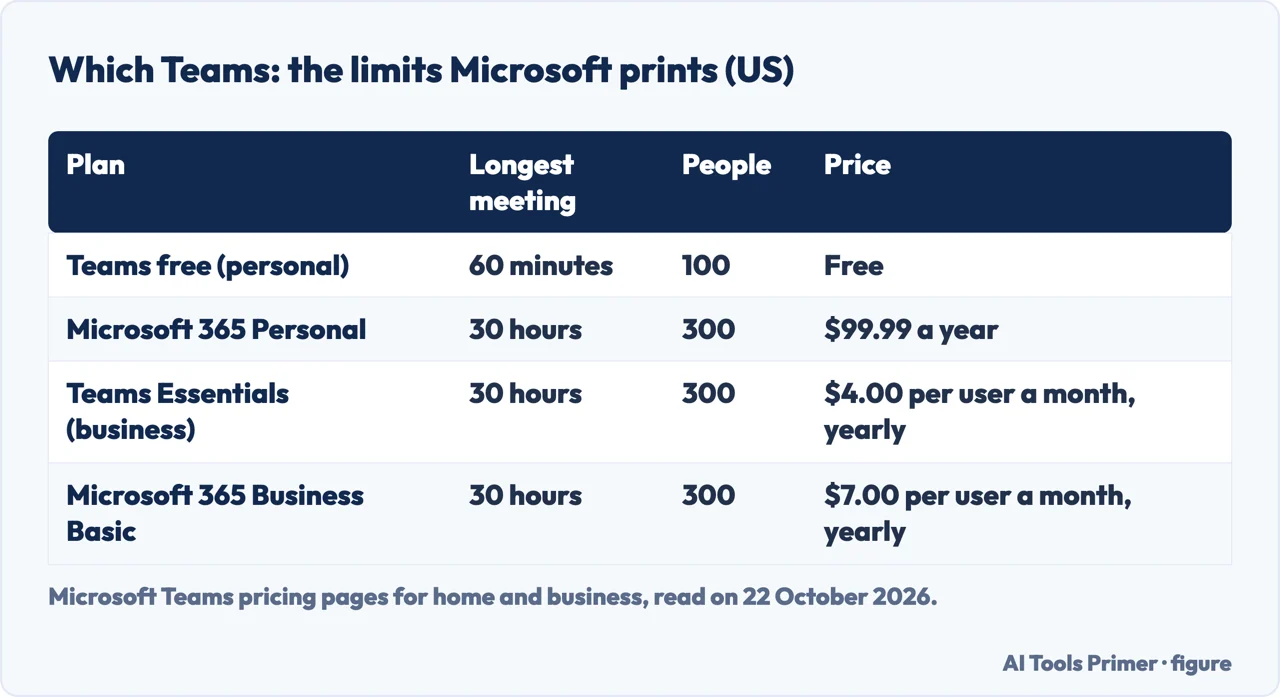
The free personal version has limits that the work plans do not. On Microsoft’s pricing page for home users, read on 22 October 2026, free Teams allows group calls of up to 60 minutes and 100 participants, with 5 GB of cloud storage. Microsoft 365 Personal, at $99.99 a year, raises that to 30 hours and 300 participants. For businesses, the cheapest plan with Teams on Microsoft’s US page is Teams Essentials at $4.00 per user a month, paid yearly, also with 30-hour meetings for 300 people. The figure below puts the four side by side.
Opening it: desktop, browser or phone
- Windows: select Start, then Microsoft Teams.
- Mac: open the Applications folder and select Microsoft Teams.
- Browser: go to teams.microsoft.com and sign in.
- Phone: install the Teams mobile app, tap it and sign in with the same account.
Microsoft’s requirements page for the work client gives the minimum for each. The Windows app needs Windows 10 version 10.0.19041 or later, and does not support Windows LTSC editions. On a Mac, Teams supports the three most recent versions of macOS. In a browser, Teams for the web runs on the latest three versions of Edge, Chrome and Firefox and the latest two of Safari, but not on mobile browsers. The phone apps cover the last four major versions of Android and the two most recent major versions of iOS.
Chats: one person or a group
Microsoft’s chat article, read on 22 October 2026, starts a conversation like this:
- Select New message at the top of your list of chats and channels.
- Enter a person’s name.
- Write in the box at the bottom of the chat. Format, to the right of your message, opens the formatting options.
- Select Send, or press Enter.
A group chat starts the same way. Select the down arrow at the far right of the To field to reveal Group name, give the chat a name, then add people in To. Microsoft puts the limit at 250 people. When you add someone to an existing group chat you can choose how much of the history they see, and Teams keeps the whole history: if someone leaves, their messages stay.
Two habits that help. Florida Gulf Coast University’s help desk points out that Enter sends the message, so press Shift and Enter together for a new line. And Microsoft notes you can start a chat with yourself, which is a handy place for drafts and for sending files to yourself.
If you use Teams for personal use, you can still message people who use Teams at work: Microsoft’s page says to type their business email in Search, with the warning that doing so lets them see your email address and that only some functions are available between the two versions.
Teams and channels: the shared rooms
A chat is for the people in it. A team is a standing group, such as a department or a project, and it is divided into channels, one per topic. The two are listed together: in Microsoft’s combined Chat view your list has three sections, Favorites, Chats, and Teams and channels. If you prefer them apart, More list options, then Customize view, lets you choose Separate instead of Combined.
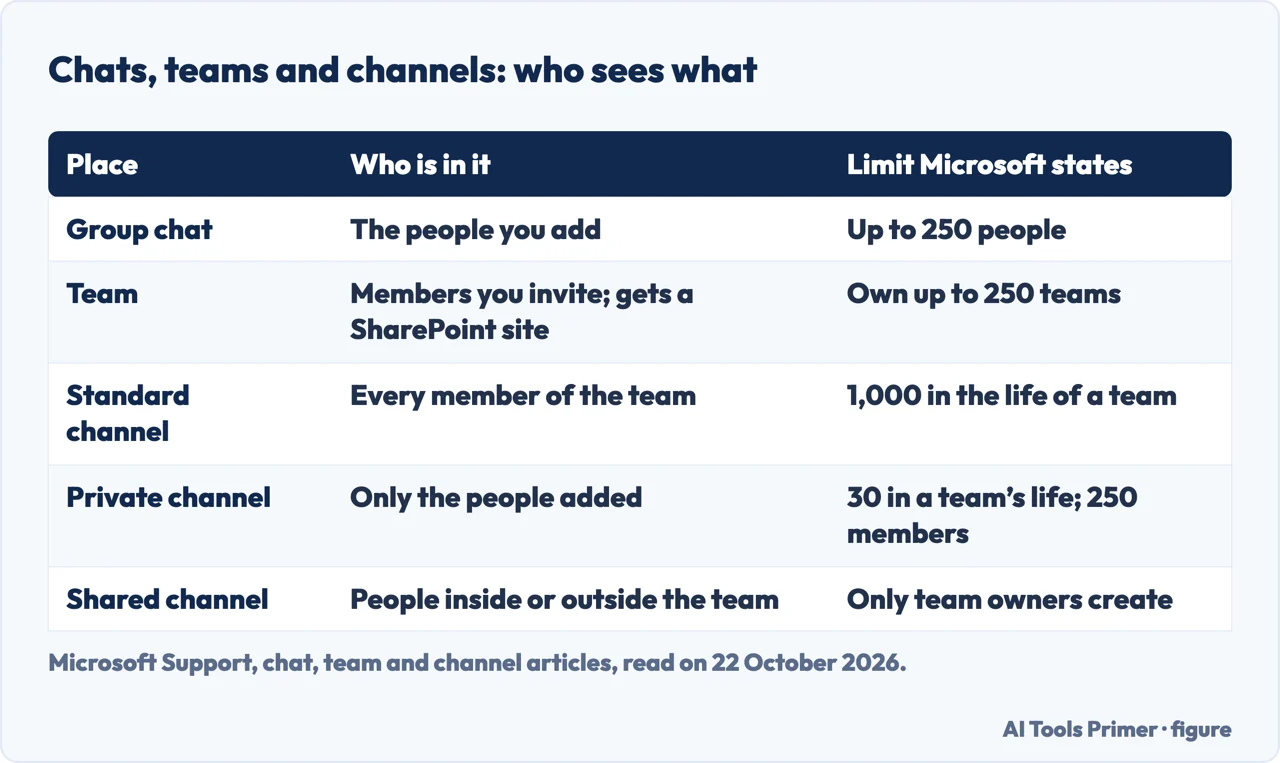
To create a team, according to Microsoft’s article on creating one from scratch: select Chat (or Teams, in the separate view), select New items above your list, name the team, add an optional description, and choose Private or Public. Private limits the team to the people you invite; Public is for a community anyone in the organisation can join. Select Create. The team gets a SharePoint site and a OneNote of its own, you become its owner, and you can own up to 250 teams per account.
Every team starts with one channel, which Microsoft creates and asks you to name. It used to be called General, it can be renamed, and it can never be archived or deleted. More channels come from New items, then choosing the team, a name and a type:
- Standard: open to every member of the team, and anything posted is searchable by others. Up to 1,000 over the life of a team, deleted ones included.
- Private: only the people added, who must already be members of the team. Up to 30 over the life of a team, with up to 250 members each.
- Shared: can include people outside the team, and outside the organisation once an administrator has enabled it. Only team owners can create one, and it cannot later be turned into another type.
Messages in a channel work differently from a chat. Florida Gulf Coast University’s guide explains that replies stay attached to the original message, so use Reply under the message rather than starting a new post; the whole thread can then be followed by anyone who reads it.
Meetings: scheduled or right now
To schedule one, Microsoft’s article says to open Calendar, select a timeslot or New, add the details and the attendees, and make sure the Teams meeting toggle is on. A meeting scheduled in Teams appears in your Outlook calendar, and one made in Outlook appears in Teams. Up to 1,000 invitees can join and take part, and up to 10,000 more can join as view-only attendees once 1,000 are in.
To meet straight away, open Calendar and select Meet now at the upper right. Edit the meeting name, select Get a link to share if others need to join, then Start meeting to reach the pre-join screen. Microsoft notes that Meet now in the calendar needs an Exchange Online mailbox; without one you will not see it. Channels and group chats have their own Meet now as well, and everything shared in the meeting, the chat and any recording stays available afterwards.
Inside the meeting, the controls sit at the top of the window. Microsoft keeps the camera, the microphone and screen sharing fixed there; the rest can be reordered, pinned or moved to the More menu.
Joining a meeting when you do not have Teams
Microsoft’s answer is short: “You can join a Teams meeting anytime, from any device, without signing into a Teams account.”
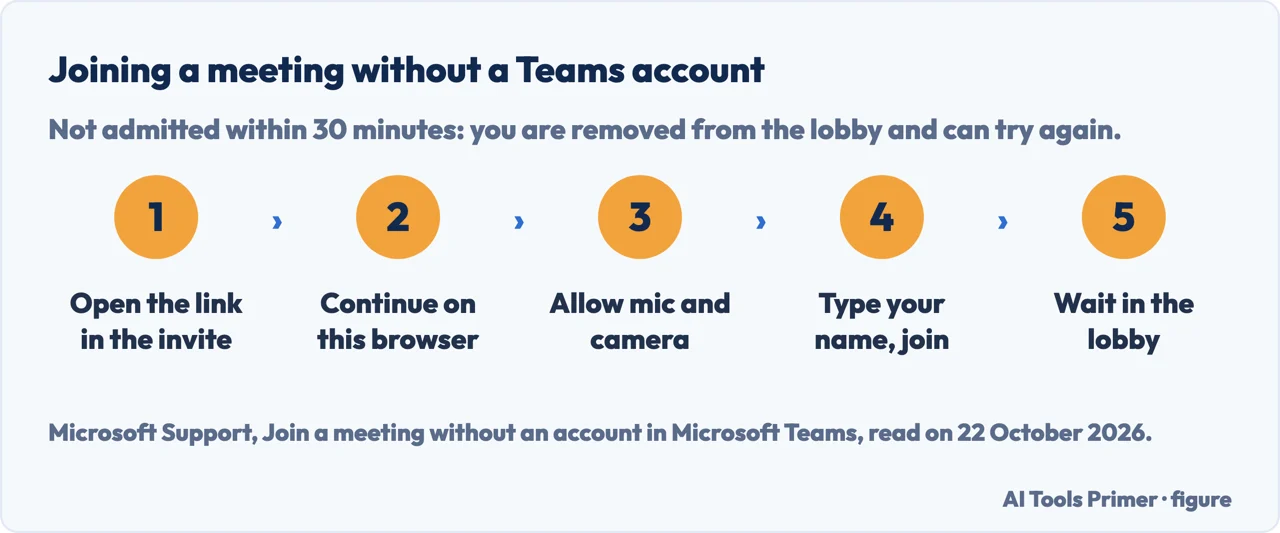
- Open the invitation and select the link next to Join, or Join the meeting now.
- Choose Continue on this browser or Join on the Teams app. “You don’t need to install the Teams app to join the meeting.” In a browser, Microsoft names Edge and Chrome.
- Allow access to your microphone and camera when asked; you can switch both off once inside.
- Type your name and join. Some organisations ask for your email address and a one-time code sent to it instead.
- If you land in the lobby, wait for someone to admit you.
Three more details apply. Microsoft says that if you are not admitted within 30 minutes, you are removed from the lobby and can try again. Other people see a label next to your name: Unverified if you gave no email, Email verified if you used the code, External if you used a Microsoft account. And on a phone the browser route does not exist: the link sends you to the app store, and you tap the link again once the app is installed.
Why the guide you found may not match your screen
Teams moves its menus, and the instructions online have not all followed. Three examples from the results Google showed for this question on 22 October 2026:
- The accepted answer to “How to use Microsoft Teams” on Microsoft Q&A, from July 2024, links to an article called Get started with Microsoft Teams. Opened on 22 October 2026, that link redirects twice and lands on Microsoft’s general Teams help page; the article is no longer there.
- A 2024 answer on the same forum, in a thread migrated from the Microsoft Support Community, tells a small business to create a team with Join or create a team in the Teams bar. Microsoft’s current article starts from New items in the chat and channels list.
- University guides written for the classic Teams, such as Franklin Pierce University’s, last updated in March 2021, still describe a separate Teams interface and a Posts tab.
The steps on this page are taken from Microsoft’s support articles as they read on 22 October 2026. If a button is missing, check which Teams you are signed in to first; on a work account, your administrator may also have switched a feature off.
Where to start
Six ways in.
- “Which Teams is this?”
- Free or work — which teams
- “I need to message someone.”
- Chats — chat
- “What is a channel?”
- Teams and channels — teams channels
- “I have to run a meeting.”
- Meetings — meetings
- “I was sent a link.”
- Joining without Teams — join
- “The buttons are different.”
- Old guides — old guides
More on Teams and Outlook
The calendar and the settings Teams shares with Outlook.
Questions people also ask
Is Microsoft Teams easy to use for beginners?
The first steps are short in Microsoft’s own articles: New message to chat, Calendar to meet, Share to show your screen. Two things can trip you up: personal and work Teams share one app, and guides written for the classic Teams show menus that have since moved.
How do I join a Microsoft Teams meeting for the first time?
Open the link in the invitation and choose Continue on this browser; on a computer you do not need the app. Allow your microphone and camera, type your name, and wait in the lobby. If you are not admitted within 30 minutes, you are removed and can try again. On a phone, you need the app.
How does Microsoft Teams work?
People talk in chats, which belong to the people in them, and in teams, which are standing groups divided into channels by topic. Meetings are scheduled from the calendar or started with Meet now, and files shared in a chat or channel are listed in its Shared tab.
What’s the difference between Outlook and Teams?
Outlook is email and calendar; Teams is chat, channels and meetings. The two share the calendar: Microsoft says a meeting scheduled in Teams appears in Outlook, and the other way round.
Not covered here. We did not use Teams to write this page: the steps are those of Microsoft Support and Microsoft Learn, read on 22 October 2026, and Microsoft moves menus between versions of Teams. Prices are the US prices Microsoft showed on that day.
The Microsoft Q&A threads mentioned here are a question with its accepted answer and a migrated community thread, not Microsoft documentation. The videos and the Reddit threads among the search results were not watched or read. Administrator settings, Copilot and the education version are not covered.
The search volume and difficulty behind this page were read in Semrush on 29 August 2026.
Sources
- Microsoft Support — How to log in to Microsoft Teams — support.microsoft.com, read 22 October 2026.
- Microsoft Support — Connect and collaborate with Microsoft Teams for personal use — support.microsoft.com, read 22 October 2026.
- Microsoft — Compare Microsoft Teams for Home pricing (read in Chrome) — www.microsoft.com, read 22 October 2026.
- Microsoft — Microsoft Teams pricing for business (read in Chrome) — www.microsoft.com, read 22 October 2026.
- Microsoft Learn — System requirements for the Teams client — learn.microsoft.com, read 22 October 2026.
- Microsoft Support — Chat with others in Microsoft Teams — support.microsoft.com, read 22 October 2026.
- Microsoft Support — Can I chat with people who use Microsoft Teams (work or school) in Microsoft Teams for personal use? — support.microsoft.com, read 22 October 2026.
- Microsoft Support — Explore the new chat and channels experience in Microsoft Teams — support.microsoft.com, read 22 October 2026.
- Microsoft Support — Create a team from scratch in Microsoft Teams — support.microsoft.com, read 22 October 2026.
- Microsoft Support — Create a standard, private, or shared channel in Microsoft Teams — support.microsoft.com, read 22 October 2026.
- Microsoft Support — Schedule a meeting in Microsoft Teams — support.microsoft.com, read 22 October 2026.
- Microsoft Support — Start an instant meeting in Microsoft Teams — support.microsoft.com, read 22 October 2026.
- Microsoft Support — Use meeting controls in Microsoft Teams — support.microsoft.com, read 22 October 2026.
- Microsoft Support — Join a meeting without an account in Microsoft Teams — support.microsoft.com, read 22 October 2026.
- Microsoft Support — Present content in Microsoft Teams meetings — support.microsoft.com, read 22 October 2026.
- Microsoft Support — Share files in Microsoft Teams — support.microsoft.com, read 22 October 2026.
- Florida Gulf Coast University ITS — First Things to Know About Chat in MS Teams — fgcu.zendesk.com, read 22 October 2026.
- Franklin Pierce University, DiPietro Library — How To Use Microsoft Teams: Chats, Calls, Meetings (last updated March 2021) — libguides.franklinpierce.edu, read 22 October 2026.
- Microsoft Q&A — How to use Microsoft Teams (July 2024) — learn.microsoft.com, read 22 October 2026.
- Microsoft Q&A — setting up teams (for dummies) help setting up simply (2024, migrated community thread) — learn.microsoft.com, read 22 October 2026.
Written by Alberto Gulotta
Founder and editor of AI Tools Primer, writing from Palermo, Italy. Thirty-five years of taking computers apart, starting with a Commodore 64 — the long version is on the about page.
Something wrong on this page? Write to aitoolsprimer@gmail.com and it gets fixed.
Written on 22 October 2026.
Independence and limits
No affiliate links and no paid placements anywhere on this site. Nobody pays to appear here, and no company has seen this page before you did.
This is general information, not professional advice. Where a page touches money, health, safety or the law, it names its source and the date it was read — and your situation may still differ. See the privacy page and the cookie policy.