
Docs · guide
How to set out of office in Teams: one switch, shared with Outlook
By Alberto Gulotta · Updated · 13 min read
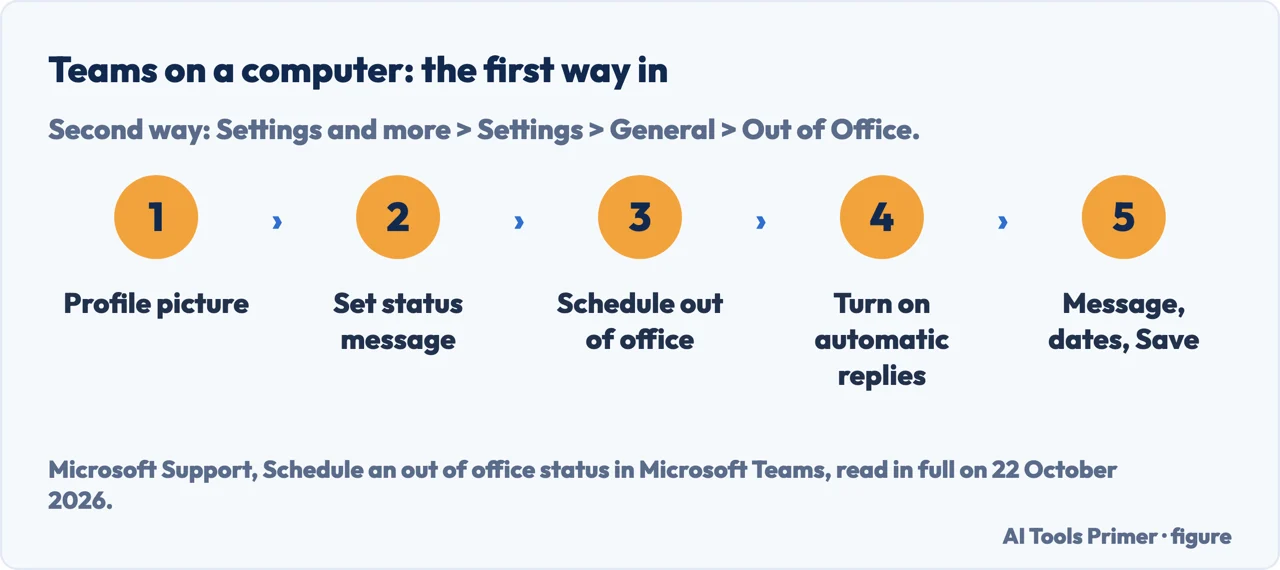
How to set out of office in Teams: select your profile picture, then Set status message, then Schedule out of office. Turn on automatic replies, type a message, tick Send replies only during a time period, choose your dates and select Save. Microsoft says the message is required, and Outlook sends it as your automatic reply.
That last point is the one to keep in mind. When you set out of office in Teams you are switching on Outlook’s automatic replies, so the message reaches people who email you as well as people who chat. The status can also come from your calendar, and some mailboxes cannot set it from Teams at all.
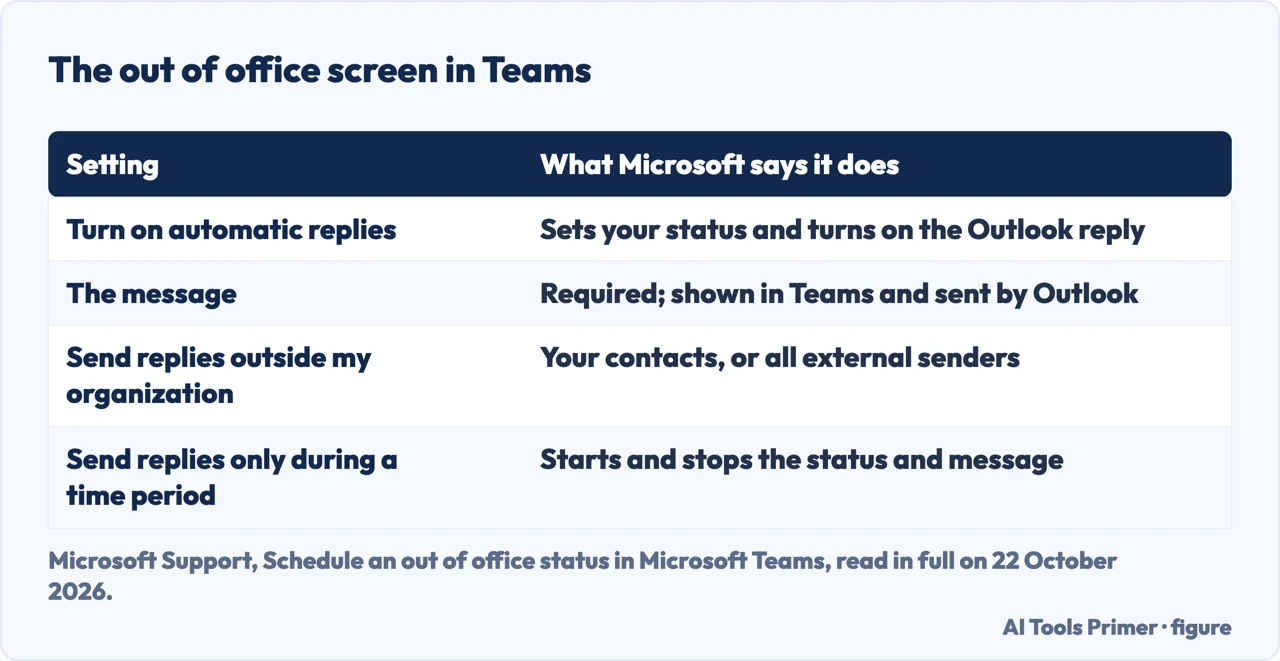
| Setting | What it does, according to Microsoft |
|---|---|
| Turn on automatic replies | Sets your out of office status in Teams and turns on automatic replies in Outlook |
| The message box | Required to set the status; shown when people contact you in Teams or open your profile, and sent as the automatic reply in Outlook |
| Send replies outside my organization | Sends a reply to people outside your organisation: your contacts only, or all external senders |
| Send replies only during a time period | Sets when the status and the message start and stop |
On a computer: two ways to the same screen
Microsoft’s article on scheduling an out of office status covers Microsoft Teams on desktop and on mobile; Teams for personal use has a page of its own, covered at the end. On a computer the article gives two routes, and both open the same screen.
- Select your profile picture at the top of Teams and choose Set status message.
- Select Schedule out of office at the bottom of the options.
- Turn on the toggle next to Turn on automatic replies.
- Type the message. Microsoft notes that a message is required to set your status and to sync it with Outlook.
- To reply to people outside your organisation, tick Send replies outside my organization and choose between your contacts and all external senders. The external message can differ from the internal one.
- Tick Send replies only during a time period and choose the dates and times the status and message start and stop.
- Select Save.
The second route. At the top right of Teams, select Settings and more, then Settings, then General, and find the Out of Office section near the bottom. The Schedule button opens the same screen, and the steps from the toggle onwards are the same.
Turning it off. Go back to the same screen by either route, switch off Turn on automatic replies and select Save. If you set a time period, the status and the message stop on their own at the end of it. Without one, Microsoft’s Outlook article says automatic replies stay on until you turn them off.
On a phone
Microsoft gives separate steps for the Teams mobile app, and says the reply set there is synced to your other apps:
- Tap your profile picture in the upper left corner to open your profile card.
- Select your current status, and from the status menu select Out of office.
- Turn on the toggle next to Set auto reply and write the message. As on the computer, it appears in Teams and is sent as the automatic reply in Outlook.
- Turn on the toggle next to Select your start and end dates and choose the period.
The same page adds that the out of office settings can also be reached from Set status message in your profile. On the phone, then, Out of office sits in the status menu; on a computer, as the next sections show, it does not.
It is the same switch as Outlook’s automatic replies
This is the part that decides most of what follows. Microsoft says that once you schedule an out of office in Teams, you will see automatic replies turned on in Outlook with the same time range and message, and that changes made in Outlook are reflected in Teams. The University of Oregon’s help desk says the same thing: out of office notifications are linked across Microsoft 365 applications and can be set from either Outlook or Teams. There is one setting, with two windows onto it.
Three consequences follow from that.
- Email senders get the reply too. The Teams out of office message is not only a note on your profile: it is the automatic reply that Outlook sends to people who email you.
- The external box reaches more than colleagues. Microsoft’s Outlook article warns that replies outside your organisation go to every email you receive, including newsletters, advertisements and potentially junk, and recommends replying to contacts only. Who receives what, and what to leave out of the text, is on our page about the out of office message in Outlook.
- Your calendar may not be blocked. In a 2022 Microsoft Q&A thread, a user reports that scheduling the out of office in Teams synced the reply to Outlook but put nothing on the Teams or Outlook calendar, so colleagues only found out from the reply when they emailed; the fix in that thread was a separate out of office appointment. An independent advisor in the same thread says the time period does mark the calendar as unavailable in the advisor’s own setup. The two accounts disagree, and Microsoft’s article does not say either way.
If you want the absence on your calendar, an out of office event is the fix that user settled on, and a calendar event set to show as Out of Office also affects your status, as the next section explains. How invitations and shared calendars behave is on our pages about sending a calendar invite and sharing a calendar.
Showing the status without sending a reply
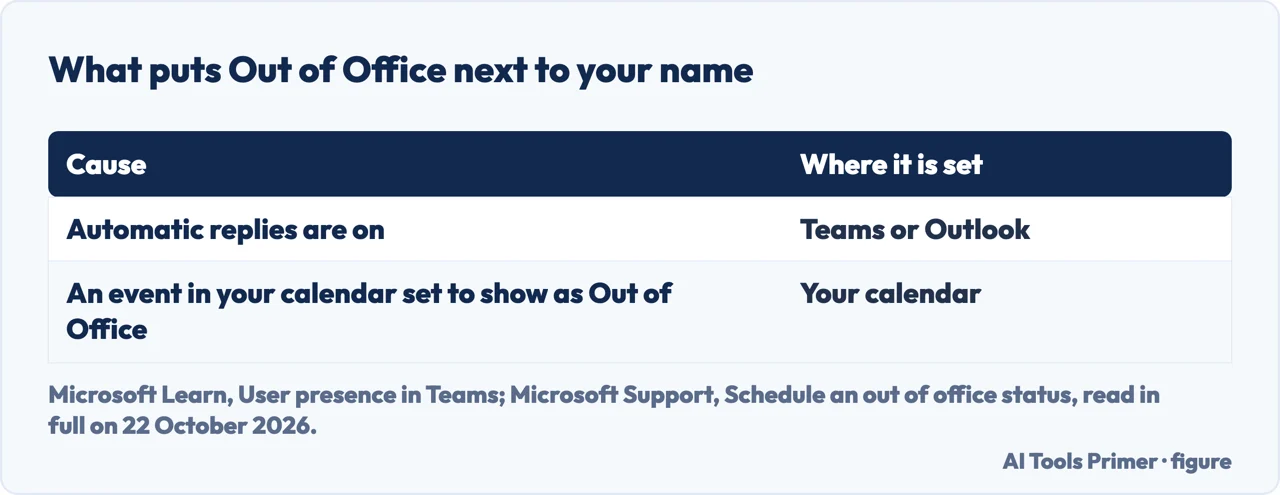
Microsoft’s administrator page on presence in Teams names two things that put Out of Office next to your name: an automatic reply that is switched on, or an event in your calendar set to show as Out of Office. The first sends replies; the second, by that description, is a calendar entry rather than a reply. That makes a calendar event the route Microsoft documents for the status on its own.
The same page says the status is set automatically for the periods covered by automatic replies, and that if you use Teams during those periods, your activity status is shown alongside the out of office indicator.
It is not in the status list on a computer. Microsoft’s page on changing your status lists Available, Busy, Do not disturb, Be right back, Appear away and Appear offline, and the search-box commands cover the same set: /available, /busy, /dnd, /brb, /away and /offline. There is no out of office entry and no command for it; it comes from the schedule screen or from the calendar.
A status message is not the same thing. You can type a status message, tick Show when people message me, and choose when it clears. But Microsoft’s page on status messages carries a warning: “If you have a status message set in Teams, it will not show your automatic out-of-office reply from Microsoft Outlook.” A leftover status message can therefore hide the out of office reply from people who write to you in Teams.
A claim we could not confirm. VirtoSoftware, which sells a calendar app for Teams, writes that you can open the schedule screen, leave Turn on automatic replies switched off and still show the status for the period. Microsoft’s note says a message is required to set the status, and its presence page names only the two causes above. We did not test it.
When it will not save, or will not go away
- Your mailbox is on your organisation’s own servers. Microsoft’s page on how Exchange and Teams interact is plain about it: “Setting Out of Office (OOF) via the Teams client is currently not supported for users whose mailboxes are hosted on-premises; these users should perform this action via the Outlook client.” Only your IT department can tell you where your mailbox is hosted.
- The error “We were not able to schedule out of office”. This is the message users quote in two Microsoft Q&A threads. In one, from an organisation with Exchange on-premises and a hybrid setup, another user reports the problem only on their on-premises accounts. In the other, a reply in the thread links it to a Microsoft service incident from October 2024, TM907799, that affected presence for some users.
- Teams shows you as out of office when you are not. Going by the presence page, check both causes: automatic replies left on in Outlook, and a calendar event set to show as Out of Office. A reply on Microsoft Q&A adds that an invitation someone else sends you with Out of Office selected can change your status too, and suggests removing such entries.
- The status lags. For users whose mailbox is hosted on-premises, Microsoft’s presence page says delays of up to an hour are expected.
- You use Teams with a personal account. Microsoft’s page for Teams for personal use lists the statuses you can pick, Available, Busy, Do not disturb, Be right back, Away and Appear offline, plus a status message. It does not mention an out of office schedule; the steps on this page are from the article for Microsoft Teams.
Messages that sit in Outlook have their own settings, from the signature to the default font, and each lives in a different place in each Outlook.
Where to start
Five ways in.
- “I am at my computer.”
- The two routes — desktop
- “I have already left.”
- On a phone — phone
- “Will email senders get it too?”
- The link with Outlook — outlook
- “I only want the status.”
- Without a reply — status only
- “It will not save.”
- When it fails — not working
More on out of office and Outlook
The reply, the calendar and the settings that sit next to this one in Outlook.
Questions people also ask
How to set out of office in Teams without auto reply?
Microsoft’s presence page says the Out of Office status also appears when your calendar has an event set to show as Out of Office. The schedule screen itself switches on automatic replies and requires a message, so a calendar event is the documented way to show the status on its own.
How do I change my status to out of office?
On a computer, it is not in the status list: use Set status message, then Schedule out of office. In the Teams mobile app, Microsoft’s steps put Out of office in the status menu, with a Set auto reply toggle.
Why am I not able to set out of office in Teams?
Microsoft states that setting out of office from the Teams client is not supported when your mailbox is hosted on-premises; those users set it in Outlook. Microsoft’s page for Teams for personal use does not list an out of office schedule either.
Why is Teams showing me as out of office even though I’m not?
Microsoft names two causes: automatic replies still switched on in Outlook, or an event in your calendar set to show as Out of Office. Turn off the first and check your calendar for the second; a reply on Microsoft Q&A adds invitations sent by others.
Not covered here. We did not set these options ourselves: the steps are those of Microsoft Support and Microsoft Learn, read on 22 October 2026, and Microsoft moves menus between versions of Teams.
The Microsoft Q&A threads used here are answers from community moderators and independent advisors and reports from users, not Microsoft documentation. The videos, Reddit threads and Quora answers among the search results were not read. Administrator settings are not covered.
The search volume and difficulty behind this page were read in Semrush on 29 August 2026.
Sources
- Microsoft Support — Schedule an out of office status in Microsoft Teams (desktop and mobile) — support.microsoft.com, read 22 October 2026.
- Microsoft Learn — User presence in Teams — learn.microsoft.com, read 22 October 2026.
- Microsoft Learn — How Exchange and Microsoft Teams interact — learn.microsoft.com, read 22 October 2026.
- Microsoft Support — Set your status message in Microsoft Teams — support.microsoft.com, read 22 October 2026.
- Microsoft Support — Change your status in Microsoft Teams — support.microsoft.com, read 22 October 2026.
- Microsoft Support — Update your status or set a status message in Microsoft Teams (personal) — support.microsoft.com, read 22 October 2026.
- Microsoft Support — How to set up out of office automatic replies in Outlook — support.microsoft.com, read 22 October 2026.
- University of Oregon, Information Services — Scheduling Out of Office in Microsoft Teams — service.uoregon.edu, read 22 October 2026.
- Microsoft Q&A — Setting out of office on Teams (2022, migrated community thread) — learn.microsoft.com, read 22 October 2026.
- Microsoft Q&A — Out of office cannot be set via Teams — learn.microsoft.com, read 22 October 2026.
- Microsoft Q&A — I am not able to schedule Out Of Office in my teams App — learn.microsoft.com, read 22 October 2026.
- Microsoft Q&A — I can’t change my status to Out Of Office — learn.microsoft.com, read 22 October 2026.
- VirtoSoftware (sells a calendar app for Teams) — How to Set Out of Office in Microsoft Teams — www.virtosoftware.com, read 22 October 2026.
Written by Alberto Gulotta
Founder and editor of AI Tools Primer, writing from Palermo, Italy. Thirty-five years of taking computers apart, starting with a Commodore 64 — the long version is on the about page.
Something wrong on this page? Write to aitoolsprimer@gmail.com and it gets fixed.
Written on 22 October 2026.
Independence and limits
No affiliate links and no paid placements anywhere on this site. Nobody pays to appear here, and no company has seen this page before you did.
This is general information, not professional advice. Where a page touches money, health, safety or the law, it names its source and the date it was read — and your situation may still differ. See the privacy page and the cookie policy.