
Footprint · guide
How to delete your search history: the account, then the browser
By Alberto Gulotta · Updated · 18 min read
How to delete your search history depends on where it is kept. In a Google Account on a computer, you open your search history, click Delete and choose all time, a custom range, one day or one search, and Google says an erased history can’t be recovered. Chrome, Safari and Firefox each keep a separate history, erased separately.
| Question | Answer | Where it comes from |
|---|---|---|
| How do I erase it from my Google Account? | On a computer, open your search history, click Delete, then pick all time, a custom range, a day or one item | Google Search Help |
| Can I get it back? | Google says no: once you erase your search history, you can’t get it back | Google Search Help |
| Can it delete itself? | Yes: Google offers auto-delete for activity older than 3, 18 or 36 months | Google Search Help |
| Does the browser keep its own copy? | Google says it might, even after you delete the account copy; Chrome, Safari and Firefox each have their own clear command | Google Search Help, Chrome Help, Apple, Mozilla |
| Does Incognito keep it out of the account? | Google says yes in Incognito, and also says signing in to the account in a private window may store it | Google Search Help, Google Account Help |
Three places a search can be kept
Google’s help page on finding and erasing Search history says that when you search on Google with Search Services History on, Google saves search activity, and that this helps Google improve your search results and suggestions. The name of the setting is changing. The page opens with a notice that Google is updating the settings for its Search services, which it lists as Search, Maps, Shopping, Flights, Hotels, Translate and News, so the steps may not match what you see. Google’s pages on Web & App Activity and on deleting your activity still use the older names, Web & App Activity and History settings. The notice points to account.google.com, or the latest version of the app, for the updated privacy settings. Below, each step uses the words of the page it comes from.
The Web & App Activity page lists what Google saves when that setting is on: searches and activity on Google products such as Search and Maps; details attached to the activity, such as language, referrer, whether you used a browser or an app, and the type of device; the general area of your location and your IP address; and ads you click or things you buy on an advertiser’s site. It adds that activity could be saved even when you are offline. Your Chrome browsing history is included only if a separate box is checked and you are signed in to Chrome and syncing your history. The same page says that on a shared device, or when you are signed in with more than one account, the activity might be saved to the default account of that browser or device.
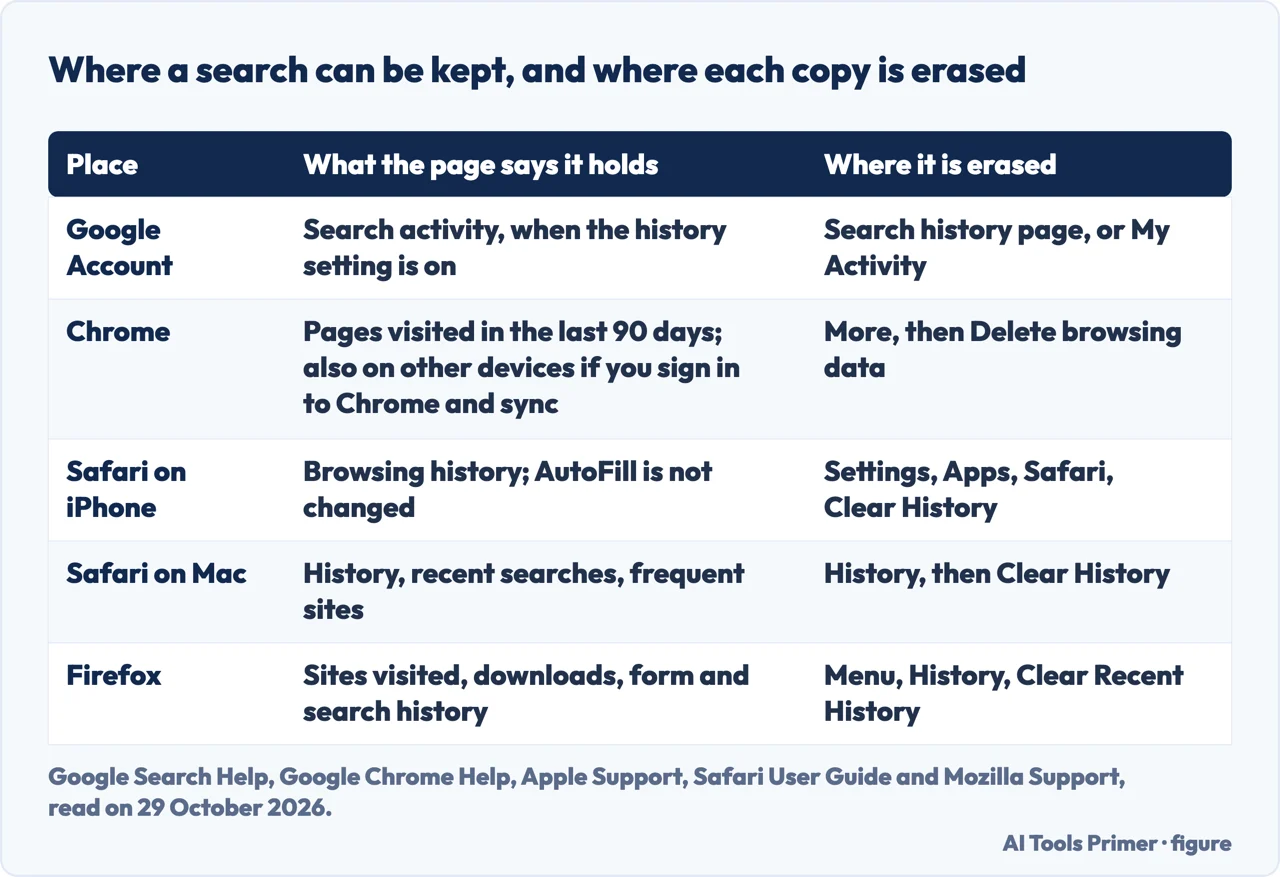
Taken together, the pages describe three places. The first is the Google Account. The second is the browser: Google’s page says that even if your search history is not saved to your account, or you delete it from My Activity, your browser might track it. The third is every other device that shares a sign-in. Chrome’s help page says that deleting your browsing history in Chrome also deletes it on devices where you are signed in to Chrome with your history synced to your Google Account, and Apple’s Safari guide says the same for devices with iCloud set up for Safari. A further case is the Google app used while signed out of the account, where Google says search history can be saved to your computer, or to your phone or tablet. Google says the browser might still track a search after you delete it from My Activity, and Chrome and Apple describe their own clear commands, so the account copy and the browser copy are separate jobs, which is why this page covers the account first and the browser second.
Deleting it from your Google Account
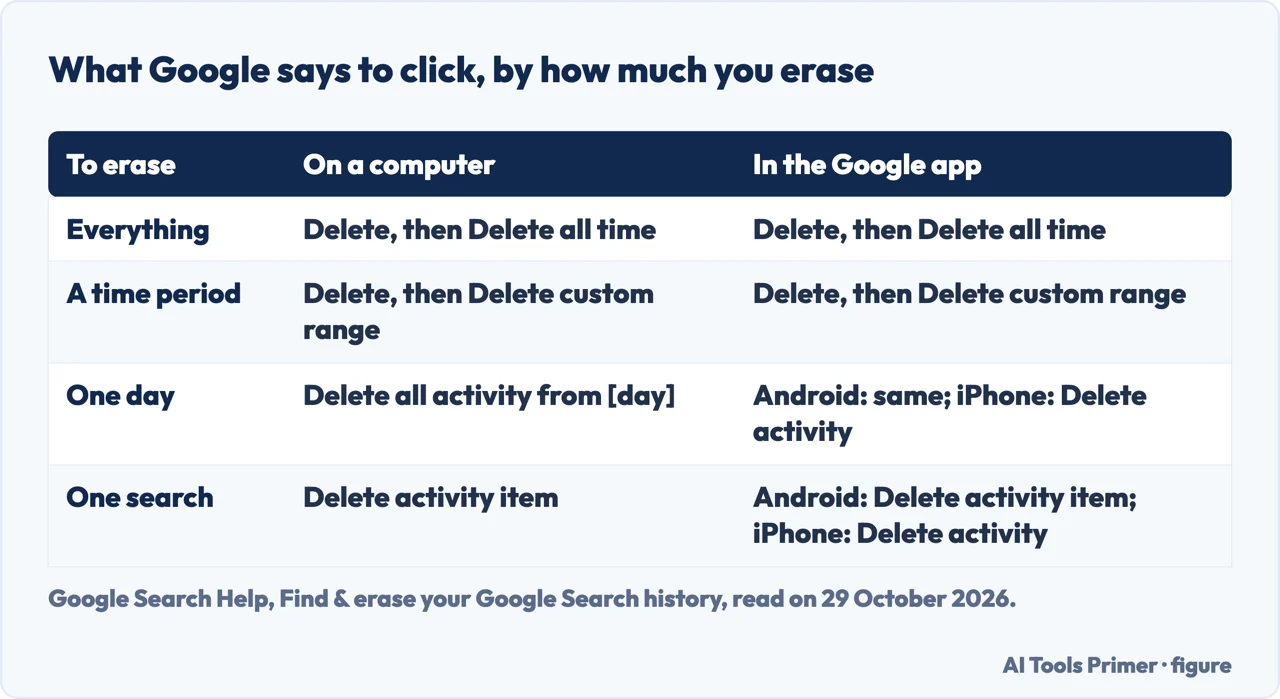
On a computer, Google’s page says to go to your search history and select the history you want to erase. For all of it, click Delete and then Delete all time. For a time period, click Delete and then Delete custom range. For a day, find the day and click Delete all activity from that day. For one search, find it and click Delete activity item. The page puts a warning ahead of the steps: once you erase your search history, you can’t get it back.
In the Google app on Android, Google says to tap your profile picture or initial and then Search history. Above the history, Delete offers Delete all time and Delete custom range; next to a day, Delete all activity from that day; next to a single entry, Delete activity item. The page for iPhone and iPad gives the same opening steps, with Delete, Delete all time and Delete custom range, and Delete activity for a day or one entry. Its warning is worded for the account: once you erase search history that is saved to your Google Account, you can’t get it back.
Google Account Help gives a second door, myactivity.google.com, which covers more than searches. To delete everything there, click Delete at the top, then All time, Next and Delete. To narrow it, you can filter by date with Calendar and by product with the Search filter, choose the products to include, and click Delete next to the search bar and then Delete Results to erase everything the filters show. The page warns that some Google products don’t save activity in My Activity, and that activity is sometimes saved in places other than My Activity, giving the Maps Timeline as its example. Google’s Search page also points out that you can delete all your activity, not just Google Search history.
Recent searches in the app have their own gesture. On Android, touching and holding a recent query in the Google search bar and tapping Delete erases it, and Google says that erasing recent searches from the search bar also erases them from My Activity. On iPhone, you tap the search bar, find the item, swipe left and tap Delete. For history saved on the iPhone itself, the page lists Settings under your profile picture, then Privacy & Safety and Clear app history, and it adds that history deleted in the app might still be saved in your Google Account, to be erased from My Activity.
Making it delete itself, or stop being kept
Google offers three lengths for automatic deletion: activity older than 3 months, 18 months or 36 months, or Don’t auto-delete activity. On a computer the Search page says to go to Search Services History, select Auto-delete under Saving history, choose a length and click Next. On Android the route is your profile picture, Search history and Controls, then the option under Auto-delete (Off) or Auto-delete (On) on the Search Services History card, which opens the same three choices. Google says that if you set your search history to erase automatically, you can still erase it by hand.
Google Account Help gives a path through the account instead: Data & privacy, then under History settings the activity setting you want to auto-delete, then Auto-delete, a button for how long to keep your activity, and Next and Confirm. That page does not list the lengths. It adds a tip: some activities may disappear faster than the time frame you choose, and it gives location info about where your device is and your IP address, which it says are deleted from Web & App Activity after 30 days.
To stop the saving, the computer steps are Search Services History and then Turn off under Saving history; choosing Turn off and delete activity lets you pick what to erase. On Android it is Search history, Controls, then Turn off under Search Services History, with a choice between Turn off and Turn off and delete activity. The Web & App Activity page describes the same two choices under its own name for the setting, and says some browsers and devices may have more settings that affect how activity is saved.
Incognito appears in two statements. Google’s Search page says that searching and browsing in Incognito mode keeps your search history out of your Google Account. Google Account Help, in its note on stopping activity temporarily, says that signing in to your Google Account inside a private browser window may mean your search activity is stored in that account. Both statements are Google’s, on different pages.
Signed out, Google says the app can keep history on the device, and that Search customization can be on. The Web & App Activity page adds that search and ad results may be customized using search-related activity even when you are signed out, and says to search and browse privately to turn that off. To turn Search customization off while signed out, a computer goes to Google, then Settings, Search settings and Search customization; Android goes through your profile picture to Settings, Privacy & Safety and Search customization; iPhone goes to Settings, Privacy & Safety and Signed-out search. The computer page adds that Search customization only works if you accept all cookies.
The history your browser keeps
Chrome’s own help page says History lists the pages you have visited in the last 90 days. It does not store Chrome pages such as chrome://settings, pages visited in Incognito mode or pages already deleted from the history. To delete on a computer, open Chrome, select More at the top right, then Delete browsing data, choose how much, with All time for everything, check Browsing history and any other boxes you want, and select Delete data. For one site, go to More and History, check the box next to the site and select Delete and then Remove. The page also points to the account: separately, you can delete your Google search history from your account. The Avon and Somerset Police page, written for people worried that someone may be monitoring their internet use, gives a different menu route for Chrome on Windows, through More tools and More Settings; we followed Chrome’s own page. On Android, Google says the Google app saves visited web pages in Chrome’s browser history, and that the Chrome instructions erase them.
For Safari on iPhone, Apple’s page, published on 14 September 2026, says to go to Settings, tap Apps, then Safari, scroll down to Clear History and Website Data, confirm the timeframe and tap Clear History. It says this doesn’t change your AutoFill information. To remove a single site, open Safari’s Start Page, tap the History button, then More and Select Websites, choose the sites and tap the Trash button. To clear cookies and cache but keep the history, the route is Settings, Apps, Safari, Advanced, Website Data and Remove All Website Data.
On a Mac, the Safari User Guide says to open Safari, choose History and then Clear History, and pick from the pop-up menu how far back to clear. If your Mac and your other Apple devices have iCloud set up for Safari, the history is removed from all of them. The same action also removes the frequently visited site list and recent searches, the list of downloaded items, though the downloaded files stay, and the lists of websites that asked to use your location or to send notifications. Apple adds that clearing history in Safari doesn’t clear histories kept independently by the websites you visited.
Mozilla’s page for Firefox on a computer says to open the menu, choose History and then Clear Recent History, pick how much to clear (the last hour, two hours, four hours, the current day or everything), check what to clear and click Clear. Mozilla describes Firefox search history as the items entered into the search field on the New Tab page or into the Search bar. To clear automatically, the page sends you to Settings, Privacy & Security and History, where Customize history offers the box Clear history when Firefox closes; Mozilla says this does not run if Firefox did not shut down normally, such as after a crash, or if Firefox is set to automatic private browsing. For a single site it describes Forget About This Site, which it says removes that site’s history items along with cookies, cache, active logins, passwords and saved form data.
Edge appears here only through a community answer. On Microsoft Q&A, a moderator suggests a quicker route than the long path through Settings: open Edge, press Ctrl + Shift + Del, choose a time range and click Clear now. The first answer in the thread, which the page labels as AI-generated, gives the longer path through Settings, Privacy, search, and services and Clear browsing data. We did not read Microsoft’s own support page.
What deleting does not do, and when it seems not to work
Google’s page on how it erases your history says that when you delete activity by hand or automatically, it starts the removal of the activity from the product and system. First, Google says it aims to take the activity out of view, after which the data may no longer be used to personalize your Google experience. Then it begins a process designed to delete the data from its storage systems. Google adds that it may keep certain types of data for an extended period for limited purposes, like business or legal requirements. The Google pages we read give no length of time for that process. A review site, security.org, which carries commercial links, says, about online platforms in general, that it could take a few months for searches to be completely erased; it does not say where that comes from, so we leave it as the site’s own statement.
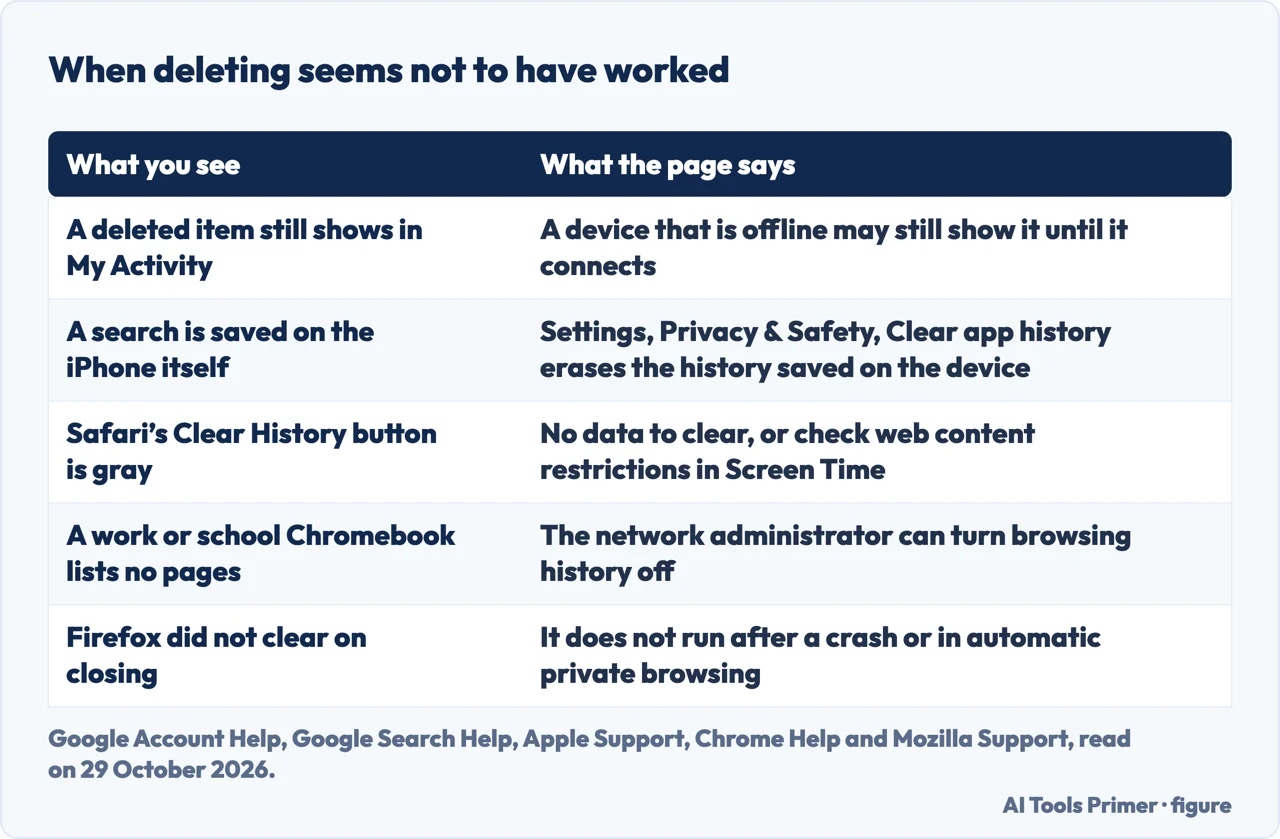
If a deleted item still shows in My Activity, Google Account Help says to make sure the device is connected to the internet: items deleted on one device might still appear on a device that is offline, and they are removed when it connects. It then says to clear your cache and cookies. The iPhone and iPad page gives the same two steps for erased history that shows in My Activity.
The browser pages give other reasons a delete can seem to fail. Apple says a gray Clear History button on iPhone means there is either nothing to clear, or web content restrictions in Screen Time may need checking. Chrome says a Chromebook from work or school can have browsing history turned off by the network administrator, and that the history then lists no pages. Mozilla’s clearing on close does not run after a crash.
Some copies sit outside these settings. Apple says clearing history in Safari doesn’t clear histories kept independently by the websites you visited. For a device other people use, the Avon and Somerset Police page says the safest way to completely hide online activity from someone who has access to a device is to visit websites on someone else’s devices, for example a friend’s or relative’s, or at work or in a library. The same page describes Incognito mode as leaving the browsing history, cookies and site data, and form entries unsaved on the device.
What we did not use
We tried the steps on no account and no device; every statement above is what a page says. We did not read Microsoft’s own support page for Edge, and the Google, Chrome, Apple and Mozilla pages we read do not cover Bing, a Microsoft account, or the histories kept by YouTube or Gemini; the review site and the VPN page mention YouTube and Gemini history, but we did not read them at their source and use none of it. We did not watch any video on the subject, and we read a 2016 Stack Exchange question about a school Google account but used it for no step. We read a VPN company’s page and did not use it for steps. The review site and the police page appear above only as attributed statements, and the Microsoft Q&A thread only for Edge.
Where to start
Four ways in.
- “I want it out of my Google Account.”
- Deleting it from your Google Account — account
- “Can it delete itself?”
- Making it delete itself, or stop being kept — auto
- “What does the browser keep?”
- The history your browser keeps — browser
- “I deleted it and it still shows.”
- What deleting does not do, and when it seems not to work — limits
Deleting what a service kept
A chatbot history, a Gmail account, a Facebook Page.
Asking, and leaving less behind
A legal right to ask, what Incognito deletes, and the one cache an iPhone lets you clear.
Questions people also ask
How to delete search history on iPhone?
Two places, two routes. In the Google app, Google says to tap your profile picture, then Search history, then Delete and Delete all time or Delete custom range. In Safari, Apple says to go to Settings, Apps, Safari, then Clear History and Website Data, confirm the timeframe and tap Clear History.
What is the fastest way to delete history?
The pages we read do not name a fastest way. The short routes they give are Delete and Delete all time in your Google search history, More and Delete browsing data with All time in Chrome, and History and Clear History in Safari on a Mac. A moderator on Microsoft Q&A gives Ctrl + Shift + Del for Edge.
Why can’t I delete browsing history?
The pages give several reasons: a gray Clear History button on iPhone, which Apple ties to no data to clear or to web content restrictions in Screen Time; a Chromebook from work or school where the network administrator turned history off; and a deleted item that an offline device still shows until it connects.
Is my history permanently deleted?
Google says you can’t get an erased search history back. It also says it starts a process to delete the data from its storage systems, and that for limited purposes, like business or legal requirements, it may retain certain types of data for an extended period. The pages we read give no length of time.
Not covered here. We tried the steps on no account and no device. The statements come from Google Search Help, Google Account Help, Google Chrome Help, Apple Support, Mozilla Support, a Microsoft Q&A thread, a police page and a review site, all read on 29 October 2026.
The search volume and difficulty behind this page come from a Semrush reading of 29 August 2026. That measure expired on 28 October 2026 and was not read again; it is used with the owner’s permission and should be re-measured.
Sources
- Google Search Help — Find & erase your Google Search history (computer, Android, iPhone and iPad) — support.google.com, read 29 October 2026.
- Google Account Help — Delete your activity — support.google.com, read 29 October 2026.
- Google Search Help — Find & control your Web & App Activity — support.google.com, read 29 October 2026.
- Google Chrome Help — Check or delete your Chrome browsing history — support.google.com, read 29 October 2026.
- Apple Support — Delete your Safari history, cache, and cookies on iPhone — support.apple.com, read 29 October 2026.
- Apple Support — Clear your browsing history in Safari on Mac — support.apple.com, read 29 October 2026.
- Mozilla Support — Delete browsing, search and download history on Firefox — support.mozilla.org, read 29 October 2026.
- Microsoft Q&A — How to delete search history on my computer from last 30 days (community thread) — learn.microsoft.com, read 29 October 2026.
- Avon and Somerset Police — How to clear your browser history — www.avonandsomerset.police.uk, read 29 October 2026.
- Security.org — How to Clear Your Search History in 2026 (review site) — www.security.org, read 29 October 2026.
Written by Alberto Gulotta
Founder and editor of AI Tools Primer, writing from Palermo, Italy. Thirty-five years of taking computers apart, starting with a Commodore 64 — the long version is on the about page.
Something wrong on this page? Write to aitoolsprimer@gmail.com and it gets fixed.
Written on 29 October 2026.
Independence and limits
No affiliate links and no paid placements anywhere on this site. Nobody pays to appear here, and no company has seen this page before you did.
This is general information, not professional advice. Where a page touches money, health, safety or the law, it names its source and the date it was read — and your situation may still differ. See the privacy page and the cookie policy.