
Images · guide
ChatGPT photo editor and Photoshop: the same edit, side by side
By Alberto Gulotta · Updated · 15 min read
A ChatGPT photo editor takes a description: OpenAI says to upload an image or pick one ChatGPT Images made, optionally select an area, then describe the change. Photoshop’s Generative Fill starts from the selection instead, and Adobe counts one credit per generation with its Firefly models. OpenAI’s free-plan pages give separate usage limits, not an image count.
| Question | Answer | Where it comes from |
|---|---|---|
| How do I start in ChatGPT? | Pick an image ChatGPT Images made or upload one, then describe the change | OpenAI Help Center |
| Do I have to select an area? | No: select with the tool, or skip it and describe the edit in the conversation | OpenAI Help Center |
| Is the selected area exact? | OpenAI says highlights are not always precise and edits may extend beyond them | OpenAI Help Center |
| What limits does the free plan have? | Image creation has its own usage limit; free users get 3 file uploads a day | OpenAI Help Center |
| What does Photoshop add? | A selection, an optional prompt, a choice of model and a new Generative Layer each time | Adobe Help |
| What does a Photoshop edit cost? | One generative credit per generation for Firefly models; partner models count as premium | Adobe Help |
Editing in ChatGPT: two ways in
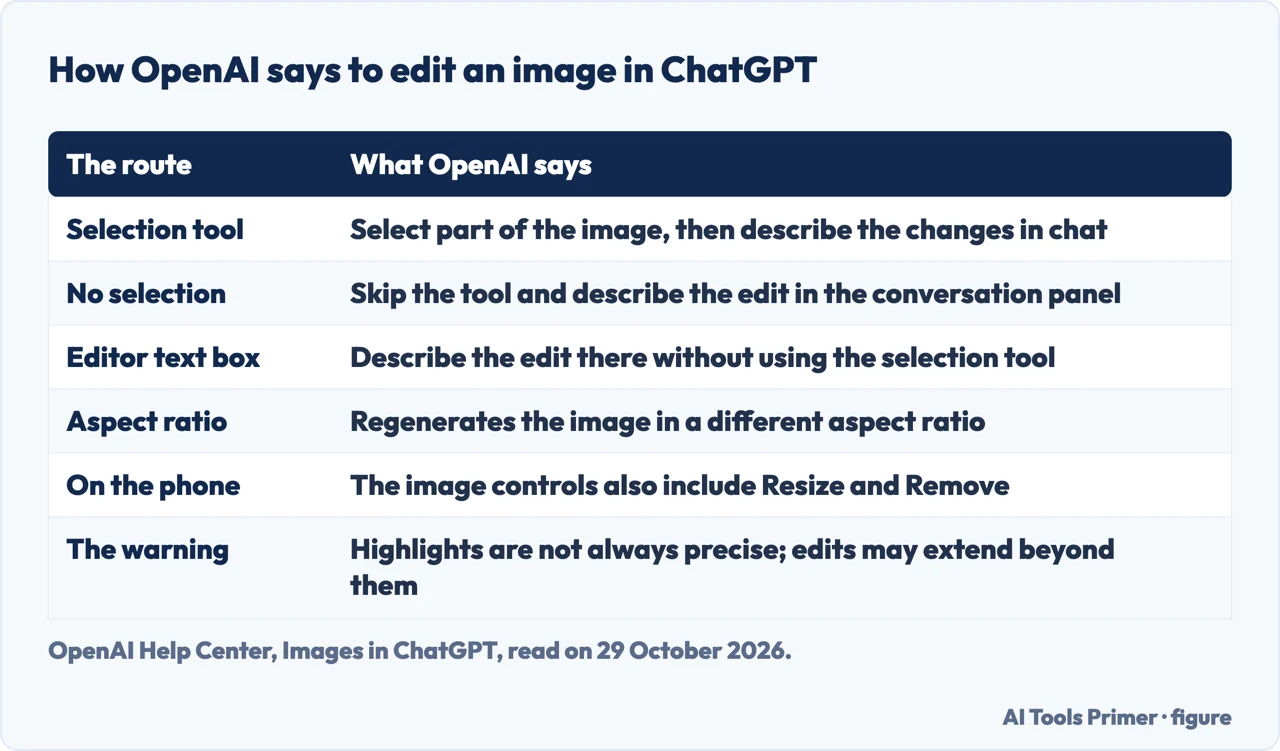
OpenAI’s Help Center page on images in ChatGPT says that ChatGPT Images creates new images and edits existing ones, and it mentions ChatGPT Images 2.5, which it says brings sharper details, more precise editing and faster image generation. To edit, you either select an image that ChatGPT Images generated or upload an existing one, and then describe the change you want. The page gives two ways to do it. You can select part of the image with the selection tool and describe the changes in the chat, or you can skip the selection tool and describe the edit directly in the conversation panel. The same page also says you can generate images in any aspect ratio, by using the aspect ratio picker or by putting the ratio in the prompt.
Opening the editor is a second route. You select an image in the conversation or in the Images section, and the editor lets you add, remove and update parts of it. Its controls are Select, to highlight the area; Aspect ratio, to regenerate the image in another ratio; Undo and Redo, to revise your selections; Cancel, to start over; and Save, when you are finished. A text box in the editor lets you describe the edit without using the selection tool at all. OpenAI’s page also describes a sketch route for the mobile app: type @ in the message box, choose Sketch, draw, confirm, and add written instructions about the subject, colours or style.
On availability, the page says ChatGPT Images is available on all tiers and on web, iOS and Android. A separate feature, Images with thinking, is listed for Plus, Pro and Business, with Enterprise and Edu marked as coming soon. For a linked teen account, the page says a parent or guardian may be able to control whether the teen can create or edit images. It also says the DALL·E GPT has been retired from ChatGPT, and that ChatGPT Images is what to use to keep creating or editing. The older help article titled for editing images with DALL·E opens this same page, which is why we read it as one source.
The area you pick is not always the area that changes
The sentence that matters most on OpenAI’s page sits next to the selection tool: if you want the edit to apply to a specific area, include that area in your prompt. The editor section separately warns that highlights are not always precise and edits may extend beyond the area you selected; the page does not say the two statements are linked. The page repeats that warning in the part about editing on a phone. The page does not describe a way to lock the part you did not select.
The phone has a few differences, according to the same page. In the ChatGPT mobile app you open an image generated by ChatGPT Images full-screen, and the image controls include Resize and Remove as well as Edit. Select has a slider to change the size of the selection tool, and Undo and Redo revise your selections. When the selections are done you choose Next and describe the changes to the highlighted areas in the conversation panel. The wording on the phone is about an image generated by ChatGPT Images, whereas the desktop description also allows an upload, and the page does not say whether the phone editor takes an uploaded photo the same way.
For the prompt itself, the pages we read give little. OpenAI’s template section says to be specific about the details that matter, and its example is a poster, where you describe what it is for and any text you want on it. ChatGPT may ask follow-up questions about details such as the visual style. The sketch example on the page is an instruction to turn a drawn house into a watercolour painting. These are guidance for creating an image; the page does not offer a list of editing prompts, and we have not written one for it.
What it costs on the free plan
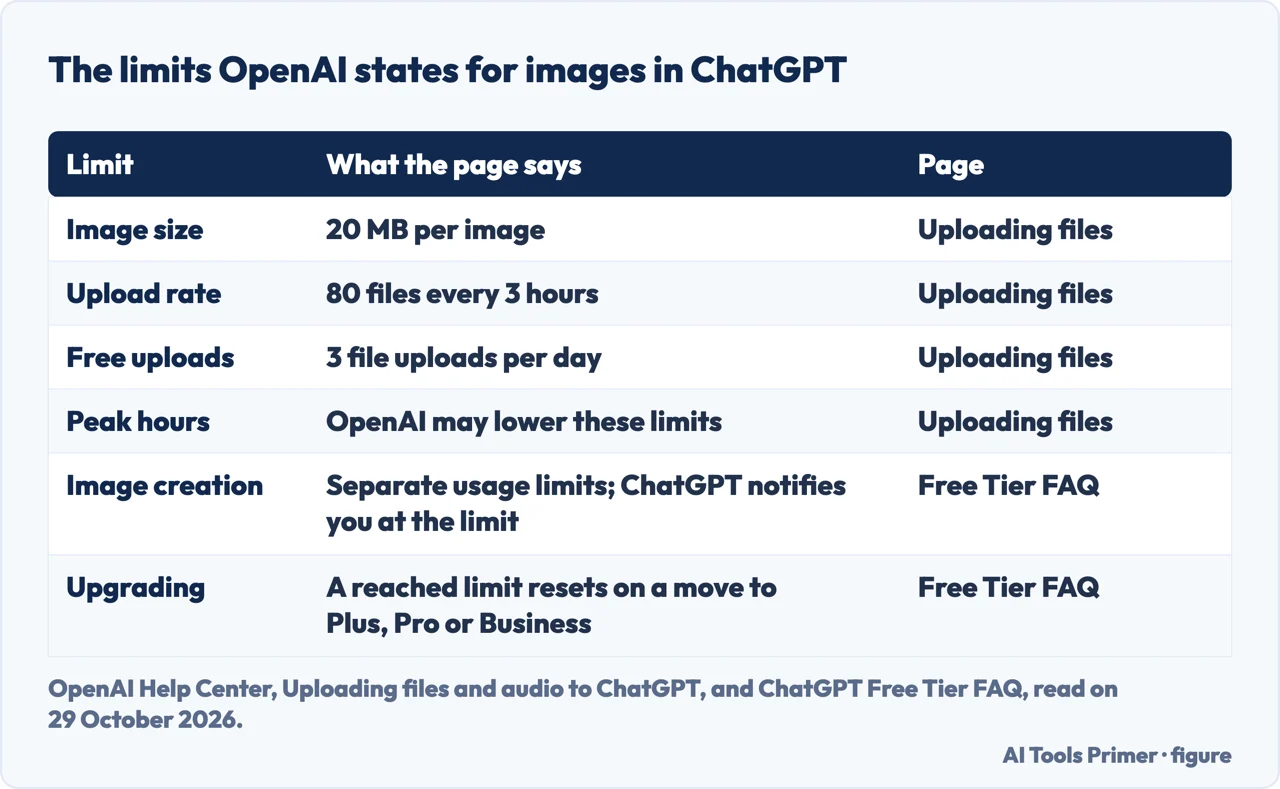
Whether ChatGPT photo editing is free is answered in two OpenAI pages, and neither gives a count of images. The ChatGPT Free Tier FAQ lists creating images in ChatGPT and uploading images or files in your prompts among the things free users can do. It says free users have unlimited everyday text chats, subject to abuse-prevention safeguards, while file uploads, image generation, voice, data analysis and other tools have separate usage limits, and that ChatGPT will notify you when you reach an applicable limit. It adds that advanced functionality, including data analysis, file uploads and image creation, can have stricter limits than paid plans. The pages we read do not mention a number of free images per day.
The one number appears on the page about uploading files and audio. It says images have a limit of 20 MB per image, that you can upload up to 80 files every 3 hours, and that free users are limited to 3 file uploads per day. OpenAI may lower these limits during peak hours. Because an edit of a photo of your own begins with an upload, the daily figure is the one that touches it (an edit of an image ChatGPT Images already made starts without one), but the page is about files in general and does not say how a ChatGPT Images edit is counted against it. The page does not show a counter for how much of the quota you have used either.
If a limit is reached, the Free Tier FAQ says the usage rates reset on upgrading to a Plus, Pro or Business plan. As for what happens to a file once it is uploaded, the uploads page says how uploaded documents and images may be used to improve models depends on the service you use and your data settings, and it points to pages on data usage and data controls. We did not open those pages, so what ChatGPT does with a photograph you upload is left open here.
The same job in Photoshop
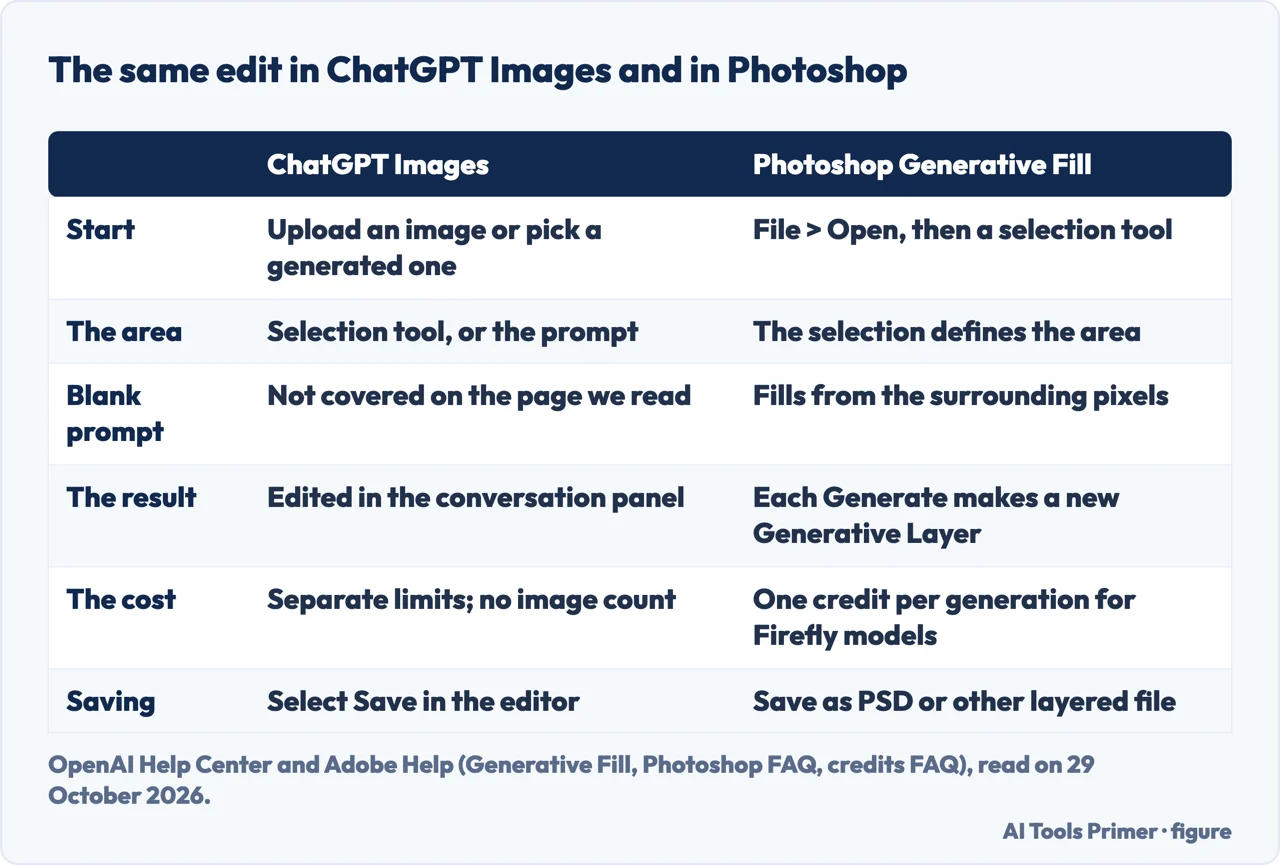
Adobe’s page on editing images with Generative Fill, last updated on 15 September 2026, starts from the selection rather than the prompt. You open an image with File > Open and use a selection tool, such as the Selection Brush, to define the area to edit. Then you select Generative Fill and, in the Contextual Task Bar, pick a model from the model picker. Next you enter a text prompt describing what you want, or leave it blank to let Photoshop fill the selection using the surrounding pixels. You finish by selecting Generate and choosing a variation from the Properties panel. This is Photoshop on desktop, and the Adobe FAQ adds that, at the time of its writing, generative AI in Photoshop needs an internet connection.
The model picker names the models you can choose. Adobe lists three of its own models: Firefly Fill & Expand, Firefly Image 5 and Firefly Image 1. Beside them are partner models: FLUX.2 pro, FLUX Kontext pro, Gemini 3.1 with Nano Banana 2, and Gemini 3 with Nano Banana Pro. A note on the page says Google is deprecating Gemini 2.5 with Nano Banana from 2 October 2026, and that Photoshop begins removing that model on 10 September and with the September 2026 build, version 27.11, and later.
Adobe’s FAQ on generative AI in Photoshop, last updated on 23 February 2026, describes what the edit leaves behind. Each time you select Generate, a new Generative Layer is created, and to keep it you save as a PSD or another layered file type. The newly generated content sits in a generative layer, so you can reverse the effect without touching the original image. The same FAQ says the Firefly model returned output of 1024x1024 pixels to Photoshop on desktop and the web. That sentence is dated February, before the September page listed newer models, so we give it as that FAQ’s statement and not as a limit on every model in the picker.
What a Photoshop edit costs, and where the pages differ
The page of steps does not mention credits. Two other Adobe pages do. The Photoshop FAQ from February says generative AI features in Photoshop deduct one generative credit per generation. The generative credits FAQ, updated on 27 October 2026, says most standard generative features, such as Generative Fill using Adobe Firefly models in Photoshop, use 1 credit per generation, and that some standard features use more. With a Creative Cloud Pro, Firefly or credits plan, it says you have unlimited access to standard generations; credits are spent on premium features. The same FAQ says partner models from Google, OpenAI and others are also categorised as a premium feature, and its table lists Generative Fill using partner models in Photoshop with a pointer to learn more and no number. In the image section of that table, Firefly Image 5 is listed at 10 credits per generation, which is not given as a Generative Fill figure. The same FAQ’s plan table is where the allowance of a plan that includes only Photoshop shows up: Creative Cloud Single App is listed with a finite monthly number of credits (25 for subscriptions from 17 June 2025, 500 before), whereas the unlimited standard generations apply to Creative Cloud Pro, Firefly and credits plans. People without any plan get only a limited number of free daily generations on a curated set of models, and the Remove tool in Photoshop is listed as one that does not draw on credits.
Credits do not accumulate. Both Adobe credit pages say they do not roll over to the next month: the balance resets on the plan’s monthly reset date. The page on access and use, dated 16 December 2025, says a one-time message tells you the first time a feature uses generative AI and may consume credits, and that Adobe will not charge you for additional credits unless you decide to buy more. When the monthly credits run out, you can buy a credits plan in the product. The pages we read do not give the price of Photoshop itself.
Set side by side, the two tools answer different questions. OpenAI gives limits without a number of images for the free plan and asks you to name the area; Adobe makes the selection the first step, fills from surrounding pixels when the prompt is blank, and counts one credit for each generation with a Firefly model. ChatGPT works in a conversation and saves images under Images; Photoshop produces variations on a Generative Layer inside a file. The dates differ as well: the step page is from 15 September 2026, the FAQ from 23 February 2026 and the credits page from 27 October 2026. We ran neither tool, so which one gives the better result is not something these pages decide. If the job is only to remove one object, our page on retouching a photo covers the free tools on your own devices.
What we did not use
We edited no photograph in ChatGPT or in Photoshop, so everything above is what the help pages say. We used only the seven help pages listed under Sources and read no other guide or product page about editing photos in ChatGPT. We did not open OpenAI’s pages on data usage and data controls, so the question of what happens to an uploaded photo is not answered here. The OpenAI pages show dates such as “12 hours ago” rather than a day, so we read them on 29 October 2026 and cannot date their last change. The Adobe page on Generative Fill and the FAQ are Photoshop on desktop; we did not read Adobe’s pages for Photoshop on the web or on a phone.
Where to start
Four ways in.
- “How do I edit a photo in ChatGPT?”
- Editing in ChatGPT: two ways in — chatgpt
- “Why did it change more than I selected?”
- The area you pick is not always the area that changes — area
- “Is it free?”
- What it costs on the free plan — free
- “What would Photoshop do?”
- The same job in Photoshop — photoshop
Fixing and retouching a photo
What the free tools already do to a picture you have.
Taking out a background
Taking the background out of a picture.
Questions people also ask
Why can’t I edit photos on ChatGPT?
The pages we read do not name one cause. They do list things that bear on it: image creation and file uploads have separate usage limits, free users get 3 file uploads a day, images are limited to 20 MB, and a parent or guardian may be able to control image editing on a linked teen account.
Is ChatGPT photo editing free?
OpenAI’s Free Tier FAQ lists creating images and uploading images among what free users can do, with separate usage limits and possibly stricter limits than paid plans. The pages we read do not give a number of free images.
Can ChatGPT make my photos better?
OpenAI says ChatGPT Images 2.5 brings sharper details, more precise editing and faster generation. That is OpenAI describing its own model, and we ran no comparison with Photoshop or any other editor.
What are some good prompts for editing photos in ChatGPT?
OpenAI’s page says to include the specific area in your prompt if you want the edit to apply there, and to be specific about the details that matter. It does not give a list of editing prompts.
Not covered here. We edited nothing in ChatGPT or Photoshop. The statements come from three OpenAI Help Center pages and four Adobe Help pages, all read on 29 October 2026.
The search volume and difficulty behind this page come from a Semrush reading of 29 August 2026, older than the 60 days the site normally allows.
Sources
- OpenAI Help Center — Images in ChatGPT (the older “Editing your images with DALL·E” article opens it) — help.openai.com, read 29 October 2026.
- OpenAI Help Center — ChatGPT Free Tier FAQ — help.openai.com, read 29 October 2026.
- OpenAI Help Center — Uploading files and audio to ChatGPT — help.openai.com, read 29 October 2026.
- Adobe Help — Edit images with Generative Fill (Photoshop on desktop) — helpx.adobe.com, read 29 October 2026.
- Adobe Help — Generative AI features in Photoshop on Desktop FAQ — helpx.adobe.com, read 29 October 2026.
- Adobe Help — Generative credits FAQ — helpx.adobe.com, read 29 October 2026.
- Adobe Help — Generative credits access and use — helpx.adobe.com, read 29 October 2026.
Written by Alberto Gulotta
Founder and editor of AI Tools Primer, writing from Palermo, Italy. Thirty-five years of taking computers apart, starting with a Commodore 64 — the long version is on the about page.
Something wrong on this page? Write to aitoolsprimer@gmail.com and it gets fixed.
Written on 29 October 2026.
Independence and limits
No affiliate links and no paid placements anywhere on this site. Nobody pays to appear here, and no company has seen this page before you did.
This is general information, not professional advice. Where a page touches money, health, safety or the law, it names its source and the date it was read — and your situation may still differ. See the privacy page and the cookie policy.