
Password · guide
Google Password Manager: account or device, passkeys and safety
By Alberto Gulotta · Updated · 18 min read
Google Password Manager saves passwords to your Google Account when signed in to Chrome, or the device when not. It runs in Chrome and Android, protects passkeys with a Google Password Manager PIN or screen lock, and imports 3,000 passwords at a time. Experian called it generally safe in 2022; two vendors call the Google Account its weak point.
| Question | Answer | Where it comes from |
|---|---|---|
| Where do the passwords go? | To your Google Account if you are signed in to Chrome; on the device if you are not | Google Account Help |
| Where do I manage them? | On Android, in Chrome, or at passwords.google.com | Google Account Help |
| How many can I import? | Google gives 3,000 at a time and 10,000 stored in the account, from a .csv file | Google Chrome Help |
| Who can I share a password with? | A member of your family group | Google Account Help |
| Do passkeys work in it? | Yes, saved with a Google Password Manager PIN or an Android screen lock | Google Chrome Help, Google blog |
| Is it safe? | Experian calls it generally safe; two vendors point to the Google Account as the weak point | Experian, Keeper, TeamPassword |
What it is, and whether it lives in your account or on your device
Google Account Help describes Google Password Manager as a way to create and use strong and unique passwords or passkeys for your online accounts, saved in your Google Account or on your device. Its Get started page lists four uses: improving online security, creating and saving passwords, creating and saving passkeys, and filling passwords in automatically on sites and apps. Google’s safety site describes it as built into Chrome and Android.
Where you manage it is spelled out on the page about using passwords across devices. When you sign in to an Android device or to Chrome, you can save passwords and passkeys for your Google Account with it, and you can view and manage them on Android, in Chrome, or at passwords.google.com. The page on managing passwords in Chrome adds that the web address works in Chrome or in any other web browser.
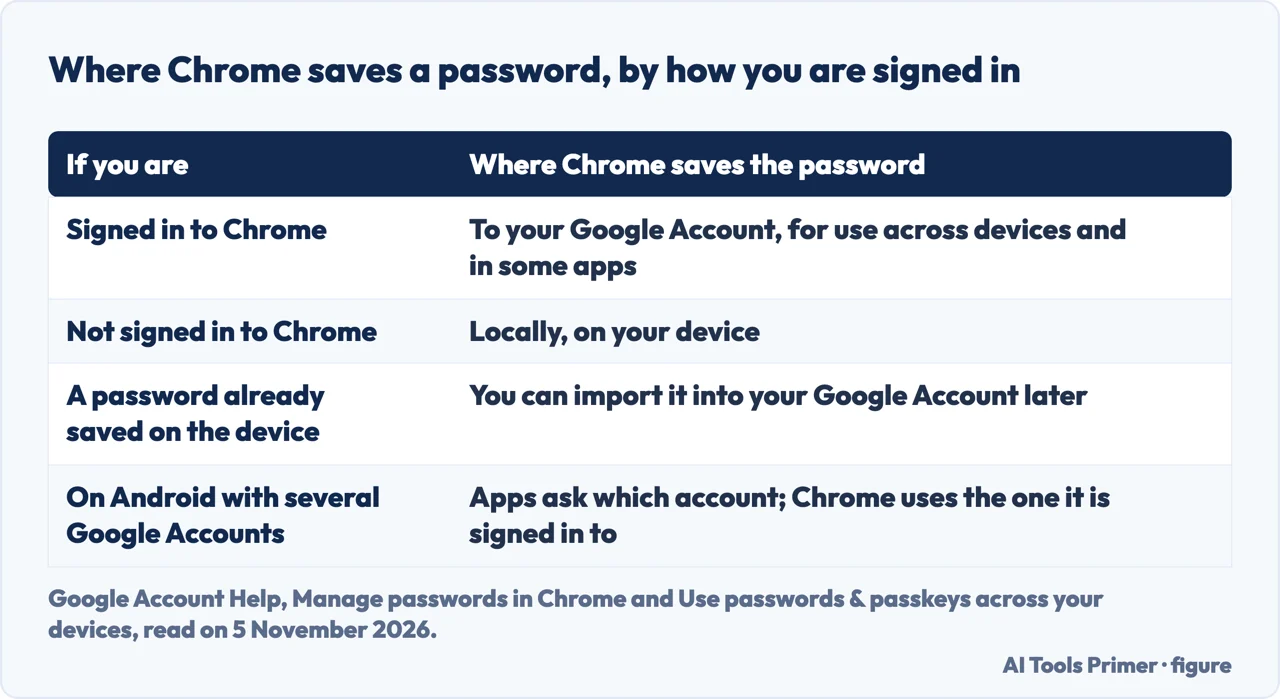
The same page gives three ways to save a password, and the difference between them is whether you are signed in. Signed in to Chrome, you save passwords to your Google Account and use them across your devices and in some apps. Not signed in, Chrome stores them locally on the device, which Google says helps if you do not want them in your account or shared across several devices. Passwords saved on the device can be imported into the account later. The page on using passwords across devices adds two details: on an Android device with several Google Accounts, apps ask which account should keep the password, and if you are signed in to Chrome the password goes to that Chrome account.
Three platforms, then saving, generating and filling
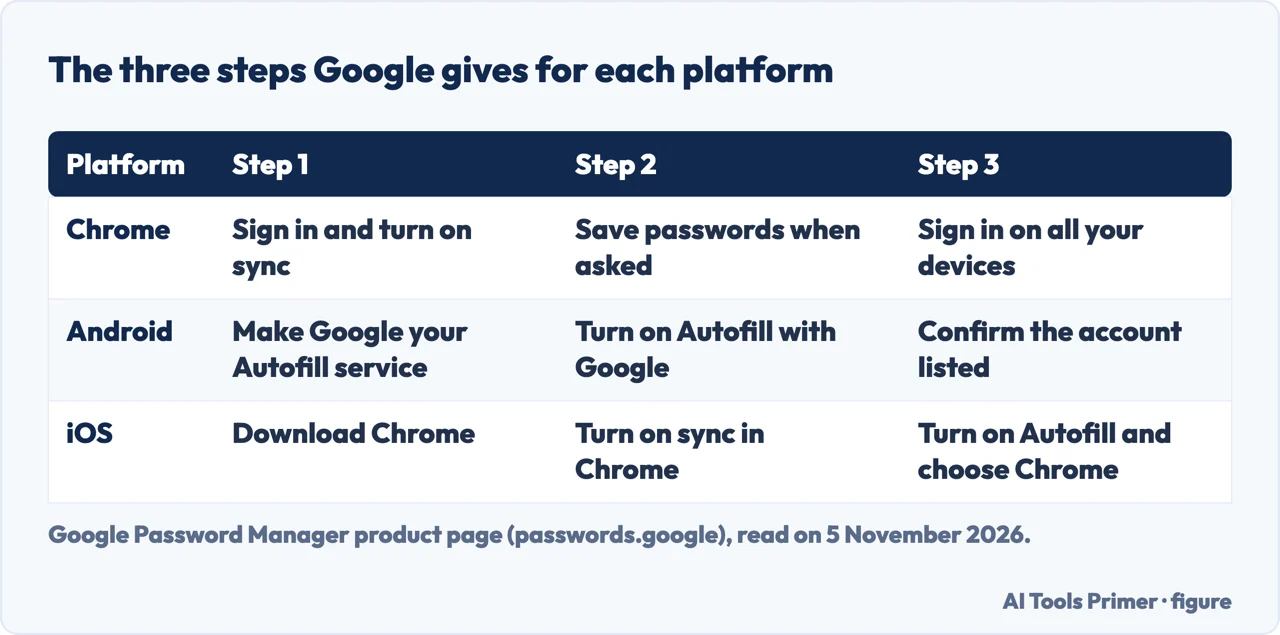
Google’s product page gives three steps for each platform. On Chrome you sign in and turn on sync, save passwords when Chrome asks, and sign in on all your devices. On Android you make Google your Autofill service in Settings, make sure Autofill with Google is on, and confirm the account listed. On iOS the route goes through Chrome: download it, turn on sync, then in Settings choose Passwords, Autofill and Chrome.
When you enter a new password on a site, Chrome asks to save it and you select Save. Preview lets you check what will be saved, choose among several passwords on the page, or correct a blank username. You can also add one by hand from the Passwords and autofill menu with Add. Offering to save is on by default and can be switched off in settings; if you choose Never for a site it moves to the Declined sites and apps list, where Remove takes the site off the list. For enterprise users, the page on using passwords across devices says an administrator may manage this setting.
For a new account, you select the password box and then Use strong password, or right-click and choose Generate password, preview the result and confirm with Use suggested password. Google says the generated password is saved to your Google Account automatically. Experian gives the same steps and shows a sample of a generated password, and the TechRepublic review calls the option Suggest Strong Password.
On a site you have visited before, Chrome fills the sign-in form by itself when one username and password is saved, and lets you choose from the username field when there are several. The Sign in automatically setting skips the confirmation; if you use an identity service, both that service and the site must support it. A note added to a saved password has, in Google’s words, the same security protection as a password. Biometric authentication is off by default: on a PC the setting is Use Windows Hello when filling passwords, and on a Mac it is Use your screen lock when filling passwords. To remove everything, Settings has a Delete all Google Password Manager data row with a Delete data button, and it covers passwords and passkeys.
On what Google collects, the Get started page says the app gathers page views and taps, crash logs and diagnostics for analytics and troubleshooting, and that some of the app's functionality uses Google Play services.
The breach check, and the encryption Google describes
Checkup in the left-hand menu shows any saved password exposed in a data breach and any that are weak or easy to guess. Google’s safety site describes Password Checkup as testing strength, reuse and compromise. The warning that fires when you sign in to a site is on by default, according to the page on how Chrome protects passwords, and sits under Standard protection in Privacy and security, Security; with Enhanced protection it is on by default. The Manage passwords page adds that this feature is available only with Safe Browsing turned on. The details of the check have their own page: Your browser’s own check.
Chrome Help says Chrome first encrypts your username and password, then sends them to Google to compare against an encrypted list of known breached data, and that Google does not learn the usernames or passwords during this process. If a password was exposed, the Manage passwords page describes a Change it for me option on compatible websites. It needs a Chrome sign-in, at least one saved password and password saving turned on, and it shows a Password changed message when it works.
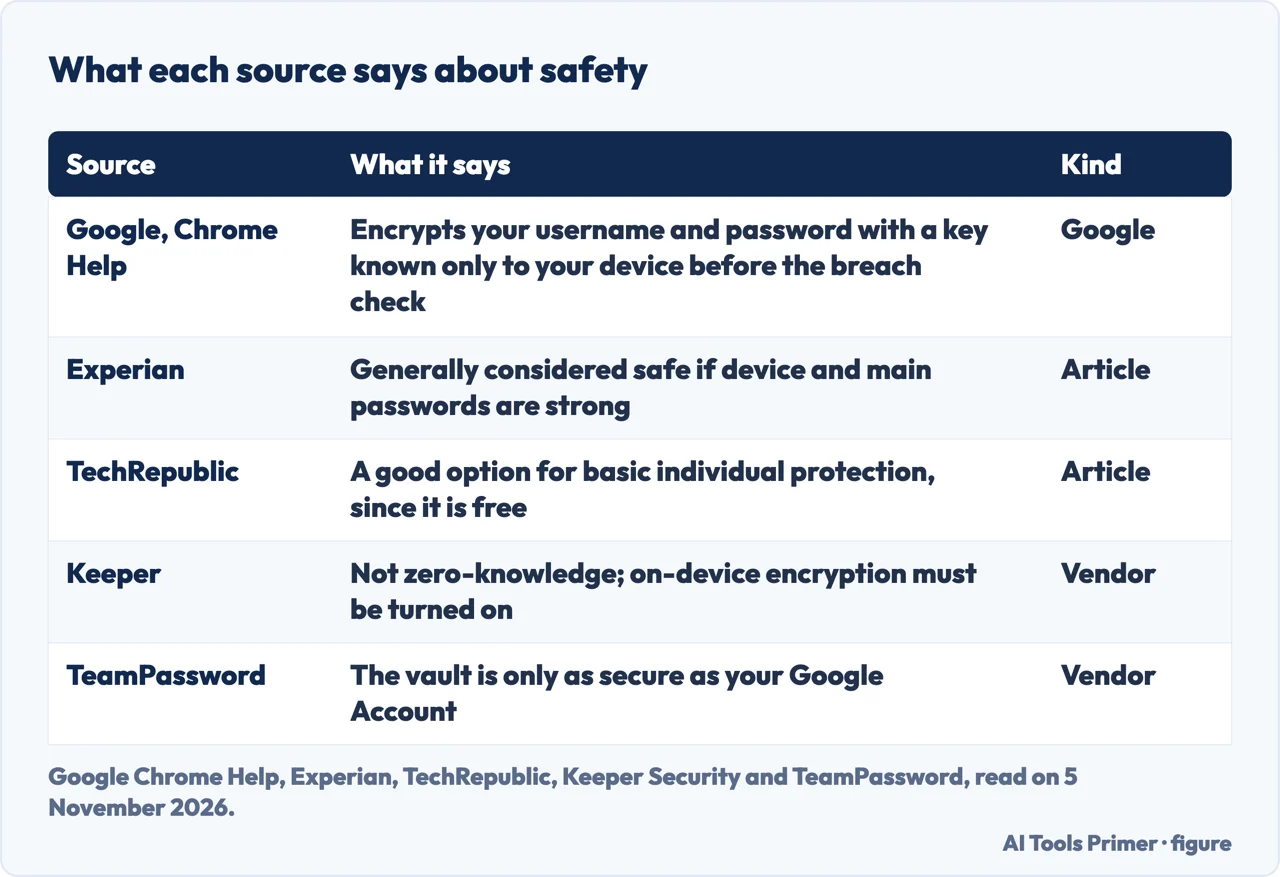
On encryption itself the sources give different pictures, and we report them side by side. Chrome Help says Chrome encrypts the username and password with a secret key known only to your device before sending an obscured copy to Google. The Get started page says your passwords and passkeys sit behind Google’s built-in security with encryption, and tells you to add recovery info and turn on 2-Step Verification. Keeper Security, which sells a password manager, wrote on 3 October 2025 that passwords are encrypted in transit and at rest, that Google offers optional on-device encryption which stores the key on your device, and that this option is not zero-knowledge and must be turned on by hand. Keeper adds that by default Google could in theory reach stored credentials, for example on a legal request. TeamPassword, another vendor, says Google manages the keys tied to your account, and describes a sync passphrase that it says Google does not store.
The Google pages we read list a page on on-device encryption that we did not open, and they do not settle which of these descriptions applies to the passwords saved in a Google Account. On phishing, Keeper says credentials fill only on sites whose domain matches the saved one; the Chrome Help page on passkeys says a passkey is connected to the app or site it was made for.
Passkeys and the Google Password Manager PIN
Chrome Help calls a passkey a secure alternative to a password, unique for each site and app, and says it protects you from phishing. A passkey can be kept on the device or in a password manager. In Google Password Manager you can save them on a computer with Windows 10 or later, a Chromebook with Chrome OS 129 or later, a Mac, or Linux, and they sync across Chrome and Android devices signed in to the same Google Account. Google says your fingerprint or face data stays on the device and is not shared with Google. The general explanation is on our passkeys page.
A Google blog post of 19 September 2024 shows how this changed. Before then, it says, passkeys could be saved to Google Password Manager only on Android and used on other devices by scanning a QR code. The post announced saving from Windows, macOS, Linux and Android, with ChromeOS in Beta, and carried a note that support for iOS was coming. The current Chrome Help list names Chromebooks with Chrome OS 129 or later instead, so the two pages differ; the post dates from September 2024 and the Help page was read on 5 November 2026.
The post also introduced the PIN. It says the new Google Password Manager PIN adds a layer so that passkeys are end-to-end encrypted and “can’t be accessed by anyone, not even Google”. It is six digits by default, or longer and alphanumeric under PIN options, and on a new device you need either the PIN or the screen lock of your Android device. Chrome Help says the PIN is requested when you create your first passkey on a computer, and that you change it from Settings with Change Google Password Manager PIN. A forgotten PIN is reset from a device where you have already used a passkey in Google Password Manager.
Passkeys can also be created for you. Per Google, when you sign in with a password saved in Google Password Manager, the site may create a passkey, and Google Password Manager shows a notification. The switch is Automatically create a passkey to sign in faster, and it appears only when Offer to save passwords and passkeys is on.
Chrome Help names other places a passkey can live, with warnings. Passkeys saved in Windows Hello cannot be recovered if the computer is lost or the operating system is reinstalled, and managing them needs Windows 11, version 22H2 or later. On a Mac you can use Apple Passwords if you are signed in to iCloud, or keep them in the Chrome profile protected by the macOS Keychain, where they cannot be recovered if the computer is lost or the profile is deleted. Passkeys on a security key are not backed up. Apple’s own side is on The Apple password manager.
Sharing, importing, exporting, and the move to Play services
Sharing is limited. Google Account Help says you can share a password only with a member of your family group; a copy is saved in the receiver’s Google Account and is available for autofill, and the page warns that if you reuse the same password across accounts, the person you share it with may be able to reach your other accounts. Keeper reads the family-group limit as a gap, listing no sharing outside the group, no roles, no activity log and no admin console, and the TechRepublic review lists secure password sharing among the features that only a dedicated manager offers. Other ways to share are compared on our family password manager page.
Import has numbers, and they come from one Google page. Chrome Help says Google Password Manager accepts only a .csv file, whose first line should have the column names url, username and password. It says you can import 3,000 passwords at a time, splitting larger sets into several files, and that you can store up to 10,000 passwords in your Google Account. The TechRepublic reviewer reports meeting the 3,000 limit while testing. Chrome Help also says some app and site names land in the wrong field, so a missing password is best found by searching for the name, and it links exporting guides for Edge, Safari, 1Password, Bitwarden, Dashlane and LastPass. Once imported, delete the .csv file: the page says anyone who uses the device can open it and reach the passwords.
Export on a computer is Settings, Export passwords, Download file. On Android, Chrome Help gives Chrome, Settings, Autofill and passwords, Google Password Manager, Export passwords, then your fingerprint or screen lock PIN and Save under Downloads. The same warning about deleting the file applies. More is on Moving between managers.
One Chrome Help page concerns Android only. You may get a notification that your passwords will soon stop working unless you update Google Play services; tapping Update from the notification or from Google Play services should update them automatically. If they were not migrated, Google gives three steps: export from Chrome, import into your Google Account, and delete the .csv file. If the manager will not open at all, When Google Password Manager will not answer covers the documented causes.
What other writers say about safety, and what the pages do not say
In an article of 4 May 2022, Experian says Google Password Manager is generally considered safe, provided the passwords for your devices and the main password for everything are strong. It recommends two-factor authentication and notes that passwords stored this way are only as secure as the devices they sit on, since malware on a device is a risk it says applies to every password manager. Experian lists two downsides of password managers in general: a hacker who finds the main password gets the rest, and forgetting it can lock you out for a while.
The TechRepublic review, published in September 2024 and updated in May 2025, calls it a good option for basic individual protection since it is entirely free, and suggests a dedicated manager for large enterprises. It lists what only a dedicated manager offers, naming zero-knowledge encryption, travel mode, secure sharing and inheritance, and says Google’s encryption methods are not thoroughly detailed and that the code is not open source. Its author also says two-factor authentication is not required before opening saved passwords, which it calls a major concern once an attacker has the account login.
Keeper and TeamPassword both sell password managers, so their critiques come with an interest. Keeper still says that using Google Password Manager is better than using none. TeamPassword calls it not inherently insecure, and puts the main weakness in the architecture: the security of the whole vault is the security of the Google Account, so it advises multi-factor authentication and the sync passphrase, a Chrome option (Settings, You and Google, Sync and Google Services, Encryption options) that TeamPassword says adds a second layer of encryption with a passphrase Google does not store; forget it and the synced data cannot be recovered. This is the vendor's description, not read on a Google page. Keeper makes the same point and adds that without role-based access or logs it is not suited to teams.
Some things the pages we read do not give. They do not say whether Google can read account passwords when on-device encryption is off, because we did not read that page. They do not state a price: Experian, TechRepublic and TeamPassword call it free. They do not give a count of users. The criticism we found comes from vendors and one review, and the pages we read do not mention an independent test of a breach. We tested nothing in Chrome or on a phone, and we did not open the Google Play listing or the passwords.google.com portal, which asks you to sign in.
Where to start
Four ways in.
- “Does it save to my account or my device?”
- What it is, and whether it lives in your account or on your device — where
- “What does the breach check do?”
- The breach check, and the encryption Google describes — checkup
- “How do I move passwords in or out?”
- Sharing, importing, exporting, and the move to Play services — moving
- “Is it safe?”
- What other writers say about safety, and what the pages do not say — safety
Moving and sharing
Taking passwords out, handing them on and when the manager will not open.
Checks and keys
Passkeys, the breach check and Apple’s manager.
Questions people also ask
What is the safest Password Manager?
The pages we read do not rank password managers. TechRepublic calls Google’s a good option for basic protection and suggests a dedicated manager for large enterprises. Keeper and TeamPassword, which sell dedicated managers, argue for them: Keeper calls its own stronger, and TeamPassword calls one superior for a heightened threat model or sensitive business credentials. We tested none.
Is Google Password Manager safe in 2026?
An Experian article of 4 May 2022 calls it generally safe if your device and main passwords are strong. Keeper and TeamPassword, both vendors, say the weak point is that the vault is tied to the Google Account. Google tells you to add recovery info and turn on 2-Step Verification.
Is there a difference between Google Password Manager and Chrome Password Manager?
The Google pages we read do not define a difference. They say Chrome saves passwords with Google Password Manager: to your Google Account if you are signed in to Chrome, and locally on the device if you are not.
What is the downside of using a Password Manager?
Experian names two: a hacker who finds the main password gets the rest, and forgetting it can lock you out. For Google’s, TechRepublic lists missing features such as travel mode and inheritance, and the vendors point to the tie to one Google Account.
Not covered here. We tested nothing in Chrome or on a phone. The statements come from Google Account Help, Google Chrome Help, the Google Password Manager product page, Google’s safety site, a Google blog post and articles by Experian, TechRepublic, Keeper Security and TeamPassword, all read on 5 November 2026.
The search volume and difficulty behind this page come from an Ubersuggest reading of 5 November 2026, not from a Semrush reading: the difficulty is the Ubersuggest score, and a Semrush check is still to be made.
Sources
- Google Account Help — Get started with Google Password Manager — support.google.com, read 5 November 2026.
- Google Account Help — Manage passwords in Chrome — support.google.com, read 5 November 2026.
- Google Account Help — Use passwords & passkeys across your devices — support.google.com, read 5 November 2026.
- Google Chrome Help — Import or export passwords and passkeys with Chrome — support.google.com, read 5 November 2026.
- Google Chrome Help — Manage passkeys in Chrome — support.google.com, read 5 November 2026.
- Google Chrome Help — How Chrome protects your passwords — support.google.com, read 5 November 2026.
- Google Chrome Help — Migrate passwords to Google Play services — support.google.com, read 5 November 2026.
- Google Password Manager — product page — passwords.google, read 5 November 2026.
- Google Safety Center — Authentication tools — safety.google, read 5 November 2026.
- Google blog — More users can now save passkeys in Google Password Manager (19 September 2024) — blog.google, read 5 November 2026.
- Experian — Is Google Password Manager secure? (4 May 2022) — www.experian.com, read 5 November 2026.
- TechRepublic — Is Google Password Manager Safe to Use? — www.techrepublic.com, read 5 November 2026.
- Keeper Security — Is Google Password Manager safe? (3 October 2025) — www.keepersecurity.com, read 5 November 2026.
- TeamPassword — Is Google Password Manager safe? — teampassword.com, read 5 November 2026.
Written by Alberto Gulotta
Founder and editor of AI Tools Primer, writing from Palermo, Italy. Thirty-five years of taking computers apart, starting with a Commodore 64 — the long version is on the about page.
Something wrong on this page? Write to aitoolsprimer@gmail.com and it gets fixed.
Written on 6 November 2026.
Independence and limits
No affiliate links and no paid placements anywhere on this site. Nobody pays to appear here, and no company has seen this page before you did.
This is general information, not professional advice. Where a page touches money, health, safety or the law, it names its source and the date it was read — and your situation may still differ. See the privacy page and the cookie policy.