
Password · guide
YubiKey setup: adding the key to your accounts
By Alberto Gulotta · Updated · 17 min read
YubiKey setup comes down to plugging the key in, opening an account’s security settings, adding a security key, a passkey or an authenticator app, and then doing the same for a spare. This page follows Yubico, GitHub and Microsoft Support, with three university guides, and shows what each asks you to have in place first.
| Question | Answer | Where it comes from |
|---|---|---|
| Where do I start? | Plug in the key, log in, open the account’s security settings and choose a security key, a passkey or the multi-factor options | Yubico |
| Do I need software? | Most of the time no software or drivers; each service decides whether it supports keys | Yubico Support |
| One key or two? | Set up a primary and a spare at the same time | Yubico |
| What does GitHub need first? | Two-factor already switched on with an authenticator app or text messages | GitHub Docs |
| What does a Microsoft work or school account need first? | At least one other verification method, and an administrator who allows keys | Microsoft Support |
| How do I check it worked? | Try signing in straight away: you should be asked for the key | Yubico |
Before the first account: the key, the spare and any PIN
Yubico’s setup page starts with two keys, not one. It says to have your YubiKey and your spare key ready, and that doing the setup on a computer is recommended though not required. Its quick start has five lines: plug in the key, log in to the account you want to protect, open the account’s security settings and choose “security key,” “passkey” or the multi-factor options, follow the account’s own instructions, and remember the spare. The page adds that every service is a little different, so the options and their names might vary.
Yubico’s support article says the key works directly out of the package and that most of the time no software or drivers need installing, but that it is entirely up to the service provider to implement support. The setup page makes the same point about configuration: in many cases the key does not have to be configured before it is used with online services, and Yubico recommends a configuration change only if you are instructed to make one. Extra applications such as Yubico Authenticator are described as generally not needed unless the service requires key configuration or authenticator codes.
One step applies only to keys with NFC. Yubico says NFC is disabled during shipping as a security measure, and that plugging the key into any powered USB port for at least three seconds activates it. The setup page puts this in step 3, for a key that supports NFC and is being used for the first time.
A YubiKey Bio has a step of its own. Yubico says to enroll the fingerprint before following the account steps, that up to five fingerprint templates can be enrolled, and that single templates can be removed and enrolled again.
A PIN may come into it. On Yubico’s page, some services prompt you to create a PIN, or to verify one that is already set; Yubico calls it the FIDO2 PIN and says Yubico Authenticator manages it most easily. The pages we read give two different lengths. The UARK guide says a YubiKey PIN can be 4-63 characters, with letters, numbers and special characters allowed. The University of Nebraska guide, which sets the PIN in YubiKey Manager under Applications and FIDO2, says a PIN must use at least 4 characters, and that a label next to the PIN option then shows the retries left before the key wipes itself. Each guide describes its own steps, and the pages we read do not explain why the figures differ.
Software support also depends on the series. Yubico’s support article says Yubico Authenticator requires a YubiKey from the 5 Series to generate time-based codes, and the Nebraska guide warns that it does not support the Bio Series or the Security Key NFC Series. For anyone unsure which key they hold, the setup page has a link for checking. Our page on how a YubiKey works covers the PIN and the reset in more detail.
Which accounts first, and what the option is called
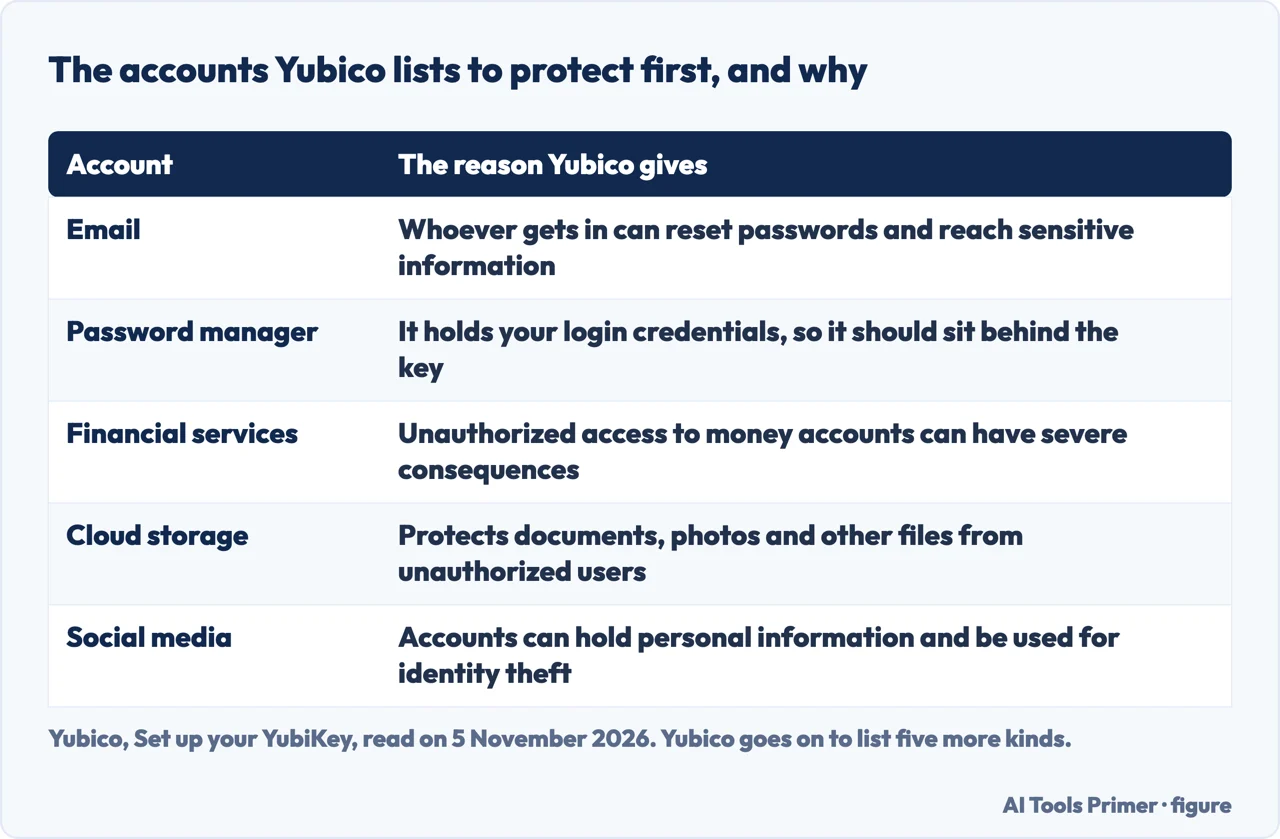
Yubico’s ordering is a list of ten kinds of account, with a reason for each. Email comes first, because Yubico calls it the gateway to your other online services: once someone is in, they can reset passwords. Next is the password manager, which Yubico says should be locked behind your security key. After those come financial services, cloud storage, social media, work accounts, online shopping, cryptocurrency wallets, healthcare portals, and travel and booking services. The figure above sets out the first five with the reason Yubico gives for each; the other five reasons are on the same page.
Finding the right menu is mostly a matter of names. Yubico’s setup page says to log in, open the security settings and look for Two-Step Verification, Two-Factor Authentication or Multi-Factor Authentication, then, inside those sections or on their own, for a Security Key, a Passkey or an Authentication app. The last of these, it says, may go by other names, and it lists twenty of them, among them “Token app,” “Login code app” and “Secure access app.” The support article gives the shorter form 2FA/MFA/2SV, and adds that a service without security-key support may offer an authenticator app instead, in which case Yubico Authenticator can add the credentials to a compatible key.
Whether a service supports keys at all is not the key’s decision. The setup page says it is up to each service how, or whether, it supports YubiKeys, and points to its Works With YubiKey catalog, which lists compatible services such as Microsoft, Google and Dropbox and carries setup tutorials for popular ones. The support article adds that if a service is not in the catalog, you can ask that service’s support team whether it accepts security keys or another protocol the YubiKey supports. We did not open the catalog.
Three ways to add the key: security key, passkey or app
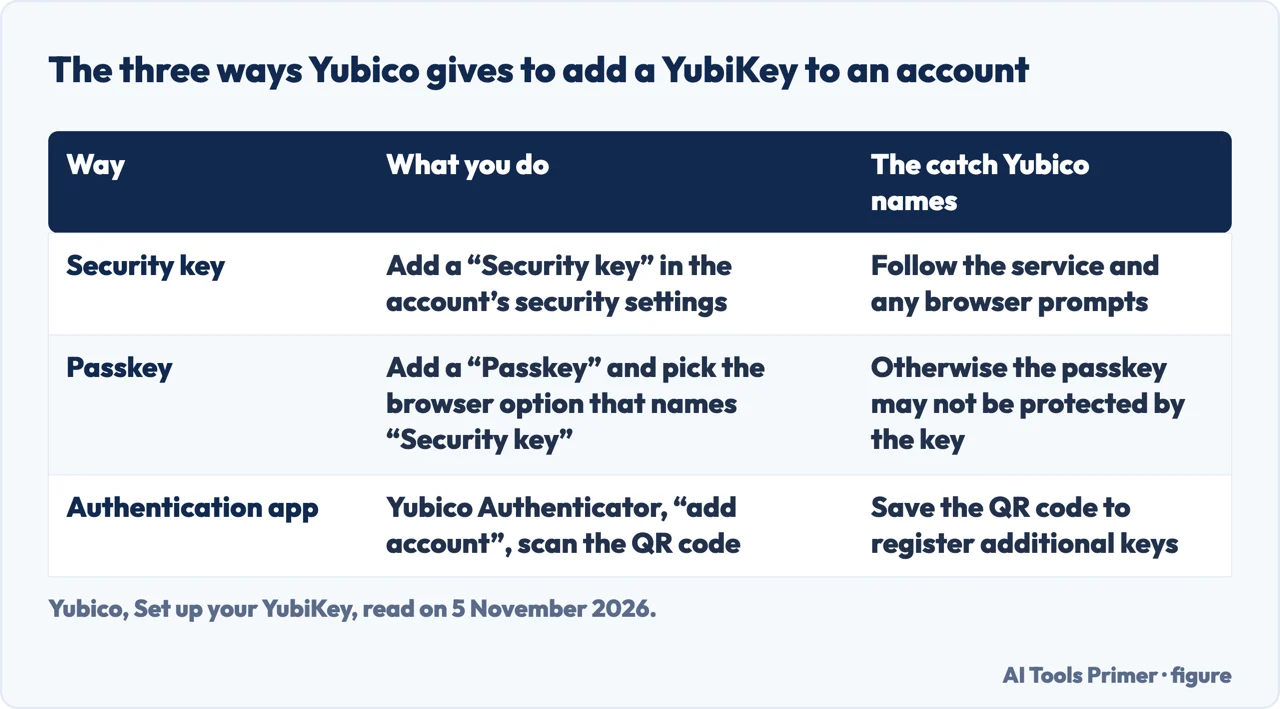
The security key. Yubico marks this as its preference. You log in, open the account’s security settings, look for the option to add a “Security key” and follow what the service says, including any prompts from the browser. Yubico describes security key MFA as using a physical device with a high level of protection against phishing, and as one of the most secure forms of MFA. That is Yubico’s own assessment, on its own setup page.
The passkey. Here the browser offers several places to create the passkey. Yubico says to select the one that is named or mentions “Security key,” because another choice could create a passkey that the YubiKey does not protect. It adds that a service may ask you to create a PIN or to verify the one already set. Our page on passkeys explains the key pair behind them.
The authentication app. Yubico lists this third way as widely supported. You download Yubico Authenticator, log in to the service, find its authentication-app option, open Yubico Authenticator, choose “add account” and scan the QR code the service shows. Yubico tells you to save that QR code, because it is needed to register additional keys. The support article says the app stores time-based one-time password credentials on the YubiKey instead of on the phone or computer, and the setup page says Yubico Authenticator, being software-based, may not be as resistant to phishing as a physical security key. Our page on authenticator apps covers the codes themselves.
The same hardware can end up under three names. GitHub says not all FIDO authenticators can be used as passkeys, but they can still be registered as security keys, and that security keys, unlike passkeys, do not require user validation. Because they verify only presence, GitHub says, they count as a second factor and must be used together with the password; a passkey, by contrast, satisfies both the password and the 2FA requirement in one step. In the USNH and UARK guides for Microsoft accounts the menu item to click is Passkey, and the USNH guide says the Security info tab then shows Security key, while the UARK guide tells you to look for “Passkey (Device Bound)”. Microsoft Support, for work or school accounts, calls the menu item Security key.
Two worked examples: GitHub and Microsoft
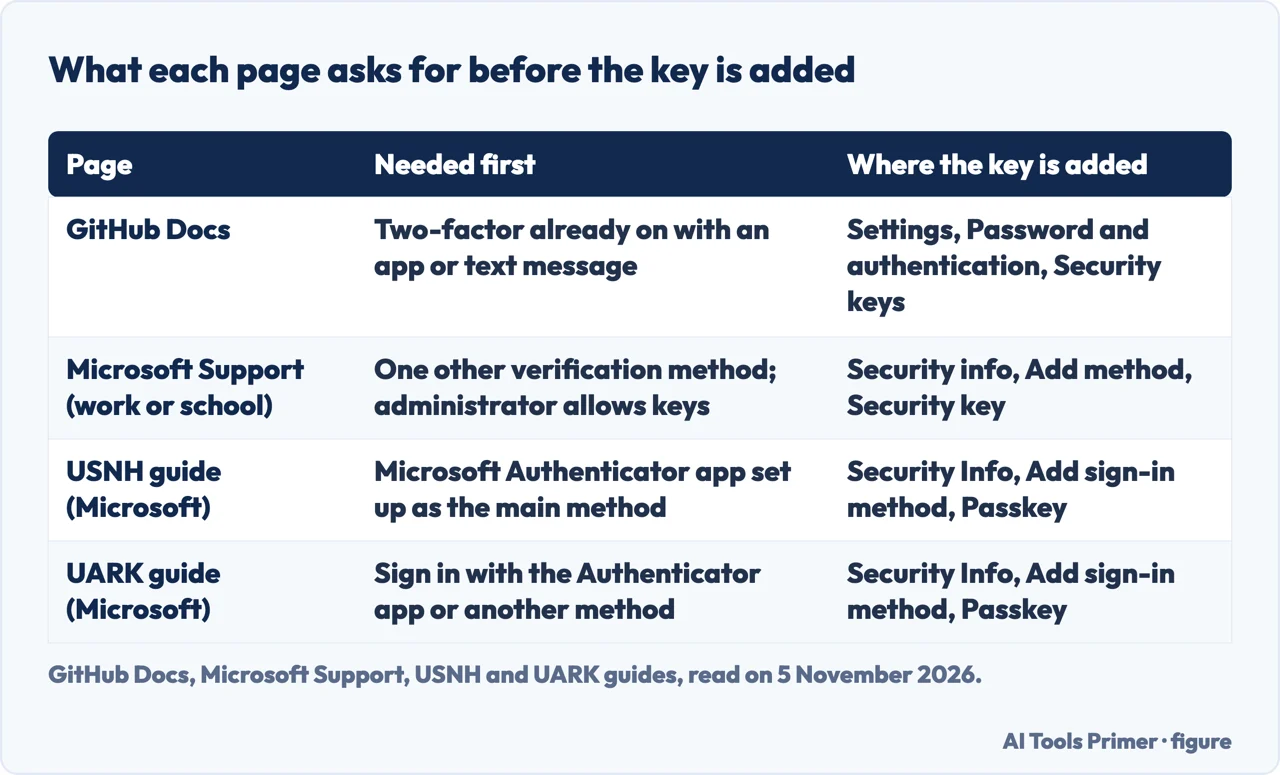
GitHub. The key comes second. GitHub says a security key can be registered after 2FA has been switched on with a TOTP app or a text message, and it strongly recommends a TOTP app for 2FA with security keys as backup methods instead of SMS. The steps: insert a WebAuthn-compatible security key; click your profile picture and Settings; choose Password and authentication; next to Security keys click Add, then Register new security key; type a nickname and click Add; and activate the key following its documentation. GitHub ends the list by asking you to confirm that you have downloaded and can reach your recovery codes. If you lose the security key, GitHub says, you can still sign in with your phone’s code.
Microsoft, work or school account. Microsoft Support lists conditions that must all be met: your administrator has turned the feature on, you are on a device running the Windows 10 May 2019 Update with a supported browser, and you have a physical key that is both FIDO2 and Microsoft-compliant. Before registering, you must have at least one other verification method. The page allows up to 10 keys on an account. The route is Security info, Add method, Security key, then USB device or NFC device, followed by the PIN in the Windows security box and a name you will recognise. It warns that Chrome or Edge may offer a passkey stored on a mobile phone first, and says to choose the security key instead: from Windows 11 version 23H2, under More choices, and on earlier versions by inserting the key and touching it when the QR screen appears. At the time we read it, the page described the passwordless security-key feature as in public preview.
USNH, a university Microsoft account. The USNH guide starts from Yubico’s setup page and says the Microsoft Authenticator app must be the main method first, because registering the key begins with a confirmation code. Then it goes to myaccount.microsoft.com, Security Info, Add sign-in method, and Passkey, not the “Passkey in Microsoft Authenticator” option. For people with no other method, the guide describes calling the Help Desk for a Temporary Access Pass. It says the steps were written with a YubiKey 5C NFC and that other models may register slightly differently.
UARK, another university Microsoft account. The UARK guide has the key inserted before signing in at account.uark.edu with the Authenticator app or another method. It goes through Security Info, +Add sign-in method and Passkey, then Save another way, Windows Hello or external security key, Change and Security key. The PIN is created there, the key is touched twice, and the key gets a name. Only then does the guide send you to a university enrolment step, so the checks that matter are in the next section.
Not locking yourself out: the spare, the test and the recovery routes
Yubico’s support article compares the spare to a house key or a car key, and the setup page’s FAQ says that with a spare you have no need to go through a lengthy recovery and identity-verification process for each account. The setup page says a spare can have a different form from the primary as long as it is from the same YubiKey series, and recommends setting up both at the same time. Yubico’s FAQ on a lost key says that without a spare you should have another form of 2FA on your accounts, and that if you are locked out you will need to contact the service for account recovery. The UARK guide recommends buying a second YubiKey as a backup in case the first is lost or damaged.
Yubico’s fifth step is a test: after setup, log in, and you should be prompted for the YubiKey. If you are not, something may have gone wrong, or the service may be using Trusted Devices, a feature that lets recognised devices skip verification codes and security-key use. The UARK guide builds the same test into its steps. It says to sign in with the new key and look in Security Info for “Passkey (Device Bound)” with the key’s name beside it before enrolling in the required group, to keep you from getting locked out.
GitHub spells out its recovery routes. It strongly recommends two or more authentication methods. The recovery codes are one-time codes, and once one has been used it cannot be used again. If you use up all 16 you can generate another list, which invalidates the earlier codes. GitHub says to save them in a secure password manager and not to share them. It also names SSH keys, personal access tokens and verified devices as recovery methods, and says that reconfiguring 2FA without disabling it does not change the recovery codes. Our page on backup codes compares what several services give.
Microsoft Support and USNH add their own cautions. Microsoft says that deleting a security key from Security info stops it signing in to the account, but the key keeps its data and credentials until you reset it; the reset, in Windows Settings under Accounts, Sign-in options and Security Key, deletes everything on the key. USNH strongly recommends backup methods in case the key is lost or stolen and says its IT unit has no access to help with lost YubiKey PINs, which are reset with YubiKey Manager or by working with the YubiKey manufacturer directly. The Nebraska guide says a reset wipes the key and that anything that depended on it must be set up again.
Where the pages differ, and what they leave out
The pages do not agree on the order. Yubico puts the key first and the spare beside it. GitHub and Microsoft Support, for work or school, ask for another method before the key can be registered, and the USNH guide names the Microsoft Authenticator app. They do not agree on names either: Security key on Yubico, GitHub and Microsoft Support, Passkey in the USNH and UARK guides for the same hardware. The PIN is 4-63 characters in one guide and at least four in another. And recovery codes are named on the GitHub pages, which count 16 of them, while the Yubico and Microsoft pages we read talk about other 2FA and other methods.
Several things are not on the pages we read. They do not say where to keep the spare beyond a safe place, with Yubico comparing it to house keys. They do not mention an order, service by service, with each service’s conditions. We read no Google page, so the steps for a Google Account are not covered here. And after a reset they say only that things must be set up again, without listing what that includes.
The sign-in side of the story, what the key actually signs and how the PIN and reset work, is on our page about how a YubiKey works. If you are weighing the key against text messages, codes by text message is the other end.
Where to start
Four ways in.
- “What do I do before I start?”
- Before the first account: the key, the spare and any PIN — before
- “Which account goes first?”
- Which accounts first, and what the option is called — first
- “Key, passkey or app?”
- Three ways to add the key: security key, passkey or app — ways
- “What if I get locked out?”
- Not locking yourself out: the spare, the test and the recovery routes — lockout
The other ways to add a second factor
Apps, passkeys and text messages.
The key and the way back in
How it works, recovery and switching off.
Questions people also ask
How do I setup my YubiKey for the first time?
Yubico’s quick start has five lines: plug in the key, log in to the account to protect, open its security settings and choose a security key, a passkey or the multi-factor options, follow the account’s instructions, and set up a spare. A key with NFC is activated by plugging it into a powered USB port for at least three seconds.
What is a YubiKey used for?
Yubico’s FAQ says a single YubiKey has multiple functions for securing logins to email, online services, apps, computers and even physical spaces. This page covers one of them, adding the key to an online account as a security key, a passkey or an authentication app.
Can I leave my YubiKey plugged in all the time?
The pages we read do not mention leaving the key plugged in. Yubico’s setup page says to treat the key like house keys, keep it in a safe place and not share it, and says that if a service does not ask for the key at sign-in, it may be using Trusted Devices.
What are the downsides of using a YubiKey?
The pages we read do not list downsides under that name. They describe a lost key with no spare and no other 2FA, which can mean contacting the service for recovery, and a PIN reset that wipes the key. Each service decides whether it supports keys, and Yubico Authenticator does not support the Bio Series (Nebraska guide).
Not covered here. We set up no YubiKey for this page. The statements come from two Yubico pages, two GitHub Docs pages, a Microsoft Support page and three university guides (UARK, USNH and the University of Nebraska), all read on 5 November 2026.
We did not use Yubico’s OpenAI setup page, the two forum threads Google listed or any Google help page, and we did not open the Works With YubiKey catalog.
The search volume and difficulty behind this page come from an Ubersuggest reading of 5 November 2026; the difficulty is Ubersuggest’s own score, not Semrush’s, and a Semrush check is still to be made.
Sources
- Yubico — Set up your YubiKey — www.yubico.com, read 5 November 2026.
- Yubico Support — Getting started with your YubiKey — support.yubico.com, read 5 November 2026.
- GitHub Docs — Configuring two-factor authentication — docs.github.com, read 5 November 2026.
- GitHub Docs — Configuring two-factor authentication recovery methods — docs.github.com, read 5 November 2026.
- Microsoft Support — Set up a security key as your verification method — support.microsoft.com, read 5 November 2026.
- UARK — YubiKey: Windows setup instructions for multifactor authentication — uark.teamdynamix.com, read 5 November 2026.
- USNH — MFA: Setting up YubiKey for Microsoft Authentication — td.usnh.edu, read 5 November 2026.
- University of Nebraska — How to Set Up a Yubikey USB Authenticator — nusupport.nebraska.edu, read 5 November 2026.
Written by Alberto Gulotta
Founder and editor of AI Tools Primer, writing from Palermo, Italy. Thirty-five years of taking computers apart, starting with a Commodore 64 — the long version is on the about page.
Something wrong on this page? Write to aitoolsprimer@gmail.com and it gets fixed.
Written on 6 November 2026.
Independence and limits
No affiliate links and no paid placements anywhere on this site. Nobody pays to appear here, and no company has seen this page before you did.
This is general information, not professional advice. Where a page touches money, health, safety or the law, it names its source and the date it was read — and your situation may still differ. See the privacy page and the cookie policy.