
Software · guide
How to change keyboard on Android: switch, default and look
By Alberto Gulotta · Updated · 9 min read
How to change keyboard on Android depends on what you want to change: Gboard Help switches languages by holding the space bar, Samsung sets the default keyboard under General management, and each has its own steps for themes and for starting over. This page sets out the steps and where the help pages differ.
| Question | Answer | Where it comes from |
|---|---|---|
| How do I switch between keyboard languages in Gboard? | Touch and hold the space bar, or turn on the language switch key in Preferences | Gboard Help |
| How do I set the default keyboard on a Galaxy? | Settings, General management, Keyboard list and default, Default keyboard | Samsung |
| How do I add a language in Gboard? | Features menu, More, Settings, Languages; or Settings, System, Keyboard, On-screen keyboard, Gboard | Gboard Help |
| How do I change Gboard’s look? | Menu, Theme, select a theme and tap Apply | Gboard Help |
| How do I put a Samsung keyboard back to normal? | Samsung Keyboard, scroll to the bottom, Reset to default settings | Samsung |
Switching between languages and keyboards
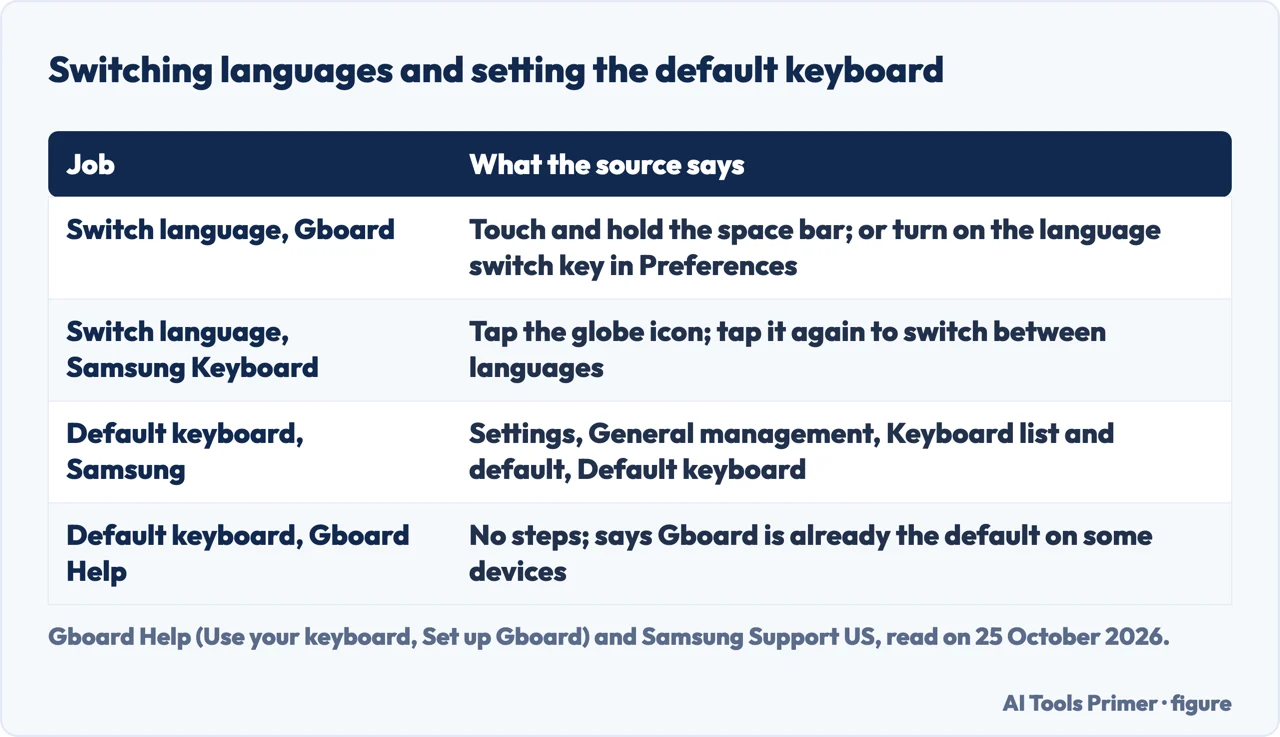
Gboard Help says you can change the keyboard language without changing your device’s language, and that when you change languages in Gboard the device’s own language settings aren’t affected. To switch, open any app you can type in, tap where you can enter text and touch and hold the space bar. A second route is the language switch key: touch and hold the comma at the bottom left of the keyboard, drag your finger to Settings, tap Preferences and turn on Show language switch key; Google adds that if the option is greyed out, you turn off Show emoji switch key. Samsung says that on the Samsung Keyboard you tap the language icon, which looks like a globe, and tap it again to switch between the languages.
A 2016 answer on Android Stack Exchange, about Android N, describes a third thing: whenever the on-screen keyboard is up, a keyboard-shaped button appears at the bottom right of the screen and opens a dialog to change the keyboard, and a “Select keyboard” notification appears when you can input text. That is one user’s answer for one Android version and not in the Gboard or Samsung pages.
Choosing the default keyboard
Gboard Help tells you to install Gboard and notes that on some Android devices it is already the default keyboard; the pages we read give no steps to make it the default. Samsung does, for a Galaxy: once you have downloaded a keyboard from the Play Store or Galaxy Store, go to Settings, tap General management, tap Keyboard list and default, then tap Default keyboard and select the one you want. Samsung adds that the available screens and settings may vary by wireless service provider, software version and phone model, and that its steps apply to the default Samsung Keyboard.
Gboard Help also gives a route through Android’s own settings, but for adding a language rather than choosing a keyboard: open Settings, tap System, then Keyboard, then On-screen keyboard, then Gboard and Languages. The Pixel Tablet Help page on the on-screen keyboard says to tap any text box to open the keyboard, and describes a split keyboard and a smaller keyboard on that tablet.
Adding a language: more than one route
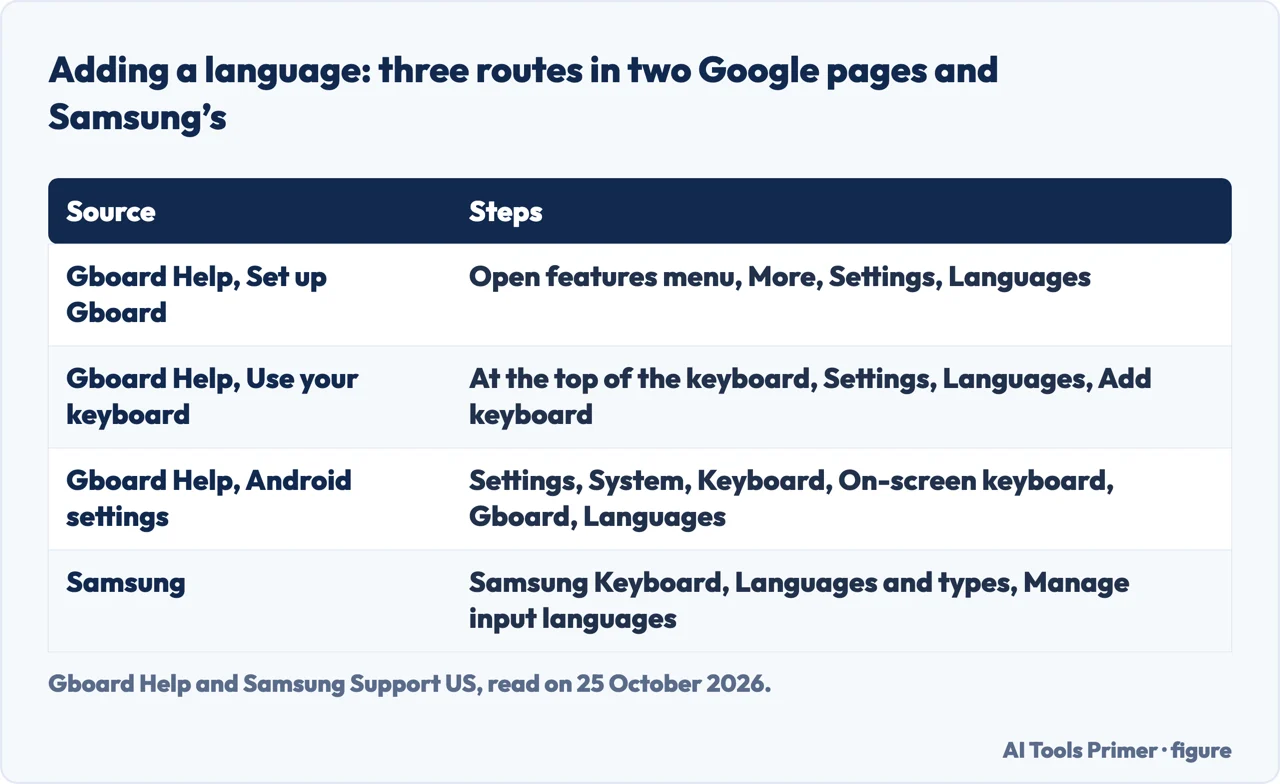
Google’s own pages give three routes for the same job. Set up Gboard says to tap where you can enter text, tap Open features menu at the top left of the keyboard, tap More, Settings, Languages, choose the languages and select the layout. Use your keyboard says that at the top of the keyboard you tap Settings, then Languages, then Add keyboard, pick the language and the layout. The same page then gives the Android settings route: Settings, System, Keyboard, On-screen keyboard, Gboard, Languages, pick a language and turn on the layout.
Samsung’s route is different again: from Settings search for and select Samsung Keyboard, tap Languages and types, tap Manage input languages and tap the switch next to the language, or tap the download icon to download one. The two Google pages may describe different versions of the menu; we did not test them on a phone.
Theme, sound, size and going back
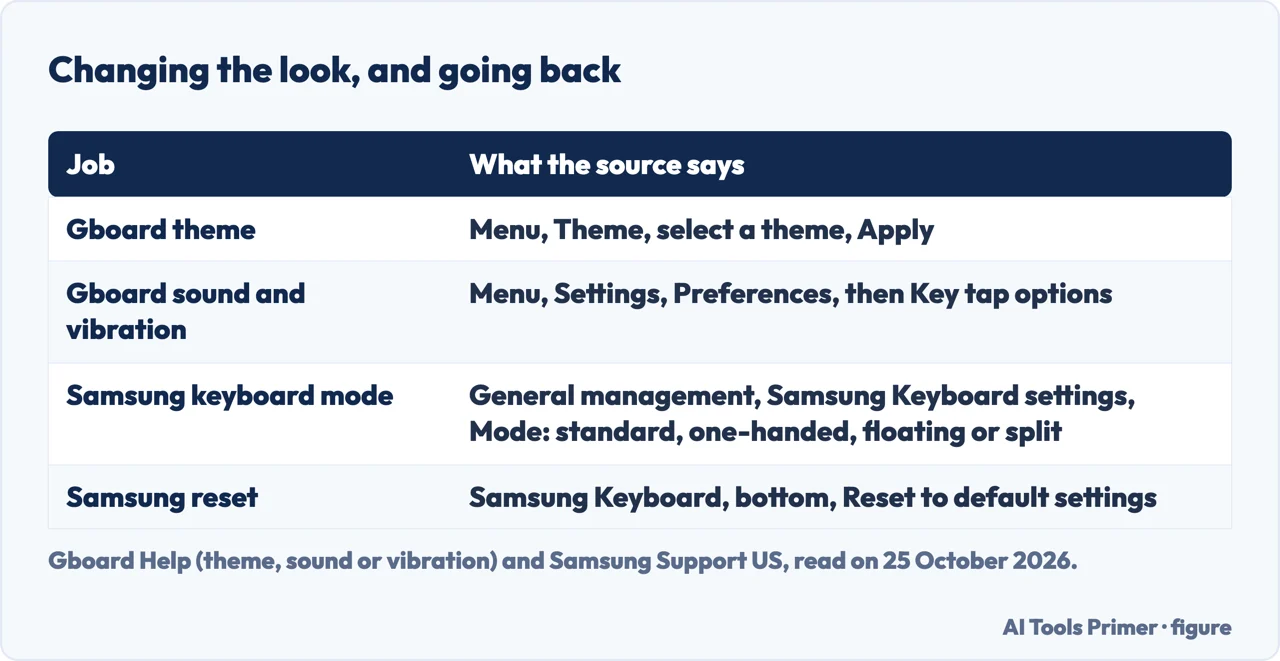
Gboard Help says to open an app where you can type, tap a text area, tap Menu at the top of the keyboard, then Theme, select a theme and tap Apply. For sounds and vibration, tap Menu, Settings, Preferences and, under Key tap, choose your options; Google warns that if your device’s vibration settings are turned off, Gboard’s vibration settings will be overridden. The same page covers emoji size, through Gboard settings or through the device settings.
Samsung describes more for its keyboard. Under Settings, General management, Samsung Keyboard settings, Mode offers four keyboard modes: standard, one-handed, floating and split; the split mode splits the keyboard in landscape or on wider devices such as a tablet or Z Fold. Size and transparency lets you drag the handles on the sides of the keyboard, with a Reset button to revert to the original size. To return the keyboard to its original state, Samsung says to search Settings for Samsung Keyboard, swipe to the bottom and tap Reset to default settings, then choose among resetting keyboard settings, which does not remove downloaded languages, erasing personalized predictions, which also removes learned words, erasing personalized touch recognition data and clearing the cache. For clearing a cache in general, see clearing the cache on Android.
Where the pages differ
The pages do not agree on where the settings button sits: Set up Gboard says Open features menu then More then Settings, while Use your keyboard says Settings at the top of the keyboard, and Change your keyboard theme says Menu then Settings. That may be different versions of the same menu. Samsung’s page describes Settings, Samsung Keyboard in one place and Settings, General management, Samsung Keyboard settings in another. The Stack Exchange answer is from 2016. What the sources share is that the menus depend on the maker and the version; Samsung says so in its first paragraph.
For the Gboard clipboard, which sits on the same keyboard, see the clipboard on Android; for typing that turns words into something else, turning off autocorrect.
Where to start
Five ways in.
- “Switch language.”
- Switching — switch
- “Make it the default.”
- The default keyboard — default
- “Add a language.”
- Languages — languages
- “Change how it looks.”
- Theme and reset — look
- “Why are the steps different?”
- Where pages differ — differ
Keyboards and typing
The clipboard, autocorrect and keyboards that stop typing.
Questions people also ask
How to change keyboard style on Android?
In Gboard, tap Menu, then Theme, select a theme and tap Apply. Samsung’s keyboard has its own themes, modes, size and transparency settings.
How do I get my Android keyboard back to normal?
On a Samsung Galaxy, Settings, Samsung Keyboard, Reset to default settings, then choose what to reset; Samsung says it will not remove downloaded languages. The Gboard pages we read give no reset step.
How to switch keyboards in Android?
In Gboard, touch and hold the space bar, or use the language switch key. On a Galaxy, tap the globe icon. To change the default keyboard on a Galaxy, use General management, then Keyboard list and default.
How do I change my keyboard display?
Gboard: Menu, Theme, then Apply; Samsung: Settings, General management, Samsung Keyboard settings, then Mode, or Size and transparency.
Not covered here. We did not try the steps on a phone. The statements come from Gboard Help (set up Gboard; use your keyboard; change your keyboard theme, sound or vibration), Samsung Support US (adjust keyboard settings on your Galaxy phone or tablet), Pixel Tablet Help and a 2016 answer on Android Stack Exchange, used for what they claim. The Gboard and Samsung pages carry no date that we could read. Menus differ by maker and version.
The forums, Reddit and an unrelated company page in the results were not used. Third-party keyboards other than Gboard and Samsung Keyboard are not covered.
The search volume and difficulty behind this page were read in Semrush on 29 August 2026.
Sources
- Gboard Help — Set up Gboard — support.google.com, read 25 October 2026.
- Gboard Help — Use your keyboard — support.google.com, read 25 October 2026.
- Gboard Help — Change your keyboard theme, sound, or vibration — support.google.com, read 25 October 2026.
- Samsung Support US — Adjust keyboard settings on your Galaxy phone or tablet — www.samsung.com, read 25 October 2026.
- Pixel Tablet Help — Use the on-screen keyboard on your Pixel Tablet — support.google.com, read 25 October 2026.
- Android Enthusiasts Stack Exchange — How to change default keyboard on Android N? (1 October 2016) — android.stackexchange.com, read 25 October 2026.
Written by Alberto Gulotta
Founder and editor of AI Tools Primer, writing from Palermo, Italy. Thirty-five years of taking computers apart, starting with a Commodore 64 — the long version is on the about page.
Something wrong on this page? Write to aitoolsprimer@gmail.com and it gets fixed.
Written on 25 October 2026.
Independence and limits
No affiliate links and no paid placements anywhere on this site. Nobody pays to appear here, and no company has seen this page before you did.
This is general information, not professional advice. Where a page touches money, health, safety or the law, it names its source and the date it was read — and your situation may still differ. See the privacy page and the cookie policy.