
Software · guide
How to change WiFi name: what the router makers say
By Alberto Gulotta · Updated · 9 min read
How to change WiFi name means changing the SSID in the router, not in the phone: you sign in to the router’s settings or its app, edit the network name, save it and reconnect the devices. This page sets out the steps from TP-Link, Xfinity and Google, what happens afterwards and where the sources differ.
| Question | Answer | Where it comes from |
|---|---|---|
| Where is the Wi-Fi name changed? | In the router’s settings, not in Windows | Microsoft Q&A |
| On a TP-Link router? | tplinkwifi.net, then Advanced, Wireless, Wireless Settings, then Save | TP-Link |
| On an Xfinity gateway? | Xfinity app, WiFi tab, WiFi details, Edit WiFi settings, then Save | Xfinity |
| On Nest Wifi or Google Wifi? | Google Home app, Home, Wifi, Network settings; one to 31 characters | Google Home and Nest Help |
| What happens afterwards? | Connected devices must reconnect, unless the old name and password are reused | TP-Link, Xfinity, Google |
| And on an iPhone hotspot? | Change the iPhone’s name: Settings, General, About, Name | Apple Support |
On the router: the web page and the app
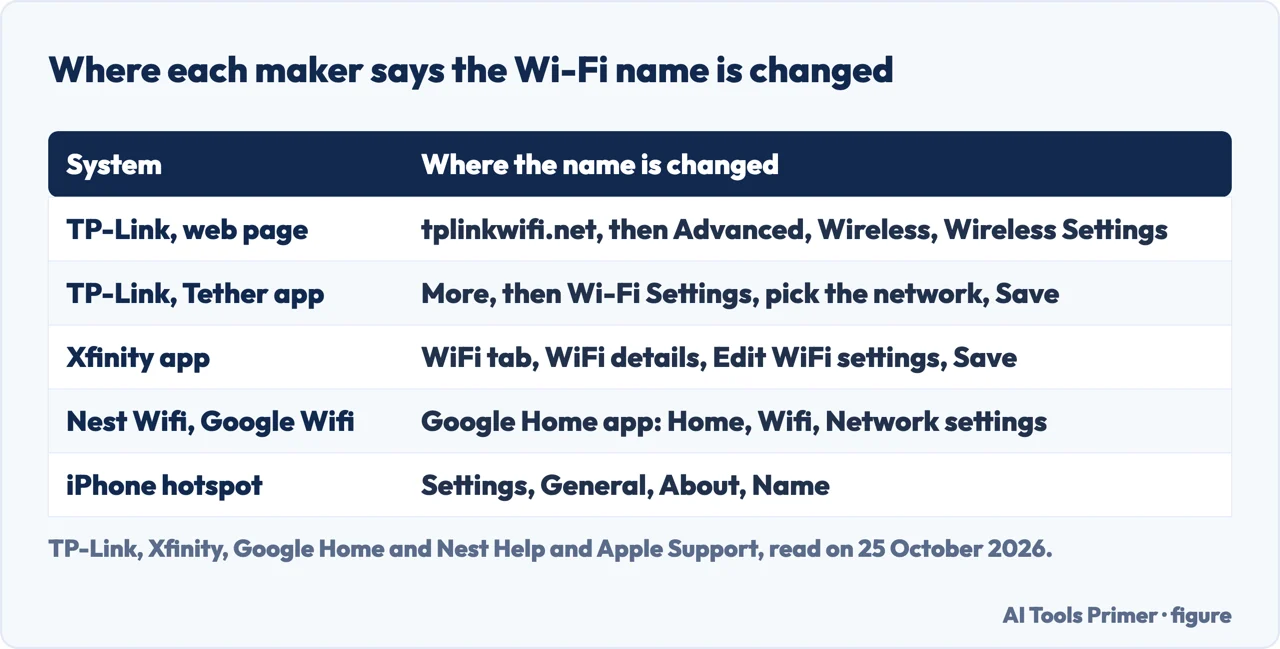
A Microsoft Q&A answer states the rule plainly: your router, not Windows, is where you assign a name to your Wi-Fi network, so you sign in to the router’s settings and look for the Wi-Fi name (SSID) screen. TP-Link’s support page, updated on 23 September 2026, shows one maker’s version. Connect your phone or computer to the router by Wi-Fi or an Ethernet cable, open a browser and enter tplinkwifi.net, and sign in with the admin password. On other TP-Link routers go to Advanced, then Wireless, then Wireless Settings, make the change and click Save; for Wi-Fi 8 routers the path is Wi-Fi, then Main Network. In the Tether app, tap the router under Devices, sign in, tap More, then Wi-Fi Settings, pick the network, and tap Save.
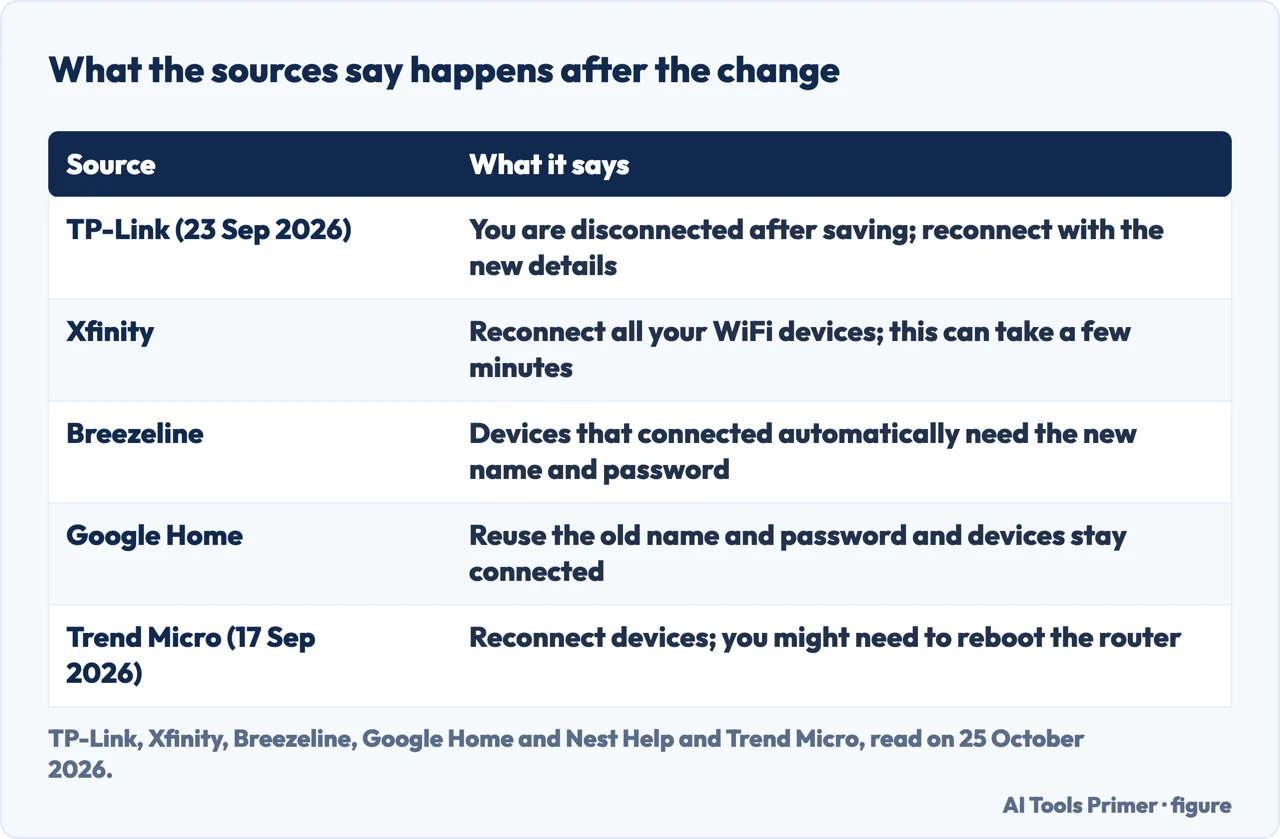
For routers in general the blog of Shenzhen Bilian Electronic, published on 22 October 2025, says to have the router’s IP address and admin login ready; the address is often 192.168.0.1 or 192.168.1.1, and the login may be on a sticker on the router or in the manual. Trend Micro, in a help page updated on 17 September 2026, gives http://192.168.1.1 as typical, warns that each router brand may have different login methods, and says to click Save or Apply and that you might need to reboot the router for the changes to take effect.
When the carrier or the app owns the router
Xfinity says its steps are for rented Xfinity Gateways only. The quickest way is the Xfinity app: select the WiFi tab, then WiFi details, then Edit WiFi settings at the bottom, change the name or password, and click Save. Only Primary, Manager and Member Xfinity ID users can reach the WiFi tab. If you have WiFi Boost Pods or WiFi Intelligence is enabled, Xfinity says you must use the app, and that on an XB2 or XB3 device the Admin Tool is still available. On an X1 TV box the name is view only.
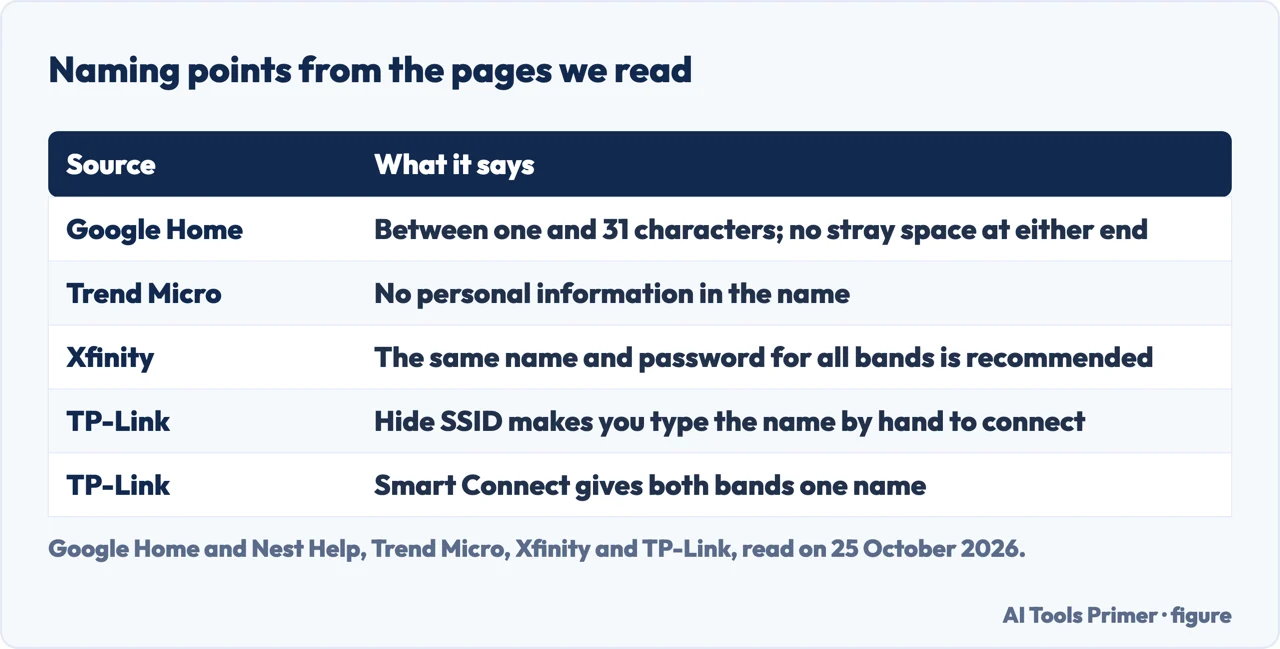
For Nest Wifi and Google Wifi the Google Home and Nest Help page says to open the Google Home app, tap Home, then Wifi, then Network settings, enter a new network name and tap Save. Google adds that network names must be between one and 31 characters and that there must not be an accidental space at the beginning or end. Breezeline’s business support page, for a network split into zones, says to open the Settings page, tap the pencil icon next to the name, change it and tap Apply.
One name or two: bands and hidden names
Xfinity gateways broadcast two or three signals, on 2.4GHz, 5GHz and 6GHz depending on the model, and Xfinity says that for the strongest and fastest connection it recommends the same network name and password for all bands. TP-Link’s Smart Connect works that way: when enabled, the router uses the same name for the 2.4GHz and 5GHz bands and assigns your device to the best band. TP-Link’s question and answer says that if your phone sees only one name, Smart Connect is probably on; turn it off and change one of the names so the two bands show as separate networks. TP-Link also lists Hide SSID, which hides the name from Wi-Fi scans, so that to connect you must enter the name and password by hand.
After the change, and what to call it
Every source says the devices have to be reconnected. TP-Link says that if you are connected by Wi-Fi you will be disconnected after saving and should reconnect with the new details. Xfinity says to reconnect all your WiFi devices, which can take a few minutes. Breezeline says devices that connected automatically need the new name and password. The Shenzhen Bilian blog says to warn family or roommates that their devices will disconnect for a moment. Google’s page adds an exception: if you reuse the network name and password of an old router, you won’t have to reconnect devices that were previously on the network.
On the choice of name, Trend Micro says that using the default name can put the network at risk, because attackers may assume the owner has not taken precautions, that some default names give away the brand, that a name should not include personal information such as a name, address or date of birth, and that you should update the name and password regularly, aiming for every three months. TP-Link takes a narrower line: it recommends changing only the Wi-Fi name and password unless you have a specific reason to adjust other options. To keep the change from being lost, see also changing the password, which the same settings screen holds.
From a phone
The apps above change the router’s name from a phone. The network a phone makes itself is a different case. Apple’s support page on Personal Hotspot, published on 7 May 2026, says to change the name of the Personal Hotspot by changing the name of the device providing the hotspot: open Settings, tap General, tap About, then tap Name. Apple’s guide adds that the iPhone’s name is also used by iCloud, AirDrop, Bluetooth and your computer, so renaming it changes it in those places too. If the router needs a restart afterwards, see restarting a router.
Where to start
Five ways in.
- “On my router.”
- Web page and app — router
- “It is Xfinity or Nest.”
- Carrier apps — apps
- “Two names.”
- Bands and hidden names — bands
- “Devices dropped.”
- After the change — after
- “On my phone.”
- From a phone — phone
Wi-Fi settings
The password, the router and the signal.
Questions people also ask
What happens if I rename my WiFi network?
Devices on the old name disconnect and have to be reconnected to the new one, as TP-Link, Xfinity and Breezeline say. Google says reusing the old name and password avoids it.
How to change WiFi name in mobile?
Through the router’s app, such as Xfinity, Tether or Google Home. Apple’s pages describe renaming the hotspot an iPhone provides, not a home network.
How do I rename my WiFi on my iPhone?
Apple says the Personal Hotspot takes the iPhone’s name: Settings, General, About, Name. A home network is renamed in the router.
How do I change the name of the WiFi router?
Sign in to the router’s settings or app and edit the Wi-Fi name (SSID), then Save. The exact screen depends on the maker.
Not covered here. We did not change a name on a router. The statements come from TP-Link (updated 23 September 2026), the support pages of Xfinity and Breezeline (no date that we could read), Google Home and Nest Help, Trend Micro (updated 17 September 2026), a blog of Shenzhen Bilian Electronic (22 October 2025), a Microsoft Q&A answer and Apple Support (7 May 2026), used for what they claim. Menus differ by router and firmware.
The Reddit thread and the Google Home community thread in the results were not used. Other routers, such as NETGEAR, ASUS and Eero, are outside what we read.
The search volume and difficulty behind this page were read in Semrush on 29 August 2026.
Sources
- TP-Link — How to Change Wi-Fi Settings on a TP-Link Wireless Router (updated 23 September 2026) — www.tp-link.com, read 25 October 2026.
- Xfinity — View and change your WiFi network name and password — www.xfinity.com, read 25 October 2026.
- Google Home and Nest Help — Change Wi-Fi network name — support.google.com, read 25 October 2026.
- Breezeline — Change WiFi Network Name & Password for Your Zones — www.breezeline.com, read 25 October 2026.
- Trend Micro — How to Change WiFi Name to Safeguard Your Home Network (updated 17 September 2026) — helpcenter.trendlife.com, read 25 October 2026.
- Shenzhen Bilian Electronic — How To Change Your WiFi Network Name Step by Step (22 October 2025) — www.lb-link.com, read 25 October 2026.
- Microsoft Q&A — How do I change wifi name? — learn.microsoft.com, read 25 October 2026.
- Apple Support — Connect to the Personal Hotspot of an iPhone or iPad (published 7 May 2026) — support.apple.com, read 25 October 2026.
- Apple Support — Change the name of your iPhone — support.apple.com, read 25 October 2026.
Written by Alberto Gulotta
Founder and editor of AI Tools Primer, writing from Palermo, Italy. Thirty-five years of taking computers apart, starting with a Commodore 64 — the long version is on the about page.
Something wrong on this page? Write to aitoolsprimer@gmail.com and it gets fixed.
Written on 25 October 2026.
Independence and limits
No affiliate links and no paid placements anywhere on this site. Nobody pays to appear here, and no company has seen this page before you did.
This is general information, not professional advice. Where a page touches money, health, safety or the law, it names its source and the date it was read — and your situation may still differ. See the privacy page and the cookie policy.