
Software · guide
How to restart router: what NETGEAR, Linksys, Spectrum and Epic say
By Alberto Gulotta · Updated · 10 min read
How to restart router steps in the support pages we read mean cutting the power and restoring it, with waits from 10 seconds to two minutes. They differ on whether the modem comes back first. NETGEAR, Linksys, Spectrum and Epic Games give their own numbers; this page sets them side by side.
It also separates a restart from a reset, which the pages treat as different actions.
| Question | Answer | Where it comes from |
|---|---|---|
| How long do I wait? | NETGEAR: 10 seconds with no power button; Linksys: about 30 seconds for the router; Spectrum: 30 seconds; Epic Games: at least a minute | The four support pages |
| Modem or router first? | Spectrum and NETGEAR’s Orbi page bring the modem back first and wait for it; Epic Games plugs both back together | Spectrum; NETGEAR; Epic Games |
| Does it erase my settings? | NETGEAR says its WiFi settings are saved when you reboot; a reset is a different action | NETGEAR; HighSpeedInternet |
| Can I skip the unplugging? | NETGEAR’s page covers a power button and the Nighthawk app; Spectrum’s covers a Restart Equipment step in your account | NETGEAR; Spectrum |
How long to wait, page by page
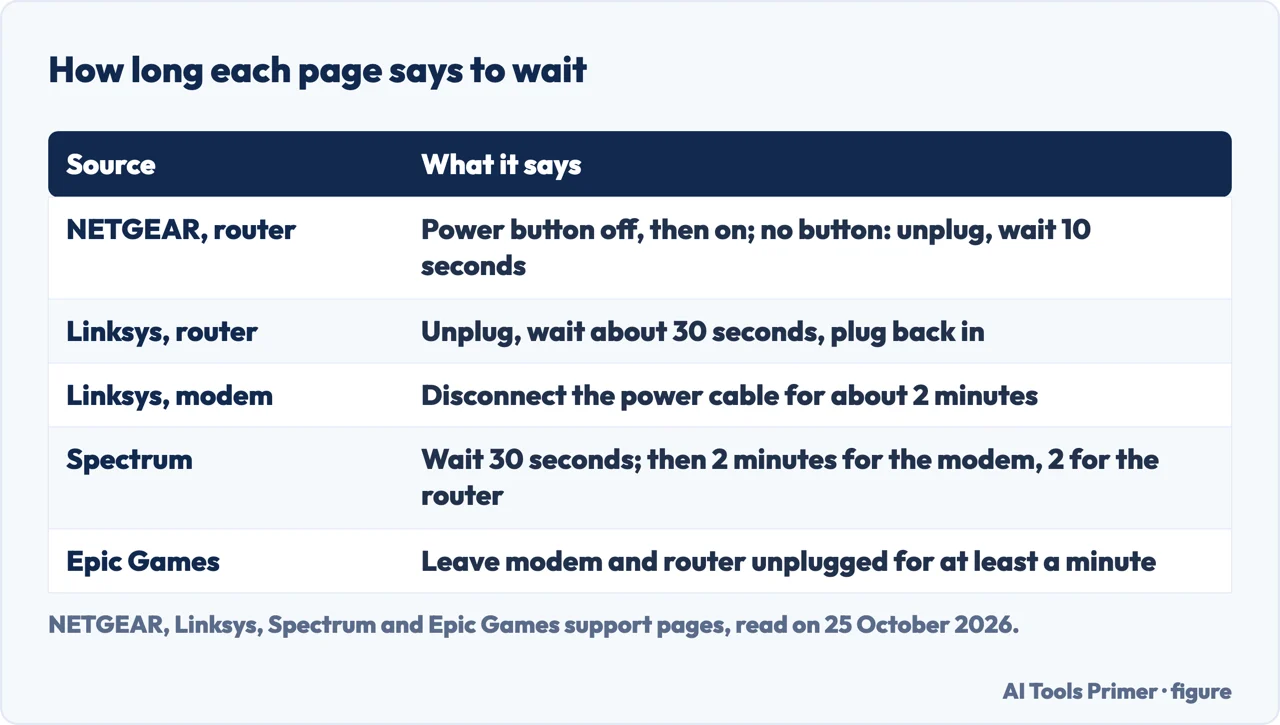
In the pages we read, a restart means cutting the power and restoring it, and the waits run from 10 seconds to two minutes. NETGEAR’s article for its routers gives two ways: press the Power On/Off button off and on again, or, if the router has no such button, unplug it, wait 10 seconds, then plug it back in. It says the button is on the back of most NETGEAR routers and that it might take up to 2 minutes for a router to reboot after the Nighthawk app step. Linksys says to unplug the power cable, wait for about 30 seconds and plug it back in, and to “Allow a minute or so for the router to reboot and reconnect fully.” It describes the light flashing while the router boots and going solid when it is ready.
The Linksys article treats the modem as a separate step: disconnect its power cable for about 2 minutes, and expect it to take a few minutes to come back online, depending on the model. Epic Games, in its help for players, says to turn off the PC or console, unplug the modem and router for at least a minute, plug them back in, wait until the lights turn back on, and then reconnect the device. It suggests testing with a web page you have not been to in a while. HighSpeedInternet, a site that helps readers find providers, says 60 seconds, and a reboot of 3 to 20 minutes; Nuvera, an internet provider, says 30 seconds to a minute.
Modem or router first
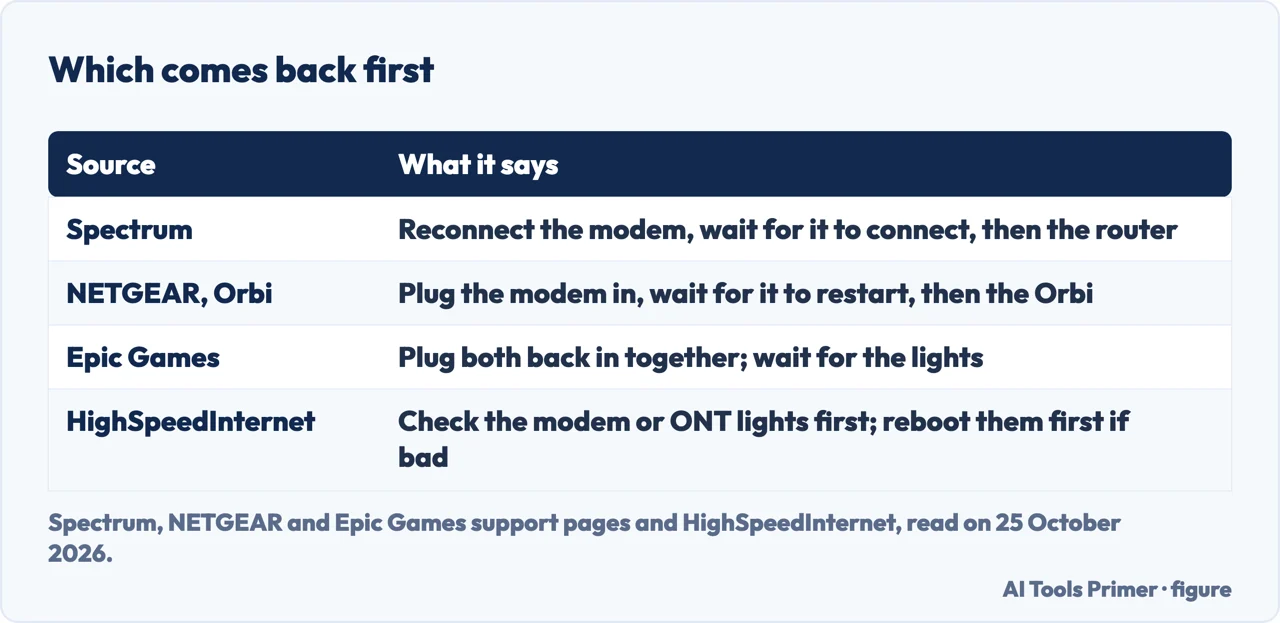
Where a page says an order, it is the modem first. Spectrum’s steps: unplug the modem power cord (and remove the battery if you have Home Phone service with battery backup), unplug the router, skip that if you have a modem and router in one box, wait 30 seconds, reconnect the modem, and “Wait two minutes to allow the modem to connect.” Only then do you reconnect the router and wait two minutes. NETGEAR’s page for its Orbi system turns off and unplugs the modem, then the Orbi router and satellite, plugs the modem back in, waits for the modem to restart, and plugs the Orbi in; it says the Orbi devices take two minutes to restart.
Epic Games does not set an order: it plugs the modem and router back in together. HighSpeedInternet adds a step before any of this: check the lights on your modem or fibre terminal first, because restarting the router while they show a problem does not help, and if they have a connection problem, reboot them first. The existing page on Wi-Fi that has stopped working covers how to tell which of the faults you have.
A restart is not a reset
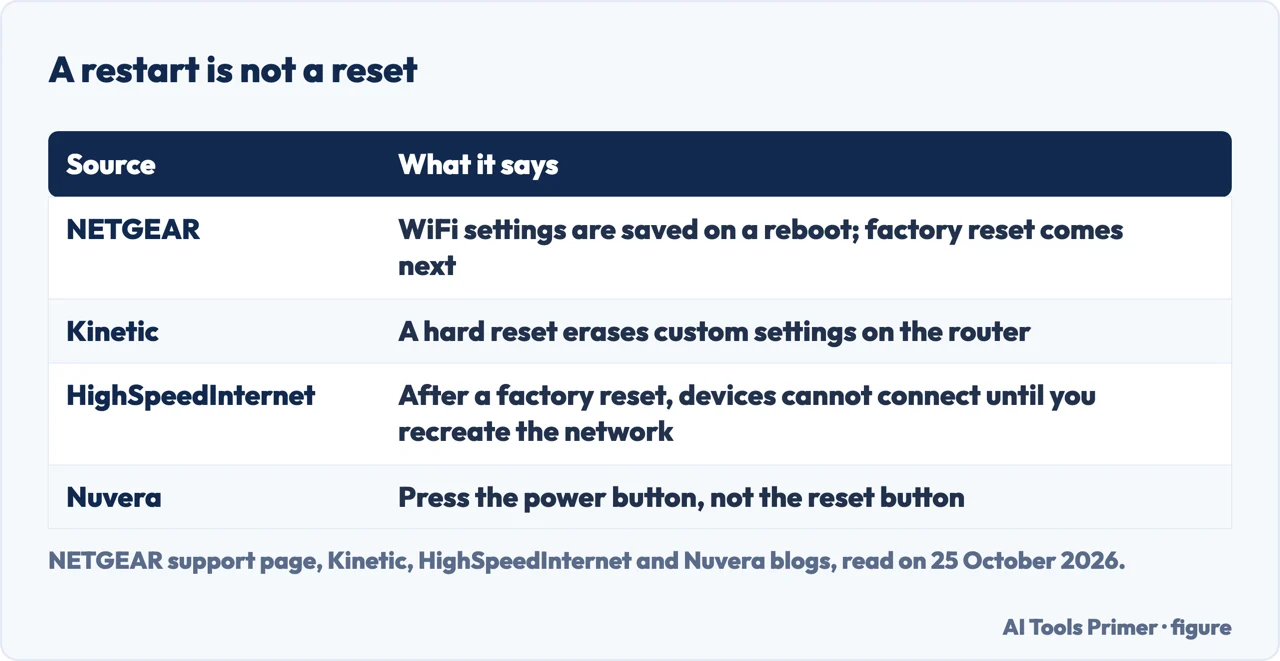
NETGEAR says a reboot is sometimes all that is needed to resolve basic connectivity issues, and that “All of your WiFi settings are saved when you reboot your router.” It points to a factory reset only for when rebooting does not solve the problem. Kinetic’s blog says to disconnect the power cord from the back rather than just hit the power or reset button, and that the hard reset is a small hole on the back, pressed with a paperclip, that erases the router’s custom settings. HighSpeedInternet separates the two terms: a restart briefly disconnects the device from power, while a factory reset restores the router to its defaults, and none of your devices can connect until you recreate the Wi-Fi network. Nuvera says to press the power button and not the reset button.
Kinetic says to unplug rather than press the power button, while NETGEAR gives the power button as its first method. We did not test either. Kinetic and Nuvera both steer away from the reset control, and NETGEAR and HighSpeedInternet say what a reset costs. If you do reset, the page on changing the Wi-Fi password covers the router’s two passwords.
Without reaching for the cable
NETGEAR’s article gives the Nighthawk app as a second way and, if the router is difficult to access and the app cannot be used, the router web interface. Spectrum’s page lets you sign in to your account, select Restart Equipment next to a device and select it again, and notes that some equipment cannot be reset from your account and must be reset manually. Kinetic says some routers have companion apps that can restart the device remotely and to check the router’s documentation. These routes depend on your make: Spectrum’s is for its own equipment, and NETGEAR’s for its own.
Spectrum’s page sits under outage troubleshooting and says that after power and service are restored following an outage, it can be necessary to reboot the equipment. After the restart, it says your devices should reconnect to the Wi-Fi by themselves, and if one does not, you may need to connect manually. If the connection stays slow afterwards, the page on slow internet starts from what is enough, and the one on a Wi-Fi that keeps disconnecting asks which switch did it.
Where to start
Four ways in.
- “How long do I wait?”
- Page by page — wait
- “Modem or router first?”
- Who names an order — order
- “Will it erase my settings?”
- Restart and reset — reset
- “I do not want to unplug it.”
- The app routes — apps
When the Wi-Fi misbehaves
Dropped connections, slow speeds and the signal itself.
Router settings
What a reset leaves you to redo.
Questions people also ask
Will unplugging a router reset it?
NETGEAR says all of its WiFi settings are saved when you reboot the router. HighSpeedInternet separates a restart, which briefly disconnects power, from a factory reset, which restores the defaults. The reset is a separate control.
Where is the restart button on a router?
NETGEAR says the Power On/Off button is on the back of most of its routers, and that a router without one is unplugged for 10 seconds. Nuvera says to press the power button and not the reset button.
Is it good to restart a Wi-Fi router?
NETGEAR says a reboot is sometimes all that is needed for basic connectivity issues. HighSpeedInternet says it is worth a try only after checking the modem or fibre terminal lights; if the internet is out, restarting the router will not help.
Do I restart my router or modem first?
Where a page names an order, it is the modem: Spectrum and NETGEAR’s Orbi page bring it back first and wait for it. Epic Games plugs both back in together.
Not covered here. We did not restart a router to test any of this. The statements come from support pages of NETGEAR (the router and Orbi articles, last updated 7 July 2025), Linksys, Spectrum (its outage troubleshooting page, read with a headless browser) and Epic Games, read on 25 October 2026, and from three blogs used for what they add: the blog of Kinetic, Nuvera (an internet provider) and HighSpeedInternet (a site that helps readers find providers). Menu and button wording may change.
The Spectrum Business and Frontier pages in the results refused our request and were not read; Reddit was not read. Routers from other makers, and the steps for a router that is also a mesh satellite, are not covered here.
The search volume and difficulty behind this page were read in Semrush on 29 August 2026.
Sources
- NETGEAR Support — How do I power cycle or reboot my NETGEAR router? — kb.netgear.com, read 25 October 2026.
- NETGEAR Support — How do I power cycle my Orbi network? — kb.netgear.com, read 25 October 2026.
- Linksys Support — Troubleshooting home WiFi issues — support.linksys.com, read 25 October 2026.
- Spectrum Support — Outage information and troubleshooting — www.spectrum.net, read 25 October 2026.
- Epic Games — How do I restart my modem or router to solve connection issues? — www.epicgames.com, read 25 October 2026.
- Kinetic — How do I restart my router? — www.gokinetic.com, read 25 October 2026.
- HighSpeedInternet — How To Restart Your Router and Fix Common Wi-Fi Problems — www.highspeedinternet.com, read 25 October 2026.
- Nuvera — Why and How to Reboot Your Modem and Router (1 July 2025) — nuvera.net, read 25 October 2026.
Written by Alberto Gulotta
Founder and editor of AI Tools Primer, writing from Palermo, Italy. Thirty-five years of taking computers apart, starting with a Commodore 64 — the long version is on the about page.
Something wrong on this page? Write to aitoolsprimer@gmail.com and it gets fixed.
Written on 25 October 2026.
Independence and limits
No affiliate links and no paid placements anywhere on this site. Nobody pays to appear here, and no company has seen this page before you did.
This is general information, not professional advice. Where a page touches money, health, safety or the law, it names its source and the date it was read — and your situation may still differ. See the privacy page and the cookie policy.