
Software · guide
How to connect HP printer to WiFi: the app, WPS and the panel
By Alberto Gulotta · Updated · 9 min read
How to connect HP printer to WiFi has three routes in HP’s guides: the HP app, WPS on the router, and the control panel’s Wireless Setup Wizard. HP’s pages differ on the app’s name and on timings. This page sets out the steps, the Smart Tank sequence and what to check when it fails.
| Question | Answer | Where it comes from |
|---|---|---|
| What is HP’s recommended way? | The HP app, from 123.hp.com, which finds the printer and passes on your Wi-Fi details | HP Tech Takes |
| What is the password-free way? | WPS: press WPS on the router, then the Wi-Fi button on the printer within two minutes | HP Tech Takes |
| And from the printer itself? | Setup or Settings, Network or Wireless Settings, then the Wireless Setup Wizard | HP Tech Takes |
| How do I change the network? | Reset the printer’s wireless settings, then choose the new network in the app | HP Tech Takes (Smart Tank) |
| What if the printer is not found? | Same Wi-Fi network for printer and device, restart router, printer and device, turn off a VPN | HP Tech Takes |
The app route
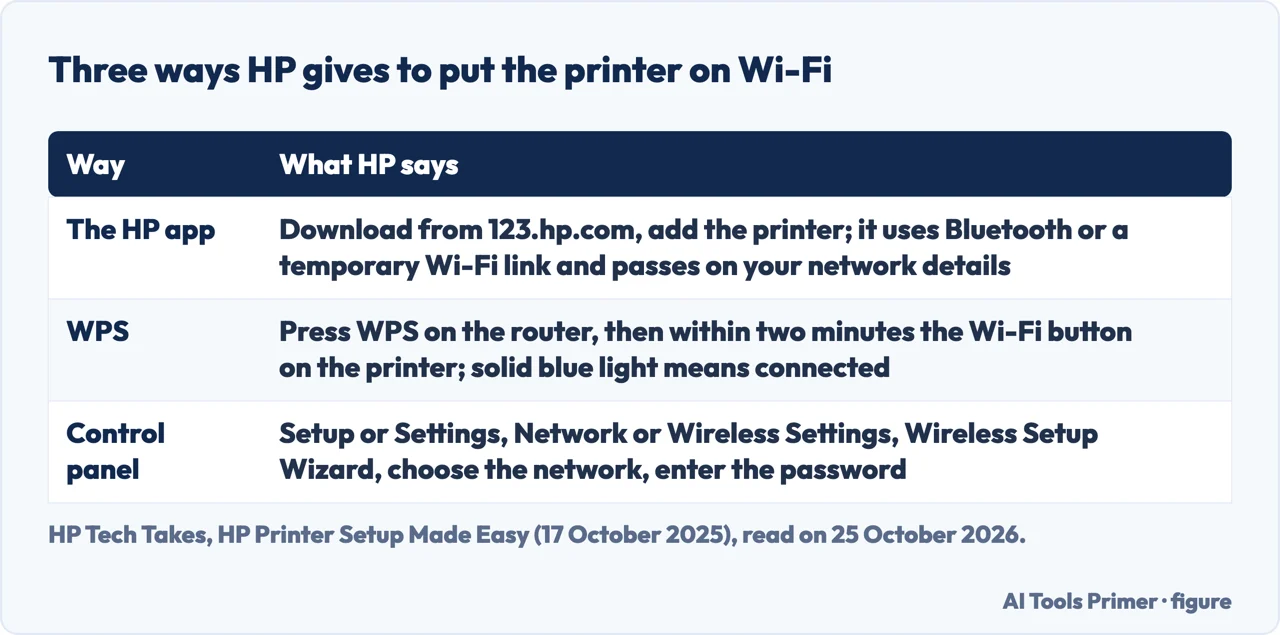
HP’s Tech Takes setup guide, dated 17 October 2025, says to gather the printer, a power outlet, your Wi-Fi network name and password, a device already on the same network and the free HP app. It says the HP app has replaced HP Smart and that older guides may refer to HP Smart. The steps are to go to 123.hp.com and download the app, prepare the printer by removing all packaging, installing the starter cartridges, loading paper and powering on, then open the app and tap the plus sign or Set up a new printer. HP says the app will detect the new printer using Bluetooth or a temporary direct Wi-Fi connection and then transfer your Wi-Fi network details to the printer, and that you finish by registering and sending a test print.
A Microsoft Q&A answer from February 2026 describes the reconnect case: on the printer’s screen go to Wireless or Network settings and run the Wi-Fi setup to connect it to your current network, then open the HP Smart app and click Add printer; if it does not show up, restart the printer and the router and try again. HP’s own support page that appears in the results is a form that asks for your printer model and gives no steps.
WPS and the control panel
If the app installation fails or you are switching to a different network, HP’s setup guide gives two manual methods. For WPS, which needs a router and a printer that both support it, press and hold the WPS button on your router until its light begins blinking, then within two minutes press and hold the Wi-Fi button on your printer; the connection is established when the printer’s Wi-Fi light is solid blue. For a printer with a touchscreen, select Setup or Settings on the control panel, go to Network or Wireless Settings, launch the Wireless Setup Wizard, select your network name from the list and enter the password on the on-screen keypad.
HP lists other ways: connect a USB cable and install through the app or the operating system prompts, later converting the USB setup to wireless in the app under Printer Settings, or plug an Ethernet cable into the router or a switch on supported models. On Windows, HP suggests running HP Print and Scan Doctor if the system cannot find the printer or jobs fail. For printers on guest networks or VLANs, HP says to allow mDNS or Bonjour discovery across segments or add the printer by IP address.
Smart Tank: setup mode, reset and changing the network
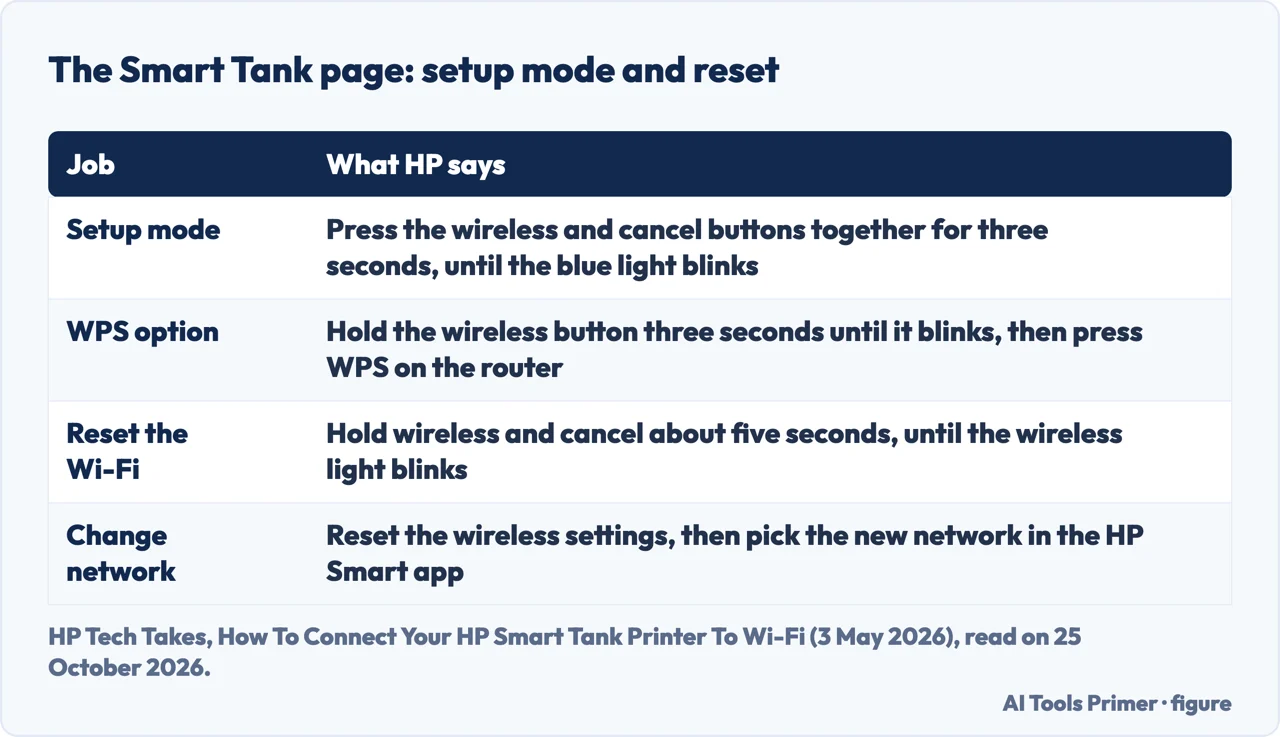
HP’s Smart Tank guide, dated 3 May 2026, gives the button sequences. To put the printer in Wi-Fi setup mode, press the wireless and cancel buttons together for three seconds, until the Wi-Fi icon starts cycling and the blue light blinks, then open the HP Smart app, which detects the printer and guides you through choosing the network and entering the password. As a password-free option it says to press and hold the wireless button for three seconds until it blinks and then press the WPS button on the router. To reset the Wi-Fi it says to hold the wireless and cancel buttons together for about five seconds until the wireless light begins to blink; to change the network, reset the wireless settings first, which puts the printer back into setup mode, then pick the new network in the app, enter the password and confirm the connection. If the blue light keeps blinking, HP says it could indicate a connection issue and that restarting the printer and the router usually resolves it.
Where HP’s own pages differ, and what to check when it fails
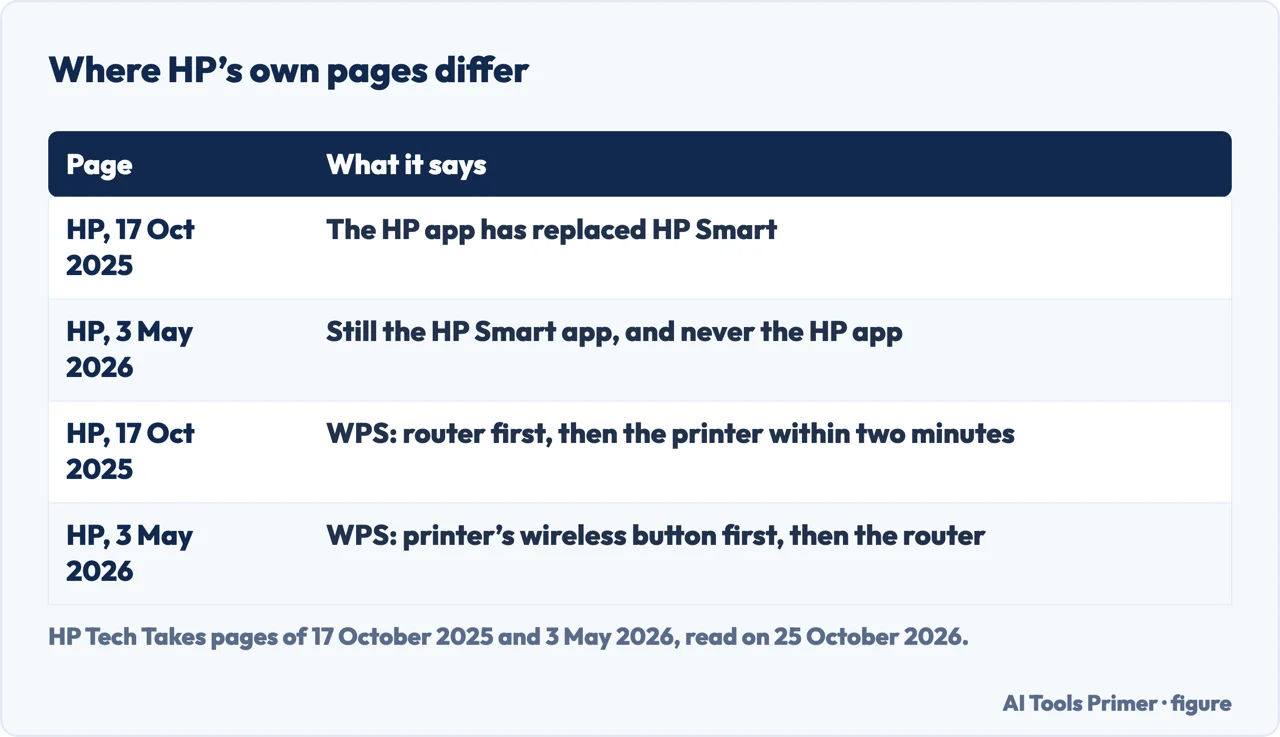
HP’s pages do not agree with each other. The guide of 17 October 2025 uses the name HP app, and says it replaced HP Smart; the guide of 3 May 2026 uses HP Smart app throughout and never the HP app, and the Microsoft answer of 2026 also says HP Smart. The WPS order differs: the general guide starts at the router and gives the printer two minutes, while the Smart Tank guide starts with the printer’s wireless button held for three seconds and then the router. The Smart Tank page gives three seconds for setup mode and about five for the reset, and the general guide gives no times. These pages are written for different models, which may explain some of it; we did not test them on a printer.
For a printer that will not connect, HP’s setup guide lists four checks: keep the printer within range of the router, make sure it connects to the 2.4 GHz band if your model requires it, restart the router, the printer and the connected device, and verify the Wi-Fi password. If the app cannot locate the printer, it says to make sure the device and the printer are on the same network, restart them, temporarily disable a VPN and check that the firewall allows the app on private networks. For a connected printer that will not print, see fixing a printer that shows offline, and to add one without HP’s app, adding a printer.
Where to start
Four ways in.
- “With the app.”
- The app route — app
- “Without the app.”
- WPS and the panel — manual
- “A Smart Tank.”
- Setup mode and reset — tank
- “It won’t connect.”
- What to check — differ
Printers and Wi-Fi
Adding a printer, bringing it back online and the Wi-Fi settings.
Questions people also ask
How do I reset my HP printer to a new Wi-Fi network?
On a Smart Tank, HP says to reset the wireless settings, which puts the printer back in setup mode, then pick the new network in the app. HP’s general guide lists WPS or the control panel wizard for switching networks.
Why is my HP printer not connecting to Wi-Fi?
HP lists range, the 2.4 GHz band on models that need it, restarting the router, printer and device, and the password; a blinking blue light on a Smart Tank can mean a connection issue.
How do I connect my printer to a new Wi-Fi?
Run the printer’s wireless setup again, from Wireless or Network settings on its screen or by resetting the wireless settings, and then choose the new network in the app.
How do I get my HP to connect to Wi-Fi?
Install the HP app from 123.hp.com and add the printer, or use WPS, or the control panel’s Wireless Setup Wizard.
Not covered here. We did not connect a printer. The statements come from HP Tech Takes, HP’s blog (the setup guide of 17 October 2025 and the Smart Tank guide of 3 May 2026), and a Microsoft Q&A answer of February 2026, used for what they claim. HP’s support page in the results asks for a printer model and gives no steps. Button names and times vary by model.
The HP community thread, HP’s short 2024 connection guide and a blog by a rental company were not used. Models that use other methods, such as Wi-Fi Direct, are not covered.
The search volume and difficulty behind this page were read in Semrush on 29 August 2026.
Sources
- HP Tech Takes — HP Printer Setup Made Easy: A Step-by-Step Guide (17 October 2025) — www.hp.com, read 25 October 2026.
- HP Tech Takes — How To Connect Your HP Smart Tank Printer To Wi-Fi (3 May 2026) — www.hp.com, read 25 October 2026.
- HP Support — HP Printer setup using Wi-Fi or wired network or USB cable — support.hp.com, read 25 October 2026.
- Microsoft Q&A — How to reconnect my wireless HP printer to my computer (February 2026) — learn.microsoft.com, read 25 October 2026.
Written by Alberto Gulotta
Founder and editor of AI Tools Primer, writing from Palermo, Italy. Thirty-five years of taking computers apart, starting with a Commodore 64 — the long version is on the about page.
Something wrong on this page? Write to aitoolsprimer@gmail.com and it gets fixed.
Written on 25 October 2026.
Independence and limits
No affiliate links and no paid placements anywhere on this site. Nobody pays to appear here, and no company has seen this page before you did.
This is general information, not professional advice. Where a page touches money, health, safety or the law, it names its source and the date it was read — and your situation may still differ. See the privacy page and the cookie policy.