
Software · guide
How to deactivate Messenger, and why Facebook comes first
By Alberto Gulotta · Updated · 10 min read
How to deactivate Messenger: deactivate your Facebook account first, because the Messenger Help Center says you will not see the Messenger option otherwise. Then, on a phone, go through Menu, Settings, Accounts Center, Account ownership and control, and Deactivation or deletion. Deactivating Facebook alone leaves Messenger active.
This page gives the order, the steps as Meta writes them, what Messenger keeps if you stop at Facebook, what friends still see, and how to come back.
| Question | Answer | Where it comes from |
|---|---|---|
| Can I deactivate Messenger on its own? | No: you have to deactivate your Facebook account first, or the option does not appear | Messenger Help Center |
| Where can I do it? | On a mobile device only | Messenger Help Center |
| Can I deactivate Facebook and keep Messenger? | Yes; Messenger stays active if you keep it or are logged in when you deactivate Facebook | Messenger Help Center; Norton |
| What do friends still see? | Messages you sent them may still be visible, and your name in their friends list | Messenger Help Center |
| How do I come back? | Log in with your username and password | Messenger Help Center |
Why Facebook comes first
The Messenger Help Center page on this puts the rule before the steps: “Remember that you have to deactivate your Facebook account in order to see the option to deactivate your Messenger account.” It adds that the action “can only be done on a mobile device.” The page also tells you that Meta is moving people to Meta Accounts, so that you may see either Accounts Center or Meta Account settings as the place to manage the account.
The other half of the rule is on Meta’s page about deactivating a Facebook profile: “if you choose to keep Messenger active or are logged into Messenger when you deactivate your Facebook account, then Messenger will remain active.” So deactivating Facebook does not deactivate Messenger by itself, and deactivating Messenger needs Facebook deactivated first. Norton puts both in its questions: yes, you can deactivate Facebook but keep using Messenger, and no, you cannot deactivate Messenger but keep Facebook.
The steps
For Facebook, Meta’s page starts from your profile picture at the top right: Settings & privacy, then Settings, then Accounts Center. It gives two routes. If you see Manage accounts at the bottom of Accounts Center, click Manage next to the profile, then Deactivation or deletion. If you see Accounts, click Personal details, then Account ownership and control, then Deactivation or deletion. Then choose the account, select Deactivate account, click Continue and follow the instructions to confirm.
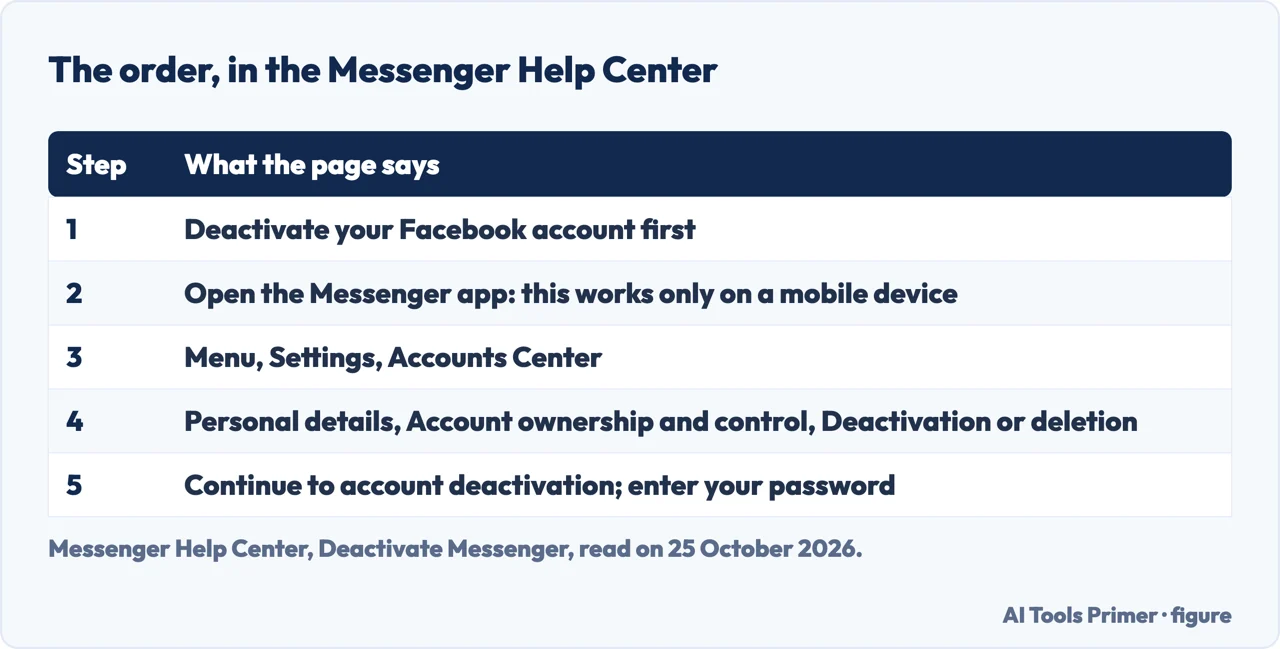
For Messenger, the Help Center page gives these steps, on a phone or tablet: open the Messenger app, tap Menu, then Settings, then Accounts Center, then Personal details, then Account ownership and control, then Deactivation or deletion, then Continue to Facebook account deactivation and deletion, then Continue to account deactivation. Enter your password and tap Continue. If those steps do not work, it offers a second route: from Chats, tap your profile picture, scroll down and tap Account settings, then Account ownership and control, then Deactivation and deletion, and continue as above.
The page we read lists no button named Deactivate Messenger: its steps use the words of the Facebook deactivation. A GetAssist forum thread started on 19 September 2025 has answers that do name one, with menu names that differ from Meta’s (“Your Facebook Information” in one of them). If your screen differs, trust the screen, and Meta’s note that settings may not look the same for everyone.
Deactivating Facebook and keeping Messenger
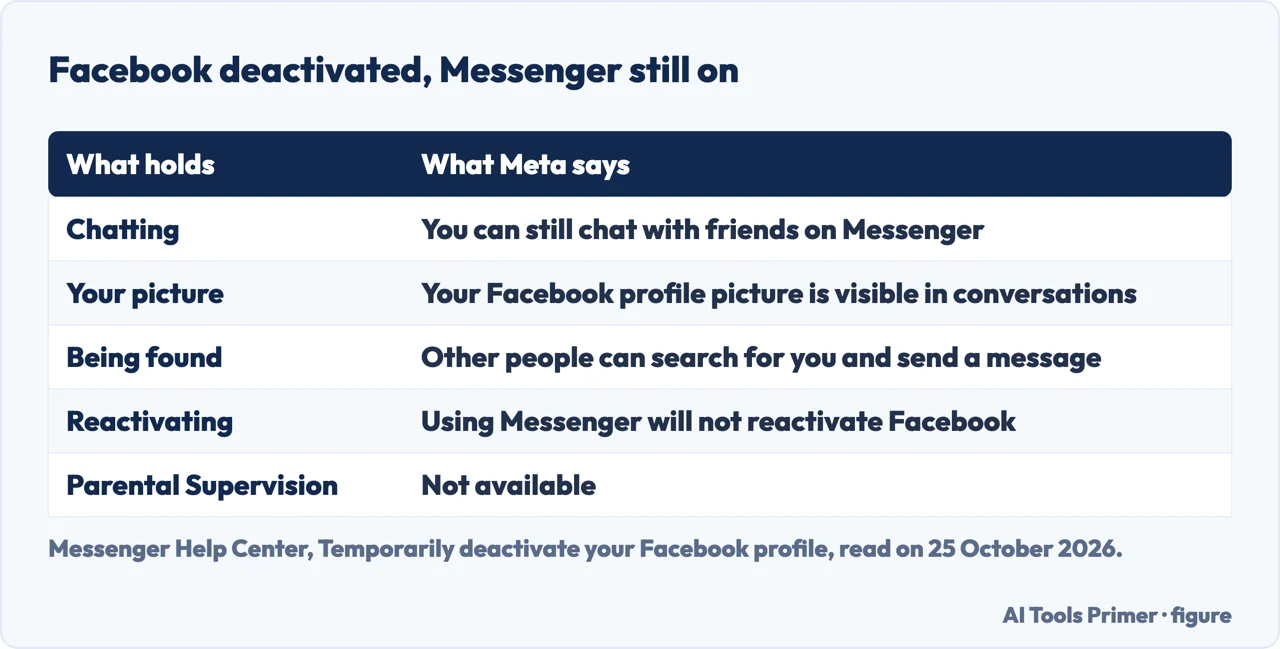
Meta calls this a Deactivated Except Messenger Account, or DEMA, and describes it in its own words: “You can keep using Messenger after you deactivate your Facebook account.” You sign in to the Messenger app or to Messenger.com with the same email and password as for Facebook. With a DEMA you can still chat with friends, your picture is visible in your conversations, other people can search for you on Messenger and send a message, and you are not searchable on Facebook. On the Facebook side, Meta says that using Messenger will not reactivate the Facebook account, while Parental Supervision is not available.
A Messenger-only account, one made without Facebook, is a different case. Meta asks the people who have one to update it to a DEMA, and says: “if you don’t update your Messenger account within 90 days, you’ll no longer have access to Messenger.” Deactivating Facebook is not the route for them; they have no active Facebook to deactivate.
What other people can still see
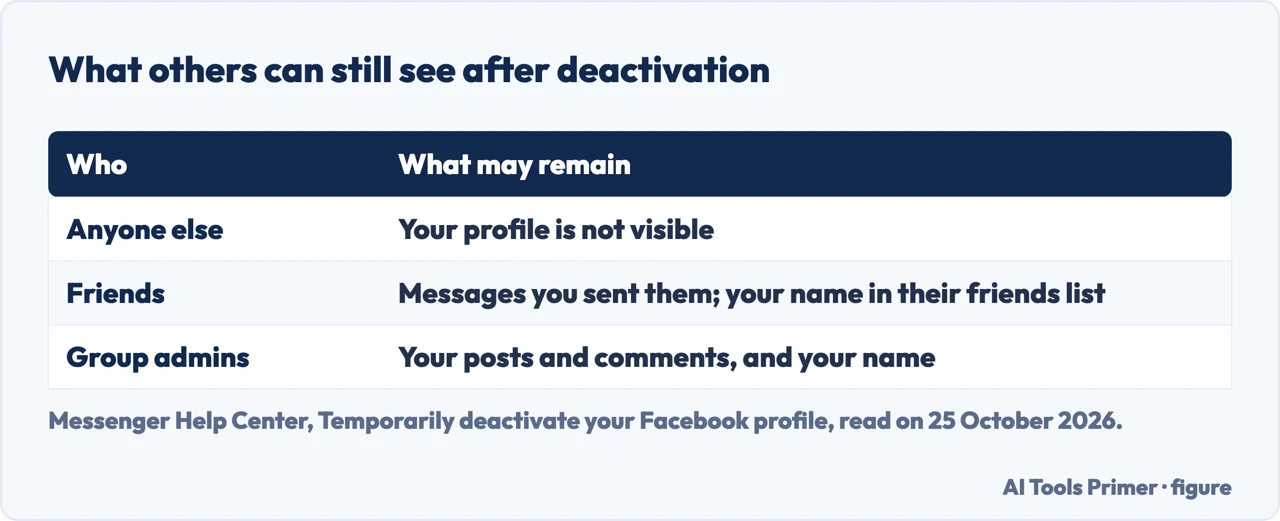
After deactivation, Meta says, your profile cannot be seen by other people. But “Some information, like messages you sent to friends, may still be visible.” Friends may still see your name in their friends list, which only they can see, and only from that list. Group admins may still be able to see your posts and comments, along with your name. Norton says the same of old messages: friends can still read them.
If you have additional Facebook profiles, Meta’s page warns that deactivating your account deactivates all profiles under it. It gives a separate route for deactivating one additional profile; that is a different page from the one on Messenger.
Coming back
For Messenger, the page says: “To reactivate Messenger, log in with your username and password.” For Facebook, Meta says you can come back at any time by logging back in, or by using your Facebook account to log in somewhere else, and that you need access to the email or mobile number you use to log in. Norton describes deactivation as temporary and deletion as permanent, with a 30-day window; permanent deletion is a different action from the one on this page, and Meta’s page on it is not one we read. For deleting other accounts, see Instagram and Gmail; for pausing Instagram, the page on deactivating it.
Where to start
Five ways in.
- “Why can’t I find the option?”
- Facebook first — order
- “What are the steps?”
- As Meta writes them — steps
- “I only want Facebook gone.”
- Messenger stays on — keep
- “Will my friends still see my messages?”
- What remains — others
- “Can I undo it?”
- Coming back — back
Facebook, the other half
The Facebook account that Messenger hangs from: who sees it, how to lock it, how to change its password, and what happens to a Page.
Pausing or leaving other accounts
The same choice, pause or leave, for Instagram and Gmail.
Questions people also ask
How do I deactivate Messenger?
Deactivate your Facebook account first. Then, on a mobile device, open Messenger and go to Menu, Settings, Accounts Center, Personal details, Account ownership and control, Deactivation or deletion, and continue to account deactivation. Enter your password.
Why can I not deactivate Messenger?
The Messenger Help Center says you have to deactivate your Facebook account in order to see the option to deactivate your Messenger account, and that the action can only be done on a mobile device.
Can I deactivate Facebook and keep using Messenger?
Yes. Meta says you can keep using Messenger after you deactivate your Facebook account, signing in with the same email and password. Using Messenger will not reactivate the Facebook account.
How do I reactivate Messenger?
Log in with your username and password, says the Messenger Help Center. Facebook can be reactivated by logging back in, with access to the email or mobile number you use to log in.
Not covered here. We did not deactivate an account for this page. The steps and the rules come from the Messenger Help Center (Deactivate Messenger; Temporarily deactivate your Facebook profile; What a Deactivated Except Messenger Account (DEMA) is; How to use Messenger with a deactivated Facebook account; Why you should update your Messenger-Only account), read on 25 October 2026. Menu names follow those pages and may differ on your screen.
Norton’s article is a security vendor’s blog and ends with an advertisement for its own product; the GetAssist thread is a forum of user answers. Reddit, JustAnswer and Quora in the results were not read, and neither were the videos the search results cite. Permanent deletion, Messenger Kids and the European Economic Area options are not covered.
The search volume and difficulty behind this page were read in Semrush on 29 August 2026.
Sources
- Messenger Help Center — Deactivate Messenger — www.facebook.com, read 25 October 2026.
- Messenger Help Center — Temporarily deactivate your Facebook profile — www.messenger.com, read 25 October 2026.
- Messenger Help Center — What a Deactivated Except Messenger Account (DEMA) is — www.messenger.com, read 25 October 2026.
- Messenger Help Center — How to use Messenger with a deactivated Facebook account — www.messenger.com, read 25 October 2026.
- Messenger Help Center — Why you should update your Messenger-Only account — www.messenger.com, read 25 October 2026.
- Norton — How to deactivate or delete Facebook Messenger — us.norton.com, read 25 October 2026.
- GetAssist Forum — How To Deactivate Messenger? (thread started 19 September 2025) — forum.getassist.net, read 25 October 2026.
Written by Alberto Gulotta
Founder and editor of AI Tools Primer, writing from Palermo, Italy. Thirty-five years of taking computers apart, starting with a Commodore 64 — the long version is on the about page.
Something wrong on this page? Write to aitoolsprimer@gmail.com and it gets fixed.
Written on 25 October 2026.
Independence and limits
No affiliate links and no paid placements anywhere on this site. Nobody pays to appear here, and no company has seen this page before you did.
This is general information, not professional advice. Where a page touches money, health, safety or the law, it names its source and the date it was read — and your situation may still differ. See the privacy page and the cookie policy.