
iPhone · guide
How to delete stickers on iPhone, from messages and your collection
By Alberto Gulotta · Updated · 9 min read
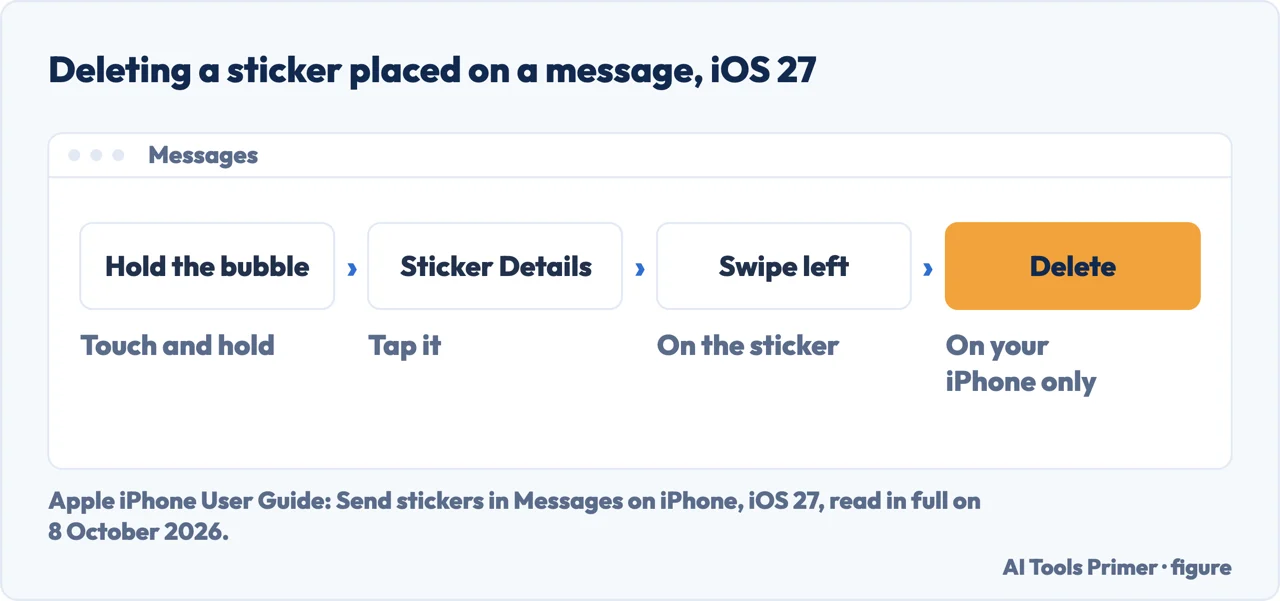
How to delete stickers on iPhone depends on the kind. For a sticker placed on a message, touch and hold the message bubble, tap Sticker Details, swipe left on the sticker and tap Delete; Apple says it goes from your iPhone only. A sticker you made from a photo is removed in the Photos app, through Markup and Add Sticker.
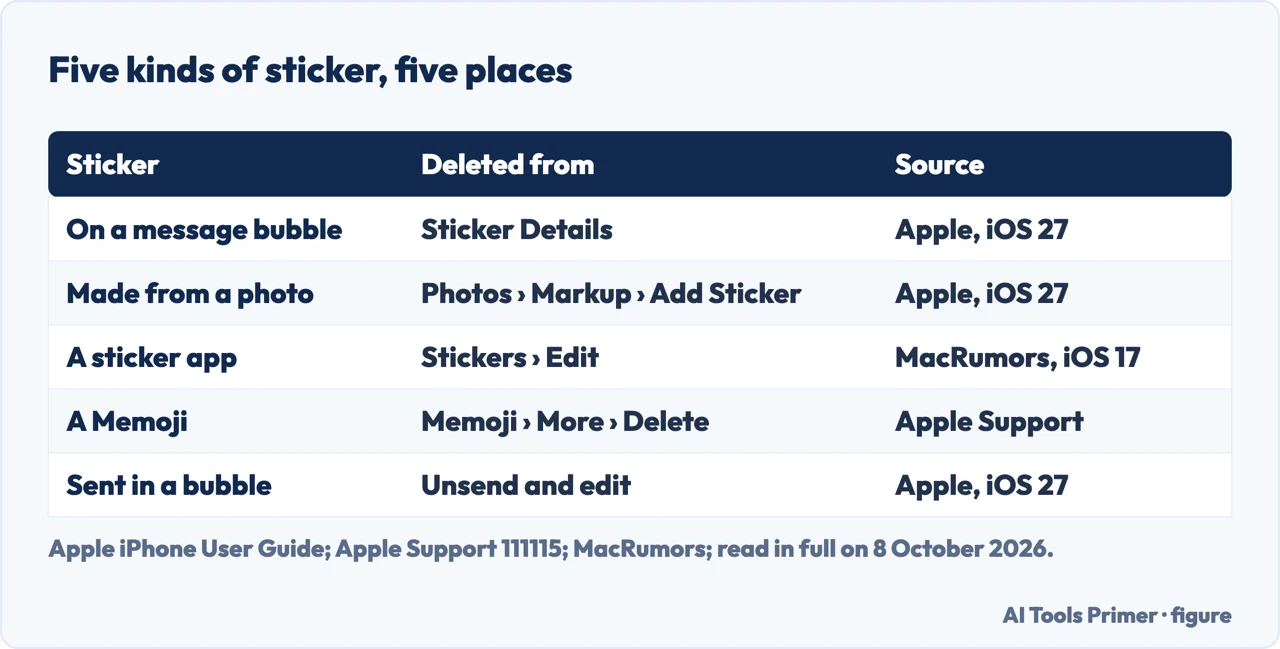
| The sticker | Where it is deleted | Page read |
|---|---|---|
| Placed on a message bubble | Touch and hold the bubble › Sticker Details › swipe left › Delete | iPhone User Guide, iOS 27 |
| Made from your photo | Photos › a photo › Edit › Markup › Add › Add Sticker › touch and hold › Remove | iPhone User Guide, iOS 27 |
| A sticker app from the App Store | Messages › + › Stickers › Edit at the end of the row › Edit › delete | MacRumors, iOS 17 |
| A Memoji | Messages › + › Memoji › the Memoji › More › Delete | Apple Support, Use Memoji |
| Sent in a message bubble | Apple points to its page on unsending and editing messages | iPhone User Guide, iOS 27 |
- Open the conversation in Messages. Find the message bubble with the sticker on it.
- Touch and hold the message bubble. Apple’s delete step names the bubble; in the same guide, touching and holding the sticker itself is how you move or resize it.
- Tap Sticker Details. In the same guide, Sticker Details is also where you find out who sent a sticker.
- Swipe left on the sticker, then tap the Delete button. Apple’s guide for iOS 27 marks this as on your iPhone only. AppleInsider, writing about iOS 17, adds that you can’t delete stickers that appear on other people’s devices.
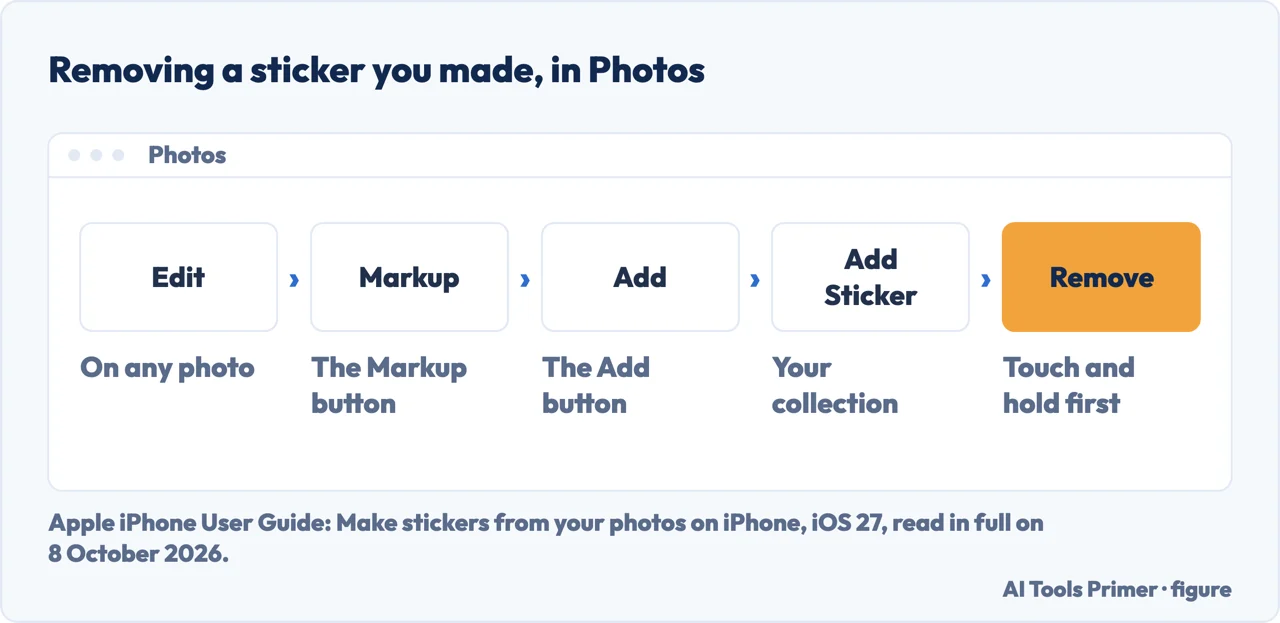
Stickers you made from your photos
A sticker made from the subject of a photo, or an animated one from a Live Photo, appears in your stickers menu, and Apple’s iOS 27 guide deletes it from the Photos app: open a photo, tap the Edit button, tap the Markup button, then the Add button; tap Add Sticker, touch and hold the sticker you want to delete, and tap Remove.
Apple adds that your stickers sync with iCloud, so they appear on the iPhone, iPad, Mac and Apple Vision Pro signed in to the same Apple Account. The page does not say whether a removal travels the same way; this one does not guess.
From Messages, a route in the Apple Community, from a user replying in March 2025 rather than from Apple: in the sticker library, touch and hold the sticker and tap Delete; or touch and hold any sticker, tap Rearrange, and tap the minus sign on the ones to remove.
Sticker apps and packs
Stickers from other creators come as iMessage apps from the App Store, in Apple’s guide. MacRumors gives the route it found in iOS 17: in a conversation tap +, tap Stickers, swipe left across the sticker apps to the end of the row and tap Edit; then Edit at the top left, the red delete button next to the app, and Done.
Apple’s own switch for iMessage apps is in Settings › Apps › Messages › iMessage Apps: tap an app to turn it on or off. Apple adds that you can also delete the app or remove it from the Home Screen, and download it again from the App Store.
Memoji stickers
Apple says a Memoji you create becomes a sticker pack on its own, in the keyboard, Messages, Mail and some third-party apps. By our reading, deleting the Memoji is what removes its pack. In Messages, tap +, swipe up, tap Memoji, swipe to the Memoji, tap the More button and choose Delete. The same menu offers Edit and Duplicate.
Which iOS these steps are for
The Messages and Photos steps above are from Apple’s iPhone User Guide for iOS 27; the sticker-app route is MacRumors’ for iOS 17, and the Memoji steps are from an Apple Support article that names no iOS version. The iOS 18 version of the same page gives the same Sticker Details route and names the quick option on a message Add Sticker, where iOS 27 says Attach Sticker. Apple notes that you and the people you write to need iOS 17.2, iPadOS 17.2, macOS 14.1 or later to see these sticker changes.
For stickers sent in a message bubble, Apple points to its page on unsending and editing messages. Clearing whole conversations is in deleting messages on iPhone, and setting Messages up in the first place in enabling iMessage.
Where to start
Five ways in.
- “It is stuck on a message.”
- Sticker Details — a sticker on a message
- “I made it from a photo.”
- Your collection — stickers you made
- “A whole pack is in the way.”
- Sticker apps — sticker apps
- “It is my Memoji.”
- Memoji — memoji stickers
- “My iPhone is not on iOS 27.”
- Versions — which ios
More on Messages and apps
Messages, deleting and hiding each have a guide of their own.
Questions people also ask
How do you delete created stickers?
Apple’s iOS 27 guide removes them in Photos: open a photo, tap the Edit button, then Markup and the Add button, tap Add Sticker, touch and hold the sticker and tap Remove. A reply in the Apple Community, not from Apple, adds a route from the sticker library in Messages: touch and hold the sticker, then Delete.
How to manage iPhone stickers?
In Messages, tap + then Stickers. MacRumors describes, for iOS 17, an Edit button at the end of the row of sticker apps for reordering and deleting them. Apple turns iMessage apps on or off under Settings › Apps › Messages › iMessage Apps, and a Memoji is edited or deleted from Memoji in the + menu.
How to remove photo stickers?
A sticker made from a photo is removed in the Photos app: Edit, Markup, the Add button, Add Sticker, then touch and hold it and tap Remove, in Apple’s iOS 27 guide. For a sticker added on top of a picture, the same Apple Community reply says to open the photo, tap Edit and remove that layer with Markup.
What is the easiest way to remove stickers?
By our count, the route with the fewest steps is Apple’s for a sticker placed on a message: touch and hold the bubble, tap Sticker Details, swipe left on the sticker and tap Delete. It removes the sticker on your iPhone only; AppleInsider notes it cannot be removed from other people’s devices.
Not covered here. It does not cover stickers in WhatsApp or other messaging apps.
Nor does it cover the iPad or a Mac, though Apple’s note on versions names both.
Sources
- Apple iPhone User Guide — Send stickers in Messages on iPhone, iOS 27: placing stickers, Sticker Details, deleting on your iPhone only, and the iOS 17.2 requirement — support.apple.com, read 8 October 2026.
- Apple iPhone User Guide — Send stickers in Messages on iPhone, iOS 18: the same routes, and Add Sticker — support.apple.com, read 8 October 2026.
- Apple iPhone User Guide — Make stickers from your photos on iPhone, iOS 27: Add Sticker, Delete a sticker in Photos, and iCloud sync — support.apple.com, read 8 October 2026.
- Apple iPhone User Guide — Add emoji, Memoji, and stickers with the iPhone keyboard, iOS 27: the sticker collection — support.apple.com, read 8 October 2026.
- Apple Support — Use iMessage apps on your iPhone and iPad: turning iMessage apps on or off in Settings — support.apple.com, read 8 October 2026.
- Apple Support — Use Memoji on your iPhone or iPad Pro: Memoji sticker packs, and Edit, Duplicate or Delete — support.apple.com, read 8 October 2026.
- MacRumors — iOS 17: How to Access and Manage Sticker Apps in Messages, 24 August 2023: Edit, reorder and delete sticker apps — www.macrumors.com, read 8 October 2026.
- AppleInsider — How to use reaction stickers in Messages in iOS 17: stickers on other people’s devices — appleinsider.com, read 8 October 2026.
- Apple Community — How do I remove stickers created from a photo on my iPhone?, March 2025: a user’s reply on the sticker drawer and Rearrange — discussions.apple.com, read 8 October 2026.
Written by Alberto Gulotta
Founder and editor of AI Tools Primer, writing from Palermo, Italy. Thirty-five years of taking computers apart, starting with a Commodore 64 — the long version is on the about page.
Something wrong on this page? Write to aitoolsprimer@gmail.com and it gets fixed.
Written on 8 October 2026.
Independence and limits
No affiliate links and no paid placements anywhere on this site. Nobody pays to appear here, and no company has seen this page before you did.
This is general information, not professional advice. Where a page touches money, health, safety or the law, it names its source and the date it was read — and your situation may still differ. See the privacy page and the cookie policy.