
iPhone · guide
How to drop a pin on iPhone, then send it, save it or move it
By Alberto Gulotta · Updated · 9 min read
How to drop a pin on iPhone: in Apple Maps, touch and hold the map until a pin marker appears, tap Move and drag the map if it needs refining, then tap Pin. To send your current location as a pin in Messages, Apple’s steps are the Plus button, Location, the Map Pin button and Send Pin.
| What | What the makers say |
|---|---|
| Pins on the map at once | One, unless you save them to your Places (Apple Maps) |
| Moving a pin | Tap Move, then drag the map (Apple Maps) |
| A pin sent in Messages | Shares only that current location; the other person can’t follow you as you move (Apple) |
| Live Location instead | Both people need an iPhone with iOS 15 or later (Apple) |
| Google Maps | Touch and hold an area of the map that isn’t labelled; the pin is red, and the coordinates are in the placesheet (Google) |
- Open Maps. Apple’s steps are for the Maps app on the iPhone.
- Touch and hold the map. Keep your finger down until a pin marker appears.
- Refine it, if you need to. Tap Move, then drag the map.
- Tap Pin. To get directions to it, tap the pin, then the directions button.
- Keep more than one. Apple says only one pin appears at a time unless you save pins to your Places, so to mark several places, save each pin as you drop it; saved pins appear as a row of icons in your Places.
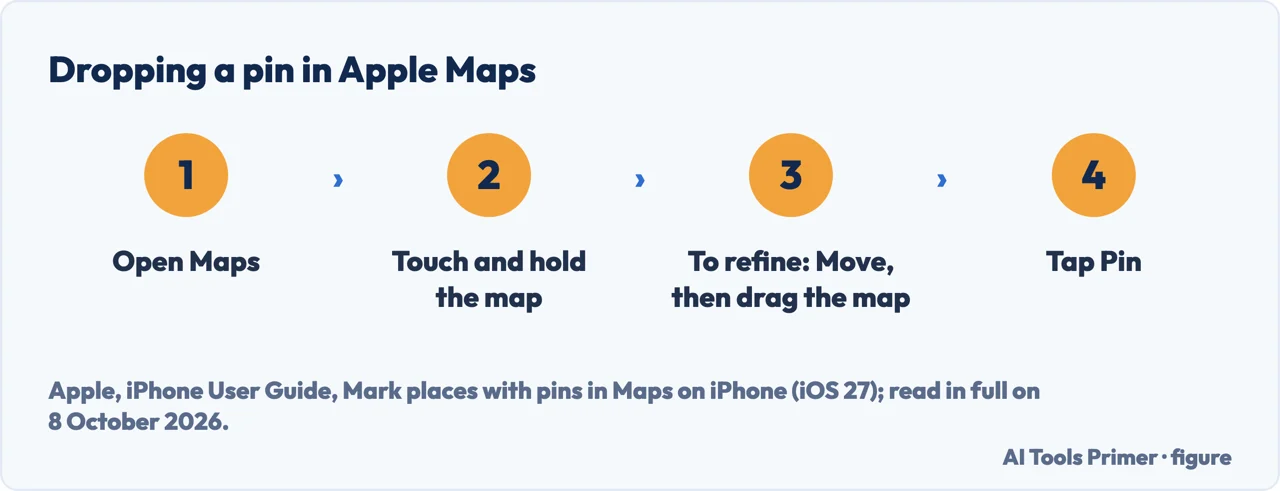
Sending a pin to someone
From Maps. Touch and hold the map until a pin marker appears, then tap the button at the top of the card; or tap Places, then Pinned, swipe left on a saved pin and tap Share. Then choose how to share it.
From Messages. Apple’s steps: open a conversation or start a new message, tap the Plus button, then Location, tap the Map Pin button in the corner, then Send Pin, and send the message. Apple says the person sees only that location and can’t follow you as you move.
Your own location from Maps. In Maps, scroll down to Share My Location, tap it, and choose how to share the pin, for example with a contact in Messages.
A pin, not a live position. Apple separates three kinds of sharing: once, on the way to a destination, and ongoing. Sharing that follows you as you move is in sharing your location; Apple says Live Location needs an iPhone with iOS 15 or later on both sides.
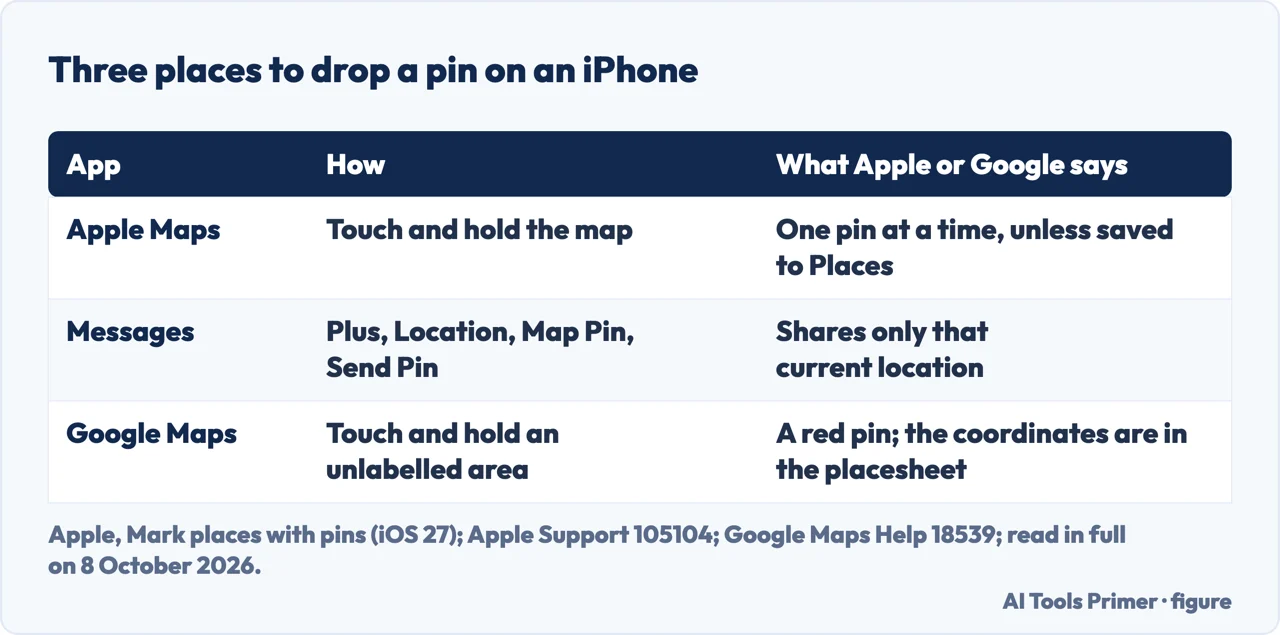
Marking where you are. Apple’s tip: when the Maps app isn’t open, touch and hold the Maps icon on the Home Screen and choose Mark My Location. The phone’s location settings are in Location Services, and a position that is wrong or missing is in GPS not working.
Naming, editing and removing a pin
Rename it or make it Home. In Maps, tap Places, then Pinned, tap the icon Apple’s guide shows there, then type in the Label field, or choose Home, Work or School below Type. Apple notes that if you change one of those addresses after being asked to sync Maps to My Card, you may need to update the address in both Maps and Contacts.
Save a place you found. Apple says you can pin frequently visited places for easier access in Maps and CarPlay; they appear as icons in your Places and under Pinned. From a place card, its steps end with Add to Places, and dropped pins can be saved there too. A note added to a place is visible only to you; when you share the place, the note goes with the link as text but doesn’t save to the other person’s notes.
Remove it. Places, Pinned, swipe left on the pin and tap Delete; or tap the icon Apple’s guide shows, then Unpin. Apple’s page on Places adds that removing a place from your Places deletes any personal notes you added to it.
The latitude and longitude. In Apple Maps: Places, Pinned, tap the pin, swipe up to Coordinates, touch and hold them and tap Copy. In Google Maps the coordinates are in the placesheet of a dropped pin, and Google lists decimal degrees, degrees, minutes and seconds, and degrees and decimal minutes among the formats that work. For decimal degrees, its correct example uses a full stop and its incorrect one a comma; latitude goes first, and the first number of the latitude is between -90 and 90, of the longitude between -180 and 180.
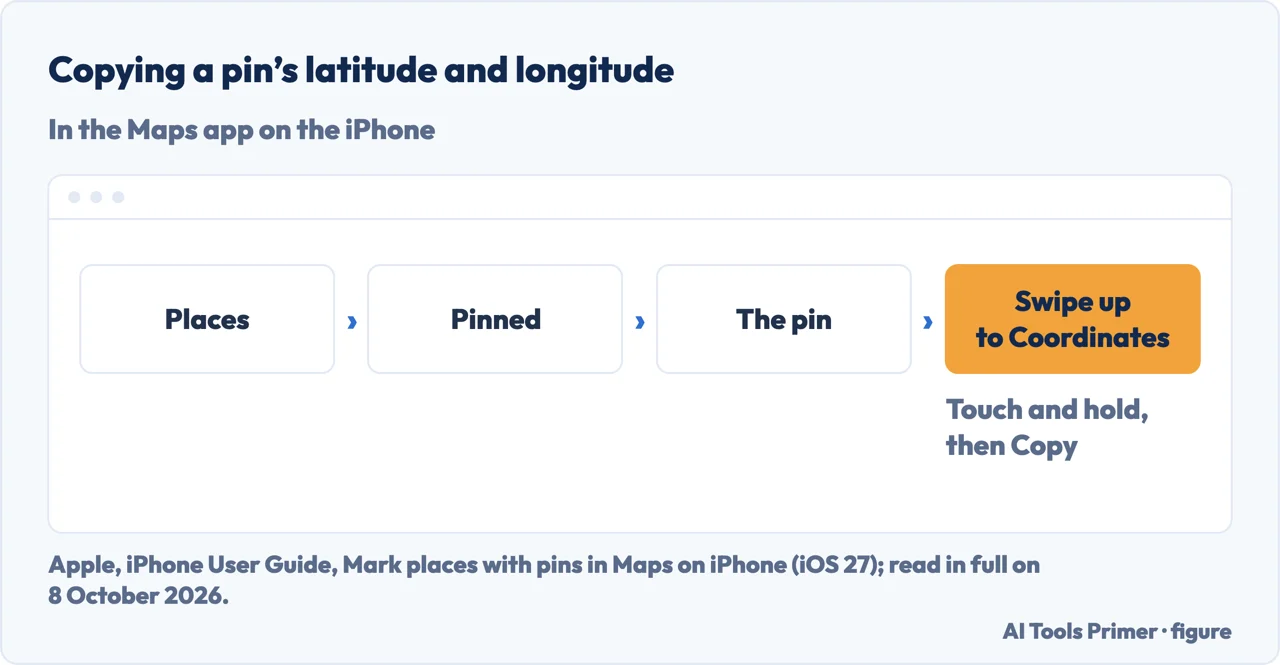
In Google Maps on an iPhone
Dropping it. Google’s page for iPhone and iPad says to touch and hold an area of the map that isn’t labelled to drop a red pin.
Sending it. Touch and hold the map to drop a pin, tap the place’s name or address at the bottom, tap Share, and choose an app.
Keeping it. With the pin dropped, tap the name of the place at the bottom, then Label. Google says labelled places show up on your map, in search suggestions and in Google Photos, and that you find them again under You, Labeled. Google calls it a private label. It also notes that it is updating settings for its search services, Maps included, and that if the settings in its article do not match what you see, history and personalised recommendations are still controlled by Web & App Activity.
Which versions. Apple’s steps for Maps come from its iPhone User Guide for iOS 27, which gives no date; the page on sharing a location was published on 5 October 2026 and says some sharing options require iOS 17, and to update the iPhone if an option is missing. Google’s pages are for the Google Maps app on iPhone and iPad and give no date. A phone that has gone missing is a different job, in how to find lost iPhone.
Where to start
Five ways in.
- “Where do I start?”
- In Apple Maps — in apple maps
- “I want to send it.”
- Sending a pin — sending a pin
- “It is where I am.”
- Your own location — your own location
- “I need the numbers.”
- Latitude and longitude — latitude and longitude
- “I use Google Maps.”
- In Google Maps — in google maps
More on location
Where the phone is, and who can see it.
Questions people also ask
How do I drop a pin to give my location?
In Messages, Apple’s steps are the Plus button, Location, the Map Pin button in the corner, then Send Pin. In Maps, scroll down to Share My Location and choose how to share the pin. Either way the other person sees only that location, not where you go next.
How do I drop a pin on my iPhone to text someone?
Open the conversation in Messages, tap the Plus button, then Location, tap the Map Pin button and Send Pin. For another place, drop the pin in Maps by touching and holding the map, tap the button at the top of the card, and choose how to share it.
How do I drop a pin on my iPhone to someone else?
In Apple Maps, touch and hold the map until a pin marker appears, tap the button at the top of the card, and choose how to share it. A pin already saved is under Places, Pinned: swipe left on it and tap Share.
How do you pin your own location on an iPhone?
When the Maps app isn’t open, Apple’s tip is to touch and hold the Maps icon on the Home Screen and choose Mark My Location. To send where you are, Messages has a Map Pin button under Plus, Location, and Maps has Share My Location.
Not covered here. It does not cover pins on a Mac, an iPad or Apple Watch, custom guides in Maps, or Find My.
Sources
- Apple, iPhone User Guide (iOS 27) — Mark places with pins in Maps on iPhone: dropping, moving, sharing, coordinates, editing and removing a pin, and Mark My Location — support.apple.com, read 8 October 2026.
- Apple, iPhone User Guide (iOS 27) — Add places and notes to your Places in Maps on iPhone — support.apple.com, read 8 October 2026.
- Apple Support — Share your location with iPhone (published 5 October 2026): a pin in Messages, Share My Location in Maps, Live Location — support.apple.com, read 8 October 2026.
- Google Maps Help (iPhone & iPad) — Search by latitude & longitude in Google Maps: the red pin and the coordinates — support.google.com, read 8 October 2026.
- Google Maps Help (iPhone & iPad) — Share, send, or print directions from Google Maps: sharing a dropped pin — support.google.com, read 8 October 2026.
- Google Maps Help (iPhone & iPad) — Give a place a private label — support.google.com, read 8 October 2026.
Written by Alberto Gulotta
Founder and editor of AI Tools Primer, writing from Palermo, Italy. Thirty-five years of taking computers apart, starting with a Commodore 64 — the long version is on the about page.
Something wrong on this page? Write to aitoolsprimer@gmail.com and it gets fixed.
Written on 9 October 2026.
Independence and limits
No affiliate links and no paid placements anywhere on this site. Nobody pays to appear here, and no company has seen this page before you did.
This is general information, not professional advice. Where a page touches money, health, safety or the law, it names its source and the date it was read — and your situation may still differ. See the privacy page and the cookie policy.