
Software · guide
How to get emojis on Mac: the shortcut, the viewer and Genmoji
By Alberto Gulotta · Updated · 8 min read
How to get emojis on Mac starts with Fn-E or Globe-E, or Edit, then Emoji & Symbols, which opens the Character Viewer. Setapp gives Control-Command-Space as well. This page sets out Apple’s steps for searching, favorites and skin tones, text replacements, Genmoji, and where the vendor guides differ.
| Question | Answer | Where it comes from |
|---|---|---|
| What is the shortcut? | Press Fn or Globe, then E; or choose Edit, then Emoji & Symbols | Apple Mac Help |
| Is there another one? | Setapp gives Control-Command-Space; the Apple page we read does not name it | Setapp |
| How do I search for one? | Type a word or phrase, such as laughing face, in the Character Viewer’s search field | Apple Mac Help |
| How do I get another skin tone? | Click and hold the emoji in the viewer | Apple Mac Help |
| Can I make my own? | With Apple Intelligence, Genmoji, from Fn or Globe-E and the Genmoji button | Apple Mac Help |
Opening the emoji viewer
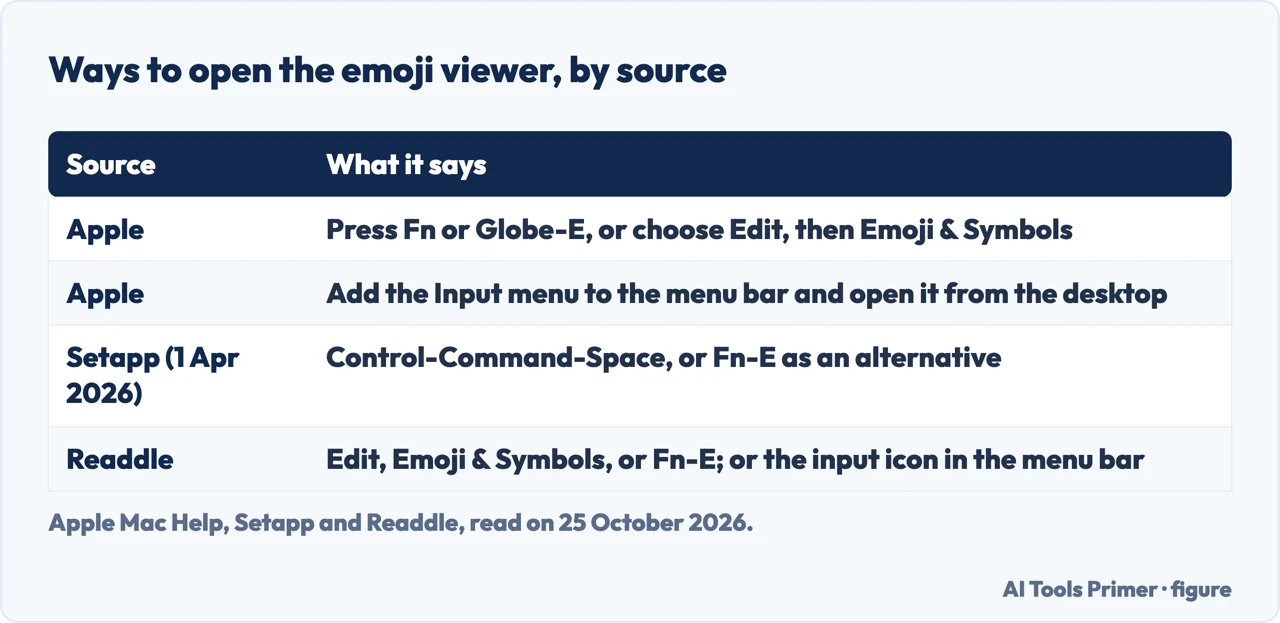
Apple’s Mac Help page says you can insert emoji as you type, or use the Character Viewer to browse and enter emoji, symbols, accented letters and characters from other languages. To open the viewer, press Fn or the Globe key together with E, or choose Edit, then Emoji & Symbols. You can also open it from the desktop by adding the Input menu to the menu bar: choose Apple menu, System Settings, click Keyboard, go to Text Input, click Edit and turn on Show Input menu in menu bar. Readdle’s page describes the same menu bar route, with a small icon from which you select Show Emoji and Symbols.
Setapp, a vendor of a subscription to a group of Mac apps, in a page last updated on 1 April 2026, gives a different first shortcut: Control, Command and Space opens the Character Viewer, and Fn-E is the alternative. If neither works, it says to go to System Settings, Keyboard and choose Show Emoji & Symbols under the fn key settings. Apple’s page says the equivalent: in Keyboard settings you can set what pressing the Fn or Globe key does, so that one press gives emoji suggestions as you type or opens the Character Viewer.
Using the Character Viewer
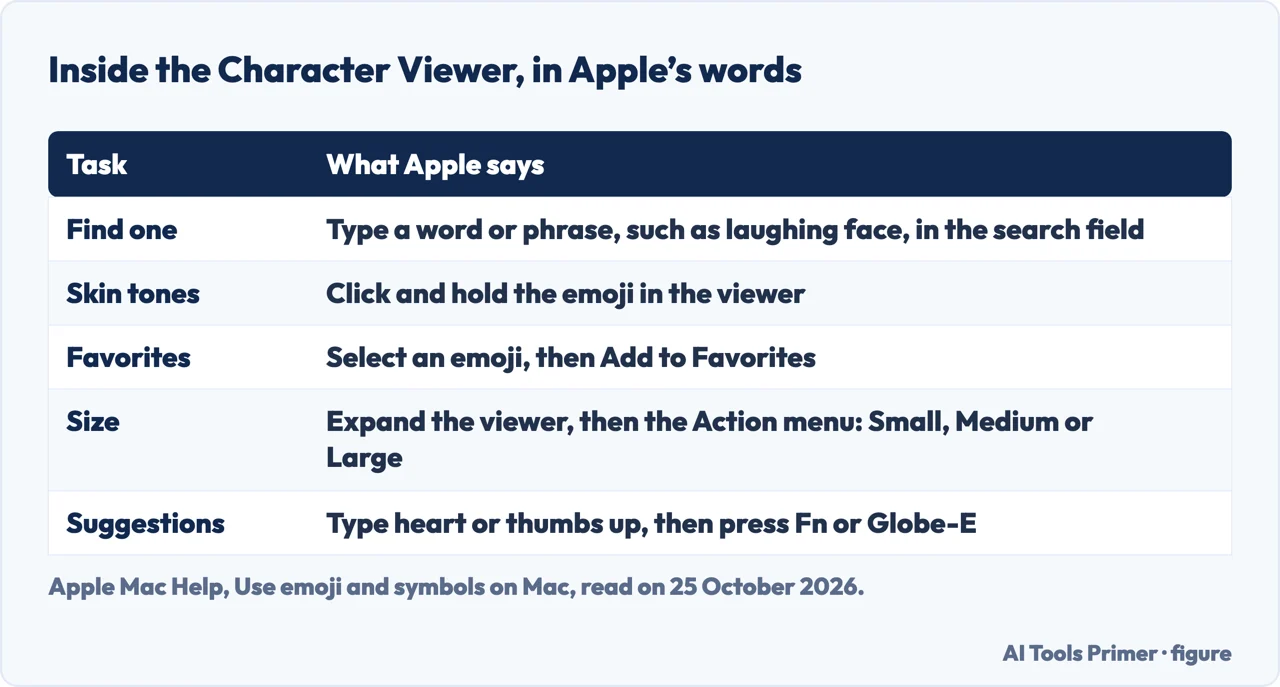
Apple says to click a character or symbol to add it to your text, or double-click it if the viewer is expanded. To find a specific emoji, enter a word or phrase, such as laughing face, in the search field. To see variations such as different skin tones, click and hold the emoji in the viewer. Favorites sit at the top of the viewer, below the recently used emoji if the viewer is collapsed, and in the sidebar if it is expanded; to add one, select an emoji or symbol and click Add to Favorites. Expanding the viewer lets you customise which categories show through the Action menu and Customize List, change the size to Small, Medium or Large, and empty the list of characters the viewer has recorded as used.
Readdle says the window disappears after each emoji is entered, so several emoji mean pressing Fn-E again. Apple’s page describes clicking a character, or double-clicking it when the viewer is expanded. The Apple page also covers suggestions as you type: enter a common word or phrase such as heart or thumbs up, press Fn or Globe-E, and, if there are suggestions, press Return to replace the text with the suggested emoji or choose another; if there are none for what you typed, the Character Viewer opens.
Making a short text type an emoji
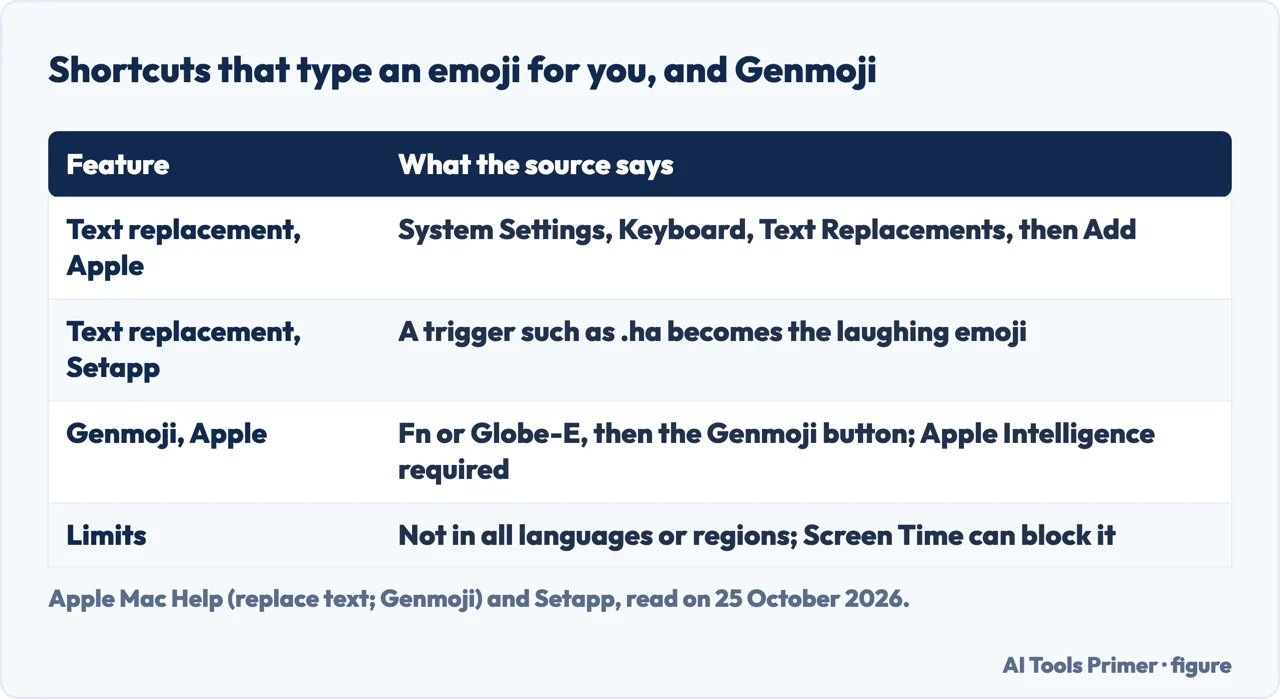
Apple’s page says you can automatically insert an emoji every time you type certain text, for example replacing XD with a laughing face, and points to its page on replacing text. That page says to choose Apple menu, System Settings, click Keyboard, click Text Replacements, click the add button, type the text to replace and its replacement, click Add and then Done; inside an app you can also choose Edit, Substitutions, Show Substitutions and click Text Settings. Apple adds that you can keep text replacements up to date on all your Apple devices or share them with other Mac users. Setapp describes the same built-in feature with its own example: a text trigger such as .ha that becomes the laughing emoji, and then promotes its Keysmith app for custom keyboard shortcuts.
Making your own: Genmoji
Apple says that with Apple Intelligence you can create custom emoji called Genmoji. While writing in an app, press Fn or Globe-E, then click the Genmoji button at the top right of the Character Viewer. You can describe the Genmoji, use an existing emoji or Genmoji as a base, add a person from your Photos library, up to three people, or add a photo of something else such as a pet, nature or food. If your text description does not match the person you selected, Apple says the image is personalised from the photo rather than the description. To refine it you describe a change or combine existing emoji with it, scroll between versions, and click Add when you are happy; Genmoji you create are saved with your stickers in the Character Viewer.
Apple notes that Apple Intelligence on macOS 27 is not available in all languages or regions, that usage limits may apply, and that you can block access to image creation features such as Genmoji in Screen Time settings. Neither of the two vendor pages we read mentions Genmoji. For other Mac keys see copy and paste on a Mac and screenshots on a Mac.
Where to start
Four ways in.
- “The shortcut.”
- Opening the viewer — open
- “Find one.”
- In the viewer — viewer
- “Type it faster.”
- Text replacement — replace
- “Make my own.”
- Genmoji — genmoji
Mac keys and typing
Other Mac shortcuts and text tools.
Questions people also ask
What is the keyboard shortcut for emojis?
Apple says Fn or Globe-E. Setapp also gives Control-Command-Space; Apple’s page that we read does not name it.
How to do a 😂 on a keyboard?
Open the Character Viewer with Fn or Globe-E, search for laughing face and click it; or set a text replacement such as XD, which Apple uses as its example.
Can I make emojis on Mac?
With Apple Intelligence, Apple’s Genmoji lets you describe an emoji or build one from a photo, from the Genmoji button in the Character Viewer; it is not available in all languages or regions.
What does 🍏🍎 mean?
The pages we read cover how to type emoji on a Mac, not what they mean.
Not covered here. We did not try the steps on a Mac. The statements come from Apple Mac Help (use emoji and symbols; replace text and punctuation in documents; create your own emoji with Genmoji), Setapp (updated 1 April 2026) and Readdle, used for what they claim. The Apple pages and the Readdle page carry no date that we could read. Key combinations and menus depend on the macOS version.
The Reddit thread and the forum in the results were not used. Emoji meanings and the video in the results are outside this page.
The search volume and difficulty behind this page were read in Semrush on 29 August 2026.
Sources
- Apple Mac Help — Use emoji and symbols on Mac — support.apple.com, read 25 October 2026.
- Apple Mac Help — Replace text and punctuation in documents on Mac — support.apple.com, read 25 October 2026.
- Apple Mac Help — Create your own emoji with Genmoji on Mac — support.apple.com, read 25 October 2026.
- Setapp — How to open and use emoji keyboard on your Mac (updated 1 April 2026) — setapp.com, read 25 October 2026.
- Readdle — How to Use Emoji on your Mac — readdle.com, read 25 October 2026.
Written by Alberto Gulotta
Founder and editor of AI Tools Primer, writing from Palermo, Italy. Thirty-five years of taking computers apart, starting with a Commodore 64 — the long version is on the about page.
Something wrong on this page? Write to aitoolsprimer@gmail.com and it gets fixed.
Written on 25 October 2026.
Independence and limits
No affiliate links and no paid placements anywhere on this site. Nobody pays to appear here, and no company has seen this page before you did.
This is general information, not professional advice. Where a page touches money, health, safety or the law, it names its source and the date it was read — and your situation may still differ. See the privacy page and the cookie policy.