
iPhone · guide
How to make a sticker on iphone from a photo or a Live Photo
By Alberto Gulotta · Updated · 9 min read
How to make a sticker on iphone: open a photo in Photos, touch and hold the subject, release, and tap Add Sticker. It goes into the stickers menu of the keyboard and of Markup. A Live Photo gives an animated sticker, and Messages has its own route from the Stickers menu.
| Where you start | What you get | What Apple notes |
|---|---|---|
| Photos: hold the subject, Add Sticker | A sticker of the subject | Steps from the iOS 27 guide; photo cutouts since iOS 16, on iPhone XS, XR or later |
| Photos, on a Live Photo | An animated sticker | A Live Photo |
| Messages: Stickers, then a photo | A Live Sticker, with an effect | Sticker updates seen on iOS 17.2 or later, both sides |
| Safari, Quick Look and more | A lifted subject; in Safari, Copy Subject | The same lift-subject feature |
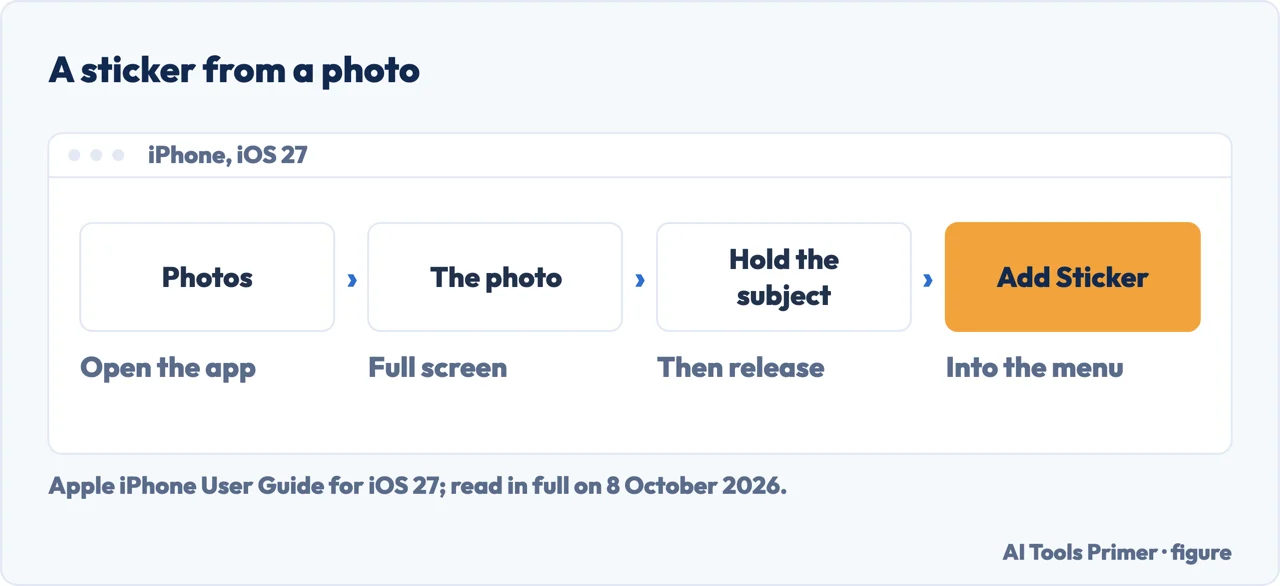
- Open Photos and tap a photo. Apple’s iPhone User Guide for iOS 27 opens it in full screen.
- Touch and hold the subject, then release. An outline might appear around it, Apple says. Engadget, in August 2026, describes it shining for a moment before the menu shows.
- Tap Add Sticker. Apple says the sticker goes into the stickers menu, which opens from the onscreen keyboard and from the Markup tools.
- Tap Add Effect, if you want one. Apple gives examples such as Outline or Comic and, on a Live Photo, turning the animation on or off.
- Close the menu. Engadget says a sticker stays saved in the library; Apple says stickers sync with iCloud to the iPhone, iPad, Mac and Apple Vision Pro signed in to the same Apple Account.
From inside Messages: a Live Sticker
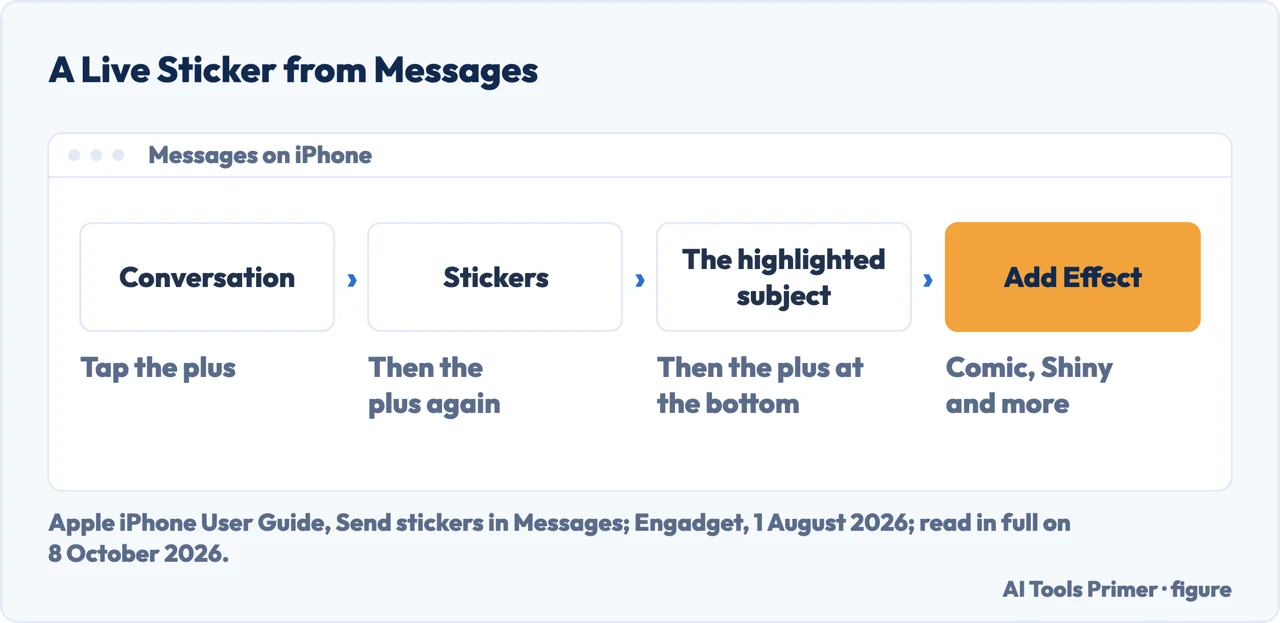
The steps. Apple’s guide gives a button in the conversation, then Stickers, two more buttons, a photo and a last button; Engadget names them: the plus left of the text field, Stickers, the plus in the sticker list, a highlighted subject, then the plus at the bottom. To add an effect, Apple gives Add Effect, then an option such as Comic or Shiny. Apple says a Live Photo gives a sticker that moves.
The difference. Engadget writes that in this route the parts of a photo that can become stickers are highlighted before you press on them.
Using it. Drag a sticker onto a message bubble; a second finger turns or resizes it. Touching and holding a message, then Attach Sticker, puts one on its corner. A Live Sticker someone sent in a message can be kept with Save to Stickers; one placed on a bubble, with Sticker Details, then Save. To find out who sent a sticker in a conversation, Apple says to touch and hold it, then tap Sticker Details; double-tapping the bubble shows any text the sticker covers.
When Add Sticker does not appear
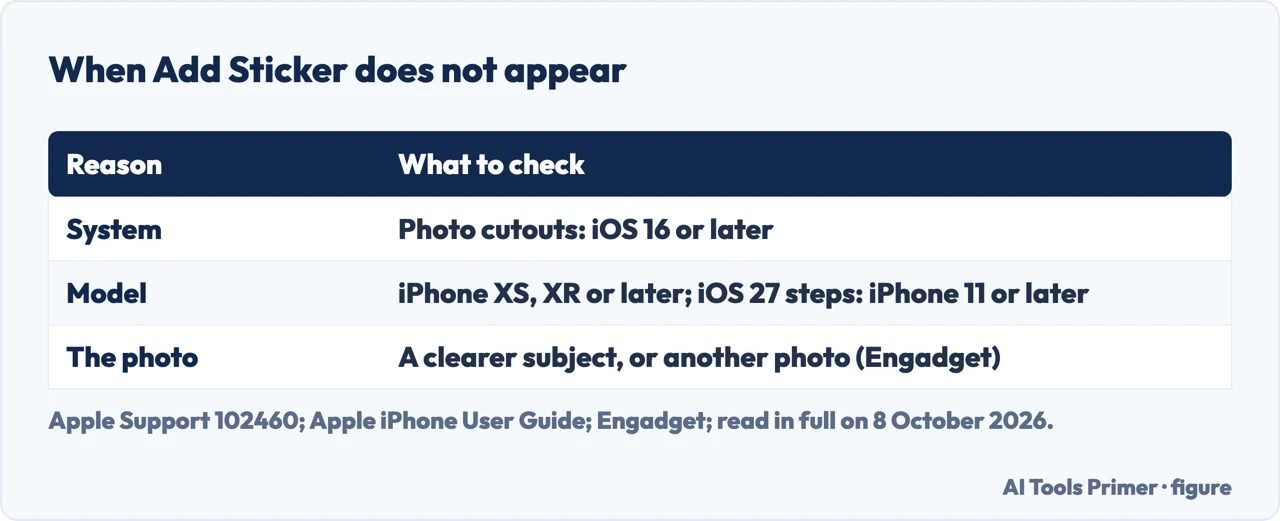
The phone. Apple’s article on photo cutouts lists Add Sticker among the options in Photos, and says cutouts are available in iOS 16 and later on iPhone XS, iPhone XR and later; it gives no separate minimum for Add Sticker. The steps on this page follow Apple’s guide for iOS 27, which lists iPhone 11 and later.
The photo. Engadget: if the menu does not appear, try an element that stands out more from the background, or another photo; the best candidates have a clear subject in the foreground, such as a person, an animal, a hand or an object.
The other phone. It does not hide Add Sticker, but Apple says you and the people you write to must be on iOS 17.2, iPadOS 17.2, macOS 14.1, watchOS 10.2, visionOS 1 or later to see its updates to stickers. Engadget adds that stickers are designed for iMessage, should send in RCS chats with Android but likely won’t show the peel and stick properly, and might look blurry over SMS because of its strict size limits.
Where a sticker can be used
Messages and Markup. Apple: stickers decorate messages, photos, notes and more; in Photos, Engadget’s route to put one on a picture is Edit, then Markup. Apple’s Markup guide: in apps such as Notes and Photos, tap a button in the Markup toolbar (the plus, in Engadget’s words), then Add Sticker, and drag a sticker onto the document or photo; the blue dots of its box resize it.
A copied subject on another photo. Apple’s cutouts article says a subject copied from a photo cannot be pasted onto another photo; it can be shared through Messages or Mail, AirDrop, or pasted into an app such as Notes. By our reading, the way onto another photo is a sticker and Markup.
Other apps. Engadget says the stickers are also usable in apps such as WhatsApp, from the emoji button of the keyboard and its Stickers tab, without the peel and stick of Messages.
Other things to do with the same photo. Removing a sticker, of whichever kind, is in how to delete stickers on iPhone; cutting out a subject on a computer is in removing a background; making the photo smaller in how to resize a photo on iPhone, and sorting the library on a Mac in how to organise photos on a Mac.
Where to start
Four ways in.
- “From a photo.”
- In Photos — from a photo
- “From a chat.”
- In Messages — from messages
- “Add Sticker is not there.”
- When it is missing — when add sticker is missing
- “Where can I use it?”
- Where stickers go — where stickers go
More on stickers and photos
Deleting, cutting out and resizing each have a guide of their own.
Questions people also ask
How do I turn a photo into a sticker?
In the Photos app, tap the photo to open it in full screen, touch and hold the subject, release, and tap Add Sticker. Apple’s guide for iOS 27 says the sticker then appears in the stickers menu of the keyboard and of Markup. Add Effect applies an effect such as Outline or Comic; a Live Photo becomes an animated sticker.
Why can’t I make stickers on my iPhone?
Apple’s article on photo cutouts lists Add Sticker among the options after lifting a subject, a feature of iOS 16 and later on iPhone XS, iPhone XR and later; the steps here follow Apple’s guide for iOS 27. If no menu appears, Engadget suggests a subject that stands out more from the background, or another photo.
How do I create my own custom stickers?
From your own photos: in Photos with Add Sticker, or in Messages from the Stickers menu, where Engadget names the plus, Stickers, the plus again and a photo. Apple calls these Live Stickers: Add Effect gives them an effect such as Comic or Shiny, and a Live Photo gives one that moves.
Not covered here. It does not cover Genmoji, Memoji or sticker packs from the App Store, or printing stickers; Apple documents the first three separately, and none of the pages read here explains printing a sticker.
Nor does it promise that a given photo will give a clean outline: Engadget’s advice is to try another element or another photo.
Sources
- Apple iPhone User Guide for iOS 27 — Make stickers from your photos on iPhone: Add Sticker, Add Effect, Live Photos and iCloud sync — support.apple.com, read 8 October 2026.
- Apple iPhone User Guide for iOS 27 — Lift a subject from the photo or video background on iPhone — support.apple.com, read 8 October 2026.
- Apple iPhone User Guide — Send stickers in Messages on iPhone: Live Stickers, effects, placing and saving, and iOS 17.2 — support.apple.com, read 8 October 2026.
- Apple iPhone User Guide for iOS 27 — Add text, shapes, stickers, and more with Markup on iPhone — support.apple.com, read 8 October 2026.
- Apple Support — Create and share photo cutouts on your iPhone: iOS 16, iPhone XS and XR, published 27 May 2026 — support.apple.com, read 8 October 2026.
- Engadget — How to create and delete stickers on your iPhone, 1 August 2026 — www.engadget.com, read 8 October 2026.
Written by Alberto Gulotta
Founder and editor of AI Tools Primer, writing from Palermo, Italy. Thirty-five years of taking computers apart, starting with a Commodore 64 — the long version is on the about page.
Something wrong on this page? Write to aitoolsprimer@gmail.com and it gets fixed.
Written on 8 October 2026.
Independence and limits
No affiliate links and no paid placements anywhere on this site. Nobody pays to appear here, and no company has seen this page before you did.
This is general information, not professional advice. Where a page touches money, health, safety or the law, it names its source and the date it was read — and your situation may still differ. See the privacy page and the cookie policy.