
Images · guide
How to organize photos on Mac with albums, folders and Smart Albums
By Alberto Gulotta · Updated · 13 min read
How to organize photos on Mac in the Photos app: put photos in albums with File › New Album with Selection, group albums in folders with New Folder, from the button beside Albums in the sidebar, and let File › New Smart Album collect photos by rule. Apple’s Photos User Guide also covers keywords, filters and a Duplicates collection.
| Tool | Where | What Apple says about it |
|---|---|---|
| Album | File › New Album, or New Album with Selection | A photo can be in more than one album |
| Folder | The button beside Albums in the sidebar › New Folder | Holds albums and other folders; not shared albums |
| Smart Album | File › New Smart Album | Gathers photos that meet your criteria; those made on a Mac do not appear on iPhone or iPad |
| Keywords | The Info window, or Window › Keyword Manager | Searchable; the Quick Group gets keyboard shortcuts |
| Duplicates | Utilities › Duplicates | Merge keeps one original; the rest go to Recently Deleted for 30 days |
| Another library | Quit Photos, Option-click its icon › Create New | Only the System Photo Library syncs with iCloud Photos |
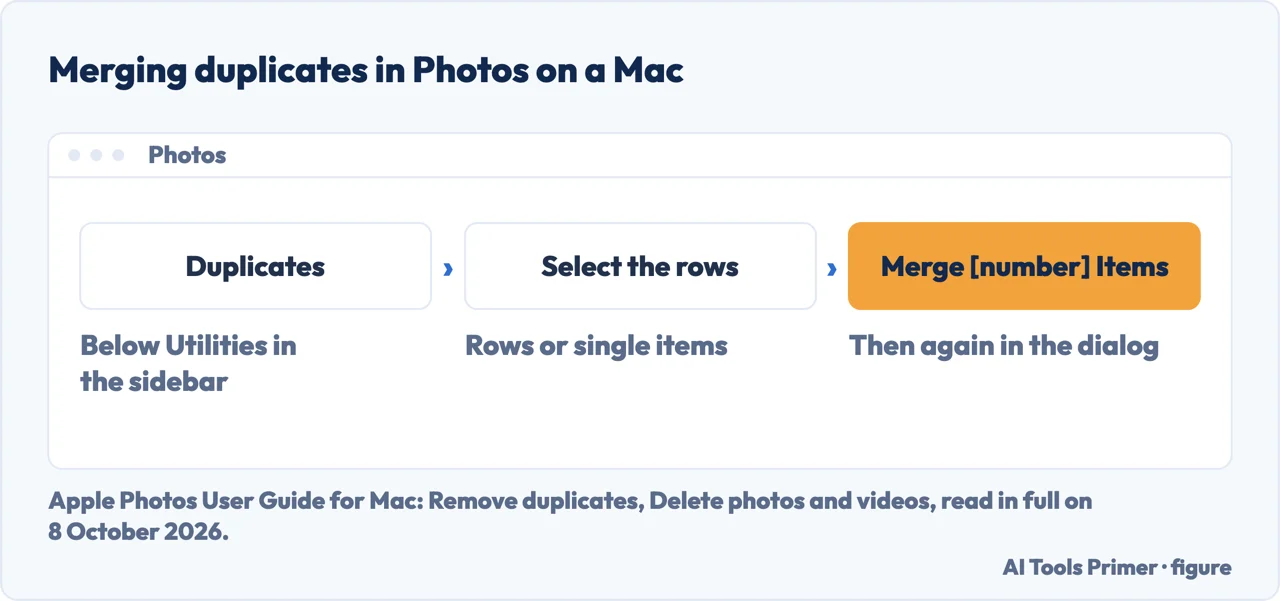
- Clear the duplicates first. Click Duplicates below Utilities in the sidebar, select the rows (Command-A selects all), then click Merge [number] Items twice. Apple says one original stays where the duplicates were, and the others go to Recently Deleted. Doing this first is our suggestion, so that later albums do not hold two copies.
- Make the albums. Select photos, then choose File › New Album with Selection, type a name and press Return. Or drag photos onto an album in the sidebar, or Control-click them and choose Add To › [album name].
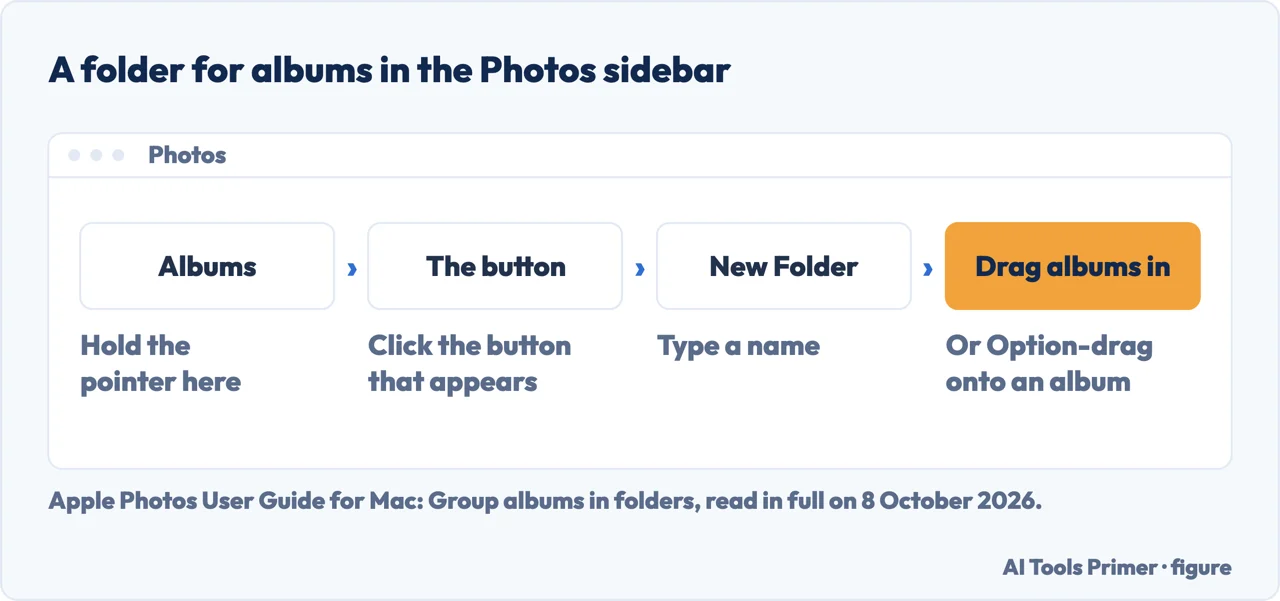
- Group the albums in folders. Hold the pointer over Albums in the sidebar, click the button that appears, choose New Folder, name it and drag albums in. Apple’s shortcut: Option-drag one or more albums onto another album, and Photos puts them all in a new folder.
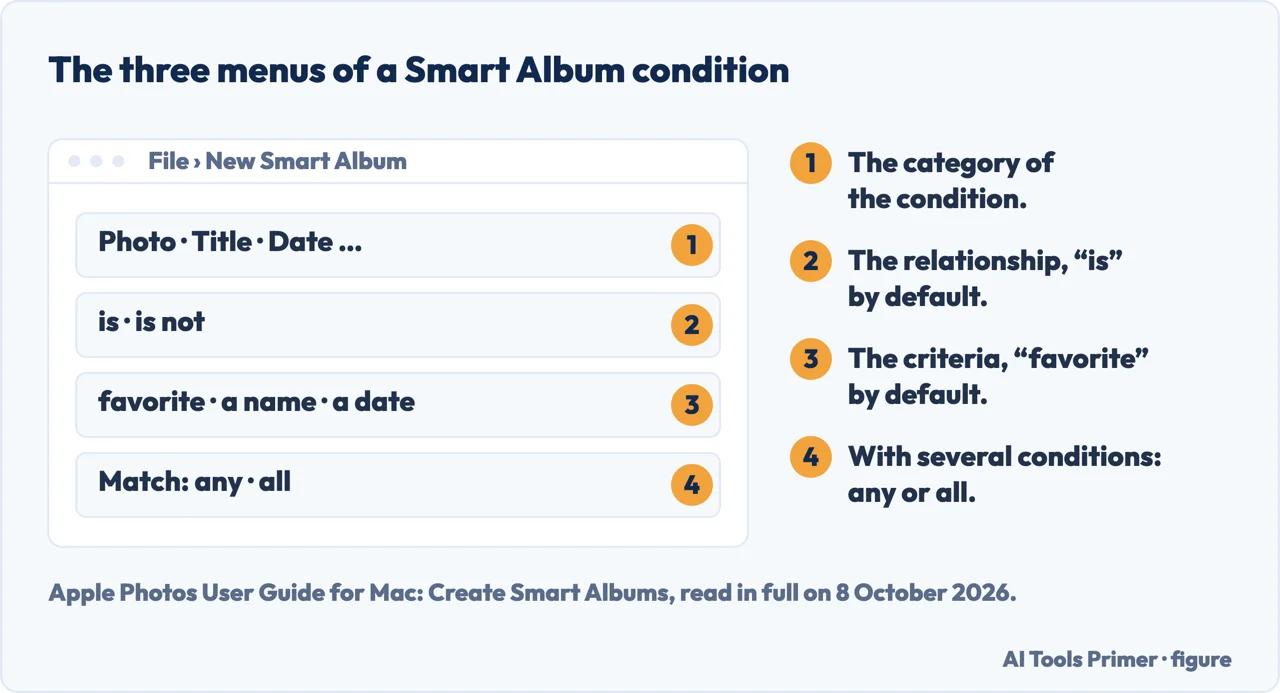
- Let Smart Albums do the sorting that has a rule. File › New Smart Album, then set one condition or many: a category such as Photo, Title or Date, “is” or “is not”, and the criteria. New photos that match join the album on their own.
Albums and folders: what each one holds
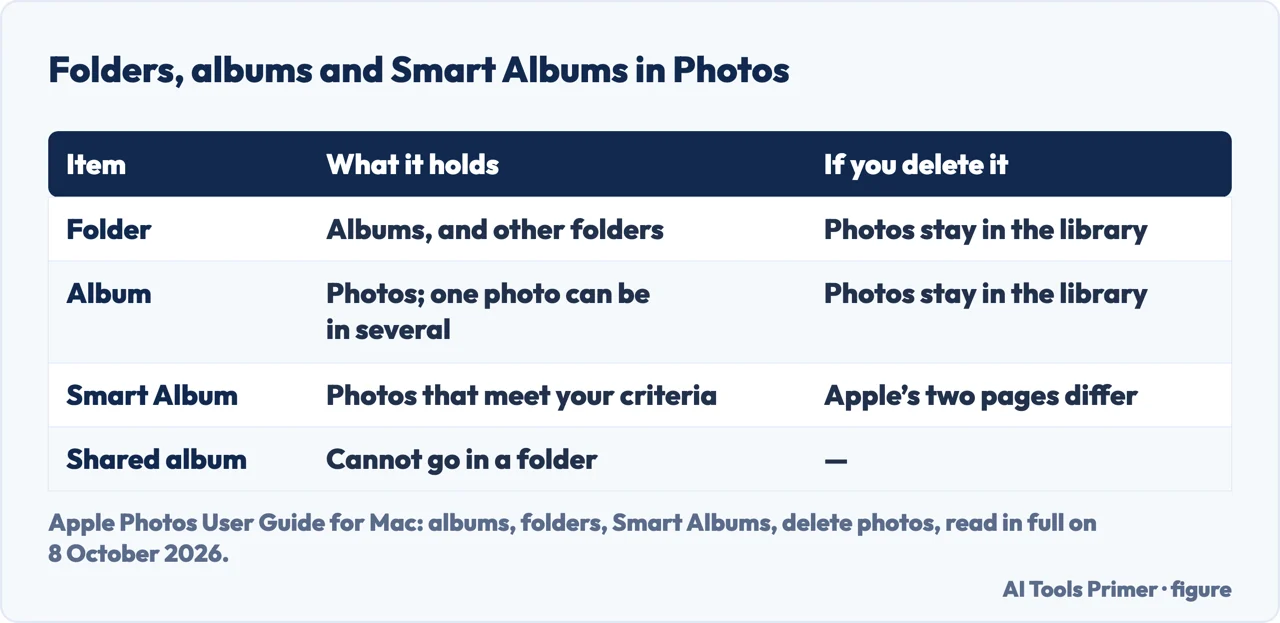
An album holds photos; a folder holds albums. Apple’s example is a folder named Vacation with all the holiday albums inside it, and folders can go inside other folders. One photo can sit in several albums at once, so an album is a view of the library rather than a box the photo moves into; that comparison is ours.
Removing and deleting are different. Removing a photo from an album, with Delete or Image › Remove [number] Photos from Album, takes it out of that album only. Deleting an album, or a folder with its albums, removes them from the library and from iCloud, and Apple says the photos and videos stay in the library. Edit › Undo Delete Album or Undo Delete Folder brings them back.
Ordering. Inside an album, View › Sort offers Keep Sorted By Title, Keep Sorted By Oldest First or Keep Sorted By Newest First, or you drag photos into your own order. Albums themselves sort the same way with Control-click › Sort, and dragging one album into another merges them.
Two limits. Shared albums cannot be moved into a folder. And Apple’s pages differ on Smart Albums: the page on albums says you can’t delete individual photos from a Smart Album or from the collections created for you, such as Videos or Bursts; the page on deleting says that deleting photos from a Smart Album such as Last Import, Favorites or Videos deletes them from the library.
Smart Albums for the rules you would otherwise repeat
A Smart Album, as Apple describes it on its help page, gathers the photos and videos in the library that meet the criteria you set; its example collects favourite Portrait mode photos. Each condition has three menus: the category (Photo by default, or Title, Date and others), the relationship (is or is not) and the criteria (favorite by default, or a name or a date). With more than one condition, the Match menu decides whether a photo needs any of them or all.
Two things to know before relying on one. Smart Albums made on a Mac do not appear in Photos on an iPhone or iPad. And deleting from a Smart Album is where Apple’s two pages differ, as above; by our reading, treat any delete there as a delete from the library.
To change one, Control-click it in the sidebar and choose Edit Smart Album.
Keywords, titles and ratings, so search finds things
Keywords. Select photos, open the Info window and type in the Add a Keyword field; Photos suggests keywords used before. Window › Keyword Manager assigns keywords with a click, renames or deletes them across the library, and gives each keyword dragged into its Quick Group a keyboard shortcut. Those Quick Group keywords also appear in the Filter pop-up menu. To search, type a keyword in the search field in the toolbar; several words separated by spaces search for several keywords.
Titles and captions. Select photos and press Command-I, then Add a Title or Add a Caption. Apple says titles and captions make items easier to search for.
Favourites and stars. The favourite button on a photo marks it, and Favorites in the sidebar shows them all. Star ratings from one to five need Photos › Settings › General › Show Rating Controls if the control is not in the toolbar.
Dates and places. Image › Adjust Date and Time fixes a wrong date; the Location field in the Info window, or Image › Location › Copy Location and Assign Location, fixes a place.
Filters. In Library › All Photos, the Filter pop-up menu in the toolbar shows only Favorites, Edited, Photos, Videos, Screenshots or Not in an Album, a keyword, or a star rating. Not in an Album lists the photos still left to sort, by our reading of the name.
Cleaning up: duplicates and Recently Deleted
Apple says duplicates appear automatically in the Duplicates collection in Utilities, and that on a large library they may take some time to appear while Photos analyses the photos. With iCloud Shared Photo Library, choose Both Libraries from the Library pop-up menu in the toolbar first.
Deleted photos wait 30 days. Select items, press Delete, then click Delete: they go to Recently Deleted, which appears below Utilities, and after 30 days they are permanently deleted. Recover brings them back before then; Delete All empties it sooner. While a photo is in Recently Deleted it does not appear anywhere else in Photos. If the Recently Deleted album is locked, View Album and the onscreen steps unlock it.
Pins, extra libraries and the Finder
Pinned. Control-click a collection or album in the sidebar and choose Pin to put it under Pinned at the top of the sidebar; the sidebar sections themselves can be dragged into a new order.
A second library. Quit Photos, hold Option and click its icon, then Create New in the Choose Library dialog. Apple’s warning sits on two pages: only the System Photo Library syncs with iCloud Photos, so photos stored in iCloud don’t automatically appear in another library, and every other library should be backed up with Time Machine, though not onto the same external drive that holds the library.
Folders in the Finder instead. Robin Whalley, writing on Lenscraft, describes a system in use since 2008 for more than half a million photos: one library folder, a folder per year, and inside it a folder per shoot named with the date first in the form yy-mm-dd, so that the folders list in date order; keywords and star ratings come after. That method is built on Finder folders and Lightroom, not on the Photos app.
Photos on other devices. Getting pictures off a phone first is covered in moving photos from an iPhone to a computer, and bringing back ones deleted on the phone in recovering deleted photos on an iPhone.
Where to start
Six ways in.
- “Just give me the steps.”
- Four steps in Photos — the steps in photos
- “Album or folder?”
- What each one holds — albums and folders
- “I want it to sort itself.”
- Smart Albums — smart albums
- “I cannot find anything.”
- Keywords and filters — keywords titles and ratings
- “There are copies everywhere.”
- Duplicates — cleaning up
- “I keep photos in the Finder.”
- Folders by date — libraries pins and the finder
More on photos
Cropping, deleting and the details stored in a photo each have a guide of their own.
Questions people also ask
What is the difference between albums and folders in Mac photos?
In Photos on a Mac an album holds photos and a folder holds albums, and other folders. Apple says one photo can be in more than one album, and that deleting an album or a folder leaves its photos in the library. Shared albums cannot be moved into a folder.
How do I clean up photos on my Mac?
In Photos, click Duplicates below Utilities, select the rows and click Merge [number] Items: one original stays. Deleted items wait in Recently Deleted for 30 days, where Recover restores them and Delete All removes them sooner. Removing a photo from an album does not delete it from the library.
How do I organize my thousands of photos?
In Photos, Smart Albums gather photos by criteria such as date, title or favourite, and keywords added in the Info window or the Keyword Manager make them searchable. On Lenscraft, Robin Whalley keeps more than half a million photos in Finder folders named by year, then by date and shoot.
What is the best photo organizer for Mac?
This guide does not rank apps. Apple’s Photos app has albums, folders, Smart Albums, keywords and a Duplicates collection, by its user guide. On Lenscraft, Robin Whalley, organising more than half a million photos, uses date-based Finder folders and renames files in Lightroom.
Not covered here. It does not cover editing, or sharing with Shared Albums and iCloud Shared Photo Library, which have pages of their own in Apple’s guide.
Nor does it test any of the steps on a Mac: every route above is from Apple’s Photos User Guide for the Mac, read on the date in the Sources.
Sources
- Apple Photos User Guide for Mac — Get started with Photos on Mac: File, New Album, and browsing the library — support.apple.com, read 8 October 2026.
- Apple Photos User Guide for Mac — Create and work with albums: New Album with Selection, Add To, Sort, merging, removing and deleting albums, and Smart Album limits — support.apple.com, read 8 October 2026.
- Apple Photos User Guide for Mac — Group albums in folders: New Folder, Option-drag, shared albums, Delete Folder — support.apple.com, read 8 October 2026.
- Apple Photos User Guide for Mac — Create Smart Albums: the three menus, Match any or all, and not on iPhone or iPad — support.apple.com, read 8 October 2026.
- Apple Photos User Guide for Mac — Remove duplicates: the Duplicates collection, Both Libraries, Merge — support.apple.com, read 8 October 2026.
- Apple Photos User Guide for Mac — Add keywords: the Info window, the Keyword Manager, the Quick Group and search — support.apple.com, read 8 October 2026.
- Apple Photos User Guide for Mac — Add titles, captions, and more: Command-I, favourites, star ratings, date and location — support.apple.com, read 8 October 2026.
- Apple Photos User Guide for Mac — Filter your photo library: Not in an Album and the other filters — support.apple.com, read 8 October 2026.
- Apple Photos User Guide for Mac — Delete photos and videos or recover deleted ones: Recently Deleted, 30 days, and deleting from a Smart Album — support.apple.com, read 8 October 2026.
- Apple Photos User Guide for Mac — Photo library overview: the System Photo Library, iCloud Photos and Time Machine — support.apple.com, read 8 October 2026.
- Apple Photos User Guide for Mac — Create additional libraries: Option-click and Create New — support.apple.com, read 8 October 2026.
- Apple Photos User Guide for Mac — Browse your photo collections: Pin and the order of the sidebar — support.apple.com, read 8 October 2026.
- Lenscraft — Organising photos on a PC or Mac, the sixth search result on 7 October 2026: date-based Finder folders for more than half a million photos — lenscraft.co.uk, read 8 October 2026.
Written by Alberto Gulotta
Founder and editor of AI Tools Primer, writing from Palermo, Italy. Thirty-five years of taking computers apart, starting with a Commodore 64 — the long version is on the about page.
Something wrong on this page? Write to aitoolsprimer@gmail.com and it gets fixed.
Written on 8 October 2026.
Independence and limits
No affiliate links and no paid placements anywhere on this site. Nobody pays to appear here, and no company has seen this page before you did.
This is general information, not professional advice. Where a page touches money, health, safety or the law, it names its source and the date it was read — and your situation may still differ. See the privacy page and the cookie policy.