
Software · guide
How to print double sided
By Alberto Gulotta · Updated · 9 min read
To print double sided, switch on two-sided printing, also called duplex, in the program you print from. Xerox says exactly that, and Microsoft adds that most printers do it automatically while others need you to turn the pages over yourself. The first thing to find out is which kind yours is.
| Where you are | What the source says |
|---|---|
| In Word | Microsoft: under Settings in the Print tab, if Print on Both Sides is available, your printer is set up for duplex printing |
| On a Mac | Apple: the Double-sided option in the print dialog; On (Short Edge) sets the document to print ready for binding at the top of the page |
| In Windows, as a default | Adobe: Printing preferences, Advanced, Document Options, Printer Features, Two-sided printing |
| In any program | Xerox: select two-sided printing in the Printing Preferences window; the settings can be saved |
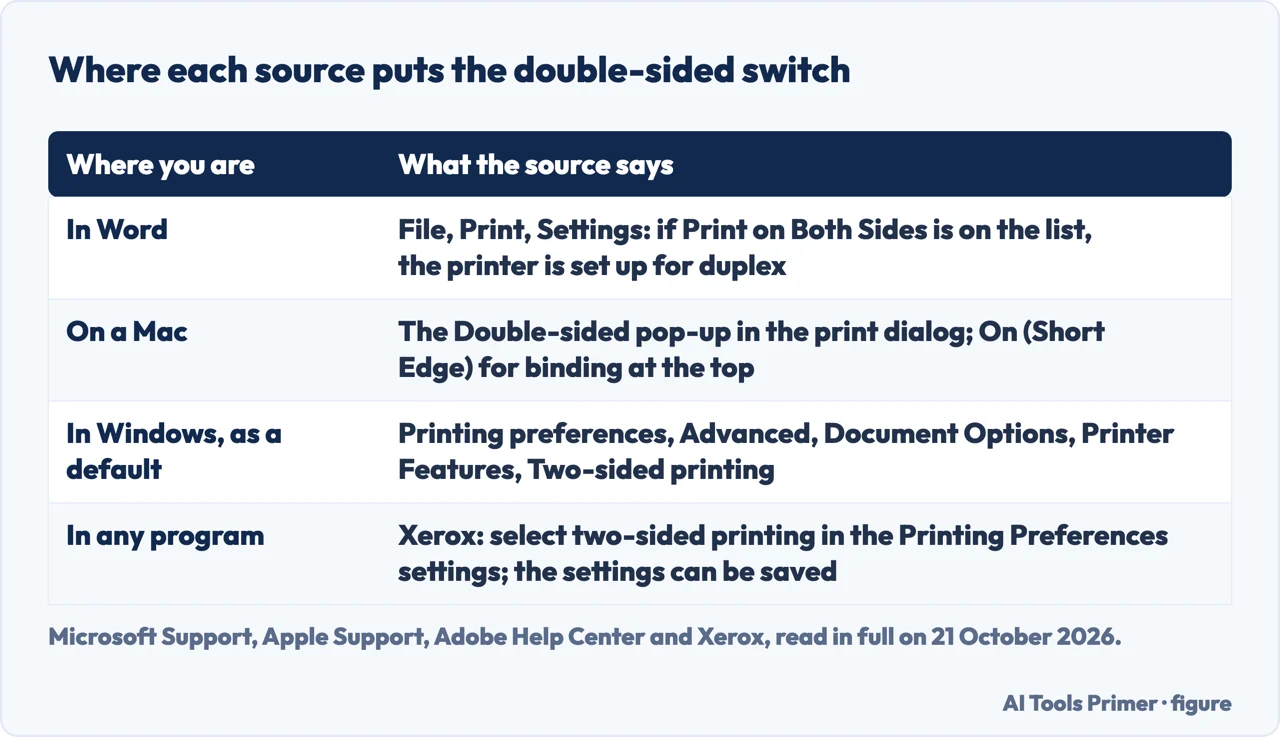
Where to start. The order below follows the sources: whether the printer can, where you switch it on, then the edge and the paper. If the printer is not set up at all, add a printer first; the dialog itself is covered in how to print on a Mac.
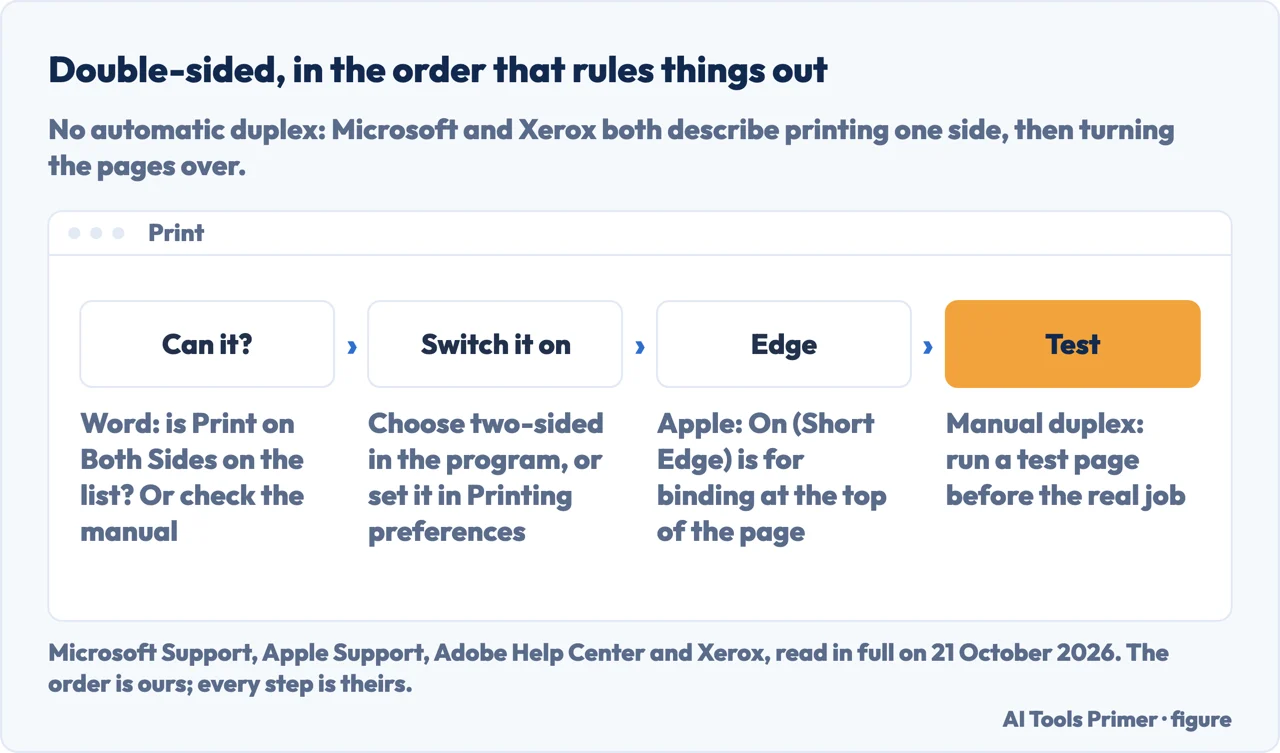
- Find out whether the printer can do it. Microsoft says most printers offer automatic duplex printing, and others give instructions for putting the pages back in by hand. Its test in Word: select File, then Print, and under Settings select Print One Sided. If Print on Both Sides is available, the printer is set up for duplex printing. Microsoft adds that a combination copier and printer which copies on two sides probably prints on two sides, and that with more than one printer installed, one may support it and another not.
- Choose it in the program you print from. Xerox says that to print double sided you need to select two-sided printing in the program you are printing from, in the settings menu of the Printing Preferences window. In Word that is the Print One Sided menu, where Print on Both Sides appears if the printer supports it.
- On a Mac, use the Double-sided option. Apple lists it in the print dialog: it prints on both sides of the paper, also called duplex or two-sided printing. Apple says the option appears only if your printer supports double-sided printing, and that On (Short Edge) is for a document bound at the top of the page.
- Make it the default, if you want it every time. Xerox says the settings can be saved, so you do not update your preferences each time you print. Adobe’s Windows route is Start, Settings, Bluetooth & devices, Printers & scanners; select your printer, then Printing preferences, then Advanced; expand Document Options, then Printer Features, and turn on Two-sided printing.
- No automatic duplex? Print by hand. Microsoft gives two routes in Word, described below: the manual duplex option, and printing the odd pages and then the even pages. Xerox says to check your printer’s user manual for its own instructions.
- Check the paper. Xerox says you cannot print double sided on certain kinds of paper, such as heavier stock, and tells you to check your printer’s paper specifications.
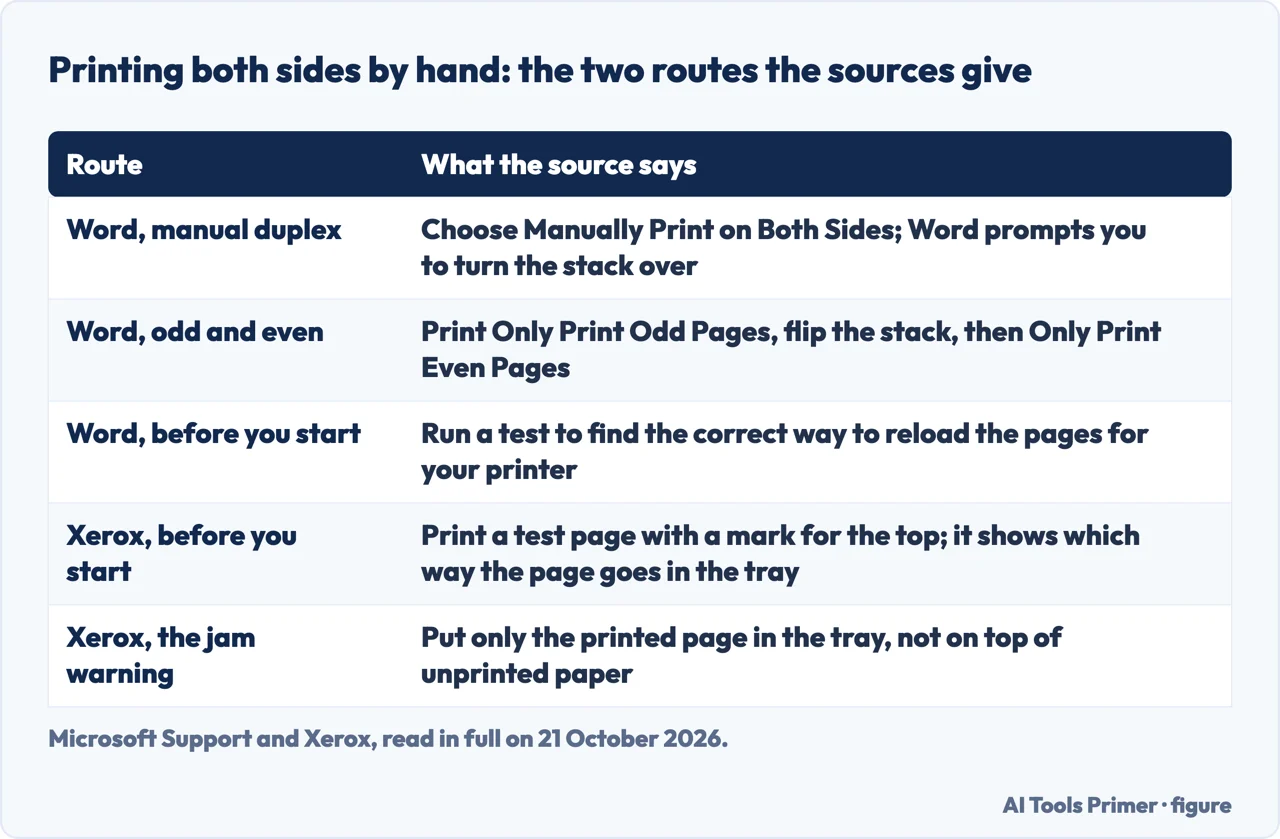
If the printer has no automatic duplex
Manual duplex in Word. Microsoft: select File, Print, and under Settings select Print One Sided, then Manually Print on Both Sides. When you print, Word prompts you to turn the stack over and feed the pages into the printer again.
Odd pages, then even pages. Under Settings, select Print All Pages and, near the bottom of the list, Only Print Odd Pages, then the Print button. When they are out, flip the stack over, choose Only Print Even Pages and print again. To keep the order right, Microsoft says to go to File, Options, Advanced, and under Print choose either Print on front of the sheet for duplex printing or Print on back of the sheet for duplex printing.
Test first. Microsoft says that with the manual option you might want to run a test to find the correct way to reload the pages for the printer you are using. Xerox gives the same advice in other words: print a test page with a mark for the top, which shows which way the printed page goes in the tray.
One page at a time. Xerox: print one page, then put it back in the paper tray to print the second page on the back. It is best to put only the printed page in the tray instead of putting it on top of unprinted paper, to prevent a paper jam. Whether that suits a long document is for your printer’s manual to say; neither source says.
Long edge or short edge
What the sources say. Apple offers On (Short Edge) for a document you will bind at the top of the page. Adobe’s Mac route for setting the printer’s default ends with choosing Long Edge from the Duplex menu, in the Finishing options of the printer’s settings page at http://localhost:631.
What we would do. Treat the choice as one about the binding. Pages that turn like a book are the ordinary case, and the Long Edge option is the one Adobe walks through. Pages bound along the top, like a pad, are Apple’s Short Edge case. That is our reading of the two pages; neither says it in those words. If the backs come out upside down, switch the edge setting and print a test page before the real job.
Setting the default on a Mac, and why it is not for everyone
What Adobe says. For macOS, Adobe’s page turns on the printer’s web interface with sudo cupsctl WebInterface=yes in Terminal, then opens http://localhost:631, goes to Printers, Manage printer, and under Administration chooses Set Default Options, Finishing, and Long Edge from the Duplex menu.
What to know first. The command asks for your system password and switches on a web interface, so it is a step for a printer you manage yourself. For one document, the Double-sided option in the print dialog does the job without it. The page is Adobe’s, last updated on 23 September 2025, and is written for printing from Acrobat; we have not tried the steps on a printer.
Why people do it
The reasons Xerox lists. Reduced paper waste, lower paper and ink costs, easier document management because there are fewer papers, and, in its words, environmental friendliness. Xerox adds that most of its printers and multifunction printers, including the 9-Series, VersaLink and AltaLink families, include automatic duplex printing as an option, and that many set duplex as the default.
What it does not tell you. How much you would save depends on your own printing; Xerox gives no figure, and we have none to give.
When it will not print at all. That is a different problem, with its own pages: printer not printing, and a test page is the quick way to see which way a sheet comes out.
Where to start
Four ways in.
- “Can my printer do it?”
- Microsoft’s check — the steps
- “It has no duplex.”
- Printing by hand — by hand
- “Which edge?”
- Long or short — edge
- “Make it the default.”
- On a Mac — mac default
Printers
Adding one, printing from a Mac, and what to do when it will not print.
Questions people also ask
How do I get my printer to print double-sided?
Choose two-sided printing in the program you print from, as Xerox puts it. In Word, open File, Print, and under Settings look for Print on Both Sides; Microsoft says that if it is there, your printer is set up for duplex printing.
How do I print double-sided without a duplex printer?
Microsoft gives two ways in Word: Manually Print on Both Sides, where Word prompts you to turn the stack over, or Only Print Odd Pages, then flip the stack and Only Print Even Pages. Run a test first, because the right way to reload differs by printer.
How do I print double-sided on a Mac?
Apple lists a Double-sided option in the print dialog. It appears only if your printer supports double-sided printing, and On (Short Edge) is for documents bound at the top of the page.
How do I make double-sided the default?
Xerox says the settings can be saved. On Windows, Adobe puts it under Printing preferences, Advanced, Document Options, Printer Features, Two-sided printing.
Not covered here. It does not cover printing from a phone, from a browser’s own print window, or from a driver other than the ones the sources describe.
Sources
- Microsoft Support — Print on both sides of the paper (duplex printing) in Word — support.microsoft.com, read 21 October 2026.
- Apple Support — Print settings on Mac — support.apple.com, read 21 October 2026.
- Adobe Help Center — Enable double-sided printing (last updated 23 September 2025) — helpx.adobe.com, read 21 October 2026.
- Xerox — How to Print Double Sided — www.xerox.com, read 21 October 2026.
Written by Alberto Gulotta
Founder and editor of AI Tools Primer, writing from Palermo, Italy. Thirty-five years of taking computers apart, starting with a Commodore 64 — the long version is on the about page.
Something wrong on this page? Write to aitoolsprimer@gmail.com and it gets fixed.
Written on 21 October 2026.
Independence and limits
No affiliate links and no paid placements anywhere on this site. Nobody pays to appear here, and no company has seen this page before you did.
This is general information, not professional advice. Where a page touches money, health, safety or the law, it names its source and the date it was read — and your situation may still differ. See the privacy page and the cookie policy.